


The login form on wp-login.php is the one part of that screen whose HTML you cannot touch. The logo, the background, the footer links, all of that is yours to replace. The form markup is rendered by core, and editing core is not an option.
So a custom login form for WordPress isn't one job. It's three, and they use three different tools. You can restyle the core form with CSS, rewrite the words in it with a filter, or skip wp-login.php entirely and put a real login form on a normal page of your site. Most people who search for this need the first one and end up reading about the third, which is how an afternoon disappears.
The three methods, and how to pick one
Pick by where the form has to live and what has to change about it.
| Method | What it changes | Use it when |
|---|---|---|
1. CSS on wp-login.php | Colours, spacing, borders, shadows, focus states | You want a branded login screen for clients and staff, fast |
2. The gettext filter | Label and button text: "Username or Email Address", "Log In" | The wording is wrong for your audience |
3. wp_login_form() | Where the form lives: a page in your theme, header and footer intact | Members should never see a page that looks like the WordPress admin |
Methods 1 and 2 stack. They're both operating on the same core form, one on its appearance and one on its strings, and you'll usually want both. Method 3 is a different page altogether, and it does not remove or replace the first two. Building it leaves the core login page exactly where it was.
If your goal is the whole login screen rather than just the form inside it, the full login page customization guide covers the logo, background and links as well. This post stays on the form.
Method 1: restyle the form with CSS
The form is standard HTML with stable, predictable classes. Four layers, styled separately, and worth keeping separate in your head because that's how you'll debug them.
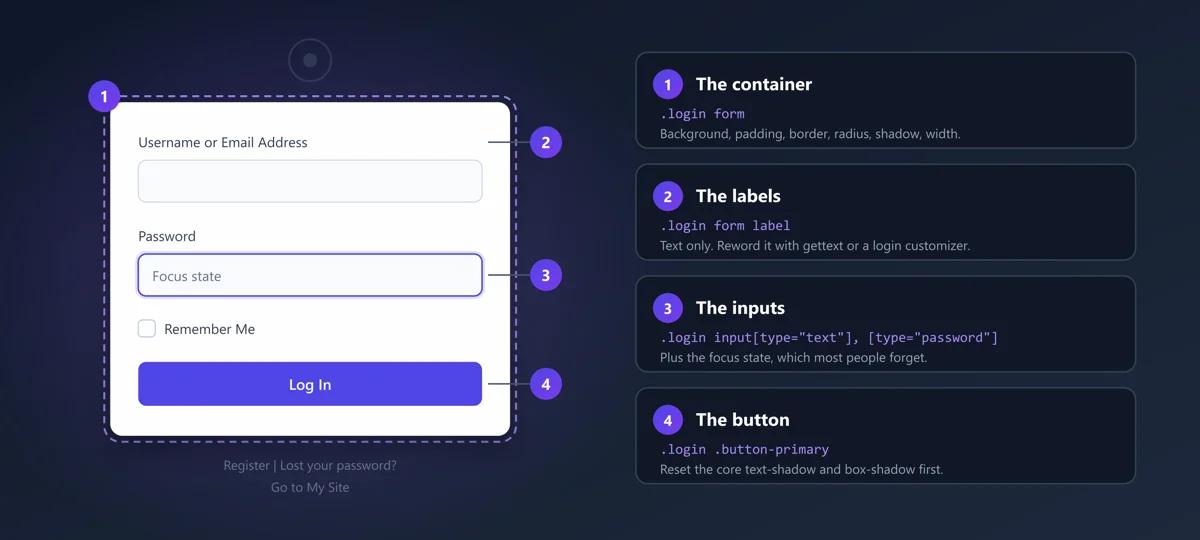
- The container,
.login form. Background, padding, border, radius, shadow, width. - The labels,
.login form label. "Username or Email Address", "Password", "Remember Me". - The inputs,
.login input[type="text"]and[type="password"]. Including the focus state, which most people forget and which is the difference between a form that feels finished and one that doesn't. - The button,
.login .button-primary. Carries the most visual weight of anything on the screen.
Enqueue the stylesheet on the login screen only
login_enqueue_scripts fires on wp-login.php and nowhere else, which is exactly what you want. Your login CSS never loads on the front end or in the admin:
add_action( 'login_enqueue_scripts', function () {
    wp_enqueue_style(
        'mytheme-login',
        get_stylesheet_directory_uri() . '/login.css',
        array(),
        '1.0.0'
    );
} );
Put that in a child theme's functions.php or, better for anything a client might switch themes on, an mu-plugin. A parent theme update will wipe it out of the parent's functions.php.
The CSS
.login form {
    background: #ffffff;
    border: none;
    border-radius: 12px;
    box-shadow: 0 16px 40px rgba(0, 0, 0, .25);
    padding: 32px 28px;
}

.login form label { color: #334155; font-size: 14px; font-weight: 500; }

.login input[type="text"],
.login input[type="password"] {
    background: #f8fafc;
    border: 1px solid #cbd5e1;
    border-radius: 8px;
    padding: 10px 12px;
    box-shadow: none;
}

.login input[type="text"]:focus,
.login input[type="password"]:focus {
    border-color: #4f46e5;
    box-shadow: 0 0 0 3px rgba(79, 70, 229, .18);
    outline: none;
}

.login .button-primary {
    background: #4f46e5;
    border-color: #4f46e5;
    text-shadow: none;
    box-shadow: none;
    border-radius: 8px;
    height: auto;
    padding: 10px 20px;
    font-weight: 600;
    width: 100%;
}
The text-shadow: none and box-shadow: none on the button aren't decoration. Core ships both, they're a holdover from an older admin design, and leaving them in place is what makes an otherwise clean custom button still look like 2013.
The wider version of this approach, background and logo and footer links included, is in customizing the WordPress login page without a plugin.
What CSS can't do
It can't reorder the fields, add a field, remove the Remember Me checkbox from the DOM, or change any of the text. Reordering and adding fields means method 3. Text means method 2.
Method 2: rewrite the form's text with the gettext filter
WordPress ships "Username or Email Address," which is accurate and clumsy. If your site only accepts an email address, that label asks the user to make a decision they shouldn't have to make.
Every visible string on the form goes through translation, so you intercept it with gettext and match on the original English:
add_filter( 'gettext', 'mytheme_login_labels', 20, 3 );
function mytheme_login_labels( $translated, $original, $domain ) {

    if ( 'default' !== $domain ) {
        return $translated;
    }

    switch ( $original ) {
        case 'Username or Email Address':
            return 'Email';
        case 'Password':
            return 'Your password';
        case 'Log In':
            return 'Sign in';
        case 'Lost your password?':
            return 'Forgotten your password?';
    }

    return $translated;
}
Two ways to get this wrong, and both of them are quiet.
Skip the $domain check and you'll rewrite those strings everywhere else on the site too, including in the admin, including inside plugins that happen to use the same phrases. Skip the return $translated in the default case and you'll blank out every string WordPress passes through the filter, which is thousands of them, and the site will look like it lost its language pack.
On cost: this filter runs on a great many strings per request. Four cases is nothing. If you find yourself writing forty, you've outgrown the filter and a login customizer will be less work and less fragile.
One thing changing the label does not do is change behaviour. Label the field "Email" and WordPress will still happily accept a username, because wp_authenticate() checks both. Restricting it to email only is a separate job.
Method 3: put a real login form on a front-end page
Now the other job entirely. A login form on a normal page, in your theme, with your header and footer, no admin styling anywhere near it.
The core function
WordPress has shipped wp_login_form() for years and it does more than people give it credit for. It renders a working, secure login form anywhere in a template:
<?php
if ( is_user_logged_in() ) {

    $user = wp_get_current_user();
    echo '<p>Signed in as ' . esc_html( $user->display_name ) . '.</p>';
    echo '<a href="' . esc_url( wp_logout_url( home_url() ) ) . '">Sign out</a>';

} else {

    wp_login_form( array(
        'redirect'       => home_url( '/dashboard/' ),
        'label_username' => 'Email',
        'label_password' => 'Password',
        'label_log_in'   => 'Sign in',
        'remember'       => true,
    ) );
}
?>
That's a complete front-end login. It generates its own nonce, posts to wp-login.php the way core expects, and hands off session handling to core. Note that label_username gets you the same result method 2 needed a filter for, because you're passing arguments to the function rather than intercepting its output.
You'll also notice you didn't write any authentication logic. Keep it that way. Hand-rolled login handling is one of the most reliable ways to put a real vulnerability into a WordPress site.
Turn it into a shortcode
So editors can drop it on any page without opening a template file:
add_shortcode( 'my_login_form', 'mytheme_login_form_shortcode' );
function mytheme_login_form_shortcode( $atts ) {

    if ( is_user_logged_in() ) {
        return '<p>You are already signed in.</p>';
    }

    $atts = shortcode_atts( array(
        'redirect' => home_url( '/dashboard/' ),
    ), $atts );

    return wp_login_form( array(
        'echo'           => false,
        'redirect'       => esc_url_raw( $atts['redirect'] ),
        'label_username' => 'Email',
        'label_log_in'   => 'Sign in',
    ) );
}
Do not leave out 'echo' => false. Shortcodes have to return their output rather than print it. Without it the form renders at the very top of the page, above the title, nowhere near where the shortcode sits, and you will spend twenty minutes blaming your theme.
Then [my_login_form] in any post or page, or [my_login_form redirect="https://example.com/account/"] to send that particular form somewhere else.
The redirect argument is where this gets useful
A single hardcoded redirect works when everyone who logs in wants the same destination. That's rarely true past a handful of users. Subscribers want the members area, editors want the posts list, shop managers want orders.
The redirect argument only takes one URL, so the moment you need it to depend on who's logging in you're either building the logic yourself on login_redirect or handing it to a tool that does role-based rules. The full breakdown of both routes is in redirecting users after login by role.
Styling the front-end form
Different selectors from method 1, because this is your theme's stylesheet, not the login screen's:
.login-form-wrapper { max-width: 380px; margin: 0 auto; }

#loginform p { margin-bottom: 16px; }

#loginform label {
    display: block;
    margin-bottom: 6px;
    font-weight: 500;
}

#loginform .input {
    width: 100%;
    padding: 10px 12px;
    border: 1px solid #cbd5e1;
    border-radius: 8px;
}

#loginform .button-primary {
    width: 100%;
    padding: 12px;
    border-radius: 8px;
    background: #4f46e5;
    color: #fff;
    border: none;
    font-weight: 600;
    cursor: pointer;
}

#loginform .login-remember { font-size: 14px; }
Then check whether anyone's using it
After you move members onto a front-end form, check that they're actually logging in through it. This is the step that gets skipped. If half of them are still bookmarking wp-login.php, your redirect logic and your nice new page are both doing less than you think. A last-login column in the Users list is the cheapest way to see the pattern, and adding a last login column to the WordPress users list walks through it.
Doing all three with a plugin
Every method above has a plugin equivalent, and for a client site the plugin route usually wins on maintenance rather than on capability. CSS you wrote by hand is CSS somebody has to understand in eight months.
For methods 1 and 2: a login customizer
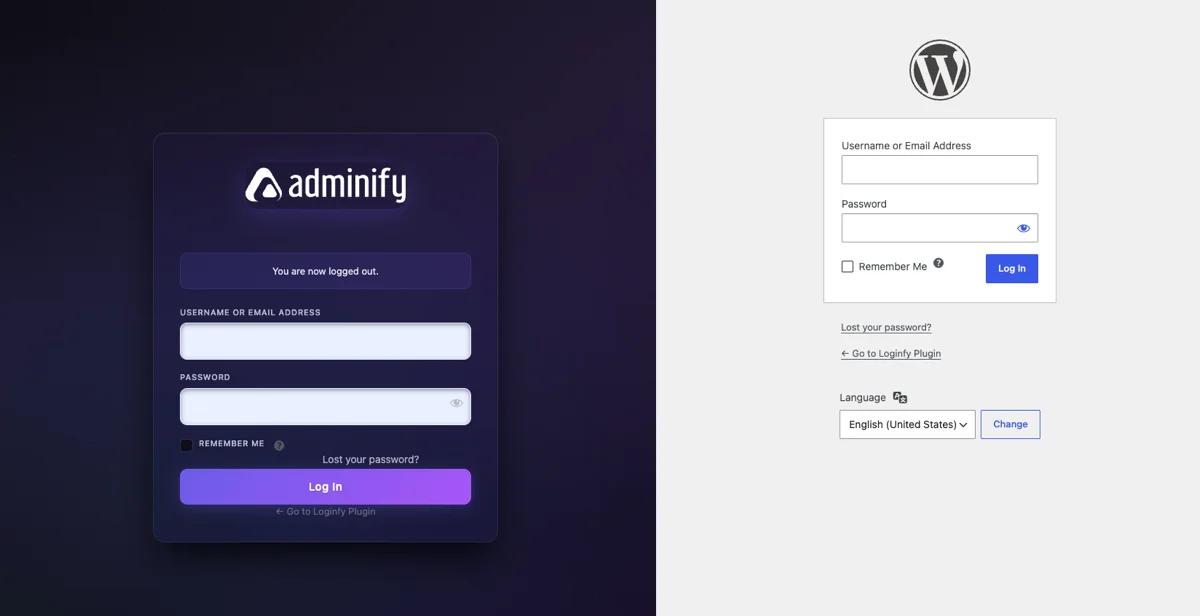
A login customizer exposes the same four layers as controls with a live preview. On Loginfy : the Login Form section handles the container, and the Form Fields section handles labels, placeholders and input styling.
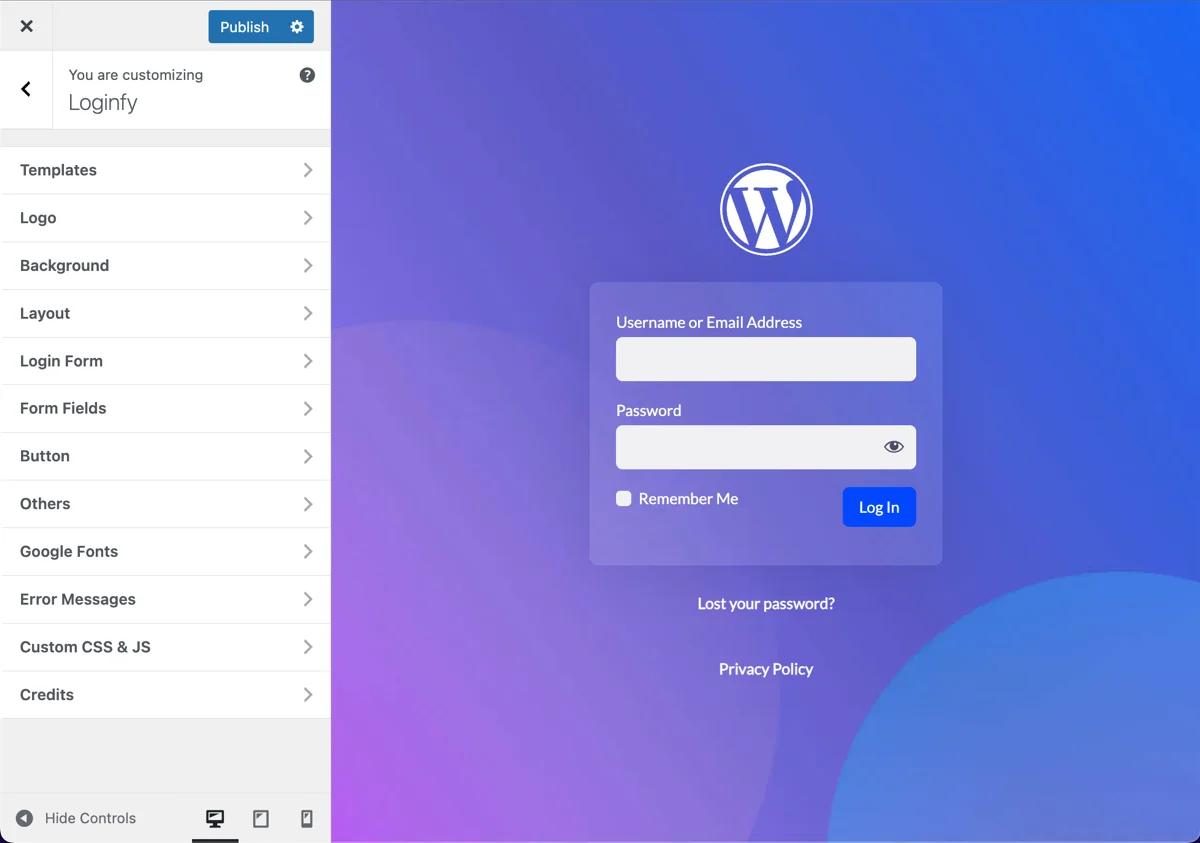
The Form Fields section is the one that replaces method 2. It has Label, Placeholder and Style tabs, and the Label tab has editable text for Username, Password, Remember Me, Log In, Register, Lost Password and Back to site. That's every visible string on the form, changed without touching gettext and without the risk of leaking your replacements into the rest of the site.
The free and pro line runs through the middle of the button controls. On Loginfy 1.0.5 the colours, hover state, text colour, size and padding are all free. Box shadow and blur are pro. If that matters to your design, plan for it before you start.
Setup steps are in the Loginfy login page documentation, and if you'd rather compare options first, the best WordPress login page plugins puts the main ones side by side.
For method 3: a front-end user plugin
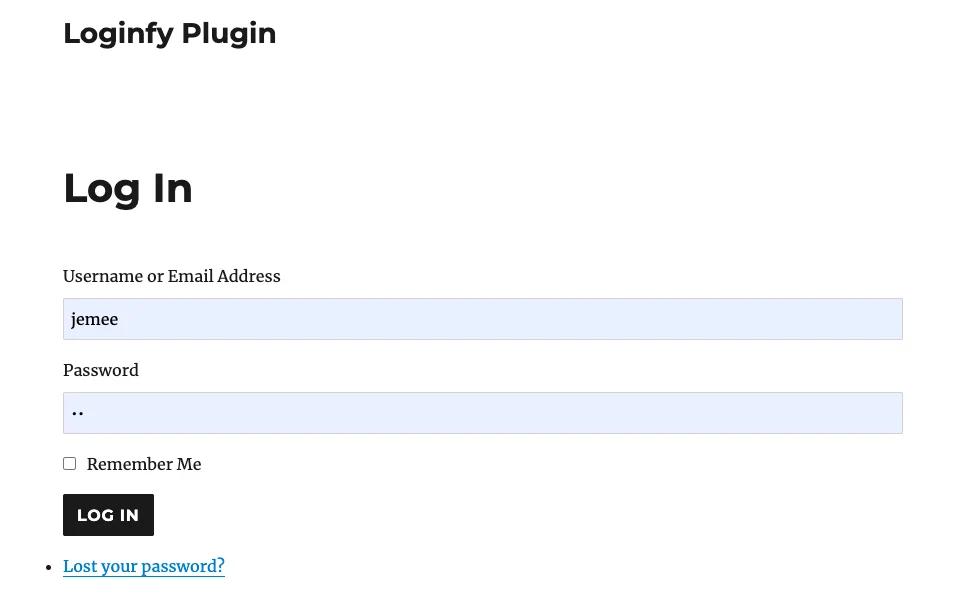
If you need registration, lost password and password reset in the theme as well, that's four templates to build. Theme My Login is the long-standing option, It renders login, registration, lost password and reset password inside your active theme.
The form inherits the theme completely, which is the part worth looking at in that screenshot. On a well-designed theme that's exactly what you want. On a default theme you get what you see there, which is plain. Theme My Login gives you placement and flow. Styling is still your job, using the CSS from the section above.
Worth being clear on the boundary between the two plugin types, because it's a common mix-up. A login customizer styles wp-login.php. Theme My Login doesn't style wp-login.php at all, it renders its own form inside your theme template. They solve different problems and they can both be installed.
The form is not the whole screen
If you're restyling wp-login.php, the form is one element on a page that has three others worth attention, and a form that looks great under the default WordPress logo still looks unfinished.
The logo sits directly above the form and is the first thing anyone notices. It's its own hook, its own CSS, and its own guide: changing the WordPress login logo. The background sits behind everything and does more for the perceived quality of the screen than the form styling does, covered in changing the WordPress login page background.
For agency work there's a further layer, which is removing the WordPress identity from the screen rather than just restyling it. The white label login page guide covers the approach, and white labelling the login page for your clients covers doing it per client on sites you hand over.
Security rules that apply to all three methods
Never write your own authentication. Use wp_login_form(), or wp_signon() if you genuinely have to handle the POST yourself. Both handle nonces, cookies and session state correctly, and correctly here means correctly against attacks you haven't thought of.
HTTPS is not optional. A login form served over HTTP transmits the password in plain text. If the site has no certificate, stop styling and fix that first.
Keep error messages generic. A form that says "that username does not exist" has just confirmed which accounts are real. One message for every failure:
add_filter( 'login_errors', function () {
    return 'The email or password you entered is not correct.';
} );
That filter closes one enumeration channel. It doesn't close the others, and the REST API is the one people miss: /wp-json/wp/v2/users will list author accounts to anyone who asks unless you've restricted it. The WordPress REST API leaks usernames has the detail and the fix, and it's the sort of thing that makes a generic login error pointless if you leave it alone.
A front-end form does not replace wp-login.php. This is the misreading that costs the most. The core login page still exists, still accepts logins, and anything on the internet can still post to it directly. Building method 3 and assuming the old door is gone is wrong, and bots find that door by URL, not by following your links. If you want wp-login.php unreachable, that takes a URL change: how to change your WordPress login URL.
Rate limiting and 2FA are separate. None of the three methods limits how many guesses an attacker gets, and none of them adds a second factor. Both are separate tools. Two factor authentication for the WordPress admin covers the second one, and the rest of the hardening list sits under the security features.
Common problems
The form submits and lands back on itself. Almost always the redirect argument pointing at a page that itself requires login, so WordPress bounces the user back to the form. Send them somewhere public first, or to admin_url().
"Cookies are blocked" on submit. A mismatch between your site URL and the URL the form was served from. Usually www versus non-www, sometimes a half-migrated HTTP and HTTPS setup. Make Settings > General match the address people actually type.
The gettext filter changed strings site-wide. The $domain check is missing, or the default case isn't returning $translated. Both are in method 2 above.
Your login CSS isn't applying to the front-end form. Expected. login.css loads through login_enqueue_scripts, which only fires on wp-login.php. The front-end form needs rules in your theme stylesheet, which is why methods 1 and 3 have separate CSS blocks in this post.
Something worse: you're locked out. A PHP error in functions.php takes down the login screen along with everything else, and you can't fix it from an admin you can't reach. Rename the theme folder over SFTP to force WordPress onto a default theme, then undo your edit. Other lockout causes, white screens and redirect loops included, are worked through in how to fix WordPress login page issues.
Frequently asked questions
Does WordPress have a built-in login form shortcode?
No. Core gives you the wp_login_form() function but no shortcode. The wrapper in method 3 above turns it into one in about ten lines, or a plugin such as Theme My Login supplies shortcodes for login, registration and password reset.
Can I add a login form to a widget or a block?
Yes. Register the shortcode from method 3 and use a Shortcode block, or call wp_login_form() directly in a block template. WordPress also ships a Login/out block, but be aware it renders a link rather than a full form, which is not the same thing.
How do I change "Username or Email Address" to just "Email"?
On wp-login.php, either use the gettext filter from method 2 or edit the label in a login customizer's Form Fields section. On a front-end form, pass 'label_username' => 'Email' to wp_login_form(). In all three cases the label changes and the behaviour doesn't: WordPress still accepts either a username or an email address unless a plugin restricts it.
Is a custom login form less secure than the default?
Not if you build it with wp_login_form() or a maintained plugin. Both use core authentication, core nonces and core cookie handling, so the security surface is identical to the default form. It becomes less secure the moment you write your own POST handler and password check.
Can I have both a styled wp-login.php and a front-end form?
Yes, and it's a sensible setup rather than a compromise. Staff and clients use the branded wp-login.php, members use the front-end form on a normal page. They share the same authentication, so one account works on both, and you can point each audience at the door that suits them.
Which method should I start with?
Method 1, unless you already know members must never see an admin-styled page. Restyling wp-login.php with CSS is the shortest distance between the default screen and something that looks deliberate, and it's the only one of the three that doesn't change how anyone logs in.
Next steps
Three methods, three different tools, and most sites need one of them rather than all three. Pick by where the form has to live.
If you were after a branded admin login, you're most of the way there. The full login page guide covers the rest of that screen. If you were after a members area, method 3 is the form and role-based login redirects are the part that makes it feel intentional.
Either way, whatever you built is still sitting at the URL every bot on the internet checks first. Moving it is worth doing before you call the job finished.
Your email address will not be published