

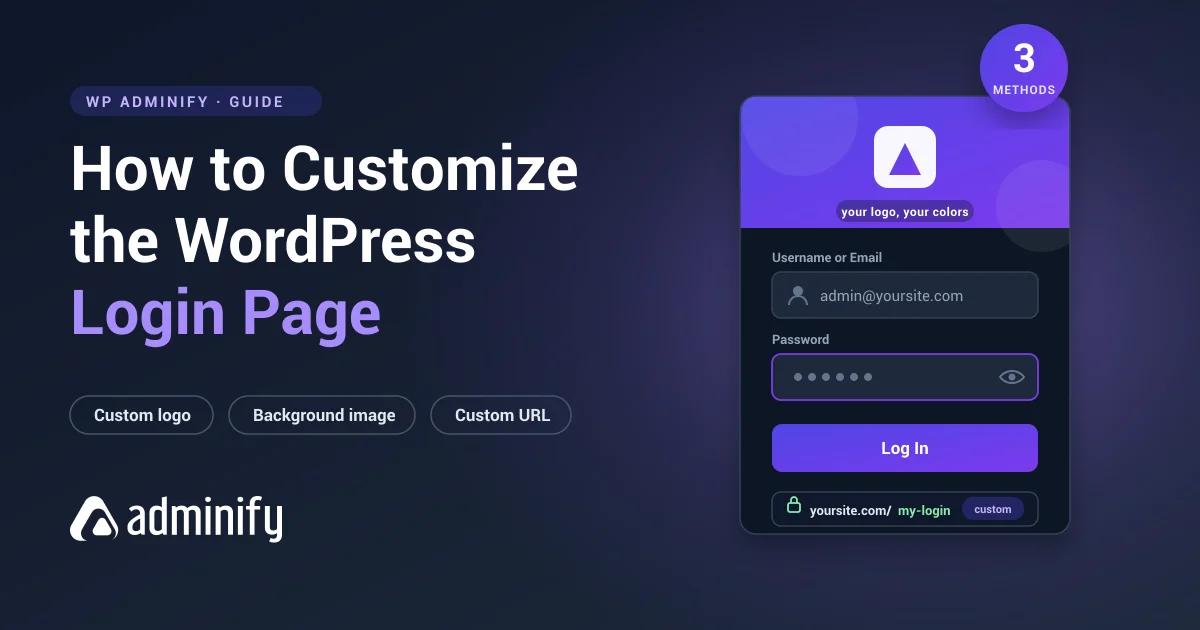

You can customize the WordPress login page three ways: with a login page plugin, with custom code in your theme's functions.php file, or with a full white-label tool that brands the login screen and the dashboard together. This guide walks through each method, so you can replace the default WordPress branding and match the login page to your site. (Updated August 2026)
What does it mean to customize the WordPress login page?
Customizing the WordPress login page means changing the design of the wp-login.php screen so it carries your branding instead of the stock WordPress logo. You can swap the logo, set a background image or colour, restyle the login form and button, edit the welcome and error messages, and even move the login URL. The goal is a login screen that looks like part of your site, not a generic default login.
Why customize the WordPress login page?
A branded login page builds trust and improves the user experience for everyone who signs in. The default WordPress login screen shows the WordPress logo and links back to wordpress.org, which looks unfinished on a professional site and confusing to clients. Customizing it lets you reinforce your brand, guide users with clear messaging, and, when paired with a URL change, add a layer of login security.
For agencies and freelancers, a custom login page is part of the deliverable. When a client opens their WordPress site and sees their own logo on the login screen, the whole build feels bespoke. That is why login customization sits alongside WordPress dashboard customization in most white-label workflows.
What can you customize on the WordPress login page?
Almost every visible element of the WordPress login screen can be changed. The most common customizations are:
- Logo: replace the WordPress logo with your own and change where it links.
- Background: set a brand colour, an image, or a gradient behind the login form.
- Login form: restyle field borders, labels, width, and the submit button.
- Colours and fonts: match the login page typography to your brand.
- Messages: edit the welcome text and the error messages users see.
- Login URL: move the login page away from the default path for security.
- Redirects: send users to a chosen page after they log in, often by role.
How do you customize the WordPress login page with a plugin?
The fastest way to customize the WordPress login page without code is a login page plugin. Install it, open its customizer, then change the logo, background, colours, and form with a live preview before you save. Popular choices include LoginPress, Custom Login Page Customizer by Colorlib, and WP Adminify's Loginfy module. Our roundup of the best WordPress login page plugins compares them in detail.
Loginfy, the login page builder inside WP Adminify, runs in the native WordPress Customizer and ships with 16 ready-made templates. You can change the logo, set a background colour, image, video, or slideshow, and adjust the form and buttons, all with a live preview and custom CSS and JavaScript for finer control. Because it is part of an admin toolkit, the same plugin also brands the dashboard behind the login screen, which keeps the whole experience consistent.
The plugin route suits most WordPress site owners because it needs no code and shows every change instantly. If you manage one site or fifty, a customizer-based plugin is the safest way to build a custom login page you can update later without touching files.
How do you customize the WordPress login page with code?
You can customize the WordPress login page without a plugin by adding a few hooks to your theme's functions.php file or a small site plugin. WordPress exposes dedicated login hooks for exactly this: login_enqueue_scripts to add CSS to the login screen head, and the login_headerurl and login_headertext filters to change where the logo links and its title text. This example replaces the logo and points it at your home page:
1
2// Replace the login logo and style the login screen
3function mysite_login_styles() {
4    ?>
5    <style>
6        #login h1 a {
7            background-image: url('/wp-content/uploads/my-logo.png');
8            background-size: contain;
9            width: 320px;
10            height: 80px;
11        }
12        body.login { background: #0b1f3a; }
13    </style>
14    <?php
15}
16add_action('login_enqueue_scripts', 'mysite_login_styles');
17
18// Point the logo link at your home page
19function mysite_login_url() { return home_url('/'); }
20add_filter('login_headerurl', 'mysite_login_url');
21
22// Change the logo link title text
23function mysite_login_text() { return get_bloginfo('name'); }
24add_filter('login_headertext', 'mysite_login_text');
25
The login_enqueue_scripts action fires in the head of wp-login.php, so any CSS you print there styles the login form, background, and logo. The WordPress developer reference for login_enqueue_scripts and the Customizing the Login Form guide document every available hook. Code gives you full control, but a plugin is easier to maintain, so pick code only when you want zero dependencies.
How do you change the WordPress login logo and background?
The logo and the background are the two changes that make the biggest visual difference. With a plugin you upload a logo and set a background in the customizer; with code you target #login h1 a and body.login as shown above. For step-by-step walkthroughs, see how to change the WordPress login logo and how to change the login page background, both of which cover the plugin and the code method.
How do you change the WordPress login URL for security?
Changing the login URL is a security task, not a design one, but it belongs in any serious login customization plan. Bots hammer the default /wp-login.php and /wp-admin paths with brute-force attempts, so moving the login page to a custom address hides it from automated attacks. Follow our guide to change the WordPress login page URL, and pair it with two-factor authentication for WordPress admin for a stronger login. If your login screen has stopped working after a change, our fixes for common WordPress login page issues will help.
Plugin vs code: which login customization method should you use?
| What you want to change | No-code plugin path | Code method |
|---|---|---|
| Login logo | Upload in the customizer | login_enqueue_scripts CSS on #login h1 a |
| Logo link and text | Set in plugin settings | login_headerurl and login_headertext filters |
| Background | Colour, image, or video in the customizer | CSS on body.login |
| Form and button style | Live-preview controls | Custom CSS on the form selectors |
| Login URL | Security plugin setting | Rewrite rules (advanced) |
| Redirect after login | Role-based redirect option | login_redirect filter |
For most people, the plugin path wins: it is faster, safer, and reversible. Choose code when you need a dependency-free setup or want a change a plugin does not offer.
How do agencies customize the login page for each client?
Agencies customize the WordPress login page per client so every site they hand over feels bespoke. A white-label tool sets a client logo, background, and colours on the login screen, then carries that branding into the dashboard, so nothing shows the plugin's name or the default WordPress branding. See our guide to a white-label login page for clients and the full WordPress login page white-label guide. You can also redirect users after login by role so each user lands on the right screen, and brand the wider admin with WP Adminify white label.
What makes a good custom login page?
A good custom login page does more than swap the logo. The best login pages load fast, read well on mobile, and keep the login form obvious so users are not hunting for the fields. Because login pages are the gateway to wp-admin, a broken one locks everyone out, so test any change on staging before it goes live. When you design login pages for several sites, a repeatable template keeps every custom WordPress login page on brand without rebuilding it from scratch.
A few mistakes show up again and again on custom login pages. Heavy background images slow the screen down, low-contrast text makes the form hard to read, and removing the "lost password" link traps users who forget their credentials. Keep the logo under 320 pixels wide, compress background images, and always leave a clear route back into the site. Login pages that respect those basics convert better and generate fewer support tickets.
Which login customization method is right for you?
Start from your goal. If you want a branded login page in minutes with no code, use a login customizer plugin such as Loginfy or one of the tools in our best login page plugins guide. If you want a dependency-free change, use the code hooks above. If you brand full client sites, choose a white-label tool that styles login and dashboard together. WP Adminify Pro bundles the Loginfy login builder with white label, menu editing, and dashboard themes in one license, which usually costs less than stacking single-purpose plugins. Compare tiers on the WP Adminify pricing page.
Frequently asked questions
How do I customize my WordPress login page?
You can customize the WordPress login page with a login page plugin, with code in your theme functions.php file, or with a white-label tool. The plugin route is fastest: install a customizer plugin, open its live preview, then change the logo, background, colours, and form and save. No coding is needed for a fully branded login screen.
Can I customize the WordPress login page without a plugin?
Yes. Add WordPress login hooks to your functions.php file: use login_enqueue_scripts to print CSS that styles the logo and background, and the login_headerurl and login_headertext filters to change the logo link and its text. This gives full control with no plugin, though a plugin is easier to update later without editing files.
How do I change the WordPress login logo?
To change the WordPress login logo, upload your logo in a login customizer plugin, or target the #login h1 a selector with CSS through the login_enqueue_scripts action and set your image as its background. Both methods replace the default WordPress logo, and you can also change where the logo links using the login_headerurl filter.
How do I change the WordPress login page URL?
Changing the login URL is a security step. A plugin such as WPS Hide Login moves your login page away from the default wp-login.php and wp-admin paths to a custom address, which blocks bots that target those known URLs. Pair the new URL with two-factor authentication and a branded login page for both looks and protection.
Is it safe to customize the WordPress login page?
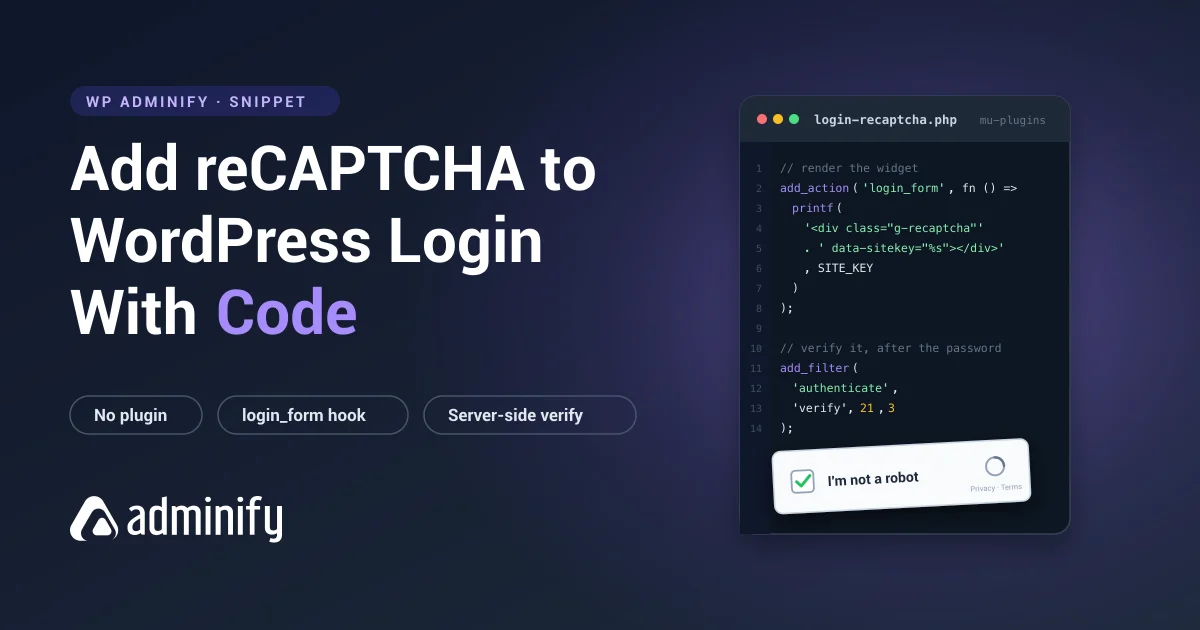
Yes, when you use a well-maintained plugin from wordpress.org or standard WordPress login hooks. Customizing the design does not weaken security on its own. For safety, run one login customizer at a time to avoid conflicts, keep it updated, and add a security layer such as a changed login URL or reCAPTCHA to cut brute-force attempts.
Can I brand the WordPress login page differently for each client?
Yes. White-label tools like WP Adminify let you set a client logo, background, and colours on the login screen and carry that branding into a full WordPress client dashboard. Each client site gets its own look without stacking extra plugins, which is what agencies and freelancers delivering finished sites usually need.
Your email address will not be published