


Every CAPTCHA plugin does the same four things: load Google's script on the login page, render a widget inside the form, post the resulting token, and check that token against Google before letting the login through. None of it is complicated. The version below runs to about a hundred lines, and a good half of that is guards and error handling.
This is the no-plugin version, written out in full. If you already keep a snippets file for the login screen, this drops straight into it, and customizing the WordPress login page without a plugin covers where that file should live. One thing to be clear about before you start: CAPTCHA filters bots, it does not stop someone who already has your password. Two-factor authentication is the measure that does, and it belongs above this one on any list.
How the pieces fit together
Two keys, two halves of the job.
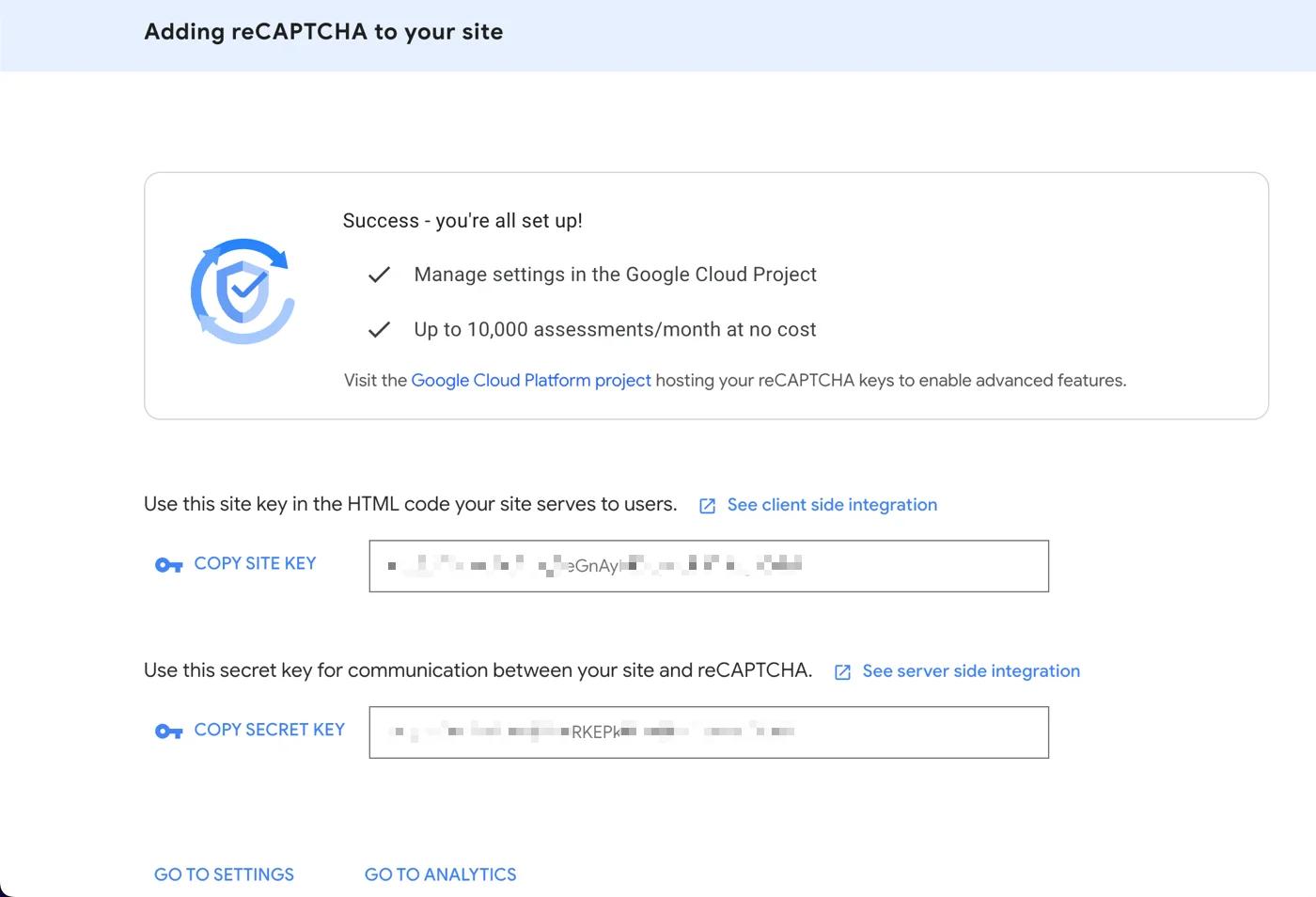
The site key is public. It goes into the page markup, the browser uses it to ask Google for a token, and anyone viewing source can read it. That is by design and it is not a leak.
The secret key never leaves your server. When the login form is submitted, your PHP posts the token and the secret key to Google's siteverify endpoint and gets back a yes or no. The browser is not involved in that call and cannot forge it.
Skip the second half and you have decoration. A widget that renders but is never verified server side blocks nobody, because an attacker posting directly to wp-login.php simply omits the field. It is the failure worth checking for first, because the page looks correct either way.
Pick a version before you generate keys
The keys are version-specific. Choosing v3 and then deciding you wanted v2 means going back to the console and registering again.
| Version | What the user sees | What your code has to do |
|---|---|---|
| v2 checkbox | An "I'm not a robot" tickbox, sometimes an image puzzle | Render a div, read one POST field, verify it |
| v2 invisible | Nothing, unless Google is suspicious | Bind the widget to the submit button with a callback |
| v3 | Nothing ever, apart from a corner badge | Execute on page load, store the token in a hidden field, then check a score you choose |
For a login page, v3 is usually the right call and v2 checkbox is the easiest to get working. The code below covers v2 checkbox first because it is the shortest complete example, then the v3 variant in full.
Step 1: generate the keys in the Google console
Open the reCAPTCHA admin console and register the site.
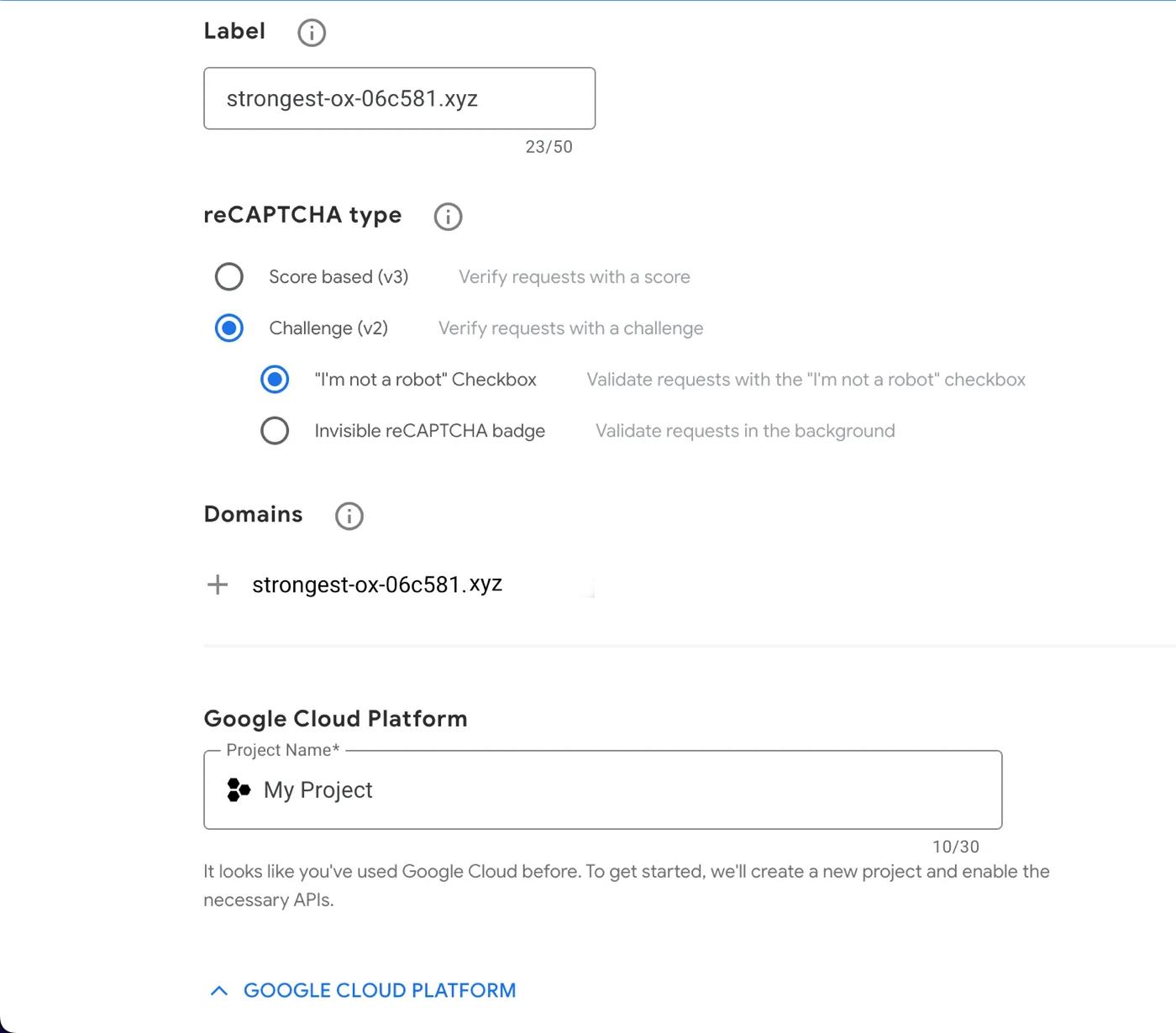
Four fields, and two of them cause most of the setup failures:
- Label. Something you will recognise in a year. "example.com login" beats "test 2".
- Type. Whichever version you settled on above. This is the field you cannot change later.
- Domains. The bare domain, no protocol and no path:
example.com. Addwww.example.comas a separate entry if the site answers on both, because Google matches the exact hostname. Addlocalhostonly while you are testing locally, then remove it. - Owners. Add a second person from the team. Keys tied to one personal Google account become a problem the day that person leaves.
Submit, and Google shows both keys.
Step 2: put the keys in wp-config.php
Not in your theme, not in a settings row, and not hardcoded halfway down a function you will forget about. Constants in wp-config.php keep the secret out of the database, out of exports, and out of any repository that ignores that file.
define( 'MYSITE_RECAPTCHA_SITE_KEY',   '6Lxxxxxxxxxxxxxxxxxxxxxxxxxxxxxxxxxxxxx' );
define( 'MYSITE_RECAPTCHA_SECRET_KEY', '6Lxxxxxxxxxxxxxxxxxxxxxxxxxxxxxxxxxxxxx' );
Put them above the line that reads /* That's all, stop editing! */. If the site is in version control and wp-config.php is committed, use environment variables instead and read them with getenv().
Step 3: render the widget on the login form
Two hooks. login_enqueue_scripts fires on wp-login.php and nowhere else, so Google's script never loads on your front end or in the admin. login_form prints inside the form, below the password field.
Everything from here goes in a must-use plugin at wp-content/mu-plugins/login-recaptcha.php. An mu-plugin survives theme switches and cannot be deactivated from the plugins screen by accident, which matters for a file that controls whether anyone can log in.
<?php
/**
 * Plugin Name: Login reCAPTCHA
 * Description: Google reCAPTCHA v2 on wp-login.php, verified server side.
 */

if ( ! defined( 'MYSITE_RECAPTCHA_SITE_KEY' ) || ! defined( 'MYSITE_RECAPTCHA_SECRET_KEY' ) ) {
    return;
}

/**
 * Load Google's script on the login screen only.
 */
add_action( 'login_enqueue_scripts', function () {
    wp_enqueue_script(
        'google-recaptcha',
        'https://www.google.com/recaptcha/api.js',
        array(),
        null,
        true
    );
} );

/**
 * Render the widget inside the login form.
 */
add_action( 'login_form', function () {
    printf(
        '<div class="g-recaptcha" data-sitekey="%s" style="margin-bottom:16px"></div>',
        esc_attr( MYSITE_RECAPTCHA_SITE_KEY )
    );
} );
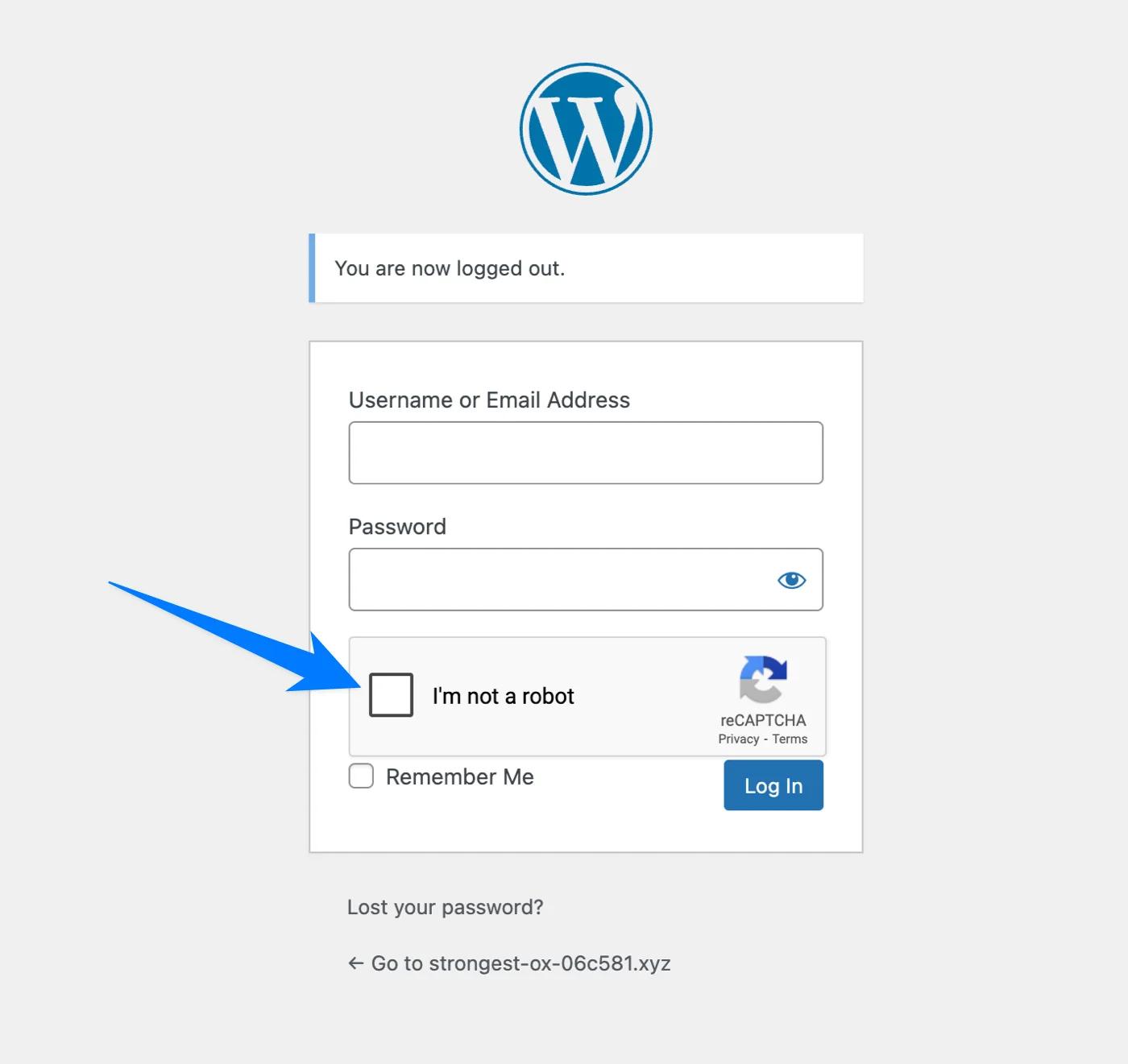
Load the login page now and the checkbox should be sitting between the password field and the Log In button. It does nothing yet. Anyone can still log in with it untouched, because nothing is checking.
Step 4: verify the token on the server
This is the half that matters. The authenticate filter is where WordPress decides whether a login succeeds, and it is the right place to reject a request that failed the CAPTCHA.
Priority matters here. WordPress runs wp_authenticate_username_password on authenticate at priority 20. Hooking at 21 means your check runs after the password has been evaluated, so you are not spending a Google API call on every empty page load.
add_filter( 'authenticate', 'mysite_recaptcha_check', 21, 3 );

function mysite_recaptcha_check( $user, $username, $password ) {

    // Only interfere with a real form submission on wp-login.php.
    if ( 'POST' !== ( $_SERVER['REQUEST_METHOD'] ?? '' ) || empty( $_POST['wp-submit'] ) ) {
        return $user;
    }

    // Let WP-CLI, XML-RPC and programmatic logins through untouched.
    if ( ( defined( 'WP_CLI' ) && WP_CLI ) || ( defined( 'XMLRPC_REQUEST' ) && XMLRPC_REQUEST ) ) {
        return $user;
    }

    $token = isset( $_POST['g-recaptcha-response'] )
        ? sanitize_text_field( wp_unslash( $_POST['g-recaptcha-response'] ) )
        : '';

    if ( '' === $token ) {
        return new WP_Error(
            'recaptcha_missing',
            '<strong>Error:</strong> Please complete the CAPTCHA and try again.'
        );
    }

    $result = mysite_recaptcha_siteverify( $token );

    if ( is_wp_error( $result ) ) {
        // Google unreachable. Decide your own policy, see the note below.
        return $user;
    }

    if ( empty( $result['success'] ) ) {
        return new WP_Error(
            'recaptcha_failed',
            '<strong>Error:</strong> CAPTCHA verification failed. Please try again.'
        );
    }

    return $user;
}

/**
 * Server to server call to Google. The secret key never reaches the browser.
 */
function mysite_recaptcha_siteverify( $token ) {

    $response = wp_remote_post(
        'https://www.google.com/recaptcha/api/siteverify',
        array(
            'timeout' => 10,
            'body'    => array(
                'secret'   => MYSITE_RECAPTCHA_SECRET_KEY,
                'response' => $token,
                'remoteip' => isset( $_SERVER['REMOTE_ADDR'] )
                    ? sanitize_text_field( wp_unslash( $_SERVER['REMOTE_ADDR'] ) )
                    : '',
            ),
        )
    );

    if ( is_wp_error( $response ) ) {
        return $response;
    }

    $body = json_decode( wp_remote_retrieve_body( $response ), true );

    return is_array( $body ) ? $body : new WP_Error( 'recaptcha_bad_response', 'Unreadable response' );
}
Read the is_wp_error branch again and decide what you want. As written, if Google is unreachable the login is allowed through. That is fail-open: a Google outage does not lock out your whole team. The alternative is to return a WP_Error there, which is fail-closed and more secure, and which also means an outage at Google is an outage at your login page. There is no universally correct answer. Pick one deliberately rather than inheriting it from a snippet.
Step 5: cover the other forms
login_form only fires on the login form itself. The lost password and registration forms have their own hooks, and leaving them open moves the bots rather than stopping them. The password reset form is the one worth protecting, because it accepts an email address and tells you things.
// Render the widget on the lost password and registration forms too.
add_action( 'lostpassword_form', 'mysite_recaptcha_widget' );
add_action( 'register_form', 'mysite_recaptcha_widget' );

function mysite_recaptcha_widget() {
    printf(
        '<div class="g-recaptcha" data-sitekey="%s" style="margin-bottom:16px"></div>',
        esc_attr( MYSITE_RECAPTCHA_SITE_KEY )
    );
}

// Verify on password reset requests.
add_filter( 'allow_password_reset', function ( $allow ) {

    if ( 'POST' !== ( $_SERVER['REQUEST_METHOD'] ?? '' ) ) {
        return $allow;
    }

    $token = isset( $_POST['g-recaptcha-response'] )
        ? sanitize_text_field( wp_unslash( $_POST['g-recaptcha-response'] ) )
        : '';

    if ( '' === $token ) {
        return new WP_Error( 'recaptcha_missing', 'Please complete the CAPTCHA.' );
    }

    $result = mysite_recaptcha_siteverify( $token );

    if ( ! is_wp_error( $result ) && empty( $result['success'] ) ) {
        return new WP_Error( 'recaptcha_failed', 'CAPTCHA verification failed.' );
    }

    return $allow;
} );

// Verify on registration.
add_filter( 'registration_errors', function ( $errors ) {

    $token = isset( $_POST['g-recaptcha-response'] )
        ? sanitize_text_field( wp_unslash( $_POST['g-recaptcha-response'] ) )
        : '';

    $result = '' === $token ? null : mysite_recaptcha_siteverify( $token );

    if ( '' === $token || ( ! is_wp_error( $result ) && empty( $result['success'] ) ) ) {
        $errors->add( 'recaptcha_failed', '<strong>Error:</strong> CAPTCHA verification failed.' );
    }

    return $errors;
} );
If your site also has a front-end login form built with wp_login_form(), it posts to wp-login.php and the authenticate filter covers it. The widget will not appear on it though, because login_form does not fire there. How to create a custom WordPress login form shows where to print it on that build.
The v3 version
v3 never shows a challenge. It scores the request from 0.0 to 1.0 and hands you the number, which means the code changes in three places: the script URL takes the site key, the token comes from a JavaScript call rather than a rendered widget, and you compare a score.
<?php
/**
 * Plugin Name: Login reCAPTCHA v3
 */

if ( ! defined( 'MYSITE_RECAPTCHA_SITE_KEY' ) || ! defined( 'MYSITE_RECAPTCHA_SECRET_KEY' ) ) {
    return;
}

define( 'MYSITE_RECAPTCHA_THRESHOLD', 0.5 );

add_action( 'login_enqueue_scripts', function () {

    wp_enqueue_script(
        'google-recaptcha',
        'https://www.google.com/recaptcha/api.js?render=' . rawurlencode( MYSITE_RECAPTCHA_SITE_KEY ),
        array(),
        null,
        true
    );

    $inline = sprintf(
        'grecaptcha.ready(function(){
            grecaptcha.execute("%s", {action: "login"}).then(function(token){
                var f = document.getElementById("loginform");
                if (!f) { return; }
                var i = document.createElement("input");
                i.type = "hidden"; i.name = "g-recaptcha-response"; i.value = token;
                f.appendChild(i);
            });
        });',
        esc_js( MYSITE_RECAPTCHA_SITE_KEY )
    );

    wp_add_inline_script( 'google-recaptcha', $inline );
} );

add_filter( 'authenticate', 'mysite_recaptcha_v3_check', 21, 3 );

function mysite_recaptcha_v3_check( $user, $username, $password ) {

    if ( 'POST' !== ( $_SERVER['REQUEST_METHOD'] ?? '' ) || empty( $_POST['wp-submit'] ) ) {
        return $user;
    }

    $token = isset( $_POST['g-recaptcha-response'] )
        ? sanitize_text_field( wp_unslash( $_POST['g-recaptcha-response'] ) )
        : '';

    if ( '' === $token ) {
        return new WP_Error( 'recaptcha_missing', 'CAPTCHA did not run. Please reload and try again.' );
    }

    $result = mysite_recaptcha_siteverify( $token );

    if ( is_wp_error( $result ) ) {
        return $user; // fail-open, see step 4
    }

    $score  = isset( $result['score'] ) ? (float) $result['score'] : 0.0;
    $action = isset( $result['action'] ) ? $result['action'] : '';

    if ( empty( $result['success'] ) || 'login' !== $action || $score < MYSITE_RECAPTCHA_THRESHOLD ) {
        return new WP_Error( 'recaptcha_low_score', 'We could not verify this request. Please try again.' );
    }

    return $user;
}
Two details in there are easy to miss and both are worth keeping. Checking the action name stops a token generated on some other page of your site being replayed against the login form. Casting the score with (float) matters because a missing score would otherwise compare as zero in a way that depends on how you wrote the condition.
Choosing a threshold
Google suggests 0.5 as a starting point. What the number means in practice:
- 0.3. Permissive. Blocks obvious automation and almost nothing else.
- 0.5. The default, and a sensible place to start.
- 0.7 and above. Aggressive. Real people on VPNs, privacy browsers and corporate networks start failing, and on a login page that means your own staff filing tickets.
Start at 0.5, log the scores for a week, then adjust based on what you actually see rather than what feels safe.
Reading the siteverify response
While you are tuning, log the whole response rather than guessing. Add this temporarily inside mysite_recaptcha_siteverify(), just before the return:
if ( defined( 'WP_DEBUG' ) && WP_DEBUG ) {
    error_log( 'reCAPTCHA: ' . wp_json_encode( $body ) );
}
A successful v3 response carries success, score, action, challenge_ts and hostname. A failure carries error-codes, and those codes are specific enough to fix the problem directly:
invalid-input-secret. The secret key is wrong, or you pasted the site key into the secret constant.invalid-input-response. The token is malformed, or already used. Tokens are single use.timeout-or-duplicate. The token expired. They last two minutes, which is why a user who leaves the login page open and comes back gets rejected.browser-error. Usually a script blocker on the client side.
Take the logging back out before this goes anywhere near production. If you want a permanent record of login activity, that belongs in an activity log rather than debug.log: monitoring user activity in WordPress covers the setup.
Step 6: preview the login page
Before you close the tab you are logged into, open a second browser or a private window and work through these in order. Keep the first session alive. If the filter has a mistake in it, that session is how you get back in without touching the database.
- Load the login page. On v2 the checkbox should render below the password field. On v3 you should see only the badge in the bottom corner and no extra field.
- Submit with correct credentials and the CAPTCHA completed. You should land in the dashboard as normal. If this fails, the problem is your verification branch, not the widget.
- Submit with correct credentials and the CAPTCHA untouched (v2 only). You should get the "Please complete the CAPTCHA" error and stay on the login page. If you get in, the
authenticatefilter is not firing and you have a widget that decorates rather than defends. - Submit with a wrong password. Confirm the failure message is still generic and does not reveal whether the username exists.
- Request a password reset. The widget should render on that form too, and the reset email should still arrive.
- Open the page on a phone on mobile data. reCAPTCHA loads external JavaScript, and a slow connection is exactly where a CAPTCHA turns into a locked door.
- View source and search for your secret key. It must not appear. If it does, you have put the wrong constant in the
data-sitekeyattribute and you should regenerate both keys immediately.
That last one takes seconds and is easy to skip, which is exactly why it is worth doing.
Troubleshooting
"ERROR for site owner: Invalid domain for site key." The hostname being served does not match the domain list in the console. Almost always a www mismatch or a staging subdomain. Add both entries in the console rather than switching keys.
The widget never appears. Usually a caching layer serving a cached copy of wp-login.php. Exclude that file from caching. Otherwise check the browser console: an ad blocker or script blocker stopping api.js produces exactly this symptom.
Everyone is locked out, including you. Rename wp-content/mu-plugins/login-recaptcha.php over SFTP or SSH. Must-use plugins load by filename, so renaming the file disables it instantly and the login page returns to normal. More recovery routes are in WordPress login page not working, and if the password itself is the problem, resetting a WordPress admin password covers the database and WP-CLI paths.
The score is always low for real users. Check that you are actually calling siteverify and not only rendering the widget. A v3 implementation whose token is never verified looks suspicious to Google and to nobody else.
Logins work but the CAPTCHA never blocks anything. Post directly to wp-login.php with curl and no token. If that succeeds, your filter is not running. Check the priority, and check that the mu-plugin is actually loading by adding a temporary error_log() at the top of the file.
What this does not stop
Worth stating plainly, because a working CAPTCHA feels like more protection than it is.
Credential stuffing through a headless browser. Puppeteer and Playwright drive a real browser engine and pass most implementations. If the password is correct, the login succeeds.
Solving services. Commercial services solve CAPTCHAs for fractions of a cent. Any attacker with a budget is unaffected.
Other endpoints. This code protects wp-login.php. It does nothing for xmlrpc.php, and nothing for the REST API, which also hands over your author usernames without authentication.
Scanner noise. Bots find the login page by URL, not by following links, and they keep hitting it whether a CAPTCHA is there or not. Reducing that traffic is a different job: changing your WordPress login page URL.
When a plugin is the better answer
This code is worth writing when you want no extra plugin, you already maintain a snippets file, and you understand what you are agreeing to maintain. It is not worth writing on a client site that someone else will inherit.
A maintained plugin handles the registration form, WooCommerce, the comment form and version changes for you, and it keeps working when Google changes something. If the site is not yours to maintain long term, install one and move on. The 8 best WordPress login plugins for 2026 covers which ones bundle CAPTCHA with login design, and how to customize the WordPress login page covers the styling side if the widget looks wrong against your design.
Frequently asked questions
Can I add reCAPTCHA to WordPress without a plugin?
Yes. Load Google's script with login_enqueue_scripts, print the widget with login_form, and verify the token against the siteverify endpoint on the authenticate filter. The complete implementation is above.
Where do I put the reCAPTCHA code in WordPress?
A must-use plugin at wp-content/mu-plugins/. It survives theme changes, cannot be deactivated from the plugins screen, and can be disabled instantly by renaming the file if something goes wrong. A child theme's functions.php works, but it disappears the day someone switches theme.
Why does my CAPTCHA render but never block anything?
Because rendering and verifying are separate jobs. If you only added the widget, an attacker posting straight to wp-login.php omits the field and nothing checks. The verification step on the authenticate filter is what does the work.
Is the reCAPTCHA site key safe to expose?
Yes. The site key is meant to sit in the page markup where anyone can read it. The secret key is the one that must stay on the server, which is why it lives in wp-config.php and only ever travels in a server to server request to Google.
Should reCAPTCHA fail open or fail closed?
Fail open means a Google outage lets logins through unverified. Fail closed means the outage locks everyone out. The code above fails open by default. Neither is universally right, so choose deliberately based on how bad a lockout would be for your team.
Does this work with a custom or front-end login form?
The authenticate filter covers anything that posts to wp-login.php, including wp_login_form() output. The widget will not render on a front-end form though, because login_form does not fire there, so you print it in your own template.
Next steps
CAPTCHA installed and verified is one item done, and it is not the biggest one. Two-factor authentication is: activating 2FA for WordPress admin. Rate limiting is the other, and neither is something this code does.
If the login page now looks like a default WordPress install with a Google widget bolted on, the styling half is in customizing the WordPress login page without a plugin, which uses the same mu-plugin pattern as this post.
Your email address will not be published