


Elementor can build you a beautiful login page. It can't build you the login page you're probably picturing.
That distinction is worth thirty seconds before you open the editor, because it decides whether the next hour is productive. Elementor is a front-end builder. It designs pages inside your theme. The WordPress login screen at wp-login.php isn't inside your theme and never has been, so Elementor can't reach it, no matter which widget you drag onto the canvas. What Elementor can do is build a login page of your own on the front end, in your design, with your header and footer, which is the approach covered in general terms in creating a WordPress login page for users. Restyling the admin screen instead is a different job with different tools.
Both are legitimate. Most sites that ask this question end up wanting both. Here's how to do the Elementor half properly, and what to bolt on afterwards.
What Elementor can and cannot reach
| What you want | Elementor | What to use instead |
|---|---|---|
| A login page in your theme, with your header and nav | Yes | None |
| A login form inside a popup | Yes, with the Popup builder | None |
| A members-only landing page after login | Yes | None |
Restyle wp-login.php | No | A login customizer, or login CSS |
| Change the login URL | No | A URL-changing plugin |
| Style the password reset screen | No | A login customizer |
| Brand the login for a client handover | Partly | Both, together |
The three "no" rows are all the same reason: those screens are served by wp-login.php, which loads before your theme and renders its own markup. Nothing in Elementor's stack runs there.
Method 1: the Elementor Pro Login widget
The Login widget ships with Elementor Pro, not with the free plugin. If you're on free, skip to method 2, which costs nothing and produces a form that works just as well, with less styling comfort.
Build the page
- Create a new page. Call it Sign In and give it the slug
/sign-in. - Choose a page template. Elementor Canvas gives you a blank slate with no theme header or footer, which suits a dedicated splash-style login. Elementor Full Width keeps your header and navigation, which suits a member area where people need to get back to the site. Pick deliberately; this is the single decision that changes how the page feels.
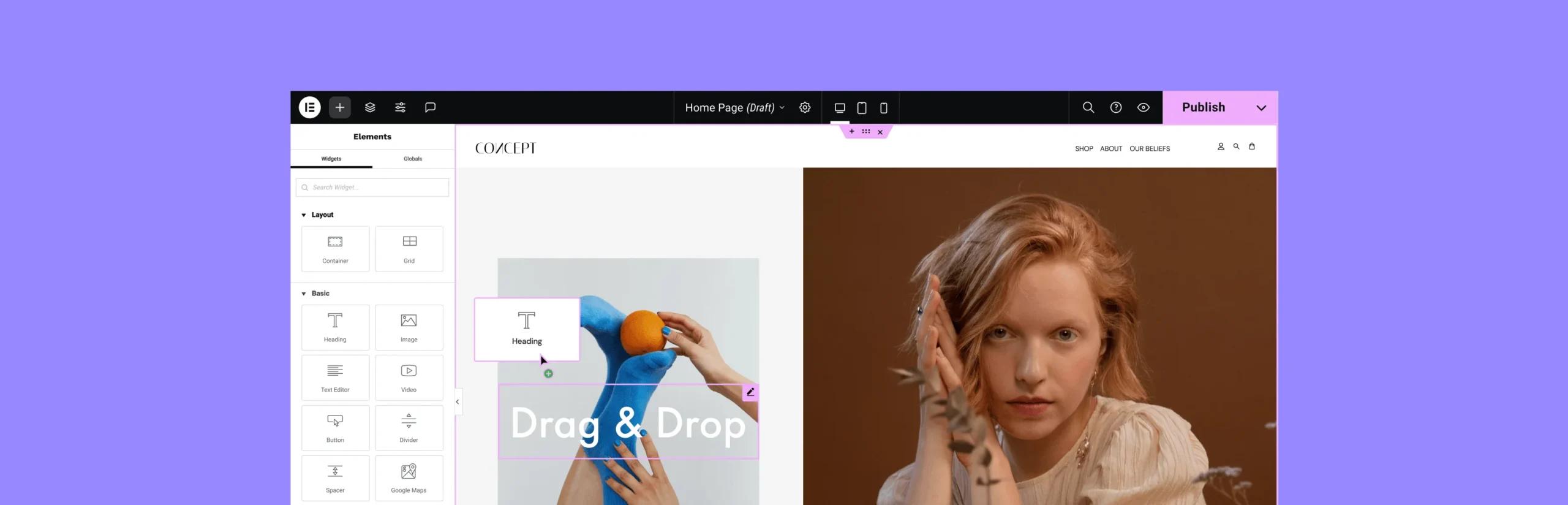
- Edit with Elementor, search the widget panel for Login, drag it in.
- Set the field labels to your own language. "Email" beats "Username or Email Address" on a site where nobody has a username.
- Decide whether to show the "Lost your password?" and "Register" links. Show the first one. Read the section below before you show the second.
- Set Redirect After Login to wherever members belong. Leaving it empty sends people to
/wp-admin, which is the wrong destination for every non-staff account. - Set Redirect After Logout too. The default drops people back on
wp-login.php, which undoes the whole exercise in one click.
One quirk that catches everyone: the widget renders as a placeholder in the editor when you're logged in, because you can't be shown a login form while authenticated. Preview the page in a private window to see what visitors see. Elementor also offers a preview toggle for the logged-out state, which is quicker for styling but not a substitute for the real thing.
Styling it
The Style tab covers form, fields, labels and button independently. Three things are worth more than the rest:
Field height and font size. Elementor's defaults are compact. On mobile, inputs below about 44 pixels tall are awkward to hit and inputs with a font size below 16 pixels make iOS zoom the page on focus, which is jarring on a login form. Set both explicitly.
Button width. A full-width submit button on mobile removes any ambiguity about what to tap. Set it per-breakpoint rather than globally.
Focus states. The Style tab gives you a focus colour for fields. Use it. A form where nothing visibly changes when you tab into a field is a form people fill in wrongly.
The same reasoning about hit areas, focus states and mobile behaviour applies to any login form, and the longer version is in creating a custom WordPress login form.
Method 2: no Elementor Pro required
WordPress has shipped a front-end login form function for years. Wrap it in a shortcode, drop the shortcode into Elementor's Shortcode widget, and you've the same page without the Pro licence.
add_shortcode( 'site_login', 'mysite_login_form' );
function mysite_login_form( $atts ) {

    if ( is_user_logged_in() ) {
        return '<p>You are signed in. <a href="' .
            esc_url( home_url( '/members/' ) ) .
            '">Go to your account</a>.</p>';
    }

    $atts = shortcode_atts( array(
        'redirect' => home_url( '/members/' ),
    ), $atts );

    return wp_login_form( array(
        'echo'           => false,
        'redirect'       => esc_url_raw( $atts['redirect'] ),
        'label_username' => 'Email',
        'label_log_in'   => 'Sign in',
        'remember'       => true,
    ) );
}
Add a Shortcode widget to your Elementor page, put [site_login] in it, and the form renders inside your layout. Style it with a few rules in Elementor's custom CSS box, or in your child theme:
.login-username input,
.login-password input {
    width: 100%;
    padding: .85rem 1rem;
    font-size: 16px;          /* stops iOS zooming on focus */
    border: 1px solid #d7d7d7;
    border-radius: 8px;
}

.login-submit input {
    width: 100%;
    min-height: 48px;
    border-radius: 8px;
}
The is_user_logged_in() guard is the part worth keeping. Without it, a member who is already signed in lands on a page showing a login form and reasonably concludes they aren't.
This route has a real advantage beyond price: it's markup you control, so nothing changes underneath you when a plugin updates. The trade is that you're writing CSS rather than clicking a Style tab.
The four flows the widget does not own
This is where most Elementor login tutorials stop, and it's where most Elementor login pages break.
Your page has a form on it. Four other requests still route through wp-login.php, and each one has to keep working.
- The authenticating POST. The form posts to
wp-login.php. That's normal and correct. It just means any redirect you add later must let POSTs through. - Logout.
wp-login.php?action=logout, with a nonce. If you redirect it, people can't sign out. - Lost password. The "Lost your password?" link goes to
wp-login.php?action=lostpassword, which is a stock WordPress screen. Your beautifully styled sign-in page hands off to an unstyled grey box the moment somebody forgets their password. - The reset link in the email. Also
wp-login.php, withaction=rpand a key. Redirect this and password recovery is dead for every user on the site.
Two of those are cosmetic and two are functional. Deal with the functional ones first.
If you redirect wp-login.php, exclude everything
Sending wp-login.php traffic to your Elementor page is reasonable, as long as the exclusions are right:
add_action( 'init', 'mysite_redirect_login_page' );
function mysite_redirect_login_page() {

    if ( ! isset( $_SERVER['REQUEST_URI'], $_SERVER['REQUEST_METHOD'] ) ) {
        return;
    }

    if ( false === strpos( $_SERVER['REQUEST_URI'], 'wp-login.php' ) ) {
        return;
    }

    if ( 'POST' === $_SERVER['REQUEST_METHOD'] ) {
        return;
    }

    $action = isset( $_GET['action'] ) ? sanitize_key( $_GET['action'] ) : '';
    if ( in_array( $action, array( 'logout', 'rp', 'resetpass', 'lostpassword', 'register' ), true ) ) {
        return;
    }

    wp_safe_redirect( home_url( '/sign-in/' ) );
    exit;
}
Test all four flows afterwards, in a private window, with a real non-administrator account. Password reset is the one that fails silently: nobody reports it until a customer can't get in, and by then it has been broken for a fortnight.
The two cosmetic ones need a different tool
The lost-password and reset screens are wp-login.php output. Elementor can't style them. A login customizer can, because that's exactly what login customizers do, and it's the cheapest way to stop the handoff from looking broken. More on that in the next section.
Where people land after login
Elementor's Login widget takes one redirect URL for everybody. That's fine for a site with one kind of member and wrong for a site with several.
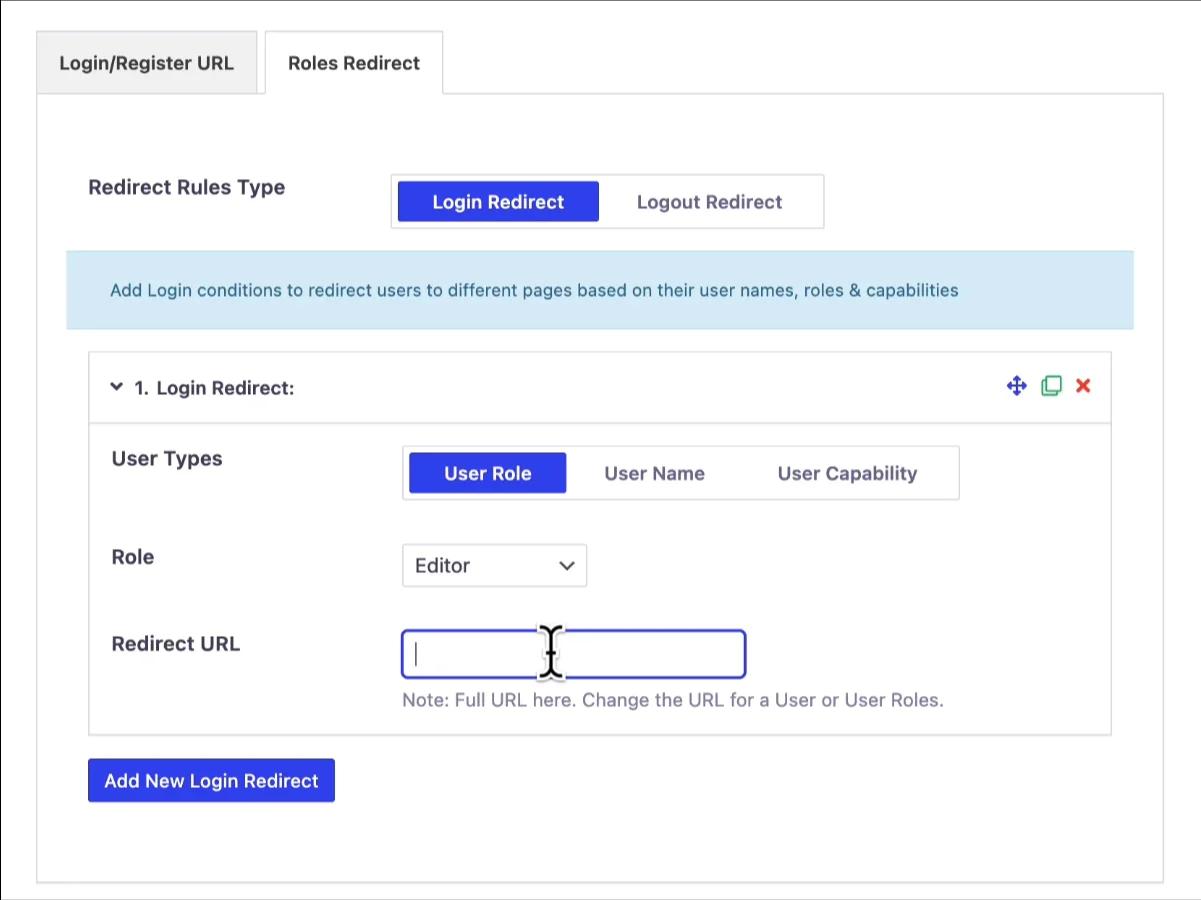
For role-based destinations, use the core filter:
add_filter( 'login_redirect', 'mysite_role_redirect', 10, 3 );
function mysite_role_redirect( $redirect_to, $requested, $user ) {

    if ( ! ( $user instanceof WP_User ) || empty( $user->roles ) ) {
        return $redirect_to;
    }

    if ( in_array( 'administrator', (array) $user->roles, true ) ) {
        return admin_url();
    }

    if ( in_array( 'editor', (array) $user->roles, true ) ) {
        return admin_url( 'edit.php' );
    }

    return home_url( '/members/' );
}
The settings-screen version of the same thing, plus the logout side, is in redirecting users after login by role. And if the destination itself is what you're building, a WordPress client dashboard covers what belongs on it.
While you're here, hide the admin toolbar from the roles that shouldn't see it. A member who logs in through a carefully designed Elementor page and then gets a black WordPress bar across the top of every page has been shown exactly how the trick works. Hiding the admin bar by user role takes a minute.
Elementor cannot touch wp-login.php
Your Elementor page exists. So does the old one, and everyone who has ever bookmarked /wp-admin still lands there.
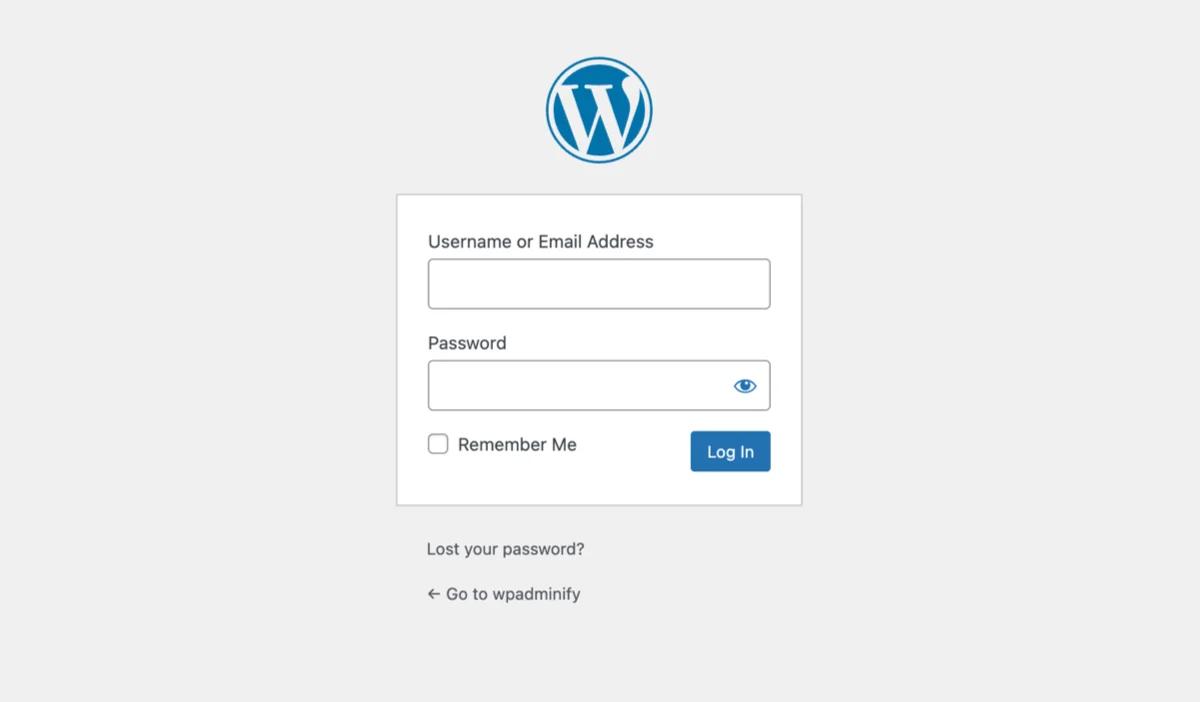
On a client site this matters more than the front-end page does, because the client is the one who logs in every week. Two routes.
Code. Enqueue a stylesheet on the login_enqueue_scripts hook and restyle the screen. Step by step in customizing the WordPress login page without a plugin.
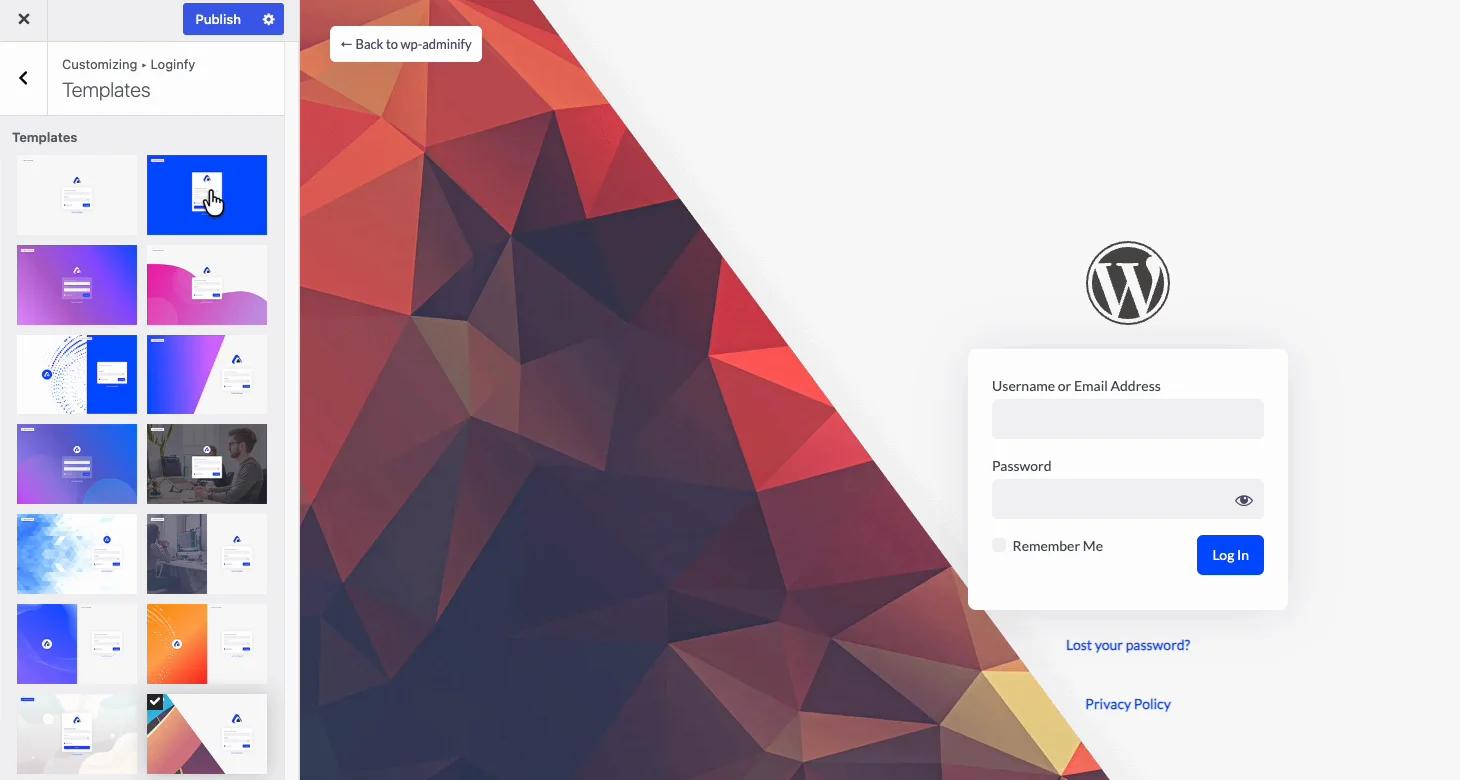
A login customizer. A live-preview panel for the same job, which also covers the lost-password and reset screens Elementor leaves grey. Loginfy is ours: templates, logo, backgrounds with gradients and overlays, form and field styling, custom error messages and a credit toggle, previewed live in the Customizer. The free build handles logo, background, layout and form styling; templates, video and slideshow backgrounds and Google Fonts are paid, from $49 a year for five sites. The wider field is compared in the best WordPress login page plugins.
If your store runs WooCommerce, there's a third login screen as well, and customizing the WooCommerce login page covers how the account form and the checkout form fit alongside these two.
Should you let people register from this page?
The Login widget can show a Register link, and Elementor Pro's form widget can be wired into user registration. Before you switch it on, check three things.
Is registration actually enabled? Settings > General > Membership has to allow it. A Register link on a site where registration is off produces an error page, which is a bad first impression.
Have you got spam protection? Open registration without a check attracts bots within days. A CAPTCHA on the registration form isn't optional in 2026.
What role do new accounts get? Settings > General > New User Default Role. It should be Subscriber or a custom role you've defined. Anything with editing capability is a security incident waiting for a slow week.
The full build, including what to do after signup, is in building a WordPress login and registration page.
Security notes
- A front-end form is exactly as brute-forceable as
wp-login.php. It posts to the same handler. Rate limiting protects both or neither. - Your redirect is not a wall. Direct POSTs to
wp-login.phpstill authenticate. To actually close that door you need a changed login URL. - Keep failure messages generic. A pretty form that says "there's no account with that email" is a user-enumeration leak on a page that's easier to find than the admin login.
- Two-factor for staff accounts. Moving members to an Elementor page does nothing for the administrator account that can install plugins. Two-factor authentication for WordPress admin.
Before you call it done
Make a real subscriber account and test in a private window. Not an administrator, not a role switcher.
- Log in from the Elementor page. Do you land where you intended?
- Log out. Where do you end up, and can you get back in?
- Click "Lost your password?" and see what the visitor sees.
- Complete a reset from the email link.
- Type
/wp-admin. Are you redirected? - Is the admin toolbar gone?
- Repeat all of it on a phone.
If a redirect loop appears while you're testing, fixing WordPress login page issues covers the usual causes, and the login URL post covers getting back in when you've locked yourself out.
Frequently asked questions
Can Elementor customize the WordPress login page?
No, not the one at wp-login.php. Elementor builds front-end pages inside your theme, and the WordPress login screen loads outside the theme entirely. Elementor can build a separate login page of your own design on the front end, and you can redirect wp-login.php to it, but styling the admin login screen itself needs a login customizer plugin or login CSS.
Do I need Elementor Pro for a login page?
Only for the Login widget. On the free plugin you can wrap the core wp_login_form() function in a shortcode and place it with Elementor's Shortcode widget, which produces a working login form on any Elementor page. You style it with CSS instead of a Style tab.
Why does the Elementor Login widget show a placeholder in the editor?
Because you're logged in while editing, and WordPress can't render a login form for an authenticated user. Preview the page in a private browser window to see it as visitors do. Elementor also provides a preview toggle for the logged-out state, which is faster for styling but not a substitute for testing the real page.
Where does the "Lost your password?" link go?
To wp-login.php?action=lostpassword, which is a stock WordPress screen that Elementor can't style. That's why sites with an Elementor login page usually add a login customizer as well: it covers the lost-password and reset screens so the flow doesn't jump from a branded page to a grey box.
How do I send different roles to different pages after login?
The Login widget takes a single redirect URL for everyone. For per-role destinations, use the core login_redirect filter, or a plugin with role-based redirect settings. Set a logout destination as well, or WordPress returns people to wp-login.php.
Is redirecting wp-login.php to my Elementor page a security measure?
No. It's a convenience for people following links. Direct POST requests to wp-login.php still authenticate, so bots are unaffected. If the goal is to stop automated login attempts, you need rate limiting and, optionally, a changed login URL.
Next steps
If the admin login is the half that still looks unfinished, the WordPress login page white-label guide is the reference behind it.
If you're building a member area rather than just a door into one goes deeper on routing and access, and the client dashboard guide covers where to send people once they're in.
Your email address will not be published