


There is a difference between a login page you have branded and a login page your users never leave your site to reach.
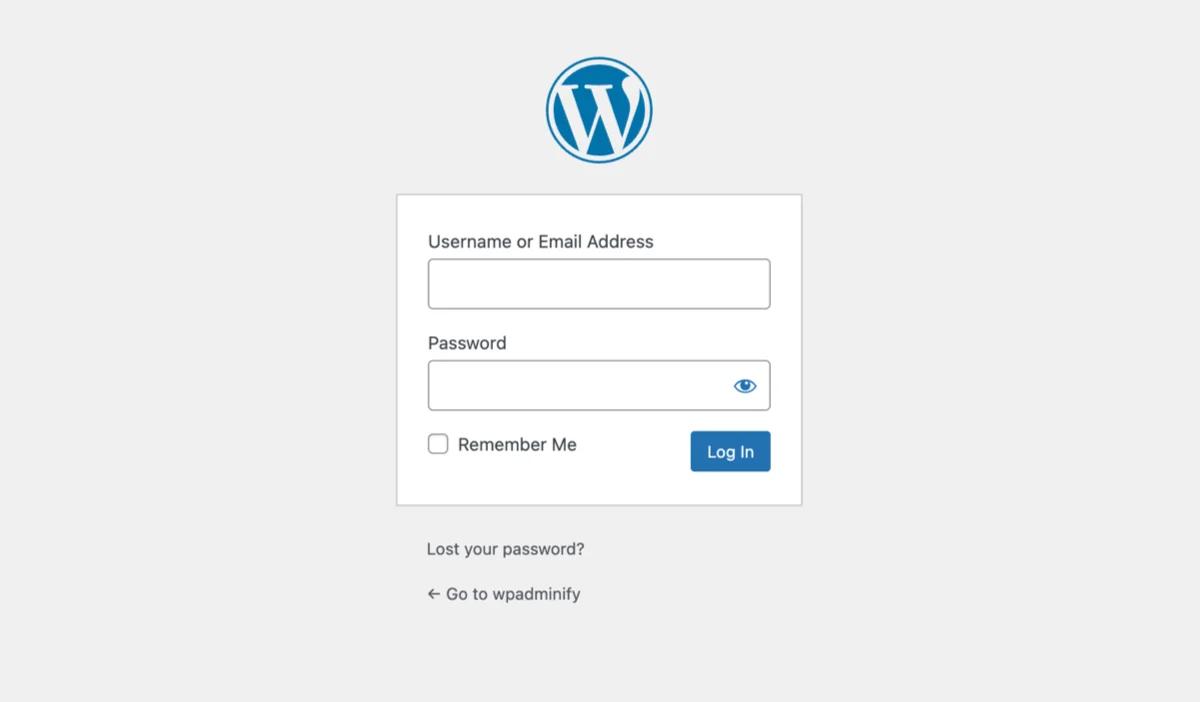
A branded wp-login.php still looks like software. It has no header, no navigation, no footer, and after a successful login it drops the user into the WordPress admin, which is the last place a member of a course or a community should end up.
This is about the other approach: a login form on a normal page of your site, in your theme, that sends people somewhere sensible afterwards. It is a different build from restyling the admin screen, which is how to customize the WordPress login page, and it leans on the front-end form function covered in how to create a custom WordPress login form. If you only need the admin login to look like your brand, the first of those is a tenth of the work and you can stop reading here.
Do you actually need this?
Worth filtering first, because a front-end login page is more moving parts than a branded wp-login.php and plenty of sites do not need it.
| Situation | What to build |
|---|---|
| Staff, clients and contributors log in | Brand wp-login.php. Done. |
| Members log in to read gated content | Front-end login page |
| Students log in to a course | Front-end login page |
| Customers log into a WooCommerce account | WooCommerce already gives you one at /my-account/ |
| You want people to register themselves too | Front-end login and registration |
| You just want it to look nicer | Brand wp-login.php |
If the answer is the branded admin login, stop here and read how to create a custom WordPress login page instead. And if what you actually want is a place for members to land once they are in, rather than a nicer door, that is a WordPress client dashboard question, not a login page one.
The four pieces
Every front-end login setup, whatever tool you use, is these four things:
- A page with a login form on it
- A redirect so
wp-login.phpsends people to that page - A destination after successful login that is not the WordPress dashboard
- Admin bar and
wp-adminaccess hidden from the roles that should not see them
Skip the fourth and your members get a black WordPress toolbar across the top of every page, which undoes the illusion instantly.
Method 1: Theme My Login
60,000 installs · 74/100 from 460 ratings · v7.1.15 · updated 13 August 2026 · tested to WordPress 7.0.4
The long-standing free option. It replaces the WordPress login, registration, lost password and reset password screens with pages rendered inside your theme.
We installed it on a clean WordPress 7.0.4 site to see exactly what it produces.
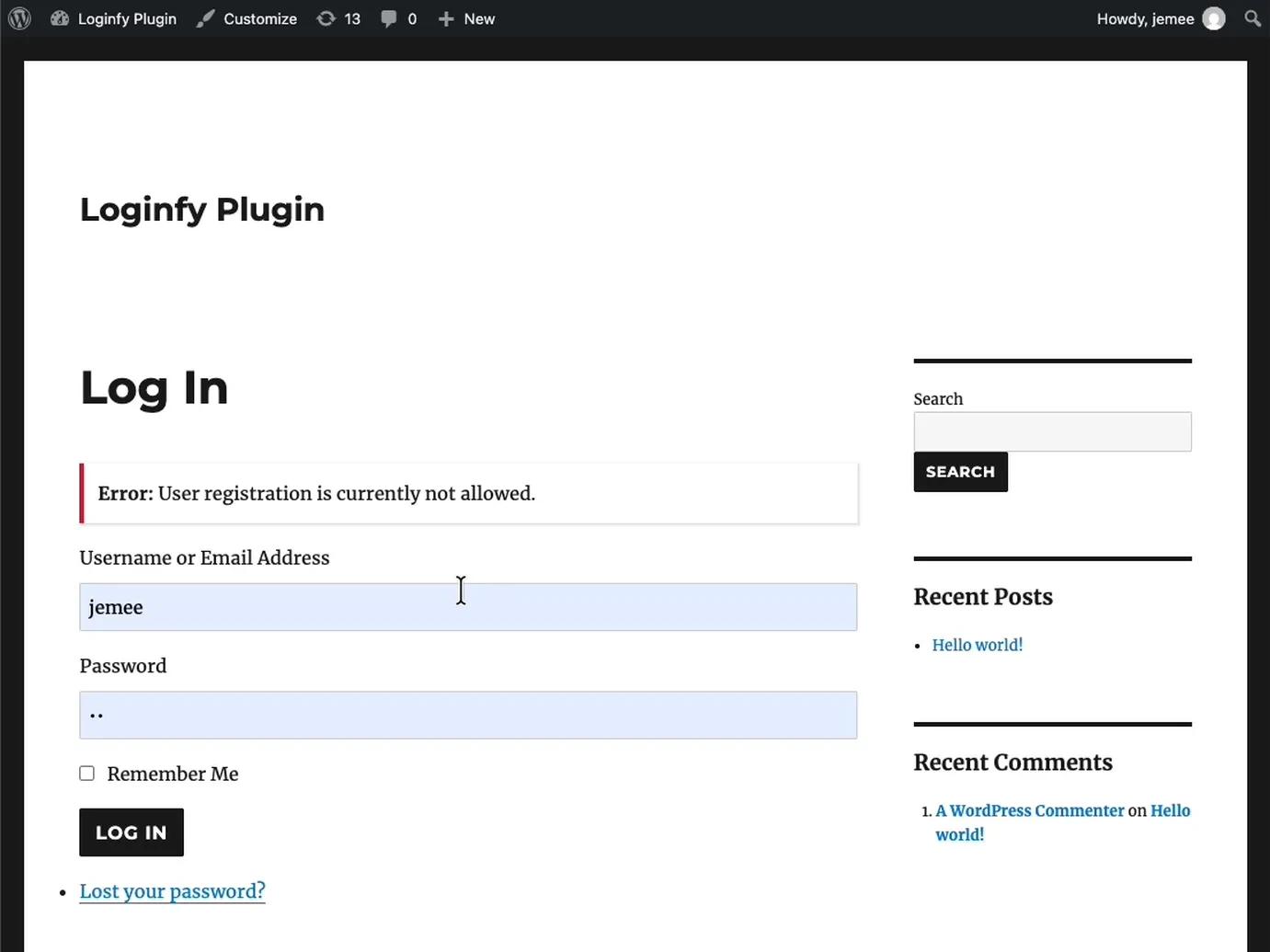
That screenshot is the point. Theme My Login handles the flow: it puts the form on a real page inside your template and wires the actions correctly. It does not style anything. On a well-designed theme that is exactly what you want. On a default theme you get what you see there, which is a plain form with a sidebar next to it.
Theme My Login gives you placement and routing. Styling is still your job. Any tutorial that shows a beautiful member login page and credits it to Theme My Login is showing you a theme.
The settings that matter
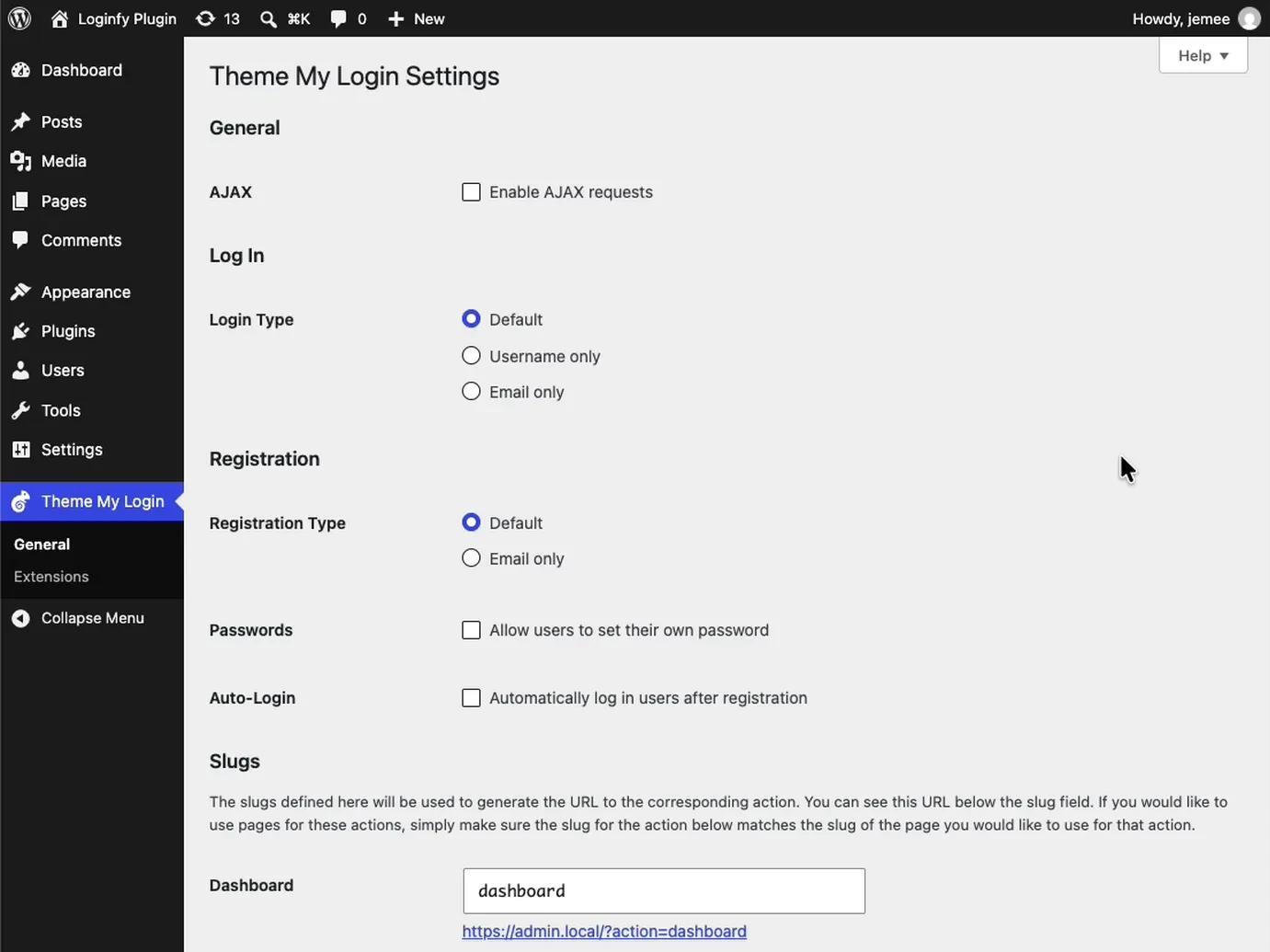
- Login Type. Default, Username only, or Email only. On a member site, Email only removes a decision your users should never have to make.
- Registration Type. Default or Email only. Same reasoning.
- Passwords. Let users set their own password at registration rather than receiving a generated one by email. Fewer abandoned signups.
- Auto-Login. Log the user in immediately after registering. Removes a step that loses people.
- AJAX. Submits without a page reload. Nice, and worth testing against your theme's JavaScript before you rely on it.
The action slugs
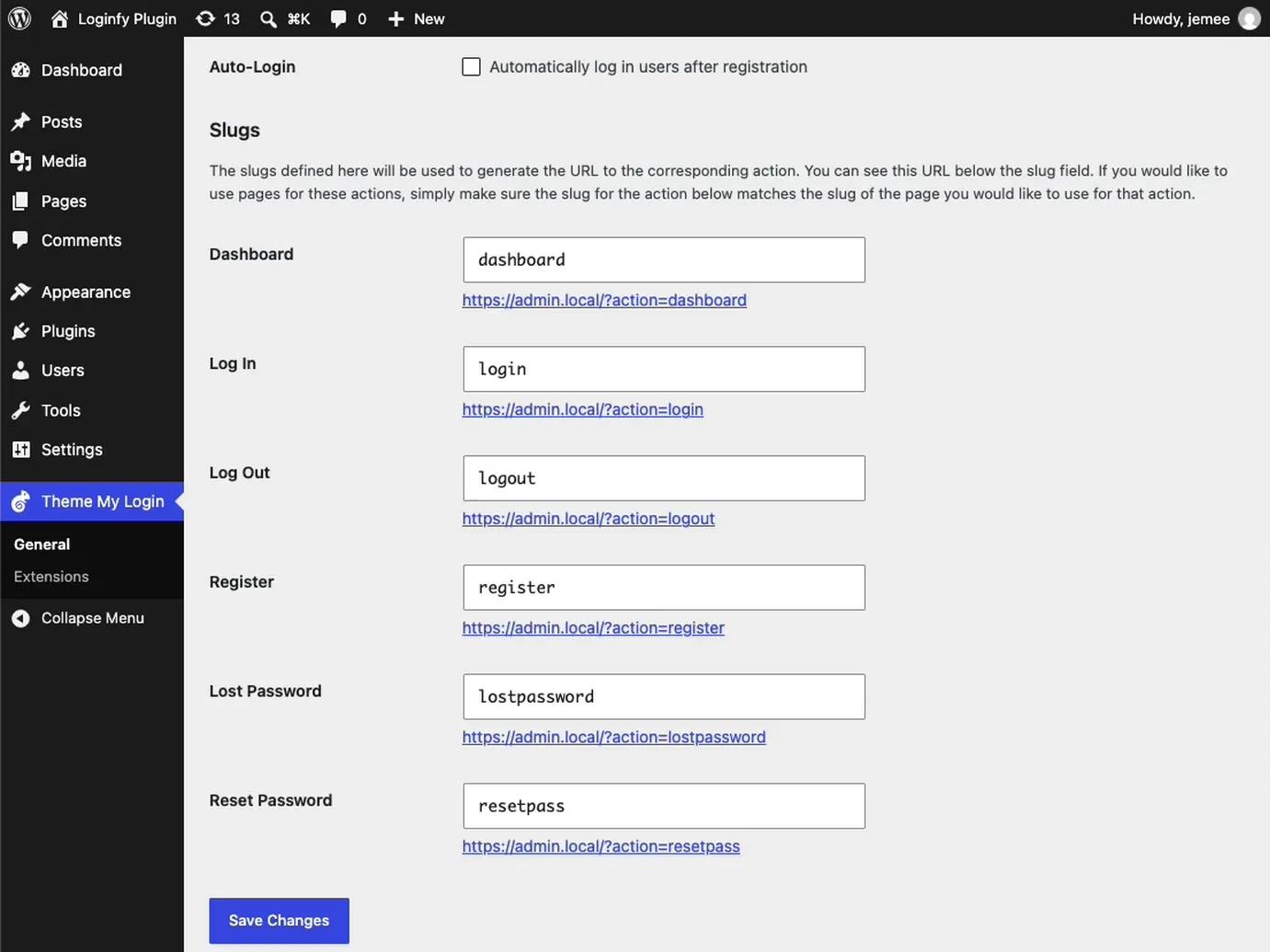
Six actions, each with an editable slug: dashboard, login, logout, register, lostpassword, resetpass. Each generates a URL in the form yoursite.com/?action=login.
Change these to language your members recognise. ?action=resetpass is a developer's word for it. ?action=new-password is not.
Method 2: a page and a shortcode you control
If you want fewer dependencies, WordPress core has shipped a front-end login form function for years. Wrap it in a shortcode and you have the same thing with no plugin.
add_shortcode( 'member_login', 'mysite_member_login' );
function mysite_member_login( $atts ) {

    if ( is_user_logged_in() ) {
        return '<p>You are signed in. <a href="' .
            esc_url( home_url( '/members/' ) ) .
            '">Go to your account</a>.</p>';
    }

    $atts = shortcode_atts( array(
        'redirect' => home_url( '/members/' ),
    ), $atts );

    return wp_login_form( array(
        'echo'           => false,
        'redirect'       => esc_url_raw( $atts['redirect'] ),
        'label_username' => 'Email',
        'label_log_in'   => 'Sign in',
        'remember'       => true,
    ) );
}
Create a page called Sign In, drop [member_login] on it, and you have a working front-end login inside your theme. The is_user_logged_in() check matters: without it, someone already signed in sees a login form and reasonably concludes they are not.
More on the styling and the full argument list is in how to create a custom WordPress login form.
Step 2: redirect wp-login.php to your page
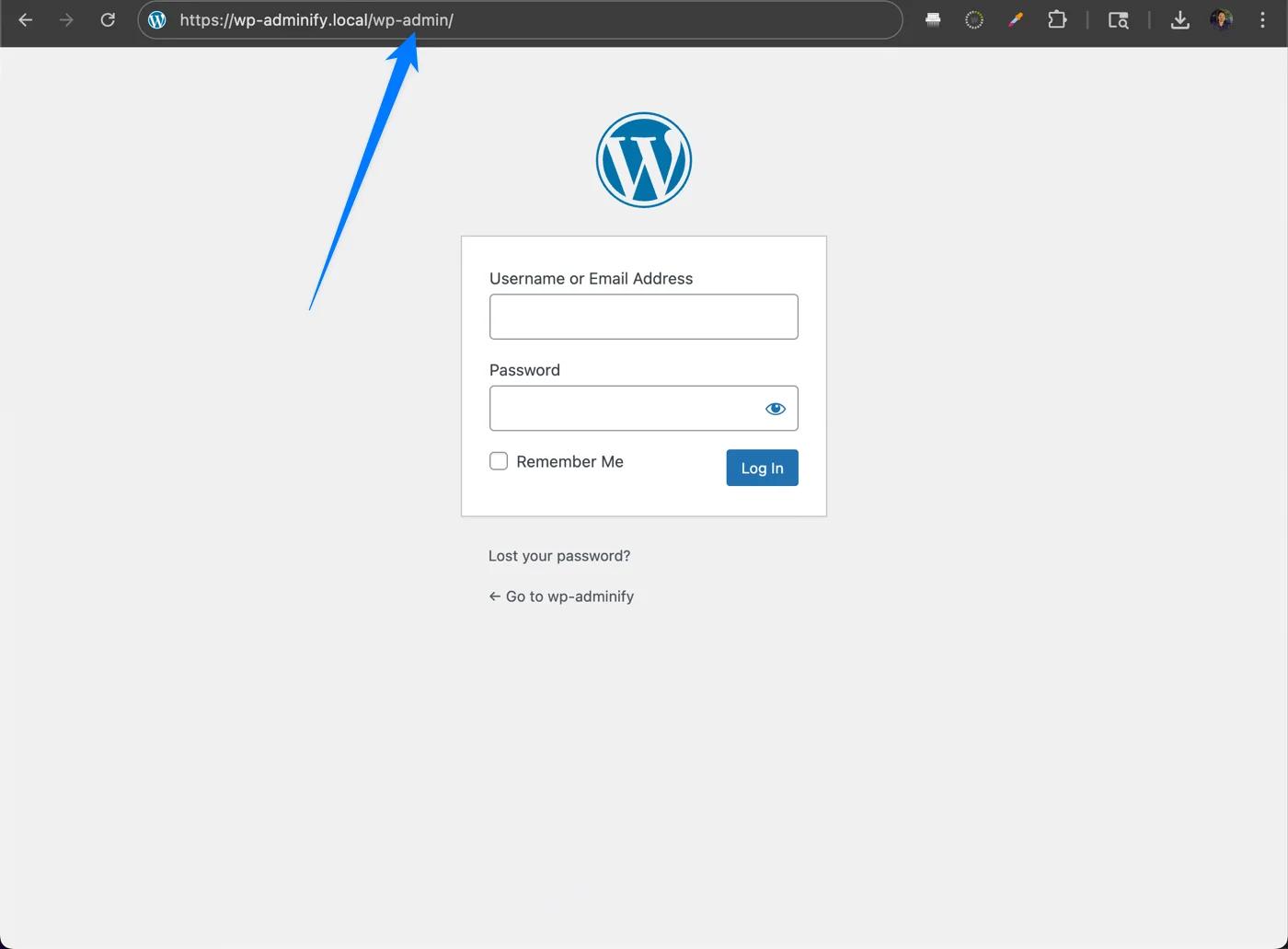
Your new page exists. The old one still does too, and every "Log in" link WordPress generates still points at it.
add_action( 'init', 'mysite_redirect_login_page' );
function mysite_redirect_login_page() {

    if ( ! isset( $_SERVER['REQUEST_URI'] ) ) {
        return;
    }

    $is_login_page = strpos( $_SERVER['REQUEST_URI'], 'wp-login.php' ) !== false;
    $is_post       = ( 'POST' === $_SERVER['REQUEST_METHOD'] );
    $action        = isset( $_GET['action'] ) ? sanitize_key( $_GET['action'] ) : '';

    // Never intercept the POST, logout, or password reset flows.
    if ( ! $is_login_page || $is_post || in_array( $action, array( 'logout', 'rp', 'resetpass', 'lostpassword' ), true ) ) {
        return;
    }

    wp_safe_redirect( home_url( '/sign-in/' ) );
    exit;
}
The exclusions are the whole trick. Redirect the POST and nobody can log in. Redirect logout and people get stuck in a session they cannot end. Redirect the reset links and every password reset email breaks. Plenty of the "redirect wp-login.php" snippets you will find leave at least one of these out.
Test all four flows before you consider this done: login, logout, lost password, and clicking a reset link from an email.
Step 3: send them somewhere sensible after login
By default WordPress sends everyone to /wp-admin. For a subscriber that is a screen with almost nothing on it and a menu they have no permission to use.
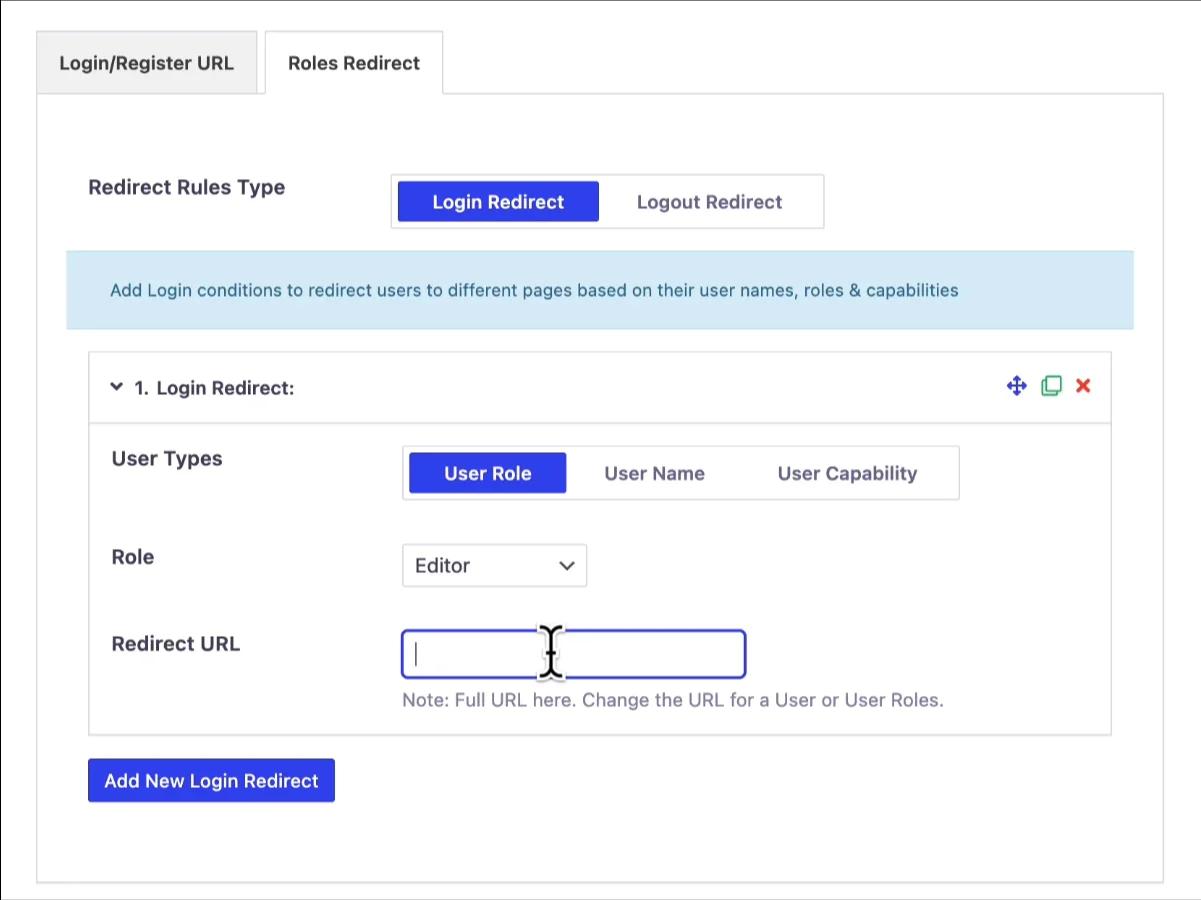
Different roles usually want different destinations: subscribers to a members area, editors to the posts list, administrators to the dashboard. In code:
add_filter( 'login_redirect', 'mysite_role_redirect', 10, 3 );
function mysite_role_redirect( $redirect_to, $requested, $user ) {

    if ( ! ( $user instanceof WP_User ) || ! isset( $user->roles ) ) {
        return $redirect_to;
    }

    if ( in_array( 'administrator', (array) $user->roles, true ) ) {
        return admin_url();
    }

    if ( in_array( 'editor', (array) $user->roles, true ) ) {
        return admin_url( 'edit.php' );
    }

    return home_url( '/members/' );
}
Or without code. WP Adminify Pro handles this as rules in the Roles Redirect tab.

The full walkthrough, including logout redirects and redirecting by username or capability rather than role, is in how to redirect users after login by role in WordPress. If the destination you are sending them to does not exist yet, creating a WordPress custom user dashboard without coding covers building one.
Step 4: keep members out of wp-admin
Two loose ends undo everything above if you leave them.
The admin bar. WordPress shows its black toolbar to every logged-in user on the front end. Turn it off for the roles that should not see it, either with the snippet below or with the no-code route in hiding the admin bar based on user roles:
add_action( 'after_setup_theme', function () {
    if ( ! current_user_can( 'edit_posts' ) ) {
        show_admin_bar( false );
    }
} );
Direct /wp-admin access. A member who types the URL, or follows an old bookmark, lands in the dashboard:
add_action( 'admin_init', function () {

    if ( wp_doing_ajax() ) {
        return; // admin-ajax.php must stay reachable.
    }

    if ( ! current_user_can( 'edit_posts' ) ) {
        wp_safe_redirect( home_url( '/members/' ) );
        exit;
    }
} );
The wp_doing_ajax() guard is not optional. Plenty of front-end features post to admin-ajax.php, and redirecting that breaks them in ways that are hard to trace back to this snippet.
What to check before you call it done
Create a real subscriber account and use it in a private window, rather than an administrator with a role switcher.
- Log in from the front-end page. Do you land in the members area?
- Log out. Where do you end up, and can you log back in?
- Request a password reset. Does the email arrive, and does its link work?
- Type
/wp-admin. Are you redirected? - Is the black admin bar gone?
- Do all of it again on a phone.
Password reset is the one that breaks most often, because the reset link goes to wp-login.php with an action parameter and an over-eager redirect swallows it. If you break it on yourself while testing, resetting a WordPress admin password has the database and WP-CLI routes back in, and WordPress login page not working covers redirect loops.
Security notes
The core login page still works. A redirect on init is a convenience for humans, not a wall. Direct POSTs to wp-login.php still authenticate. If you want that closed, you need a URL-changing tool. See how to change your WordPress login URL.
A front-end form needs rate limiting too. It posts to the same handler, so it is exactly as brute-forceable.
Keep failure messages generic. A member-facing form that says "no account with that email" is an enumeration leak on a page that is easier to find than wp-login.php.
HTTPS. Non-negotiable on any page that accepts a password.
Staff accounts still need a second factor. Moving members to a front-end form does nothing for the administrator account that can install plugins. Two-factor authentication for WordPress admin is the measure that matters there.
Frequently asked questions
What is the difference between a custom login page and a front-end login page?
A custom login page restyles wp-login.php: same URL, same standalone screen, new appearance. A front-end login page is a normal page of your site with a login form on it, inside your theme, with your header and footer. The first is for staff and clients; the second is for members.
Can I have both?
Yes, and on a membership site it is usually the right answer. Staff use the branded wp-login.php; members use the front-end page. Both authenticate against the same accounts.
Do I need a plugin for a front-end login page?
No. wp_login_form() is core, and the shortcode wrapper above is eight lines. A plugin such as Theme My Login is worth it when you also want registration, password reset and profile editing rendered in the theme.
How do I stop subscribers seeing the WordPress dashboard?
Two changes. Redirect them on login with the login_redirect filter, and redirect direct /wp-admin requests on admin_init, excluding admin-ajax.php. Then hide the admin bar for those roles.
Will this work with WooCommerce or a membership plugin?
Usually, and check for duplication before you build. WooCommerce already provides a front-end account area with login, registration and password reset at /my-account/, and most membership plugins ship their own. Building a second one alongside creates two login pages and a support question about which is correct.
Next steps
If members also need to sign themselves up, that is the other half: how to build a WordPress login and registration page.
If you also want the admin login branded for the staff who still use it, how to customize the WordPress login page covers the methods and the step-by-step build takes about ten minutes. For the wider reference, including client handover, see the WordPress login page white-label guide.
Your email address will not be published