

By default, everyone who logs into WordPress lands on the same screen: wp-admin. That's fine when you're the only person on the site. Add clients, customers, contributors, or members, and it stops making sense. A subscriber has no reason to see the admin dashboard. A WooCommerce customer wants their account page. A client on a care plan should open the dashboard you built for them, not a wall of plugin notices.
This guide shows you how to send each role where it actually belongs after login. We'll do it the no-code way with WP Adminify first (that's the method in the video screenshots below), then cover a functions.php snippet for people who'd rather write the filter themselves, plus logout redirects and how to test the result.
Quick answer
To redirect users after login by role in WordPress, install WP Adminify, open Adminify → Security → Redirect URLs, switch it to Show, go to the Roles Redirect tab, click Add New Login Redirect, pick a user role, enter the destination page slug or full URL, and save. Each role now lands on its own page after logging in. No code, no separate plugin.
Why redirect users by role at all?
Role-based login redirects fix a few real problems:
- Clients and editors: skip the cluttered default dashboard and open straight to the page they actually use, like a custom client dashboard or the post list.
- Customers and members: send WooCommerce customers or membership subscribers to their account or members area instead of the backend.
- Security and tidiness: keep non-admins out of
wp-adminentirely. This pairs well with trimming the admin menu and hiding plugins from clients. - Onboarding: drop brand-new users on a welcome or getting-started page the first time they sign in.
WordPress core gives you none of this. You either write a filter or use a plugin. WP Adminify is already an all-in-one admin toolkit, so if you run it you don't need to stack a single-purpose redirect plugin on top.
Method 1 - redirect by role with WP Adminify (no code)
WP Adminify's Redirect URLs feature handles both login and logout redirects, and it can target a user by role, username, or capability. Here's the full walkthrough.
Step 1: open the Security tab and turn on Redirect URLs
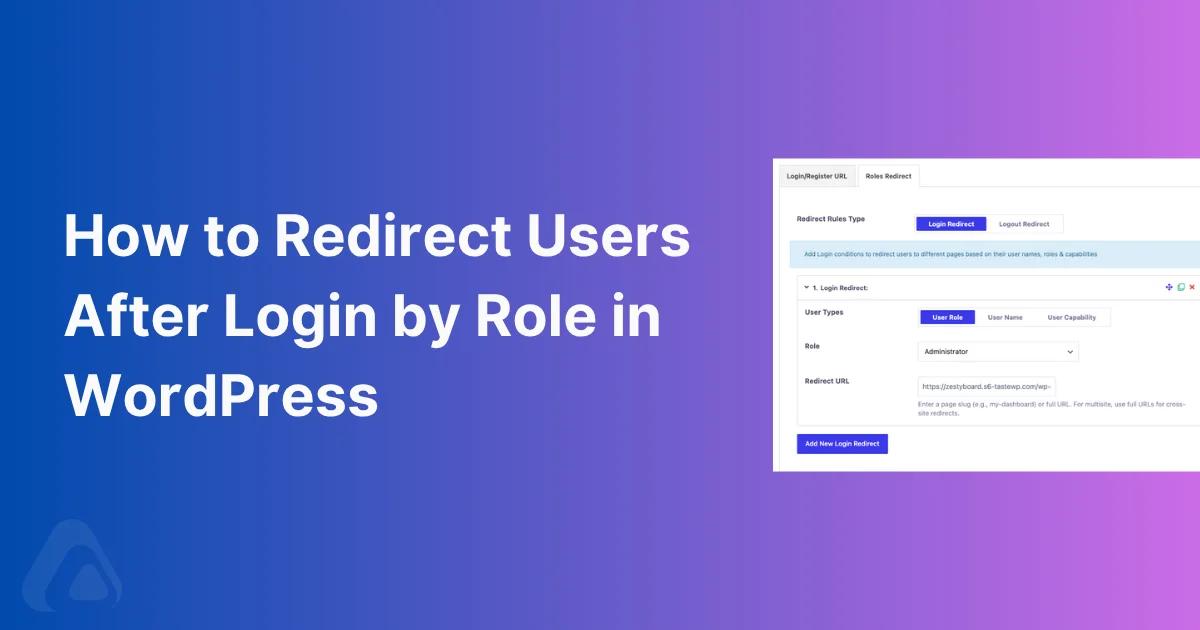
From your dashboard, go to Adminify and open the Security tab along the top. Find the Redirect URLs row (described as "Login and logout redirects based on user roles") and flip the toggle to Show. Two sub-tabs appear: Login/Register URL and Roles Redirect.

Step 2: open Roles Redirect and add a new login rule
Click the Roles Redirect sub-tab. Under Redirect Rules Type, leave it on Login Redirect (we'll get to Logout Redirect later). Then click Add New Login Redirect to create your first rule.

Step 3: choose the user role
A rule card opens. For User Types, select User Role. Open the Role dropdown and pick the role this rule applies to: Administrator, Editor, Author, Contributor, Subscriber, or any custom role your plugins have registered. The screenshot shows a few extra roles added by a CRM plugin, which is exactly the kind of thing you'll want to target on a real site.

Step 4: enter the redirect URL and save
In the Redirect URL field, type where this role should land. You can use a relative page slug like my-dashboard, or a full URL like https://yoursite.com/account. On a multisite network, use the full URL so cross-site redirects resolve to the right site. Click Save Settings and you'll see a "Settings saved" confirmation.

Want different destinations for different roles? Click Add New Login Redirect again and repeat, one rule per role. A typical agency setup looks like this: Administrators to wp-admin, Editors to the post list, Subscribers to a members page, Customers to /my-account.
Step 5: test the redirect
Log out, then log back in as a user with the role you configured. Once the credentials go through, WordPress hands off to your redirect URL instead of the default dashboard.
One tip: test in a private window or a second browser so you don't log yourself out of your main admin session. If the login page itself is acting up, our guide on fixing WordPress login page issues covers the usual suspects.
Beyond roles: redirect by username or capability
Roles cover most cases, but sometimes you need finer control. In the same rule card, switch User Types to one of these:
- User Name: target one specific person. Handy when you want to send a single client to their own landing page without affecting everyone who shares their role.
- User Capability: match anyone who holds a given capability, like
manage_optionsoredit_posts. Useful when several custom roles share a permission and should all land in the same place.
Capability rules age the best. Add a new role six months from now that carries the same capability, and it inherits the redirect with no extra setup.
Set a logout redirect too
The default WordPress logout dumps users back on the login form with a "You are now logged out" notice. You can send them somewhere friendlier instead: your homepage, a "see you soon" page, or a clean re-login screen.
In the Redirect URLs module, change Redirect Rules Type to Logout Redirect, click Add New, choose the role, and enter the URL. Same flow as the login rule, just the opposite event.
Method 2 - redirect by role with code (functions.php)
Heads-up: a malformed rule in this filter is a classic trigger for a WordPress login redirect loop. If signing in just bounces you back to the login screen, break the loop first, then set up your role-based rules.
Prefer to keep it in code, or just want to see what the plugin does under the hood? WordPress exposes the login_redirect filter. Drop this into your child theme's functions.php or a site-specific snippet:
1
2add_filter( 'login_redirect', 'custom_login_redirect_by_role', 10, 3 );
3
4function custom_login_redirect_by_role( $redirect_to, $requested_redirect_to, $user ) {
5
6    // Bail if there's no valid user object.
7    if ( ! isset( $user->roles ) || ! is_array( $user->roles ) ) {
8        return $redirect_to;
9    }
10
11    if ( in_array( 'administrator', $user->roles, true ) ) {
12        return admin_url();                         // admins -> dashboard
13    }
14
15    if ( in_array( 'editor', $user->roles, true ) ) {
16        return home_url( '/edit-hub/' );            // editors -> custom page
17    }
18
19    if ( in_array( 'subscriber', $user->roles, true ) ) {
20        return home_url( '/members/' );             // subscribers -> members area
21    }
22
23    return $redirect_to;                            // everyone else -> default
24}
25
This works, but it has costs. Every new role or destination means editing live code, one typo can lock people out, and the logic sits in a file your client can't see or change. The plugin route gives you the same behaviour in a safe UI with no chance of a fatal error. If you do go the code way, edit through a child theme or a code snippets tool, never the parent theme.
Troubleshooting role-based redirects
| Symptom | Likely cause and fix |
|---|---|
| Redirect ignored, lands on dashboard | Another login plugin (security suite, membership plugin, social login) is also filtering login_redirect and running last. Disable the duplicate redirect, or raise WP Adminify's priority. |
| Admin gets redirected away from wp-admin | You created a rule for the Administrator role. Remove it, or point Administrators back to wp-admin on purpose. |
| Redirect loop or "too many redirects" | The destination page itself requires login and bounces back. Send the role to a page it can actually view with its capability. |
| Works for some users, not others | Those users hold more than one role. Use a User Capability rule instead of a single role to catch them. |
| Nothing changes at all | The Redirect URLs toggle is still off, or the settings didn't save. Re-open Security → Redirect URLs, confirm it's set to Show, and save again. |
Where this fits in a client-ready setup
Login redirects are one piece of handing a site to a client cleanly. They work alongside a few other WP Adminify moves:
- Build the destination first, a custom user dashboard without coding, then point the role at it.
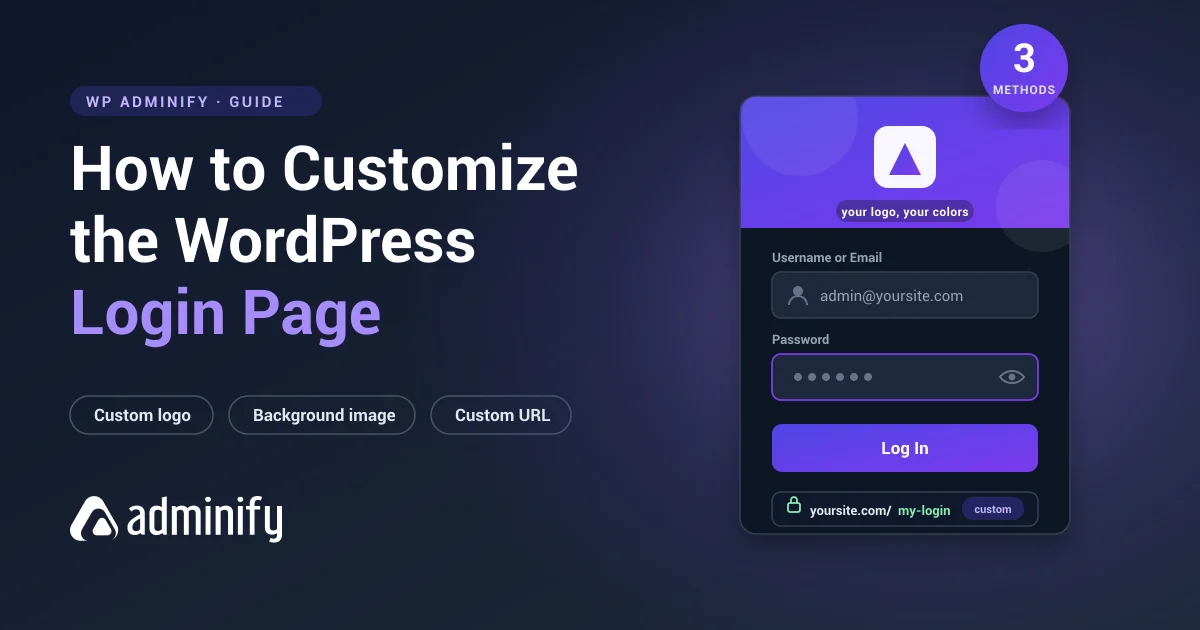
- White-label the login page so the whole sign-in experience is branded. To pick the right customizer, compare the best WordPress login page plugins, or follow the full guide to customize the WordPress login page.
- Add two-factor authentication and activity logging so you know who logged in and when.
Login Redirect by Role FAQs
Can I redirect users after login by role without a plugin?
Yes. The login_redirect filter in functions.php does it with code. The catch is you're editing live PHP for every change, with a real risk of a fatal error. A plugin like WP Adminify gets you the same result through a UI with no code.
Does WP Adminify support both login and logout redirects?
Yes. The Redirect URLs module has a Redirect Rules Type switch for Login Redirect and Logout Redirect, so you control where users go in both directions, per role.
Can I redirect a single specific user instead of a whole role?
Yes. Set User Types to User Name and target that individual. There's also a User Capability option for matching anyone with a given permission.
Will this work on WordPress Multisite?
Yes. For multisite or any cross-site destination, enter the full URL (not just a slug) in the Redirect URL field so the redirect resolves to the correct site.
What URL format should I use in the redirect field?
A relative page slug like my-dashboard works for pages on the same site. Use a full https:// URL for external destinations, account pages on a different domain, or multisite redirects.
Why are my admins being logged out or redirected unexpectedly?
You almost certainly added a redirect rule that matches the Administrator role. Delete that rule, or set the admin destination back to wp-admin. Also check for a second plugin running its own login redirect.
Wrapping up
Sending each role to the right page after login takes about a minute in WP Adminify: turn on Redirect URLs under Security, add a Roles Redirect rule, pick the role, enter the URL, save. No filters to babysit, nothing for a client to break. And since it lives inside the same plugin that handles your dashboard customization, menus, and login branding, you're setting up the whole sign-in experience in one place.
Ready to fix where your users land? Get WP Adminify and set up role-based login redirects today.
Your email address will not be published