

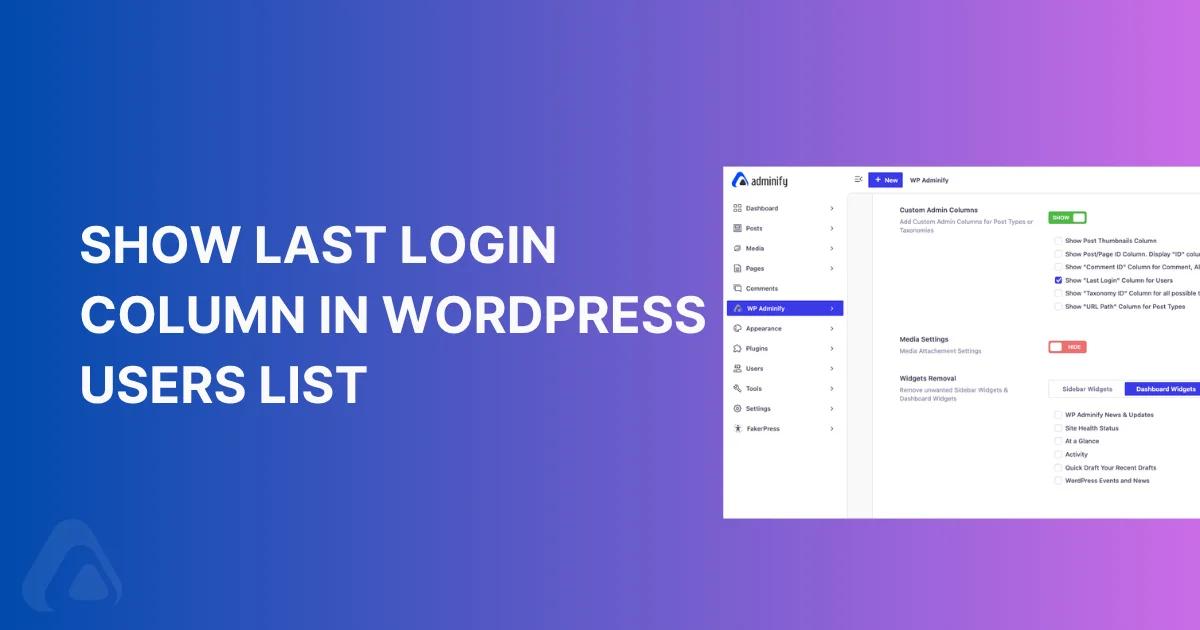

WordPress doesn't record when a user last logged in. Open the Users screen and you get the default admin columns (names, emails, roles and post counts), but nothing that tells you whether an editor was here yesterday or hasn't signed in since last spring.
Below are three ways to add a WordPress last login column to Users > All Users: the option built into WP Adminify's productivity tools, a free single-purpose plugin, or a short snippet we tested on WordPress 7.1. There's also a trick for getting login times for anyone who's signed in right now, before you've installed anything, and a quick routine for using the column to find accounts nobody uses.
Quick answer: WordPress doesn't track last login by default. To show it, enable WP Adminify > Productivity > Custom Admin Columns > Show "Last Login" Column for Users (Pro), install a free plugin like When Last Login or WP Last Login, or add a wp_login hook that saves a timestamp to user meta and displays it with the manage_users_custom_column filter.
Does WordPress Track Last Login by Default?
No. Core has no "last login" field. The wp_users table stores user_registered and that's it, so every plugin and snippet starts recording on the day you activate it and knows nothing about the time before.
There's one exception, and most tutorials skip it. Every login creates a session, which WordPress saves in the session_tokens user meta along with a login Unix timestamp, the IP address and the browser's user agent. Sessions last 2 days, or 14 if the user ticked "Remember Me." So for anyone logged in right now, WordPress already knows when their session started. Method 3 reads that value to fill in the column for active users on day one.
Where the column earns its place:
- Dormant admin and editor accounts are an easy target, and you can't remove access you don't know is unused. That's the least-privilege idea behind the WordPress roles and capabilities system.
- On multi-author sites you can see who's still writing and who needs a nudge without asking around.
- On membership and client sites it shows whether people use the accounts you set up for them.
Method 1: Add a Last Login Column with WP Adminify
If you already run WP Adminify, this is a checkbox in the Custom Admin Columns module. It's a Pro option. The free version shows the checkbox with an "Upgrade to Pro" label next to it. You don't need any other plugin.
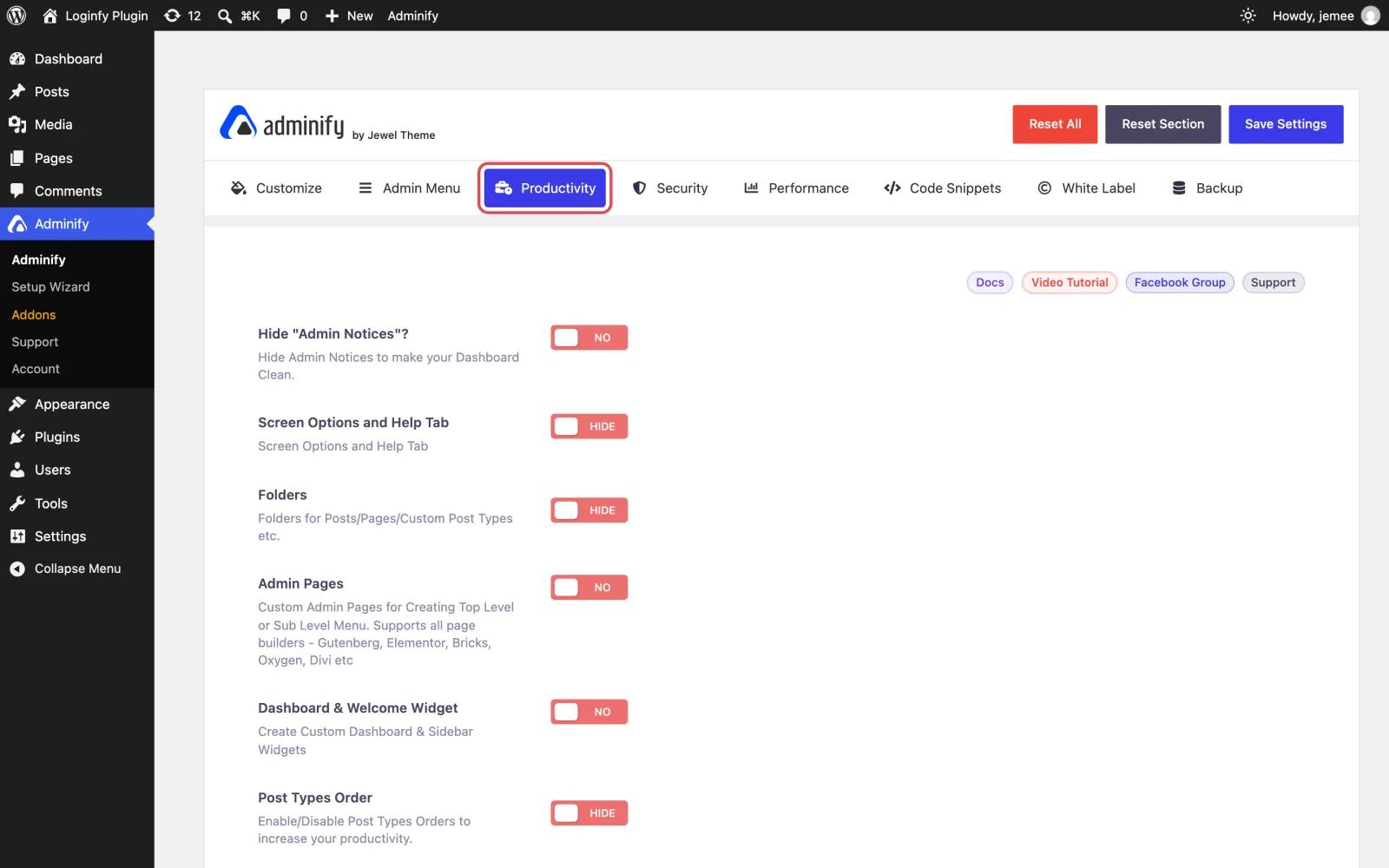
Step 1: Open the Productivity tab
In your dashboard, go to WP Adminify > Settings and click the Productivity tab.
Step 2: Enable the Last Login column
Scroll down to Custom Admin Columns and set the toggle to SHOW. Tick Show "Last Login" Column for Users and click Save Settings. The Post Thumbnails, Post/Page ID and URL Path columns live in the same list if you want them too.

Step 3: Check the Users screen
Open Users > All Users and you'll see a Last Login column on the far right with the date and time of each user's last sign-in. Anyone who hasn't logged in since you turned it on shows Never logged in.
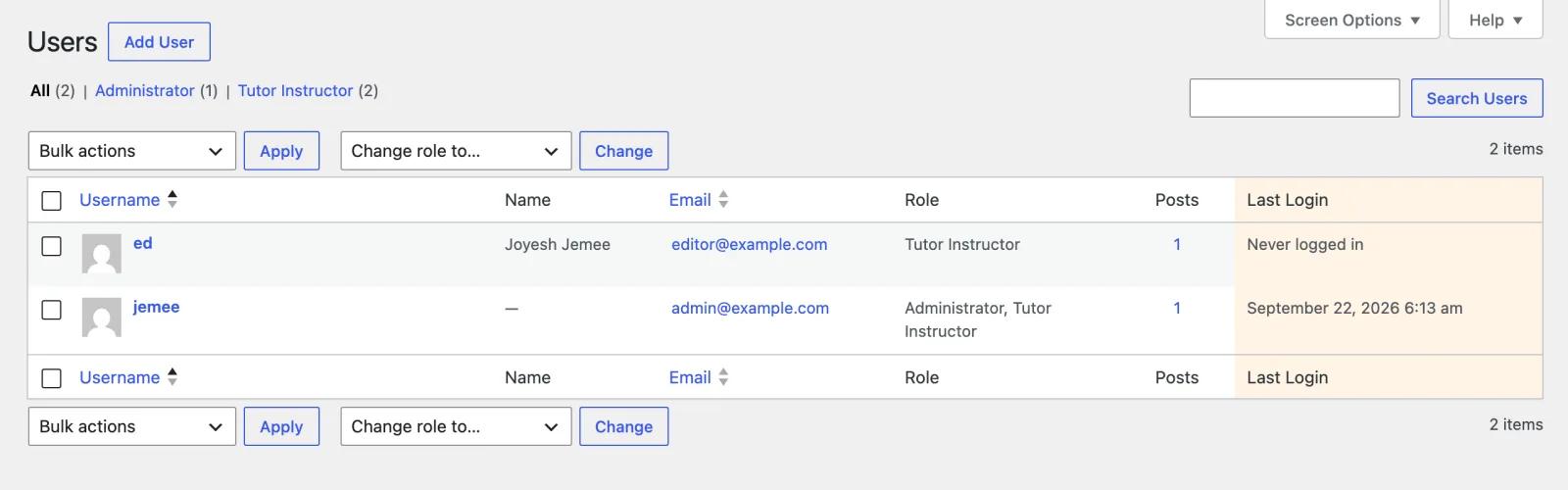
What we saw when we checked it on WP Adminify 4.3.2:
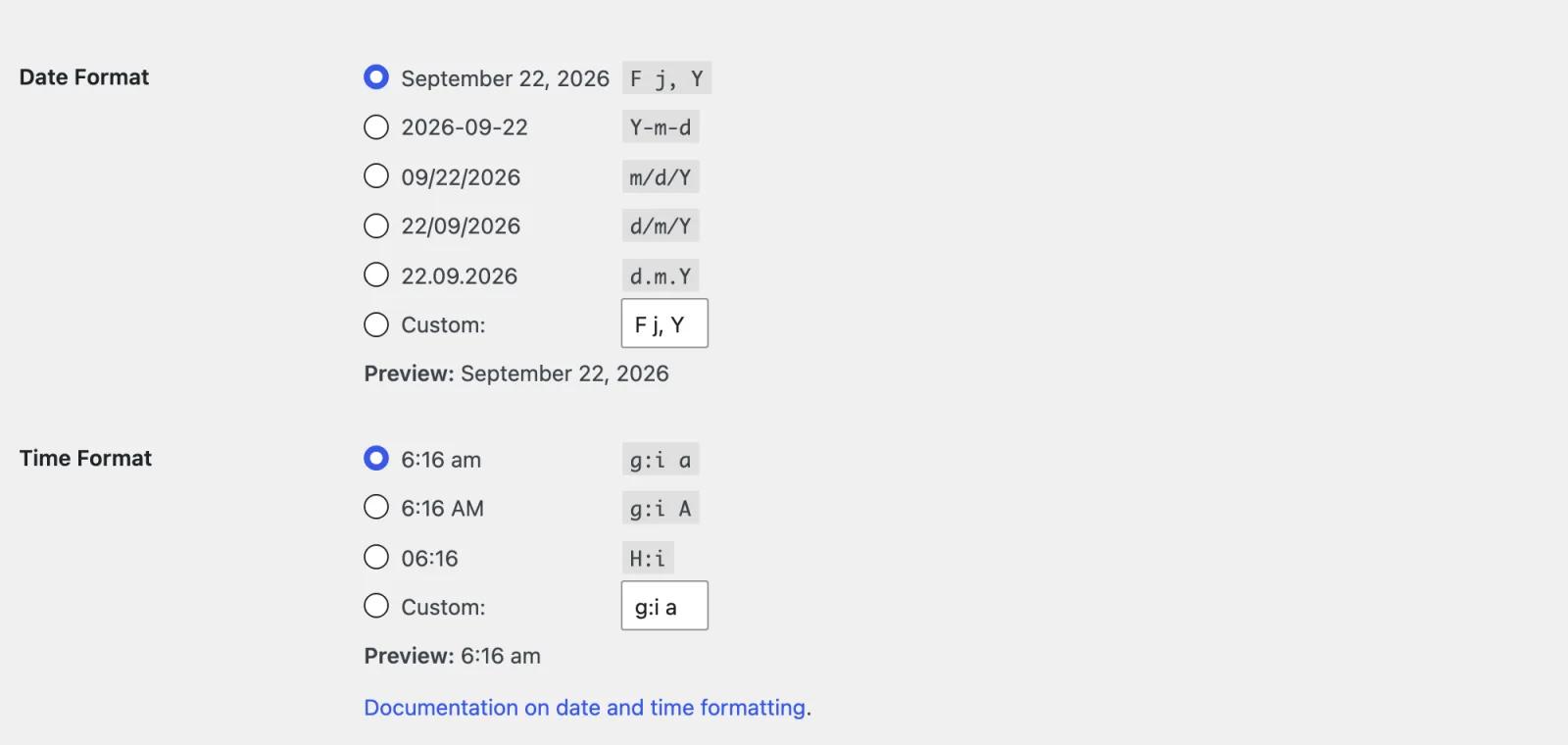
- The date format comes from Settings > General > Date Format and Time Format. Change those and the column changes with them (more in the FAQ).
- Login times are stored as Unix timestamps in the
_adminify_last_loginuser meta key, which export tools and SQL queries can read. - You can't sort by this column. If sorting matters to you, Method 2 or Method 3 will suit you better.
- It keeps only the latest login, not a history. For a log of logins, logouts and changes, use the Activity Logs addon.
The other columns in this module are covered in the Custom Admin Columns documentation.
Method 2: Use a Dedicated Last Login Plugin
If this column is all you want and you don't use WP Adminify, a small free plugin gets you there fastest. These are the two Google shows most for "wp last login":
| When Last Login | WP Last Login | |
|---|---|---|
| Active installs (WordPress.org, Sept 2026) | 50,000+ | 10,000+ |
| Rating | 4.7 / 5 | 3.7 / 5 |
| Sortable column | Yes | Yes |
| Display format | Relative ("3 days ago") | Date, exact time on hover |
| Login history | Yes, history table | No |
| IP recording | Optional | No |
| Multisite network users | Not listed | Yes |
Go to Plugins > Add New, search for When Last Login or WP Last Login, and click Install Now, then Activate. The column shows up on the Users screen straight away, with nothing to configure.
Which one? When Last Login if you want login history and IP data. WP Last Login if you want the lightest thing possible, or you're on multisite. And if WP Adminify is already handling your other admin columns, the menu editor or white labeling, Method 1 means one less plugin to keep updated.
Method 3: Add a Sortable Last Login Column with Code (No Plugin)
Here's what the snippet below does:
- Saves each login as a UTC timestamp.
- Falls back to
session_tokensfor users who are logged in but have no saved time yet. - Adds the Last Login column.
- Shows "3 days ago" with the exact date on hover.
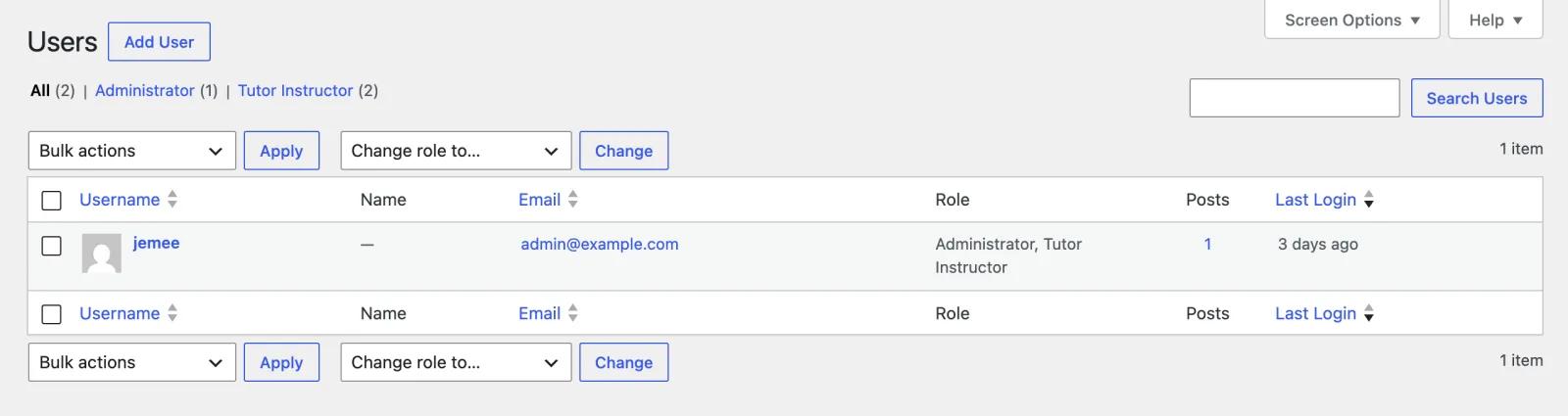
- Makes the column sortable without hiding users who have never logged in.
Add it with a snippets plugin (Code Snippets, WPCode, or the Code Snippets tab in WP Adminify), or drop it in wp-content/mu-plugins/last-login.php. Keep it out of your parent theme's functions.php; the next theme update will wipe it. We ran this exact code on WordPress 7.1 with PHP 8.5.
1
2<?php
3/**
4 * Plugin Name: Last Login Column
5 * Description: Adds a sortable "Last Login" column to Users > All Users.
6 */
7
8// 1. Save the login time as a UTC Unix timestamp.
9function wpa_record_last_login( $user_login, $user ) {
10	update_user_meta( $user->ID, 'wpa_last_login', time() );
11}
12add_action( 'wp_login', 'wpa_record_last_login', 10, 2 );
13
14// 2. Get the last login, falling back to active session data.
15function wpa_get_last_login( $user_id ) {
16	$last = (int) get_user_meta( $user_id, 'wpa_last_login', true );
17
18	if ( ! $last ) {
19		$sessions = get_user_meta( $user_id, 'session_tokens', true );
20		if ( is_array( $sessions ) && ! empty( $sessions ) ) {
21			$last = (int) max( wp_list_pluck( $sessions, 'login' ) );
22		}
23	}
24
25	return $last;
26}
27
28// 3. Register the column.
29function wpa_add_last_login_column( $columns ) {
30	$columns['wpa_last_login'] = __( 'Last Login', 'your-textdomain' );
31	return $columns;
32}
33add_filter( 'manage_users_columns', 'wpa_add_last_login_column' );
34
35// 4. Show "3 days ago" with the exact date and time on hover.
36function wpa_show_last_login_column( $output, $column_name, $user_id ) {
37	if ( 'wpa_last_login' !== $column_name ) {
38		return $output;
39	}
40
41	$last = wpa_get_last_login( $user_id );
42
43	if ( ! $last ) {
44		return esc_html__( 'Never', 'your-textdomain' );
45	}
46
47	$exact = wp_date( get_option( 'date_format' ) . ' ' . get_option( 'time_format' ), $last );
48	/* translators: %s: human-readable time difference, e.g. "3 days". */
49	$ago = sprintf( __( '%s ago', 'your-textdomain' ), human_time_diff( $last ) );
50
51	return '<span title="' . esc_attr( $exact ) . '">' . esc_html( $ago ) . '</span>';
52}
53add_filter( 'manage_users_custom_column', 'wpa_show_last_login_column', 10, 3 );
54
55// 5. Make the column sortable without hiding users who never logged in.
56function wpa_last_login_sortable( $columns ) {
57	$columns['wpa_last_login'] = 'wpa_last_login';
58	return $columns;
59}
60add_filter( 'manage_users_sortable_columns', 'wpa_last_login_sortable' );
61
62function wpa_last_login_sort_query( $query ) {
63	if ( ! is_admin() || 'wpa_last_login' !== $query->get( 'orderby' ) ) {
64		return;
65	}
66
67	$query->set(
68		'meta_query',
69		array(
70			'relation'  => 'OR',
71			'has_login' => array(
72				'key'     => 'wpa_last_login',
73				'compare' => 'EXISTS',
74				'type'    => 'NUMERIC',
75			),
76			'no_login'  => array(
77				'key'     => 'wpa_last_login',
78				'compare' => 'NOT EXISTS',
79			),
80		)
81	);
82	$query->set( 'orderby', 'has_login' );
83}
84add_action( 'pre_get_users', 'wpa_last_login_sort_query' );
85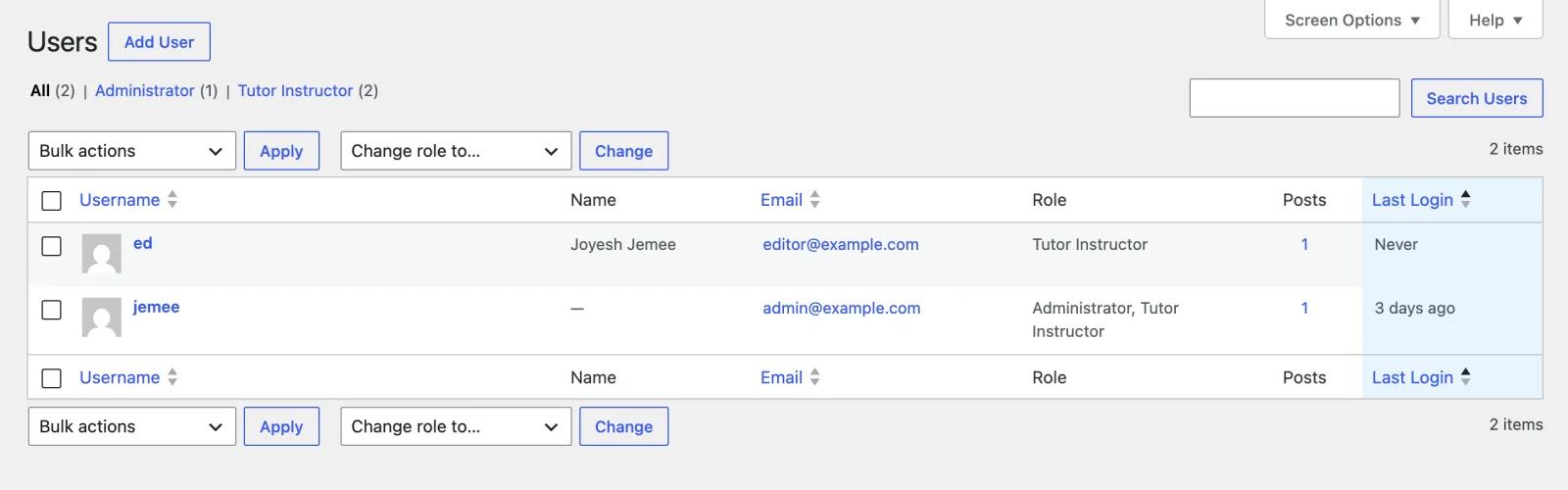
Why this code differs from most tutorials
Most last-login snippets you'll find, including the one this post used to have, get two things wrong.
- Sorting hides users. The usual sort code sets
meta_keyinpre_get_users, which joins the user meta table. Anyone without a saved login falls out of the list the moment you sort, and those are the inactive accounts you were trying to find. TheORmeta query above, with oneEXISTSclause and oneNOT EXISTSclause, keeps them in. - Times come out shifted.
current_time( 'mysql' )stores local time, and running that throughwp_date()later adds the timezone offset again. On a site set to UTC+6 every time is 6 hours off. Storetime()instead and letwp_date()do the conversion once.
Fill in last login for users who are logged in now
When there's no saved timestamp, wpa_get_last_login() checks session_tokens. Anyone with an active session gets a real date immediately; everyone else shows "Never" until they next log in. The catch is that sorting only looks at saved timestamps, so a user whose date came from a session sorts in with the "Never" group until their next login.
Why a last login can look old
wp_login fires when someone submits the login form. If a user ticked "Remember Me," they can come back every day for two weeks on the same cookie and never trigger it, so their "last login" doesn't move. WordPress is working as designed here. It does mean the column is good for spotting inactive accounts and poor as a record of who visited today.
Optional: show last login on the front end
The snippet includes a [last_login] shortcode too. Put [last_login] in a member dashboard to show the current user's last login, or use [last_login user_id="12"] for a specific person.
1
2// Optional: [last_login] shortcode for the front end.
3function wpa_last_login_shortcode( $atts ) {
4	$atts    = shortcode_atts( array( 'user_id' => get_current_user_id() ), $atts, 'last_login' );
5	$user_id = absint( $atts['user_id'] );
6	$last    = $user_id ? wpa_get_last_login( $user_id ) : 0;
7
8	if ( ! $last ) {
9		return esc_html__( 'Never', 'your-textdomain' );
10	}
11
12	return esc_html( wp_date( get_option( 'date_format' ) . ' ' . get_option( 'time_format' ), $last ) );
13}
14add_shortcode( 'last_login', 'wpa_last_login_shortcode' );
15
How to Find Inactive WordPress Users by Last Login
Give the column a few weeks to collect data, then run through this:
- Go to Users > All Users and filter by a role such as Administrator or Editor.
- Click the Last Login header to sort oldest first. That works with Method 2 or 3. With WP Adminify you'll have to scan the column by eye or use the SQL query further down.
- Note every account that shows "Never" or a date more than 90 days back.
- Decide what to do with each: ask the person, reset the password, drop them to a lower role, or delete the account and reassign its content.
Do the admin accounts first. A forgotten administrator login undoes whatever else you've hardened. After that, turn on two-factor authentication for admins and look through WP Adminify's other security features.
Check Last Login in the Database or with WP-CLI
If you can't get into the dashboard, or you need a list for a report, you can read the same data directly.
With WP-CLI you can list a user's active sessions and when each one started. It reads core session data, so no plugin is needed:
1
2# List active sessions for user ID 12 (login time, expiry, IP)
3wp user session list 12 --fields=login_time,expiration_time,ip
4
5# Read the stored last login timestamp
6wp user meta get 12 _adminify_last_login
7
With SQL in phpMyAdmin or Adminer, this lists every user by last login, newest first. Swap wp_ for your table prefix, and _adminify_last_login for wpa_last_login if you went with the snippet:
1
2SELECT u.user_login,
3       FROM_UNIXTIME(m.meta_value) AS last_login
4FROM wp_users u
5LEFT JOIN wp_usermeta m
6       ON m.user_id = u.ID
7      AND m.meta_key = '_adminify_last_login'
8ORDER BY m.meta_value DESC;
9
Skip session_tokens in SQL. It's a serialized PHP array and painful to query; use WP-CLI or the PHP function above for that.
Which Method Should You Use?
| WP Adminify (Pro) | Dedicated plugin | Code snippet | |
|---|---|---|---|
| Setup time | About 1 minute | About 1 minute | About 5 minutes |
| Code needed | None | None | PHP |
| Sortable column | No | Yes | Yes |
| Relative time ("3 days ago") | No, site date format | When Last Login: yes | Yes, exact time on hover |
| Fills in logged-in users on day one | No | No | Yes (session_tokens) |
| Login history | Via Activity Logs addon | When Last Login: yes | No |
| Extra plugin to maintain | No, if you already use WP Adminify | Yes | No |
| Best for | Sites already running WP Adminify | Anyone who wants just this column | Developers and lean setups |
WordPress Last Login FAQ
Does WordPress record the last login by default?
No. Core only keeps session_tokens for active sessions, and those expire after 2 or 14 days. For a last login date that sticks around, you need a plugin, WP Adminify's Last Login column, or a wp_login snippet.
Can I see last login for users who logged in before I added tracking?
Partly. Anyone with an active session can be filled in from session_tokens, and the Method 3 code does this for you. Users whose sessions have expired show "Never" until they log in again. Older logins are gone for good, because WordPress never saved them.
Why does a user's last login look old when they use the site every day?
They're staying logged in. With "Remember Me" ticked the login cookie lasts 14 days, and wp_login only fires on a fresh login, so the date updates the next time they actually sign in.
How can I see user login history in WordPress?
You need an activity log for that; a last login column only holds the most recent login. WP Adminify's Activity Logs addon records logins, failed attempts and other actions, and When Last Login has its own history table. Our guide to monitoring user activity in WordPress goes through the options.
Does WordPress have an activity log?
Not out of the box. WordPress keeps post revisions, but it has no record of who logged in, changed a setting or deleted something. That takes an activity log plugin or addon.
How do I change the date format in the Last Login column?
For WP Adminify, change Settings > General > Date Format and Time Format and the column follows. The code method's hover text uses the same settings, or you can hand wp_date() your own format, like 'M j, Y g:i A'.
Is WP Adminify's Last Login column free?
No, it's in WP Adminify Pro. The free version lists the option with an "Upgrade to Pro" label. For a free route, use When Last Login, WP Last Login or the Method 3 code.
Does tracking last login slow down my site?
No. Each method writes one user meta value at login and only reads it on the Users screen. Front-end pages don't load it unless you use the shortcode, and then it's a single meta read, however many users the site has.
Conclusion
- WordPress doesn't store last login dates, so tracking starts the day you add it. Active sessions are the one thing you can fill in after the fact.
- On WP Adminify Pro it's a checkbox under Productivity > Custom Admin Columns.
- When Last Login and WP Last Login are the free picks if you want a sortable column and nothing else.
- The snippet gets you sorting, "3 days ago" dates and data for logged-in users from day one, without a plugin.
Whichever you choose, sort by last login once a quarter and clear out the accounts nobody uses. If you'd also like a tidier admin menu, white labeling and WP Adminify's other productivity tools, the last login column comes in the same plugin.



Your email address will not be published