

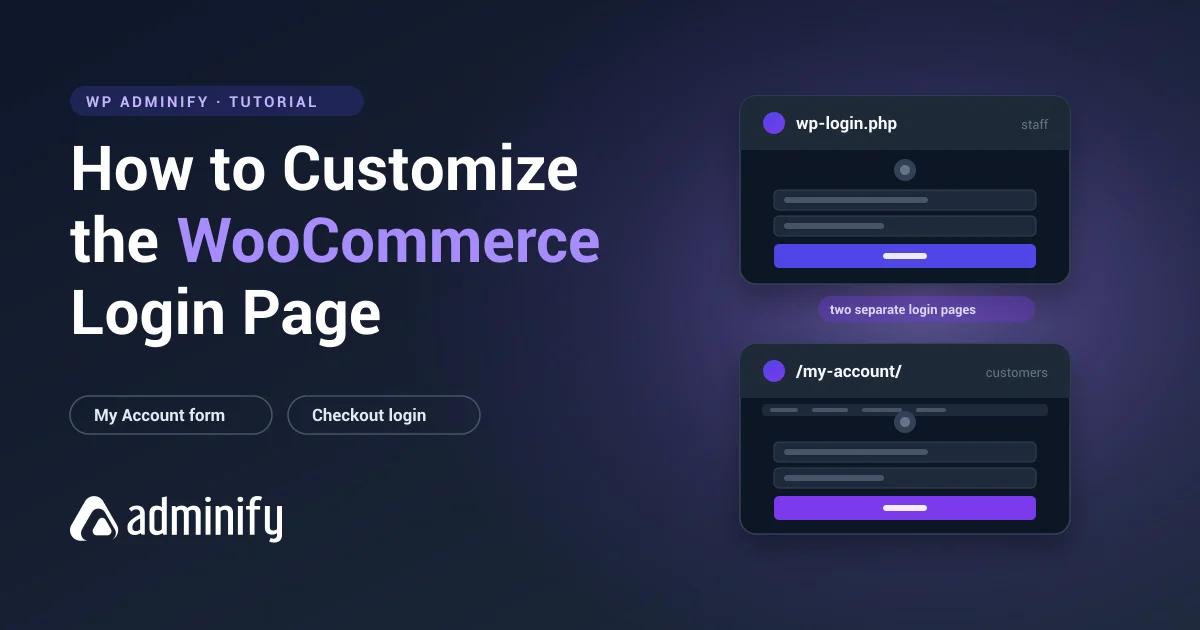

A WooCommerce store doesn't have a login page. It has two, and on a busy store, three.
That's the reason so many "customize the WooCommerce login page" tutorials leave people confused. Half of them restyle wp-login.php, which most customers never see. The other half restyle the My Account form and quietly leave the admin login looking like a stock WordPress install. If you've already read how to customize the WordPress login page and found none of it applied to your store, this is why. The front-end side of the problem is the same one covered in creating a WordPress login page for users, with WooCommerce-specific plumbing on top.
This post covers all of them, in the order a real store needs them.
The two doors, and who uses each
Every WooCommerce store ships with two sign-in screens from the moment it's installed.
wp-login.php | /my-account/ | |
|---|---|---|
| Who uses it | You, your shop managers, your developer | Customers |
| Comes from | WordPress core | WooCommerce |
| Sits inside your theme | No | Yes |
| Where it sends people | /wp-admin | The account dashboard |
| Styled by | A login customizer plugin or login CSS | Your theme's CSS or a template override |
| Customers see it | Almost never | Constantly |
Pick your battle from that table. If your goal is that customers see your brand when they sign in, the My Account page is the whole job and wp-login.php is optional polish. If your goal is that clients and staff stop seeing a stock WordPress screen, it's the other way around. Most stores eventually want both, which is fine, but they're two separate pieces of work with almost nothing in common.
Door one: the My Account page
WooCommerce creates a page called My Account during setup and puts its account shortcode on it. That single page renders the login form, the registration form, the lost-password flow, orders, downloads, addresses and account details, switching between them by endpoint rather than by page.
Confirm which page it's before you touch anything, because on an inherited store it's often not the one you would guess. Go to WooCommerce > Settings > Advanced and read the My account page setting. That's the page WooCommerce redirects to, and editing any other page will look like nothing's happening.
Logged out, that page renders two columns: Login on the left, Register on the right. Whether the Register column appears at all depends on WooCommerce > Settings > Accounts & Privacy, where account creation on the account page and during checkout are two separate toggles.
Style it with CSS first
Reach for CSS before you reach for a template override. The account form is plain markup with stable class names, and most of what people want, which is a centred card instead of two thin columns, is a dozen declarations.
/* Single centred card instead of two columns */
.woocommerce-account .u-column1.col-1,
.woocommerce-account .u-column2.col-2 {
    float: none;
    width: 100%;
    max-width: 420px;
    margin: 0 auto 2rem;
}

.woocommerce-account .woocommerce-form-login {
    padding: 2.5rem;
    border: 1px solid #e6e6e6;
    border-radius: 12px;
    box-shadow: 0 8px 30px rgba(0, 0, 0, .06);
    background: #fff;
}

.woocommerce-account .woocommerce-form-login label {
    display: block;
    margin-bottom: .35rem;
    font-weight: 600;
}

.woocommerce-account .woocommerce-form-login input[type="text"],
.woocommerce-account .woocommerce-form-login input[type="password"] {
    width: 100%;
    padding: .8rem 1rem;
    border: 1px solid #d7d7d7;
    border-radius: 8px;
}

.woocommerce-account .woocommerce-form-login .button {
    width: 100%;
    padding: .9rem;
    background: #4338ca;   /* your brand colour */
    border-radius: 8px;
}
Put that in Appearance > Customize > Additional CSS while you're experimenting, then move it into your child theme's stylesheet once you're happy. The general argument for keeping login styling in CSS rather than in template files is the same one made in customizing the WordPress login page without a plugin, and it applies here with more force, because WooCommerce templates change more often than core login markup does.
Override the template if CSS is not enough
When you need to change the markup itself, add a paragraph, drop the "Remember me" box, put a trust badge under the button, WooCommerce's template override system is the supported route.
Copy the login template out of the plugin and into your child theme, keeping the folder structure:
wp-content/plugins/woocommerce/templates/myaccount/form-login.php
        ↓  copy to
wp-content/themes/your-child-theme/woocommerce/myaccount/form-login.php
WooCommerce loads your copy instead of its own. Two rules make this survivable.
Only override files you actually change. Every overridden template is a file you've now taken responsibility for maintaining, and WooCommerce updates won't touch it again. A store with fifteen overridden templates is a store that breaks quietly on the next major release. Keep a note of every file you copy.
Prefer a hook if one exists. The login template fires woocommerce_before_customer_login_form and woocommerce_after_customer_login_form, and the form itself fires woocommerce_login_form_start, woocommerce_login_form and woocommerce_login_form_end. Anything you can add through one of those is something you never have to maintain:
add_action( 'woocommerce_login_form_end', 'mystore_login_reassurance' );
function mystore_login_reassurance() {
    echo '<p class="login-reassurance">Orders, tracking and returns all live in your account.</p>';
}
Door two: the WordPress admin login
Now the screen your staff sees. wp-login.php is core WordPress, WooCommerce has no opinion about it, and everything written about branding the WordPress login applies unchanged.
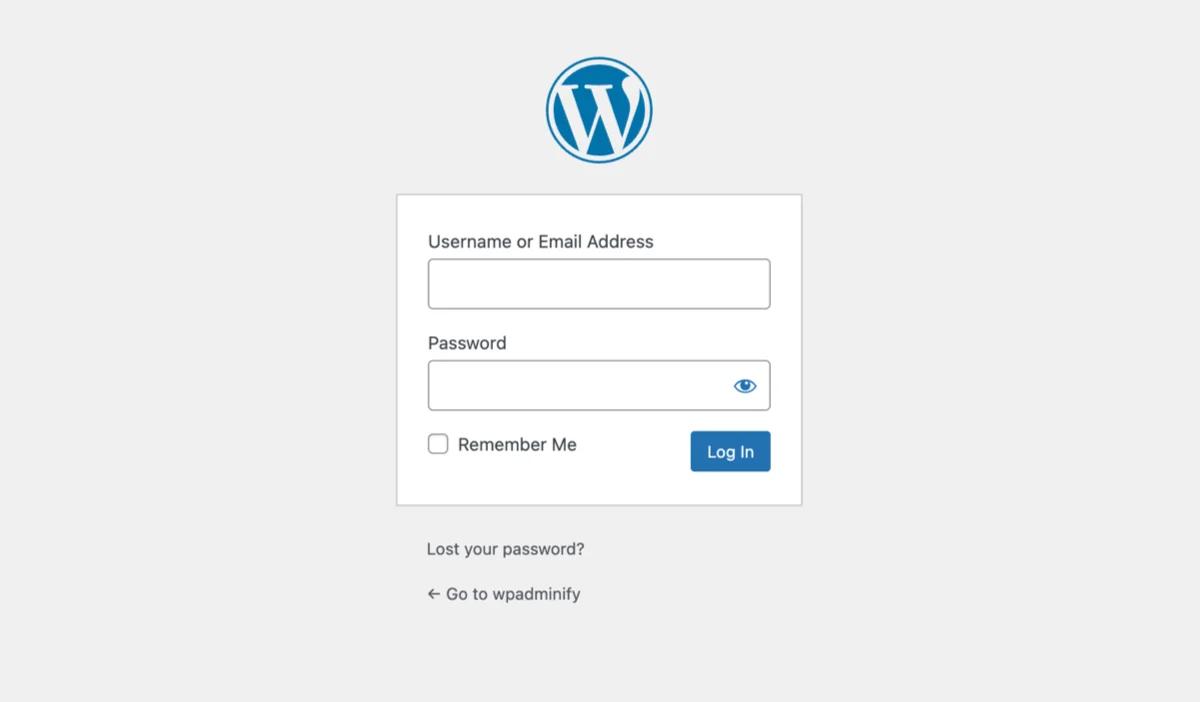
Two routes, and the choice is the same as on any other WordPress site.
Code. Enqueue a stylesheet on the login_enqueue_scripts hook and restyle the screen yourself. Full walkthrough in customizing the WordPress login page without a plugin, and the form markup specifically in creating a custom WordPress login form.
A login customizer. A plugin that puts the same job in a live-preview panel. Loginfy is ours: a template gallery, logo, background including gradients and overlays, form and field styling, custom error messages and a credit toggle, all previewed live in the WordPress Customizer. The free build on WordPress.org covers logo, background, layout, form and field styling; templates, video and slideshow backgrounds and Google Fonts sit behind the paid tier at $49 a year for five sites. If you would rather compare options first, the best WordPress login page plugins lines up the field.
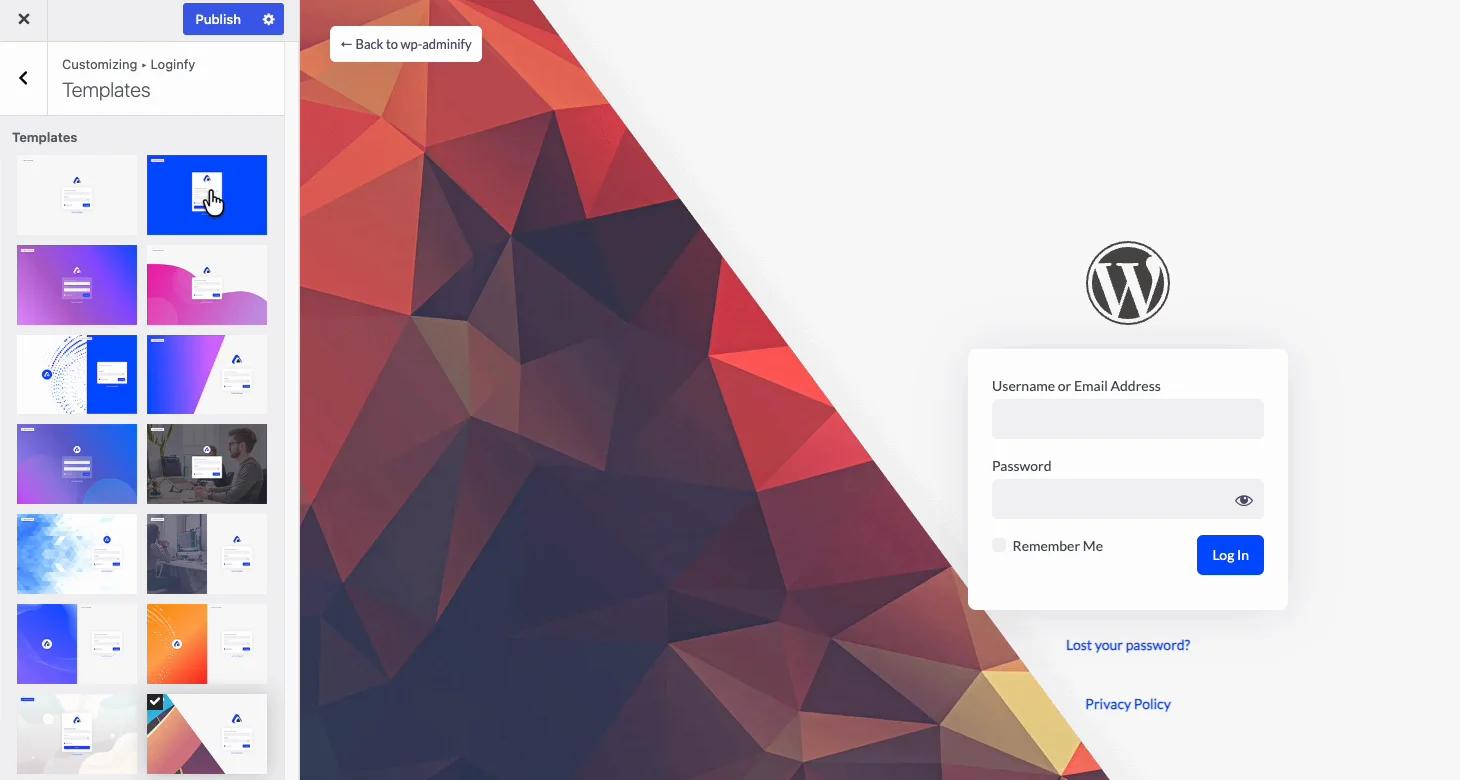
The step-by-step build is in how to create a custom WordPress login page. Nothing in it's WooCommerce-specific, which is exactly the point.
The third form nobody mentions: checkout
There's a third login form on your store, and it's the one with money attached.
When guest checkout is enabled and a returning customer arrives at checkout, WooCommerce shows a notice above the billing fields: "Returning customer? Click here to login." That expands into a compact login form rendered by templates/checkout/form-login.php. It isn't the My Account form and it doesn't inherit whatever you did to it.
Two things are worth doing here.
Rewrite the message. The default wording sounds like a demand for credentials mid-purchase, which is exactly the moment a shopper reconsiders. Say what the customer gets:
add_filter( 'woocommerce_checkout_login_message', function () {
    return 'Bought from us before? Sign in and we will fill this in for you.';
} );
Style it deliberately. On most themes the expanded form inherits enough to look acceptable and nothing more. Give it the same input and button styling as your account form so the two don't look like they came from different sites.
And check the behaviour, not just the look: log in from checkout with a full cart and confirm the cart survives. A cart that empties on sign-in is a bug that shows up in revenue before it shows up in a support ticket.
Where customers land after they log in
WooCommerce sends a customer to the account dashboard after login, which is a reasonable default and not always the right one. If most of your sign-ins are people checking an order, send them to Orders instead and remove a click from the most common journey:
add_filter( 'woocommerce_login_redirect', 'mystore_login_redirect', 10, 2 );
function mystore_login_redirect( $redirect, $user ) {

    // Respect an explicit redirect, e.g. arriving from checkout.
    if ( ! empty( $_REQUEST['redirect'] ) ) {
        return $redirect;
    }

    if ( $user instanceof WP_User && in_array( 'customer', (array) $user->roles, true ) ) {
        return wc_get_endpoint_url( 'orders', '', wc_get_page_permalink( 'myaccount' ) );
    }

    return $redirect;
}
The $_REQUEST['redirect'] check is the part people leave out. Without it, a customer who signs in from the checkout login box gets bounced to their orders list with a full cart behind them, and a fair number of them don't come back.
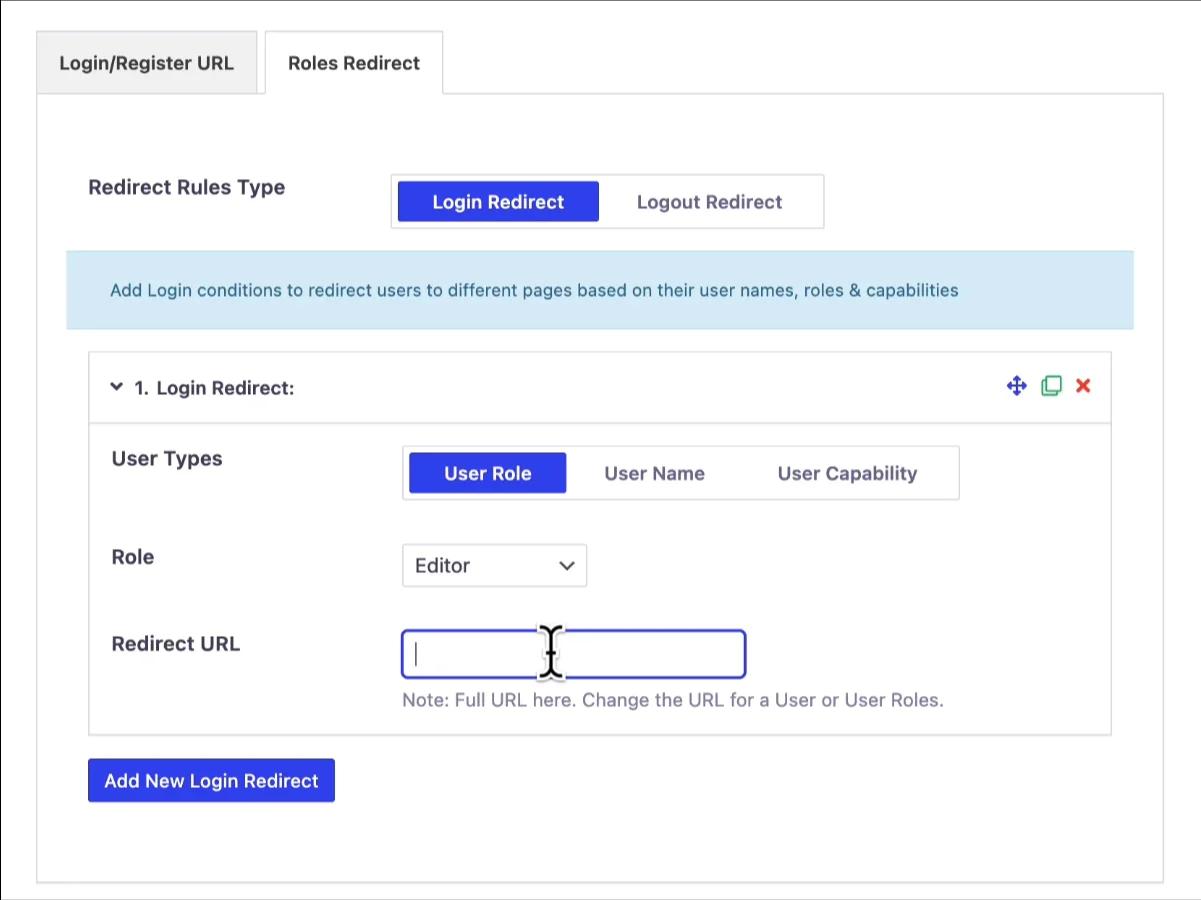
Staff are a separate question, and a role-based one: a shop manager probably wants the Orders screen in wp-admin, an administrator probably wants the dashboard. Redirecting users after login by role covers that side, in code and as a settings screen.
Keeping customers out of wp-admin
Here's the good news: WooCommerce already does this. Users whose only role is customer are blocked from the WordPress admin and redirected to My Account, and the admin bar is hidden from them on the front end. You don't need a snippet, and you don't need a plugin, for the default case.
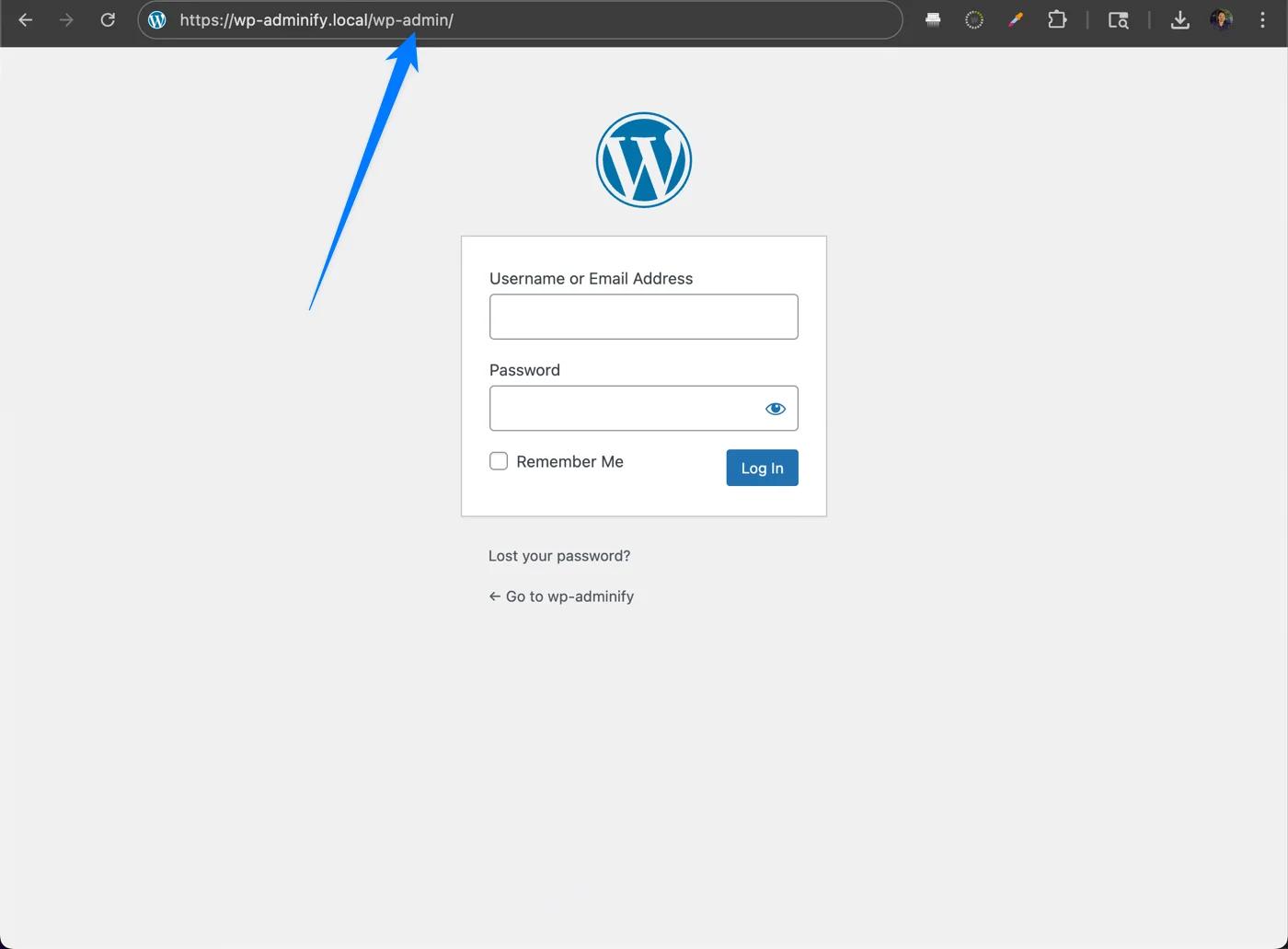
The gap is the accounts that aren't customers. A store that also runs a membership plugin, or that hands out the subscriber role, or that lets a marketplace vendor register, has users WooCommerce's block doesn't cover. They can reach the dashboard, and they will see the admin toolbar on every front-end page.
For those, hiding the admin bar by user role handles the visible half, and the admin_init redirect in the front-end login guide handles the rest. If you're building somewhere for those users to land instead, that's a client dashboard question.
Should you redirect wp-login.php to My Account?
It's a common request and the answer is usually no, at least not the naive version.
Sending every wp-login.php request to /my-account/ looks tidy until a password reset email arrives. Reset links point at wp-login.php with an action parameter, and a redirect that swallows them breaks account recovery for the whole store. Logout does the same thing. So does the POST that actually authenticates.
If you do it, exclude all of them:
add_action( 'init', 'mystore_redirect_login_page' );
function mystore_redirect_login_page() {

    if ( ! isset( $_SERVER['REQUEST_URI'], $_SERVER['REQUEST_METHOD'] ) ) {
        return;
    }

    if ( false === strpos( $_SERVER['REQUEST_URI'], 'wp-login.php' ) ) {
        return;
    }

    if ( 'POST' === $_SERVER['REQUEST_METHOD'] ) {
        return; // the login itself
    }

    $action = isset( $_GET['action'] ) ? sanitize_key( $_GET['action'] ) : '';
    if ( in_array( $action, array( 'logout', 'rp', 'resetpass', 'lostpassword', 'register' ), true ) ) {
        return; // recovery and logout flows
    }

    wp_safe_redirect( wc_get_page_permalink( 'myaccount' ) );
    exit;
}
Even then, understand what you've bought: a convenience for humans who follow links, not a security control. Direct POSTs to wp-login.php still authenticate. Closing that door is a different job, covered in changing your WordPress login URL.
On most stores the better answer is to leave wp-login.php alone, brand it so it looks like yours, and make sure every customer-facing "Sign in" link on the site points at My Account instead. If you also want customers to be able to register from the front end, building a WordPress login and registration page covers the pairing.
Security, briefly, because this is a store
A shop login is worth more to an attacker than a blog login. Order data, customer addresses, and on many stores a payment gateway dashboard one click away.
- Rate limiting. Both forms post to the same authentication handler, so both are equally brute-forceable. Limiting failed attempts protects the store, not just the admin screen. The login security covers the options.
- Generic failure messages. "No account found with that email" tells an attacker which of your customer emails are real. Say "email or password is incorrect" and say it for both cases.
- Two-factor for staff. Not for customers, who will abandon it. For every account that can see orders. Two-factor authentication for WordPress admin is the practical version.
- HTTPS everywhere. Non-negotiable on any page that accepts a password, and doubly so on one that also handles payment.
Before you call it done
Create a real customer account and use it in a private window. Not an administrator with a role switcher, a real one with the customer role and nothing else.
- Log in from
/my-account/. Do you land where you intended? - Add something to the cart, go to checkout, log in from the checkout notice. Is the cart still there?
- Log out. Where do you end up?
- Request a password reset. Does the email arrive, and does its link work?
- Register a new account, from the account page and from checkout if you allow it.
- Type
/wp-adminwhile signed in as that customer. Are you sent back to My Account? - Look at the top of a front-end page. Is the black admin toolbar gone?
- Do all of it on a phone.
Password reset is the one that breaks most often, and on a store it breaks loudly, because the people who need it are people who want to buy something. If you break yourself out of your own admin while testing, fixing WordPress login page issues covers redirect loops and the login URL post covers getting back in.
Frequently asked questions
Where is the WooCommerce login page?
At /my-account/ on a default install, though the slug is whatever page is set under WooCommerce > Settings > Advanced > My account page. That page holds WooCommerce's account shortcode, which renders the login form when a visitor is logged out and the account dashboard when they're logged in. It's a separate page from wp-login.php, which is the WordPress admin login.
Can I customize the WooCommerce login page without a plugin?
Yes. Most of what stores want is CSS, which goes in your child theme's stylesheet or in Additional CSS. Markup changes are done either through the login form hooks or by copying myaccount/form-login.php into a woocommerce folder in your child theme. Neither needs a plugin.
Why does my customer see the WordPress dashboard after logging in?
Because they hold a role other than customer. WooCommerce blocks admin access for customers automatically, but a subscriber, contributor or membership-plugin role falls outside that. Add your own admin_init redirect for those roles, or use a dashboard plugin's role-based access controls.
Does WooCommerce have its own login page template?
Yes, several. templates/myaccount/form-login.php renders the account login and registration form, and templates/checkout/form-login.php renders the compact form behind the "Returning customer?" notice at checkout. Both can be overridden by copying them into a woocommerce folder inside your child theme.
Should I style the My Account page or wp-login.php?
Style My Account if your goal is the customer experience, because that's the page customers use. Style wp-login.php if your goal is client handover or staff branding, because that's the page your team and your client see. Stores that care about both do both; they're two separate pieces of work.
Will a login customizer plugin change the My Account form too?
Usually not. Login customizers such as Loginfy, LoginPress and Custom Login Page Customizer target wp-login.php, which is core WordPress. The WooCommerce account form is a front-end page rendered by your theme, so it's styled with theme CSS or a template override. Expect to use one tool for each.
Next steps
If the admin login is the half you care about, how to create a custom WordPress login page is the build, and the WordPress login page white-label guide is the reference behind it.
If the customer-facing half is the priority, creating a WordPress login page for users goes deeper on front-end forms and role routing, and login and registration together covers self-service signup.
Your email address will not be published