



WordPress can already do this. Registration is a checkbox in Settings, and the registration form lives at wp-login.php?action=register.
The problem is that the built-in version asks for a username and an email, emails a generated password, and drops the new user into the WordPress dashboard. For a members area, a course, or a community, every one of those steps is wrong.
What follows is the version that works, plus what happens the week after you turn signups on. The login half of this leans on the front-end form covered in how to create a custom WordPress login form; registration has no core equivalent, so most of the code below is the part WordPress does not give you. If your users are staff rather than members and you only want the admin screen branded, how to customize the WordPress login page is a far shorter job and nothing on this page applies.
Before anything else: should registration be open?
Open registration on a WordPress site attracts automated signups within days, not as a risk but as a certainty. The endpoint is well known and it is scanned constantly.
Three questions worth answering first:
- What does a registered user get? If the answer is "nothing yet," you are building a spam magnet with no upside. Build the gated content first.
- What role do they get? Subscriber, and only Subscriber. Step 1 covers why, because this is the setting with the worst consequences when it is wrong.
- Do you need approval? On a professional community, manual approval or email verification is worth the friction.
If registration is not genuinely needed, leave it off and create accounts by hand. An account that cannot be created by a stranger cannot be abused by one.
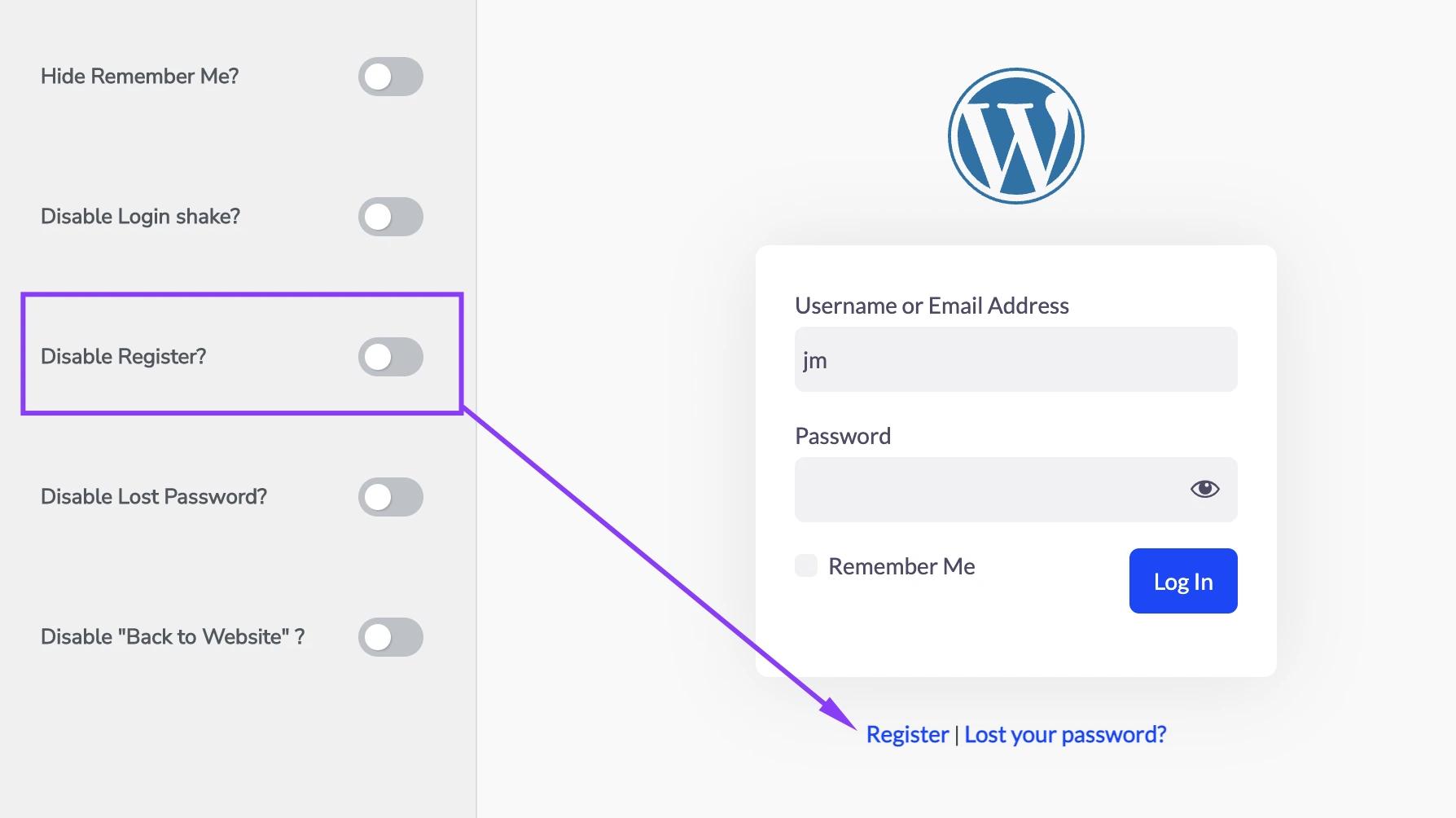
Step 1: enable registration and set the default role
Settings > General. Tick "Anyone can register" next to Membership, then set New User Default Role.
Set it to Subscriber. Not Contributor, not Author, and under no circumstances Editor or Administrator.
If the default role is Author, anyone who registers can publish on your domain. If it is Administrator, anyone who registers owns the site. Both misconfigurations exist in the wild, usually because someone changed the role while debugging and never changed it back.
Check it now on any site you run with open registration. It takes ten seconds. Then check the users list itself for accounts that already hold a role they should not, which is easier when you can see who has actually signed in: adding a last login column to the WordPress users list.
Step 2: put the forms on your own pages
Registration is now on at wp-login.php?action=register, which is the admin screen again. Two ways to move it into your theme.
Theme My Login
60,000 installs · 74/100 from 460 ratings
It handles login, registration, lost password and reset password as pages inside your theme, which makes it the shortest path to a complete flow.
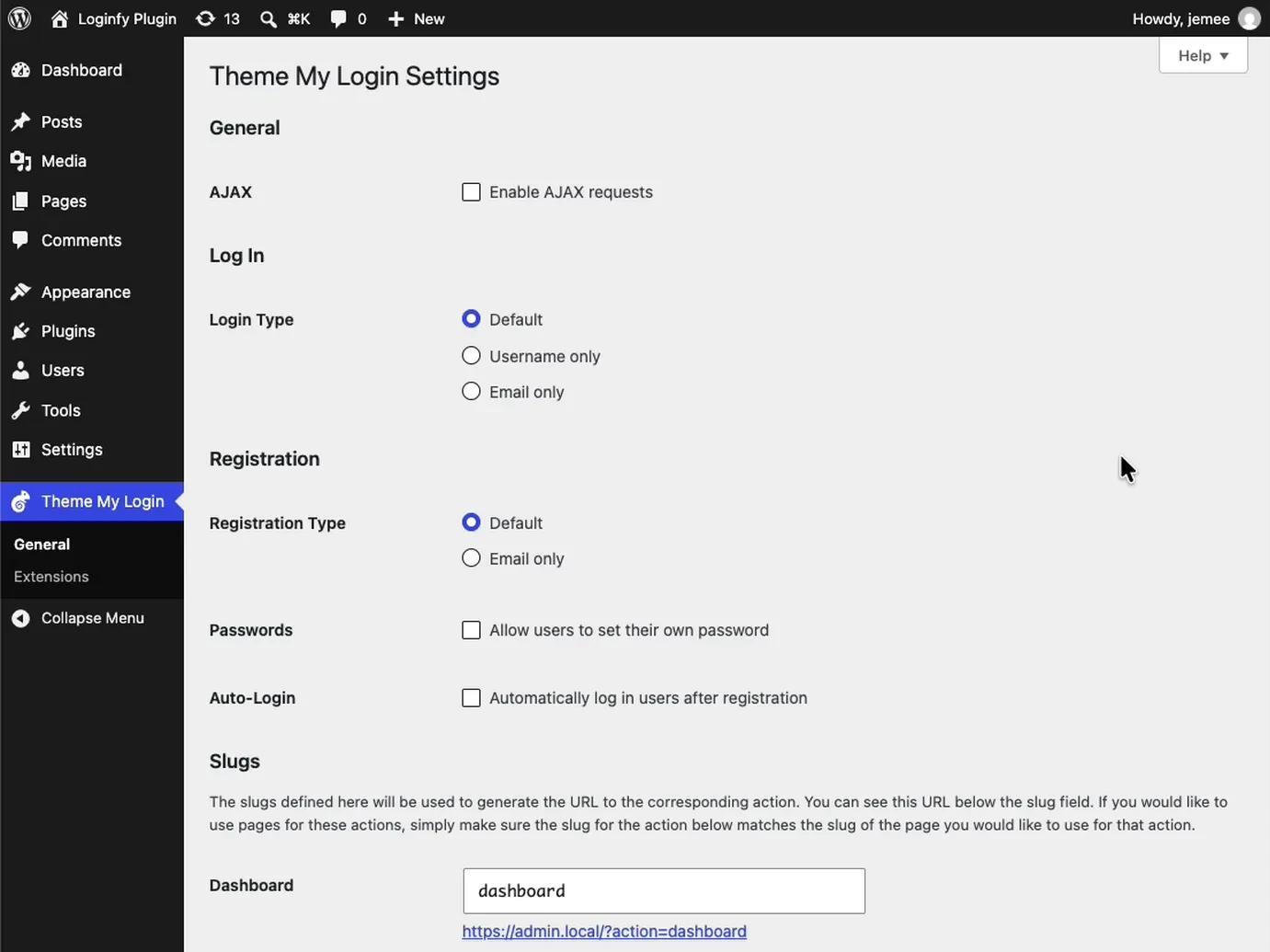
Three settings decide how the signup feels:
- Registration Type: Email only. Drop the username field. Nobody wants to invent a username, and it is one more thing to get stuck on before an account exists.
- Passwords: allow users to set their own. The default WordPress flow emails a generated password, and that email has to survive the spam filter before anyone can log in. Letting people choose at signup removes an entire class of support ticket.
- Auto-Login: on. Sign them in immediately after registering. Making someone who just created an account log in again is a step that loses people for no benefit.
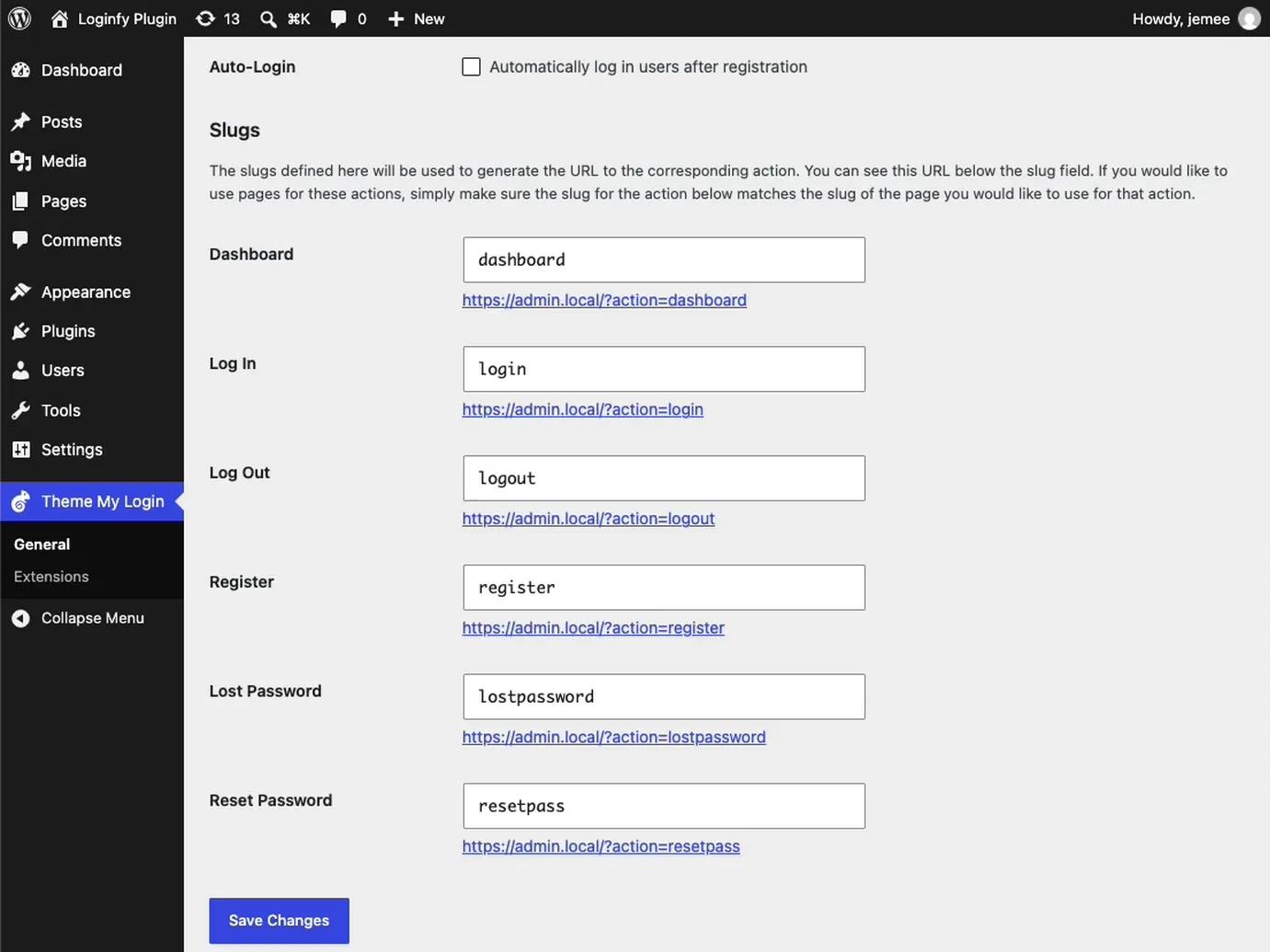
Extensions are sold separately at $15 for one site, $30 for two to five, and $45 unlimited, billed yearly, per extension, verified 25 August 2026. The Moderation extension is the relevant one here if you need manual approval or email confirmation.
Or build it yourself
Login is eight lines with wp_login_form(), covered in how to create a custom WordPress login form. Registration has no core equivalent, so you handle the POST:
add_shortcode( 'member_register', 'mysite_register_form' );
function mysite_register_form() {

    if ( is_user_logged_in() ) {
        return '<p>You already have an account.</p>';
    }

    ob_start();

    if ( ! empty( $_POST['mysite_register'] ) ) {
        echo mysite_handle_registration();
    }
    ?>
    <form method="post">
        <?php wp_nonce_field( 'mysite_register', 'mysite_register_nonce' ); ?>
        <p>
            <label for="reg_email">Email</label>
            <input type="email" name="reg_email" id="reg_email" required>
        </p>
        <p>
            <label for="reg_pass">Choose a password</label>
            <input type="password" name="reg_pass" id="reg_pass" required>
        </p>
        <p style="position:absolute;left:-9999px" aria-hidden="true">
            <input type="text" name="mysite_website" tabindex="-1" autocomplete="off">
        </p>
        <button type="submit" name="mysite_register" value="1">Create account</button>
    </form>
    <?php
    return ob_get_clean();
}
That hidden field is a honeypot. Humans never fill it because they never see it. A large share of naive bots fill every field they find, which makes it a free first filter.
Then the handler:
function mysite_handle_registration() {

    if ( ! isset( $_POST['mysite_register_nonce'] ) ||
         ! wp_verify_nonce( $_POST['mysite_register_nonce'], 'mysite_register' ) ) {
        return '<p>Something went wrong. Please try again.</p>';
    }

    // Honeypot filled means bot.
    if ( ! empty( $_POST['mysite_website'] ) ) {
        return '<p>Thanks, check your email.</p>';
    }

    if ( ! get_option( 'users_can_register' ) ) {
        return '<p>Registration is closed.</p>';
    }

    $email = sanitize_email( wp_unslash( $_POST['reg_email'] ) );
    $pass  = (string) $_POST['reg_pass'];

    if ( ! is_email( $email ) || strlen( $pass ) < 10 ) {
        return '<p>Please enter a valid email and a password of at least 10 characters.</p>';
    }

    if ( email_exists( $email ) ) {
        // Do not confirm the address is registered.
        return '<p>Thanks, check your email.</p>';
    }

    $user_id = wp_create_user( $email, $pass, $email );

    if ( is_wp_error( $user_id ) ) {
        return '<p>We could not create that account. Please try again.</p>';
    }

    wp_update_user( array( 'ID' => $user_id, 'role' => 'subscriber' ) );

    wp_set_current_user( $user_id );
    wp_set_auth_cookie( $user_id );

    wp_safe_redirect( home_url( '/members/' ) );
    exit;
}
Note the email_exists() branch. Returning "that email is already registered" turns your signup form into an account-checking tool, which is the same enumeration problem the login form has. Return the same message either way. And closing it here is wasted if the site is still handing the same list out through another door, which it is by default: how the WordPress REST API leaks your usernames.
Step 3: point the registration URL at your page
WordPress generates "Register" links pointing at wp-login.php?action=register. Repoint them:
add_filter( 'register_url', function () {
    return home_url( '/create-account/' );
} );
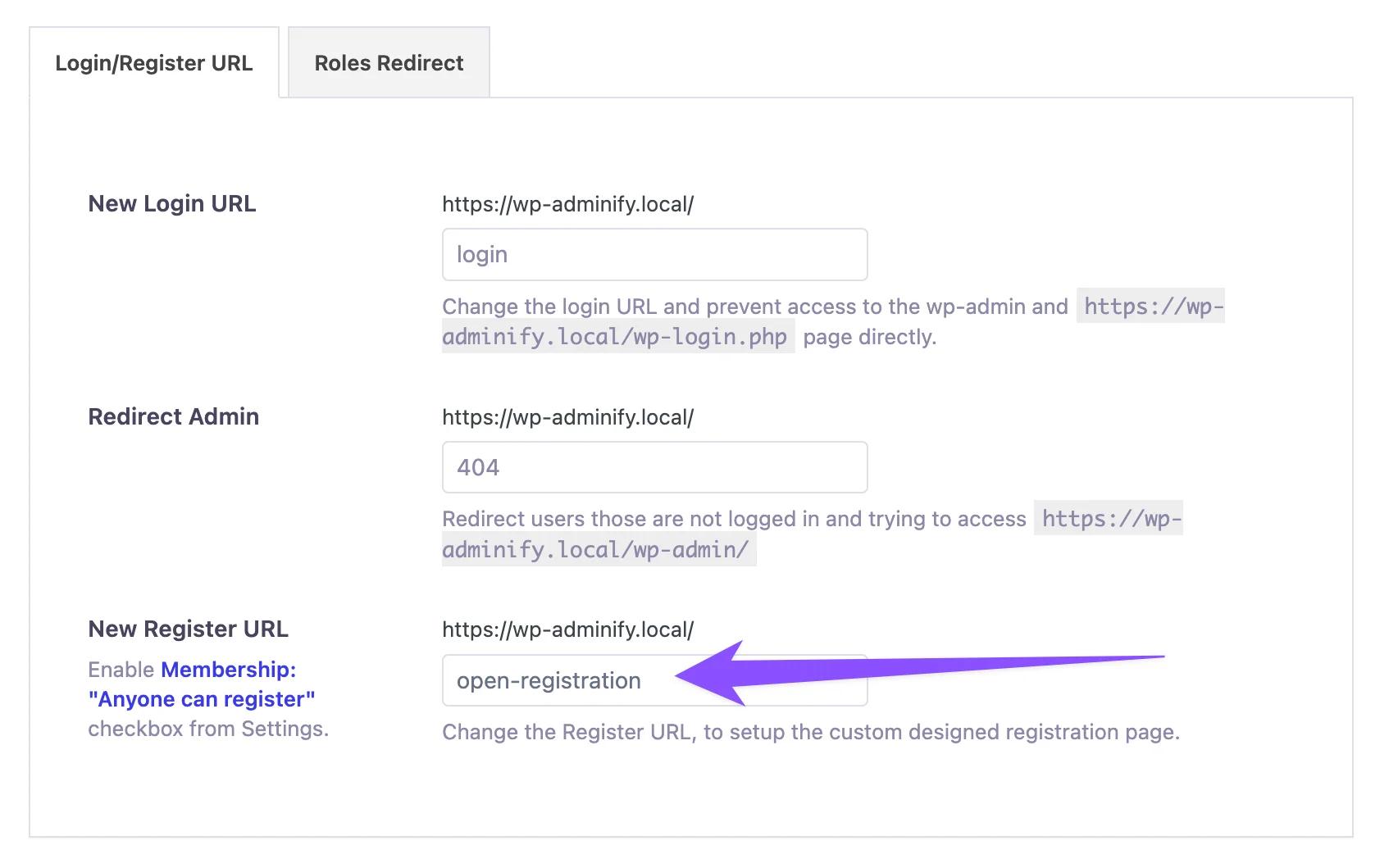
Or set it without code. Several dashboard toolkits expose login and registration URL fields together.
Step 4: handle the password reset flow
Every registration system needs a working reset flow, and it is the piece most often left half finished.
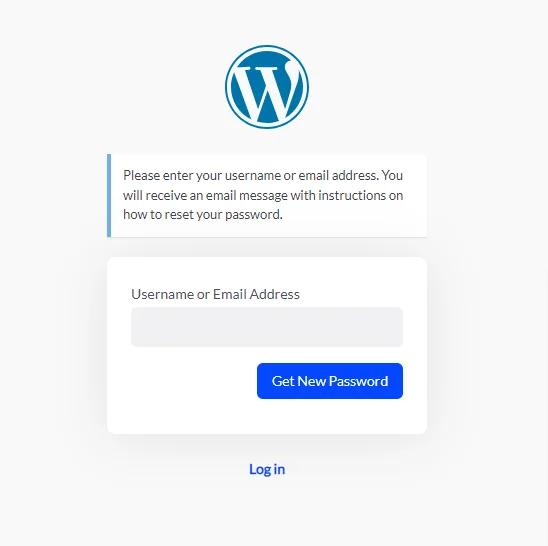
Two rules. First, the confirmation message must not reveal whether the address exists: "If that address is registered, we have sent a reset link" is the correct wording, always. Second, do not break the reset link. It arrives as a wp-login.php URL with an action parameter, and a blanket redirect on wp-login.php swallows it.
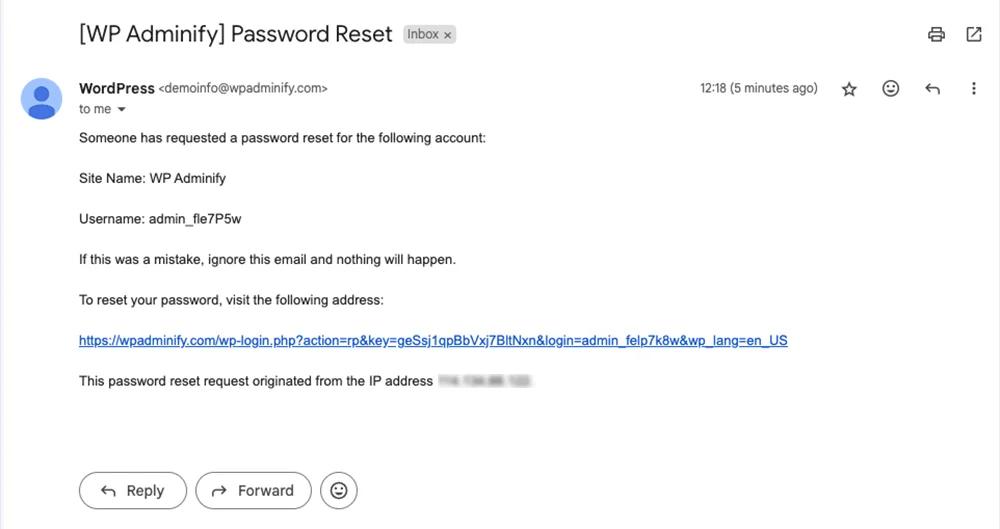
Recovery routes, for when this goes wrong on a live site, are in resetting a WordPress admin password without email. If the reset emails are not arriving at all, the sending address is worth checking first: changing the WordPress admin email address.
Step 5: deal with the spam
Open registration attracts automated signups. Layer these, cheapest first:
- Honeypot field. Free, invisible to users, catches a surprising share of bots. Included in the code above.
- Email verification. The account stays inactive until a link is clicked. Removes almost everything with a fake address.
- CAPTCHA on the registration form. Use invisible v3 or Cloudflare Turnstile, not an image puzzle.
- Domain restrictions. If registration is for one organisation, allow only their email domain. LoginPress free includes a "Registration from Specific Domains" setting, and it is a couple of lines in code.
- Manual approval. The strongest and the most work. Right for professional communities, wrong for anything at volume.
Rate limit the registration endpoint too. Everyone limits login attempts and forgets that a signup form is also a form a script can post to a thousand times.
What the new user sees after they register
Creating the account is the easy half. The person on the other end still has to understand what just happened and where they now are.
Three things decide that, and all three are easy to leave at the WordPress default by accident.
The destination. Without a redirect, WordPress sends a new Subscriber to /wp-admin: a near-empty dashboard with a menu they have no permission to use. Send them to the members area instead, and make the first thing they see explain what they now have access to. The rules for that are in redirecting users after login by role in WordPress, and if the members area does not exist yet, creating a WordPress custom user dashboard without coding covers building one.
The welcome email. WordPress sends a plain-text notification with your site name in the subject line and nothing else. It is the first email your new member receives from you, and it reads like a system alert. Rewrite it with the wp_new_user_notification_email filter, or use whatever your membership plugin provides.
The admin bar. A black WordPress toolbar across the top of every page tells a member, correctly, that they are inside somebody's admin system. Hide it for roles below Editor, with a toggle or a snippet.
A note on GDPR and consent
Creating a user account stores personal data, so a registration form in the EU or UK carries obligations that a login form does not.
Practical version, without pretending this is legal advice. Link your privacy policy from the form itself, not three clicks away. If you are adding people to a mailing list at the same time, that needs its own unticked checkbox rather than being bundled into the signup. Keep only the fields you actually use: every extra field is data you now have to store, secure and delete on request. And make sure account deletion is possible, since WordPress has shipped personal data export and erasure tools since 4.9.6 and they only work if somebody knows they are there.
Step 6: audit it after a month
Put a reminder in the calendar. Open Users, sort by registration date, and look.
What you are looking for: accounts with gibberish emails, accounts that registered and never returned, and above all any account holding a role other than Subscriber. Delete the junk. If more than a small fraction is junk, add the next layer from the list above.
An activity log makes this a five-minute job rather than a squint at a user table, because it records the registrations, the logins that followed and anything those accounts changed: monitoring user activity in WordPress with activity logs.
Frequently asked questions
How do I enable user registration in WordPress?
Settings > General, tick "Anyone can register" next to Membership, and set New User Default Role to Subscriber. The registration form then lives at wp-login.php?action=register until you move it to a page of your own.
Can I have login and registration on the same page?
Yes. Put both shortcodes on one page, or use tabs so only one form shows at a time. Keep the two submissions clearly separate: a single form that tries to guess whether someone is signing in or signing up produces confusing errors.
What role should new users get?
Subscriber, unless you have a specific reason otherwise. Contributor lets people create draft posts, Author lets them publish. On a site with open registration, anything above Subscriber is an invitation.
How do I stop spam registrations?
Layer defences: honeypot field, email verification, invisible CAPTCHA, and domain restrictions where the audience allows it. Manual approval stops everything at the cost of your time. Rate limit the registration endpoint as well as the login one.
Do I need a plugin for a registration page?
No, and the code above is a working implementation. A plugin such as Theme My Login is worth it once you also want lost password, reset password and profile editing rendered in your theme, because that is four templates rather than one.
Next steps
If you have not built the login half yet, that is creating a WordPress login page for users, including the redirects that keep members out of /wp-admin.
Once signups are open, the site has more accounts than it did last week, and every one is a way in. The WordPress login security is the follow-up that matters, and the item at the top of it, two-factor authentication for WordPress admin, is worth doing before the signups rather than after.

Your email address will not be published