

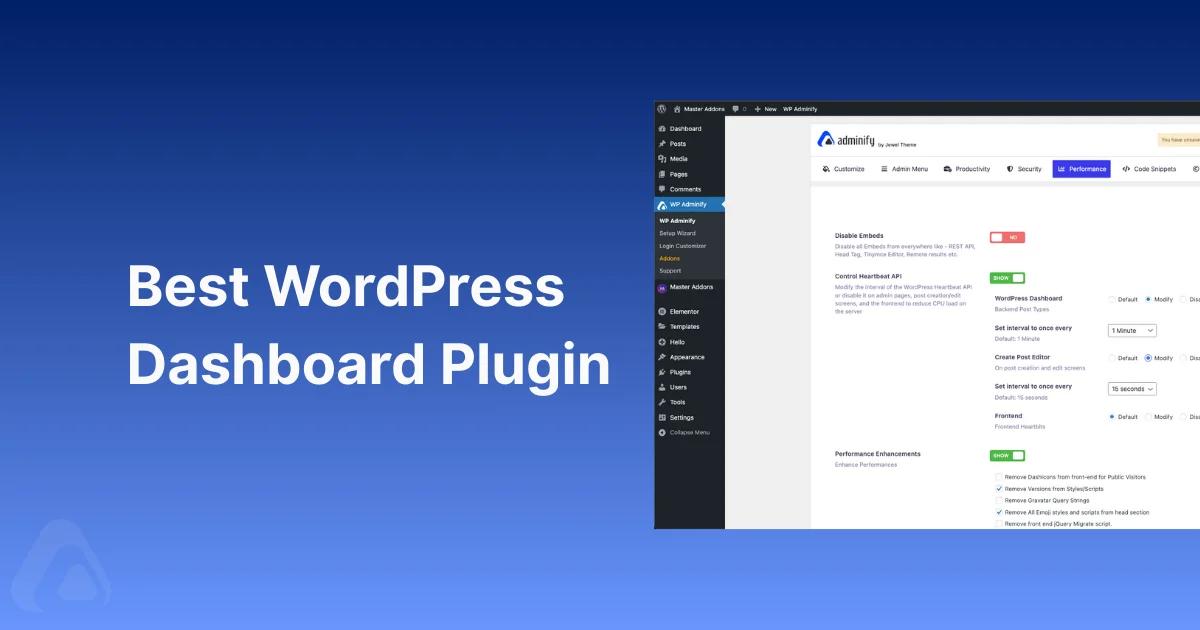

Your WordPress Dashboard is not just something to manage your blog posts or pages. It’s the main control center of your entire site.
Maybe you never thought about improving your Dashboard, but believe me, with the help of my mentioned plugin, you can boost your productivity.
A WordPress Dashboard plugin transforms your Admin into a branded, user-friendly panel that will help you stay focused and well-organized.
No matter if you run a blog, client’s site, or an agency – I highly recommend you go through my mentioned plugin list and choose the best one for your needs.
In 2026, WordPress Dashboard customization is not a luxury but a necessity for better management. Whether you want to customise the admin for yourself or brand it for clients, the right plugin does the heavy lifting. Good news is, there are a variety of powerful WordPress Dashboard plugins available in the WordPress plugin repository.
Quick answer: WP Adminify is the best overall WordPress dashboard plugin in 2026, one all-in-one toolkit that combines admin UI customization, a drag-and-drop menu editor, custom dashboard widgets, login branding, and full white labeling in a single plugin (60+ features). If you are building a WordPress client dashboard for handover, WP Adminify and Ultimate Client Dash are the two that cover branding, widgets and role limits together, while Ultimate Dashboard is the lighter widget-only pick and White Label CMS handles branding on a budget. For a single job like a branded login page, faster navigation, analytics, or caching, pair WP Adminify with a focused tool such as Loginfy, WP Spotlight, MonsterInsights, or WP Rocket.
Why Customize Your WordPress Dashboard?
I’d like to mention a few things that will encourage you to start your WordPress Dashboard customization journey. SPOILER: Your client will definitely love the personalized Dashboard instead of the default.
- A custom Dashboard improves usability & visibility
- White-label the WordPress Dashboard
- Hide unwanted options for different user roles or clients
- Custom widgets and menus can help your other members
Key Features to Look for in Dashboard Plugins
Before selecting any plugin, just think properly about what feature you need most. After brainstorming properly, decide the right plugin for you. But I’d like to mention some features that you should consider while choosing the best Dashboard plugin for your site or client’s site.
Customization: It should have the option to add, remove, rearrange dashboard widgets and of course, login page customization. How much flexibility a plugin provides for Admin Customization should be your priority.
Admin Menu Optimization: The Admin menu plays a vital role in WordPress Dashboard. Your plugin must have this admin menu editor feature, or you’ll have to use another plugin to get this feature.
Analytics Integration: It’s not a standard part of the WordPress Dashboard, but having this feature in a Dashboard customization plugin is a bonus for you.
User Role Editor: This is one of the must-have features when you try to modify the default admin panel. Modify the User Role permission for better accessibility.
White Labeling: White labeling for the WordPress Dashboard is necessary if you want to provide a branded look to your clients or users.
What Is a WordPress Client Dashboard?
A WordPress client dashboard is the admin area rebranded and stripped back for the person who owns the site rather than the person who built it. You hide the menus they do not need, replace the default widgets with your own, put your agency logo on the login screen, and lock the whole thing to their user role.
That is not the same thing as a front end client portal. A portal sits on the public side of the site and shows project files, invoices or progress updates. Everything on this page is admin side, so it changes what the client sees after they sign in at /wp-admin. If you need the portal kind, you are shopping in a different plugin category.
Most of the plugins below handle part of this job. Our guide to the client dashboard customizations that reduce support tickets walks through the settings themselves. This page is about which plugin to install first.
The Best WordPress Dashboard Plugins for 2026
I have tried my best to keep things minimal. You will get Dashboard plugins, Analytics, Forms, and Performance in my following recommended list. The following plugins are 100% compatible with each other, as I have personally tested them on my local server.
| Plugin | Best for | Standout feature | Free version |
|---|---|---|---|
| WP Adminify | All-in-one dashboard customization & white label | Admin UI + menu editor, white label, 60+ features | Yes (WordPress.org) |
| Ultimate Dashboard | Simple, widget-only client dashboards | Replace default widgets; Elementor/Bricks dashboard (Pro) | Yes (WordPress.org) |
| White Label CMS | Basic admin branding on a budget | Login, dashboard & footer branding presets | Yes (WordPress.org) |
| Admin Bar Editor | Cleaning up the admin toolbar | Hide/customize admin bar per user role | Yes (WordPress.org) |
| Loginfy | Branded login pages | 16 login templates with live preview | Yes (WordPress.org) |
| RoleMaster Suite | User roles & permissions | Create/duplicate roles, edit capabilities | Yes (WordPress.org) |
| WP Spotlight | Fast dashboard navigation | Alt+S command palette + quick actions | Yes (WordPress.org) |
| MonsterInsights | Analytics inside the dashboard | Google Analytics stats in wp-admin | Yes (freemium) |
| WP Forms | Forms & lead capture | Drag-and-drop builder, 2,000+ templates | Yes (Lite) |
| WP Rocket | Performance & caching | One-click caching & speed optimization | No (premium) |
WP Adminify
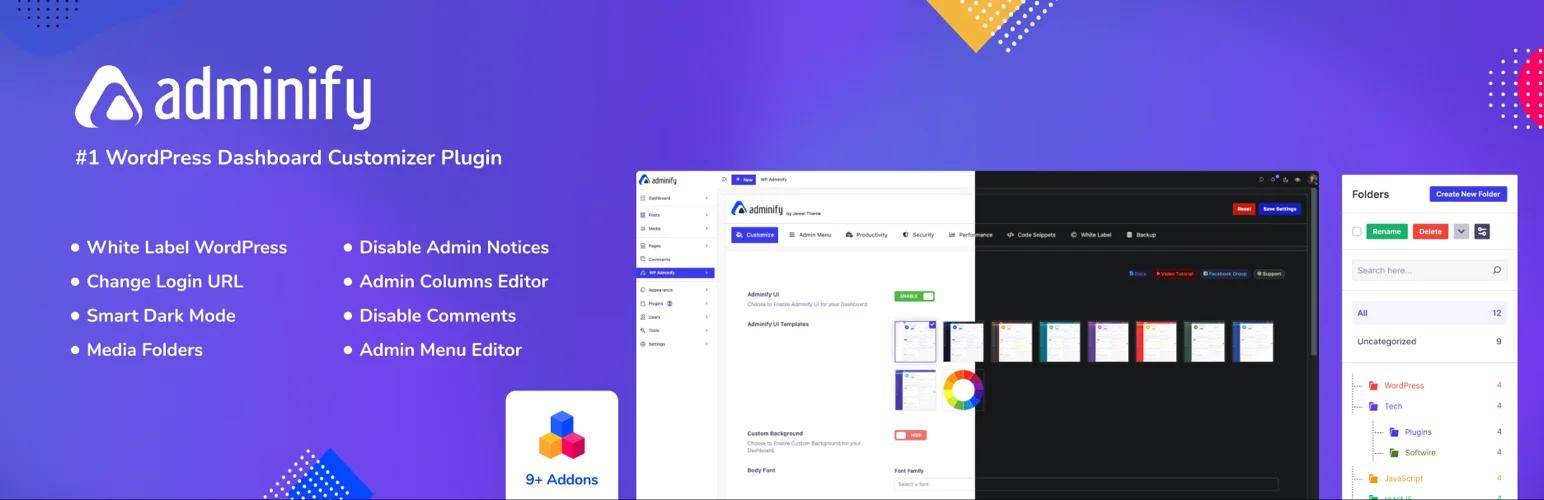
You will get excellent support and continuous updates with new features and fixes from the WP Adminify team. No matter whether you are a free or pro version user, each user will get the same value from the team.
This plugin offers all the necessary features that a basic user needs from a WordPress Dashboard plugin. See the full WordPress dashboard customization feature set. Let me mention some popular features like Admin UI customization, Admin Menu Editor, Media Folder, Admin notice control, Custom Admin Page, Custom Dashboard widget, Change login URL, User role-based redirection, Control Heartbeat API, and much more.
Also, it offers a white labeling feature to Pro plans. You can easily rebrand WP Adminify with your own agency logo, name, and much more. WP Adminify has a free version on WordPress.org, and Pro plans start at $79/year - see the full breakdown on the WP Adminify pricing page.
Admin Bar Editor
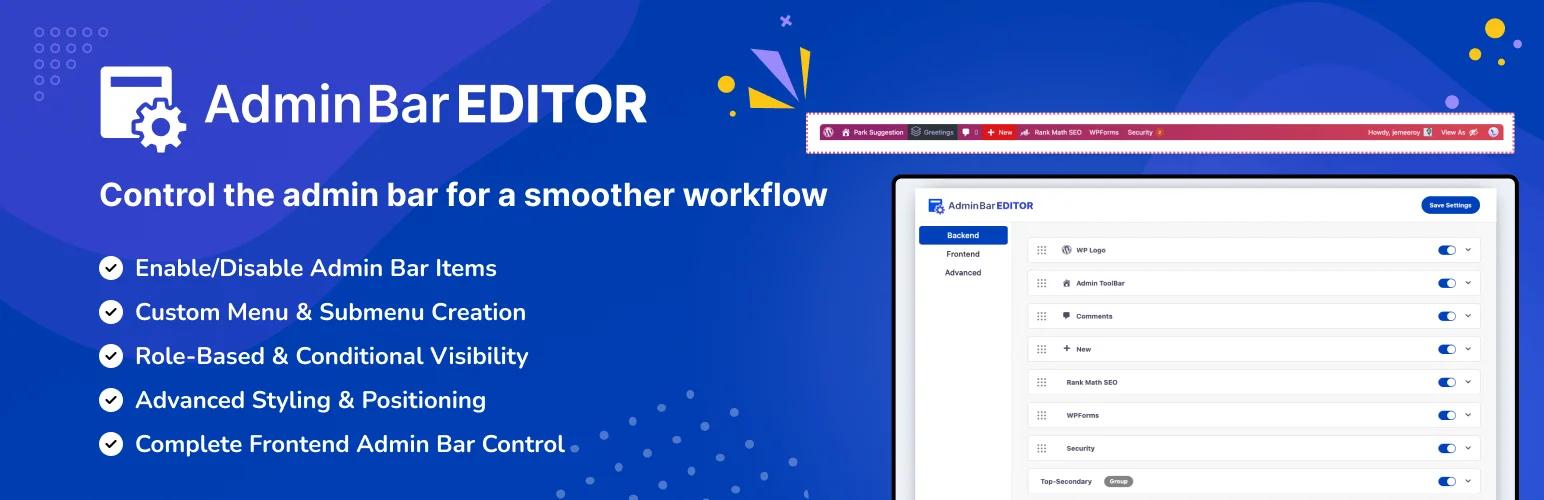
Most of the WordPress Dashboard Plugins skip the default Admin bar customization part. But the Admin Bar plays a vital role in your WordPress Admin Panel. You have customized the entire Dashboard, but the Admin Bar remains the same with the default color and icons. Which doesn’t seem professional for an Admin panel.
With the help of the Admin Bar Editor plugin, you can hide, customize, and add any Admin bar items. That’s not the end – you can also hide the admin bar for specific user roles or even hide specific items for specific user roles too.
It offers background customization options for the Admin bar and also defines the admin bar position from top to bottom.
Loginfy
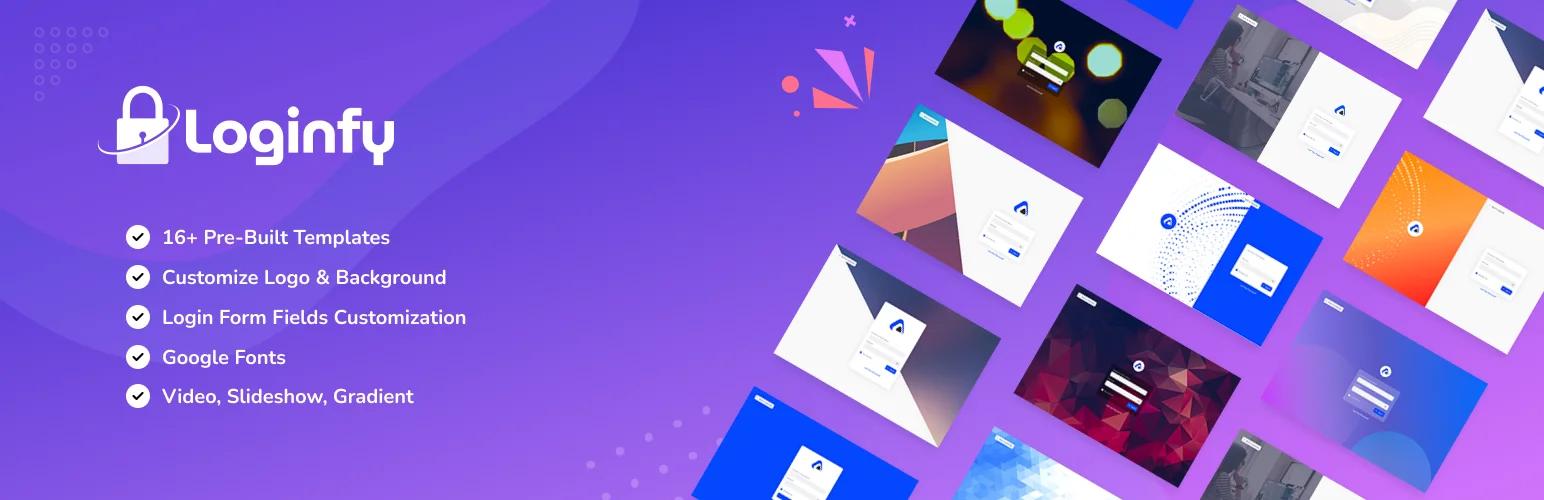
To get a professional look on your WordPress login page, you should install Loginfy. It provides 16 pre-built templates and live login page customization ability. Without saving your login page, you can preview whatever you are doing with the login page.
Change your login page logo, layout, background (color, gradient, photo, video, slideshow), login form, fields, button, and much more.
Not only the UI, but it also offers some extra functionality like error message customization, custom CSS, and Google Font for the login page.
RoleMaster Suite
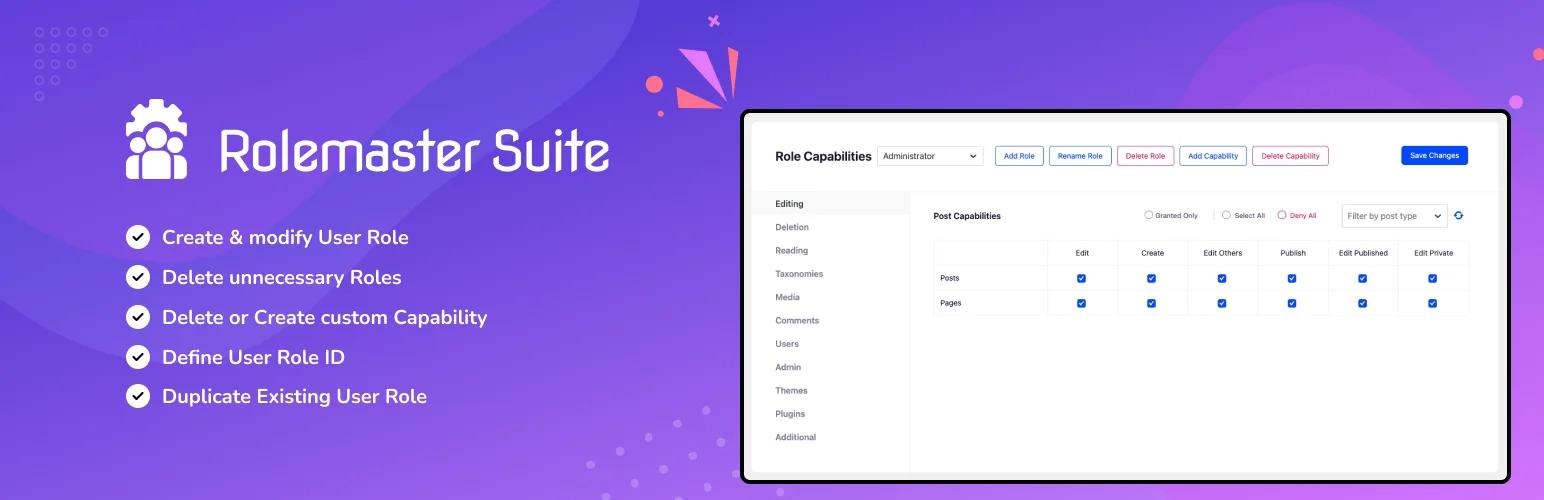
Enjoy the modern UI and easy-to-use interface while customizing your default user role permissions. It supports any other custom user roles too. For example, if you are using WooCommerce, then you can modify the permissions for your shop manager and vendor.
Not only customization of user permissions, but it also offers you the option to create custom user roles. You can create a custom user role from scratch or duplicate any existing user role to speed up your role creation journey.
WP Spotlight
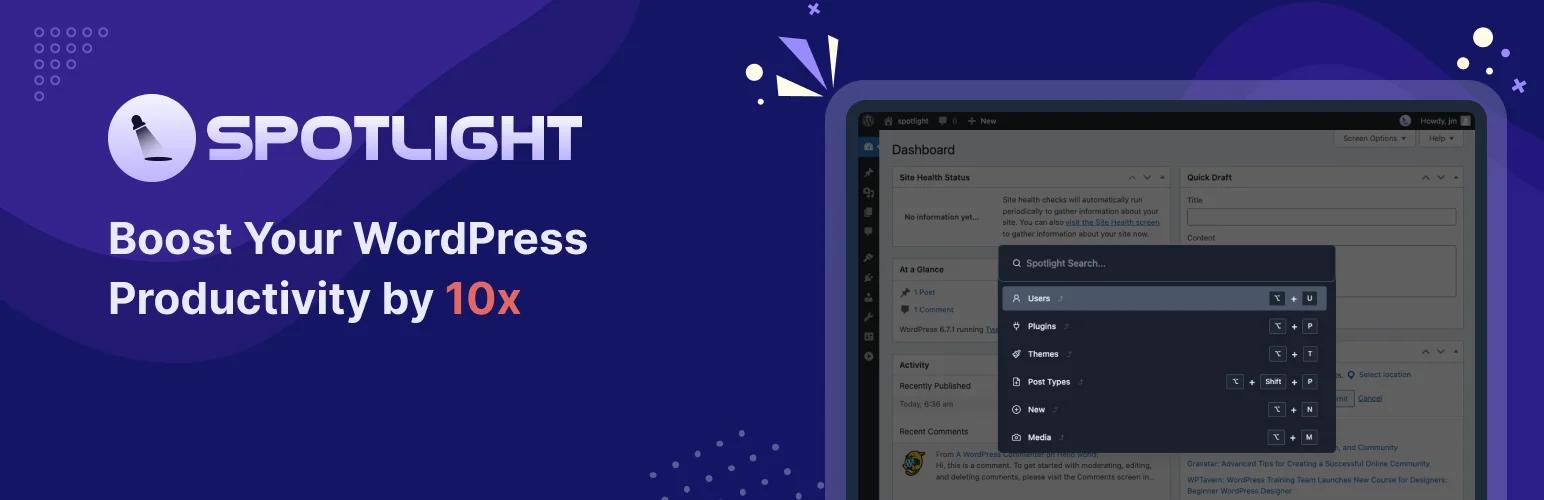
If you are a power WordPress user and spend most of your time inside your WordPress Dashboard, then this plugin will save you 10 times the navigation time. All you have to do is press Alt+S on Mac and Windows.
You will get a spotlight search in your WordPress dashboard. Now you can type anything and navigate to relevant searches and press enter to directly navigate on the specific option.
Not only for navigation but also this plugin offers some quick action like creating new page, post, upload media, theme and plugin activation or deletion and much more.
Ultimate Dashboard - Best for simple, widget-only client dashboards
Ultimate Dashboard is a clean, lightweight plugin built around one job: replacing the default WordPress dashboard widgets with your own icon, text, and HTML widgets so clients land on a tidy welcome screen. The Pro version can swap the dashboard for an Elementor, Bricks, or Divi layout. If a decluttered welcome screen is all you need, it is a solid pick.
Where it stops is breadth. There is no admin menu editor, dark mode, media folders, command palette, or plugin-level white label, so agencies that need to rebrand and reorganize the whole admin usually outgrow it. If you want that widget control plus full admin customization in one place, see the feature-by-feature WP Adminify vs Ultimate Dashboard comparison.
White Label CMS - Best for basic admin branding on a budget
White Label CMS is a long-standing free plugin for putting your logo on the login screen, dashboard, and admin footer, plus a few branded dashboard panels. For a freelancer who only needs light branding, it does the job well.
It is branding first and customization second: there is no drag-and-drop menu editor, dark mode, or role-based menu control. WP Adminify covers the same branding and adds the rest of the admin toolkit - menu editor, dashboard widgets, media folders, and more. For the feature-by-feature breakdown, see our WP Adminify vs White Label CMS comparison, and our white label WordPress guide walks through both approaches.
MonsterInsights
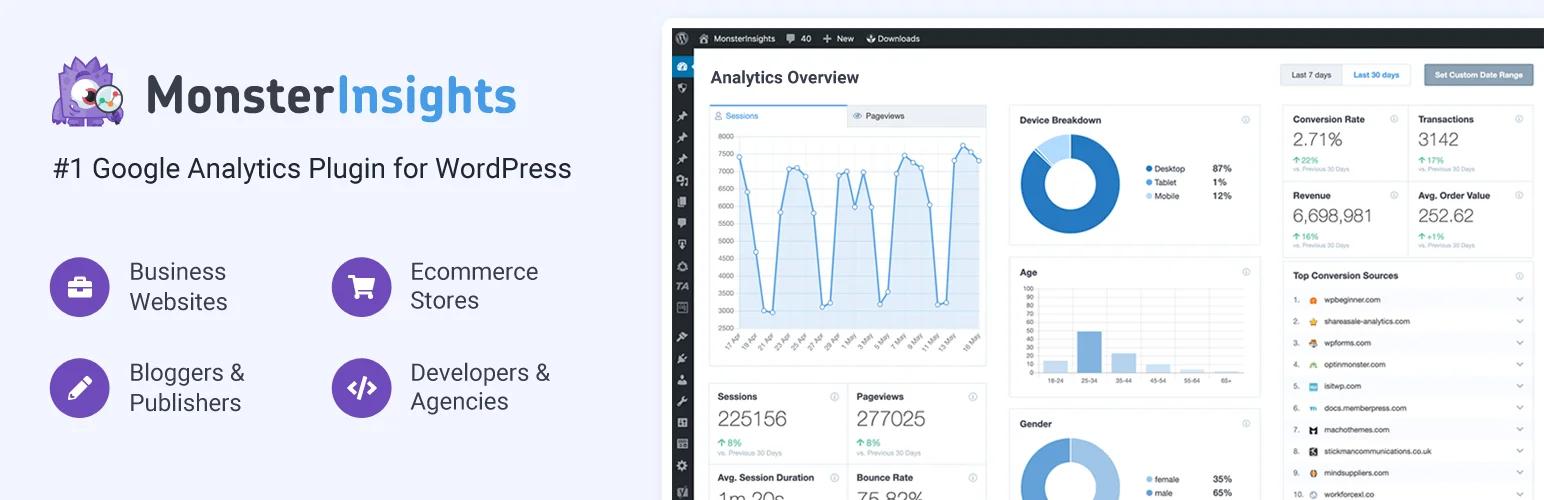
If you are using Google Analytics to track your website audience, then having MonsterInsights will save tons of time for you. You never have to visit the Google Analytics Dashboard to preview your traffic data. You can check all traffic stats inside your WordPress Dashboard. Track e-commerce, conversion, traffic sources – everything in one place.
Track affiliate links properly with outbound link clicks using this plugin. You can also preview the user journey of your visitors and customers and see how long they are staying on your pages.
It offers integration with WooCommerce, YouTube, WP Forms, and many more plugins.
WP Forms
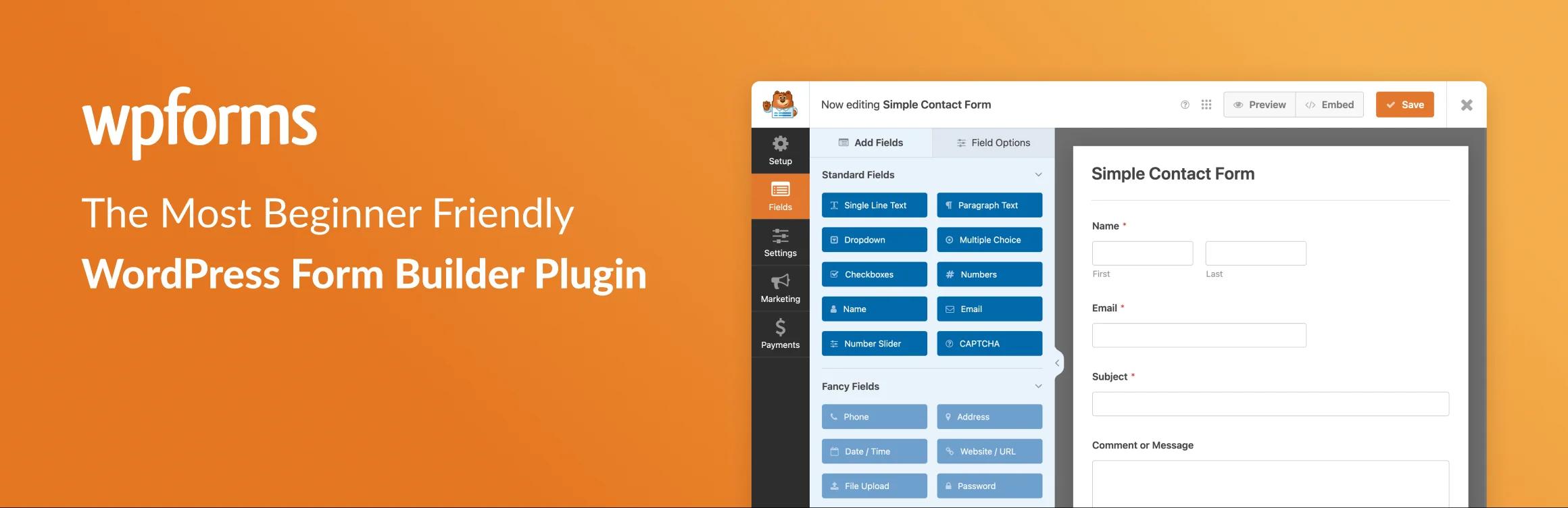
Are you questioning yourself that – There is Contact Form 7, so why am I mentioning WP Forms? Let me clarify – WP Forms is not just a general form plugin. It offers more features like registration forms, survey forms, payment forms, newsletter forms, and much more.
WP Forms offers a rich template library of 2000+ forms, where you can easily find different types of pre-built forms and import them directly to your website. Just customize the text and publish your form.
Enjoy drag-and-drop form builder with smart conditional logic to create a dynamic form based on different types of users. Also, it offers a mobile-friendly design so you don’t have to worry about responsiveness.
WP Rocket
After finalizing your WordPress website, it’s necessary to optimize your website’s page speed. Do you know that page speed plays a great role in ranking on different search engines like Google? Before indexing your website in search engines, I highly recommend you optimize your website performance. You can use the Google PageSpeed test tool to check your website performance.
WP Rocket is a beginner-friendly tool, and you will love the options panel. Just select your caching mode, and you will notice the changes instantly. If you already uploaded too many high-resolution media files to your website, then I recommend you compress the media files to get better page speed.
Do you know? Already 50M websites are using WP Rocket to supercharge their website’s page speed. You can give this plugin a try.
Installation & Basic Setup
The installation of all of my mentioned plugins is very simple. All plugins are available in the WordPress plugin repository except WP Rocket. WP Rocket is a premium plugin. The plugin installation is similar to others. Just go to Plugins > Add New and search by the plugin name, then click on Install and Activate.
After activation of a plugin, you will notice the settings of your installed plugin in the admin menu. Some plugins offer a setup wizard; I recommend you follow the setup wizard and do the basic recommended settings by your desired plugin.
Related Reading
What is a WordPress dashboard plugin?
A WordPress dashboard plugin changes what you and your users see after login: the admin sidebar, the admin bar, the widgets on the Dashboard screen, the login form, and the colours and logo wrapped around all of it. Core WordPress gives you almost none of that. Screen Options can hide one widget for one user, and that is roughly where it stops. Every plugin on this list adds a settings screen so the same choices apply site wide and per user role.
It is worth separating two things people search for with the same words. An analytics dashboard (MonsterInsights and similar) pulls traffic data into WordPress. A dashboard customization plugin changes the interface itself. They solve different problems, and most agencies end up running one of each rather than picking a winner.
Do you need a plugin to customize the WordPress dashboard?
No, but the code route gets tedious quickly. You can call remove_menu_page() in a snippet to drop a menu item, wp_add_dashboard_widget() to add your own widget, and hook login_enqueue_scripts to restyle the login form. That is three separate hooks before you have touched user roles, and each one lives in a theme or a snippet plugin that a future site owner will not know about. A dashboard plugin keeps the configuration in the database and gives the client a screen they can read without calling you.
Which WordPress dashboard plugin is best for client sites?
For handover work the deciding feature is usually white labelling rather than widgets. You want the WordPress logo gone, your own branding on the login screen, the menu trimmed to what the client should touch, and the whole thing locked to their role so nothing breaks when they explore. WP Adminify, White Label CMS and Ultimate Dashboard all cover some of that; the difference is how much you have to stack on top. Our WordPress dashboard customization page breaks the feature set down screen by screen, and white label covers the branding side.
Client dashboard plugins compared
Four plugins keep turning up on client handover work, plus one premium tool that is not on WordPress.org at all. Active install counts below were read from the WordPress.org plugin directory in September 2026.
| Plugin | What it covers on a handover | Active installs | Free version |
|---|---|---|---|
| WP Adminify | Admin menu editor, custom widgets, login branding and full white label in one plugin | 6,000+ | Yes |
| Ultimate Client Dash | Rebrands the dashboard and login, adds client instructions and custom widgets | 2,000+ | Yes |
| Ultimate Dashboard | Replaces the default widgets with a simple welcome screen | 60,000+ | Yes |
| White Label CMS | Branding presets for the login screen, dashboard and footer | 200,000+ | Yes |
| Simple Client Dashboard | One click limited admin role with almost no configuration | Not on WordPress.org | Premium only |
Install counts are a poor proxy for fit here. White Label CMS has the largest install base on the list and still does not touch the admin menu, while Ultimate Client Dash has the smallest and covers more of the handover checklist than either plugin above it. Choose on the column that matches the work in front of you, then check whether the free tier already does it before you pay for anything.
WordPress Dashboard Plugin FAQs
What is the best WordPress dashboard plugin?
For most sites, WP Adminify is the best WordPress dashboard plugin in 2026. It combines admin UI customization, a drag-and-drop menu editor, custom widgets, login branding, and white labeling in one plugin, so you don’t need to stack five separate tools. You can start free and upgrade on the pricing page.
Is there a free WordPress dashboard plugin?
Yes. WP Adminify, Admin Bar Editor, Loginfy, RoleMaster Suite, and WP Spotlight all have free versions on WordPress.org, and MonsterInsights and WP Forms offer free tiers. WP Rocket is the only premium-only tool on this list. You can customize most of your dashboard without spending anything.
How do I customize the WordPress dashboard without code?
Install a dashboard plugin like WP Adminify, then use its visual settings to rearrange widgets, edit the admin menu, hide clutter, and rebrand the login page - no PHP required. For a full walkthrough, read our dashboard customization guide. Most changes take effect instantly after you save.
Which dashboard plugin is best for agencies and client sites?
WP Adminify is the strongest pick for agencies because its white label feature rebrands the entire admin - logo, name, and footer - so client sites look like your own. Pair it with RoleMaster Suite to control what each client role can see. Both scale across unlimited client installs on Agency plans.
Is WP Adminify better than Ultimate Dashboard?
For most users, yes. WP Adminify is the more complete WordPress dashboard plugin - it does everything Ultimate Dashboard does (custom dashboard widgets and a clean client welcome screen) and adds an admin menu editor, dark mode, login branding, media folders, and full white labeling in one plugin. Ultimate Dashboard is lighter and best if you only need to replace dashboard widgets. Read the full WP Adminify vs Ultimate Dashboard comparison for a feature-by-feature breakdown.
How to create a client dashboard?
Install a dashboard plugin, then work through four screens. Trim the admin menu to the pages the client actually edits, swap the default widgets for a welcome panel of your own, brand the login page, and restrict everything else to their user role. Our WordPress client dashboard guide covers the settings that cut the most support tickets.
Does WordPress have a dashboard?
Yes. Every WordPress site has an admin dashboard at /wp-admin, and it opens on a Home screen made of widgets: At a Glance, Activity, Quick Draft, and WordPress Events and News. Those default widgets are the part most agencies replace first, because almost none of them mean anything to a client.
How do I add widgets to my WordPress dashboard?
In code you register one with wp_add_dashboard_widget() inside the wp_dashboard_setup hook. With a plugin you build it visually instead. WP Adminify and Ultimate Dashboard both let you add a widget, drop in text, an image or a link, and choose which roles can see it, with no snippet left in your theme to maintain later.
Let’s Wrap UP!
Customizing the WordPress Dashboard with the right WordPress Dashboard plugin can improve your admin experience. Starting with WP Adminify for a cleaner, branded Admin panel. Pair it with MonsterInsights for analytics insights inside your WordPress Dashboard.
Use the recommended plugin to make your WordPress Admin not just functional but easy to use. I highlight the best WordPress Dashboard plugins you can rely on to enhance the WordPress admin experience. Each plugin targets a different aspect of dashboard modification. So think for yourself properly and choose the best plugin that will make your Dashboard smart.
Your email address will not be published