


Nearly every "best WordPress security plugin" list is the same five suites in a different order. This one is narrower on purpose: these are plugins that protect the login, which is a smaller and more useful question.
Every install count, rating and update date below was pulled from the WordPress.org Plugin API on 25 August 2026 and is dated in the text. Where we installed a plugin and drove it on a clean WordPress 7.0.4 site, the entry says so. Where we did not, it says that too.
Two things are worth knowing before you read the table, because they change what you should be asking a plugin for. The attack usually starts with reconnaissance, not password guessing, and WordPress hands the reconnaissance over without being asked: the REST API publishes every author username to anyone who loads the endpoint, no login needed. And only three of the eight plugins below do two-factor authentication, which is the one measure that still holds after an attacker has the correct password.
One note on the order. These are numbered by where each plugin sits in a stack, working outward from the login page itself to the firewall in front of it. It is not a power ranking, and the numbering is not a claim that number one protects you better than number two. Two of the eight are ours, and both say so where they appear.
What a login security plugin needs to do
Four jobs. Anything else is a bonus.
- Two-factor authentication. The only measure that survives a stolen password that happens to be correct.
- Rate limiting. Core lets a script try passwords all day. Something has to count the failures.
- Enumeration blocking. Usernames leak from the login form, the REST API and author archives, all on a stock install.
- Visibility. A log of failed attempts, so you know when you are being targeted. If you want that beyond the login form, covering who changed what once they are inside, that is an activity log rather than a security plugin feature.
Why they land in that order is worked through in the WordPress login security checklist. Read that one for the principles. This one is about which plugin to install.
Quick comparison
| # | Plugin | Installs | Rating | 2FA | Rate limit | Login URL | Enumeration fix | Free tier |
|---|---|---|---|---|---|---|---|---|
| 1 | Loginfy | 2,000 | 100/100 (3) | No | No | No | Login form | Most of it |
| 2 | Wordfence Security | 5,000,000 | 94/100 (4,979) | Yes | Yes | No | Not tested | Generous |
| 3 | WP Adminify | 7,000 | 86/100 (109) | No | No | Pro | REST API, author archives | Partial |
| 4 | WPS Hide Login | 2,000,000 | 96/100 (2,111) | No | No | Yes | No | Everything |
| 5 | Limit Login Attempts Security | 1,000,000 | 96/100 (1,477) | No | Yes | No | Not tested | Core feature free |
| 6 | Kadence Security | 700,000 | 92/100 (3,990) | Yes | Yes | Yes | Not tested | Good |
| 7 | WP 2FA | 100,000 | 94/100 (176) | Yes | No | No | No | 2FA free |
| 8 | LoginPress | 200,000 | 96/100 (1,075) | No | Add-on | Add-on | Login form | Design only |
All figures from the WordPress.org Plugin API, 25 August 2026. Rows are in the same order as the entries below. "Not tested" means we did not install that plugin for this article and will not tick a box we have not seen work.
Read that table honestly. Three of the eight do two-factor authentication, the measure that matters most, and Loginfy is not one of them. It sits at the top of the list with the emptiest row because it works on a different layer from everything else here. The next entry says which layer, and why that layer goes first.
1. Loginfy
2,000 installs · 100/100 from 3 ratings · v1.0.5 · updated 21 May 2026 · tested to WordPress 7.0.4
Disclosure: this is our plugin, and it is also the one entry here that is not a security plugin. Both of those are worth holding on to while you read the next few paragraphs.
Loginfy customizes the WordPress login page: templates, logo, backgrounds, form styling, field labels. None of that is security. A login page in your brand colours is exactly as attackable as the grey one it replaced. If the design job is what brought you here, how to customize the WordPress login page is the page you actually want.
What earns it position one is the Error Messages section, free in 1.0.5, and the ninety seconds it takes to use it properly.
Why the login page layer comes first
On a stock install, a failed login tells you whether the username exists. A username that is not registered gets one message. A real username with the wrong password gets another. That difference is username enumeration, and it is what makes a brute force attack worth running, because the attacker stops burning guesses on accounts that were never there.
Set every string in that Error Messages section to the same text and the leak closes. In code it is one filter:
add_filter( 'login_errors', function () {
    return 'The username or password you entered is not correct.';
} );
Settings field or filter, same result. It belongs at the front of the stack because of sequencing: enumeration is reconnaissance, and it happens before the attack the other seven plugins are built to stop. A rate limiter counts failed guesses. It does nothing to stop an attacker working out which four of your forty accounts are real. Close the leak and everything behind it costs more to attack.
The detail, including the password reset form that most implementations forget, is in customizing WordPress login error messages.
The rest of what it contributes
- Disable Lost Password. Free in 1.0.5. Removes a second form that leaks whether an address is registered. Only sensible where you handle resets another way.
- White-label controls. Stripping the WordPress branding, the wordpress.org logo link and the plugin credit is a design job first. It also stops the login screen naming the software stack to whoever loads it.
- Custom CSS and JS. Free, and useful for styling a CAPTCHA widget from one of the plugins below so it does not look bolted on.
What it does not do
There is no two-factor authentication here, no rate limiting, no firewall and no login attempt logging. It also does nothing about the REST API or author archives, which are the two enumeration leaks still open after you have fixed the login form.
At 2,000 installs and 3 ratings it has far less field testing behind it than anything else on this page. Wordfence has 4,979 ratings. Read the 100/100 for what a three-vote sample is worth, which is very little in either direction.
Loginfy is not a login security answer on its own, and this entry is not pretending otherwise. It closes one specific hole cheaply, and it does the design job while it is there. Everything from entry 2 onward is what stops the attack.
Free on WordPress.org. Pro is $49/year or $89 lifetime for five sites, $99/year or $199 lifetime for twenty, $149/year or $259 lifetime for a hundred, verified 25 August 2026 on the Loginfy page. Every feature named in this entry is on the free tier.
Choose it if you want the enumeration fix and a branded login page from one plugin, and you are installing something from the rest of this list alongside it.
2. Wordfence Security
5,000,000 installs · 94/100 from 4,979 ratings · v9.0.0 · updated 10 August 2026 · tested to WordPress 7.1

This is the default answer for login security, and it earns the spot. Wordfence covers all four jobs in one install: two-factor authentication, login attempt limiting, a firewall that drops known bad traffic before it reaches your forms, and a live traffic log detailed enough to be useful during an attack.
The two-factor implementation is the strongest part of it. TOTP, downloadable recovery codes and per-role enforcement, all on the free tier. Turning it on for one user is a couple of minutes from the profile screen.
The honest downside: it is heavy. The firewall and the scanner both run in PHP on your own server, and on shared hosting you will feel it. If login protection is all you came for, you are installing a lot you will never open. Wordfence also ships a standalone Login Security plugin that cuts the suite down to 2FA and reCAPTCHA, which suits plenty of sites better.
Choose it if you want one plugin covering login security, malware scanning and a firewall, and your hosting can carry it.
3. WP Adminify
6,000 installs · 86/100 from 109 ratings · v4.3.1 · updated 20 August 2026 · tested to WordPress 7.1
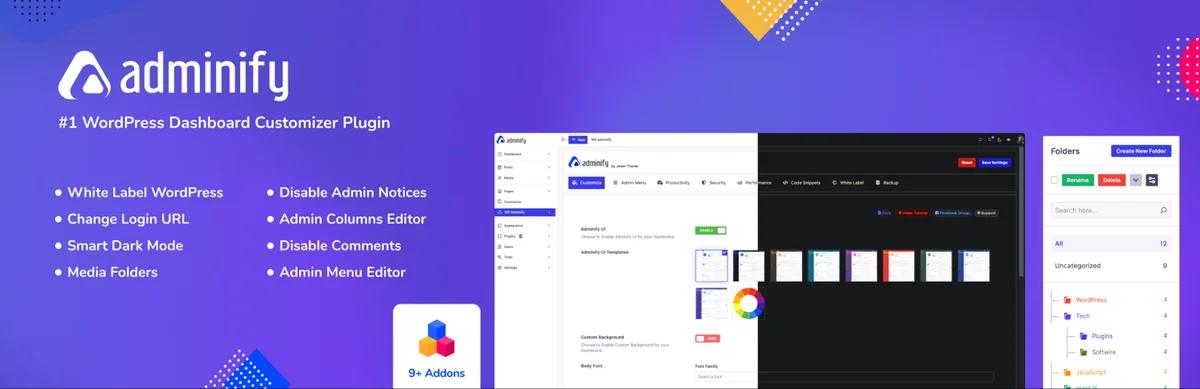
Disclosure: this is our plugin. Treat the entry accordingly and check the claims.
WP Adminify is a dashboard toolkit, not a security suite. Its security panel happens to cover the hardening items that every login article lists and most security plugins leave alone.
The two that matter most for login work are username enumeration and the REST API.
Users Security blocks author enumeration, so example.com/?author=1 stops resolving to an author archive that names the account. REST API restricts the /wp-json/wp/v2/users endpoint to authenticated requests, which is the leak covered in the WordPress REST API leaks usernames. Both are settings rather than snippets, which matters if the person maintaining the site is not the person who wrote it.
It also handles XML-RPC, disabling it in one toggle where nothing on the site needs it, and on the pro tier Redirect URLs for changing the login path and sending users to role-specific destinations after login, which is covered on its own in redirecting users after login by role. Which of these sit on which tier is listed in the WP Adminify free versus pro comparison.
The honest limits: there is no two-factor authentication, no rate limiting and no firewall. At 6,000 installs and 109 ratings it has nothing like the field testing behind Wordfence or Kadence Security. It is a hardening layer that sits beside a security plugin. It does not replace one.
Choose it if you already run a dashboard toolkit and want the enumeration and REST API items done without a fifth plugin.
4. WPS Hide Login
2,000,000 installs · 96/100 from 2,111 ratings · v1.9.19 · updated 13 August 2026 · tested to WordPress 7.1

Two million installs for a plugin that does one thing. We put it on a clean WordPress 7.0.4 site to check the scope, and the scope really is that small.
It adds no admin menu of its own. Instead it appends a short section to the bottom of Settings > General with exactly two fields. Login url sets the new path. Redirection url decides where anyone hitting wp-login.php or /wp-admin while logged out gets sent, usually a 404. That is the entire plugin.
What it is worth: automated scanner traffic drops out of your logs almost entirely, because most bots only ever probe the default path. That effect is real and you see it the same day.
What it is not: security. The new URL leaks through referrer headers, browser history, password managers and any plugin that links to the login page. There is no 2FA and no rate limiting behind it either, so an attacker who does find the path is back at an unprotected form. File it under noise reduction. The full argument, including how to get back in after you forget the URL yourself, is in how to change your WordPress login URL.
Choose it if you want scanner noise gone in two minutes, and you are pairing it with something from the rest of this list. Before you turn it on, make sure you can get back in without it: WordPress login page not working covers the recovery routes.
5. Limit Login Attempts Security
1,000,000 installs · 96/100 from 1,477 ratings · v3.3.5 · updated 12 August 2026 · tested to WordPress 7.0.4
Formerly Limit Login Attempts Reloaded, and the specialist for job two. It counts failed logins, locks the IP for a set period, escalates on repeat offences and logs the lot.
Sensible configuration: 5 attempts, 20 minute lockout, longer on repeats, and add your own IP to the allowlist before you start testing.
Why it is here despite doing one job: it is small, it is fast, and rate limiting is the second most valuable thing you can add. If your host does nothing at the edge and you do not want a full suite, this plus a 2FA plugin is a complete setup that weighs almost nothing.
Watch for: running it alongside Wordfence or Kadence Security, which both rate limit already. Two limiters produce lockouts nobody can trace. When one does lock you out of your own site, the database and WP-CLI routes back in are in resetting a WordPress admin password.
6. Kadence Security
700,000 installs · 92/100 from 3,990 ratings · v10.0.3 · updated 27 July 2026 · tested to WordPress 7.0.4
The name needs a note, because it confuses anyone searching for it. On WordPress.org the slug is still better-wp-security. The plugin has been iThemes Security, then Solid Security, and is now Kadence Security. Same lineage, same code, four names floating around the search results.
For login work specifically it is the closest thing to Wordfence: 2FA, brute force protection, a login URL change built in, and password requirements enforced per role. It is lighter than Wordfence because it scans less.
The honest downside: 3,990 ratings averaging 92/100 means a real minority of unhappy users, and a lot of that history traces back to the rebrands and the upsell changes that arrived with them. Read the recent reviews, not the average.
Choose it if you want a login-focused suite with less overhead than Wordfence.
7. WP 2FA
100,000 installs · 94/100 from 176 ratings · v4.1.0 · updated 11 August 2026 · tested to WordPress 7.0.4
Two-factor authentication and nothing else, which is the point.
The reason to pick a dedicated 2FA plugin over a suite is enforcement. WP 2FA can require 2FA by role, hand people a grace period to enrol before it becomes mandatory, and walk them through the setup in a wizard instead of a settings screen.
On a site with thirty editors, that is the difference between 2FA being adopted and 2FA being quietly ignored. Offer it as an optional per-user setting and the people who were going to turn it on turn it on. Require it by role after a grace period and everybody has it.
A note on the alternative: the community "Two Factor" plugin has 100,000 installs and a 96/100 rating, and it is the closest thing to an official implementation. As of 25 August 2026 it was last updated on 27 March 2026 and tested only to WordPress 6.9.7, with 7.1 current. That does not make it a bad plugin. It does mean checking those dates yourself before you put it on a client site.
Choose it if you already have rate limiting and you need 2FA rolled out across a team.
8. LoginPress
200,000 installs · 96/100 from 1,075 ratings · v6.2.5 · updated 10 July 2026
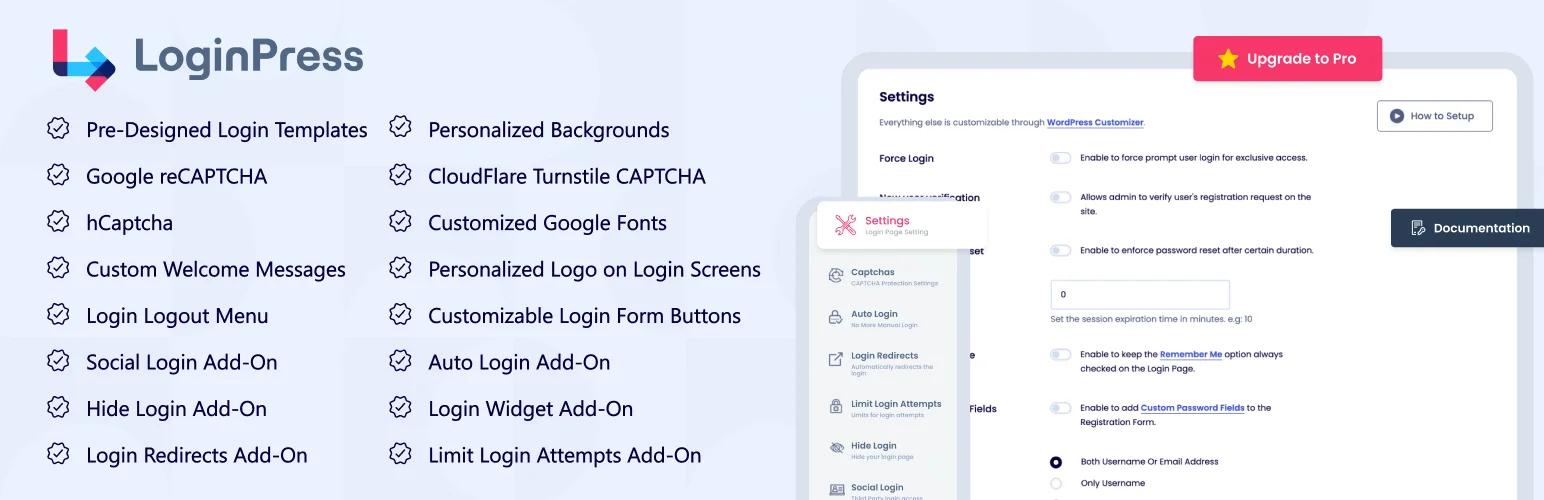
LoginPress is a login page design plugin first. It earns a slot here because its paid add-ons cover several security jobs, and because plenty of people already run it for the design without knowing where the free line falls.
Its own Settings screen answers that. Captchas, Auto Login, Login Redirects, Limit Login Attempts, Hide Login, Social Login and Integrations all sit as add-on cards under an "Upgrade to Pro for More Features" panel, checked on the free 6.2.5 build on 25 August 2026.
What the free build does hand you: Force Password Reset, a session expiry setting, Auto Remember Me, custom password fields on registration, login order control (username only, email only, or both), and a registration domain allowlist. Those are real security settings, and they cost nothing.
What it does not give you free: limit login attempts, hide login, CAPTCHAs. Those are paid add-ons, bundled into the plans rather than sold separately. LoginPress pricing verified 25 August 2026: Startup $99/year for 2 sites, Agency $199/year unlimited, Lifetime $499 unlimited.
No two-factor authentication at any tier, so LoginPress is never a complete login security answer on its own.
Choose it if you want design and several security add-ons from one vendor, and you are adding 2FA separately.
Also considered

Theme My Login Security extension. 60,000 installs on the parent plugin, 74/100 from 460 ratings, updated 13 August 2026. The Security extension adds throttling and lockouts.
The plugin's own settings are about flow, not protection: AJAX submission, login type, registration type, self-set passwords and auto-login after registration. Extensions are sold one at a time, $15 for a single site, $30 for two to five, $45 unlimited, billed yearly, checked 25 August 2026. Reasonable enough if you already run Theme My Login for its front-end forms. An odd way to buy rate limiting if you do not, given Limit Login Attempts Security costs nothing.
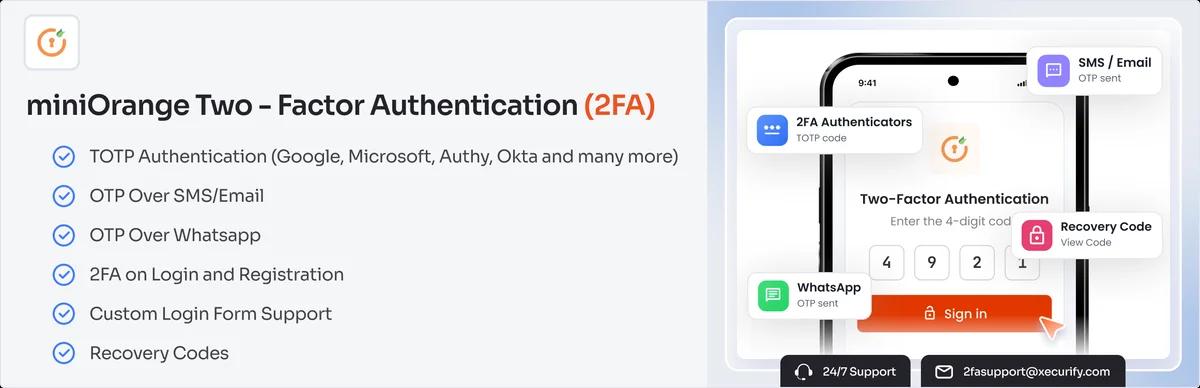
miniOrange 2FA. 10,000 installs, 90/100 from 383 ratings, v6.2.9, updated 14 August 2026. A deep 2FA feature set with a long list of methods. The free and paid line moves around, so check what your chosen method costs before you commit to it.
Two stacks that work
The one-plugin stack. Wordfence, configured rather than just installed. 2FA on for administrators and editors, rate limiting on, live traffic log checked once a week. Add WPS Hide Login if the scanner noise in your logs annoys you. Twenty minutes of work, and it covers all four jobs.
Whichever stack you pick, spend the extra ninety seconds on generic login error messages. Loginfy does it through a settings field. Wordfence and Kadence Security do not do it at all. One login_errors filter does it with no plugin involved. It is the cheapest item in this whole article and the one people skip most.
The light stack. WP 2FA for two-factor, Limit Login Attempts Security for rate limiting, and either a snippet or a hardening plugin for the enumeration side. Three small plugins, no firewall, and noticeably less server load than a suite. This is the right answer when your host already runs a WAF at the edge.
What does not work is installing four security plugins and configuring none of them. Overlapping rate limiters and duplicate CAPTCHA widgets produce lockouts that take longer to debug than the attacks they were supposed to prevent.
What none of these fix
Two things, and both are on you rather than on a plugin.
Reused passwords. Credential stuffing works because the password really is correct. 2FA is the only thing that stops it at the login form, and a unique password per site is the only thing that stops it at the source.
Dormant administrator accounts. No plugin will tell you the contractor who left in March still has an admin account. Audit the user list, and make it auditable at a glance by adding a last login column to the WordPress users list.
One more thing worth repeating, since this list contains a design plugin: how a login page looks has no bearing on how hard it is to break into. Entry 1 is on this page for one settings field, not for its templates.
Frequently asked questions
What is the best free WordPress login security plugin?
Wordfence, assuming your hosting can carry it, because the free tier gives you 2FA with recovery codes, rate limiting and a firewall. For something lighter, WP 2FA and Limit Login Attempts Security cover the two highest-value jobs between them, also free.
Do I need more than one security plugin?
Usually not. One suite covers 2FA, rate limiting and logging between them. The exception worth making is a dedicated 2FA plugin when you need role-based enforcement across a team, which suites handle badly.
Is WPS Hide Login enough on its own?
No. It changes the login URL and stops there. There is no 2FA, no rate limiting and no enumeration blocking in it. Cutting scanner noise is worth having, but it has to be paired with something that actually defends the form.
Will a security plugin slow down my site?
A full suite running a PHP firewall and a malware scanner has a measurable cost, and it shows up most on shared hosting. Single-purpose plugins like WP 2FA or Limit Login Attempts Security cost effectively nothing in performance terms. If your host already runs a WAF at the edge, the light stack gets you most of the protection for almost none of the overhead.
Does a login page design plugin add security?
Styling does not. A branded login page is exactly as attackable as the default one, and no template, background or button colour changes that. The exception is the text on the form. Several login customizers, Loginfy among them, let you rewrite the error messages, and setting them all to one generic string closes username enumeration on the login form. That is a real security gain from a design plugin, and it is the only one it has. It replaces neither two-factor authentication nor rate limiting. Run a design plugin and a security plugin side by side; they do not conflict. For the design side, see the best WordPress login page plugins.
Next steps
Pick a stack, install it, then do the two things no plugin will do for you: turn 2FA on for every administrator, and delete the accounts that should not be there.
The full ordering of measures is in the WordPress login security checklist. If CAPTCHA is next on your list, adding reCAPTCHA to the WordPress login page covers both the setup and the limits.
Your email address will not be published