

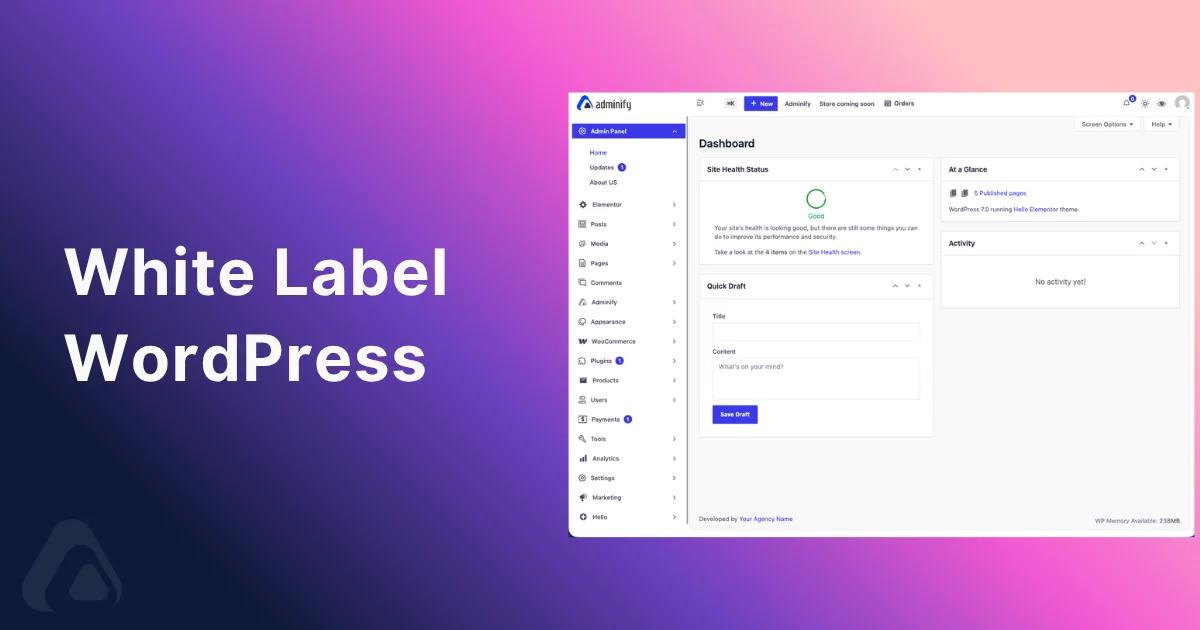

You hand a finished website to a client, they log in for the first time, and the first thing they see is the WordPress logo, a "Howdy" greeting, and a footer thanking WordPress for the site you spent three weeks building. White labeling WordPress fixes that. It means removing the default branding and replacing every screen a client touches with your own logo, colors, and wording, so the back end looks like software your agency made.
This guide covers what you can rebrand, the exact code hooks that do it by hand, and the faster no-code route with a dedicated white label WordPress plugin. By the end you'll know how to brand the login page, dashboard, admin menu, toolbar, footer, and system emails. You'll also know where each method quietly falls apart.
How to White Label WordPress in 5 Steps
To white label WordPress, rebrand every admin screen a client sees. The fastest route is a dedicated plugin like WP Adminify; you can also do it by hand in code. Five steps cover the whole job:
- Install a white label plugin such as WP Adminify - or add branding snippets to a child theme.
- Brand the login page with your logo, colors, and a custom login URL.
- Replace the admin logo and favicon, and remove the “Howdy” greeting from the toolbar.
- Rebrand the admin footer and trim the admin menu for each user role.
- Send system emails from your brand, not from the default WordPress identity.
A plugin applies all five in one interface and reuses the same branding profile across client sites; the code route works but breaks more often on major WordPress updates. Each step is detailed below.
What Is White Label WordPress?
White label WordPress is the practice of rebranding the WordPress admin area so it carries your brand instead of the default WordPress identity. Your clients log in and see your agency logo, your colors, your support links, and a dashboard trimmed to the tools they actually use. No WordPress logo, no "Howdy," no version strings that hint at what runs underneath.
One point clears up most of the confusion: white labeling only touches the back end. It changes the admin dashboard, the login screen, and the notification emails, which are the parts administrators and editors see every day. It doesn't touch your public site, your theme, or your SEO. Google never crawls wp-admin, so rebranding it changes your rankings by exactly nothing.
The phrase "white label" comes from manufacturing, where a generic product ships with a blank label a reseller stamps with their own brand. WordPress fits that model almost perfectly. It's open-source, GPL licensed, and endlessly customizable, which is the reason agencies can legally rebrand it and resell the result as a managed service.
Why White Label WordPress Matters for Agencies
An unbranded dashboard quietly undercuts the work you just delivered. Here's what changes once the back end carries your name instead of WordPress's.
Perceived value goes up. A client who logs into a clean, branded dashboard feels like they bought custom software, not a free CMS with plugins bolted on. Same site, different feeling. That perception is what lets a studio charge a monthly management fee instead of a one-time build cost.
Support requests go down. When a client spots the WordPress logo, they Google "WordPress help" and land on forums, YouTube tutorials, or a competitor's blog, then come back more confused than when they left. A white-labeled dashboard with your support link keeps them in your lane. Every "how do I…?" lands in your inbox, where you control the answer.
Retention improves. A branded portal raises switching costs in a subtle way. Leaving "the WordPress site" feels easy. Leaving "the platform my agency built and supports" feels like firing a vendor. That's legitimate, and it works.
Editors make fewer mistakes. Half of white labeling is removal: hiding the menus, widgets, and settings a client should never touch. Fewer options means fewer accidental plugin deactivations and fewer 2 a.m. "the site is broken" calls. Honestly, a role-restricted menu prevents more support tickets than any documentation you'll ever write.
Quick data point: Rebranding the admin usually replaces 3–5 single-purpose plugins (login customizer, menu editor, dashboard cleanup, footer text, "Howdy" remover) with one settings panel. Fewer plugins means fewer update conflicts and a smaller attack surface.
What Can You White Label in WordPress?
White labeling isn't a single switch. It's a set of touchpoints, and a client notices the ones you skip. Cover all of them and the seams disappear. Here's the full map.
| Touchpoint | Default WordPress shows… | White-labeled version |
|---|---|---|
| Login page | WordPress logo linking to wordpress.org, generic gray form | Your logo linking to your site, branded background and colors |
| Admin logo / favicon | WordPress "W" in the toolbar and browser tab | Your mark, with separate light & dark versions |
| "Howdy, [name]" | Casual WordPress greeting in the top-right | Your wording, or removed entirely |
| Admin toolbar | WordPress logo menu, wp.org links, comments, updates | Cleaned or rebuilt with your own items |
| Admin footer | "Thank you for creating with WordPress" | Your agency credit, support line, or legal note |
| Admin menu | Every menu, in WordPress order, for every role | Renamed, reordered, hidden per user role |
| Dashboard widgets | WordPress News, Site Health, welcome panel | Only widgets that matter, plus custom ones |
| System emails | Plain-text notices from "WordPress" | Branded sender name and content |
| The customization plugin | The plugin's own name in the menu & plugin list | Renamed to your agency so nothing third-party shows |
That last row is the one most agencies forget, and it's the one that gives the game away. More on it in the rebranding the plugin itself section below.
How to White Label WordPress: The 7 Areas to Rebrand
This section walks through each touchpoint in the order clients notice them, starting at the login screen, which is the very first impression they get. For each area you'll see what to change and why it matters. The manual code lives in the code section below; the screenshots here show the no-code route.
1. The Login Page
The login screen is your client's front door, and by default it's pure WordPress: the dotted "W" logo up top, a link to wordpress.org, and a flat gray form. Branding the login page is the highest-impact change you can make, because it's the screen a client sees before they see anything else.
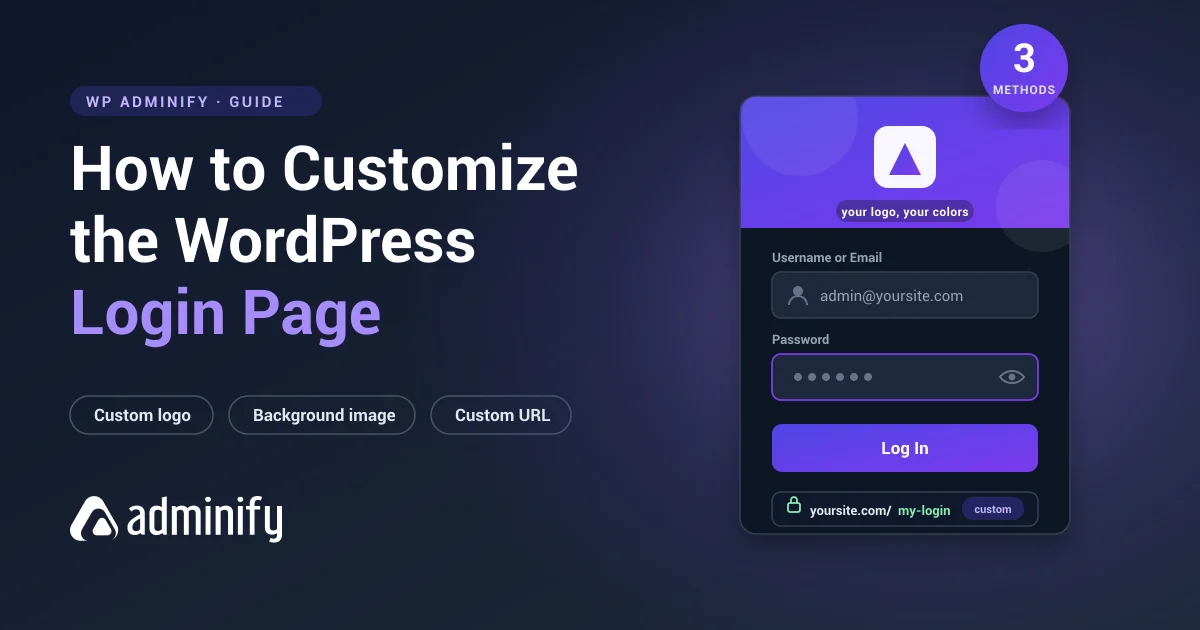
Swap the logo for yours, point the logo link at your own site instead of wordpress.org, and set a background. That can be a solid brand color, a gradient, an image, or a slideshow. WP Adminify's login customizer (Loginfy) ships with 16 ready-made templates, so you start from a designed layout instead of a blank canvas. Step-by-step instructions are in the WordPress login page white label guide, or start smaller and just change the login logo.
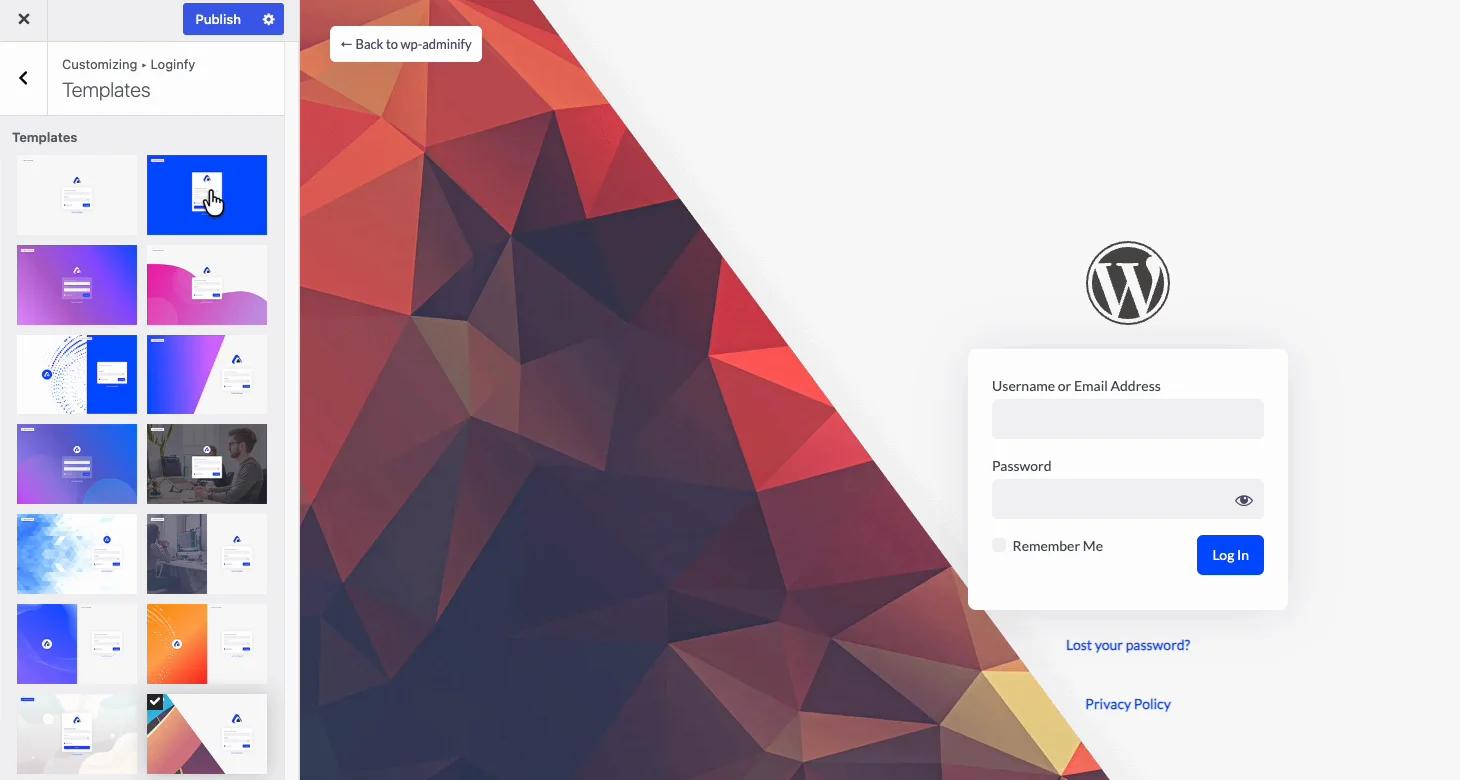
While you're here, change the login URL too. The default /wp-admin and /wp-login.php paths are the first thing bots probe. A custom login URL reinforces your brand and cuts down automated login attempts at the same time. Our guide on changing the WordPress login URL covers the security side in depth.
2. The Admin Logo & Favicon
Once a client logs in, the WordPress logo sits in the top-left of the toolbar and the WordPress icon sits in their browser tab. Replace both. Upload a light-mode logo and a dark-mode logo so the mark stays crisp whether the dashboard runs light or dark, and set an admin favicon so even the browser tab reads as yours.

Don't overlook the Gutenberg editor logo, the small WordPress mark in the top-left of the block editor. It's easy to brand the dashboard chrome and leave that one WordPress "W" staring back at every editor who writes a post.
3. The "Howdy" Greeting & Admin Toolbar
"Howdy, Admin" is charming WordPress trivia and completely off-brand for a professional deliverable. Replace it with "Welcome," your brand name, or nothing at all. In the same pass, clean the toolbar: hide the WordPress logo menu (the one linking to About WordPress, the support forums, and Feedback), and toggle off the items a client never needs.
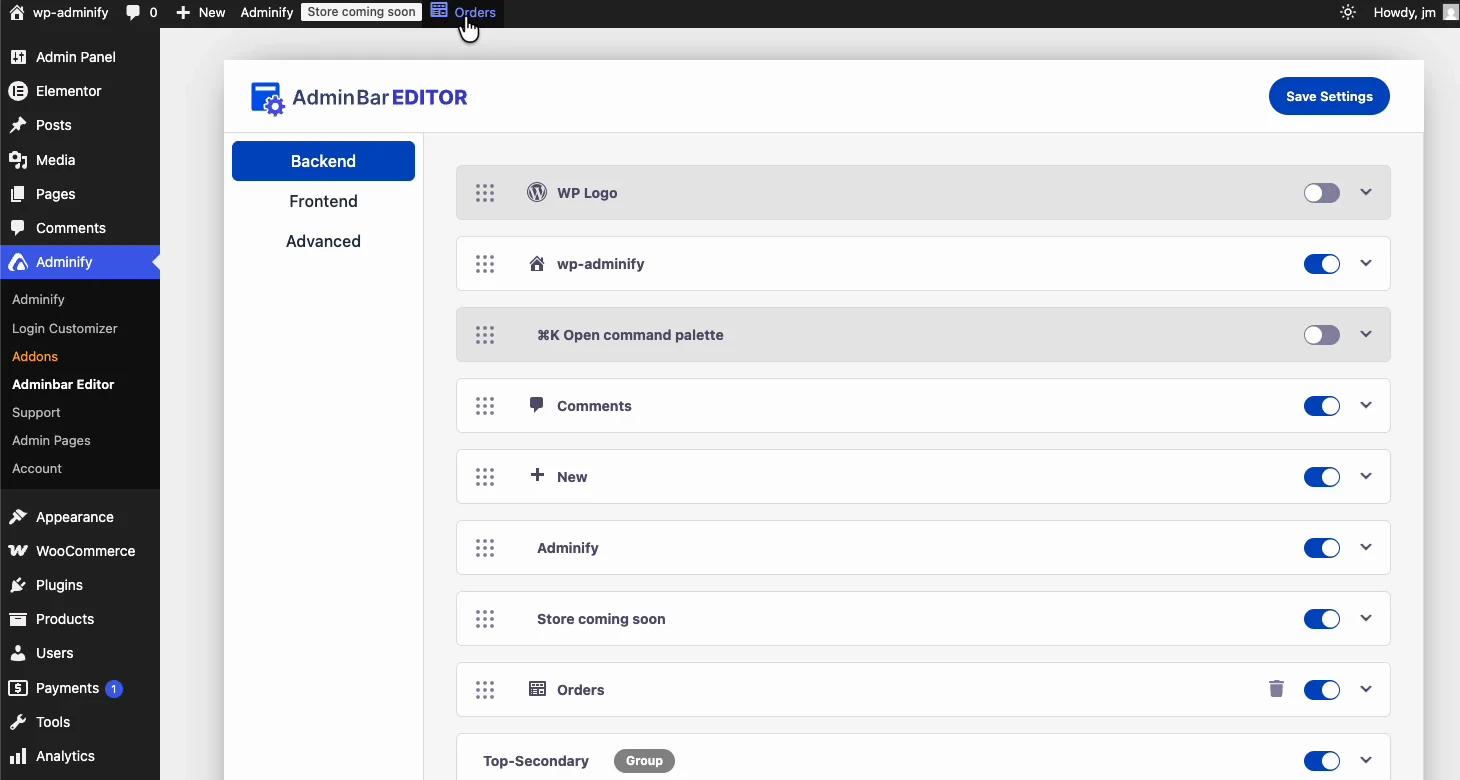
The toolbar is also where clients accidentally wander off to wordpress.org. Removing the WordPress logo node closes that exit. If you want to go further, the Admin Bar Editor lets you add your own toolbar items: a link to your support desk, a "report a bug" form, or a jump straight to the page they edit most.
4. The Admin Footer Text
At the bottom of every admin screen, WordPress prints "Thank you for creating with WordPress." Rewrite it. This is prime space for your agency credit, a support number, a "maintained by" line, or a link back to your site. It's a small change that shows up on every page of the dashboard, which makes it one of the highest-frequency brand impressions you get.
You can also strip the WordPress version string that sits on the footer's right side. That's handy for branding and for not advertising which version you're running to anyone poking around.
5. The Admin Menu (Per Role)
The left-hand admin menu is where white labeling stops being cosmetic and starts being functional. By default every role sees a long list of menus in WordPress's order. With an admin menu editor you can rename items (turn "Dashboard" into "Admin Panel," "Posts" into "Articles"), reorder them, assign custom icons, and hide menus per user role.
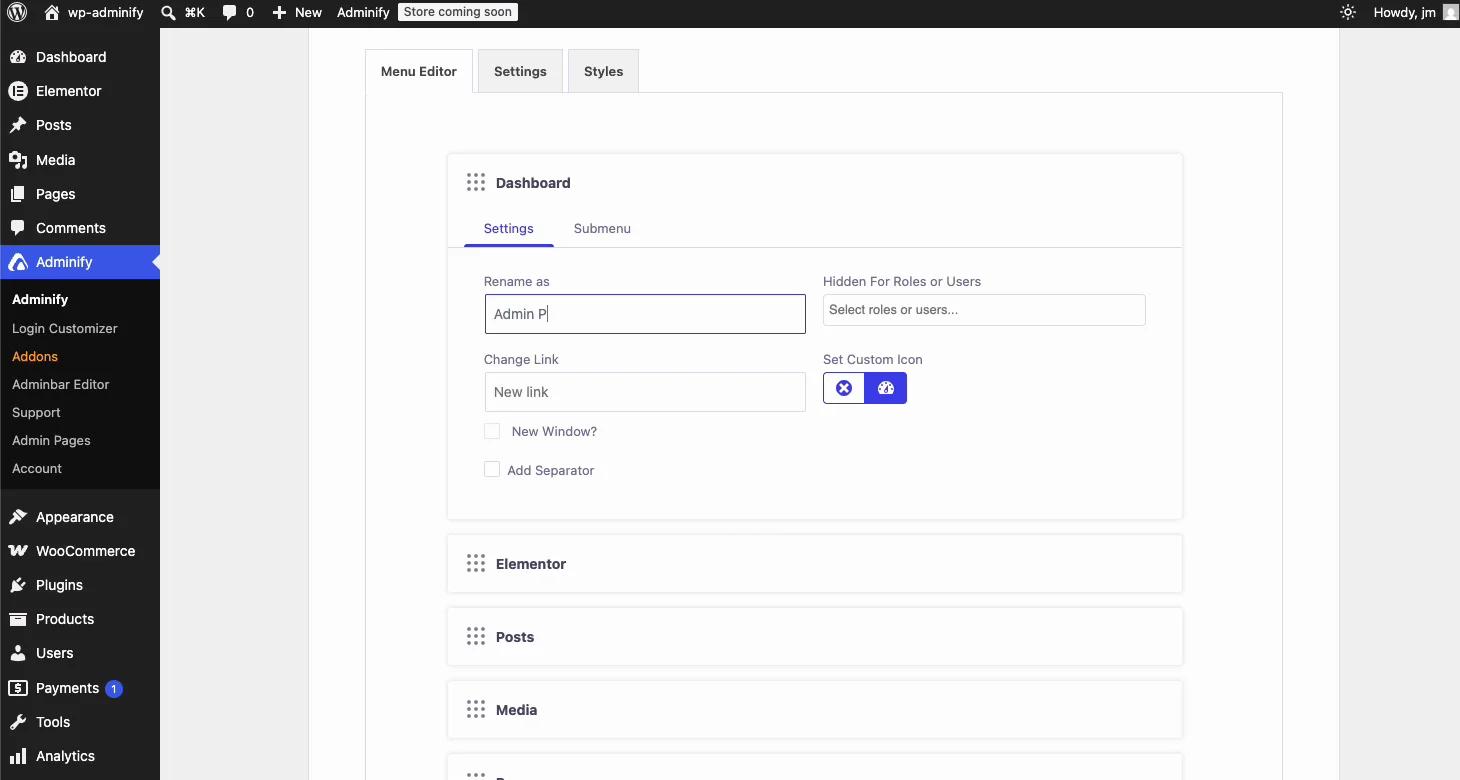
Role-based visibility is the feature that makes a client dashboard genuinely safe. An editor doesn't need Plugins, Tools, or Settings. Hide those and the interface gets simpler and harder to break in the same move. Our walkthrough on using the WordPress admin menu editor covers reordering and per-role rules step by step.
6. Dashboard Widgets & the Welcome Panel
The default dashboard greets clients with a welcome panel, a "WordPress News" feed, a Site Health box, and an At a Glance widget that cheerfully announces "WordPress 7.0 running Hello Elementor theme." None of that belongs in a branded portal. Remove the widgets that leak the WordPress brand or clutter the view, and add your own: a welcome message, a text widget with your support hours, an embedded how-to video, or an RSS feed from your blog.
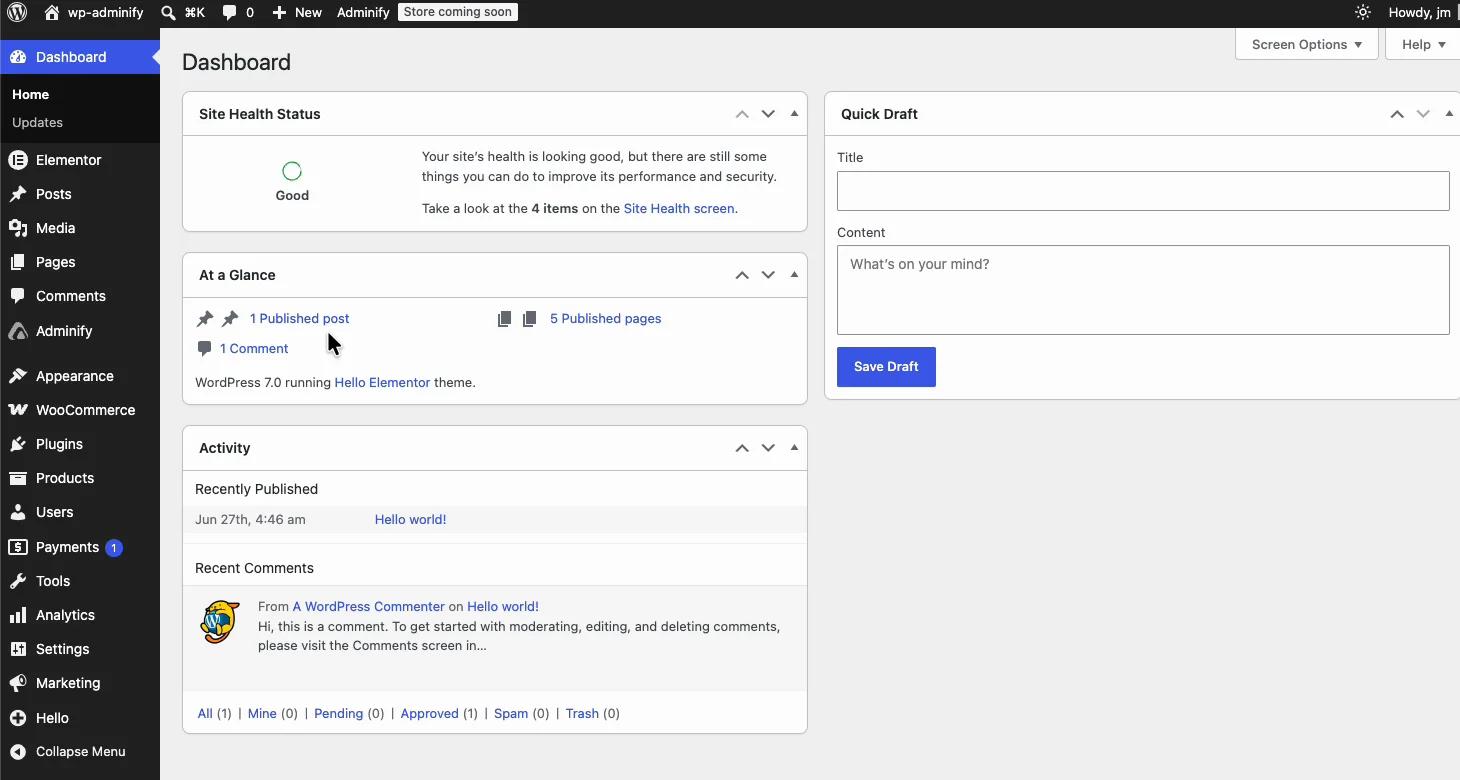
The welcome widget is the one to remove first. It links straight to WordPress documentation and undoes the branding you set everywhere else.
7. System & Notification Emails
Password resets, new-user notices, and comment alerts all go out from "WordPress" by default, with a wordpress@yourdomain.com sender. To a client, that reads like a message from a stranger. Rebrand the sender name and address so these emails clearly come from your agency or their own site. It's the least visible touchpoint and the one that quietly breaks the illusion when a client forwards you a "why is WordPress emailing me?" screenshot.
White Label WordPress Without a Plugin (The Code Method)
You can white label parts of WordPress with nothing but functions.php and a few filters. This route is free, adds no plugin, and is worth knowing even if you end up using a plugin, because it shows you which WordPress hooks actually do the work. Here are the ones that matter.
Replace the login logo and its link:
1
2function agency_login_logo() { ?>
3    <style type="text/css">
4        #login h1 a {
5            background-image: url('<?php echo get_stylesheet_directory_uri(); ?>/img/agency-logo.png');
6            background-size: contain;
7            width: 100%;
8        }
9    </style>
10<?php }
11add_action( 'login_enqueue_scripts', 'agency_login_logo' );
12
13// Point the logo at your site, not wordpress.org
14add_filter( 'login_headerurl',  fn() => home_url() );
15add_filter( 'login_headertext', fn() => get_bloginfo( 'name' ) );
16
Rewrite the admin footer text:
1
2function agency_admin_footer_text() {
3    return 'Built & maintained by <a href="https://youragency.com" target="_blank">Your Agency</a>.';
4}
5add_filter( 'admin_footer_text', 'agency_admin_footer_text' );
6
Replace the "Howdy" greeting:
1
2function agency_replace_howdy( $wp_admin_bar ) {
3    $account = $wp_admin_bar->get_node( 'my-account' );
4    if ( ! $account ) return;
5    $wp_admin_bar->add_node( array(
6        'id'    => 'my-account',
7        'title' => str_replace( 'Howdy,', 'Welcome,', $account->title ),
8    ) );
9}
10add_action( 'admin_bar_menu', 'agency_replace_howdy', 25 );
11
Remove the WordPress logo from the toolbar and clean the dashboard:
1
2// Drop the WP logo menu from the admin bar
3add_action( 'admin_bar_menu', function ( $bar ) {
4    $bar->remove_node( 'wp-logo' );
5}, 999 );
6
7// Remove WordPress News + the welcome panel
8add_action( 'wp_dashboard_setup', function () {
9    remove_meta_box( 'dashboard_primary', 'dashboard', 'side' );
10    remove_action( 'welcome_panel', 'wp_welcome_panel' );
11} );
12
Where the code route stops working: These snippets cover logos, footer, "Howdy," and a few widgets. They won't give you per-role menu visibility, a designed login page, branded emails, plugin renaming, or a settings screen a non-developer can touch. And every snippet lives in a child theme you have to copy to each client site and re-check after major WordPress updates. On one or two sites, fine. Across a portfolio, it turns into unpaid maintenance.
If you want to push the manual route further, our honest guides to custom admin CSS and WordPress admin customization cover the code methods and their limits without pretending code solves everything.
White Label WordPress With WP Adminify (The No-Code Method)
A dedicated plugin turns everything above into a settings panel. WP Adminify handles the full set of touchpoints (login page, logos, "Howdy," toolbar, footer, menus, widgets) from one White Label screen, with role-based controls and no code to babysit through updates.
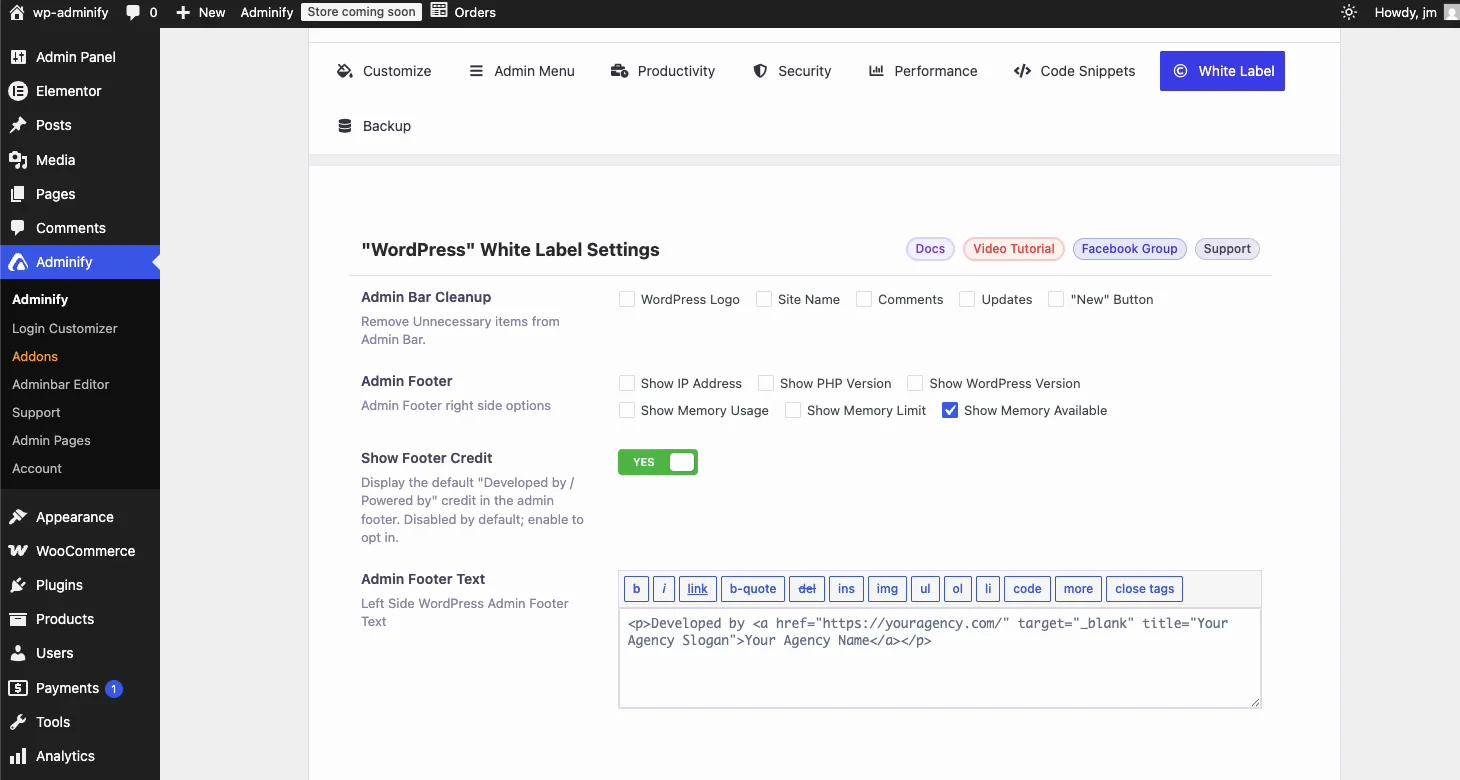
Setup takes about 15 minutes end to end. A sensible order:
- Install and activate WP Adminify. The free version handles the branding basics.
- Open WP Adminify → White Label.
- Upload your light and dark logos plus an admin favicon, set your footer text, and replace the "Howdy" greeting.
- Under Admin Bar Cleanup, hide the WordPress logo, comments, updates, and anything clients don't need.
- Open the Admin Menu Editor and set which menus each role can see, then rename and reorder to taste.
- Open the Login Customizer (Loginfy), pick a template, and brand the login screen.
- Log in with a test editor account to check the client-facing view. This is the step most people skip and later regret.
Manual code vs plugin, side by side
| Task | functions.php | WP Adminify |
|---|---|---|
| Login page branding | Logo + CSS only | 16 templates, background, form & button styling |
| Per-role menu visibility | Complex, manual | Toggle per role |
| "Howdy" & footer | Yes (filters) | Yes (UI) |
| Branded emails | Extra plugin/code | Built in |
| Rename the tool itself | Not possible | Yes |
| Survives WP updates | Needs re-checking | Maintained by the plugin |
| Editable by non-developers | No | Yes |
For the full list of branding options, the white label feature page shows what the free and Pro tiers each unlock.
Rebranding the Plugin Itself
Here's the step that separates real white labeling from a paint job: the plugin you used to brand everything shouldn't advertise itself to your client. If the dashboard is spotless but the admin menu still says "Adminify" and the plugins list still links to a third-party vendor, the illusion breaks the second a curious client clicks it.
WP Adminify's plugin white label option replaces its own name, description, menu label, icon, and links with your details. Set the Plugin Name to "My Agency," set the menu label to match, and the sidebar entry that used to read "Adminify" now reads as your brand.
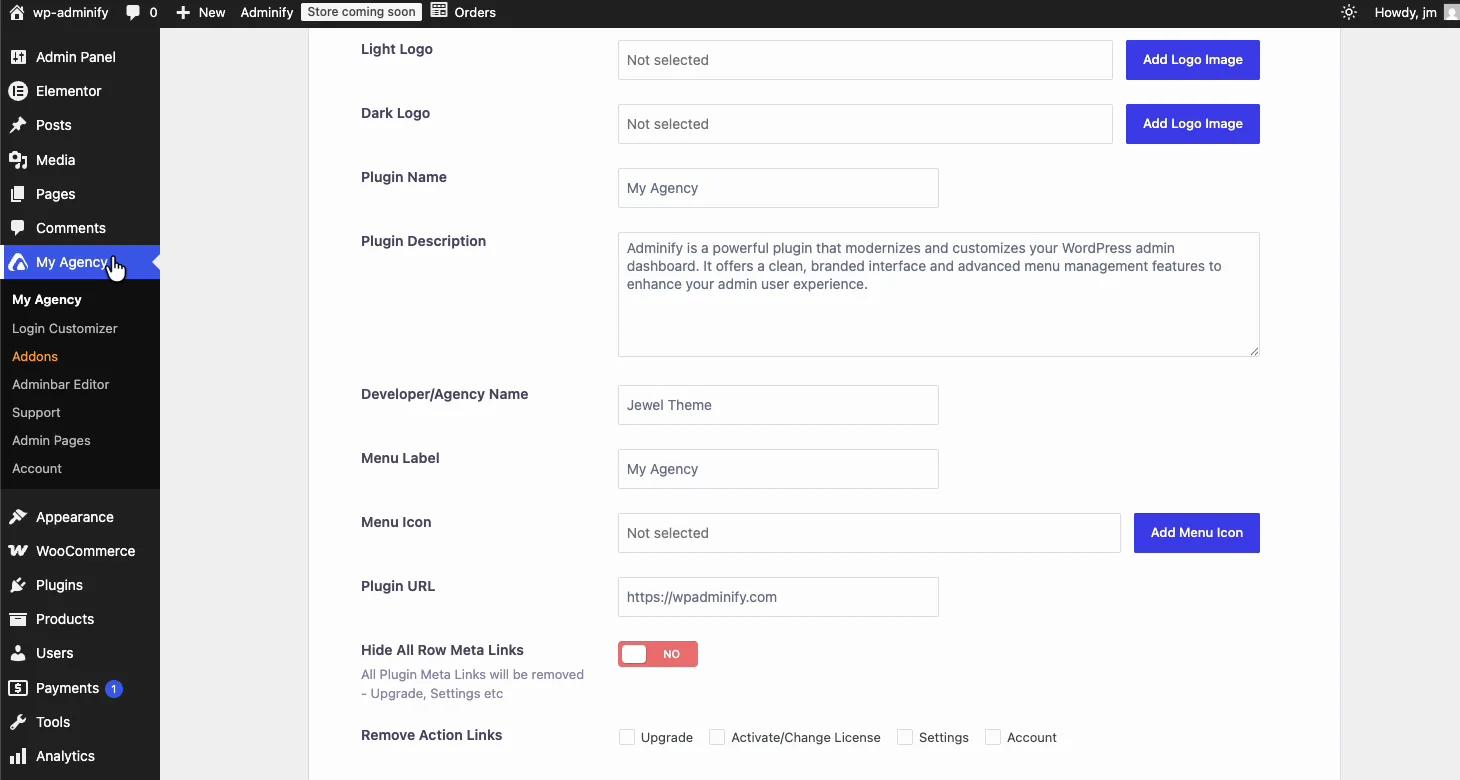
You can also hide the plugin's row meta links, remove its action links (Upgrade, License, Settings), and if a client should never see the branding controls at all, force-disable the White Label panel so it's hidden completely. Pair this with hiding plugins from clients and the whole toolset goes invisible. What's left is a dashboard with no third-party branding anywhere, which is the entire point.
White Label WordPress vs a "White Label CMS"
Agencies searching for a "white label CMS" often assume they need to abandon WordPress for a purpose-built reseller platform. In practice, a white-labeled WordPress site gets you the same outcome, a branded back end your clients recognize as yours, while keeping the plugins, themes, and developer skills you already have. You're not migrating to a new platform. You're rebranding the one that already runs most of the web.
There's also a specific plugin called White Label CMS, and it's worth being precise about the difference. It handles basic branding (login logo, dashboard panels, a few menu tweaks) and does that job fine. A full admin suite goes further, covering the login page design, per-role menus, toolbar, emails, security hardening, and the plugin's own branding in one place.
| Capability | White Label CMS (plugin) | Custom code | WP Adminify |
|---|---|---|---|
| Login & dashboard branding | Yes (basic) | Yes (manual) | Yes (advanced) |
| Designed login templates | Limited | No | 16 templates |
| Per-role menu control | Partial | Hard | Full |
| Toolbar / "Howdy" editor | Partial | Manual | Full |
| Rename the plugin itself | No | No | Yes |
| Security + performance tools | No | Manual | Included |
| Breaks on WP update? | Rarely | Often | Rarely |
We compared the two approaches line by line in WP Adminify vs White Label CMS if you want the full breakdown.
White Label WordPress for Client Portals
The biggest payoff for white labeling is agency client management. When a client logs into a branded portal, sees only the tools they need, and reaches your support link instead of the WordPress forums, the whole relationship reads as more professional. Some studios build this branded experience into a monthly retainer. The client isn't paying for "a WordPress site," they're paying for access to a platform your agency runs. The login screen is where that impression starts: here is how to white label the WordPress login page for your clients.
A good client portal usually combines four of the pieces above: a branded login page, a role-restricted admin menu, a custom dashboard with a welcome widget and support links, and the plugin renamed so nothing third-party shows. Add activity logs if you manage the site on the client's behalf and want a record of who changed what. Our WordPress client dashboard guide walks through the full portal build, and the white label WordPress development overview covers the agency workflow around it.
White Label WordPress Plugins vs White Label WordPress Agencies: Which Do You Need?
Search "white label WordPress" and you'll get two very different things. A white label plugin rebrands the admin area of a site you already run. A white-label WordPress agency is an outsourcing partner that builds sites under your name. If you want a client's dashboard to say your studio's name, you need the plugin. If you need someone else to do the build, you need the partner.
When a white label partner makes sense
White label agencies sell development capacity. You resell their work as your own, and the white label partner handles design, plugin development, WordPress support, or ongoing WordPress management behind the scenes. That's a staffing decision, not a branding one, and it costs a share of every project. Agencies looking to scale delivery without hiring often start there.
Done-for-you: hire the team that builds WP Adminify
Short on time, or rolling out across a fleet of client sites? You can hand the entire rebrand to the people who build the plugin. Pixar Labs runs a done-for-you WordPress white label service that configures all 60+ WP Adminify features on your sites - login, admin theme, menus, dashboard, and system emails - and delivers a fully branded dashboard in a few business days, tested against the latest WordPress.
Prefer to do it yourself? The seven areas above, plus a WP Adminify Pro license, cover exactly the same surfaces. The white label setup service just removes the per-site configuration work when you are managing many client sites at once.
When a white label plugin is all you need
If you already have a team of WordPress experts - or you're a solo freelancer building WordPress sites yourself - the gap isn't capacity. It's that the finished product still looks like generic WordPress. A white label plugin closes that gap in an afternoon: rebrand the WordPress admin interface, replace the WordPress logo, restyle the WordPress login page, rewrite the WordPress footer text, and hand over a dashboard that carries your branding on every screen.
How Do You Choose a White Label WordPress Plugin? (2026 Checklist)
Choosing a white label WordPress plugin comes down to coverage, roles, and scale. The right white label plugin rebrands every surface a client touches - not just the login screen - lets you vary what each role sees, and applies the same profile across multiple WordPress installs without re-doing the work per site.
The seven criteria that actually matter
- Full-surface coverage. Can it rebrand the entire WordPress dashboard - custom login page, admin logo, favicon, toolbar, footer, and system emails - or does it stop at the login screen? Partial coverage is the most common disappointment.
- Role-aware control. Your client shouldn't see the same admin dashboard you do. Look for a plugin that hides menus, notices, and widgets per user role rather than globally.
- Reusable profiles. If you're managing multiple WordPress projects, exporting one branding profile and importing it elsewhere saves hours per client.
- Own-branding on the plugin itself. A rebranded dashboard with an unbranded plugin name still in the menu leaks the trick. Check whether the plugin can rename itself.
- No conflict with WordPress core updates. Branding should be applied through hooks and filters, not by editing WordPress core files or a theme's templates. Anything that patches core will break on the next update.
- Performance cost. White label performance matters because these tweaks load on every admin page view. Measure admin load before and after.
- Support and licensing. Check whether the licence covers the number of client sites you run, and what happens to the branding if the licence lapses.
Free white label plugins vs paid ones
There are free white label WordPress plugins in the WordPress.org plugin directory, and for a single site with light needs they're often enough. The limits show up at agency scale: no per-role rules, no reusable profiles, no email branding, and no way to white label the WordPress admin across a portfolio of sites. That's the line where paid tools like White Label CMS, White Label Pro, and WP Adminify's white label module earn their keep. If you're weighing one specific alternative, we compared them directly in WP Adminify vs White Label CMS, and the pricing page lists what each licence tier covers. For a side-by-side ranking of the leading options, see our roundup of the best white label WordPress plugins.
Best Practices & Common Mistakes
A few patterns separate a convincing white label from an obvious one.
- Always test with a non-admin account. You configure branding as an administrator, but your client is usually an editor. Role-based rules mean the two see different dashboards, so verify the one the client actually gets.
- Don't forget the login URL and emails. Agencies polish the dashboard and leave
/wp-login.phpand "WordPress" emails untouched. Those two leaks undo a lot of careful work. - Set both light and dark logos. If a client flips the dashboard to dark mode and your dark logo is missing, your branding disappears into the background.
- Rebrand the tool itself. The single most common miss. A branded dashboard with an unbranded plugin name in the sidebar is a half-finished job.
- Hide, don't just rename. Renaming "Plugins" to "Add-ons" still lets a client deactivate something critical. For roles that shouldn't touch it, hide the menu outright.
- Keep a documented setup. If you white label a lot of sites, save your logo files, footer text, and menu rules as a repeatable checklist so every build starts from the same branded baseline.
White Label WordPress - FAQ
Is white labeling WordPress legal?
Yes. WordPress is released under the GPL, which explicitly grants the right to modify, rebrand, and redistribute it. Rebranding the admin panel and reselling a managed WordPress service sits well inside the license. You can read the terms on the WordPress.org license page.
Does white labeling WordPress affect SEO?
No. White labeling changes only the back end: the admin dashboard, login screen, and notification emails. Your public site, content, page speed, and search rankings stay exactly as they were, because search engines never crawl wp-admin. Rebranding the admin has zero SEO impact in either direction.
Can I white label WordPress for free?
Yes, up to a point. You can rebrand the login logo, footer text, and a few dashboard widgets with free functions.php code, and WP Adminify's free version covers the branding basics through a UI. The advanced pieces (designed login templates, per-role menu rules, branded emails, and renaming the plugin itself) sit in the Pro tier - the current plans are listed on the WP Adminify pricing page.
Which plugin is best for white labeling WordPress?
For full coverage, WP Adminify handles the most touchpoints from one plugin: login page, logos, "Howdy," toolbar, footer, per-role menus, emails, and its own branding. White Label CMS is a lighter option for basic logo-and-dashboard branding. The right pick depends on whether you need a complete client portal or just a branded login and dashboard.
What's the difference between white labeling and hiding WordPress?
White labeling rebrands the admin experience so clients see your brand instead of WordPress's. It's a presentation change on the back end. It doesn't hide the fact that the site runs on WordPress from the public or from a developer who inspects the code. The goal is a professional, branded workspace, not concealment.
Will white labeling break when WordPress updates?
Custom code can break after major WordPress releases, since it leans on hooks and markup that occasionally change, so you have to re-test it each time. A maintained plugin absorbs those changes for you, which is a big reason agencies running several sites prefer the plugin route over scattered snippets.
Do I need a white label WordPress agency or a white label plugin?
It depends on what's missing. If you need someone to build the site, a white-label WordPress agency sells you development capacity you resell as your own. If you already build the sites and only want the admin to carry your branding, a white label WordPress plugin does that for a fraction of the cost. If you would rather not configure it yourself, Pixar Labs runs a done-for-you white label setup service that does the whole rebrand for you.
Can you white label the entire WordPress dashboard, not just the login page?
Yes. A full white label setup covers seven surfaces: the custom login page, the admin logo and favicon, the toolbar and "Howdy" greeting, the WordPress footer text, the admin menu per role, dashboard widgets, and system emails. Login-only branding is the most common half-measure clients notice.
How do I white label WordPress across multiple client sites?
Build the branding once, then reuse it. Look for a plugin that exports its settings so you can import the same profile on the next install, and check that your licence covers the number of WordPress sites you manage. Doing it by hand in each site's functions.php doesn't scale past a few clients.
Can I customise the WordPress admin for each client?
Yes. With per-role rules you can give each client a different admin experience on the same site - their own menu items, dashboard widgets, and colour theme tied to their user role. WP Adminify sets this per role, so an agency can brand and simplify the dashboard differently for every client account.
How do I white label WordPress?
White label WordPress in five steps: (1) install a white label plugin such as WP Adminify, or add branding code to a child theme; (2) brand the login page with your logo and a custom URL; (3) replace the admin logo and remove the ‘Howdy’ greeting; (4) rebrand the admin footer and trim the menu per user role; (5) send system emails from your brand. A plugin applies all five without code and reuses the same profile across client sites.
How much does it cost to white label WordPress?
You can white label the basics for free with the WP Adminify free plugin or a little child-theme code. Full white labeling - designed login pages, per-role menus, branded emails, and renaming the plugin - is a paid feature. WP Adminify Pro starts at $79 a year, with Business and Agency tiers on the pricing page.
Conclusion
White labeling WordPress is one of the cheapest ways to make your agency look more professional, and it takes about 15 minutes once you know the seven touchpoints. To recap:
- White labeling only affects the back end, so it has no effect on your public site or SEO.
- Cover all the touchpoints: login, logos, "Howdy," toolbar, footer, menus, widgets, and emails.
- Code handles the basics for free; a plugin handles the full set without per-site maintenance.
- Don't skip the two steps everyone misses: branded emails and renaming the tool itself.
Start with the login page and dashboard. Those two alone reset the entire first impression a client gets. When you're ready to do the whole set from one panel, the WP Adminify white label feature covers every screen a client touches, and its Loginfy login customizer gives you the designed login page to match.
Where to go next
Want to go beyond branding? Our full WordPress dashboard customization guide walks through reorganizing menus, widgets, and the whole admin experience - the natural next step after white labeling.
Your email address will not be published