

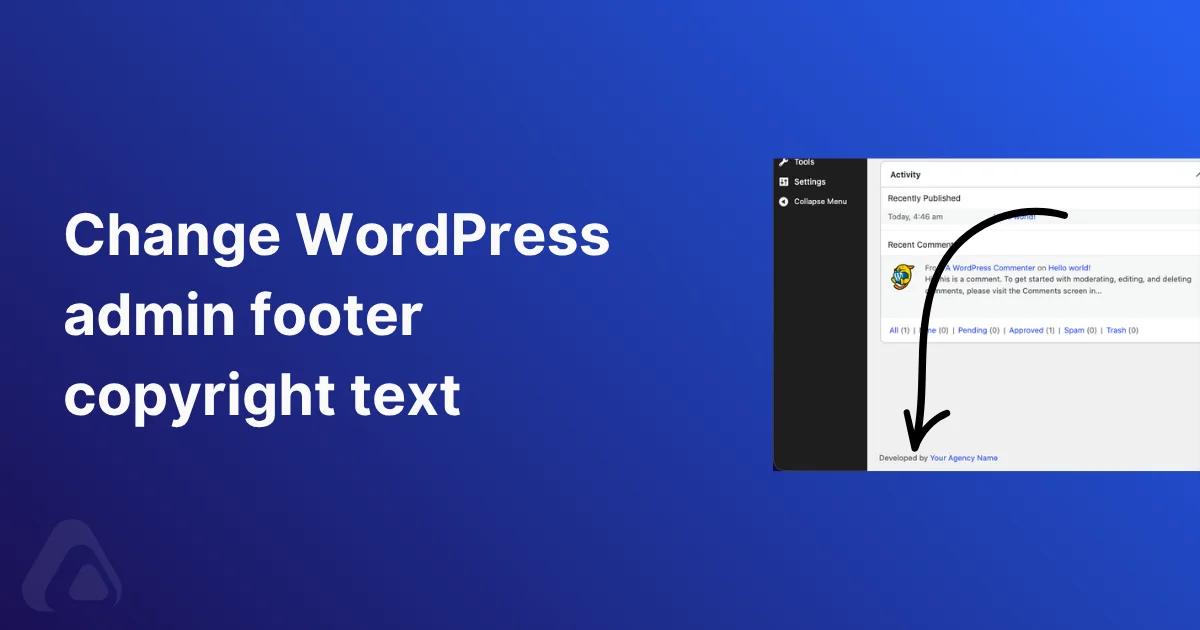

Log into any WordPress dashboard and look at the very bottom of the screen. On the left it reads "Thank you for creating with WordPress," and on the right it shows your current WordPress version number.
That default footer is fine on your own site. But when you hand a dashboard to a client, it broadcasts which CMS you used, leaks the version a hacker could target, and quietly undercuts your branding.
This guide shows exactly how to change the WordPress admin footer copyright text, both the no-code way using the WP Adminify White Label module and the developer way using a functions.php snippet, so you can swap that generic line for your own agency credit.
What is the WordPress admin footer text?
The WordPress admin footer is the thin strip at the bottom of every wp-admin screen. It has two halves, and each one is controlled by its own hook. The left side prints "Thank you for creating with WordPress" (an HTML link to wordpress.org) through the admin_footer_text filter. The right side prints "Version 6.x" through the update_footer filter. Both are cosmetic strings that WordPress core injects on the dashboard. Neither has anything to do with your public website footer or your theme's copyright line.
Because each half is a filter, you can overwrite either one with your own text, a custom link, or nothing at all. That's the whole mechanism behind every "change admin footer" plugin and snippet you'll find. They all hook into those two filters. Knowing this tells you what's actually possible: any HTML you can put in a link, you can put in the footer.
Why change the admin footer copyright text?
Editing one line of footer text sounds trivial, but for anyone running client sites it solves a few real problems at once. Here's why agencies and freelancers bother:
- White-label branding. Replacing "Thank you for creating with WordPress" with "Developed by [Your Agency]" makes the dashboard feel like a product you built, not a third-party CMS. It's a small touch clients notice every time they log in.
- Free advertising and support routing. A footer credit linking back to your site keeps your name in front of the client and gives them a one-click path to your support page or contact form.
- One less thing to hand attackers. The right-side version number tells anyone with dashboard access exactly which WordPress release you run. Hiding it removes an easy reconnaissance signal for targeted exploits. It isn't a substitute for staying updated, but there's no reason to advertise the version either.
- A cleaner handoff. Default WordPress branding in the admin reads as "unfinished" to a paying client. Custom footer text is part of a polished white label WordPress experience.
From our experience managing dashboards across dozens of client sites, the footer credit is one of the highest-impact, lowest-effort branding changes you can make. Only the login logo beats it.
Method 1: Change the admin footer text with WP Adminify (no code)
If you'd rather not touch theme files, or you manage sites for clients who'll outlive your current theme, a plugin is the safer route. WP Adminify handles the admin footer through its White Label module, with a visual editor and no risk of a syntax error white-screening the site. Here's the full walkthrough.
Step 1: Open the White Label settings
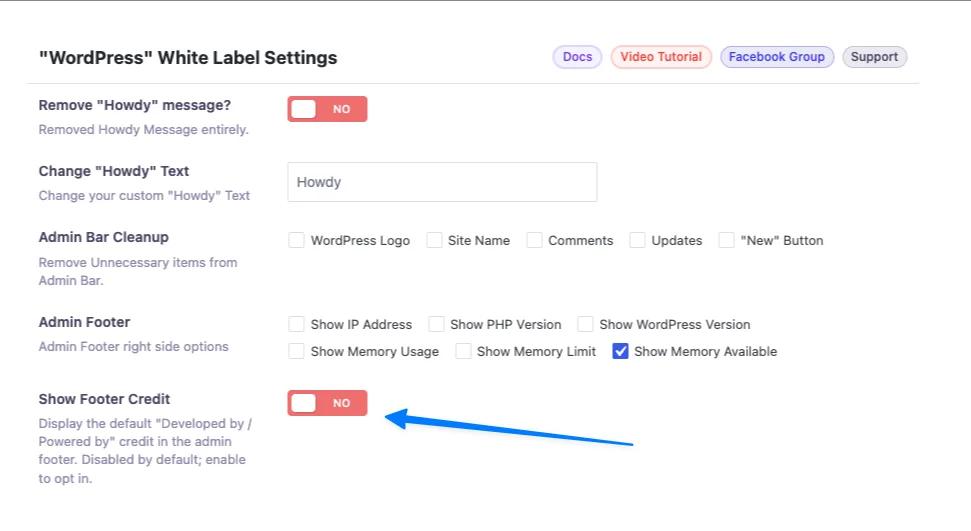
From your WordPress dashboard, go to Adminify > White Label in the left admin menu. This opens the panel titled "WordPress" White Label Settings, which groups every branding control in one place: logo, favicon, the "Howdy" greeting, admin bar cleanup, and the admin footer.
Step 2: Enable "Show Footer Credit"
Find the Show Footer Credit row. By default it's set to NO, which means WP Adminify leaves the footer alone. Flip the toggle to YES. This is the master switch. Turning it on tells the plugin to take over the left side of the admin footer and reveals the text editor where you enter your own credit.
Step 3: Enter your custom footer text
Once the toggle is on, an Admin Footer Text editor appears, and it controls the left-side WordPress admin footer text. It's a standard WordPress editor, so you can type plain text or paste HTML. To add a linked agency credit, use markup like this:

1
2<p>Developed by <a href="https://youragency.com/" target="_blank" title="Your Agency Slogan">Your Agency Name</a></p>
3
The target="_blank" opens your link in a new tab so clients don't lose their place in the dashboard, and the title attribute adds a tooltip. Swap in your own URL, anchor text, and tagline.
Step 4: (Optional) Configure the right-side info
In the same panel, the Admin Footer row gives you checkboxes for what shows on the right side instead of the version number: Show IP Address, Show PHP Version, Show WordPress Version, Show Memory Usage, Show Memory Limit, and Show Memory Available. Tick Show Memory Available, for example, and the right side reads "WP Memory Available: 246MB", genuinely useful server info that replaces the version string you'd rather hide. Leave every box unchecked to keep the right side empty.
Step 5: Save and verify
Click Save Settings in the top-right corner. Scroll to the bottom of any admin page and you'll see your new credit on the left ("Developed by Your Agency Name") and your chosen server info on the right. No theme files touched, and the change survives every theme switch and update because it lives in the plugin, not the theme.
The advantage here is durability and reach. Because WP Adminify applies the footer at the plugin level, the credit shows for every user role and persists even if you redesign or replace the theme later. It also pairs with the rest of the admin customization toolkit, so the footer becomes one consistent piece of a fully branded dashboard instead of an isolated hack.
Method 2: Change the admin footer text with functions.php code
Developers who want zero plugin overhead can change the footer with a few lines in functions.php. WordPress exposes the left-side text through the admin_footer_text filter, so you hook into it and return your own string.
Step 1: Open your theme's functions.php (use a child theme)
Edit functions.php in your active theme, but use a child theme if the parent gets updates, otherwise your snippet vanishes on the next theme update. Reach the file via Appearance > Theme File Editor, or over SFTP at /wp-content/themes/your-child-theme/functions.php, which is safer. Always back up the file first, since a single misplaced character here can take the whole site down.
Step 2: Add the admin_footer_text filter
Paste this snippet at the bottom of the file. It replaces the left-side "Thank you for creating with WordPress" with your own linked credit:
1
2/**
3 * Change the WordPress admin footer copyright text (left side).
4 */
5function adminify_custom_admin_footer_text() {
6    echo 'Developed by <a href="https://youragency.com/" target="_blank" rel="noopener">Your Agency Name</a>';
7}
8add_filter( 'admin_footer_text', 'adminify_custom_admin_footer_text' );
9
The filter callback just echos the markup you want. Note the rel="noopener" alongside target="_blank": that's the modern best practice for any new-tab link, for both security and performance. Save the file and refresh the dashboard, and the left footer now shows your credit.
Step 3: Restrict it to specific roles (optional)
Sometimes you want the credit to appear only for clients, not for yourself. Wrap the output in a capability check so administrators still see the default while everyone else sees your branding:
1
2function adminify_role_based_footer_text( $default ) {
3    // Show the default WordPress text to admins; show your credit to everyone else.
4    if ( current_user_can( 'manage_options' ) ) {
5        return $default;
6    }
7    return 'Developed by <a href="https://youragency.com/" target="_blank" rel="noopener">Your Agency Name</a>';
8}
9add_filter( 'admin_footer_text', 'adminify_role_based_footer_text' );
10
Here the filter passes in the existing footer string as $default, so you can return it untouched for admins. This is the kind of role-aware logic the plugin route handles through a checkbox instead of a capability check, which is worth knowing when you outgrow the snippet.
Changing the right-side version text (update_footer)
The version number on the right is a separate filter: update_footer. WordPress core attaches its own callback at priority 10, so to override it you have to hook in at a higher priority number (11 or above), or your text gets overwritten. Add this to functions.php:
1
2/**
3 * Replace the WordPress version in the admin footer (right side).
4 */
5function adminify_change_footer_version() {
6    return 'Powered by Your Company';
7}
8add_filter( 'update_footer', 'adminify_change_footer_version', 11 );
9
Return an empty string instead (return '';) to hide the right side completely. With the plugin you skip the priority gotcha entirely. The right-side checkboxes in the White Label panel handle it, and you can swap the version for live memory or PHP info that the code method would take extra work to build.
How to remove the WordPress admin footer text entirely
If you don't want any credit at all, just a blank footer, WordPress ships a built-in helper that returns an empty string, so you don't even need a custom function:
1
2// Remove the left-side "Thank you for creating with WordPress" text.
3add_filter( 'admin_footer_text', '__return_empty_string' );
4
5// Remove the right-side version number.
6add_filter( 'update_footer', '__return_empty_string', 11 );
7
The __return_empty_string callback is part of WordPress core, which is why it's the cleanest way to blank the footer. With WP Adminify, the equivalent is leaving the Admin Footer Text field empty (or off) and unchecking every right-side box. Same blank result, no code.
Code vs plugin: which method should you use?
Both methods hit the same two filters, so the footer output is identical. The difference is maintenance, safety, and how far the change reaches. Here's the honest breakdown:
| Factor | functions.php code | WP Adminify (White Label) |
|---|---|---|
| Setup time | ~5 min (if comfortable with PHP) | ~1 min (toggle + type) |
| Risk of breaking the site | Yes, a syntax error can white-screen wp-admin | No, visual editor, no PHP |
| Survives theme switch | No, tied to the theme's functions.php | Yes, stored in the plugin |
| Role-based control | Manual capability checks | Built in |
| Right-side server info (memory/PHP) | Extra custom code required | Checkboxes included |
| Best for | Single sites, developers, minimal footprint | Agencies, client sites, non-coders |
Use the code snippet when you manage one site, you're comfortable in PHP, and you want zero extra plugins. Reach for WP Adminify when you run client sites, want the change to survive theme changes, or you're already using it for other white-label tasks like hiding plugins or branding the login page. If you like keeping snippets but hate editing theme files, WP Adminify's built-in Code Snippets manager is a middle path that runs the same PHP without touching functions.php.
Common issues and fixes
- Footer text didn't change. Clear any caching plugin and hard-refresh. If you used code, confirm the snippet is in the active theme's
functions.php(or the child theme, if active) and that you didn't paste it inside another function or a closing?>tag. - Right-side version still shows. Your
update_footerfilter is running at priority 10 or lower, so core overwrites it. Raise the priority to11as shown above. - White screen after editing functions.php. You introduced a PHP syntax error. Reconnect over SFTP, remove the snippet, and re-add it carefully. This failure mode is exactly why client sites are safer on the plugin method.
- HTML shows as plain text. Your link tags got escaped. In the plugin editor, switch to the Text/code view before pasting HTML. In code, make sure you're outputting raw markup, not running it through
esc_html(). - Credit appears for everyone, including admins. Use the role-based snippet (or the plugin's role controls) so only client roles see the branded footer.
Admin Footer Copyright Text FAQs
How do I change the "Thank you for creating with WordPress" text?
That line is the left side of the admin footer, controlled by the admin_footer_text filter. Either hook into it from functions.php and return your own text, or enable "Show Footer Credit" in the WP Adminify White Label module and type your credit into the Admin Footer Text field. Both replace the default message instantly.
Is changing the admin footer text different from changing my website footer?
Yes, completely. The admin footer appears only inside wp-admin and is set by the admin_footer_text and update_footer filters. Your public website footer lives in the theme (usually footer.php or the block/site editor) and is edited separately. Changing one does not affect the other.
Will I lose the footer change when I update WordPress or my theme?
A WordPress core update won't remove it either way. A theme update will wipe a functions.php snippet unless you put it in a child theme. The WP Adminify method stores the setting in the plugin, so it survives both core and theme updates with no extra steps.
How do I remove the WordPress version number from the admin footer?
Hook into the update_footer filter at priority 11 and return an empty string: add_filter( 'update_footer', '__return_empty_string', 11 );. With WP Adminify, simply leave the right-side checkboxes (Show WordPress Version, etc.) unchecked to keep that side blank.
Do I need to know how to code to change the admin footer text?
No. The functions.php method needs basic PHP comfort, but the WP Adminify White Label module is fully visual. Flip the "Show Footer Credit" toggle, type or paste your text, and save. No PHP, no risk of breaking the site.
Can I add a clickable link in the admin footer?
Yes. Both methods accept HTML, so you can include a full anchor tag like <a href="https://youragency.com/" target="_blank" rel="noopener" > Your Agency</a>. the link works for every user who can see the footer, which makes it a handy route to your support or contact page.
Conclusion
Changing the WordPress admin footer copyright text comes down to two filters, admin_footer_text for the left credit and update_footer for the right-side version, and two ways to reach them:
- Code route: Add a short snippet to a child theme's
functions.php. Best for single sites and developers who want no extra plugins. - Plugin route: Toggle "Show Footer Credit" in WP Adminify's White Label module and type your text. Best for client sites, non-coders, and anyone who wants the change to survive theme switches and apply by role.
- Either way: You can fully replace, hide, or rebrand both sides of the footer, including swapping the version number for live server stats.
If the footer is your first step toward a fully branded backend, it pairs naturally with the rest of the toolkit: a custom login logo, a renamed "Howdy" greeting, and your own admin colors. Explore the WP Adminify White Label module to brand the whole dashboard, not just the footer.
Go Further Than the Footer
The footer credit is one small piece of a branded admin. For the full picture - menus, colors, widgets, login screen and more - see the complete guide to customizing the WordPress dashboard. And if you're setting up White Label for a client site, the White Label module documentation covers every setting in the panel, including the footer options from Step 4.

Your email address will not be published