

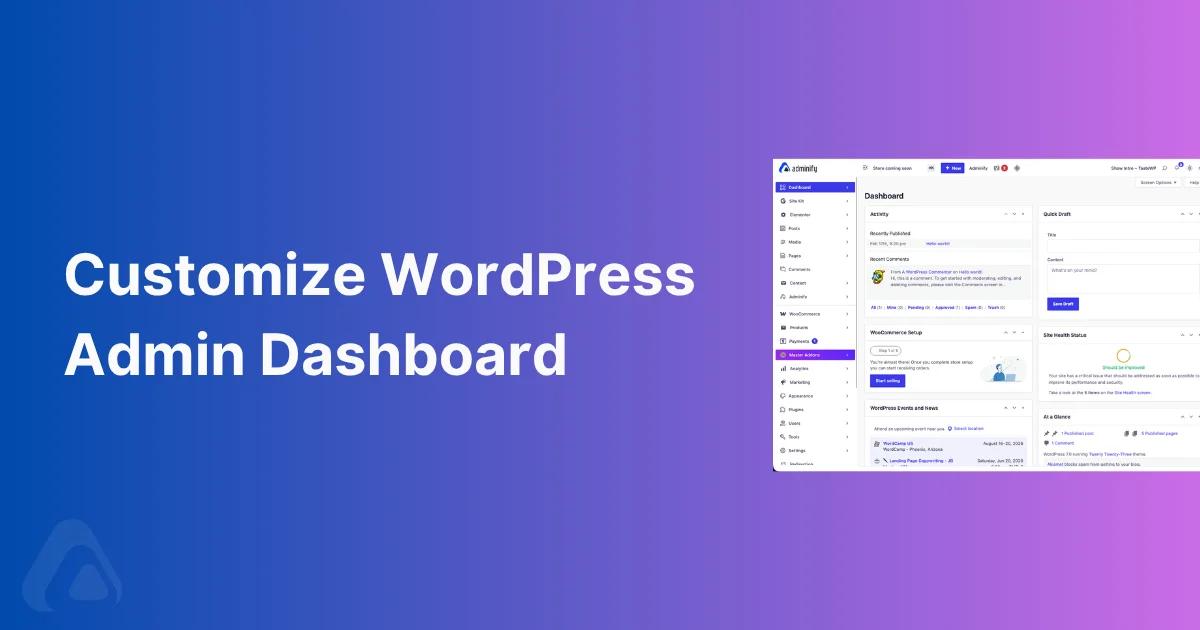

Open any fresh WordPress install and the admin dashboard looks the same as it did a decade ago: a gray sidebar, a "Howdy" greeting, a pile of widgets you never asked for, and a menu that gets messier with every plugin you add.
For a personal blog, that's fine. The moment you manage client sites, run a WooCommerce store, or hand the backend to a non-technical teammate, that default UI starts costing you time and credibility.
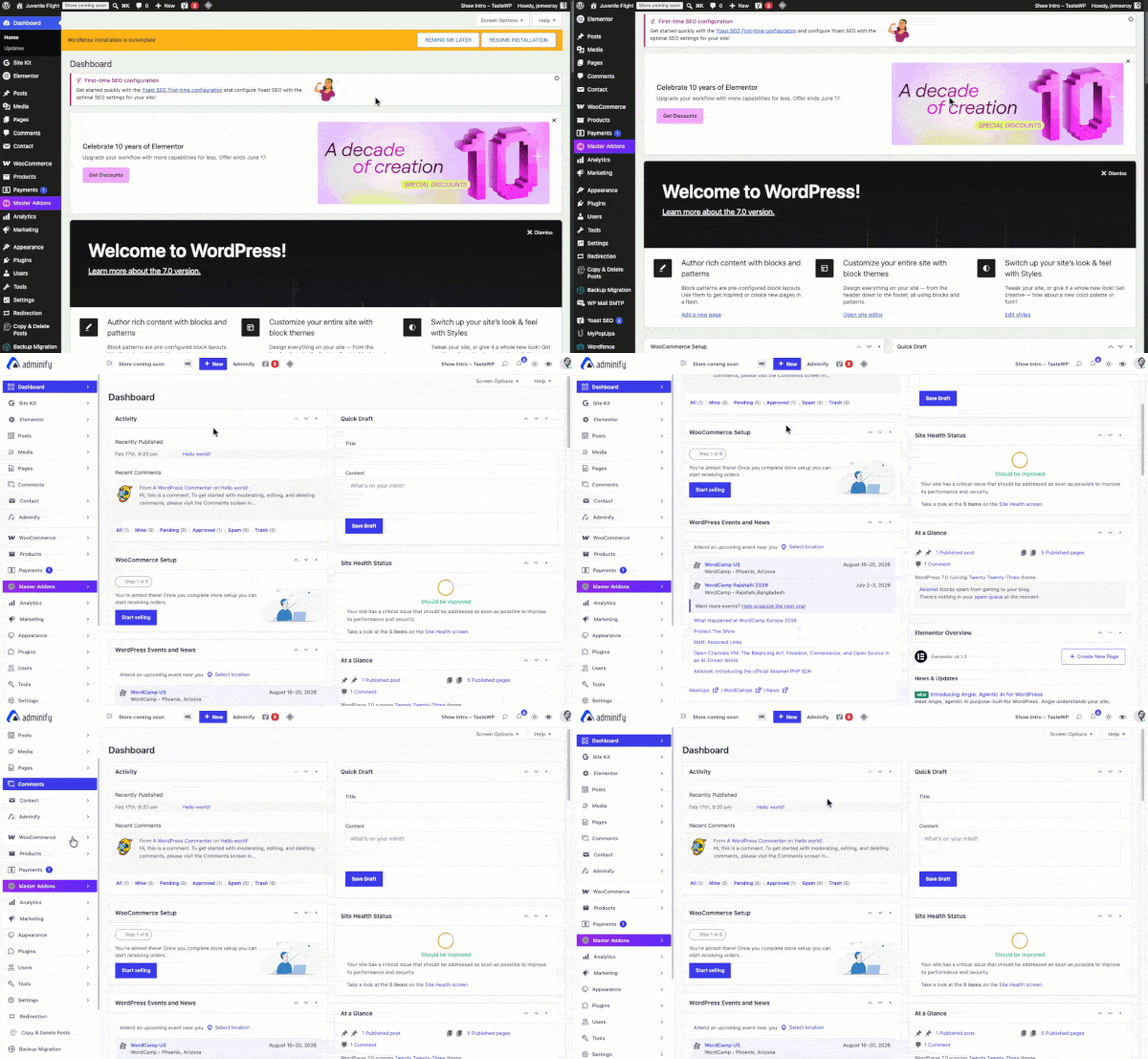
This guide puts the default WordPress admin dashboard next to the same dashboard after you customize the WordPress admin dashboard with WP Adminify. You get honest pros and cons of both, a real before/after, the code-only route for developers, and a straight answer on when the plugin is worth installing and when it isn't.
What is the WordPress admin dashboard (wp-admin)?
The WordPress admin dashboard, usually called wp-admin, is the backend control panel where you write posts, install plugins, manage users, and change settings. It sits behind the login wall at yoursite.com/wp-admin and only logged-in users see it. Every WordPress site ships with the same default admin interface: a collapsible left menu, a top admin bar (toolbar), and a main dashboard "home" screen built from movable widget boxes.
WordPress runs roughly 43% of all websites, so this exact screen is one of the most-used interfaces on the web. It's deliberately generic. It has to serve a hobby blogger and a 50-person agency equally well, and that neutrality is the root of both its strengths and its frustrations. Knowing what's actually in the default UI is the first step to deciding whether you need to change it.
The default WordPress admin UI: what you get out of the box
A standard WordPress dashboard hands every user the same furniture, no matter their role or what they came to do. Here's what loads on a clean install:
- The admin menu (left sidebar). Dashboard, Posts, Media, Pages, Comments, Appearance, Plugins, Users, Tools, Settings, in a fixed order you can't change without code. Every plugin you activate injects its own item, usually near the top, shoving core items around.
- The admin bar (top toolbar). The WordPress logo, your site name, comments, "+ New," and a "Howdy, [name]" greeting on the right.
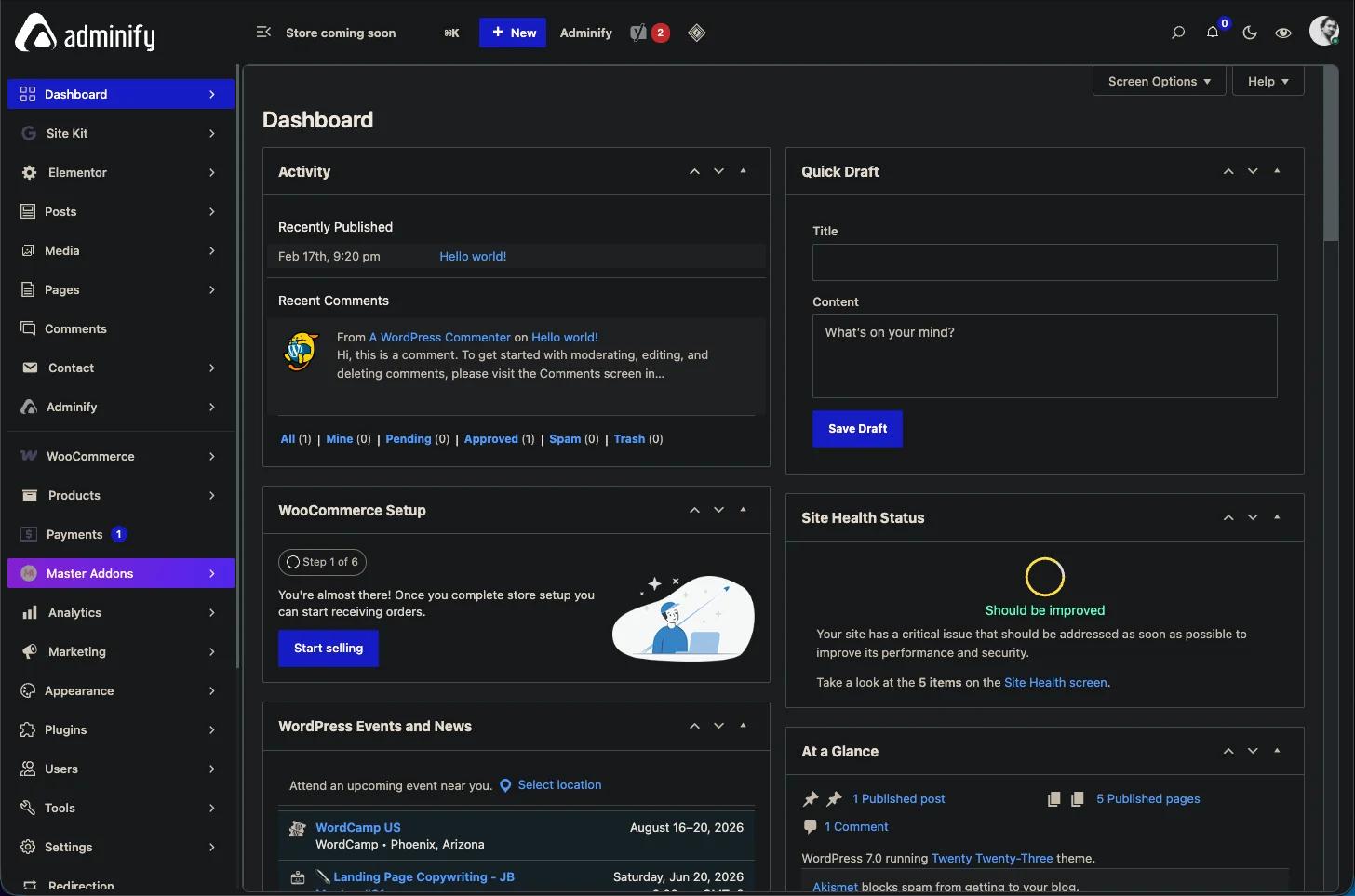
- The Dashboard home screen. A grid of widgets: Welcome panel, At a Glance, Activity, Quick Draft, WordPress Events & News, Site Health Status. Most of it is noise for someone who just came to edit a page.
- The default color scheme. A light gray-and-blue theme. Users can pick from eight built-in schemes under Users > Profile, but there's no dark mode and no brand color option.
- The login page. The WordPress logo linking back to wordpress.org, on a plain white background.
- The Media Library. A flat grid of every file you've ever uploaded, with a date filter and search and nothing else.
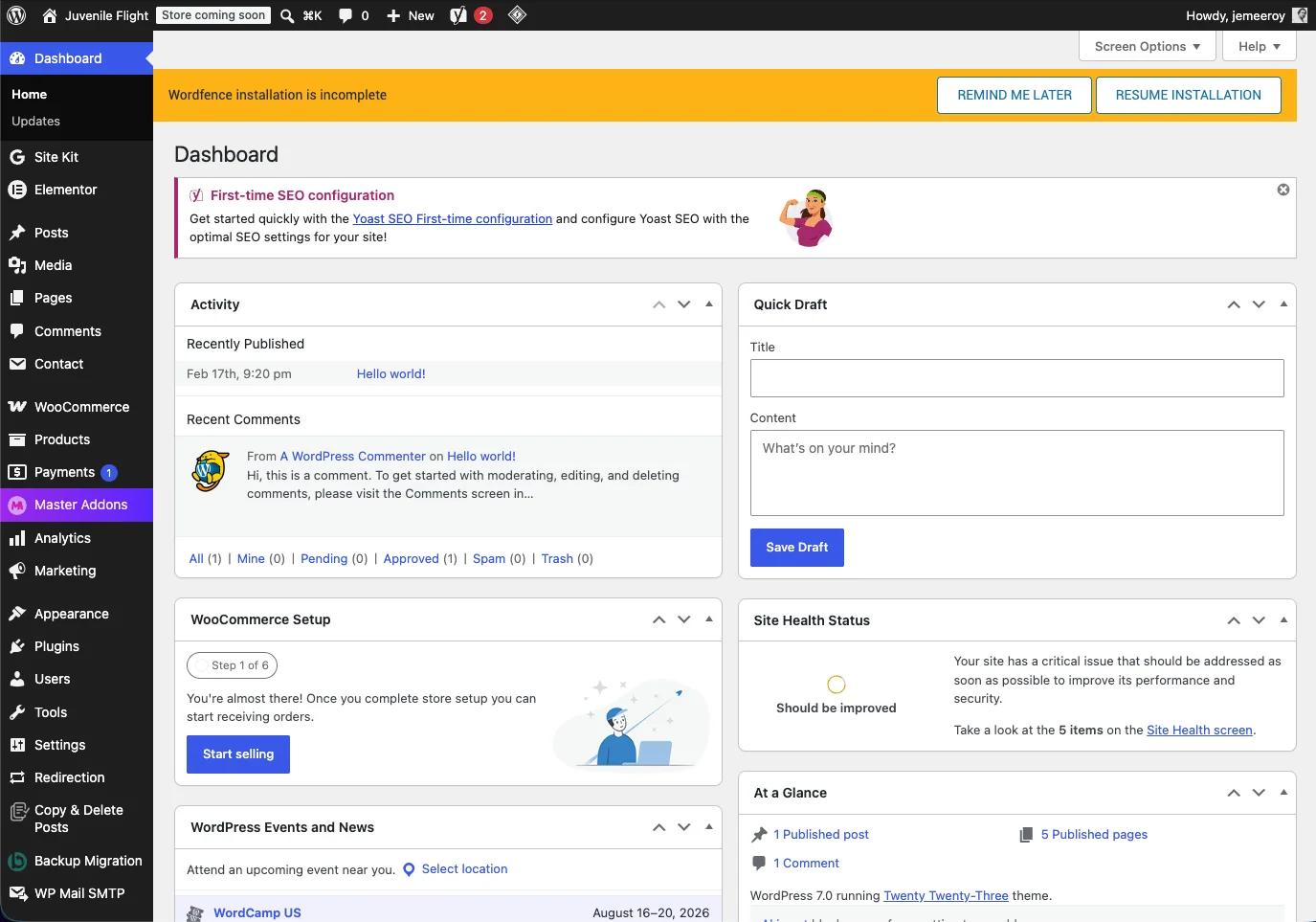
None of this is broken. But look at what's missing: no way to hide a menu item from a client without code, no folders for 2,000 media files, no branding, no control over which widgets a Subscriber or Editor sees. The default UI assumes one kind of user, usually the developer, and shows that same view to everyone.
Default WordPress admin UI: pros and cons
Before you reach for any plugin, it's worth being honest about where the native dashboard already wins. Customization isn't free, and sometimes the default is the right call.
Pros of the default WordPress admin UI
- Zero overhead. No extra plugin to install, update, or audit for security. Fewer moving parts, fewer things that break on a core update.
- Universally familiar. Anyone who has touched WordPress recognizes it on sight. Every tutorial and support thread references this exact layout.
- Stable and well-tested. The core team maintains it across every WordPress version, so it's about as compatible and accessible as the platform gets.
- Fast on a clean install. With no customization layer, the dashboard loads only what core needs.
Cons of the default WordPress admin UI
- Cluttered by design. Welcome panels, news feeds, and widgets you can only hide one at a time through Screen Options, and the choice doesn't carry across users.
- No role-based control. An Editor or a client sees the same menu sprawl the administrator does. You can't hide Tools, Plugins, or a noisy SEO menu without code.
- No branding. The wordpress.org logo greets your clients on the login screen and in the admin bar. On a handed-off site, it reads as unfinished.
- Disorganized media. The flat Media Library falls apart past a few hundred files. No folders, no categories.
- Menu chaos from plugins. Every plugin adds a top-level item wherever it wants. Ten plugins later your sidebar is a wall of unranked links.
- No dark mode. Long editing sessions on a bright gray UI, with no native way to dim it.
If those cons describe your week, you have two paths: write and maintain custom code, or install a dedicated customization plugin. We'll cover both.
What changes after you activate WP Adminify
WP Adminify is an all-in-one admin customization plugin with 60+ features, running on 20,000+ active sites with a 4.7/5 rating on WordPress.org. Activating it doesn't replace WordPress. It layers controls on top of the existing admin so you can reshape the UI without writing code. The moment it's active, that same dashboard gains options the default never had.
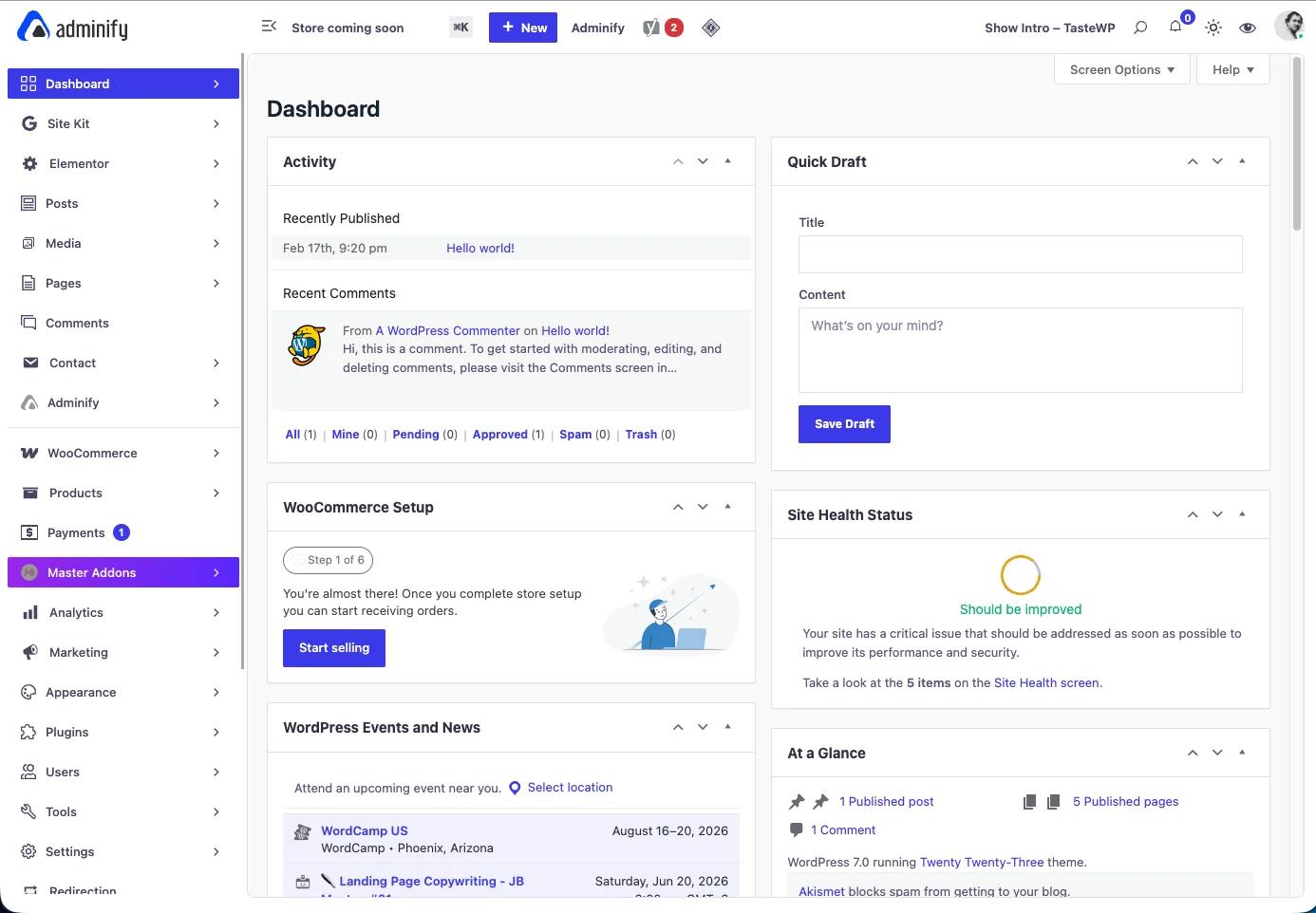
Here's what opens up right away, grouped by the problem it solves:
- Dashboard UI templates and dark mode. Swap the gray home screen for Light, Dark, Modern, or Glass templates, set brand colors and fonts, and schedule dark mode to switch on by itself at night.
- Admin Menu Editor. Drag every menu item into the order you want, rename them, swap icons, add separators, and hide items per role, no
remove_menu_page()snippets required. - White label. Replace the WordPress logo, favicon, footer text, and "Howdy" greeting with your own brand across the whole admin.
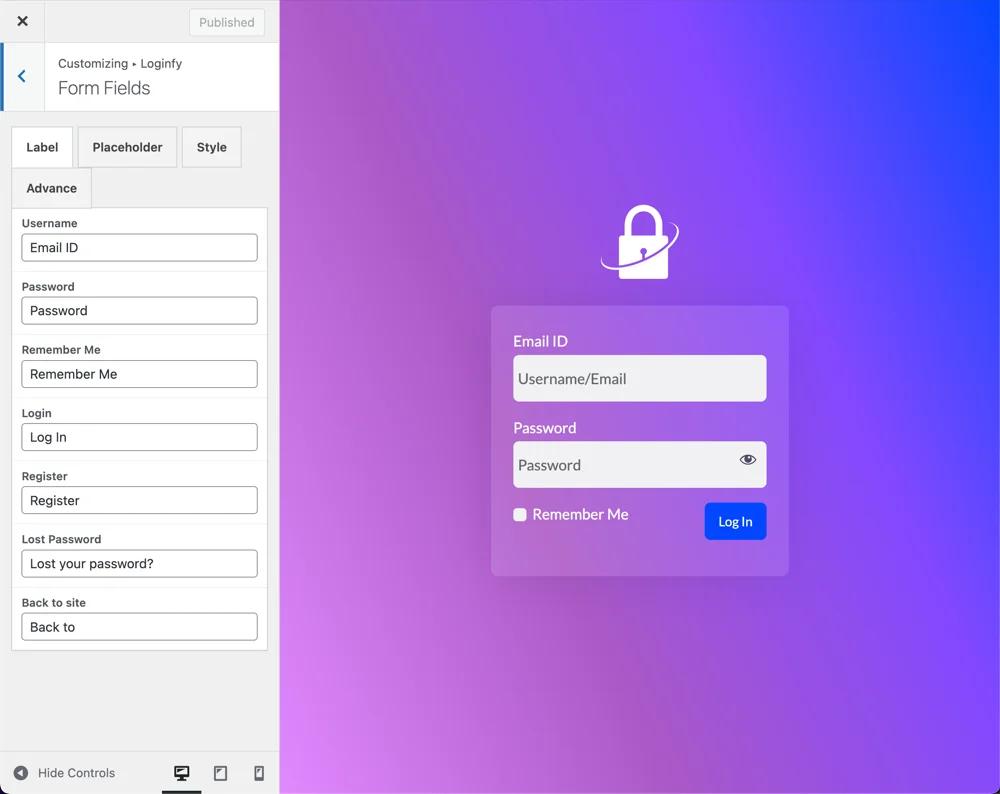
- Login customizer (Loginfy). Brand the login page with a custom logo, a background image or gradient, and a styled form.
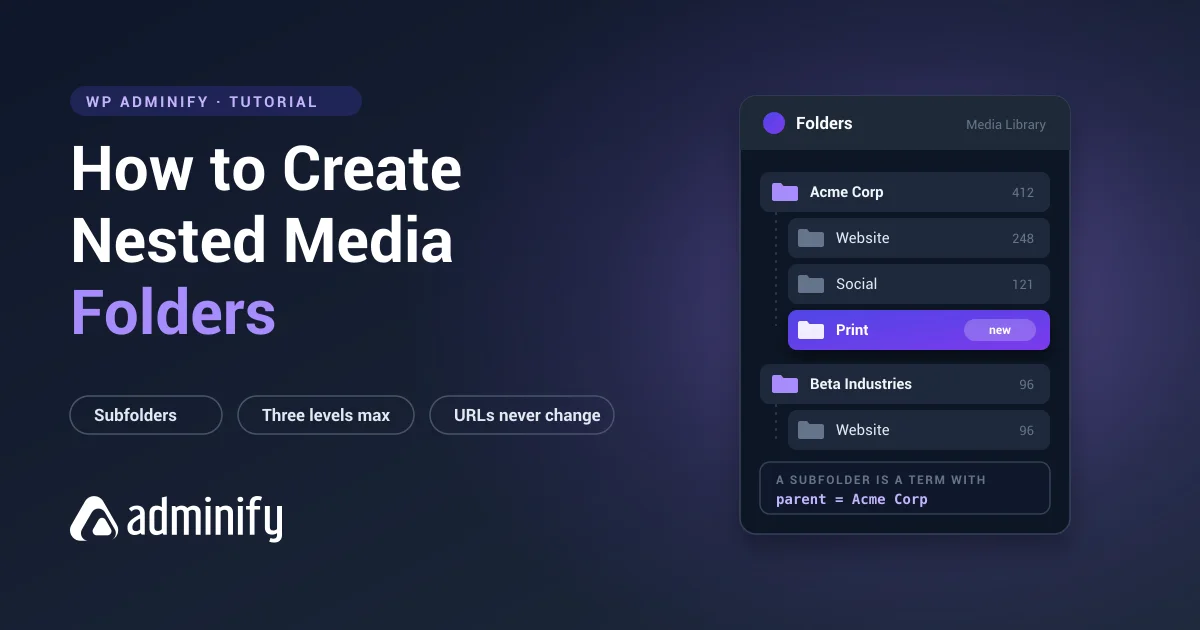
- Media folders. Add real drag-and-drop folders and subfolders to the Media Library.
- Admin Columns Editor. Add, remove, and reorder columns on post and page list screens, including ACF and WooCommerce fields.
- Productivity tools. Silence admin notices, drop the welcome panel, duplicate posts and pages in one click, and build custom dashboard widgets.
- Security hardening. Change the login URL, disable XML-RPC, restrict the REST API, and throttle the Heartbeat API.
The real difference from the default: every one of these is role-aware. You decide what an administrator, an editor, and a client each see when they log in.
Before & after: side-by-side comparison
This is the comparison most tutorials skip. The table below maps each default-admin pain point to what changes once the plugin is active.
| Area | Default WordPress admin UI | After WP Adminify |
|---|---|---|
| Dashboard home | Fixed widget grid (Welcome, News, At a Glance) | UI templates, custom widgets, removable panels |
| Color theme | 8 fixed schemes, no dark mode | Light/Dark/Modern/Glass, scheduled dark mode, brand colors |
| Admin menu | Fixed order, plugin clutter, code to hide items | Drag to reorder, rename, custom icons, hide by role |
| Branding | WordPress logo and "Howdy" everywhere | Full white label: logo, favicon, footer, greeting |
| Login page | Default WordPress logo on white | Custom logo, background, and form styling |
| Media Library | Flat grid, no folders | Drag-and-drop folders and subfolders |
| List columns | Fixed columns per post type | Add/remove/reorder columns incl. ACF & WooCommerce |
| Role control | Everyone sees the same UI | Per-role menus, widgets, and visibility |
| Plugin count | 5–8 single-purpose plugins to match these features | One plugin covers all of the above |
Feature map: which Adminify module fixes which default pain
If you only customize one thing, make it the area that wastes the most of your time. Each H3 below takes a specific default-admin weakness and shows the fix, both the visual route and, where it applies, the code route a developer would otherwise write.
Dashboard customization and dark mode
The default dashboard home is a fixed grid you can only thin out through Screen Options, one user at a time. WP Adminify swaps it for selectable UI templates and lets you set brand colors, fonts, and a scheduled dark mode. For agencies, this is where a handed-off site stops looking like stock WordPress. Go to WP Adminify > Dashboard, pick a template, set your accent color, and you're done. The full workflow lives in our guide to WordPress dashboard customization.
The manual equivalent means dequeuing widgets and writing admin CSS by hand:
1
2// Native way: remove default dashboard widgets
3function adminify_remove_dashboard_widgets() {
4    remove_meta_box('dashboard_primary', 'dashboard', 'side');   // WordPress News
5    remove_meta_box('dashboard_quick_press', 'dashboard', 'side'); // Quick Draft
6    remove_meta_box('dashboard_activity', 'dashboard', 'normal');  // Activity
7}
8add_action('wp_dashboard_setup', 'adminify_remove_dashboard_widgets');
9
Admin menu editor
The most common reason people customize the admin is the menu. By default it's fixed, and every plugin elbows its way in. With the admin menu editor you drag items into any order, rename "Posts" to "Articles," drop in a custom Dashicon or SVG, add separators, and hide a whole menu for specific roles. The native alternative is a snippet per item:
1
2// Native way: hide menu items you'd otherwise drag away
3function adminify_hide_menus() {
4    remove_menu_page('edit-comments.php'); // Comments
5    remove_menu_page('tools.php');         // Tools
6}
7add_action('admin_menu', 'adminify_hide_menus', 999);
8
That snippet hides those items for everyone. To hide them from Editors but keep them for admins, you'd add capability checks and maintain the whole thing forever. That role logic is exactly what the plugin handles in a checkbox.
White label and branding
On a client site, the wordpress.org logo in the corner and the "Howdy" greeting quietly announce "this is just WordPress." White labeling strips all default WordPress branding from the admin and drops in your own logo, favicon, footer text, and greeting. It's the line between handing a client a generic CMS and handing them their platform. Our white label WordPress development guide walks through the whole approach.
Login page customization
The login screen is the first thing a client sees, and by default it's a WordPress logo on white that links back to wordpress.org. The Loginfy module lets you set a custom logo, a background image or gradient, and styled form fields. A login CSS rule is the manual route for the logo:
1
2/* Native way: swap the login logo with CSS */
3function adminify_login_logo() { ?>
4    <style>
5      #login h1 a {
6        background-image: url('/wp-content/uploads/brand-logo.png');
7        background-size: contain; width: 220px; height: 80px;
8      }
9    </style>
10<!--?php }
11add_action('login_enqueue_scripts', 'adminify_login_logo');-->
12
That covers the logo. Backgrounds, gradients, and form styling each need more CSS, or a few clicks in the customizer.
Media folders and admin columns
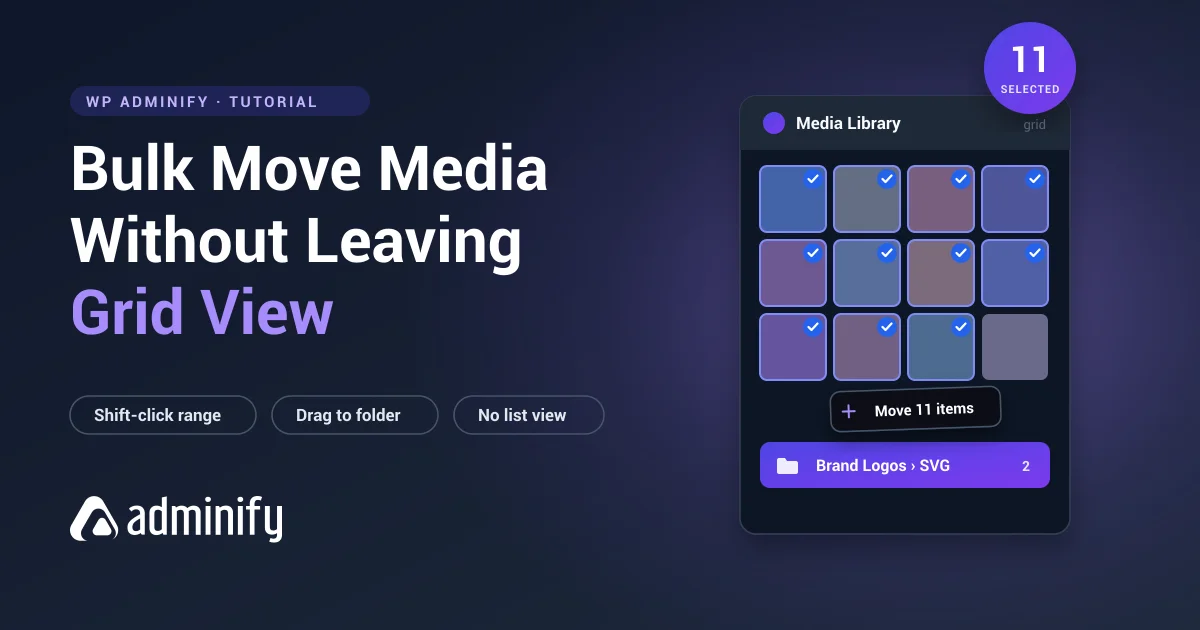
Two quieter wins that pay off every day. The default Media Library is a flat, folderless grid; WP Adminify adds real drag-and-drop folders and subfolders so a library of thousands of files stays navigable. The Admin Columns Editor lets you add, remove, and reorder columns on any list screen: show a featured-image thumbnail on the Posts list, surface an ACF field, or display WooCommerce SKUs without leaving the table. Neither has a native UI equivalent. Both otherwise mean custom plugins or hooks.
Productivity and security tools
Rounding out the suite: one-click duplicate for posts, pages, and custom post types; an admin notices manager that mutes the endless plugin upsell banners; custom dashboard widgets for text, RSS, or an embedded report; plus security controls to change the login URL, disable XML-RPC, restrict the REST API, and throttle the Heartbeat API to ease server load. These stand in for a handful of single-purpose plugins, which is the real argument for an all-in-one tool.
WP Adminify admin UI: pros and cons
A balanced look, because no plugin is the right answer for every site.
Pros of the WP Adminify admin UI
- One plugin replaces 5 to 8. Menu editor, white label, login customizer, media folders, duplicate post, disable comments. Features that would each be a separate plugin now live under one update and one support contact.
- Role-based everything. The control the default UI lacks completely. Decide what each role sees, from menus to widgets to the admin bar.
- No code required. Everything the snippets above do, and a lot more, happens in toggles, so non-developers can maintain it.
- Real branding. Full white label makes client sites feel finished instead of stock.
- Active development. Monthly updates and a support team that actually replies, which reviewers mention again and again.
- A free tier that's worth using. Menu editing, dashboard widgets, and core cleanup are all in the free version before you pay anything.
Cons of the WP Adminify admin UI
- It's a dependency. Deactivate it and your custom menus, branding, and folders revert to default. That's true of any customization plugin, but plan for it.
- A learning curve. 60+ features means more settings to poke through than a single-purpose plugin has. The payoff is consolidation; the cost is a busier settings area at first.
- Some overhead. Any plugin adds load. Adminify is built light and ships Heartbeat and performance controls to offset it, but the truly minimal answer is always no plugin at all.
- Client onboarding. If you change a UI a client already knows, walk them through the new layout once. A changed dashboard can throw people mid-project.
- Some features are Pro. The deeper white label, scheduling, and addon modules sit behind the paid tier (more on that below).
The code-only alternative for developers
You can do most of this with no plugin at all. The snippets in this guide are real and they work. The honest trade-off is maintenance: a child theme's functions.php stuffed with remove_menu_page(), remove_meta_box(), and login CSS becomes its own thing to test on every WordPress and plugin update, and it gives non-technical teammates no way to adjust anything. For one site you fully control, code is lean and dependency-free. Across ten client sites where the brief changes monthly, a settings panel almost always wins on time. If you go the manual route, the WordPress developer reference documents the hooks, starting with add_menu_page() and the admin_menu action.
| Factor | Code-only method | WP Adminify |
|---|---|---|
| Setup time | High (write and test each snippet) | Low (toggle settings) |
| Maintenance | You own it across every update | Plugin author maintains it |
| Role-based control | Manual capability checks | Built-in checkboxes |
| Non-dev friendly | No | Yes |
| Dependency | None | One plugin |
Why install WP Adminify? The problems it solves
Strip away the feature list and the case for installing comes down to four problems the default UI can't solve on its own:
- Client confusion and support tickets. A cluttered, unbranded backend breeds "where do I find…" emails. A simplified, role-filtered dashboard cuts them off. If decluttering is your main goal, here's how to simplify the WordPress dashboard.
- Plugin bloat. Most sites pile up a menu editor, a duplicate-post plugin, a disable-comments plugin, a media-folders plugin, and a login customizer. That's five plugins, five update streams, five chances for a conflict, folded into one.
- Unprofessional handoffs. Agencies and freelancers lose polish when clients log into a generic WordPress screen. White labeling closes that gap.
- Lost time on repetitive admin work. Reordering menus, duplicating content, digging through a flat media library. Small frictions that compound across dozens of sites.
If none of these sound like your situation, you may not need it. Which is exactly the next section.
When you need WP Adminify, and when you don't
The most useful thing a comparison can do is tell you when not to act. Use this rubric.
| Your situation | Recommendation |
|---|---|
| Solo blogger, single site, you're the only user | Probably skip it. The default UI plus Screen Options is enough. Customize only if dark mode or menu clutter genuinely gets under your skin. |
| Freelancer handing sites to clients | Strong fit. White label and role-based menus make every handoff look professional and cut support questions. |
| Agency managing 10+ client sites | Best fit. Consolidating plugins and standardizing a branded admin across sites is exactly the time saver it's built for. |
| WooCommerce or membership store | Good fit. Admin Columns (SKUs, stock), media folders, and a decluttered order workflow add up fast. |
| Developer who prefers code and runs one site | Optional. Snippets may be leaner. Worth it if non-technical teammates need to adjust the UI themselves. |
| Tiny site on minimal hosting, no customization need | Skip it. Don't add a dependency you won't use. |
Short version: the more users, sites, and clients you manage, the stronger the case. The more you're a solo operator happy with the defaults, the weaker it gets, and that's a fine place to land.
Free vs Pro: what's actually gated
WP Adminify's free version on WordPress.org is genuinely usable, not a trial. It covers the admin menu editor, dashboard widgets, basic cleanup, and core productivity tools, which is enough to declutter and reorganize most sites. The Pro tier unlocks the deeper agency features: full white label, dashboard UI templates with scheduled dark mode, the login customizer's advanced styling, media folders, the Admin Columns Editor, and addons like Activity Logs and RoleMaster Suite. Our honest take: start free, and upgrade only when a specific gated feature, usually white label or media folders, solves a problem you actually have. The pricing page has the full breakdown, and the white label feature page shows what the top tier includes.
Common issues and fixes
- "My custom menu order reverted." Menu changes save per the role you configured. Check you edited the menu for the right user role, and that no other menu-management plugin is active and fighting it.
- "White label logo isn't showing." Clear any caching plugin and your browser cache after uploading. Logos pull from the Media Library, so a deleted source image breaks the reference.
- "The admin feels slower after install." Turn on Heartbeat API control under the performance settings to cut background admin-ajax calls, and switch off any modules you aren't using. For a wider diagnosis, our guide on why the WordPress admin is slow covers the usual suspects.
- "A client can still see a menu I hid." Hidden menus are role-scoped, not a hard security wall. A user with a higher role, or direct URL access, can still reach the page. Pair menu hiding with proper capability and role settings for real restriction.
FAQ
What's the difference between the default WordPress admin and a custom admin?
The default WordPress admin is the same generic gray dashboard on every install: fixed menu order, no branding, no role-based control, no folders. A custom admin reshapes that UI with reordered and role-filtered menus, your own branding, dark mode, organized media, and tailored list columns. The default treats every user the same; a customized admin shows each role what it needs.
Can you customize the WordPress admin without a plugin?
Yes. You can hide menu items with remove_menu_page(), drop dashboard widgets with remove_meta_box(), and restyle the login screen with CSS in your theme's functions.php. The trade-off is maintenance: you own and test that code on every update, and there's no interface for non-developers to adjust it. A plugin swaps that for a settings panel anyone can use.
Does a dashboard customization plugin slow down WordPress?
Any plugin adds some load, but admin customization runs in wp-admin, not on your public site, so visitors aren't affected. WP Adminify is built to be lightweight and includes Heartbeat API and performance controls that can actually reduce admin resource use. Switch off modules you don't need to keep it lean.
Is it safe to customize the WordPress admin dashboard?
Yes, when you use a maintained tool or tested code. Customization plugins layer on top of WordPress without touching core files, so updates stay clean and changes reverse the moment you deactivate. One caution: hiding a menu is a UI convenience, not a security boundary. Lock down sensitive areas with proper user roles and capabilities, not just by hiding the link.
What is the best free plugin to customize the WordPress dashboard?
WP Adminify's free version is a strong choice because one plugin covers menu editing, dashboard widgets, and admin cleanup that would otherwise take several single-purpose plugins. It runs on 20,000+ sites with a 4.7/5 rating. Weigh the options in our roundup of the best WordPress dashboard plugins before you decide.
How do I add dark mode to the WordPress admin?
WordPress has no native dark mode. The eight built-in color schemes are all light-to-mid tones. For a true dark admin you need a customization plugin: WP Adminify ships Dark, Modern, and Glass templates plus scheduling so dark mode flips on by itself at night. There's no maintainable code-only way to get a full dark UI.
How do I white-label the WordPress admin for clients?
White labeling replaces all default WordPress branding, the logo, favicon, footer text, "Howdy" greeting, and login logo, with your own. A few pieces you can do with CSS and filters, but full coverage across the admin and login screen is fastest through a white label module, which keeps every branding element in one place.
Will I lose my customizations if I deactivate the plugin?
Yes. The admin reverts to its default state when you deactivate a customization plugin, since the changes live in the plugin's settings, not in core. Your content, users, and media are never touched; only the UI layer returns to default. Reactivate and your configuration comes back.
Conclusion
The default WordPress admin UI is stable, familiar, and perfectly fine for a solo site. It's also deliberately generic, with no branding, no role-based control, and a menu that degrades as you stack plugins. Customizing it closes those gaps; the only open question is whether you do it with maintained code or a plugin. The takeaways:
- The default is fine for solo, single-user sites. Don't add a dependency you won't use.
- The case for customizing grows with users, clients, and sites. Agencies and freelancers gain the most.
- Code works, but you maintain it. A plugin trades that for a settings panel anyone can use.
- Start free and upgrade only when a specific gated feature solves a real problem.
If you manage more than your own blog, the math usually tips toward customization. Look through the WordPress admin theme and dashboard customization feature set to see what the after-state looks like on your own admin, then start with the free version and shape the dashboard around how you actually work.
Ready to Move Beyond the Default UI?
If the comparison convinced you the default wp-admin isn't enough, start with the complete guide to customizing the WordPress dashboard - it walks through every change shown above, with and without WP Adminify.
Your email address will not be published