


Key Takeaways
- White label WordPress maintenance means the client sees your agency's name and a clean dashboard during the care plan. The plugins and tools you use to do the work stay out of view.
- The WP Adminify White Label tab can remove or change the "Howdy" greeting, remove the WordPress logo, Comments, Updates and New items from the admin bar, and set your own admin footer text.
- WP Adminify's Hide Admin Notices option is a Pro feature that also removes the Welcome Panel, the PHP Update Required notice and core, plugin and theme update notices.
- Adminify Activity Log and Audit Trail is a free addon by Pixar Labs on wordpress.org that records changes made in wp-admin screens, with date, author, role, IP address and action.
- The WP Adminify Backup tab exports all settings as JSON, so an agency can set up one branded maintenance setup and import it on every client site.
White label WordPress maintenance is a care plan that runs under your agency's brand. The client logs in and sees your name in the dashboard, a quiet admin with no update nags, and a report of the work you did. Third-party tool names and update warnings meant for you stay hidden from them.
This guide is for agencies and freelancers who sell monthly maintenance. It covers what the client sees, how to brand the dashboard, how to hide update noise, and how to prove the work each month. It builds on our full guide to white label WordPress, and it uses WP Adminify's White Label WordPress settings for the branding steps.
What Do Clients See During WordPress Maintenance?
During a care plan, clients see the WordPress dashboard, update badges, plugin notices, the admin bar and the admin footer. On a default site these show WordPress and plugin brands, red update counters and upgrade offers. A white label setup replaces that with your branding, hides the noise, and shows only the screens the client needs.
Think about the client's view on a normal day. They log in to add a blog post. Before they reach the editor, they see:
- a "Howdy" greeting and the WordPress logo in the admin bar;
- red bubbles on Updates and Plugins that make the site look neglected, even if you update every week;
- banners from plugins asking for reviews or selling Pro versions;
- the WordPress welcome panel and "Thank you for creating with WordPress" in the footer.
None of this helps the client. Some of it creates support tickets ("Should I click Update?"). White label maintenance removes these distractions, and the client sees a site that you clearly look after.
How to Brand the Client Dashboard
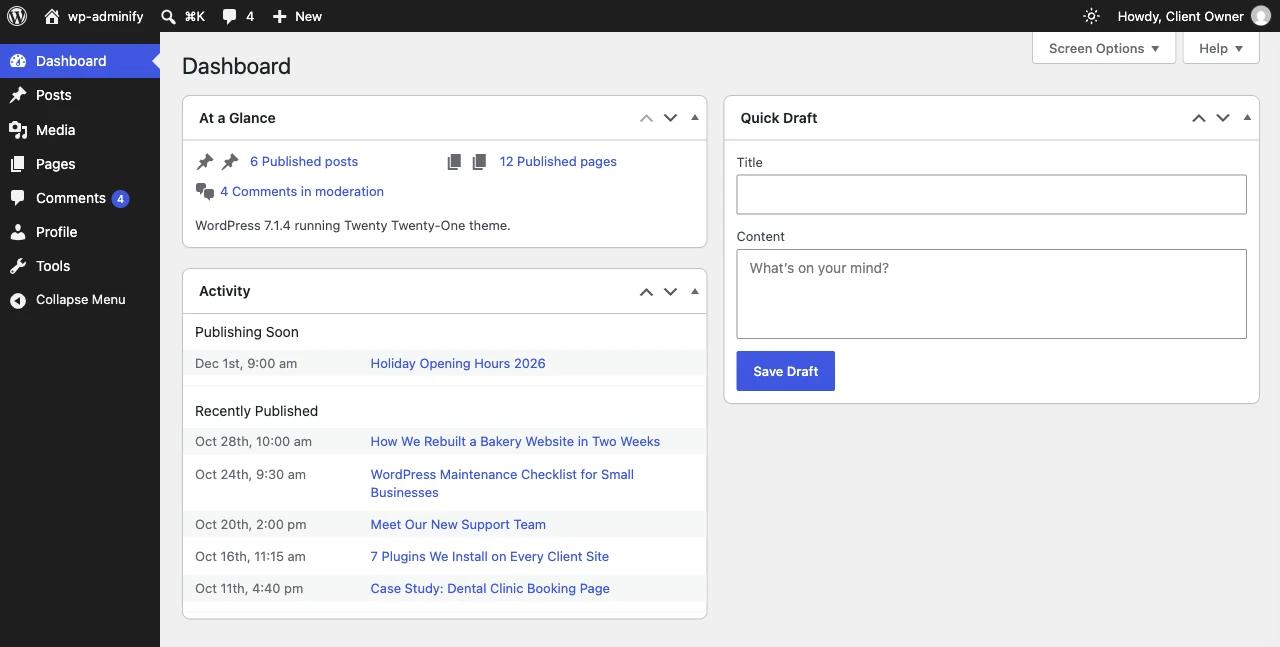
Branding the dashboard means replacing WordPress and tool names with your own. In WP Adminify, go to Adminify > White Label. There you can change the "Howdy" text, clean the admin bar, and set your own admin footer text with a support email. These settings have no Pro badge in version 4.3.4.
Use these settings in the "WordPress" White Label Settings section:
- Remove "Howdy" message? or Change "Howdy" Text. For example, "Welcome" makes the bar say "Welcome, Anna".
- Admin Bar Cleanup: tick WordPress Logo, Comments, Updates and "New" Button. The Updates tick matters most for maintenance clients, because it hides the update counter from the bar. Our guide on how to remove the WordPress logo from the admin bar shows the before and after.
- Show Footer Credit: switch it on, then fill Admin Footer Text. A line such as "Website care by Acme Studio. Need help? Email support@acmestudio.example" tells the client who to contact. The text only shows when Show Footer Credit is on. See how to change the WordPress admin footer for more options.
Two notes from our tests. The Howdy fields are hidden when the Admin Bar Editor plugin is active, because that plugin then controls the toolbar. They are also hidden when the Adminify UI is on.
If you also want to rename WP Adminify itself in the plugin list and menu, use the "Adminify" Branding section. You can set a plugin name, description, agency name, menu label and icon. This section is marked "Agency or Higher Plan Only". It is the plugin white label part of the setup.
For a full branded login page and dashboard widgets, read our guide to the WordPress client dashboard.
How to Hide Update Noise From Clients
Hiding update noise means the client stops seeing update notices, plugin banners and site health warnings that only you need to act on. In WP Adminify, the Hide "Admin Notices"? option under the Productivity tab does this. It carries a Pro badge in 4.3.4 and has extra switches for update and welcome notices.
The options under Adminify > Productivity are:
- Hide "Admin Notices"? with the subtitle "Hide Admin Notices to make your Dashboard Clean."
- Also, Hide for Non-Admin Users? for client roles such as Editor or a custom Client Manager role.
- Other Notices (Pro): Remove Welcome Panel, Remove "PHP Update Required" Notice, Hide Core Update Notice, Hide Plugin Update Notice, Hide Theme Update Notice, and Disable Site Health checks.
With these on, the client account on our test site showed a clean dashboard with no update nags. You can read more on the WP Adminify Hide Admin Notices page, and our guide on how to hide admin notices in WordPress covers the code way too.
Take care with the three update options. On our test site, Hide Core Update Notice did more than hide a message: it stopped all update checks and automatic updates, including security updates, and removed the Dashboard > Updates screen. The plugin and theme options emptied the update lists as well. Turn them on only if you run every update yourself from another tool, such as WP-CLI or a site management dashboard, and check for updates there.
One rule for care plans: hide notices for client accounts only. You still need to see updates. Log in with your own admin account to run them, and give clients a lower role. The RoleMaster Suite addon can copy the Editor role into a custom client role, so you control which screens the client can open.
How to Report the Maintenance Work You Did
A care plan report shows the client what changed on their site this month. The easiest proof is an activity log. Adminify Activity Log and Audit Trail is a free addon by Pixar Labs that lists changes made in wp-admin, with the date, the user, their role, the IP address and a short description.
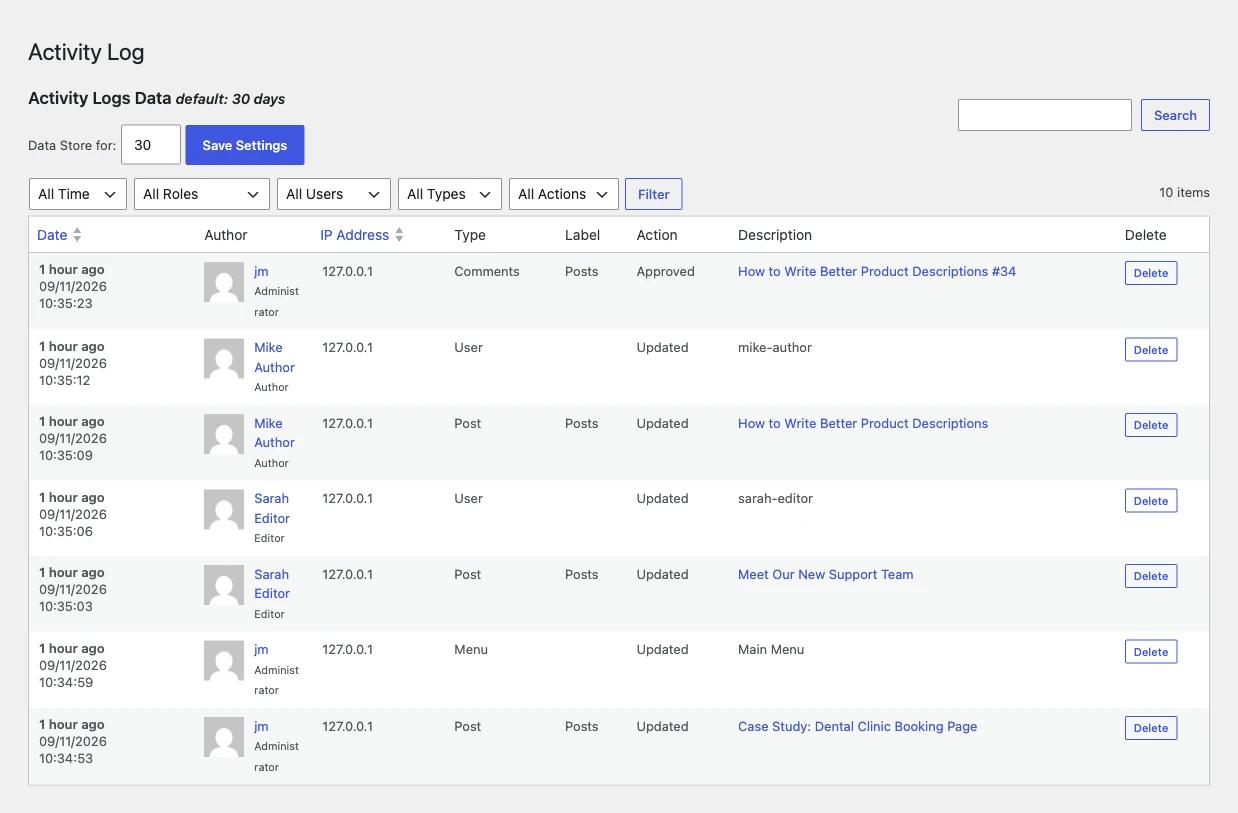
After you install it, open Adminify > Activity Logs. The screen has:
- Data Store for: how many days of logs to keep. The default is 30 days, which fits a monthly report.
- Filters for All Time, All Roles, All Users, All Types and All Actions, plus a search box.
- Columns for Date, Author, IP Address, Type, Label, Action and Description, and a Delete button.
In our test it logged plugin activation and deactivation, option changes such as the site tagline, post updates made with Quick Edit, menu updates, profile updates and comment approvals. Be precise in your reports, though. The addon records changes made in wp-admin screens. It did not log logins or posts saved from the block editor in our test, so do not promise the client a record of every edit.
A simple monthly report has four parts: updates you ran, changes from the activity log, backups taken, and any issues found. See the Activity Logs addon page for its features, and our guide on how to monitor user activity in WordPress for other logging options.
Roll the Same Setup Out to Every Client Site
An agency should build the white label maintenance setup once and copy it. WP Adminify's Backup tab exports all settings as JSON with an Export & Download button. On the next client site, paste or upload that file in the Import box. The branding, admin bar cleanup and notice settings arrive in one step.
A practical process:
- Set up one site with your wordpress white label settings, hidden notices and client role.
- Go to Adminify > Backup and click Export & Download.
- On each new client site, install WP Adminify, open the Backup tab and import the file.
- Change only the site-specific parts, such as the footer support email.
Our guide to white label WordPress development shows the full agency handover process, from build to client training.
A Simple Tool Stack for Branded Care Plans
A branded care plan needs five kinds of tools: backups, updates, security, logging and admin branding. Most agencies already have the first three. The last two decide what the client sees. Keep the stack small, because every extra plugin is one more thing to update and one more notice to hide.
| Job | What it does for the care plan | Example in WP Adminify |
|---|---|---|
| Admin branding | Your name in the bar and footer, no WordPress logo | White Label tab |
| Quiet dashboard | No update nags or plugin banners for clients | Hide Admin Notices (Pro) |
| Proof of work | A list of changes for the monthly report | Activity Logs addon (free) |
| Client roles | Clients see only the screens they use | RoleMaster Suite addon |
| Same setup everywhere | One config for every client site | Backup tab export and import |
The Productivity tab holds more time savers for care plan work, such as post duplication and folders. You can see them all in WP Adminify Productivity Tools. If you sell care plans as an agency, the WP Adminify for agencies page explains the plans. Solo developers can start with WP Adminify for freelancers.
Frequently Asked Questions
What is white label WordPress maintenance?
It is a website care plan sold under your own brand. You or a partner do the updates, backups and fixes, and the client sees only your agency name in the dashboard, the reports and the emails. Tool names, update nags and plugin banners are hidden from the client account.
Should clients see WordPress update notices?
Usually no. On a care plan, you run the updates, so update notices only confuse clients and lead to support tickets. The Hide Admin Notices option can hide notices for non-admin users. The Pro update notice options go further: on our test site they also stopped update checks and automatic updates, so use them only if you run all updates from another tool.
Does the Activity Logs addon record logins?
Not in our test. Adminify Activity Log and Audit Trail 1.0.9 recorded changes made in wp-admin screens, such as plugin activation, settings changes, Quick Edit updates and menu changes. Logins and posts saved from the block editor did not appear, so check it on your own site before you promise it.
Can I white label the WP Adminify plugin itself?
Yes, on the Agency plan or higher. The Adminify Branding section lets you change the plugin name, description, author, menu label, icon and URL. The plugin list then shows your name instead of WP Adminify. You can also hide its row meta and action links.
Final Thoughts
With white label WordPress maintenance, the client notices your brand in the admin, a quiet dashboard and a clear monthly report. In WP Adminify, use the White Label tab for the Howdy text, admin bar cleanup and footer, Hide Admin Notices (Pro) for update noise, the free Activity Logs addon for proof of work, and the Backup tab to copy the setup to every site. For every other place WordPress shows its brand, read How to White Label WordPress.
Your email address will not be published