

The fastest way to remove the WordPress logo from the admin bar is a plugin toggle. In WP Adminify, open White Label, tick WordPress Logo under Admin Bar Cleanup, and save. Prefer code? Three lines in your theme's functions.php do the same thing. And if you need per-role control (hide it for editors, keep it for admins), the Admin Bar Editor plugin handles that with a visual toggle. This guide covers all four methods with screenshots, plus fixes for when the logo won't go away. (Updated July 2026)
What is the WordPress logo in the admin bar?
The WordPress logo is the small "W" icon in the top-left corner of the admin bar (also called the toolbar). Click it and a dropdown opens with links to WordPress.org, the documentation, and the support forums. It shows on every wp-admin screen, and on the front end of your site whenever you're logged in.
WordPress registers this icon as an admin bar node with the ID wp-logo. That ID matters: every removal method in this guide targets it, whether through a checkbox or a line of code.
Why remove it?
Three reasons keep coming up:
- Client sites. Agencies hand over dashboards that should carry the agency's brand, not WordPress branding. A logo that links out to WordPress.org support forums invites clients to wander off and file questions there instead of contacting you.
- Cleaner toolbar. The logo's submenu (About WordPress, WordPress.org, Documentation, Support, Feedback) is dead weight for most people. Removing it frees space for links that actually get clicked.
- White labeling. If you're already replacing the login page, footer credit, and dashboard branding, the admin bar logo is the last visible piece of WordPress identity.
On client handovers I treat this as part of the same checklist as the login page and the footer credit. If the client paid for a custom build, nothing in their dashboard should point away from you.
How to remove the WordPress logo from the admin bar
You can remove the WordPress logo from the admin bar in four ways: a no-code plugin setting, a snippet in your theme, a dedicated admin bar plugin with role rules, or CSS. Pick the one that matches how comfortable you are editing code and how much control you need.
| Method | Best for | Code needed | Role-based control |
|---|---|---|---|
| WP Adminify White Label | Full white labeling in one plugin | No | Yes (via role settings) |
| functions.php snippet | Developers, no extra plugin | Yes | Yes (with extra code) |
| Admin Bar Editor plugin | Visual control of every toolbar item | No | Yes (built-in "Hidden For" rules) |
| CSS hiding | Quick visual fix only | Minimal | No |
Method 1: Remove it with a WP Adminify setting (no code)
The no-code route lives in WP Adminify's White Label module. Here's the full path:
- Go to
WP Adminify > White Labelin your dashboard. - Find the Admin Bar Cleanup row.
- Tick the WordPress Logo checkbox.
- Click Save Settings.
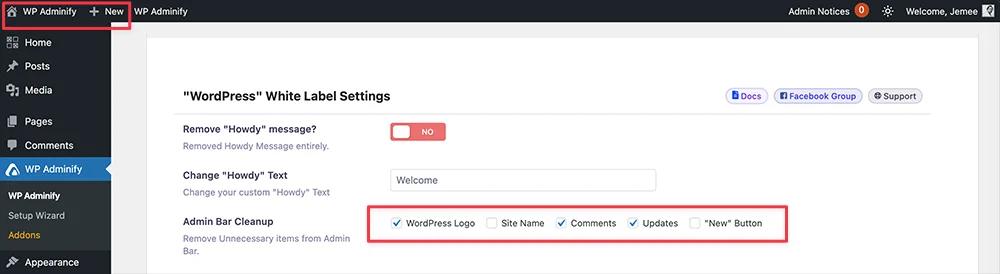
The logo disappears from wp-admin and the front-end toolbar as soon as you save. This is the method I use on client sites, mostly because the same row also hides the site name, comments icon, update notifications, and the "New" button. One save and the whole bar reads as yours.

The White Label module goes well past the admin bar. The same screen controls the admin footer text, footer credit, and version info: everything a client sees that says "WordPress" instead of your agency name.
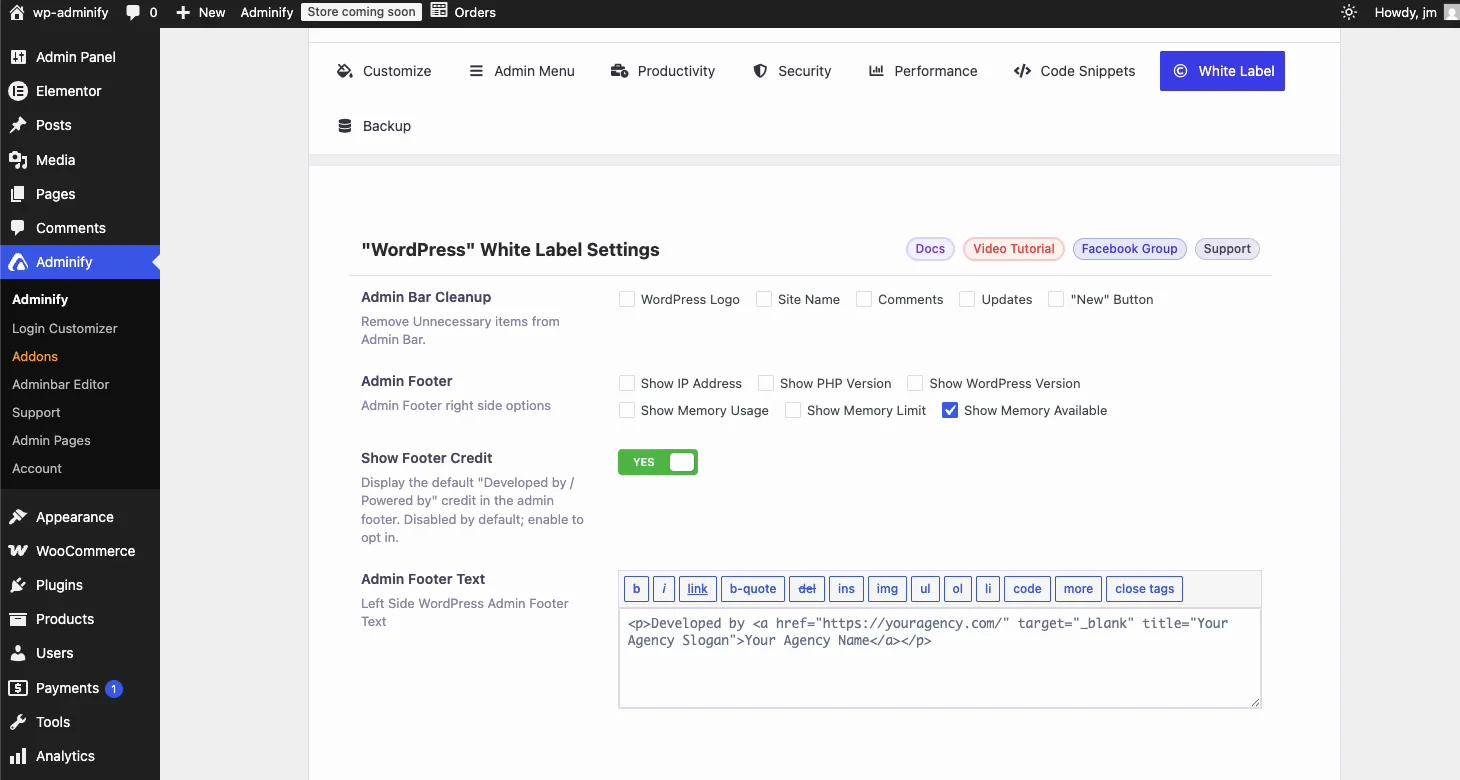
White Label is a Pro feature. See WP Adminify pricing for what's included.
Method 2: Remove the logo with code in functions.php
If you'd rather not add a plugin, drop this snippet into your active theme's functions.php file (or a code-snippets plugin). It hooks the admin bar menu and removes the logo node:
add_action( 'admin_bar_menu', function( $bar ) {
    $bar->remove_node( 'wp-logo' );
}, 999 );
The admin_bar_menu action passes the WP_Admin_Bar object, and remove_node( 'wp-logo' ) deletes the logo along with its whole submenu. The priority of 999 makes the snippet run after WordPress has added the logo, so there's something to remove. It works in wp-admin and on the front-end toolbar at once.
Two practical notes:
- Use a child theme. A theme update overwrites
functions.phpand takes your snippet with it. A child theme or a snippets plugin survives updates. - Want it role-based? Wrap the removal in a capability check:
add_action( 'admin_bar_menu', function( $bar ) {
    if ( ! current_user_can( 'manage_options' ) ) {
        $bar->remove_node( 'wp-logo' );
    }
}, 999 );
That version keeps the logo for administrators and hides it for everyone else. Useful when you still want quick access to the WordPress docs yourself but a clean bar for clients and editors.
Method 3: Use the Admin Bar Editor plugin
If you want visual control over every toolbar item, not just the logo, Admin Bar Editor shows the full admin bar as a drag-and-drop list. Every node gets its own on/off toggle, and the WP Logo sits right at the top:
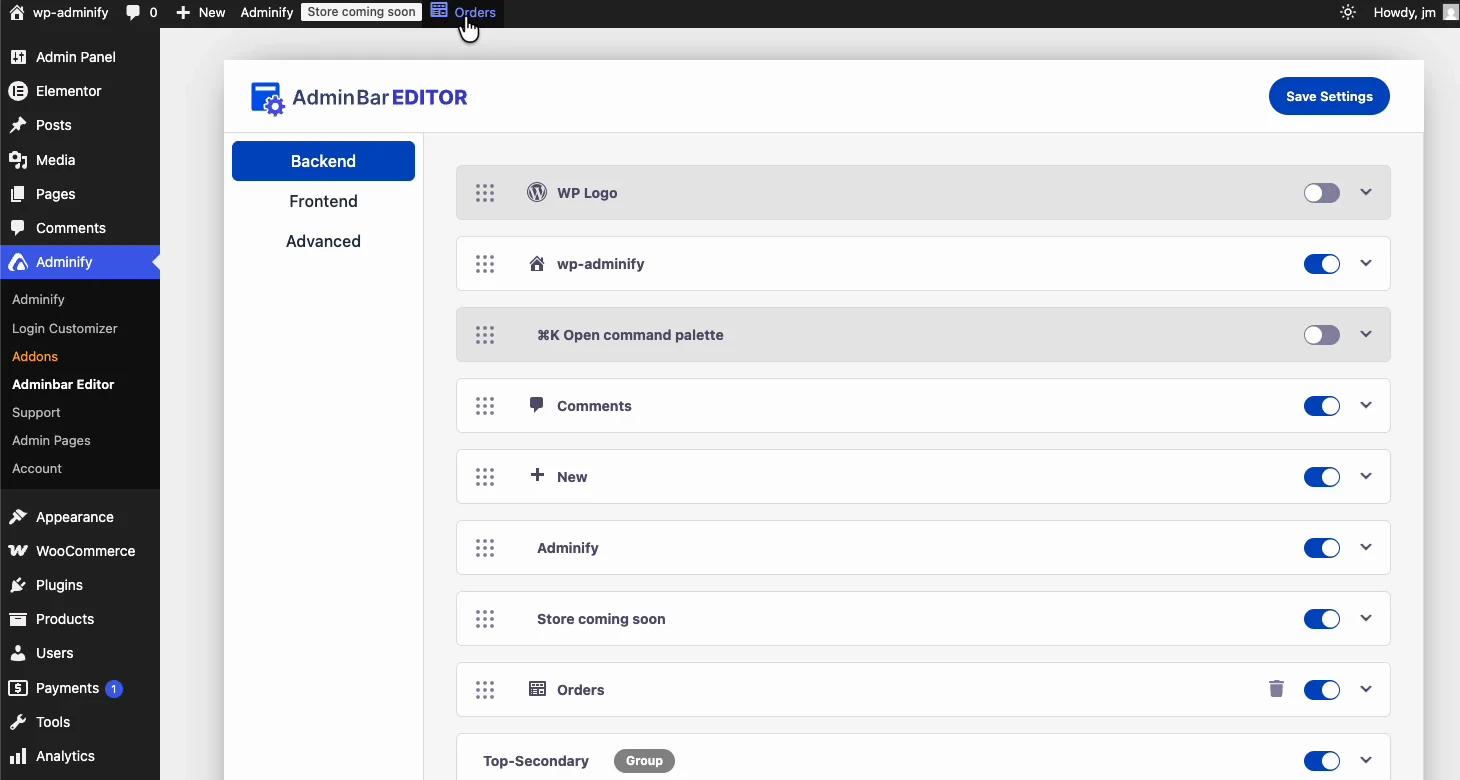
Switch the WP Logo toggle off, hit Save Settings, done. Separate Backend and Frontend tabs let you treat wp-admin and the front-end toolbar differently: remove the logo in both, or only where clients see it.
The part a code snippet can't easily match is per-item role rules. Expand the WP Logo row and the Hidden For Rules field lets you pick exactly which roles stop seeing it:
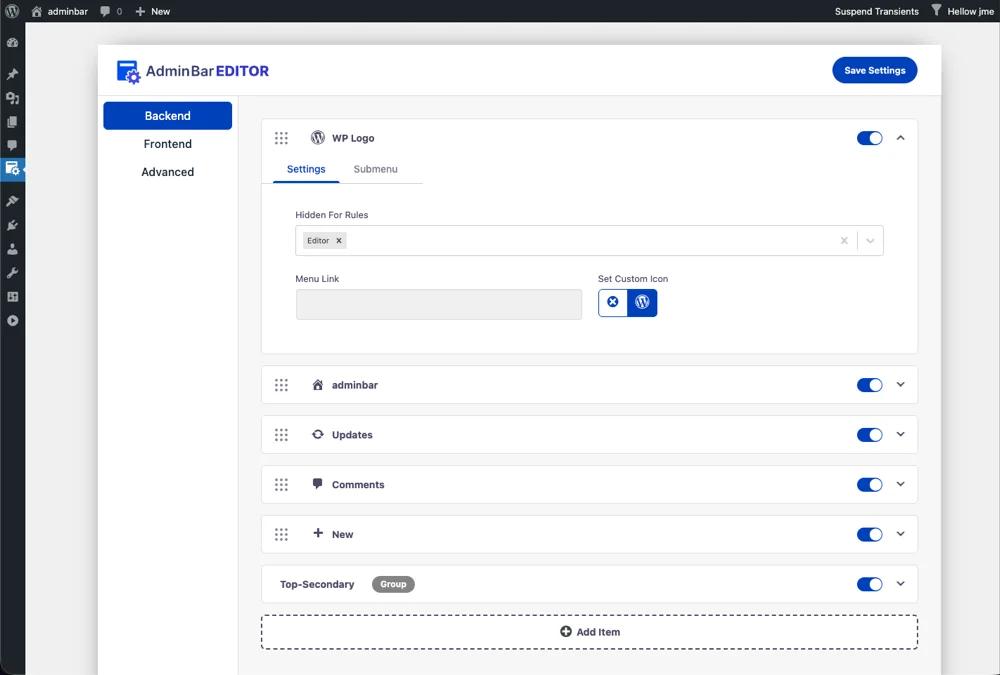
In the screenshot the logo is hidden for the Editor role only; admins keep it. You can also swap the WordPress icon for a custom one instead of removing it, which is a lighter form of white labeling.
Method 4: Hide it with CSS (quick, but not recommended)
You'll see this suggested in forums:
#wpadminbar #wp-admin-bar-wp-logo { display: none; }It works, but only visually. The logo's markup and links still load in the page; CSS just paints over them. A curious client can still find the WordPress.org links in the page source, and screen readers still announce the menu. Fine as a stopgap. For anything a client will see, use one of the first three methods.
Remove the WordPress logo from the front-end toolbar too
The same logo appears in the front-end admin bar, the dark strip across the top of your site while you're logged in. Methods 1 and 2 remove it in both places automatically. In Admin Bar Editor, flip to the Frontend tab and toggle the logo off there as well.
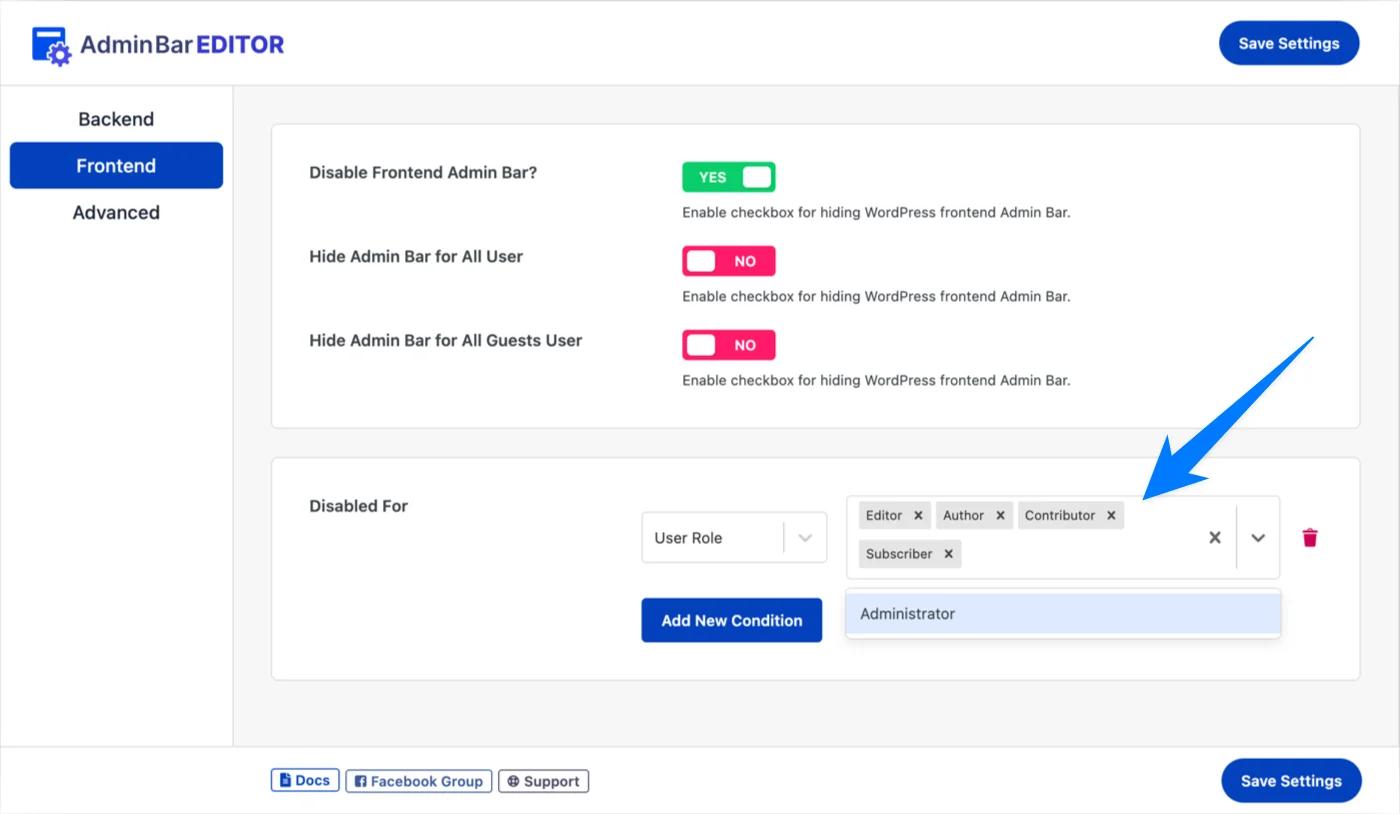
If you'd rather hide the entire toolbar for certain roles instead of just the logo, Admin Bar Editor's Frontend tab has a Disabled For condition. Pick the roles that should never see the toolbar and administrators keep it. The usual setup for membership sites: disable it for everyone except admins.
WordPress logo still showing after you removed it?
If the logo is still there after you saved the setting or added the code, nine times out of ten a cache is serving the old admin bar. Work through this table:
| Symptom | Likely cause | Fix |
|---|---|---|
| Logo still shows after saving | Cached admin screen | Purge your caching plugin and hard-refresh (Ctrl+Shift+R / Cmd+Shift+R) |
| Logo gone in wp-admin but visible on the front end | Page cache serving the logged-in toolbar | Purge the page cache; exclude logged-in users from caching |
| No White Label menu at all | Running the free plugin | White Label is a Pro module, so upgrade to unlock it |
| Code snippet had no effect | Wrong theme, wrong priority, or syntax error | Add it to the active theme, keep priority 999, check for a missing semicolon |
| Logo returns after a theme update | Snippet lived in the parent theme's functions.php | Move it to a child theme or a code-snippets plugin |
Should you remove or replace the WordPress logo?
Removing the logo cleans up the admin bar. Replacing it with your own is full white labeling. To rearrange, hide, or add toolbar items across the whole bar, use the WordPress Toolbar Editor. If you build sites for clients, swapping the WordPress branding for your agency's logo, footer text, and login page is worth the extra step. An empty space where a logo used to be looks unfinished; your own mark there looks intentional.
Our complete guide to white labeling WordPress and the White Label feature overview walk through the full setup, and the best white label plugins roundup compares your options.
WordPress Admin Bar Logo FAQs
How do I remove the WordPress logo from the admin bar?
You have three main options. In WP Adminify, open White Label, tick WordPress Logo under Admin Bar Cleanup, then Save Settings. Or add an admin_bar_menu action that calls remove_node with wp-logo in your theme functions.php. Or install Admin Bar Editor and switch the WP Logo toggle off.
How do I remove the WordPress logo without a plugin?
Add a short snippet to your active theme functions.php file. Hook the admin_bar_menu action, then call remove_node with wp-logo on the passed admin bar object. It removes the logo in wp-admin and on the front-end toolbar. Use a child theme so a theme update doesn't undo it.
Why is the WordPress logo still showing after I removed it?
Almost always a cache is serving the old admin bar. Purge your caching plugin and object cache, then hard-refresh with Ctrl+Shift+R or Cmd+Shift+R. If the setting itself is missing, check that you're on WP Adminify Pro, since White Label is a Pro module.
Can I hide the WordPress logo for some user roles but not others?
Yes. Admin Bar Editor has a Hidden For Rules field on every toolbar item. Add the roles that shouldn't see the logo, such as Editor or Author, and administrators keep it. In code, wrap remove_node in a current_user_can check so the removal only runs for non-admins.
Can I replace the WordPress logo with my own?
Yes. Admin Bar Editor lets you set a custom icon on the WP Logo item, and a white label plugin swaps WordPress branding for your agency logo across the admin bar, footer, and login page. That's the better choice for client sites, where consistent branding matters more than a blank space in the toolbar.
Does removing the logo hide the whole admin bar?
No. Removing the wp-logo node only deletes the WordPress icon and its submenu; the rest of the admin bar stays. If you want the entire toolbar gone for some users, disable the admin bar per user role in Admin Bar Editor or with the show_admin_bar filter.
Your email address will not be published