


Key Takeaways
- WordPress 7.x has no built-in dark mode for wp-admin, so a WordPress dark mode without a plugin means adding your own CSS that recolours admin backgrounds, boxes, tables and form fields.
- The admin_head action in WordPress prints CSS on every wp-admin screen, so a small must-use plugin file or child theme functions.php can load a dark stylesheet without installing anything.
- A 24-line dark CSS snippet darkens the WordPress dashboard, list tables and widget boxes, but parts such as Quick Draft fields and striped table rows can stay light.
- Admin CSS printed with admin_head does not reach the block editor content canvas, because WordPress loads that writing area in a separate frame styled by the theme.
- WP Adminify has a free Light/Dark Switcher that gives every user a per-account dark mode toggle in the admin bar, without writing or maintaining any CSS.
You can get a WordPress dark mode without a plugin by adding a short block of CSS to the admin area. WordPress 7.x has no dark admin option of its own, so the CSS method recolours the main backgrounds, boxes, tables and inputs. The snippet below is 24 lines, and it turned our test dashboard on WordPress 7.1.4 dark in one step.
This post gives you the snippet, two places to add it, an honest list of what it misses, and the one-minute plugin method if you decide the CSS is too much work. It is part of our larger guide to wordpress dark mode, which compares every method. If you would rather click one switch, WP Adminify's Admin Dark Mode does the same job per user.
The Dark Mode CSS Snippet for wp-admin
The snippet below sets a near-black background on the main admin wrappers, gives widget boxes and list tables a dark grey, lightens the text, darkens form fields and makes links a soft blue. It only targets the admin area, so your front end and your visitors are not affected. You can extend it later.
1
2/* Simple dark mode for the WordPress admin */
3body, #wpwrap, #wpcontent, #wpbody-content {
4  background: #1e1e1e;
5  color: #e0e0e0;
6}
7.wrap h1, .postbox-header h2, .postbox h3,
8#dashboard-widgets label {
9  color: #f5f5f5;
10}
11.postbox, .postbox-header, .postbox .inside,
12#dashboard-widgets li,
13.wp-list-table, .wp-list-table td, .wp-list-table th {
14  background: #2a2a2a;
15  color: #dcdcdc;
16  border-color: #3c3c3c;
17}
18input, select, textarea {
19  background: #333333;
20  color: #eeeeee;
21  border-color: #555555;
22}
23#wpbody-content a {
24  color: #8ab4f8;
25}
26
Here is what each part does:
- Lines 2 to 5 set the dark page background and the default light text.
- Lines 6 to 9 make page titles and widget headings bright enough to read.
- Lines 10 to 16 turn dashboard widgets (postboxes) and list tables such as Posts and Pages dark grey with softer borders.
- Lines 17 to 21 darken text fields, dropdowns and text areas.
- Lines 22 to 24 change link colours so they stay readable on the dark background.
The admin sidebar menu is not in the snippet, because the default WordPress colour scheme already uses a dark menu. If you picked a light colour scheme such as Modern in your profile, switch back to Fresh or another dark scheme under Users > Profile > Admin Color Scheme.
Where to Add the CSS (No Plugin Needed)
The CSS has to load on every admin screen, so you print it with the admin_head action. The cleanest place is a must-use plugin file: one PHP file in wp-content/mu-plugins/ that WordPress loads automatically. You do not download it from the plugin directory, and it keeps working when you change themes. A child theme's functions.php also works.
Option 1: A must-use plugin file
- Connect to your site with FTP, SFTP or your host's file manager.
- Open
wp-content. If there is nomu-pluginsfolder, create one. - Create a file called
admin-dark-mode.phpinside it and paste the code below. - Reload any wp-admin page. You do not need to activate anything; WordPress loads files in this folder by itself.
1
2<?php
3/**
4 * Plugin Name: Admin Dark Mode (CSS)
5 * Description: Prints a simple dark stylesheet on every wp-admin screen.
6 */
7
8add_action( 'admin_head', function () {
9    ?>
10    <style id="admin-dark-mode-css">
11    /* Paste the dark mode CSS from above here */
12    </style>
13    <?php
14} );
15
To remove the dark mode later, delete the file. The WordPress developer reference for the admin_head hook explains when it runs.
Option 2: Your child theme's functions.php
Paste the same add_action( 'admin_head', ... ) block, without the first <?php line and the comment header, at the end of your child theme's functions.php. Do not edit a parent theme directly, because the next theme update will remove your change. The dark mode stops working if you switch themes.
Option 3: Let each user choose with a colour scheme
The two options above make the admin dark for everyone. If only some users want it, you can load the CSS only for users who picked a certain admin colour scheme in their profile. The example below uses the core Midnight scheme as the "dark mode on" signal.
1
2add_action( 'admin_head', function () {
3    // Only users who chose the Midnight colour scheme get dark mode.
4    if ( 'midnight' !== get_user_option( 'admin_color' ) ) {
5        return;
6    }
7    ?>
8    <style id="admin-dark-mode-css">
9    /* Paste the dark mode CSS from above here */
10    </style>
11    <?php
12} );
13
Now each user turns dark mode on or off from Users > Profile > Admin Color Scheme. This gives you a per-user choice without a plugin.
What the CSS Method Misses
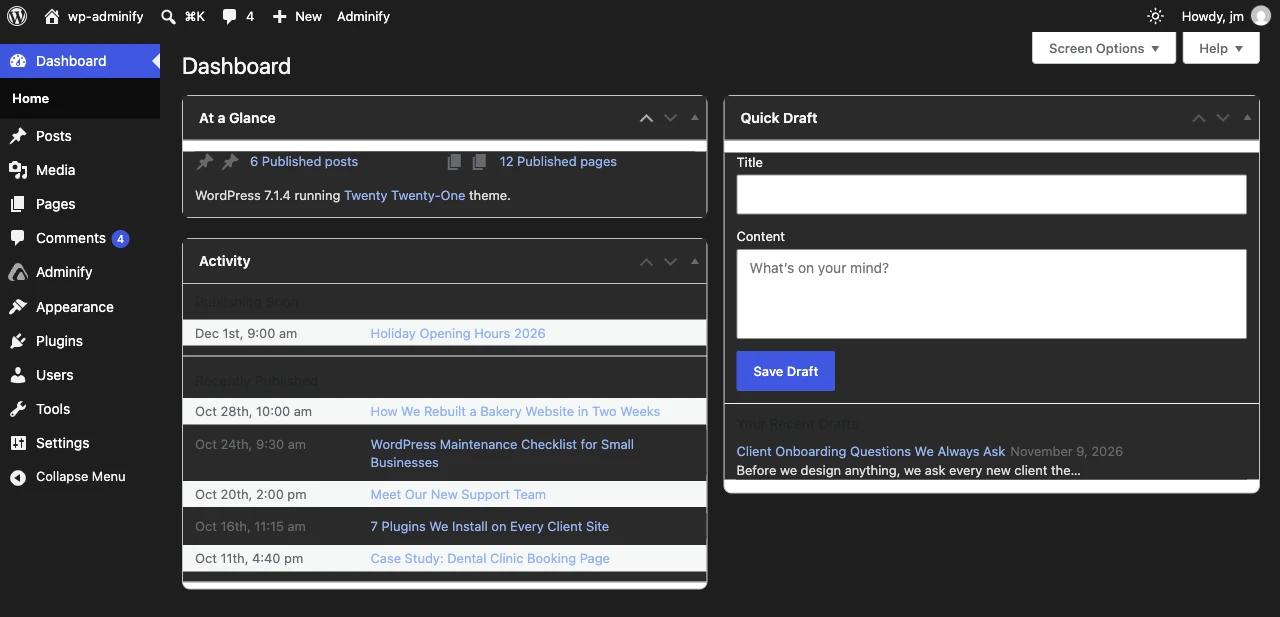
A short CSS snippet cannot cover every screen in WordPress. On our test site, the dashboard and the list tables turned dark, but the Quick Draft title field stayed white, striped rows in the Activity widget kept light bands, and some small grey headings became hard to read. Other screens need more rules.
These are the gaps we found, plus the ones you should expect:
- Some core widgets keep light parts. The Quick Draft title field and the alternating rows in the Activity box stayed light in our test, and each one needs its own extra rule.
- The snippet does not cover the block editor. CSS from
admin_headdoes not reach the editor's content canvas, which loads in its own frame. The editor toolbar and sidebar also use their own component styles. Our guide to Gutenberg dark mode explains the editor side in detail. - Plugin screens look mixed. Many plugins style their settings pages with their own CSS, so you get dark wrappers with white cards inside.
- Admin notices, the media library modal and many pop-ups have their own backgrounds, so they stay light.
- Unless you use the colour scheme trick, all users get dark mode, including clients who did not ask for it.
- You have to maintain the rules. WordPress and plugins change class names over time. After an update, a rule can stop matching and a light patch can come back.
The CSS method still works well as a starting point. If you like to tweak, use your browser's developer tools (right-click, then Inspect) to find the class of any light area and add a rule for it. If you want more ideas for styling the admin with code, our guide on how to add custom CSS to the WordPress admin covers more examples.
A No-File Option: Paste the CSS in WP Adminify Code Snippets
If you already use WP Adminify, you do not need FTP or functions.php. The free Custom CSS box under Adminify > Code Snippets > Admin Scripts prints your CSS on every admin screen, just like the admin_head method. Paste the snippet, save, and reload. You use the same CSS, and you have no file to manage.
- Go to Adminify > Code Snippets and open the Admin Scripts sub-tab.
- Find Custom CSS ("Write your own Custom CSS for WordPress Admin Area.").
- Paste the dark mode CSS. Do not add
<style>tags; the box adds them for you. - Save the settings and reload the dashboard.
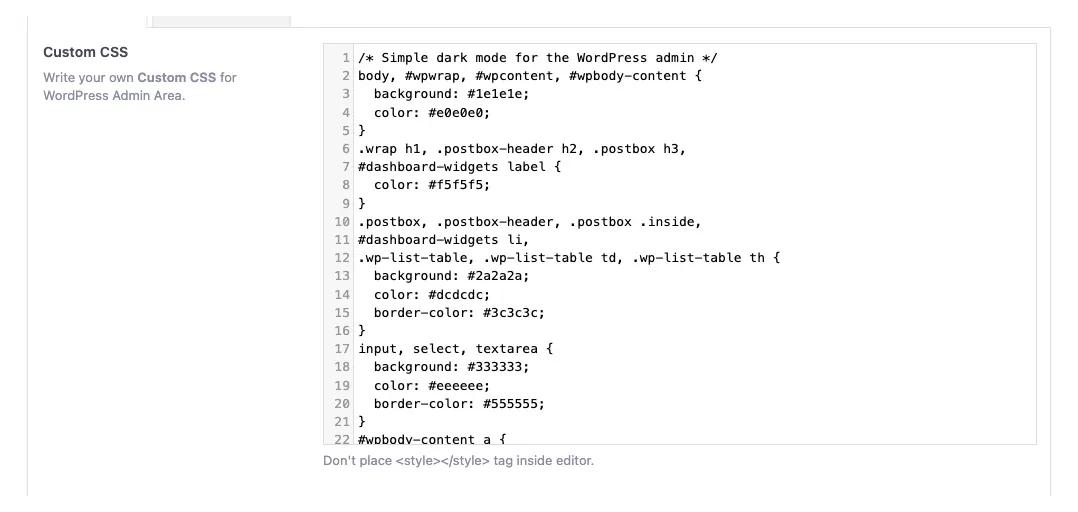
The box is part of WP Adminify Code Snippets, which also has a Custom JavaScript box for the admin area. Use it for small admin tweaks you want to keep in one place and switch off quickly.
The Plugin Method in One Minute
If the gaps above sound like too much work, a dark mode plugin handles them for you. WP Adminify has a free Light/Dark Switcher that is on by default. It adds a sun and moon icon to the admin bar. Each user clicks it to switch, and the choice is saved to their account.
- Install and activate WP Adminify from Plugins > Add New.
- Check that Adminify > Customize > Light/Dark Switcher is set to Show.
- Click the sun or moon icon in the admin bar.
The switcher works with the Adminify UI on or off. With the Adminify UI on, you also get a global Layout Mode setting, dark logos and, in WP Adminify Pro, Schedule Dark Mode with a custom start and end time or the device setting. The wordpress admin dark mode feature page lists every option.
| Factor | CSS without a plugin | WP Adminify Light/Dark Switcher |
|---|---|---|
| Setup time | 10 to 30 minutes, more to fix gaps | About one minute |
| Per-user choice | Only with extra code (colour scheme trick) | Yes, built in |
| Coverage | Only the screens your CSS targets | wp-admin and the block editor interface |
| Maintenance | You fix rules after updates | Handled by the plugin |
| Schedule | Not without more code | Pro, with the Adminify UI on |
| Cost | Free | Switcher free; schedule in Pro |
To see other tools first, read our list of the best wordpress dark mode plugin options.
Frequently Asked Questions
Can I get WordPress dark mode without a plugin?
Yes. Add a short dark CSS snippet to the admin area with the admin_head action in a must-use plugin file or a child theme's functions.php. It darkens the dashboard, list tables and widget boxes. Expect some light parts to remain, and plan to add extra rules for screens the starter snippet does not cover.
Does the CSS method also make the front end dark?
No. CSS printed with admin_head only loads inside wp-admin, so visitors see your site as normal. Front-end dark mode for visitors is a different task. It needs CSS in your theme, usually with a prefers-color-scheme media query, or a front-end dark mode plugin.
Why does the block editor stay light with my dark CSS?
The block editor loads your content in a separate frame that uses your theme's editor styles, so admin CSS does not reach it. The toolbar and sidebar also use their own styles. To darken the editor interface, use a dark mode plugin or add more targeted CSS for the editor screens.
Is a must-use plugin file the same as installing a plugin?
It is different. A must-use plugin is a single PHP file you create yourself in wp-content/mu-plugins. WordPress loads it automatically, it cannot be turned off from the Plugins screen, and nothing is downloaded from the plugin directory. You remove it by deleting the file.
Will my dark CSS break after a WordPress update?
It can. If WordPress or a plugin renames a class or adds a new box, that part may show up light again. The snippet will not break your site, because it only changes colours. Check the dashboard after major updates and add or adjust rules where needed.
Final Thoughts
A WordPress dark mode without a plugin takes one 24-line CSS snippet and one small file: print the CSS with admin_head from a must-use plugin or a child theme, and the dashboard, tables and widgets turn dark. Expect light gaps in Quick Draft, striped rows, plugin screens and the block editor, and plan to maintain the rules. For every other method, read How to Enable Dark Mode in the WordPress Admin (3 Ways). If you want a per-user switch without the upkeep, try the free WP Adminify Light/Dark Switcher.
Your email address will not be published