


Key Takeaways
- WordPress 7.x has no built-in Gutenberg dark mode, so the block editor's top bar, settings sidebar and panels stay light unless a plugin or custom code changes them.
- The free Light/Dark Switcher in WP Adminify, found under Adminify > Customize, adds a sun and moon icon to the admin bar that switches the block editor interface to dark.
- WP Adminify dark mode darkens the editor top bar, the Post and Block settings sidebar and the bottom bar, while the content canvas keeps the colours of your active theme.
- The WP Adminify dark mode choice is saved per user, so one author can write in a dark block editor while another user on the same site keeps the light one.
- The block editor content canvas shows your theme's editor styles, so making the writing area itself dark means changing the theme's editor styles, not the admin colours.
Gutenberg dark mode is not a setting in WordPress itself. WordPress 7.x ships the block editor with a light interface only, and the admin colour schemes under your profile only change accent colours. The editor background stays light. To get a dark block editor, you need a plugin such as WP Adminify, which adds a one-click dark switch to the admin bar, or your own CSS.
This guide shows how to turn on a dark block editor in under a minute, what turns dark and what stays light, and how the editor interface differs from the content canvas. It is part of our guide to WordPress admin dark mode, which also covers the dark mode schedule and other methods. If you only want to see it working, you can try Admin Dark Mode free on your own site.
Does the WordPress Block Editor Have a Dark Mode?
No. The WordPress block editor has no dark mode option in WordPress 7.x. The editor top bar, the settings sidebar, the block inserter and the list view all use a light interface. WordPress 7.0 added a light colour scheme called Modern and renamed the old default scheme to Fresh, but neither scheme makes the editor dark.
The colour schemes in Users > Profile > Admin Color Scheme mostly change the admin sidebar menu and some accent colours. They were not built to darken the editor screen. So people who write at night, or who find white screens tiring, usually add dark mode with a plugin.
There are two parts to think about in the block editor:
- The editor interface is the top toolbar, the Post and Block tabs in the settings sidebar, the panels, the menus and the bottom bar.
- The content canvas is the area where you type and see your blocks. WordPress loads it in a separate frame and styles it with your theme's editor styles, so it looks close to the live page.
A dark mode plugin can change the interface from the admin side. The canvas belongs to your theme. This split explains what you will see after you turn dark mode on.
How to Turn On Dark Mode in Gutenberg with WP Adminify
The quickest way is the Light/Dark Switcher in WP Adminify. It is free, it is on by default after you install the plugin, and it works even when the Adminify UI is turned off. It puts a sun and moon icon in the admin bar. When you click it inside the block editor, the editor interface turns dark.
- Install and activate WP Adminify from Plugins > Add New (search for "Adminify").
- Go to Adminify > Customize and find Light/Dark Switcher. Make sure the switch shows Show. Save if you changed it.
- Open any post or page in the block editor (Posts > All Posts, then click a title).
- Click the sun or moon icon in the admin bar at the top right, next to your name.
- The editor top bar, settings sidebar and bottom bar turn dark. Click the icon again to go back to light.

Your choice is saved to your own user account. That means the editor stays dark the next time you log in, and your choice overrides the site's global light or dark setting. Other users see whatever they picked for themselves. On sites with several authors, nobody has to use dark mode because someone else turned it on.
The switch darkens the rest of wp-admin too. For a full walkthrough of every option, including the global Layout Mode and dark logos, the Admin Dark Mode in WP Adminify page lists them all.
What Turns Dark and What Stays Light
With WP Adminify dark mode on, the block editor interface turns dark: the top toolbar, the document title bar, the Post and Block settings sidebar with all its panels, and the bottom breadcrumb bar. The content canvas keeps your theme's colours. On our test site with Twenty Twenty-One, the writing area stayed mint green with dark text.
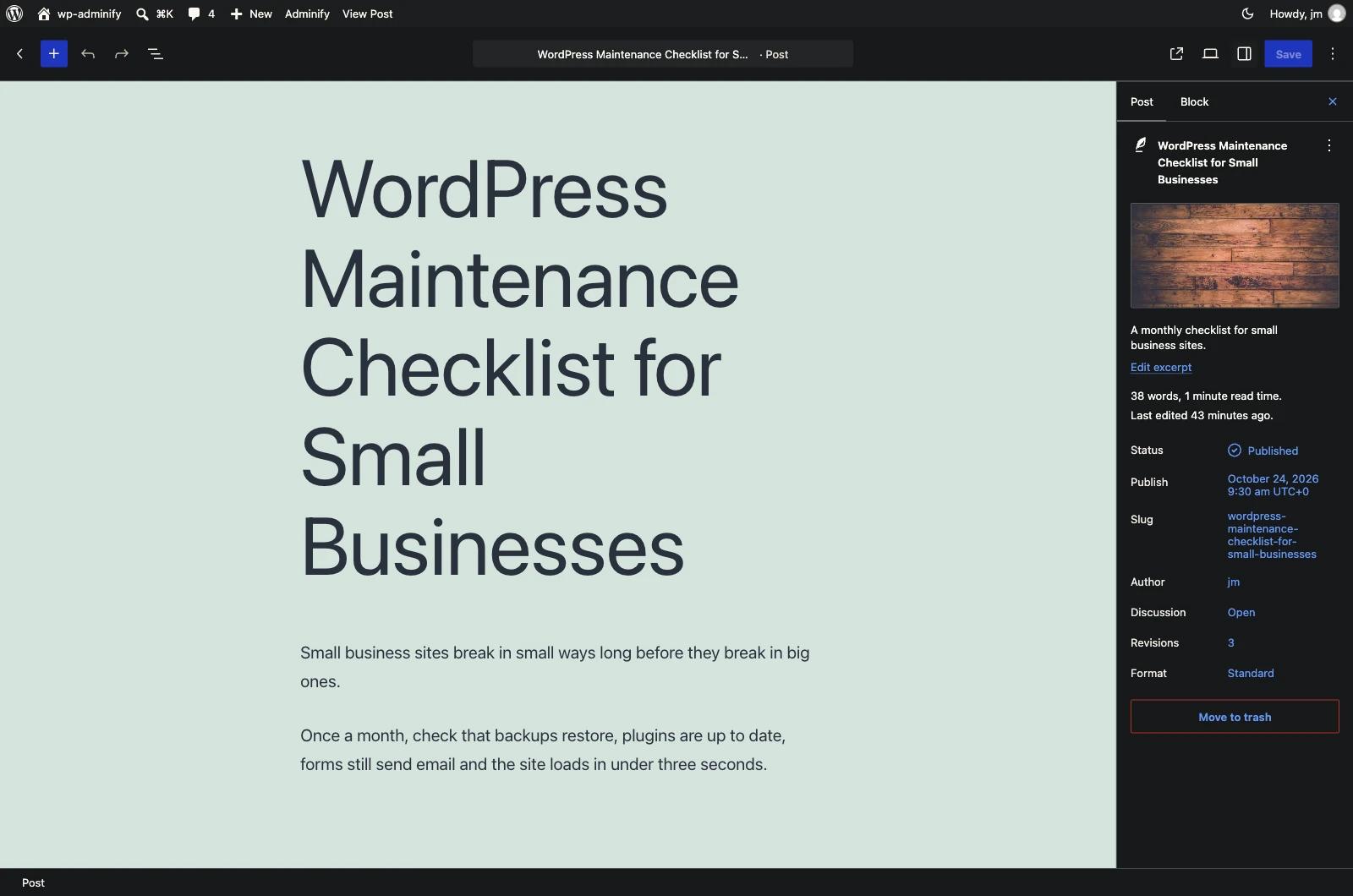
WP Adminify does this on purpose. Its code does not inject styles into the editor's content frame, so your content keeps the look of your theme and you see what visitors will see. If the canvas turned dark too, a light theme would look wrong in the editor. Text colours, button colours and backgrounds you pick in the block settings would also be hard to judge.
| Factor | With WP Adminify dark mode |
|---|---|
| Editor top toolbar | Dark |
| Settings sidebar (Post and Block tabs, panels) | Dark |
| Bottom bar | Dark |
| Admin bar above the editor | Dark |
| Content canvas (where you write) | Keeps your theme's colours |
| Classic editor writing area (TinyMCE) | Dark |
| Rest of wp-admin (Dashboard, lists, settings) | Dark |
Look at the last two rows. If you use the classic editor, the writing area does turn dark, because WP Adminify handles the classic editor separately. Our guide on how to disable Gutenberg and use the classic editor explains how to switch editors if you prefer that setup.
Editor Styles vs Admin UI: Can You Make the Writing Area Dark?
Yes, but you do it in your theme. No admin setting can change it. The block editor canvas loads your theme's editor styles, so its background and text colours come from the theme, from theme.json or from a stylesheet added with add_editor_style(). To get a dark writing area, you change those styles in a child theme. Visitors will not see this change.
A dark canvas makes long writing sessions easier on the eyes. The downside is that it no longer shows how the post will look on a light site, so colour choices inside blocks become guesswork. Many writers keep the canvas as it is and only darken the interface around it.
If you still want a dark canvas, use this small child theme example. It tells WordPress to load an extra stylesheet into the editor only. Put the PHP in your child theme's functions.php and save the CSS as editor-dark.css in the same folder.
1
2add_action( 'after_setup_theme', function () {
3    // Load editor-dark.css inside the block editor canvas only.
4    // Priority 20 loads it after the parent theme's editor styles.
5    add_theme_support( 'editor-styles' );
6    add_editor_style( 'editor-dark.css' );
7}, 20 );
8
1
2/* editor-dark.css: dark writing area in the block editor */
3body {
4 background-color: #1e1e1e;
5 color: #e0e0e0;
6}
7a {
8 color: #8ab4f8;
9}
10WordPress wraps editor styles so they only apply inside the canvas. Your front end stays as it is. In our test with a Twenty Twenty-One child theme, the canvas turned dark only with priority 20. Without it, the parent theme's editor styles loaded last and kept the canvas mint green. If your theme sets its own colours for headings or blocks, you may need more rules. The WordPress developer reference for add_editor_style() lists how the file path works. Test on a staging site first, and remove the code if your theme's editor looks wrong afterwards.
Other Ways to Get a Dark Block Editor
Besides WP Adminify, you can use a front-end dark mode plugin that also has an editor option, write your own admin CSS, or use a browser extension. Each one works differently in the editor, and the differences matter most if you write in Gutenberg every day.
| Factor | WP Adminify switcher | Dark mode plugin with editor option | Your own admin CSS | Browser extension |
|---|---|---|---|---|
| Setup | One switch, on by default | Turn on the editor option in its settings | Write and maintain CSS | Install per browser |
| Per user | Yes, saved to the user | Depends on the plugin | No, same for everyone | Yes, per browser |
| Canvas | Keeps theme colours | Depends on the plugin | Admin CSS does not reach the canvas frame | Often inverts everything, including images |
| Rest of wp-admin | Dark too | Usually, if admin dark mode is on | Only the screens your CSS covers | Yes, with mixed results |
The WP Dark Mode plugin, for example, has a free Block Editor Dark Mode option that shows a dark mode switch in the block editor. It is built mainly for front-end dark mode for visitors, with admin dark mode as an extra. If you want to compare several tools side by side, see our list of the best WordPress admin dark mode plugins.
Writing your own CSS is possible, but CSS printed in the admin head does not reach the canvas frame, and you have to cover every screen yourself. Browser extensions are fast to try, but they often turn images and colour pickers into inverted versions, which makes design work harder.
Tips for Writing in a Dark Block Editor
A few habits help when you write in a dark editor. Most of them are about colours, because the live site can look different from what you see while you write.
- Use the Preview button before you publish. It opens the post in a new tab, and the front end shows the real colours.
- Be careful with block colours if you changed the canvas to dark with editor styles. A dark text colour you pick can look fine in the editor and disappear on a dark background later, or the other way round.
- Let each author choose. Because WP Adminify saves the choice per user, you do not need a site-wide rule. Tell your team where the icon is.
- If you want the switch to happen by itself, WP Adminify Pro can switch to dark mode on a schedule, for example from 19:00 to 07:00, or follow the device setting. This needs the Adminify UI turned on.
Frequently Asked Questions
Does WordPress have a built-in dark mode for Gutenberg?
No. WordPress 7.x has no built-in dark mode for the block editor or the rest of wp-admin. The admin colour schemes in your profile change the menu and some accents, but the editor stays light. You need a plugin such as WP Adminify, or your own CSS, to get a dark block editor.
Will Gutenberg dark mode change how my posts look to visitors?
No. WP Adminify dark mode only changes the admin screens for the user who turns it on. Visitors see your site with your theme's normal colours. The editor canvas also keeps your theme's colours, so what you see while writing stays close to what visitors will see on the live page.
Can each user on my site choose light or dark mode?
Yes. With the WP Adminify Light/Dark Switcher, every user gets a sun and moon icon in the admin bar. The choice is saved to that user's account and overrides the global setting, so one editor can work in dark mode while other users keep the light block editor.
Why does the writing area stay light when dark mode is on?
The block editor loads your content in a separate frame styled by your theme. WP Adminify leaves that frame alone on purpose, so you see your post the way visitors will see it. If you want a dark writing area, add a dark stylesheet to your child theme with add_editor_style.
Is WP Adminify dark mode free?
Yes. The Light/Dark Switcher in the Customize tab is free and is turned on by default. The global Layout Mode setting is also free when the Adminify UI is on. Only Schedule Dark Mode, which switches modes by time or by the device setting, needs WP Adminify Pro.
Final Thoughts
Gutenberg dark mode takes one click once WP Adminify is installed: the free Light/Dark Switcher under Adminify > Customize puts a sun and moon icon in the admin bar, and the block editor toolbar, settings sidebar and bottom bar turn dark. The content canvas keeps your theme's colours, so your posts still look right. Each user picks their own mode. For the full set of methods, read How to Enable Dark Mode in the WordPress Admin (3 Ways), then turn on the switcher and try it in your next post.
Your email address will not be published