


Key Takeaways
- The Comment Moderation field in WordPress Settings > Discussion sets a link limit: a comment with that many links or more is held for moderation, and the default value is 2.
- The Comment Moderation keys box in Settings > Discussion sends matching comments to the Pending queue, while the Disallowed Comment Keys box sends matching comments straight to Trash.
- WordPress comment moderation keys match inside words and check the comment text, author name, URL, email, IP address and browser user agent, so one short word can catch many spam comments.
- WP Adminify's free Disable Comments section in the Security tab can remove the website field from the WordPress comment form, which takes away the link spammers want most.
- The setting "Automatically close comments on articles older than 14 days" in Settings > Discussion stops spam on old posts while new posts stay open for real readers.
To stop comment spam in WordPress without turning comments off, combine a few layers: tighter moderation rules, a list of blocked words and IP addresses, a comment form without the website field, an anti-spam plugin, and closing comments on old posts. Each one is free and takes a few minutes, and together they stop most WordPress comment spam before you see it.
This guide walks through each layer with screenshots from WordPress 7.1.4, in the order we set them up on client sites. If you decide you do not want comments at all, our main guide explains how to remove comments in WordPress completely. For the form changes in this post, you can try Disable Comments free in WP Adminify.
Why WordPress Sites Get So Much Comment Spam
Bots send most comment spam. They look for the standard WordPress comment form and post links to casinos, cheap SEO services, fake products and malware. The goal is a backlink or a click. Every public post with an open comment form is a target, even on a small site with little traffic.
Spam comments look bad, slow down moderation and can send your readers to harmful sites. Links from spam can also make your pages look low quality. Bots follow simple patterns. They use many links, the same words, the website field and old posts, and each layer below breaks one of those patterns.
Layer 1: Tighten Comment Moderation Settings
Go to Settings > Discussion and look at the "Before a comment appears" and "Comment Moderation" sections. Requiring a previously approved comment holds first-time commenters for review, and lowering the link limit holds comments that carry links. These two settings alone stop most spam from appearing on your site.
- Under Before a comment appears, tick Comment author must have a previously approved comment. New commenters wait for your approval once; after that, their comments appear right away.
- For stricter control, tick Comment must be manually approved. Every comment then waits for you.
- Under Comment Moderation, find "Number of links to allow in a comment before holding for moderation". The default is 2. Lower it to 1 for a stricter rule, so comments that carry links wait for your review.
- Click Save Changes at the bottom of the page.
WordPress holds a comment for moderation when it contains that many links or more. A value of 0 turns the link check off, so it does not hold every link. Use 1 instead. The WordPress documentation for the Discussion Settings screen explains each field.
Layer 2: Add Moderation and Disallowed Keys
Settings > Discussion has two word lists. Words in Comment Moderation send a comment to the Pending queue for review. Words in Disallowed Comment Keys send it straight to Trash. Both check the comment text, author name, URL, email, IP address and browser user agent, and both match inside words.
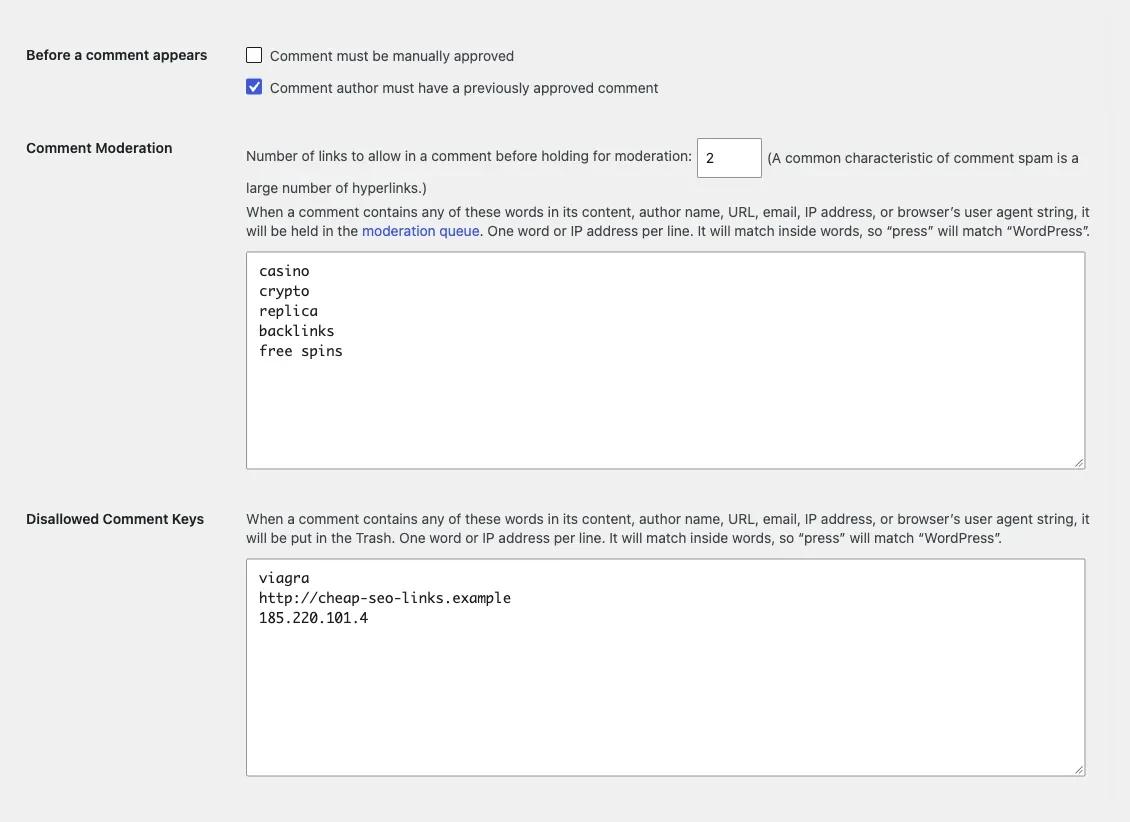
Put one word, phrase or IP address per line. Split them like this:
- In Comment Moderation (hold for review), add words that spam uses often but a real reader might also use, such as
crypto,casino,backlinks,replicaorfree spins. - In Disallowed Comment Keys (Trash), add things that are never real, such as a spam domain you keep seeing or an IP address that sends nothing but junk.
Be careful with short words. WordPress says it plainly on the screen: "press" will match "WordPress". A key like sex would also catch "Essex" and "Sussex". Keep short keys in the moderation list. There, a mistake only means a comment waits for you. In the disallowed list, the same mistake sends a real comment to Trash.
To find good keys, open Comments > Spam once a week and look for words, domains and IP addresses that repeat. Add them, then clear the tab. If old spam has piled up, our guide on how to delete all comments in WordPress shows how to empty it fast.
Layer 3: Remove the Website Field from the Comment Form
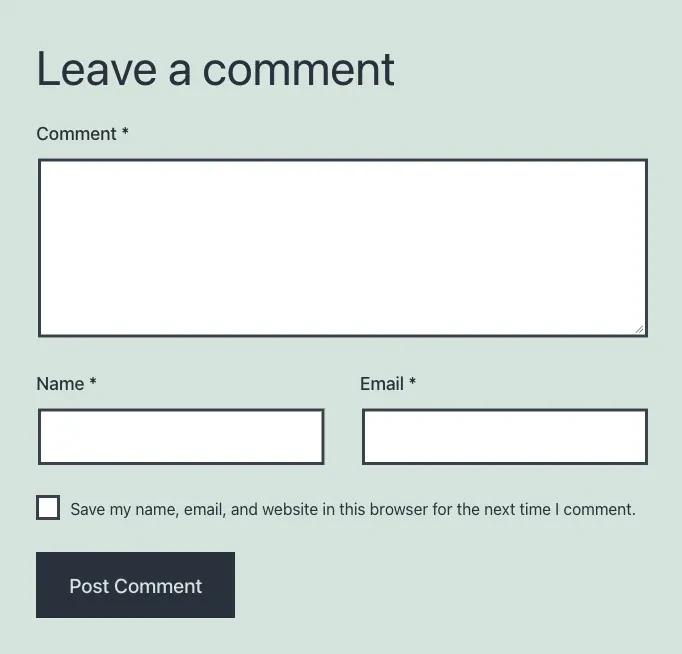
The website field is the main reason bots comment: it turns the author name into a link. Removing it takes away that reward. WP Adminify does it with one checkbox under Adminify > Security > Disable Comments, called "Remove website Field (URL) from comment form template". You can also remove it with a short code snippet.
With WP Adminify
- Go to Adminify > Security and find Disable Comments.
- Set the switch to Show. Leave the post type boxes unticked if you want comments to stay open everywhere.
- Tick Remove website Field (URL) from comment form template.
- Optional: tick Remove "Your email address will not be published..." from comment form template for a shorter form.
- Save the settings and open a post on the front end to check the form.
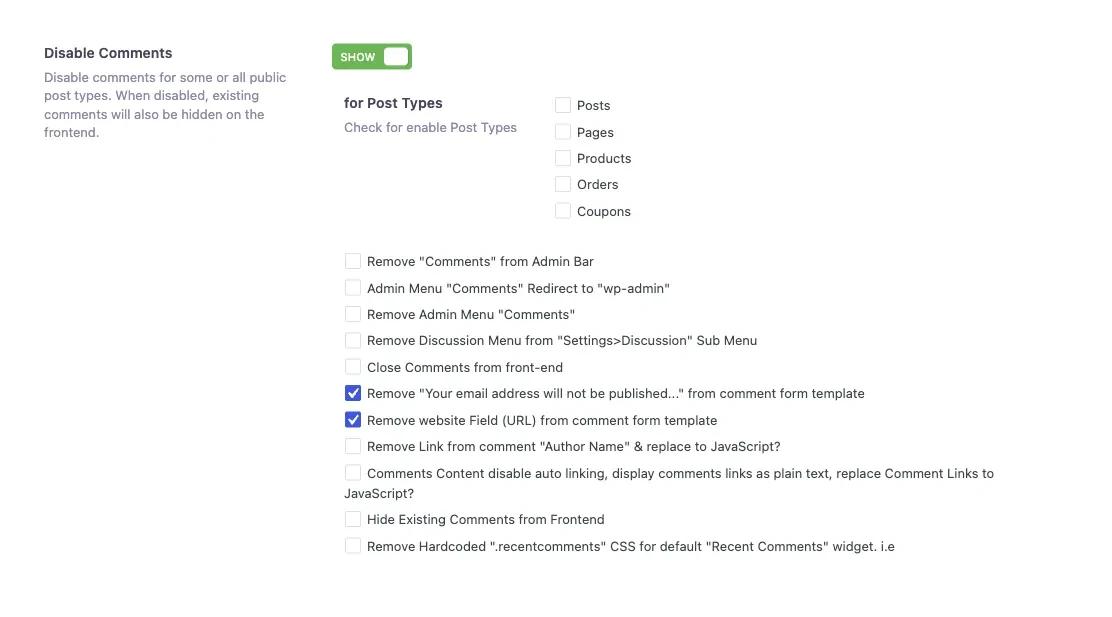
Two more options in the same section make spam links less useful, and both are Pro: Remove Link from comment "Author Name" & replace to JavaScript, and Comments Content disable auto linking, which shows links inside comments as plain text. The Disable Comments section is one part of WP Adminify Admin Security, which also covers login URLs, REST API access and more.
With code
If you prefer code, this filter removes the URL field from the default comment form. Add it to a child theme's functions.php or a code snippet manager:
1
2add_filter( 'comment_form_default_fields', function ( $fields ) {
3    // Remove the "Website" field from the comment form.
4    unset( $fields['url'] );
5    return $fields;
6} );
7
Both methods remove the field from the form, but a bot that posts directly to WordPress can still send a URL. That is why this layer works best together with moderation rules and an anti-spam plugin. Our guide to remove website field wordpress comments covers more options and themes.
Layer 4: Use an Anti-Spam Plugin
Moderation rules catch patterns you already know. An anti-spam plugin catches the ones you do not, by checking each comment automatically before it reaches your queue. Two common choices on wordpress.org are Akismet and Antispam Bee. Install one, not several, because two spam filters can block the same real comment twice.
- Akismet by Automattic checks comments against its online spam service. It needs an API key from Akismet before it starts working; check its plans for your type of site.
- Antispam Bee is a free plugin that runs its checks without an account. Many site owners in Europe pick it for privacy reasons.
After you install either one, keep marking missed spam as spam and real comments as "Not spam". That keeps your queue clean and, with Akismet, also feeds its service.
Layer 5: Close Comments on Old Posts
Bots target old posts, because nobody is watching them. In Settings > Discussion, tick Automatically close comments on articles older than and enter a number of days. The default value is 14. New posts stay open for real readers, and old posts stop accepting comments.
Pick a number that fits how long people discuss your posts. A news site might use 14 days; a tutorial site with long-term readers might use 90 or 180. You can still open comments on a single post from its Discussion box in the editor.
Two more settings on the same screen help on spam-heavy sites:
- Users must be registered and logged in to comment stops almost all bot spam, but it also stops casual readers. It fits membership sites and communities.
- Untick Allow people to submit comments on new posts to make comments closed by default on new posts, then open them only where you want discussion.
If spam keeps winning, the last step is to close comments site-wide. WP Adminify's Close Comments from front-end option does that for every post type at once, so bots get a "comments are closed" reply. For that full route, see the Disable Comments in WP Adminify feature page.
Which Layers Do You Need?
Most sites should use layers 1, 2 and 3. They are free and quick to set up, and they stop most spam. Add an anti-spam plugin if spam still gets through every week. Close old posts if most spam lands on older content. Close comments completely only if you do not need discussion at all.
| If you... | Do this |
|---|---|
| get a few spam comments a week | Layer 1 and Layer 2 |
| see mostly link spam with fake names | Layer 3: remove the website field |
| get dozens or hundreds a day | Layers 1 to 3 plus an anti-spam plugin |
| see spam mostly on old posts | Layer 5: close comments after a set number of days |
| do not need comments at all | Close comments site-wide |
Frequently Asked Questions
How do I stop comment spam in WordPress without a plugin?
Use the built-in Settings, Discussion screen. Require a previously approved comment, set the link limit to 1, add common spam words to Comment Moderation and known spam domains or IP addresses to Disallowed Comment Keys, and close comments on older posts. Removing the website field with a small code filter also helps.
What is the difference between moderation keys and disallowed keys?
Comment Moderation keys send a matching comment to the Pending queue, so you can still approve it. Disallowed Comment Keys send a matching comment straight to Trash. Use moderation keys for words a real reader might write, and disallowed keys only for things that are always spam.
Does removing the website field stop all comment spam?
No, but it removes the main reason bots comment, because there is no author link to gain. Bots can still post text, and some send a URL directly to WordPress. Use it together with moderation rules and an anti-spam plugin for the best result.
Why are real comments going to spam or Trash?
Usually a disallowed key is too short and matches inside normal words, or an anti-spam plugin flagged the comment. Check your Disallowed Comment Keys list for short words, move them to Comment Moderation, and use the Not spam action on real comments so the filter learns.
Should I turn comments off to stop spam?
Only if you do not need comments. Real comments add questions, answers and fresh text to your posts. Most sites can stop nearly all spam with moderation rules, a shorter form and an anti-spam plugin. Turn comments off when there is no discussion worth keeping.
Final Thoughts
You can stop comment spam in WordPress and keep comments open with five layers: hold first-time commenters and set the link limit to 1, add moderation and disallowed keys, remove the website field, add one anti-spam plugin, and close comments on posts older than 14 days or your own limit. Start with the free settings and add more only if spam gets through. For the full set of options, including turning comments off by post type, read How to Disable Comments in WordPress (Everywhere, Per Post Type or Per Post).

Your email address will not be published