


You just mangled a post you spent hours on, or a client "fixed" a page and deleted half of it. WordPress revisions are the undo button that saves you here: every saved version of a post or page is kept in the database, and you can roll back to any of them in two clicks. That's the good half of the story.
The other half is that WordPress keeps unlimited revisions by default. A page edited weekly for three years carries 150+ old copies of itself in your wp_posts table. This guide covers both sides: restoring an old version first (that's usually the urgent one), then limiting, disabling, and cleaning up revisions so they stop piling up.
What are WordPress revisions?
A WordPress revision is a snapshot of a post or page saved in the database every time you click Update, Publish, or Save Draft. Each revision stores the full content, title, and excerpt of that version, along with who made it and when. Revisions live in the same wp_posts table as your real posts, with the type revision, and they let you compare or restore any earlier version of your content.
Two things revisions do not capture: featured images, categories, tags, and most custom fields (they track the main content fields only), plus anything from plugins that store data outside the post content. Roll back a revision and your SEO plugin's meta description stays as it is. ACF fields are the notable exception, since ACF hooks into the revisions system and its field values get versioned and restored along with the content.
WordPress has stored revisions this way since version 2.6 in 2008, so any site you inherit will have them, often years' worth. A quick way to see how many you're carrying: install WP-Optimize (covered below) and open its Database tab, or run SELECT COUNT(*) FROM wp_posts WHERE post_type = 'revision'; in phpMyAdmin. Numbers in the tens of thousands are common on older content sites, and nobody notices until a migration or backup starts crawling.
How to view, compare, and restore a revision
The urgent scenario first. To roll a post back to an earlier version-
- Open the post or page in the editor.
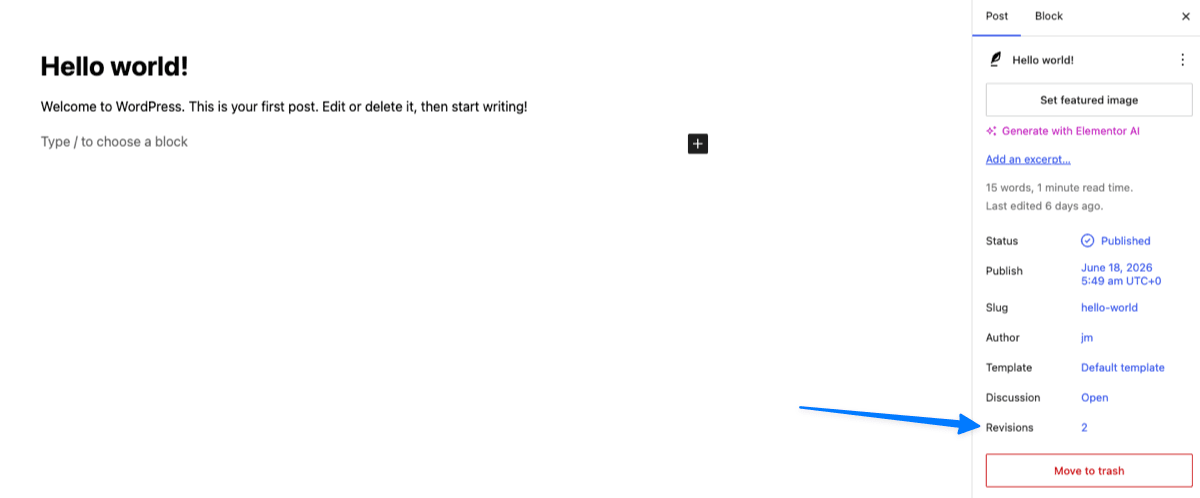
- In the Settings sidebar (the gear icon), look at the Post tab. You'll see a Revisions entry with a count, e.g. "Revisions (12)". Click it. In the Classic Editor, the Revisions box sits on the Publish meta box with a "Browse" link.
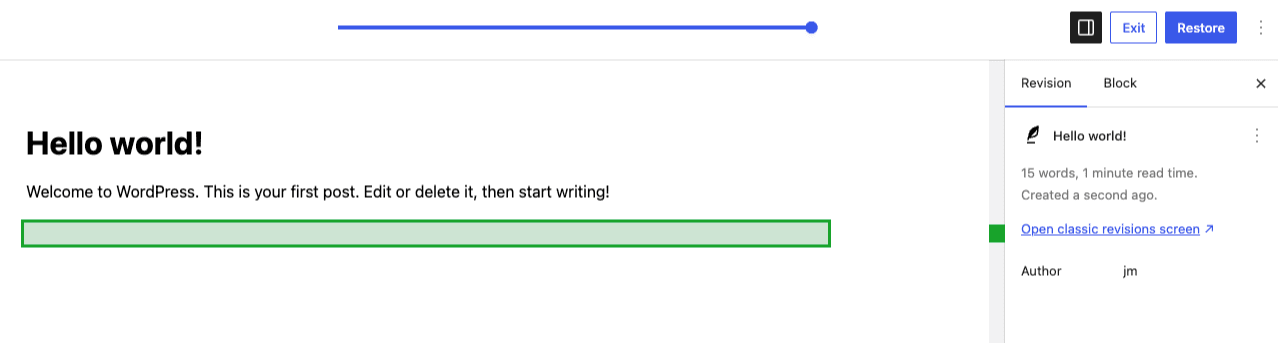
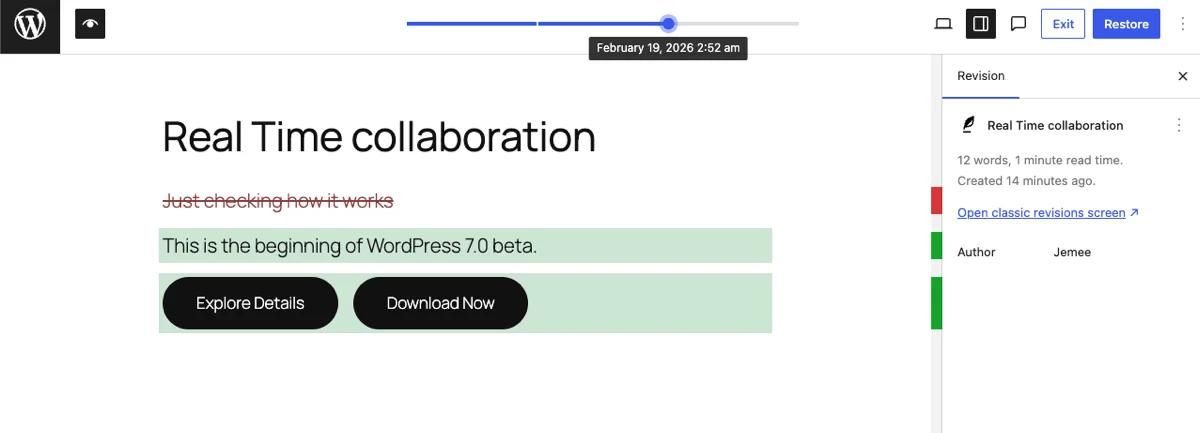
- The revisions viewer opens with a slider across the top. Drag it to move through versions. Removed content is highlighted red, added content green, and the Revision panel on the right shows the author and when that version was created.
- Found the version you want? Click Restore in the top-right corner (or Exit to leave without changes). WordPress makes the rollback itself a new revision, so restoring is non-destructive - you can always roll forward again.
Need to diff two arbitrary versions instead of adjacent ones? Click Open classic revisions screen in the Revision panel and tick the Compare any two revisions checkbox there. Useful when you know roughly when the content was right and want to see everything that changed since.
Two practical notes from doing this on client sites. First, the restore replaces the entire content with the old version; if the post got good edits after the bad one, copy those out before restoring, then paste them back in. Second, if the Revisions entry is missing from the sidebar, the post simply has no saved revisions yet (a single-save post won't show it), or revisions are disabled on the site. Check wp-config.php for a WP_POST_REVISIONS line before assuming the editor is broken.
Autosaves vs revisions: not the same thing
WordPress also autosaves your work every 60 seconds while you edit. Autosaves look similar but behave differently:
| Revision | Autosave | |
|---|---|---|
| Created when | You click Update / Publish / Save Draft | Every 60 seconds while editing |
| How many kept | Unlimited by default | One per post per user - each autosave overwrites the last |
| Shown in | Revisions browser | Top of the revisions slider, labeled "Autosave", plus the "restore the backup" notice after a crash |
| Database impact | Grows forever if not limited | Constant - one row that gets replaced |
So when your browser crashes mid-edit and WordPress offers to restore a backup, that's the autosave. Autosaves are never the bloat problem; revisions are. (The same editor polling that powers autosaves runs on the Heartbeat API. If you want to slow that down too, see our guide to controlling the WordPress Heartbeat API.)
How to limit WordPress revisions
You rarely need 150 versions of a page. Keeping the last 5–10 gives you all the rollback safety with a fraction of the storage. Two ways to set the cap:
Option 1: The WP_POST_REVISIONS constant
Add one line to wp-config.php, above the /* That's all, stop editing! */ comment:
define( 'WP_POST_REVISIONS', 5 );That keeps the 5 most recent revisions per post and silently discards older ones as new revisions are created. Edit the file over SFTP or your host's file manager, and back it up first; a syntax error in wp-config.php takes the whole site down.
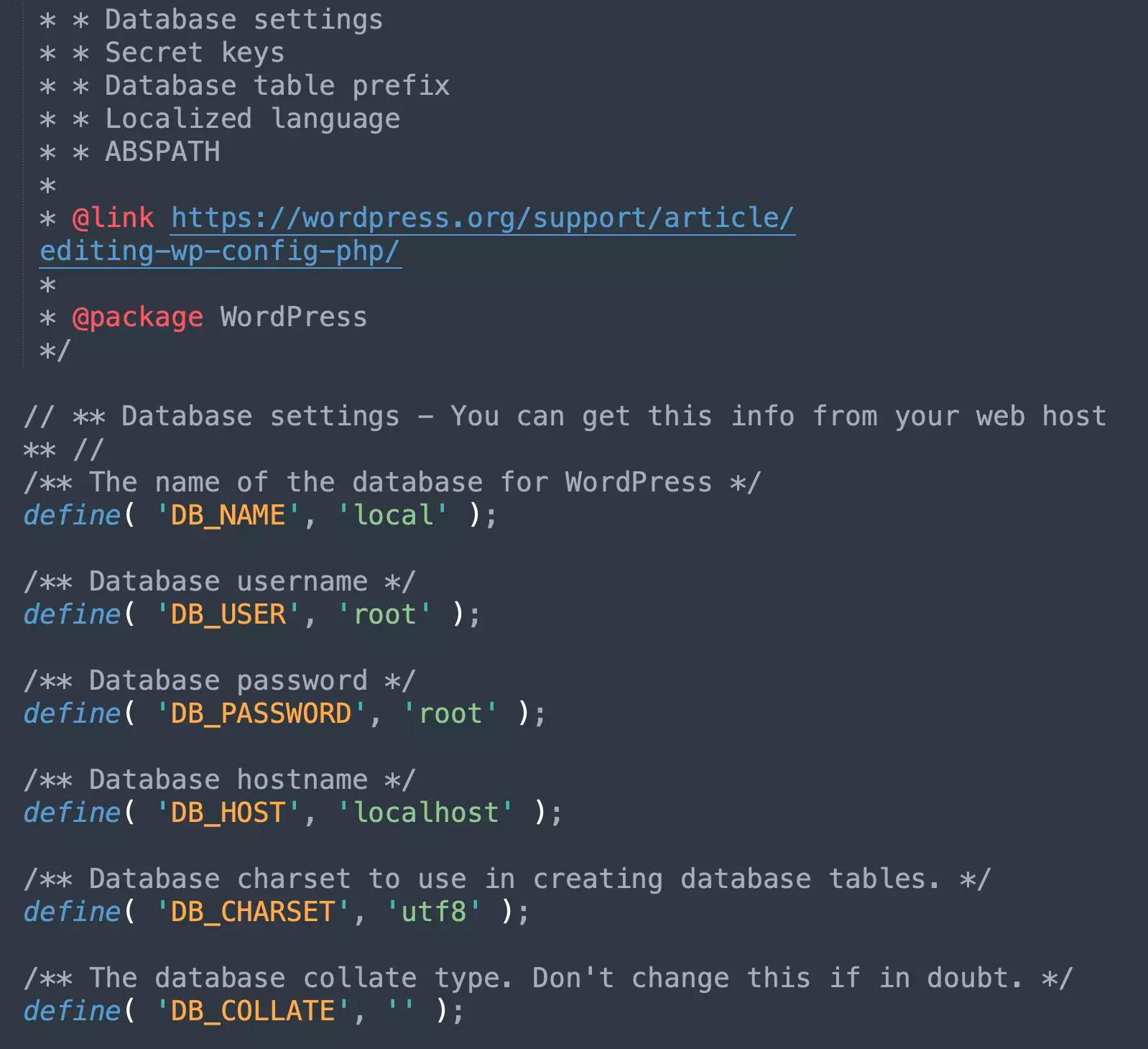
Note the constant only applies going forward. It doesn't delete the revisions you already have. Cleanup is covered below.
Option 2: One toggle in WP Adminify (no file editing)
If you'd rather not touch wp-config.php, WP Adminify's Tweaks settings expose the same control as a field: go to Adminify → Tweaks, find Post Revisions, and set the number to keep (or disable them entirely). Same result as the constant, no SFTP session, and no chance of white-screening the site with a stray character.
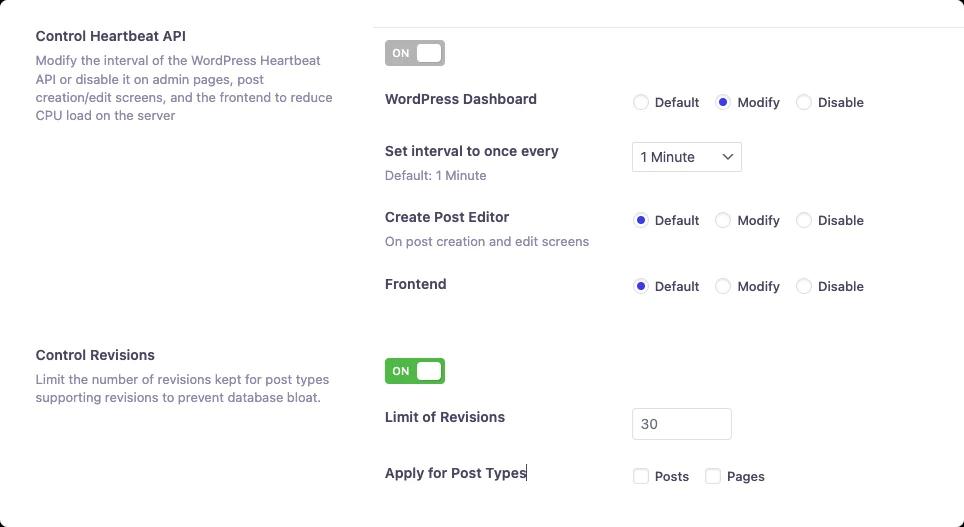
The same panel handles Heartbeat frequency and autosave interval, so the editor-related database churn gets managed from one place. It's part of the same toolkit that covers performance tweaks across the admin.
How to disable revisions completely
Set the constant to false (or 0):
define( 'WP_POST_REVISIONS', false );Our advice: don't, on most sites. Revisions have saved more client relationships than they've slowed databases. Disabling makes sense on specific setups, like heavily automated sites that programmatically update thousands of posts, or staging sites nobody writes on. For a normal blog or business site, a limit of 5–10 is the better call. WordPress keeps autosaves working either way, so crash recovery survives.
How to delete old revisions
Limiting stops future growth; it doesn't remove the thousands of revisions already sitting in wp_posts. Two cleanup routes:
With a plugin (recommended)
WP-Optimize is the standard tool: install it, open WP-Optimize → Database, tick Clean all post revisions, and run the optimization. It shows the revision count before deleting and can keep the newest few per post. Always take a database backup first. Deletions are permanent.
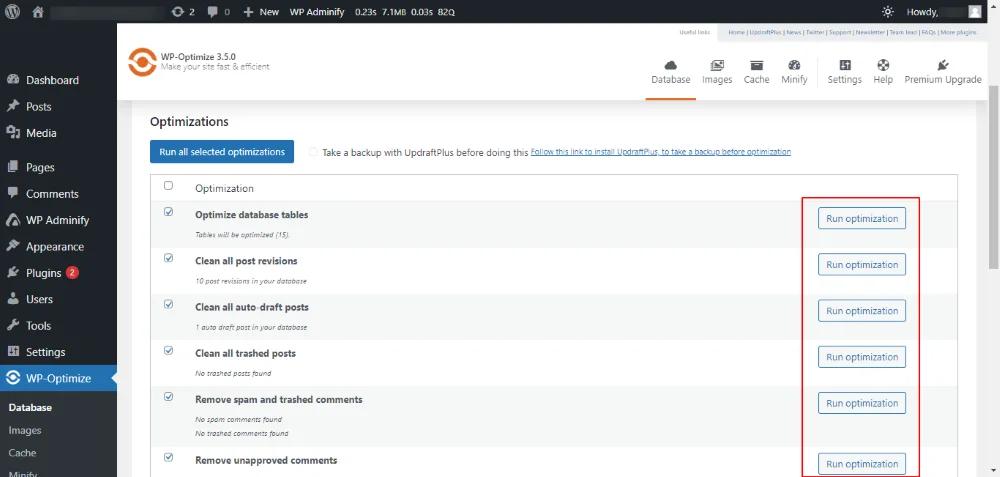
With SQL (no plugin)
In phpMyAdmin or Adminer, after backing up:
DELETE FROM wp_posts WHERE post_type = 'revision';Adjust the wp_ prefix if yours differs. WP-CLI users can do the same with the wp-revisions-cli package, or per-post with wp post delete $(wp post list --post_type=revision --format=ids). The SQL route deletes every revision including recent ones, so prefer the plugin if you want to keep the last few per post.
One follow-up step people skip: after a big deletion, the table still occupies the same space on disk until it's optimized. WP-Optimize does this as part of its run; with raw SQL, finish with OPTIMIZE TABLE wp_posts; to actually reclaim the space. Orphaned rows in wp_postmeta that belonged to deleted revisions are worth sweeping too. Again, the plugin handles that, the one-line SQL doesn't.
Do revisions slow down WordPress?
Short answer: revisions do not slow down your public pages, but they can slow down parts of the admin and they do bloat your database. Most posts on this topic get this wrong in both directions, so here's the precise version:
- Front-end page speed: no effect. WordPress queries published content by post type and status; revision rows are simply never part of the query that renders a page for a visitor. A million revisions won't change your LCP.
- Database size: real effect. Every revision is a full copy of the post content in
wp_posts. On content-heavy sites revisions routinely make up 60–80% of that table. That means bigger backups, longer migrations, and more disk usage on hosts that meter it. - Admin queries: sometimes. Search in the admin, some page builders, and poorly written plugins that query
wp_postswithout filtering post type all get slower as the table grows. If your wp-admin feels sluggish on a big old site, revision bloat is one of the usual suspects, alongside heavier ones like plugins and Heartbeat.
So: cleaning up revisions won't make your homepage faster, and anyone promising that is selling something. It will make your database smaller, backups quicker, and some admin operations snappier. Worth doing as part of general WordPress performance maintenance, with the right expectations.
WordPress Revisions FAQs
Where are WordPress revisions stored?
In the wp_posts table of your database, as rows with the post type revision, linked to the original post by the post_parent column. Related metadata lives in wp_postmeta. They are not stored as separate files anywhere on the server.
How many revisions does WordPress keep?
Unlimited, by default. Every save creates a new revision and none are ever removed. You cap it with define( 'WP_POST_REVISIONS', 5 ); in wp-config.php or with a revisions setting in a plugin like WP Adminify's Tweaks panel.
Does deleting revisions break anything?
No. Revisions are self-contained copies; your published posts, pages, media, and settings don't depend on them. The only thing you lose is the ability to roll back to those older versions, which is why you take a backup before bulk-deleting.
Can I restore a deleted revision?
Not from WordPress. Once a revision row is deleted it's gone, and your only route back is a database backup taken before the cleanup. That's also the practical reason to keep the last 5-10 revisions rather than disabling them outright.
Do revisions work on custom post types?
Only if the post type declares support for them. Posts and pages support revisions out of the box; a custom post type needs 'revisions' in its supports array when registered, or a call to add_post_type_support( 'your_cpt', 'revisions' ).
The short version
- Restore an old version from the editor sidebar: Revisions, drag the slider, click Restore. Restoring is non-destructive.
- WordPress keeps unlimited revisions by default. Cap them at 5–10 with
WP_POST_REVISIONSor the toggle in WP Adminify's Tweaks panel. - Limits only apply going forward. Clean up existing bloat with WP-Optimize or a single SQL delete, after a backup.
- Revisions never slow your public pages. They bloat the database and can drag on admin queries, and that's the real reason to manage them.
If you're already running WP Adminify for its admin cleanup tools, the revisions limit is sitting in the same Tweaks panel. Set it once per site and the problem stays solved. Pairs well with the duplicate page workflow when you'd rather experiment on a copy than lean on rollbacks at all.


Your email address will not be published