


Every WordPress site eventually needs a redirect. You change a permalink and the old URL starts returning 404s. You migrate to a new domain. You delete a product but its page still ranks. You want subscribers to land on their account page instead of wp-admin after login. All of these are redirect problems, and each one has a right answer, plus a couple of wrong ones that quietly cost you traffic.
This guide covers the whole topic in one place: what each redirect type actually does, when a WordPress redirect plugin beats .htaccess or Nginx rules (and when it doesn't), how to redirect users by role after login, how to find and fix redirect chains, and what Google has actually said about redirects and SEO. Where a section deserves more depth, we link out to a dedicated walkthrough.
What is a WordPress redirect?
A WordPress redirect is an instruction that sends visitors (and search engine crawlers) from one URL to another automatically. When someone requests the old URL, the server responds with an HTTP status code in the 3xx range plus the new location, and the browser loads the new URL instead. Redirects are how you keep traffic, backlinks, and rankings when URLs change.
Redirects can live in three places on a WordPress site:
- At the server level: rules in
.htaccess(Apache/LiteSpeed) or the Nginx config. Fastest, because they run before WordPress loads a single line of PHP. - At the application level: a plugin or PHP code that runs after WordPress boots. Easier to manage, slightly slower.
- At the page level: meta refresh tags or JavaScript. Avoid these. Crawlers treat them as second-class and visitors sit through a visible delay.
Redirect types explained: 301, 302, 307, and 308
The number is the HTTP status code the server returns. Browsers treat most of them the same way (the visitor still ends up at the new URL), but search engines read them differently, and that's where the wrong pick gets expensive.
| Code | Name | Meaning | Passes link equity? | Cached by browsers? | Typical use |
|---|---|---|---|---|---|
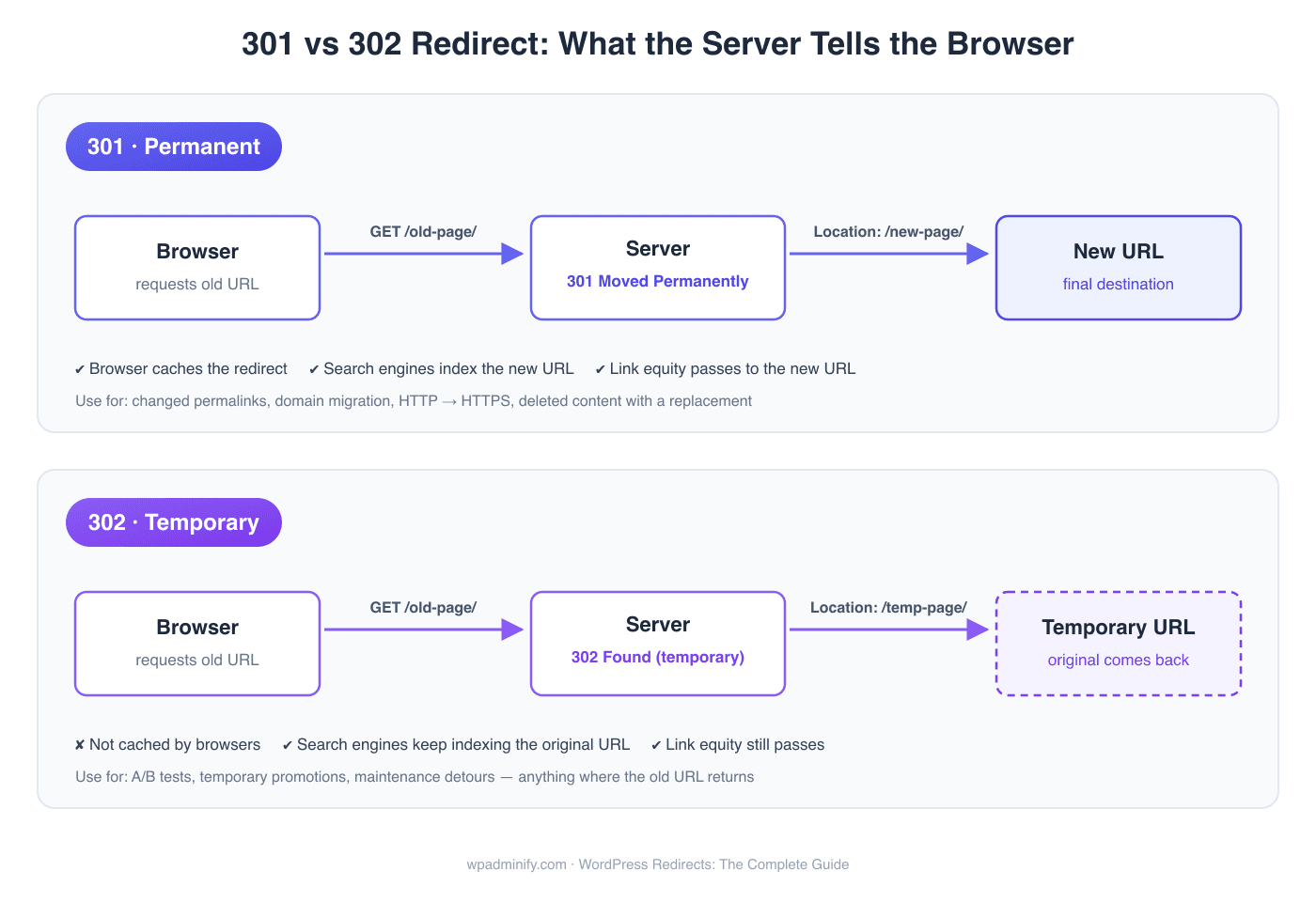
| 301 | Moved Permanently | The URL has moved for good | Yes | Yes, aggressively | Changed permalinks, domain migration, HTTP→HTTPS, deleted content with a replacement |
| 302 | Found (temporary) | The URL is temporarily elsewhere | Yes (Google treats long-lived 302s like 301s) | No | A/B tests, temporary promos, maintenance detours |
| 307 | Temporary Redirect | Strict temporary redirect; request method preserved | Yes | No | Temporary moves involving form submissions (POST) |
| 308 | Permanent Redirect | Strict permanent redirect; request method preserved | Yes | Yes | Permanent moves of API endpoints or forms |
When to use each type
In practice the decision is simpler than the table looks:
- Use a 301 whenever the change is permanent. That's the right call at least 90% of the time on a typical WordPress site: changed slugs, merged posts, retired products, new domains.
- Use a 302 only when the original URL is coming back. If a "temporary" 302 is still there six months later, Google starts treating it as permanent anyway, but browsers never cache it, so every visit pays the redirect cost again.
- Use 307/308 when you're redirecting endpoints that receive POST data (forms, webhooks, REST calls) and the request method has to survive the hop. For normal pages, stick with 301/302.
One warning about 301s: browsers cache them hard. Point a 301 at the wrong destination and visitors keep landing on the wrong page even after you fix the rule, until their cache expires. Test permanent redirects in a private window, and if you're not 100% sure of the destination, start with a 302 and upgrade it once confirmed. We've had to talk more than one panicked site owner through this exact mistake.
Method 1: Set up redirects with a plugin
For most site owners a plugin is the right tool. You get a UI, logging, 404 monitoring, and you can't take the whole site down with a typo in a server file. The realistic options:
| Plugin | Free? | Redirect types | 404 logging | Regex | Best for |
|---|---|---|---|---|---|
| Redirection | Yes | 301, 302, 307, 308 | Yes | Yes | Dedicated redirect management on any site |
| WP Adminify (URL Redirection module) | Core plugin free; module in Pro | 301, 302, 307 | - | - | Sites already using Adminify - no extra plugin needed |
| Rank Math | Yes (redirects in free tier) | 301, 302, 307, 410, 451 | Yes | Yes | Sites already using Rank Math for SEO |
| Yoast SEO Premium | No | 301, 302, 307, 410, 451 | Yes | Yes (Premium) | Sites already paying for Yoast |
| 301 Redirects | Yes | 301, 302, 307 | Pro | Pro | Simple one-off redirects |
Notice the pattern: if you already run an SEO plugin or an admin toolkit, you probably already have redirect management and don't need another single-purpose plugin for it. Plugin sprawl is its own performance problem. We've written about replacing stacks of single-purpose plugins before, and redirects are a textbook example.
Walkthrough: the Redirection plugin
Redirection is the most-installed dedicated option on WordPress.org (2+ million active installs) and a sensible default if you want a standalone tool:
- Install and activate it from Plugins → Add New, then run the setup wizard under Tools → Redirection. Enable the options to monitor permalink changes and keep a log of 404 errors. Both save you work later.
- Open the redirect manager and click Add New to open the Add Redirection form.
- In Source URLs, enter the old path (e.g.
/old-post-slug/) and pick the match type. Exact covers most cases. Click Add another to send several sources to the same destination. - In Destination URL, enter the new location, either a relative path or a full URL.
- Under Redirection Type, leave 301 Permanent Move selected (302, 307, 410, and 451 are there when you need them), keep Status on Activate, and click Add Redirection.
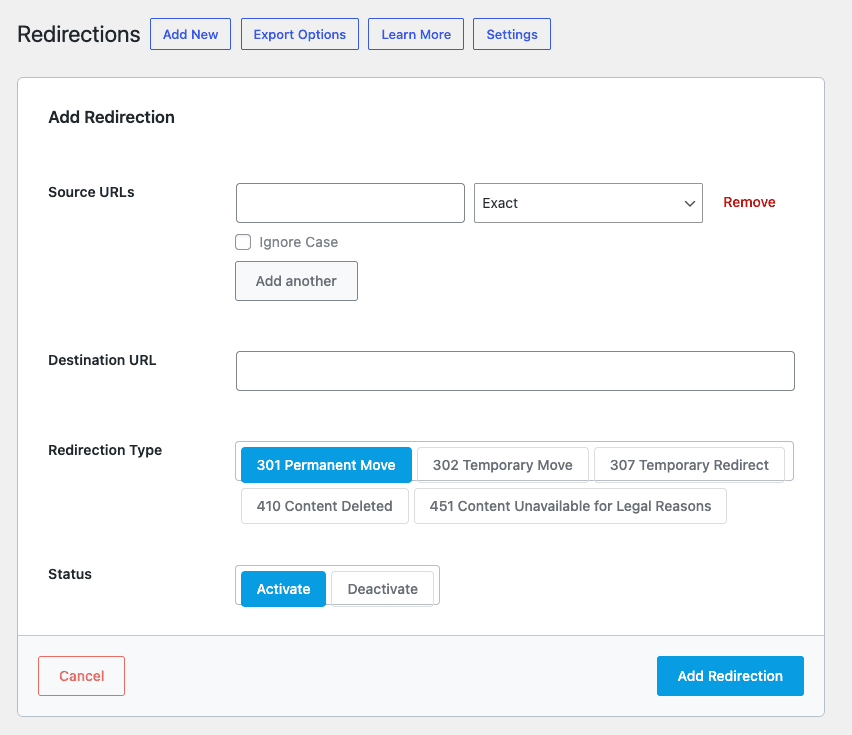
The 404 log (under the 404s tab) is the feature that earns its keep: it shows real URLs that real visitors are failing to reach, and you can create a redirect straight from a log entry in one click.
Redirects inside WP Adminify
If you run WP Adminify, the Pro URL Redirection module handles standard URL-to-URL redirects with 301, 302, and 307 support. Handy when you'd rather manage redirects from the same dashboard that already handles your admin customization instead of installing one more plugin. It doesn't do regex or 404 logging, so if you need those, Redirection is still the better fit.

Method 2: Redirect via .htaccess (Apache) or Nginx
Server-level redirects run before WordPress loads any PHP, which makes them the fastest option and the right choice for site-wide rules: domain migrations, HTTPS enforcement, www/non-www canonicalization, or high-traffic URLs where every millisecond counts.
.htaccess redirects (Apache and LiteSpeed)
The .htaccess file lives in your WordPress root directory, next to wp-config.php. It's hidden by default, so enable "show hidden files" in your file manager or FTP client. Always download a backup copy before editing; one syntax error returns a 500 on every page of the site. Place custom rules above the # BEGIN WordPress block, because WordPress rewrites everything inside it.
1
2# Single page, permanent
3Redirect 301 /old-page/ https://example.com/new-page/
4
5# Single page, temporary
6Redirect 302 /summer-sale/ https://example.com/current-offers/
7
8# Whole domain migration (keeps the path)
9RewriteEngine On
10RewriteCond %{HTTP_HOST} ^oldsite\.com$ [OR]
11RewriteCond %{HTTP_HOST} ^www\.oldsite\.com$
12RewriteRule ^(.*)$ https://newsite.com/$1 [L,R=301]
13
14# Force HTTPS
15RewriteEngine On
16RewriteCond %{HTTPS} off
17RewriteRule ^(.*)$ https://%{HTTP_HOST}%{REQUEST_URI} [L,R=301]
18
See the WordPress developer documentation on .htaccess for the default rules and more patterns.
Nginx redirects
Nginx has no .htaccess equivalent. Rules go in the server block of your site's config (often /etc/nginx/sites-available/yoursite). On managed hosting you usually can't edit this yourself; hosts like Kinsta and WP Engine give you a redirect panel or add rules on request.
1
2# Single page, permanent
3location = /old-page/ {
4    return 301 https://example.com/new-page/;
5}
6
7# Whole domain migration
8server {
9    server_name oldsite.com www.oldsite.com;
10    return 301 https://newsite.com$request_uri;
11}
12
Reload Nginx after changes (nginx -t to test the config first, then systemctl reload nginx).
htaccess vs plugin: which should you use?
- Use server rules for site-wide, permanent, structural redirects: domain moves, HTTPS, www canonicalization. Few rules, set once, maximum speed.
- Use a plugin for everyday content redirects: changed slugs, deleted posts, 404 cleanup. You get logging, an audit trail, and zero risk of white-screening the site.
- Avoid hundreds of individual page rules in
.htaccess. Apache evaluates the file on every request, and a bloated file turns into a maintenance and performance liability. A long redirect list belongs in a plugin that stores rules in the database. And if admin performance is your worry, measure before assuming redirects are the bottleneck; they usually aren't.
Redirect users after login by role
Not every redirect is about moved content. WordPress sends everyone who logs in to the same place, the dashboard, which stops making sense the moment your site has clients, customers, or members. A role-based login redirect gives each user type its own landing spot: subscribers to their account page, editors to the post list, clients to a custom dashboard.
WP Adminify handles this without code. Under Adminify → Security → Redirect URLs, enable the module, then open the Roles Redirect tab and add a login redirect rule per role:

Pick the role, set the destination URL, save - done. Rules can target a role, a specific username, or a capability, and the same tab handles logout redirects too.

For the full walkthrough, including the functions.php alternative using the login_redirect filter, logout redirects, and testing tips, see our dedicated guide: How to Redirect Users After Login by Role in WordPress. It pairs naturally with changing your login page URL if you're hardening the login flow anyway.
Finding and fixing redirect chains
A redirect chain is a redirect that points to another redirect: A → B → C instead of A → C. Chains build up innocently. You rename a post in 2023, rename it again in 2025, and now the 2023 URL hops twice. Loops (A → B → A) are the pathological case and produce the browser error "too many redirects."
Chains cost you in two ways that matter and one that's easy to forget. Every hop is a full round trip to the server before the real page starts loading, and two extra hops can add hundreds of milliseconds on mobile. Googlebot follows up to 10 hops but crawls long chains inefficiently, and Google's own guidance is to keep redirects direct. The forgettable one: each hop is one more rule that can silently break in your next migration.
How to find them
- Spot-check a URL with curl:
curl -sIL https://example.com/old-page/ | grep -i "HTTP\|location"shows every hop and status code in the chain. - Crawl the site with Screaming Frog (free up to 500 URLs). Its Reports → Redirects → Redirect Chains export lists every chain and loop.
- Check Google's view in Search Console's URL Inspection tool, which reports "Page with redirect" and the final destination.
How to fix them
Point every rule directly at the final destination. In your redirect plugin, edit rule A so it targets C instead of B, and delete rule B if nothing else references its source. After a domain migration, also update hard-coded internal links in menus, widgets, and post content so internal navigation never routes through a redirect at all. And if you're seeing redirects you never created, like wp-admin redirecting to the homepage, that's usually a different problem entirely: a plugin conflict, a cached rule, or a misconfigured site URL.
Redirects and SEO: what actually happens to rankings
The old myth says every 301 "leaks" a little PageRank, so redirects slowly bleed your rankings. That had some truth a decade ago. Google has been explicit since 2016 that no PageRank is lost from 301, 302, or 307 redirects. Google's own redirect documentation confirms permanent redirects pass full signals to the new URL, and Googlers John Mueller and Gary Illyes have both said publicly that 3xx redirects no longer cost PageRank.
What redirects do affect:
- Consolidation takes time. After a migration, Google has to recrawl old URLs, follow the redirects, and transfer signals. Expect ranking turbulence for weeks, not days, on large sites.
- Relevance matters. A 301 to an unrelated page (say, every deleted post to the homepage) gets treated as a soft 404, and the signals are dropped rather than transferred. Redirect to the closest relevant equivalent, or let the page 404/410 honestly if no equivalent exists. Our guide to HTTP status code errors covers when each code is the right answer.
- Redirects only work while they exist. Google recommends keeping migration redirects live for at least a year. We'd say keep them forever; backlinks to old URLs pass value only as long as the redirect is in place.
- Chains dilute crawl efficiency (see the previous section), even though each individual hop passes signals.
WordPress Redirect FAQs
Do 301 redirects hurt SEO?
No. Google confirmed in 2016 that 301, 302, and 307 redirects no longer lose PageRank, and its documentation states permanent redirects pass full ranking signals. What hurts SEO is redirecting to irrelevant pages (treated as soft 404s), long redirect chains, and removing redirects too early.
How many redirects is too many?
Googlebot follows up to 10 hops in a chain before giving up, but treat anything past one hop as a defect worth fixing. For total rule count, a few hundred database-stored plugin rules are fine; hundreds of rules in .htaccess get evaluated on every single request and are worth consolidating into pattern-based rewrites.
Should I use htaccess or a plugin for WordPress redirects?
Use .htaccess (or Nginx rules) for a small number of site-wide structural redirects such as domain moves, HTTPS, and www canonicalization, because they run before WordPress loads. Use a plugin for day-to-day content redirects, since you get logging, 404 monitoring, and no risk of breaking the site with a syntax error.
What is the difference between a 301 and a 302 redirect in practice?
Both send visitors to the new URL and both pass ranking signals. The difference: a 301 tells search engines to index the new URL and gets cached aggressively by browsers, while a 302 says the original URL will return and never gets cached. Default to 301 unless the change is genuinely temporary.
How do I redirect a user to a specific page after login in WordPress?
Use a role-based login redirect. In WP Adminify, go to Adminify → Security → Redirect URLs → Roles Redirect, add a Login Redirect rule, choose the role, and set the destination URL. Alternatively, hook the login_redirect filter in functions.php.
How long should I keep redirects in place?
Google recommends at least one year for migration redirects, but keep them permanently if you can. The moment a redirect is removed, every backlink pointing at the old URL stops passing value and every bookmark starts returning a 404.
The short version
The redirect playbook for WordPress comes down to a few rules:
- Default to 301 for permanent moves; use 302 only when the original URL is genuinely coming back.
- Structural, site-wide redirects belong at the server level. Everyday content redirects belong in a plugin with logging.
- Point every redirect at the final destination, no chains, and keep migration redirects live for the long haul.
- Redirect to relevant pages or don't redirect at all; blanket redirects to the homepage get treated as soft 404s.
If you're already customizing your admin with WP Adminify, the login side of redirects (role-based login and logout destinations) plus standard URL redirection comes with the same security toolkit you're already running, so that's one less plugin on the install list. The free version is on WordPress.org if you want to try it on a staging site first.


Your email address will not be published