


A media library behaves completely differently at 500 files and at 15,000. The admin screen that used to load instantly now takes eight seconds. Backups that finished overnight now run into the morning. Nobody can find the client logo approved in March, so they upload it again, and now there are four copies.
None of this is a WordPress bug. It's what happens when an interface designed for personal blogs gets used for asset management. Here's what actually degrades at scale, in the order worth fixing.
What actually slows down
Five separate problems get lumped together as "my media library is slow." Different causes, different fixes, so it's worth pulling them apart.
| Symptom | Real cause | Fix |
|---|---|---|
| Media screen takes seconds to load | Grid view loading many thumbnails plus metadata queries | Switch to list view, lower items per page |
| Media modal is slow when inserting images | Same query running inside the editor | Folder filtering, so the modal queries a subset |
| Disk usage far exceeds expectations | Too many registered image sizes | Audit and deregister unused sizes |
| Backups and migrations crawl | File count, not total size | Reduce sizes, offload old media |
| Nobody can find anything | No structure beyond upload date | Folders and a naming convention |
The last row is usually the most expensive, because it costs staff hours every day rather than seconds per page load. It's also the one people get to last.
Fix 1: audit your registered image sizes
Highest-impact change on most large sites, and almost nobody does it.
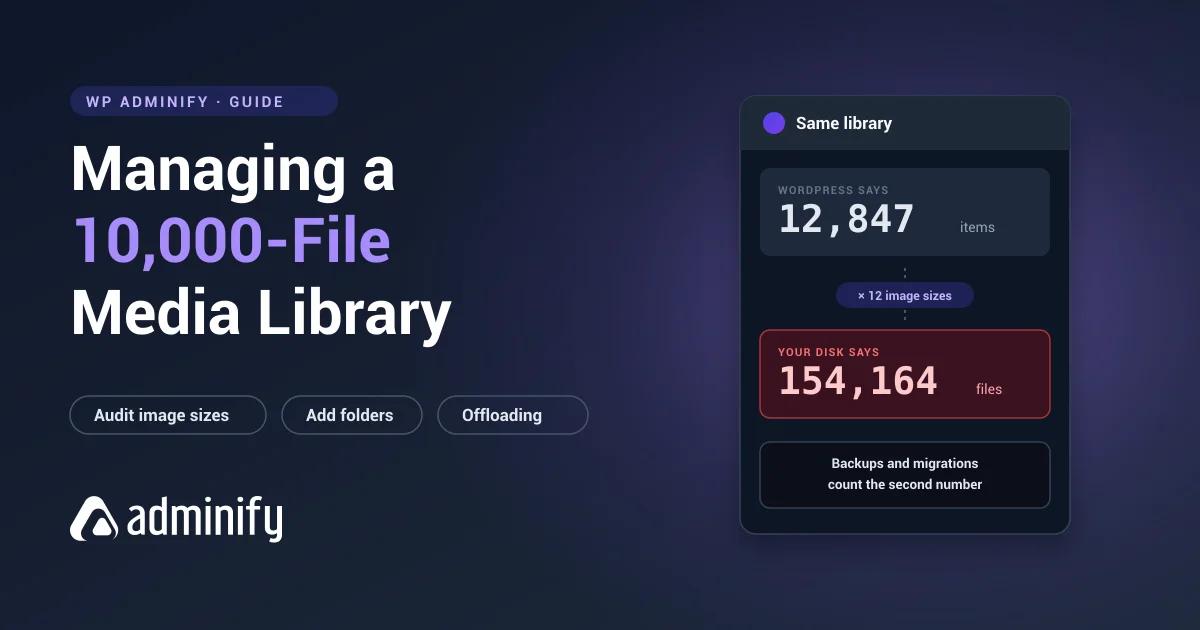
WordPress generates a resized copy of every uploaded image for every registered size. Core registers five or six. Your theme adds its own. WooCommerce adds three. Sliders, galleries, and page builders pile on more. A site with twelve registered sizes turns 10,000 uploads into roughly 120,000 files on disk.
See what's registered
Drop this into a site-specific plugin temporarily and check your debug log:
/**
 * Log every registered image size with its dimensions and crop setting.
 * Remove after auditing.
 */
function adminify_log_registered_image_sizes() {
    global $_wp_additional_image_sizes;

    $sizes = array();
    foreach ( get_intermediate_image_sizes() as $size ) {
        if ( in_array( $size, array( 'thumbnail', 'medium', 'medium_large', 'large' ), true ) ) {
            $sizes[ $size ] = array(
                'width'  => (int) get_option( "{$size}_size_w" ),
                'height' => (int) get_option( "{$size}_size_h" ),
                'crop'   => (bool) get_option( "{$size}_crop" ),
            );
        } elseif ( isset( $_wp_additional_image_sizes[ $size ] ) ) {
            $sizes[ $size ] = $_wp_additional_image_sizes[ $size ];
        }
    }

    error_log( print_r( $sizes, true ) );
}
add_action( 'admin_init', 'adminify_log_registered_image_sizes' );
Remove the ones you don't use
Old themes leave their sizes registered permanently. Deregister anything unused:
/**
 * Stop generating unused intermediate image sizes.
 * Affects new uploads only — existing files are untouched.
 */
function adminify_remove_unused_image_sizes( $sizes ) {
    unset( $sizes['medium_large'] );   // 768px — drop only if your theme doesn't use srcset
    unset( $sizes['1536x1536'] );      // retina intermediate
    unset( $sizes['2048x2048'] );      // retina intermediate
    return $sizes;
}
add_filter( 'intermediate_image_sizes_advanced', 'adminify_remove_unused_image_sizes' );
Test before committing. Remove a size your theme relies on and WordPress falls back to the full-size image, so visitors download a 2 MB file where a 40 KB thumbnail belongs. Check your key templates after any change.
Worth noting the big image threshold too, added in WordPress 5.3. Any image over 2560px in either dimension gets a scaled version generated, with the original kept as -scaled. That's an extra full-size file per large upload. Tune it if your workflow involves high-resolution photography:
// Raise to 3840px for 4K assets
add_filter( 'big_image_size_threshold', function() {
    return 3840;
} );
Fix 2: tune the Media screen
Two settings, both free, both immediate.
Use list view. Grid view's infinite scroll loads batch after batch of thumbnails and gives you no bulk-edit columns. List view is paginated, sortable, faster, and supports bulk actions. On a large library it's just the better interface.
Lower items per page. Under Screen Options, set it to whatever your host handles comfortably. Fewer items means a lighter query and fewer thumbnails per request. Sixty is a reasonable starting point for browsing, and you can raise it to 100 or 200 temporarily when doing bulk moves.
If the whole admin is slow rather than just this screen, the cause is usually elsewhere. Why WordPress admin is slow covers the wider set, and controlling the Heartbeat API handles a frequent offender on editor-heavy sites.
Fix 3: add folders, the retrieval fix
Performance tuning makes the screen load faster. It does nothing about the real cost of a large library, which is that finding a specific file takes minutes instead of seconds.
Around 500 files, date-based browsing stops working as a retrieval method. Nobody remembers which month something went up. Search only helps if files were named sensibly, and search covers the filename, title, caption, and description but not alt text. A library full of IMG_4471.jpg is effectively unsearchable.
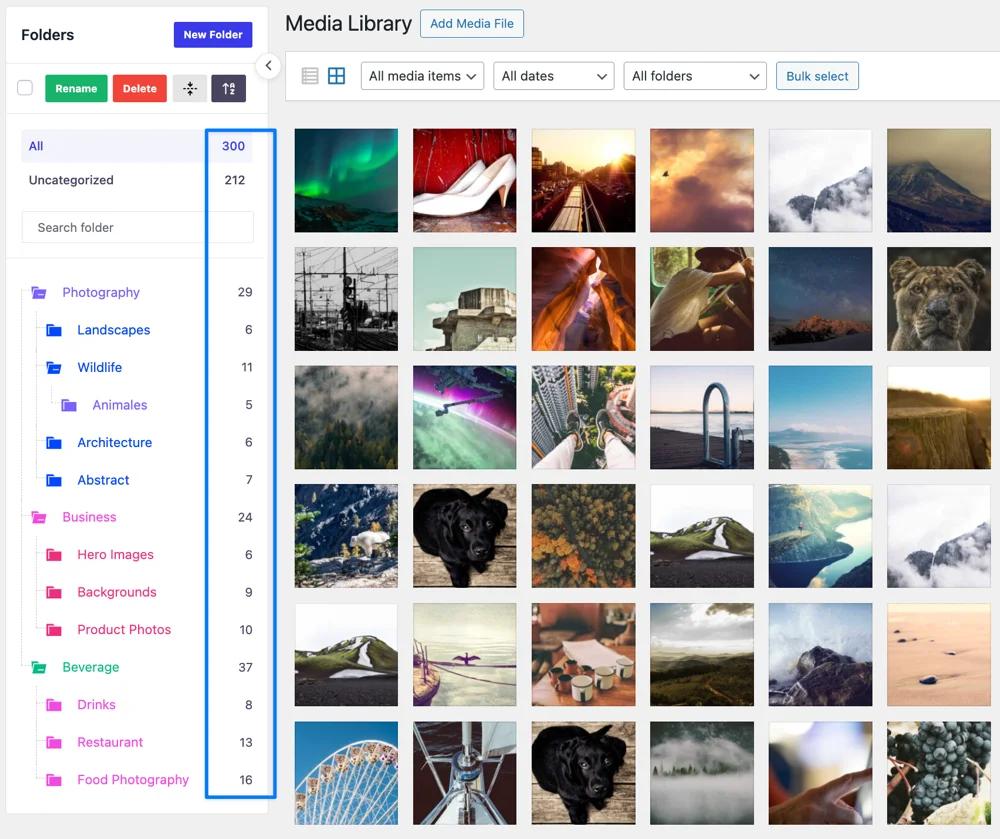
Folders fix that, and they come with a performance benefit people miss: when the media modal is filtered to a folder, it queries a subset instead of the whole library. Inserting images into posts, which you do dozens of times a day, gets faster too.
Because virtually all folder plugins use a taxonomy rather than real directories, files never move and URLs never change. You can organize a 15,000-file library on a live production site safely. The batch workflow is in how to organize your media library with folders.
Fix 4: deal with duplicates
Large libraries are full of duplicates, and they're a symptom rather than a cause. When finding an existing file is harder than uploading a new one, people upload a new one. WordPress doesn't deduplicate. It appends -1, -2, -3 and stores every copy along with all its generated sizes.
Finding them:
- Search the library for
-1and-2. The numeric suffix is the clearest signal. - Sort list view by filename to bring near-identical names together.
- Check the usual suspects first. Logos, team headshots, and hero images accumulate the most copies.
Verify before deleting. A file's "Unattached" status only records where it was first uploaded, not where it's currently displayed. An unattached image can be live on twelve pages. Automated "unused media" scanners routinely miss references inside page-builder JSON, theme customizer options, ACF fields, and widget content.
Sensible sequence: back up, spot-check a sample of whatever a scanner flagged, delete in small batches, check the site after each batch.
Fix 5: optimize the database side
Every attachment creates one row in wp_posts and several in wp_postmeta: the file path, the serialized metadata array, and the alt text at minimum. Ten thousand attachments means well over 30,000 postmeta rows before any plugin adds its own.
Three things help.
Run a persistent object cache. Redis or Memcached, if your host offers it. This is the single largest admin-wide improvement available on a metadata-heavy site.
Clean orphaned postmeta. Deleted attachments sometimes leave metadata rows behind, particularly after plugin removals or failed imports. Most database optimization plugins handle it. Back up first.
Check that wp_postmeta is properly indexed. Core ships correct indexes, but they occasionally get dropped by a bad migration or an over-eager optimization tool. A missing index on meta_key makes every media query slow.
Our broader WordPress performance optimization guide goes deeper, and the WP Adminify performance settings document the admin-side toggles.
Fix 6: consider offloading
Past a certain size, moving media off the WordPress server stops being optional. Signals you've hit that point:
- Backups no longer finish inside the maintenance window
- Migrations take hours and time out
- You're paying for hosting storage tiers you don't otherwise need
- Serving images from one origin is measurably hurting page speed
Offloading moves files to object storage (S3, Cloudflare R2, DigitalOcean Spaces) and rewrites URLs to point there. The database still holds attachment records, so the Media Library works normally.
Two things to understand before committing:
- It's hard to reverse. Migrating 100,000 files back is a project. Choose deliberately.
- Test folder plugin compatibility. Most folder plugins are unaffected because folders are database relationships rather than file paths, but verify on a staging copy instead of assuming.
A CDN in front of your existing uploads is the lighter alternative. It solves the delivery-speed half of the problem without the migration risk.
Fix 7: set rules so it stays manageable
Everything above is remediation. These four habits stop the problem coming back.
| Rule | Why |
|---|---|
| Rename files before uploading | Filename is searchable; alt text is not |
| Resize before uploading | A 6000px camera JPEG generates a dozen derivatives nobody needs |
| File into a folder at upload time | Two seconds now, thirty seconds later |
| Replace rather than re-upload | Keeps one canonical copy instead of four |
Write them down somewhere your team will see them. An unwritten convention lasts until the second person starts uploading.
Large WordPress Media Library FAQs
How many images can the WordPress Media Library handle?
No hard limit. The admin interface starts degrading noticeably somewhere between 5,000 and 10,000 attachments on typical hosting, but the constraint is interface and database performance rather than WordPress itself. Sites running six-figure libraries combine folder organization, list view, offloaded storage, and a persistent object cache.
Why is my WordPress media library so slow?
Usually grid view's infinite scroll loading many thumbnails alongside metadata queries. Switch to list view and lower items per page under Screen Options for an immediate improvement. If the whole admin is slow, look at object caching, database indexes, and the Heartbeat API instead.
Does a large media library slow down my website for visitors?
Not directly. The Media Library is an admin interface and visitors never query it. What does affect front-end speed is serving oversized images, missing responsive srcset markup, and no CDN. A large library slows down your team, not your visitors.
How do I organize thousands of images in WordPress?
Work in filtered batches rather than file by file. Switch to list view, raise items per page, then filter by media type, filename search, or upload date to isolate related groups. Shift-click to select the whole range and move it into a folder in one action. Four to five thousand files takes about ninety minutes this way.
Should I delete old media to speed things up?
Deleting rarely fixes speed and it carries real risk. "Unattached" only records where a file was first uploaded, not where it's currently used, and scanners miss references in page builders and custom fields. Auditing registered image sizes and switching to list view give bigger gains with none of the danger.
Will media folders slow down a large library?
No, they generally speed it up. Folders are taxonomy relationships, and filtering to a folder makes WordPress query a subset instead of the whole library. The media modal in the editor gets noticeably faster, which matters because inserting images is a far more frequent action than browsing the library.
Conclusion
Managing a large media library is mostly about attacking the right problem. Most people tune performance settings when the expensive problem is retrieval.
- Audit registered image sizes first. Biggest disk and backup win, and almost nobody checks.
- Switch to list view and lower items per page. Free, immediate, reversible.
- Add folders. They fix retrieval, cut duplicate uploads at the source, and speed up the media modal.
- Back up before any deletion. "Unattached" doesn't mean unused.
Start with the batch workflow in how to organize your media library with folders, or see how WP Adminify's media folders handle large libraries without moving a single file.
Your email address will not be published