


Media library cleanup is the most commonly recommended and most commonly botched WordPress maintenance job. The advice is always "install a plugin, scan for unused media, delete." Follow it on a page-builder site and you'll find broken images across pages nobody thought to check, sometimes weeks later, after the backup window has closed.
The plugins aren't the problem. The problem is that "unused" is much harder to work out in WordPress than it looks. Here's what actually breaks, what's genuinely safe to delete, and the order that keeps your site intact.
Read this before you delete anything
Three facts that make media cleanup riskier than it looks. Each one causes real damage regularly.
"Unattached" doesn't mean unused
WordPress records a parent post for files uploaded inside the post editor. Files uploaded via Media > Add New have no parent and show as Unattached.
That field records where a file was first uploaded, not where it's currently displayed. An unattached image can be live on twelve pages. An attached image may have been pulled from its parent post years ago. As a usage indicator the attachment relationship is close to meaningless, and it's the exact field most cleanup workflows lean on.
Scanners can't see inside page builders
An "unused media" scanner usually searches post content for the image URL or attachment ID. That works for classic content. It misses:
- Page-builder layouts. Elementor, Divi, Beaver Builder and others store layouts as serialized JSON in postmeta, with image references encoded inside that structure.
- Theme customizer settings. Logos, hero backgrounds, and favicons live in the
theme_modsoption, not in post content. - ACF and custom fields. Image fields store an ID or URL in postmeta in a format the scanner may not parse.
- Widget and block-pattern content, stored in options and widget tables.
- CSS backgrounds. An image referenced only in a stylesheet is invisible to any database scan.
- Email templates and PDFs, where the asset is used outside the site entirely.
A scanner that flags 4,000 unused files on an Elementor site is very likely wrong about a good chunk of them.
Deletion isn't reversible
Deleting an attachment removes the file and all its generated sizes from disk, plus its database rows. There's no trash for media. The only recovery is a backup.
So take a full backup, files and database, before you start, and verify you can actually restore it. An untested backup is a hope, not a plan.
The safe cleanup order
Work from lowest risk to highest, and stop whenever the remaining gain stops justifying the risk.
Step 1: fix what generates the waste
Cleaning without fixing the cause means doing this again next year.
The biggest source of bloat is registered image sizes. WordPress generates a copy of every upload for every registered size. Core registers five or six, your theme adds more, WooCommerce adds three, sliders and galleries add their own. Twelve registered sizes turns 10,000 uploads into roughly 120,000 files.
1
2/**
3 * Stop generating unused intermediate image sizes.
4 * Affects new uploads only - existing files are untouched.
5 */
6function adminify_remove_unused_image_sizes( $sizes ) {
7    unset( $sizes['1536x1536'] );   // retina intermediate
8    unset( $sizes['2048x2048'] );   // retina intermediate
9    return $sizes;
10}
11add_filter( 'intermediate_image_sizes_advanced', 'adminify_remove_unused_image_sizes' );
12
Check your templates after changing this. Remove a size the theme uses and WordPress falls back to the full-size image, so visitors download a 2 MB file where a 40 KB thumbnail belongs. That's worse than the disk space you saved.
Step 2: remove orphaned files on disk
Safest category by a wide margin. Orphaned files sit in wp-content/uploads/ with no corresponding database row, usually left behind by failed migrations, deleted plugins, or files uploaded over FTP.
They're invisible in the Media Library, so nothing in WordPress can reference them through normal means. Deleting them is close to risk-free.
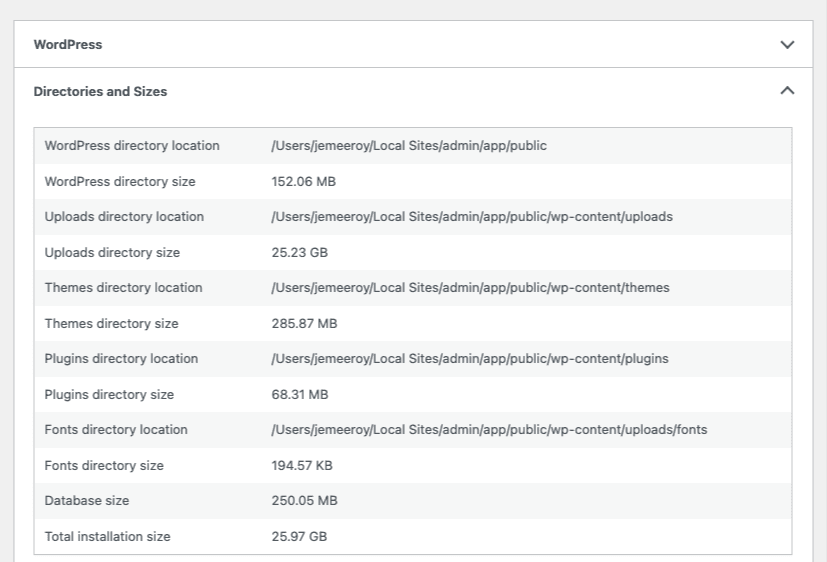
They also accumulate faster than anyone expects. On a WordPress 7.0.3 install we checked in August 2026, the Media Library showed 38 attachments. Counting every generated size, WordPress referenced 152 files. The uploads directory held 5,503 images. That leaves 5,351 orphans, so roughly 97% of the image files on disk were ones WordPress had no record of at all. None of them are visible or deletable from the admin, because the Media Library is a database query rather than a directory listing.
One exception to watch: files deliberately placed there to be linked directly, like a downloads directory. Check for direct links before clearing anything outside the date-based folders.
Step 3: regenerate and clean up orphaned thumbnails
Change your registered image sizes and the old generated files stay on disk forever. A thumbnail regeneration tool rebuilds the current sizes and can remove the obsolete ones.
Run it on staging first. Regeneration is CPU-heavy and will time out mid-process on shared hosting with a large library, leaving you partially regenerated.
Step 4: handle duplicates
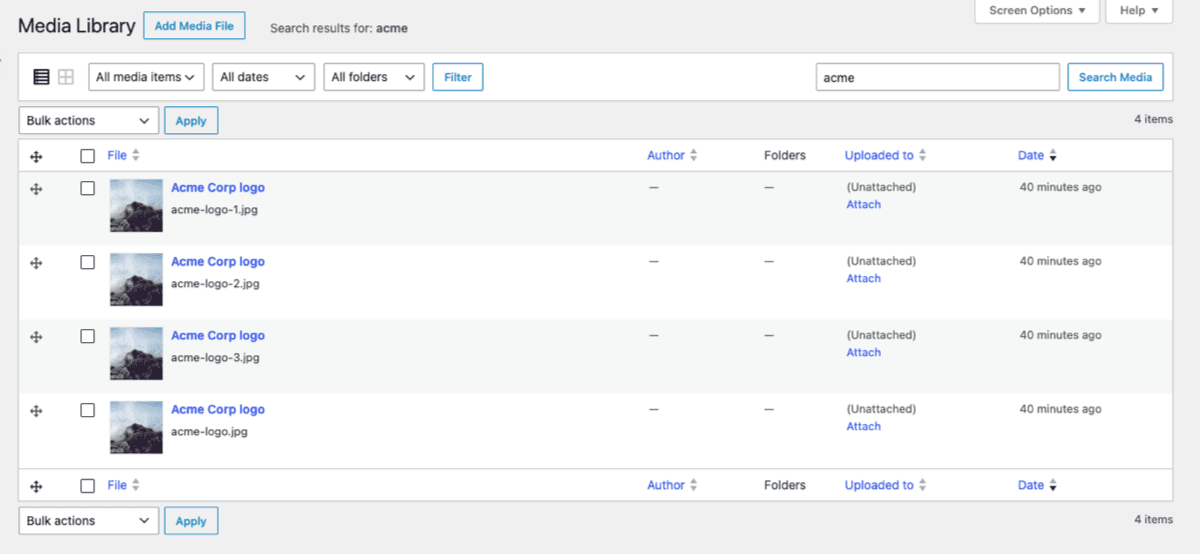
Duplicates are a symptom. When finding an existing file is harder than uploading a new one, people upload a new one. WordPress appends -1, -2, -3 and stores each copy with all its generated sizes.
Finding them:
- Search the library for
-1and-2. The numeric suffix is the clearest signal. - Sort list view by filename to group near-identical names.
- Check logos, headshots, and hero images first, since they accumulate the most copies.
Before deleting a duplicate, confirm which copy is actually in use. Two files with near-identical names may both be live on different pages. Deleting the "obvious" duplicate is a common way to break a page nobody was looking at.
Long term the fix is upstream: replacing a file rather than re-uploading it keeps one canonical copy.
Step 5: audit genuinely unused media, carefully
Highest-risk step, and the one most guides start with. If you've come this far you've already reclaimed most of the available space with far less exposure.
If you're going ahead:
- Clone the site to staging and do the whole audit there first.
- Run the scan and read the report before acting. Don't touch a one-click delete-all.
- Spot-check twenty flagged files by hand. Search the site for each one. If even one is in use, the scanner doesn't understand your stack, so stop.
- Delete in batches of fifty, checking key pages between batches.
- Crawl for broken images. Any site crawler will find 404ing image requests across every page.
- Only then repeat on production, with a fresh backup.
Sites where automated cleanup isn't worth the risk: anything built with Elementor, Divi, Beaver Builder, or WPBakery, sites leaning heavily on ACF image fields, multisite installs sharing media, and any site where the person doing the cleaning didn't build it.
What to skip
| Common advice | Why to skip it |
|---|---|
| "Delete all unattached media" | Unattached means "not uploaded to a post," not "unused." Reliably breaks live images. |
| "Clean the library to speed up your site" | Visitors never query the Media Library. Front-end speed comes from image size and delivery, not attachment count. |
| "Run a one-click cleanup plugin" | Fine on a simple blog. On a page-builder site the false-positive rate is high enough to cause real damage. |
| "Delete everything older than two years" | Age has no relationship to usage. Your logo is probably your oldest file. |
Organize first, then clean
Counterintuitive but it holds up: organizing a library makes cleaning it safer and easier.
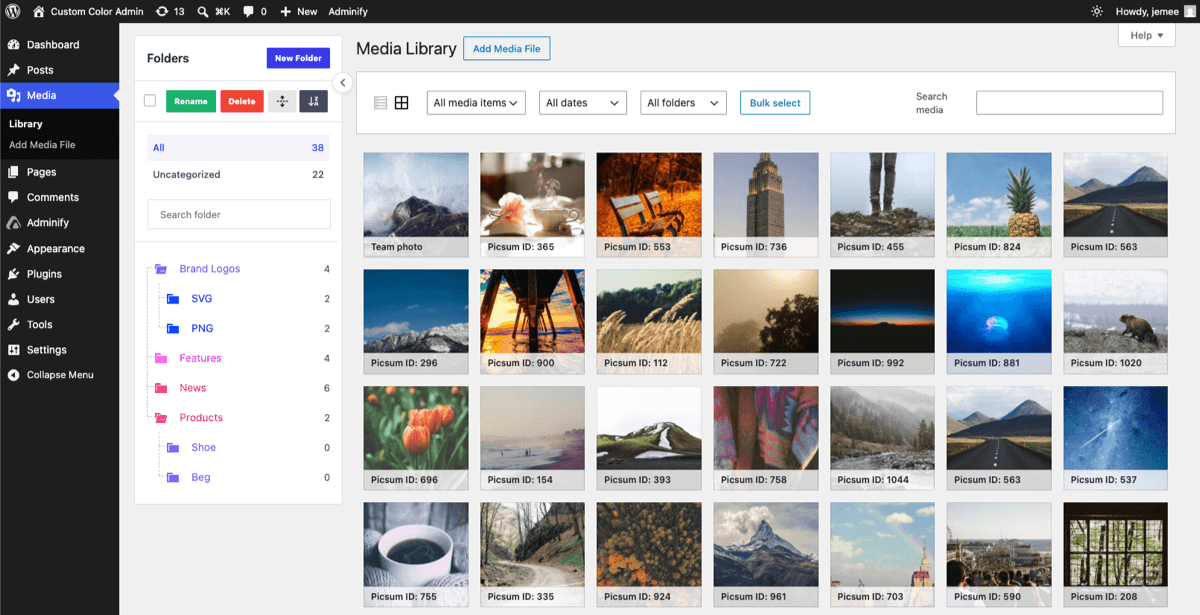
Once files are in folders, obsolete groups become visible as groups. The assets for a client who left in 2023, or a campaign that ended. Deciding about a folder of 200 files whose shape you can see is far more reliable than deciding about 200 individual filenames in a scanner report.
Folders also cut the duplicate rate at source. Most duplicates exist because retrieval was harder than re-uploading. Fix retrieval and the problem stops growing.
Because virtual folders never move files or change URLs, organizing is completely safe, which is the opposite risk profile to deleting. The workflow is in how to organize your media library with folders, and WP Adminify's media folders handle it without touching your file structure.
A maintenance routine that works
| Frequency | Task |
|---|---|
| Weekly | Empty the Unsorted folder. Ten minutes, one person. |
| Monthly | Check for duplicate uploads of frequently used assets |
| Quarterly | Review folders belonging to finished projects or former clients |
| Annually | Audit registered image sizes; clear orphaned files on disk |
| Never | Bulk-delete based on an automated scan without spot-checking |
Prevention beats cleanup every time. Rename files before uploading, resize before uploading, file into a folder at upload time, replace rather than re-upload. Four habits, and the library stops needing rescue.
Media Library Cleanup FAQs
Is it safe to delete unattached media in WordPress?
No. "Unattached" only means the file wasn't uploaded from inside a post editor. It says nothing about whether the file is currently displayed, and unattached images are frequently live across multiple pages. Treat the field as an upload-history record, not a usage indicator.
Will cleaning my media library make my site faster?
Not for visitors. The Media Library is an admin interface and is never queried on the front end. Cleanup reduces disk usage, backup time, and migration time. Front-end speed comes from serving correctly sized images and using a CDN.
How do I find unused images in WordPress?
Scanner plugins search post content for image references, but they miss images inside page-builder JSON, theme customizer settings, ACF fields, widgets, and CSS. Test on a staging copy, spot-check flagged files by hand, and delete in small batches while checking key pages.
What happens if I delete an image that is still in use?
The file and all its generated sizes come off disk, and every page displaying it shows a broken image. There's no trash for media, so the only recovery is restoring from backup. WordPress gives you no warning before deletion.
How much space can media cleanup actually save?
It varies, and the largest single win on most sites isn't deleting files at all. It's reducing registered image sizes. A site generating twelve sizes per upload stores many times more data than its item count suggests. Orphaned files left behind by old plugins and migrations are usually the second-biggest chunk, and they're invisible from the admin entirely.
Should I use a media cleanup plugin?
They're reasonable on simple blogs with classic content. On page-builder sites, ACF-heavy sites, or anything you didn't build yourself, the false-positive rate is high enough that manual review is faster than fixing the damage. Use them as a report, not as an action.
Conclusion
Media cleanup is worth doing, and worth doing carefully. The risk sits almost entirely in one step, deleting "unused" files, while most of the benefit sits in the steps before it.
- Back up and verify the restore before touching anything.
- Fix registered image sizes first. Biggest win, zero risk to existing content.
- Orphaned files and true duplicates are the safe deletions, and orphans are usually a much bigger share of your disk than you'd guess.
- Treat scanner reports as a starting point, never as an action list.
- Organize before you clean. Folders make obsolete assets visible as groups and cut duplicates at the source.
If your library is large enough that cleanup feels urgent, start with organizing your media library with folders. Most of what people want from cleanup is actually solved by organization and image-size auditing.



Your email address will not be published