

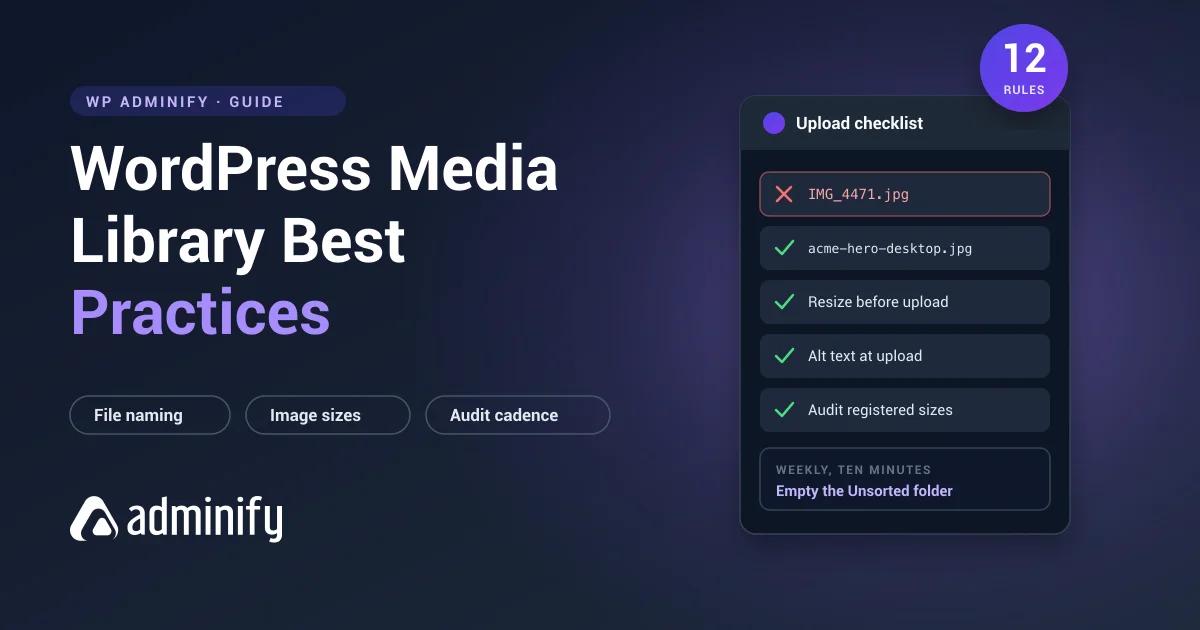

No media library goes bad in a week. It rots one careless upload at a time. An IMG_4471.jpg here, a 6000px camera file there, a third copy of the logo because finding the first two took too long. Two years later you've got 9,000 files, nobody can find anything, and the backup runs all night.
Every rule below is preventive. They cost seconds at upload and save hours later. They're ordered by impact, so if you only adopt three, take the first three.
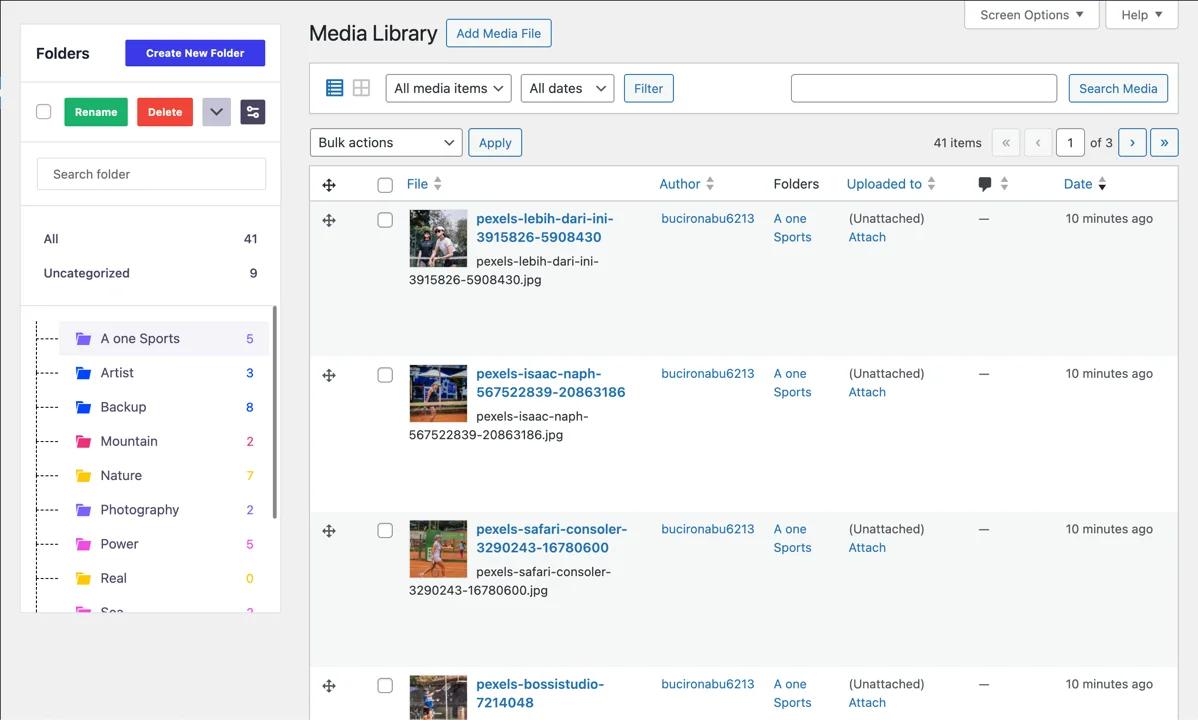
Two of the rules below want folders, and WordPress does not ship any. If you are still choosing, our tested roundup of the best WordPress media folder plugins compares seven, and WP Adminify's folder module is the one we build.
1. Rename every file before you upload it
Highest-return habit available, and it costs nothing.
WordPress media search covers the filename, title, caption, and description. It does not cover alt text. So a photo uploaded as IMG_4471.jpg with no title is effectively unsearchable no matter how carefully you wrote the alt text afterwards.
| Bad | Good | Why |
|---|---|---|
IMG_4471.jpg | acme-homepage-hero-desktop.jpg | Searchable, self-describing |
Screen Shot 2026-08-09 at 14.22.31.png | checkout-error-message.png | No spaces, no ambiguity |
final_v2_FINAL.png | acme-logo-2026-primary.png | Still meaningful in a year |
Lowercase, hyphens rather than spaces or underscores, no special characters. Spaces become %20 in URLs, which is ugly in source and occasionally breaks badly written scripts.
2. Resize before uploading, not after
A 6000 × 4000 camera JPEG is roughly 12 MB. WordPress will keep it, generate a scaled version, and produce a resized copy for every registered image size. One careless upload can put fifteen files and 20 MB on disk.
Resize to the largest dimension your site actually displays, usually 1600 to 2560px wide, before the file goes anywhere near WordPress.
There is a safety net. Since 5.3, any image over 2560px in either dimension gets a scaled version created and used as the "full" size, with the original preserved as -scaled. You can tune it:
// Raise the threshold to 3840px for genuine 4K assets
add_filter( 'big_image_size_threshold', function() {
    return 3840;
} );
The threshold limits the damage but doesn't eliminate it. That oversized original is still sitting on your server.
3. Audit your registered image sizes once a year
Biggest source of disk bloat, and almost nobody checks it.
WordPress generates a copy of every upload for every registered size. Core registers five or six. Your theme adds its own. WooCommerce adds three. Sliders and galleries add more. Twelve registered sizes turns 10,000 uploads into roughly 120,000 files.
Worse, old themes leave their sizes registered permanently. A site that's switched themes twice may still be generating derivatives for templates that no longer exist.
/**
 * Stop generating unused intermediate image sizes.
 * Affects new uploads only — existing files are untouched.
 */
function adminify_remove_unused_image_sizes( $sizes ) {
    unset( $sizes['1536x1536'] );   // retina intermediate
    unset( $sizes['2048x2048'] );   // retina intermediate
    return $sizes;
}
add_filter( 'intermediate_image_sizes_advanced', 'adminify_remove_unused_image_sizes' );
Test after any change. Remove a size your theme relies on and WordPress falls back to the full-size image, so visitors download a 2 MB file where a 40 KB thumbnail belongs. That's worse than the disk you saved. Our WordPress performance guide covers the wider picture.
4. Write alt text at upload time
Alt text is an accessibility requirement and an image search signal. Four seconds at upload, and miserable to backfill across 3,000 files.
Describe the image in context. Don't stuff keywords:
<!-- Bad -->
<img src="chair.jpg" alt="chair office chair desk chair ergonomic chair buy chair">

<!-- Good -->
<img src="chair.jpg" alt="Grey ergonomic office chair with adjustable lumbar support">
Purely decorative images should carry an empty alt="" so screen readers skip them. An empty alt is a deliberate signal. A missing alt attribute is a defect.
5. Pick one folder axis and stay on it
Once you've got folders, the failure mode is mixing organizing principles. A library with "Clients," "2025," "Images," and "Misc" at the top level is unusable, because nobody can predict which one a file went into.
| Site type | Top level | Second level |
|---|---|---|
| Agency / freelancer | Client | Project or asset type |
| WooCommerce store | Product category | Product line or season |
| Blog / magazine | Content section | Year |
| Membership / course site | Course | Module |
The test: could someone who joined last week guess where a given file lives? If not, simplify. Full detail in our guide to WordPress media library folders.
6. Stop at three levels of nesting
Deep hierarchies feel organized and perform badly. Past three levels, filing takes too many clicks and people quietly stop bothering, which leaves you maintaining a structure that no longer matches reality.
Two levels covers most real cases. Three is the ceiling. If a folder holds two files it shouldn't exist. If it holds four thousand, split it.
7. Keep an Unsorted folder and empty it weekly
People will upload without filing. Systems that assume perfect discipline fail. Systems with an honest inbox survive.
Keep a deliberate Unsorted folder and give one person a ten-minute pass every Friday. That single habit is the difference between a structure that holds for years and one that fragments within a month.
8. Replace files instead of re-uploading them
When a logo changes, the instinct is to upload the new version. Now you've got two logos with near-identical names, and in six months nobody knows which one is current.
Replacing the existing file keeps one canonical copy in one folder, and every page using it updates at once. See replacing an image in WordPress without changing the URL.
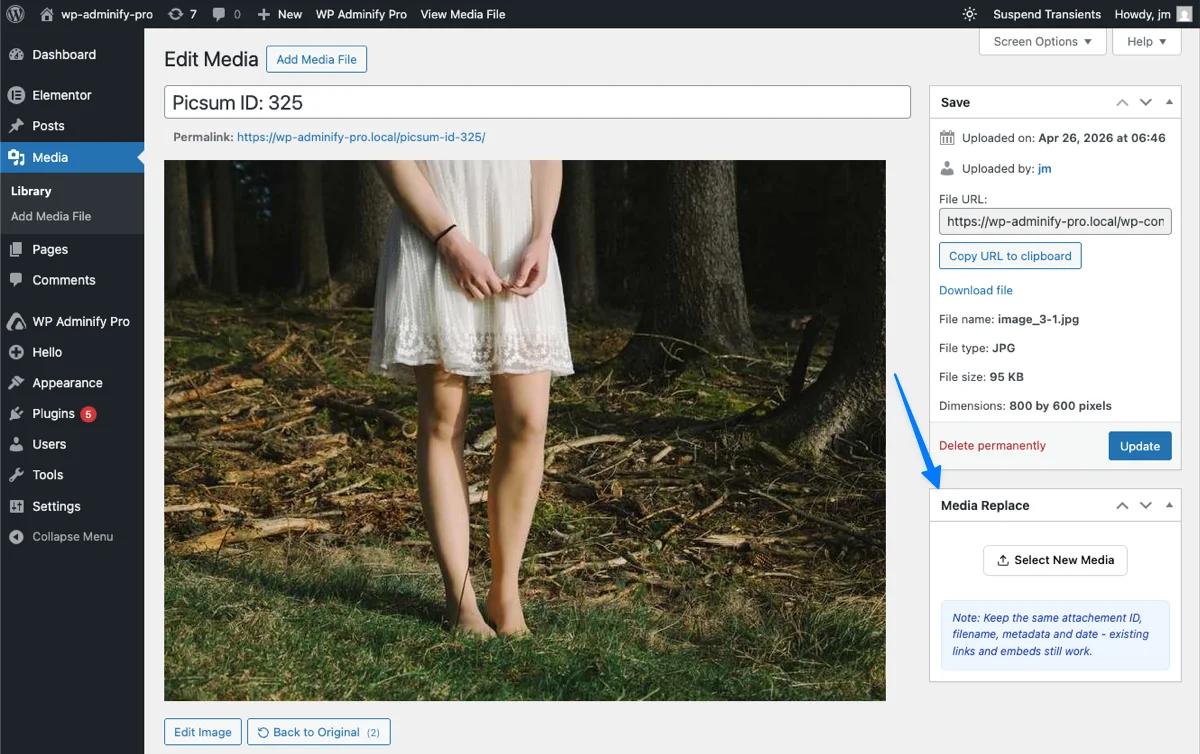
9. Never trust "Unattached" as a usage signal
WordPress records a parent post for files uploaded inside the editor. Files uploaded via Media > Add New show as Unattached.
That field records where a file was first uploaded, not where it's currently displayed. An unattached image can be live on twelve pages. An attached image may have been pulled from its parent years ago.
Bulk-deleting unattached media is one of the fastest ways to break a site, and it's standard advice in a lot of tutorials. Ignore it.
10. Set upload permissions deliberately
By default, Authors and above can upload files. On a multi-author site that means anyone can drop a 12 MB TIFF into your library.
Two practical controls:
/**
 * Restrict which file types non-admins may upload.
 */
function adminify_restrict_upload_mimes( $mimes, $user ) {
    if ( ! user_can( $user, 'manage_options' ) ) {
        return array(
            'jpg|jpeg|jpe' => 'image/jpeg',
            'png'          => 'image/png',
            'webp'         => 'image/webp',
            'pdf'          => 'application/pdf',
        );
    }
    return $mimes;
}
add_filter( 'upload_mimes', 'adminify_restrict_upload_mimes', 10, 2 );
Some folder plugins also support role-based folder visibility, so contributors only see the folders relevant to them. Verify it before relying on it, because it isn't universal.
11. Use modern image formats
WordPress supports WebP uploads and added AVIF in 6.5. Both give you substantially smaller files than JPEG at equivalent quality.
Two caveats worth knowing. Converting an existing library is a batch operation that needs testing, since regeneration is CPU-heavy and will time out mid-process on shared hosting, leaving you partially converted. And if you serve AVIF, keep a fallback for older clients.
The safer pattern for most sites: upload WebP going forward, leave the existing library alone, and let a CDN handle format negotiation.
12. Audit on a schedule, not in a panic
Media cleanup done reactively, when disk space runs out, is when mistakes happen. A calendar beats a crisis.
| Frequency | Task |
|---|---|
| Weekly | Empty the Unsorted folder |
| Monthly | Check for duplicate uploads of frequently used assets |
| Quarterly | Review folders for finished projects and former clients |
| Annually | Audit registered image sizes; clear orphaned files on disk |
| Before any deletion | Full backup of files and database, and verify the restore works |
Putting the rules into practice
Rules 5 through 8 need folders to exist, and WordPress doesn't provide them natively. WP Adminify's media folder feature adds them as a hierarchical taxonomy. Folders are virtual, so files never move on disk and image URLs never change, which is what makes it safe to reorganize a live library during business hours.
Practical setup: create top-level folders on one axis, add an Unsorted folder, move existing files in filtered batches, then keep the weekly ten-minute pass. Configuration is under creating folders for post types, and the batch workflow is in how to organize your media library with folders.
WordPress Media Library Best Practice FAQs
What is the most important WordPress media library best practice?
Renaming files descriptively before uploading. WordPress media search covers filenames but not alt text, so a file named IMG_4471.jpg is effectively unfindable regardless of how well you tagged it. The habit costs seconds and permanently improves retrieval.
How should I name WordPress image files?
Lowercase, hyphens instead of spaces, descriptive of the content rather than the context of capture. acme-homepage-hero-desktop.jpg beats IMG_4471.jpg and final_v2_FINAL.png. Avoid special characters, since spaces become %20 in URLs.
How many image sizes should WordPress generate?
As few as your templates actually use. Core registers five or six and themes add more, so twelve total is common, which turns 10,000 uploads into roughly 120,000 files. Audit annually and deregister unused sizes, but test afterwards, because removing a size in use makes WordPress serve the full-size image instead.
Is it safe to bulk delete unattached media?
No. Unattached only means the file wasn't uploaded from inside a post editor. It says nothing about whether the file is currently displayed, and unattached images are frequently live across multiple pages. Treat the field as upload history, not usage data.
How often should I audit my media library?
Empty the Unsorted folder weekly, check duplicates monthly, review completed-project folders quarterly, and audit registered image sizes annually. Scheduled maintenance prevents the reactive crisis cleanup where most accidental deletions happen.
Should I use WebP for WordPress images?
Yes for new uploads. WordPress has supported WebP since 5.8 and AVIF since 6.5, and both are substantially smaller than JPEG at equivalent quality. Converting an existing library is a separate project that needs testing, since regeneration is CPU-heavy and can time out partway on shared hosting.
Conclusion
None of these rules is difficult. They're all cheap at the moment of upload and expensive to retrofit, which is exactly why libraries decay. The cost always lands on someone later.
If you only adopt a few:
- Rename before uploading. Filename is searchable, alt text isn't.
- Resize before uploading. One 12 MB camera file becomes fifteen files on disk.
- Keep an Unsorted folder and empty it weekly. Ten minutes protects everything else.
- Audit registered image sizes once a year. It's the rule nobody follows and the one hiding your disk space.
If your library is already past the point where these help on their own, start with organizing it with folders. Remediation first, then these rules keep it clean.
Your email address will not be published