


WordPress will happily store 20,000 files for you. It won't help you find any of them. No folder tree, no way to group a client's assets, no structure beyond the year and month you happened to upload something. If you manage media at any real scale, that's the biggest gap in the WordPress admin.
Media folders close it. This guide covers what a WordPress media folder actually is, the difference between virtual and physical folders (one is safe on a live site, the other can break every image you've published), and how to build a structure your team will still understand in two years.
What is a WordPress media folder?
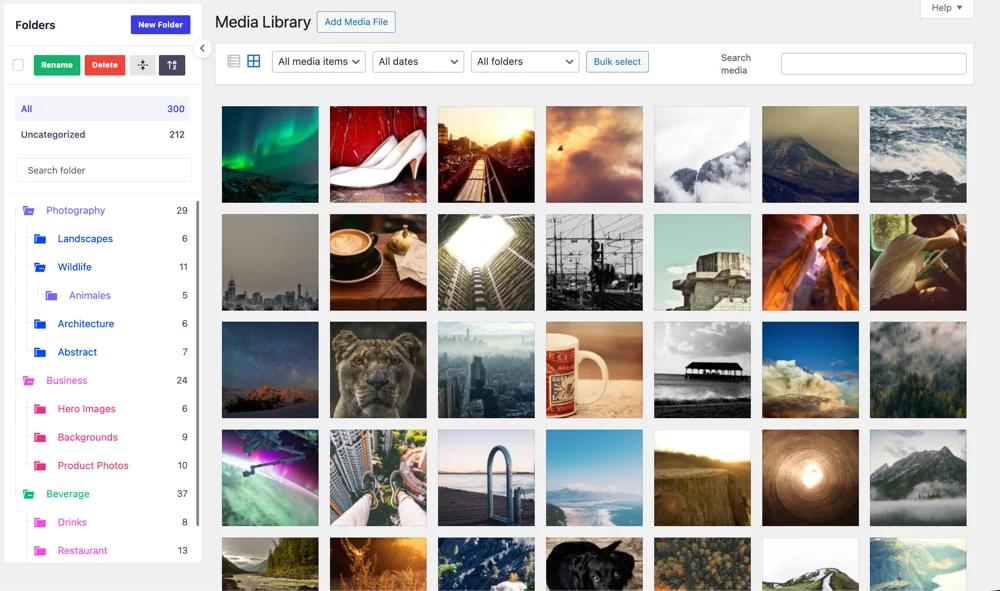
A WordPress media folder is a virtual container that groups files inside the Media Library without moving them on the server. Files are assigned to a folder through a database relationship, so the file path and image URL stay identical no matter which folder the file sits in.
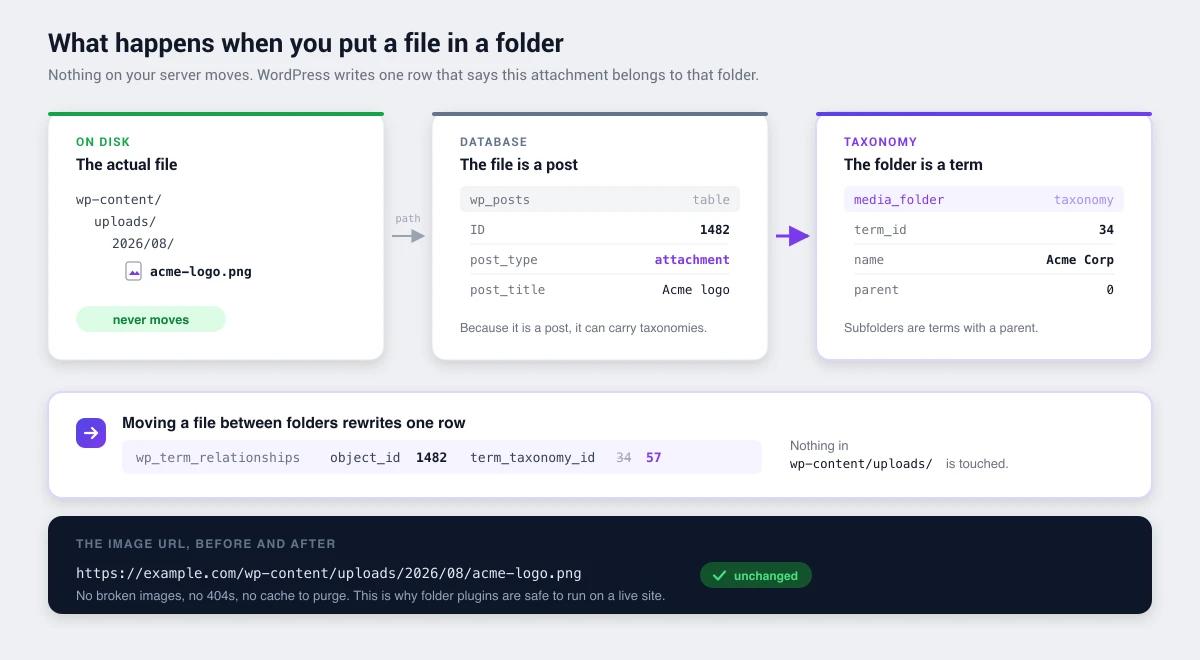
The word doing all the work there is "virtual." Drag an image into a folder called "Acme Corp" and nothing happens on disk. The file stays at wp-content/uploads/2026/08/acme-logo.png. What changes is one database record saying this attachment belongs to the Acme Corp folder.
The folder is a label, not a location. That turns out to be exactly what you want.
Why WordPress has no folders natively
WordPress classifies content with metadata rather than location. Posts live in categories, not directories. The Media Library follows the same principle, so files are meant to be found by date, type, or search.
There's a hard technical reason too. WordPress addresses every uploaded file by URL. If folders mapped to real directories, moving a file would change its URL, and then:
- every post embedding that image shows a broken image
- every external link and social share pointing at it 404s
- every CDN and browser cache holds a stale copy
- Google drops the image from image search until it recrawls
Faced with that, core chose not to ship folders at all. Reasonable for a blog. A serious problem for an agency with forty clients' assets in one library.
Virtual folders vs physical folders
This is the most important distinction in the whole topic, and it's the one thing to check before you install any folder plugin.
| Virtual folders (taxonomy-based) | Physical folders (directory-based) | |
|---|---|---|
| What moves | A database record | The actual file on disk |
| Image URL after moving | Unchanged | Changes |
| Risk to existing posts | None | Broken images unless every reference is rewritten |
| Safe to reorganize on a live site | Yes | Not without a database search-replace |
| Matches folders seen over FTP | No | Yes |
| Survives plugin deactivation | Files yes, folder view no | Files and directories yes |
| Used by | Most modern folder plugins | A small number of older plugins |
Physical folders have one genuine appeal: what you see in WordPress matches what you see over FTP. If people on your team upload directly to the server, that consistency is worth something.
For everyone else, virtual folders win by a wide margin. You can reorganize a 15,000-file library on a production site during business hours and break nothing. With physical folders, the same job is a migration project needing a database search-and-replace across post content, page-builder JSON, customizer settings, and custom fields.
So check which model a plugin uses before installing it. If the description mentions "moving files on your server" or "syncing with your uploads directory," it's touching real directories, and you'll want a full backup and a plan for the URL changes.
How virtual media folders work under the hood
Every uploaded file in WordPress is a post. Specifically, a row in wp_posts with post_type = 'attachment'. Because it's a post, it can carry taxonomies, the same system behind categories and tags.
A folder plugin registers a hierarchical taxonomy against the attachment post type. Each folder is a term. Assigning a file to a folder creates a row in wp_term_relationships. That's the whole mechanism.
You can build a minimal version yourself in about ten lines:
/**
 * Register a hierarchical "Media Folder" taxonomy for attachments.
 * Hierarchical = true is what allows nested subfolders.
 */
function adminify_register_media_folders() {
    register_taxonomy( 'media_folder', 'attachment', array(
        'labels' => array(
            'name'          => __( 'Media Folders' ),
            'singular_name' => __( 'Media Folder' ),
        ),
        'hierarchical'      => true,   // enables parent/child nesting
        'show_admin_column' => true,   // adds a column in list view
        'show_in_rest'      => true,   // exposes it to the block editor
        'rewrite'           => false,  // no public archive pages
        'public'            => false,
    ) );
}
add_action( 'init', 'adminify_register_media_folders' );
Add that to a site-specific plugin and you've got a working folder taxonomy with a filter dropdown in list view. What you don't get is the part that makes folders useful day to day: a folder tree in the sidebar, drag-and-drop assignment, folder filtering inside the media modal when you insert an image, and bulk moving. Building those is the real work, and it's what folder plugins actually sell.
One practical implication. Because folders are taxonomy terms, they live in that plugin's taxonomy. Deactivate the plugin and every file stays untouched and every image keeps working, but the folder structure disappears from the admin. The terms are still in the database, so reactivating brings it all back. Switching to a different folder plugin is the harder case: you need either an import tool or a rebuild by hand. Worth knowing before you commit a large library.
Nested folders and subfolders
Nesting is where folder plugins differ most, so check it before you commit.
The underlying taxonomy is hierarchical, so nesting is technically unlimited. A term can have a parent, which can have a parent, forever. In practice plugins cap it: some at two levels, some at five, some not at all. If your structure needs Client, then Project, then Asset type, confirm the plugin does three levels before you build it out.
A note from doing this on real sites: deep nesting feels organized and works badly. Past three levels, navigation slows down and people quietly stop filing things properly because the right folder takes too many clicks. Two levels handles most cases. Three is the ceiling I'd set.
Media Library
├── Acme Corp
│   ├── Website
│   ├── Social
│   └── Print
├── Beta Industries
│   ├── Website
│   └── Social
└── Internal
    ├── Team photos
    └── Brand assets
Designing a folder structure that survives
The structure matters more than the plugin. A good one is obvious to someone who joined last week. A bad one gets abandoned inside a month and you're back to scrolling.
Pick one primary axis
Organize by one thing at the top level. Mixing axes, so some folders by client and some by year and some by file type, is the fastest way to make a structure unusable, because nobody can predict where a file went.
| Site type | Top level | Second level |
|---|---|---|
| Agency / freelancer | Client | Project or asset type |
| WooCommerce store | Product category | Product line or season |
| Blog / magazine | Content section | Year |
| News site | Desk or beat | Month |
| Membership site | Course or program | Module |
| Corporate site | Department | Campaign |
Name folders the way people search
Use the words your team says out loud. "Acme Corp" beats "Client 004." "Spring Campaign 2026" beats "SC26." Folder names are a retrieval aid, and abbreviations only ever help the person who invented them.
Keep an Unsorted folder, and empty it
People will upload without filing. Instead of pretending otherwise, keep a deliberate Unsorted folder and give someone a ten-minute pass every week to clear it. A structure with an honest inbox stays clean. One that assumes perfect discipline rots.
Write the rules down
Two lines in your team wiki covering what the top level means and where new uploads go is the difference between a structure that holds for years and one that fragments the moment a second person starts uploading. This matters most for agencies handling multiple client sites, where the person filing an asset usually isn't the person who'll need to find it.
Moving existing files into folders
Organizing a library that already holds thousands of files is the part everyone dreads. It goes faster than you'd expect with the right order of operations.
- Back up first. Files and database. Virtual folders are safe, but you're about to run bulk operations on production data.
- Create the top-level folders only. Don't build the full nested tree yet. You'll change your mind once you see what's actually in there.
- Switch to list view and sort by date. Files uploaded around the same time usually belong together, which makes multi-select far more effective than working through the grid.
- Filter by media type. All PDFs in one pass, all videos in another. Type filtering groups things better than scrolling ever will.
- Use search to batch by filename. If files were named sensibly, searching "logo" or a client name pulls most of a folder's contents in one go.
- Move in large multi-selects. Select a few hundred, drag once. This is the step that turns a day of work into an hour.
- Add subfolders last. Once the top level is populated, the right second level is obvious.
- Leave the rest in Unsorted. Don't chase every stray image. The 80% that's organized gives you nearly all the benefit.
The step-by-step walkthrough with screenshots is in how to organize your WordPress media library with folders.
What media folders change day to day
The retrieval benefit is obvious. A few less obvious ones matter more over time.
Inserting images gets faster. A good folder plugin puts the folder tree inside the media modal, so adding an image to a post means clicking a folder instead of scrolling a global grid. On a large library that saves more time than the Media Library screen itself, because inserting images is something you do dozens of times a day.
Duplicate uploads drop. People re-upload files because finding the existing one is harder than dragging in a fresh copy. Make retrieval easy and the duplicate rate falls on its own, which slows storage growth and shrinks your backups.
Handovers stop being painful. When a client leaves or a team member moves on, "everything for this project is in this folder" is a complete answer. Without folders the honest answer is "somewhere in the library, sorted by whenever someone happened to upload it."
Media folders in WP Adminify
WP Adminify's media folder feature uses the virtual taxonomy model described above. Files never move on disk, existing URLs keep working, and folders show up both on the Media Library screen and inside the media modal in the editor.
Setting it up:
- Enable the media folder module in the WP Adminify settings.
- Open Media > Library. The folder tree appears alongside the library.
- Create top-level folders using your chosen axis: client, category, section.
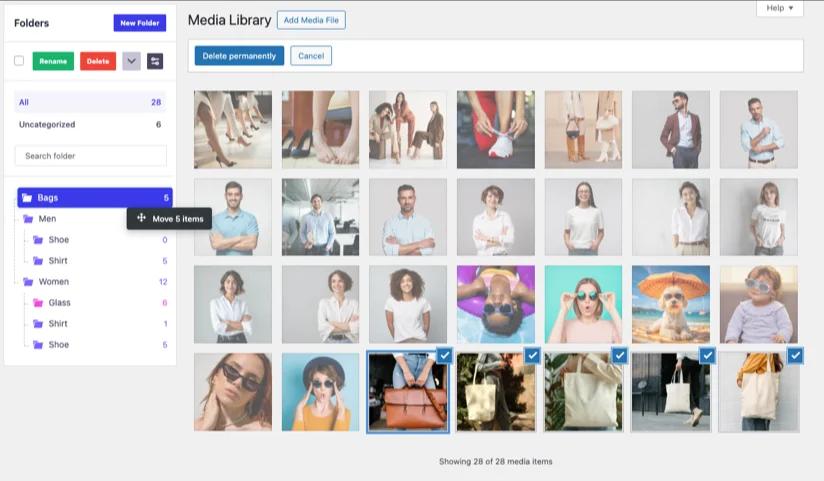
- Select existing files and drag them across. Multi-select works, so bulk moves are practical.
- Nest subfolders where the structure earns the extra click.
- Open the editor and insert an image. Filter by folder inside the modal instead of scrolling.
Full configuration steps are under creating folders for post types, and the recent performance work on large libraries is covered in the media folder update notes.
The trade-off applies to every folder plugin, ours included: the folder structure is tied to whichever plugin created it. Your files are never at risk, since they stay put and keep working regardless, but the folder view depends on that plugin staying active. Check for a migration path before moving a very large library between tools.
WordPress Media Library Folder FAQs
Does WordPress have media folders?
No, not natively. WordPress organizes media by upload date, file type, and search rather than folders. Folder functionality comes from plugins, which typically register a custom taxonomy for attachments. That creates virtual folders: your files stay where they are on the server and image URLs never change.
Do media folders change my image URLs?
Not with virtual folders, which is what most modern plugins use. The file stays at its original path in wp-content/uploads/ and only a database relationship changes. Plugins that move files into real directories on disk will change URLs, so check which model a plugin uses before installing it.
Can you create subfolders in the WordPress Media Library?
Yes, with a plugin that supports hierarchical folders. The underlying taxonomy allows unlimited nesting, though plugins set their own limits. Some cap at two levels, others allow five or more. Two or three levels works best in practice, since deeper structures get slow to navigate and teams stop filing correctly.
What happens to my folders if I deactivate the plugin?
Your files are completely unaffected. They stay on the server and every image on your site keeps working. The folder structure stops being visible in the admin, because the folder view comes from the plugin. The taxonomy data stays in the database, so reactivating restores the structure.
Can I organize media folders by user role?
Some folder plugins support role-based folder visibility, so contributors only see folders relevant to them. It isn't universal, so verify before relying on it. Most useful on multi-author sites and agencies where several clients or teams share one install.
How many media folders should I create?
Fewer than you think. Five to fifteen top-level folders, no more than three levels deep. If a folder holds two files it shouldn't exist. If one holds four thousand it needs splitting. The test is whether a new team member can predict where a file lives without asking.
Conclusion
Media folders fix a real gap in WordPress, and the way they fix it is smarter than it first looks. By labelling files instead of moving them, virtual folders give you structure without the URL risk that made core reject folders in the first place.
What matters:
- Confirm virtual, not physical. Virtual folders are safe to reorganize on a live site. Physical folders are a migration project.
- One axis at the top level, three levels maximum. Structure beats depth every time.
- Keep an Unsorted folder and clear it weekly. Systems that assume perfect discipline don't survive contact with a real team.
- Check the migration path before you commit a big library to any single plugin.
Ready to set it up? Start with how to create folders in the WordPress Media Library, or see how WP Adminify handles media folders without touching your file structure.
Your email address will not be published