

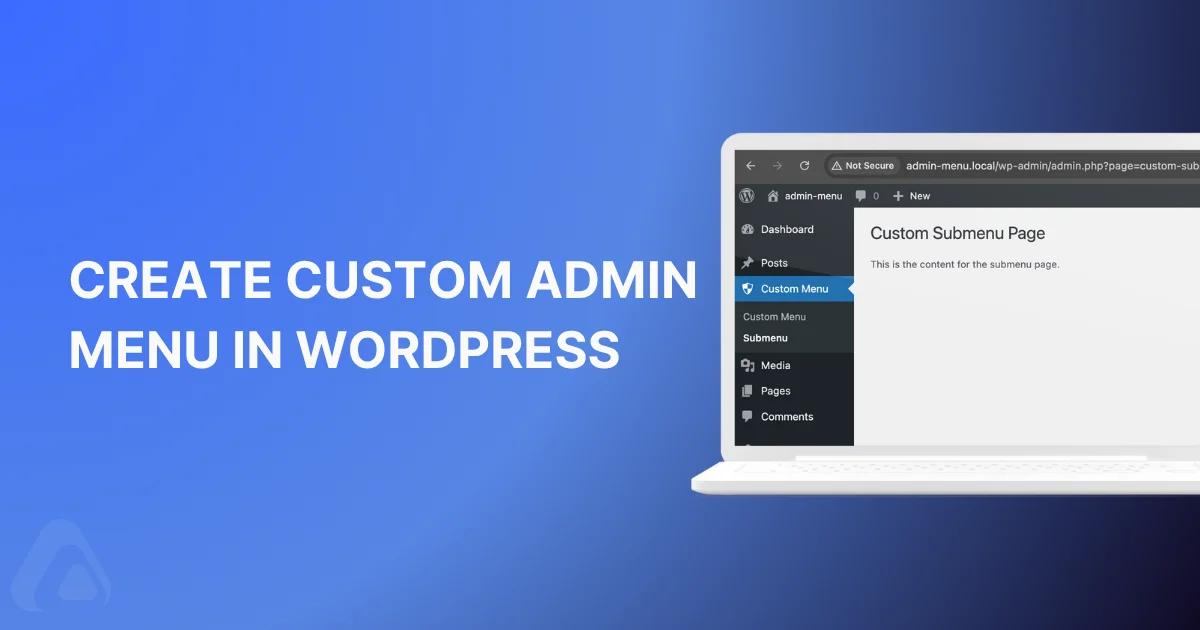

Your WordPress Admin Menu Is a Mess. Let us Fix It.
You log into your WordPress dashboard. What do you see? Clutter. Dozens of menu items you never use. Client sites bloated with plugin menus that confuse everyone. Your team wastes minutes every day hunting for the right settings.
Here is the truth: a chaotic admin menu kills productivity. It frustrates your team. It confuses your clients. And it makes WordPress feel harder than it needs to be.
Good news? You can fix this today. In this guide, I will show you exactly how to create a WordPress custom admin menu, tailored to your workflow. No fluff. Just actionable steps. Let us build a dashboard that actually works for you.
Why Your Admin Menu Needs a Cleanup (Right Now)
WordPress installs with a default menu structure. Then every plugin adds its own menu item. Before you know it, you have 30+ menu items. Most sit unused. All create visual noise.
For agencies managing client sites, this is worse. Your clients do not need to see WooCommerce settings. They do not need SEO plugin menus. They need a clean, focused dashboard that lets them do their job, without calling you for help.
Method 1: Create a Custom Admin Menu with Code (For Developers)
If you are comfortable with PHP, this method gives you full control. You will create a custom plugin that adds your own menu structure.
Step 1: Create Your Custom Plugin
Navigate to wp-content/plugins/ via FTP or cPanel. Create a folder called my-custom-admin-menu. Inside, create a file: my-custom-admin-menu.php.
Add this plugin header:
<?php
/*
Plugin Name: My Custom Admin Menu
Description: Adds a custom admin menu to WordPress.
Version: 1.0
Author: Your Name
*/
Step 2: Register Your Custom Menu
Add this code to register a top-level menu:
add_action('admin_menu', 'my_custom_admin_menu');

function my_custom_admin_menu() {
    add_menu_page(
        'Custom Menu Title',           // Page title
        'Custom Menu',                 // Menu title
        'manage_options',              // Capability
        'custom-admin-menu',           // Menu slug
        'custom_admin_menu_callback',  // Callback function
        'dashicons-admin-generic',     // Icon URL or Dashicon class
        6                              // Position in the menu
    );
}

function custom_admin_menu_callback() {
    ?>
    <div class="wrap">
        <h1>Welcome to My Custom Admin Page!</h1>
        <p>This is your custom admin page content.</p>
    </div>
    <?php
}
Want to learn more about dashboard customization? Check out our WordPress Dashboard Customization Guide for advanced tips.
Step 3: Add Submenu Pages
Inside the my_custom_admin_menu function, add submenu items:
add_submenu_page(
    'custom-admin-menu',        // Parent slug
    'Submenu Page Title',       // Page title
    'Submenu',                  // Menu title
    'manage_options',           // Capability
    'custom-submenu',           // Menu slug
    'custom_submenu_callback'   // Callback function
);

function custom_submenu_callback() {
    ?>
    <div class="wrap">
        <h1>Custom Submenu Page</h1>
        <p>This is the content for the submenu page.</p>
    </div>
    <?php
}
For more advanced menu control, explore the Admin Menu Editor feature in WP Adminify.
Step 4: Customize the Icon
Replace dashicons-admin-generic with any Dashicon class. Popular choices:
dashicons-admin-settings- Settings gear icondashicons-dashboard- Dashboard icondashicons-admin-users- Users icondashicons-admin-tools- Tools icon
Method 2: Use WP Adminify (No Code Required)
Prefer a visual interface? WP Adminify lets you add, edit, and reorder admin menus without touching code. Perfect for agencies managing multiple client sites.
Step-by-Step Setup
- Install and activate WP Adminify from your WordPress dashboard
- Navigate to WP Adminify → Admin Menu
- Click Add Item to create a new menu
- Fill in: Name, URL, Icon, Visibility Rules
- Click Save Changes
That is it. Your custom menu appears instantly. You can also hide default menus, reorder items, and control visibility by user role. Most people start with Comments, and this guide covers how to hide default menus like Comments step by step.
Learn more in our Menu Editor Documentation.
Admin Menu Confusion? Let us Clear It Up
Ready to Build a Cleaner Dashboard?
A custom admin menu transforms how you and your team work. Less clutter. Faster navigation. Fewer support tickets. With WP Adminify, you get menu control plus 30+ other dashboard customization features.
Next step: Explore Dashboard Customization features to take full control of your WordPress admin experience.
Your email address will not be published