
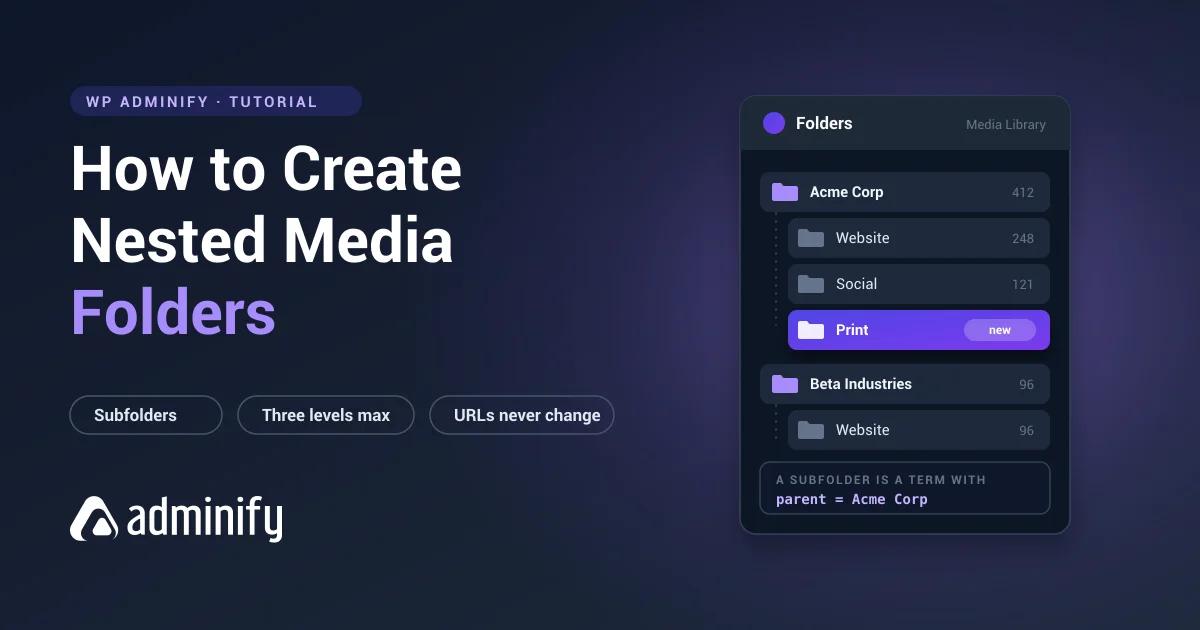

One level of folders solves the first problem. Then a client folder hits four hundred files and you're scrolling again. That's when people go looking for subfolders and find out WordPress has neither folders nor nesting.
Here's how nesting actually works, how deep you should go (less deep than you want), and how to build a subfolder structure your team will still use in a year.
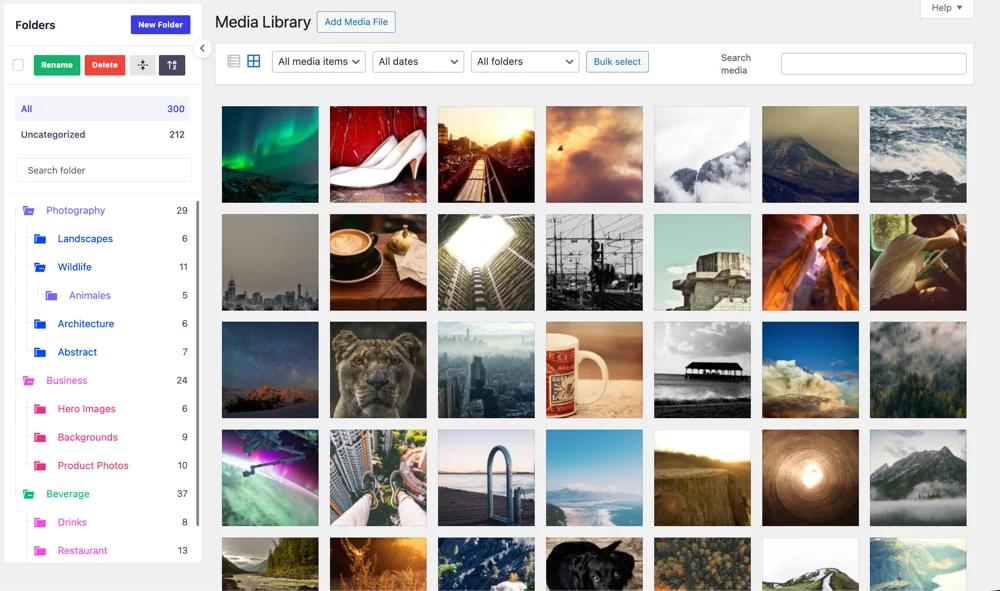
How deep you can nest depends entirely on which plugin you install, so if you are still deciding, our test of the best WordPress media folder plugins compares all seven on exactly this point. The subfolder behaviour described below is nested folders in WP Adminify.
Quick answer
WordPress has no native media folders and therefore no native subfolders. Nested media folders come from plugins that register a hierarchical taxonomy against the attachment post type, the same mechanism that lets categories have child categories. Each folder is a taxonomy term, and a subfolder is a term with a parent.
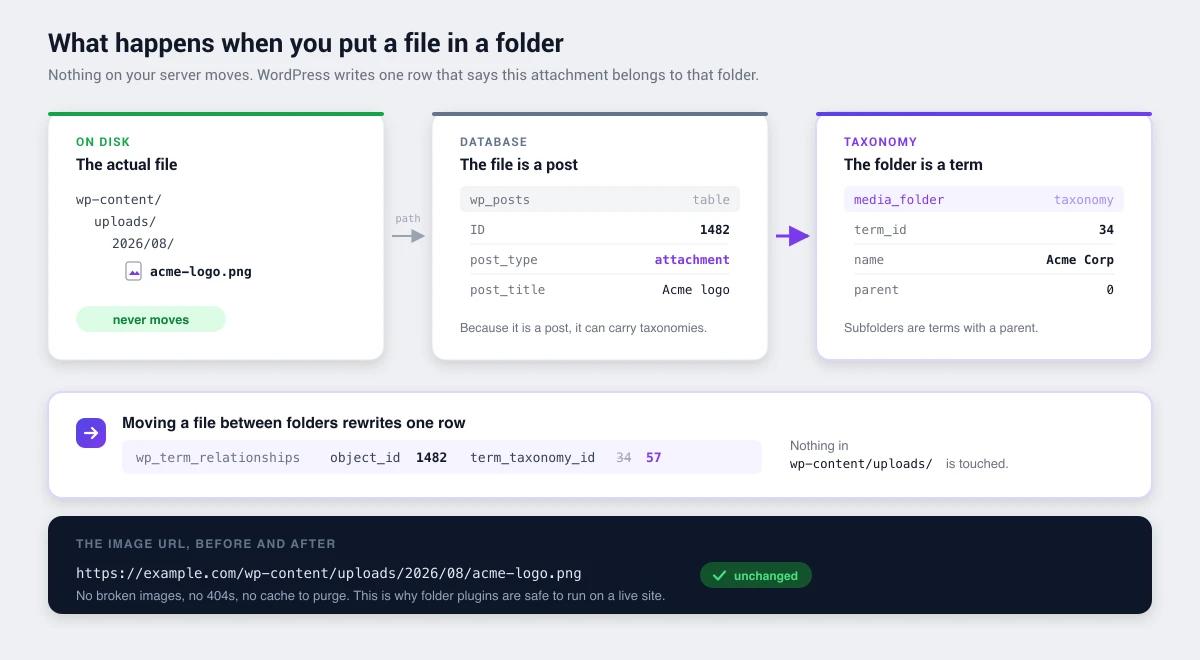
Because folders are taxonomy terms rather than real directories, nesting a folder never moves a file or changes an image URL.
Why WordPress has no subfolders
Core organizes media by upload date, file type, and search. There's no folder layer at all, so there's nothing to nest.
Not an oversight, though. WordPress serves every uploaded file by URL. If folders were real directories, moving a file into a subfolder would change its URL, breaking every post that embeds it, every external link, and every cached copy. Rather than ship that, core shipped nothing.
Plugins solve it by adding a classification layer instead of a location layer. The file never moves. Only a database relationship changes.
How nesting actually works
Every uploaded file in WordPress is a post, a row in wp_posts with post_type = 'attachment'. Because it's a post, it can carry taxonomies.
A folder plugin registers a taxonomy against attachments with hierarchical => true. That single flag is the entire nesting mechanism. Hierarchical terms can have a parent, and that parent can have a parent, indefinitely. It's exactly how categories work and exactly how tags don't.
You can build a minimal version yourself:
/**
 * Register a nestable "Media Folder" taxonomy for attachments.
 * hierarchical => true is the entire nesting mechanism.
 */
function adminify_register_nested_media_folders() {
    register_taxonomy( 'media_folder', 'attachment', array(
        'labels' => array(
            'name'          => __( 'Media Folders' ),
            'singular_name' => __( 'Media Folder' ),
            'parent_item'   => __( 'Parent Folder' ),
        ),
        'hierarchical'      => true,   // ← subfolders
        'show_admin_column' => true,
        'show_in_rest'      => true,
        'public'            => false,
        'rewrite'           => false,
    ) );
}
add_action( 'init', 'adminify_register_nested_media_folders' );
Set hierarchical => false and you get flat tags with no nesting, whatever the interface suggests.
Creating a subfolder programmatically is just a term with a parent:
// Create "Website" as a child of "Acme Corp"
$parent = get_term_by( 'name', 'Acme Corp', 'media_folder' );

wp_insert_term( 'Website', 'media_folder', array(
    'parent' => $parent->term_id,
) );
What we verified
On a clean WordPress 7.0.3 install we activated WP Adminify 4.2.23 in isolation and inspected the taxonomies registered against the attachment post type. It registers media_folder with:
media_folder hierarchical = true public = false show_ui = falseTwo things follow from that, and both are worth knowing before you commit a library to any folder plugin. Nesting is supported at the data layer, because the taxonomy is hierarchical. And folders are virtual, because they're taxonomy terms rather than directories, so files never move on disk and URLs never change.
This is the check worth running on any folder plugin you evaluate. If its folders show up in wp_term_taxonomy, they're virtual and safe to reorganize on a live site.
How deep should you nest?
Technically unlimited. Practically, three levels is the ceiling and two is usually right.
Deep hierarchies feel organized and fail in use. The failure is behavioural rather than technical. When filing a file takes five clicks, people stop filing. Six months later half the library sits in the top level and the elaborate structure below describes a system nobody follows.
| Depth | Example | Verdict |
|---|---|---|
| 1 level | Acme Corp | Fine for small libraries and single-client sites |
| 2 levels | Acme Corp → Website | The sweet spot for most sites |
| 3 levels | Acme Corp → Website → 2026 Redesign | Justifiable for agencies with long client histories |
| 4+ levels | Acme Corp → Website → 2026 → Q3 → Hero | Will be abandoned. Don't build it. |
Two sizing rules. A subfolder holding fewer than about ten files shouldn't exist, and a folder holding more than a few hundred needs splitting. If neither applies, your depth is right.
Building a nested structure
Step 1: create the top level only
Pick one axis and stay on it: client, product category, content section, department. Mixing axes at the same level is what makes structures unpredictable.
Resist building the full tree now. You don't yet know what's actually in the library, and the right second level will look different from whatever you'd have guessed.
Step 2: populate it
Move existing files into top-level folders in filtered batches, by file type, filename search, or upload date. The full workflow is in how to organize your media library with folders.
Step 3: let the subfolders reveal themselves
Now open your largest folders. The right subdivisions are obvious at this point, because you can see that "Acme Corp" is 60% website images, 30% social graphics, 10% print PDFs. Create subfolders for what's actually there, not for what you imagined.
Step 4: use consistent child names
If every client folder uses Website / Social / Print, anyone can navigate any client without learning it first. Inconsistent children ("Web" here, "Website" there, "Site assets" somewhere else) destroy that benefit and make search results confusing.
This matters most for agencies managing multiple clients, where the person filing an asset is rarely the person who needs to find it.
Media Library
├── Acme Corp
│   ├── Website
│   ├── Social
│   └── Print
├── Beta Industries
│   ├── Website
│   └── Social
├── Internal
│   ├── Team photos
│   └── Brand assets
└── Unsorted
Creating nested folders in WP Adminify
WP Adminify's media folders use the hierarchical taxonomy confirmed above, so subfolders work at the data layer and nothing moves on disk.
- Enable the media folder module, then open Media > Library. The folder tree appears beside the library.
- Create your top-level folders first.
- To create a subfolder, add a new folder while its intended parent is selected, or drag an existing folder onto another to re-parent it.
- Drag files into the subfolder. Multi-select works, so batches move in one action.
- Insert images from a post and filter by subfolder inside the media modal instead of scrolling the global grid.
Configuration is under creating folders for post types.
Before you commit: what to check
Nesting behaviour differs meaningfully between folder plugins, and the differences aren't always documented. Verify these on your own install rather than trusting a feature list:
| Check | Why it matters |
|---|---|
| Maximum nesting depth | Some plugins cap it. If you need three levels, confirm three levels. |
| Do subfolders show inside the media modal? | Without this you still scroll a global grid every time you insert an image. |
| Does a parent folder show its children's files? | Behaviour varies. Both models are defensible, so know which you're getting. |
| Can you re-parent a folder by dragging? | Restructuring without it means recreating folders and re-moving files. |
Do folders appear in wp_term_taxonomy? | Confirms virtual folders, safe to reorganize on a live site. |
That last check is a single query and it settles the most important question outright:
wp db query "SELECT taxonomy, COUNT(*) AS terms
             FROM wp_term_taxonomy GROUP BY taxonomy;"
Nested Media Folder FAQs
Can you create subfolders in the WordPress Media Library?
Not natively, since WordPress has no media folders at all. Subfolders come from plugins that register a hierarchical taxonomy against attachments, where each folder is a term and a subfolder is a term with a parent. Because folders are terms rather than directories, nesting never moves a file or changes an image URL.
How many levels of nested media folders can WordPress support?
The underlying taxonomy allows unlimited nesting, since any term can have a parent. Individual plugins set their own limits, so confirm the depth you need on your own install. Two levels suits most sites in practice and three is the sensible ceiling, because deeper structures get abandoned when filing takes too many clicks.
Do nested folders change my image URLs?
No, provided the plugin uses virtual folders, which is what taxonomy-based plugins do. The file stays at its original path in wp-content/uploads/ and only a database relationship changes. Plugins that move real files into directories on disk will change URLs.
Does a parent folder show files from its subfolders?
Depends on the plugin. Some show a parent's own files only, others roll up everything beneath it. Neither is wrong, but the difference matters when you're auditing a folder, so test it before building a deep structure.
Can I move a subfolder to a different parent?
In most folder plugins, yes, usually by dragging the folder onto its new parent, which updates the term's parent field. Files move with it because they're linked to the folder term rather than to a path. Confirm it works before committing, since restructuring without it means recreating folders by hand.
What happens to nested folders if I deactivate the plugin?
Your files are unaffected. They stay on the server and every image keeps working. The folder tree stops being visible in the admin because the interface comes from the plugin, but the taxonomy terms and their parent relationships stay in the database, so reactivating restores the full hierarchy.
Conclusion
Nested media folders are a taxonomy feature wearing a filesystem costume. Once you see that, both the safety and the limits make sense.
- Nesting comes from
hierarchical => trueon an attachment taxonomy, the same mechanism as child categories. - Nothing moves on disk. Re-parenting a folder never changes an image URL, so restructuring a live library is safe.
- Two levels, three at most. The constraint is behavioural rather than technical, because deep trees get abandoned.
- Verify depth limits and modal filtering yourself before committing a large library.
If folders aren't set up yet, start with how to create folders in the WordPress Media Library. For the wider background on virtual folders, see our guide to WordPress media library folders.



Your email address will not be published