
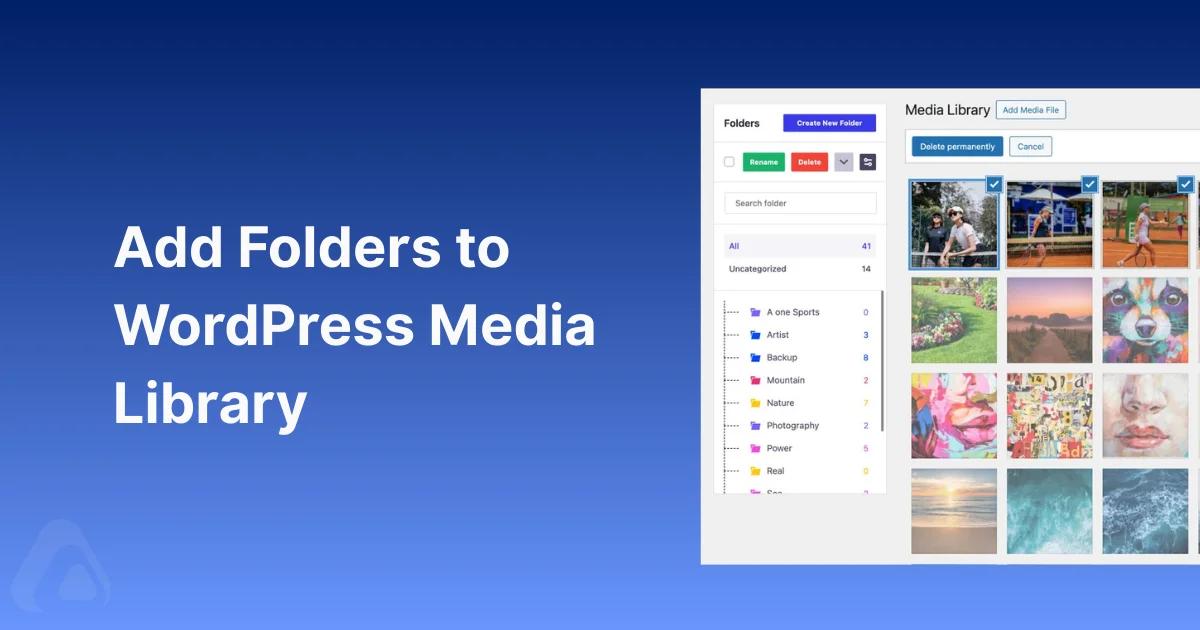

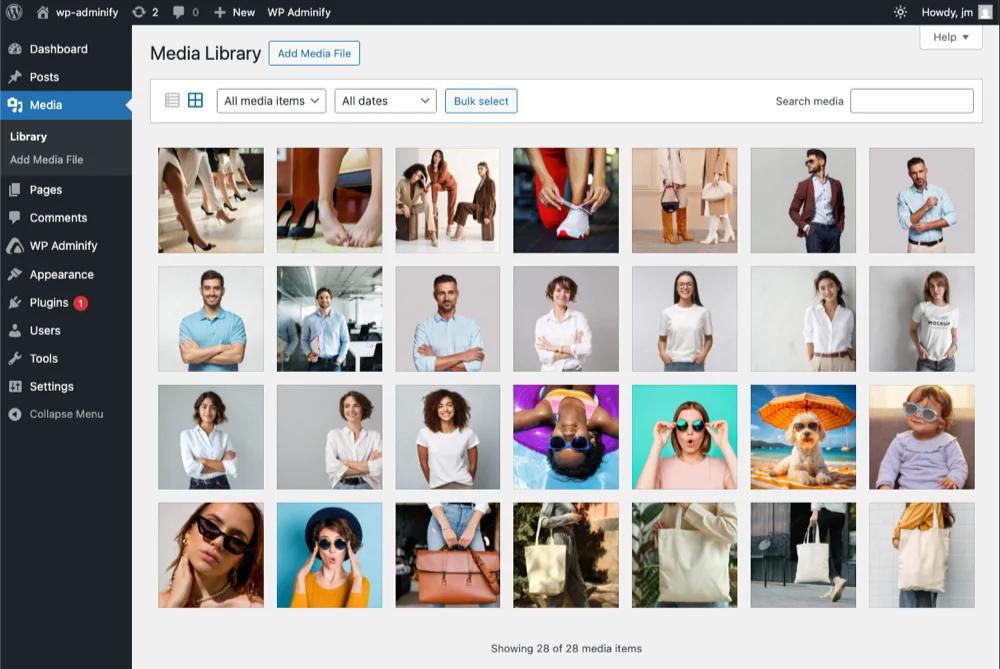
WordPress doesn't ship with media folders. Open Media > Library on a site with four thousand files and you get one endless grid sorted by upload date. No tree, no grouping, no way to keep a client's assets together.
There are three real ways to fix this: register a taxonomy yourself (free, needs code), create directories over FTP (works, breaks things), or install a folder plugin (fastest, and the good ones cost money). I'll cover all three, including the one you shouldn't use.
Quick answer
To create folders in the WordPress Media Library, install a media folder plugin, create folders from the tree that appears beside Media > Library, and drag files into them. WordPress has no built-in folder feature, but folder plugins add one using a virtual taxonomy, which means files never move on your server and image URLs never change.
If you'd rather skip the plugin, you can register a media taxonomy in code (Method 1). Don't create real directories over FTP (Method 3). It breaks image URLs.
Why WordPress has no media folders
WordPress organizes content with metadata, not location. Posts use categories. Media is meant to be found by date, type, or search.
There's a hard technical reason too. WordPress serves every file by URL. If folders were real directories, moving a file would change its URL, breaking every post that embeds it, every external link, and every cached copy. Rather than ship that hazard, core shipped nothing.
Every method below adds structure without paying that cost. Except Method 3, which pays it in full.
Method 1: register a media taxonomy (free, no plugin)
Every uploaded file in WordPress is a post, specifically a row in wp_posts with post_type = 'attachment'. Because it's a post, it can carry taxonomies. So you can add folder-style classification with about ten lines of code.
Step 1: register the taxonomy
Add this to a site-specific plugin, or your child theme's functions.php:
/**
 * Register a hierarchical "Media Folder" taxonomy for attachments.
 * hierarchical => true is what allows nested subfolders.
 */
function adminify_register_media_folders() {
    register_taxonomy( 'media_folder', 'attachment', array(
        'labels' => array(
            'name'          => __( 'Media Folders' ),
            'singular_name' => __( 'Media Folder' ),
            'add_new_item'  => __( 'Add New Folder' ),
        ),
        'hierarchical'      => true,   // parent/child nesting
        'show_admin_column' => true,   // column in Media list view
        'show_in_rest'      => true,   // available in the block editor
        'public'            => false,  // no public archive pages
        'rewrite'           => false,
    ) );
}
add_action( 'init', 'adminify_register_media_folders' );
Use a site-specific plugin rather than functions.php if you can. Theme files get replaced on theme switches, and losing the registration orphans every folder assignment you've made.
Step 2: add a filter dropdown to the Media screen
Registering the taxonomy doesn't give you a way to filter by it. This adds the dropdown:
/**
 * Add a Media Folder filter dropdown above the Media Library list table.
 */
function adminify_media_folder_filter() {
    $screen = get_current_screen();
    if ( ! $screen || 'upload' !== $screen->base ) {
        return;
    }

    wp_dropdown_categories( array(
        'show_option_all' => __( 'All folders' ),
        'taxonomy'        => 'media_folder',
        'name'            => 'media_folder',
        'orderby'         => 'name',
        'hierarchical'    => true,
        'hide_empty'      => false,
        'value_field'     => 'slug',
        'selected'        => isset( $_GET['media_folder'] ) ? sanitize_text_field( wp_unslash( $_GET['media_folder'] ) ) : '',
    ) );
}
add_action( 'restrict_manage_posts', 'adminify_media_folder_filter' );
Step 3: create folders and assign files
- Go to Media > Media Folders. A standard taxonomy screen appears.
- Add your folders. Set a parent to create a subfolder.
- Switch the Media Library to list view.
- Open a file's Edit screen and assign it to a folder, or use Bulk actions > Edit to do several at once.
- Filter the library with the new dropdown.
What you get: working hierarchical folders, a filter, a sortable admin column, and no cost.
What you don't get: a folder tree in the sidebar, drag-and-drop, folder filtering inside the media modal when you insert an image, or a fast way to move a few hundred files. Bulk Edit works but it's slow and clumsy across a large library.
This suits a developer organizing a site they built themselves. It doesn't suit a content team, because the assignment workflow has too much friction for daily use. If the admin-column part appeals, our guide to useful WordPress admin columns covers the same idea across other post types.
Method 2: use a media folder plugin (recommended)
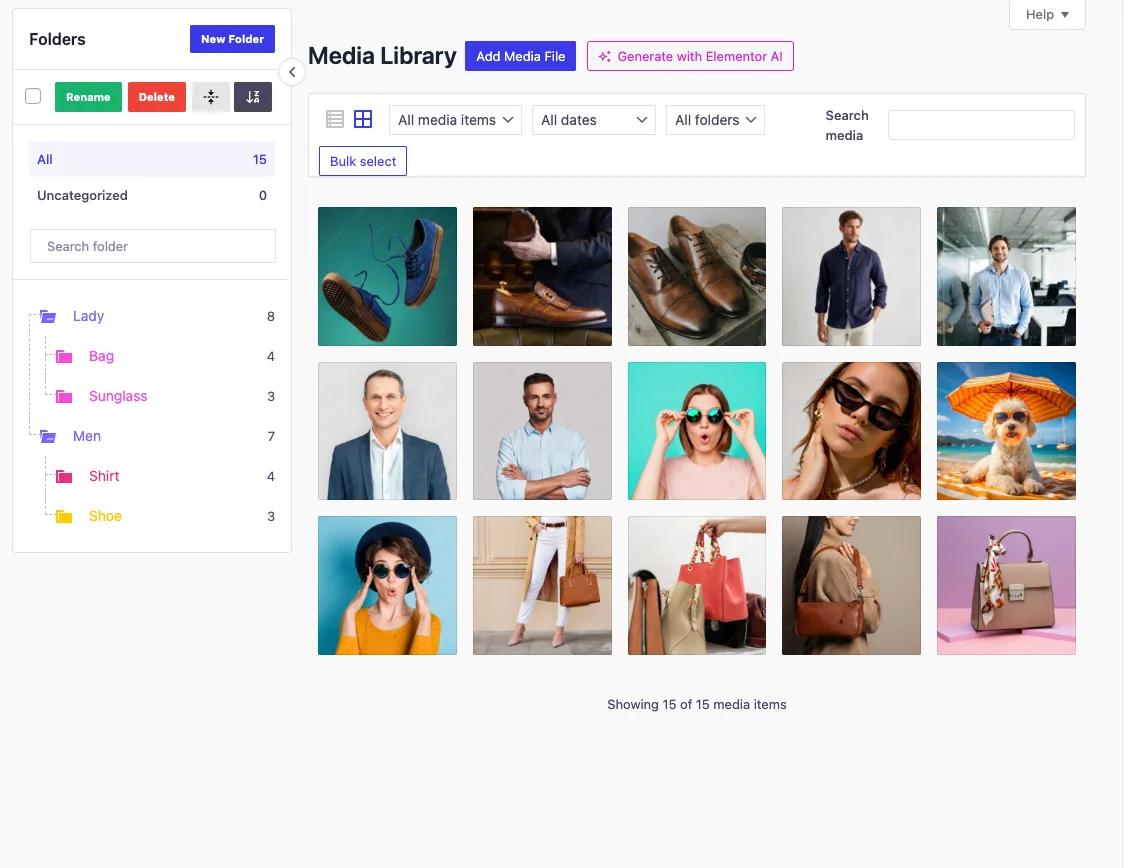
A folder plugin uses the same taxonomy mechanism as Method 1, wrapped in the interface that makes it usable: a folder tree beside the library, drag-and-drop assignment, nested subfolders, and folder filtering inside the media modal. That last one matters most day to day.
What to check before installing
| Check | Why it matters |
|---|---|
| Virtual or physical folders? | Virtual folders never change image URLs. Physical folders do. The single most important question. |
| Nesting depth limit | Some plugins cap at two levels. If you need Client, Project, Type, confirm three works. |
| Folders inside the media modal | Without it you still scroll a global grid every time you insert an image. Half the benefit gone. |
| Bulk move | Organizing an existing library is impractical without multi-select. |
| Migration path | Can you import folders from another plugin, or export if you leave? |
| Performance at your scale | Test on a copy of your real library, not a demo site with 40 images. |
Creating folders with WP Adminify
WP Adminify's media folder feature uses virtual folders, so files stay exactly where they are on disk.
- Install and activate WP Adminify, then enable the media folder module in its settings.
- Go to Media > Library. A folder tree appears beside the library.
- Click New Folder and name it. Use the words your team says out loud: "Acme Corp," not "Client 004."
- To nest, create a folder while a parent is selected, or drag one folder onto another.
- Select files in the grid and drag them onto a folder. Multi-select works, so a few hundred files move in one drag.
- Open a post, insert an image, and filter by folder inside the media modal instead of scrolling.
Full configuration is under creating folders for post types.
The caveat
Folder data belongs to whichever plugin created it. Deactivate the plugin and your files are completely unaffected, since every image on your site keeps working, but the folder view disappears from the admin. The taxonomy terms stay in the database, so reactivating restores everything. Moving to a different folder plugin is the harder case: you need an import tool or a rebuild by hand. Ask about migration before you commit a very large library to any single tool.
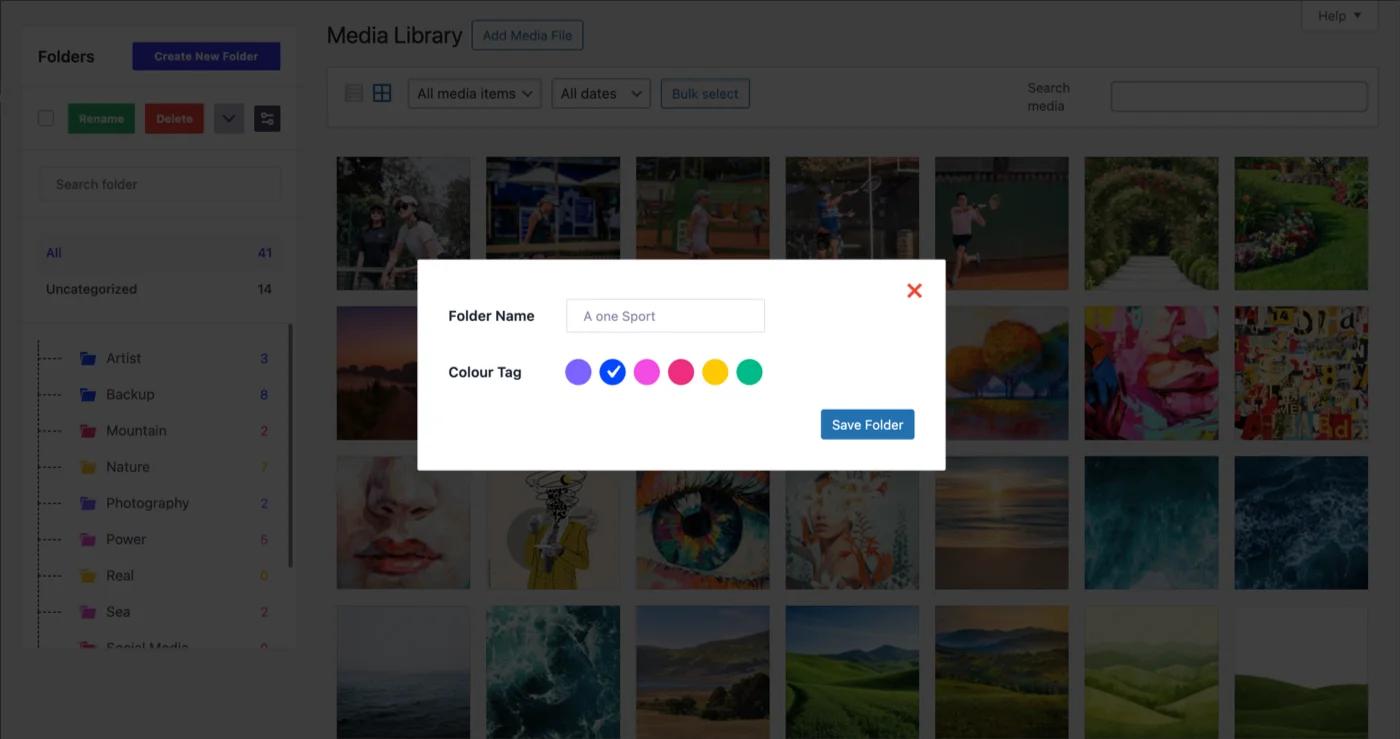
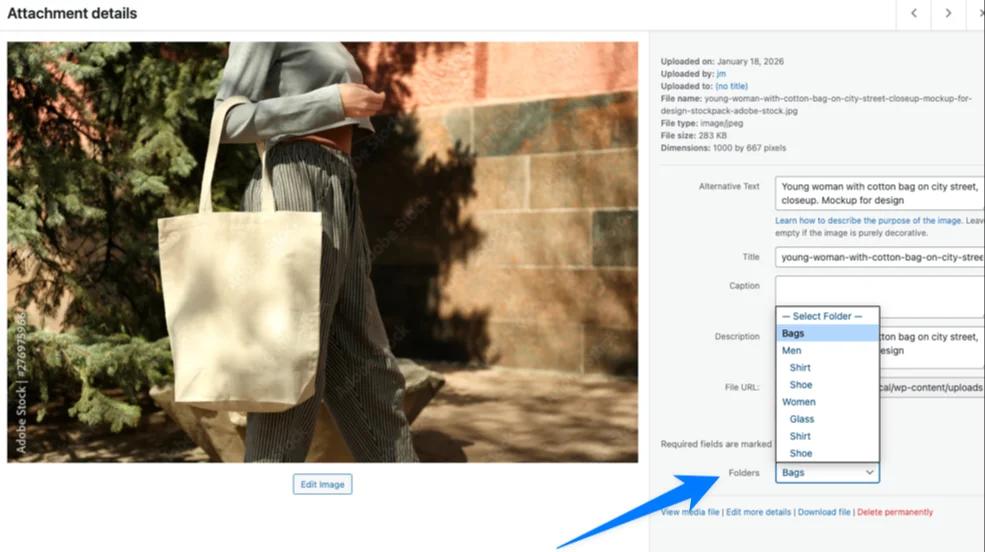
Set the folder from attachment details page too.
Method 3: create real folders over FTP (not recommended)
You can connect over FTP and create directories inside wp-content/uploads/. It feels like the obvious solution. It's the one to avoid, and it's worth knowing why.
Problem 1: files uploaded by FTP are invisible to WordPress
The Media Library is a database query, not a directory listing. A file dropped into uploads/ over FTP has no row in wp_posts, so it won't appear in the Media Library at all. It's sitting on the server and WordPress has no idea. You can link to it directly by URL, but you can't select it in the editor, set it as a featured image, or manage it in any way.
Problem 2: moving existing files breaks every reference
Move uploads/2026/08/logo.png into uploads/acme/logo.png and its URL changes. WordPress still has the old path in _wp_attached_file, so the image breaks everywhere it appears. Fixing it properly means a database search-and-replace across post content, page-builder JSON, customizer settings, custom fields, and widget data. Any external site linking to the old URL still gets a 404.
Problem 3: WordPress will fight you
Uploads keep going into date-based folders regardless of what you create by hand. Within a month you've got a hybrid structure that neither WordPress nor your team understands.
FTP directories do make sense for one thing: organizing files WordPress doesn't manage at all, like a downloads directory you link to directly, or static assets served outside the Media Library. For anything WordPress needs to manage, use Method 1 or 2.
Comparing the three methods
| Method 1: Taxonomy | Method 2: Plugin | Method 3: FTP | |
|---|---|---|---|
| Cost | Free | Free to paid | Free |
| Code required | Yes | No | No |
| Image URLs change | No | No (virtual folders) | Yes |
| Drag and drop | No | Yes | N/A |
| Folders in media modal | No | Yes | No |
| Practical bulk move | Slow | Yes | Dangerous |
| Nested subfolders | Yes | Yes (check depth limit) | Yes |
| Safe on a live site | Yes | Yes | No |
| Best for | Developers, small libraries | Teams, large libraries | Non-WordPress assets only |
Common issues and fixes
The folder tree doesn't appear. Confirm the media folder module is enabled in the plugin's settings, then hard-refresh. If it still won't show, check the browser console. A JavaScript conflict with another admin plugin is the usual culprit.
Drag-and-drop does nothing. Almost always a JS conflict. Deactivate other admin-facing plugins one at a time until you find it.
Files uploaded by FTP are missing from the library. Expected. They have no database record. Either re-upload through the admin, or use a "scan for existing files" tool that creates the attachment rows for you.
Folders vanished after a plugin update. Check the module is still enabled, since updates occasionally reset settings. The taxonomy data is still in the database, so this is nearly always a display issue rather than data loss.
The Media screen is slow after adding folders. Usually the pre-existing library size rather than the folders. Switch to list view and reduce items per page under Screen Options.
Media Library Folder FAQs
Can you create folders in the WordPress Media Library without a plugin?
Yes. Register a hierarchical taxonomy against the attachment post type in about ten lines of code and you get folders with a filter dropdown and an admin column. What you don't get is a folder tree, drag-and-drop, or folder filtering inside the media modal. Those need a plugin.
Do media folders move my files on the server?
Not with virtual folders, which is what most plugins use. The file stays at its original path in wp-content/uploads/ and only a database relationship changes, so image URLs never break. A small number of plugins do move real files, so check which model a plugin uses before installing.
Can I create subfolders inside media folders?
Yes, if the plugin supports hierarchical folders. The underlying taxonomy allows unlimited nesting, though plugins set their own limits. Two or three levels works best in practice, since deeper structures get slow to navigate and teams stop filing files correctly.
Will creating folders break my existing images?
No, as long as you use a virtual folder plugin or the taxonomy method. Neither touches the files on disk. The only approach that breaks images is manually moving files into new directories over FTP, which changes their URLs.
How do I move existing files into folders?
Switch the Media Library to list view, sort by date or filter by file type to group related files, then multi-select and drag them into a folder in one action. Working in large batches instead of file by file turns a full day into about an hour.
Conclusion
Three methods, one clear recommendation:
- Developers with small libraries: register the taxonomy yourself. Free, ten lines, no dependency.
- Teams and large libraries: use a virtual folder plugin. The media-modal filtering alone justifies it.
- Nobody should create real folders over FTP for media WordPress manages.
Next step: how to organize an existing media library with folders covers what to do once folders exist and you've got three thousand files to sort. For the background on how virtual folders work, see our guide to WordPress media library folders.
Your email address will not be published