


Key Takeaways
- The WordPress admin login page is at yoursite.com/wp-login.php, and visiting yoursite.com/wp-admin/ while logged out sends you to that same login form.
- The default WordPress login form accepts a username or an email address, plus the password, and has a Remember Me box and a "Lost your password?" link.
- WordPress keeps you logged in for 14 days when Remember Me is ticked and for 2 days when it is not, and the auth_cookie_expiration filter changes those lengths.
- After a custom login URL is set in WP Adminify, such as client-login, the old /wp-login.php address returns a 404 error and the login form only loads at the new address.
- If a custom login URL locks you out, renaming the plugin's folder in wp-content/plugins through FTP or your host's file manager turns the plugin off and brings back /wp-login.php.
The WordPress admin login is at yoursite.com/wp-admin/ or yoursite.com/wp-login.php. Type either address in your browser, enter your username or email and your password, and click Log In. WordPress then opens the Dashboard. This works the same on WordPress 7.1 and on older versions.
You can also get in through your hosting panel, on a localhost site, or at a custom wp login url. Below are the steps for each, plus Remember Me, quick fixes when you cannot log in, and how WP Adminify's login url and redirects tool changes what happens at each address.
The Two Default WordPress Login URLs
Every standard WordPress site has two login addresses. /wp-login.php is the login form itself. /wp-admin/ is the admin area, and if you are not logged in, WordPress sends you to the login form and returns you to the admin after you log in.
| Address | What it does |
|---|---|
https://example.com/wp-login.php | Shows the login form directly |
https://example.com/wp-admin/ | Opens the Dashboard, or the login form if you are logged out |
https://example.com/login and /admin | Short forms that WordPress usually redirects to the two addresses above, unless a page on your site uses that slug |
https://example.com/blog/wp-admin/ | The admin when WordPress lives in a subfolder (here, /blog) |
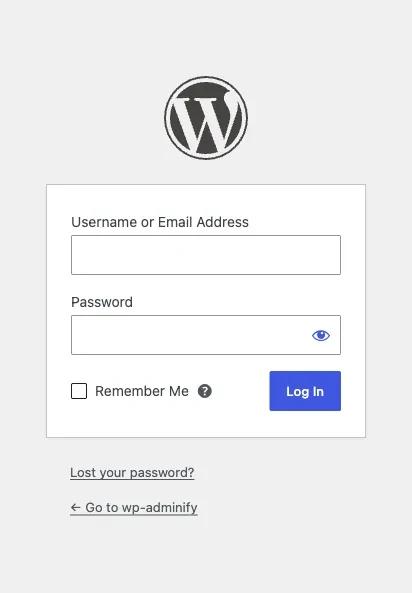
To log in:
- Go to
yoursite.com/wp-admin/. - Enter your Username or Email Address.
- Enter your Password. Click the eye icon to check what you typed.
- Tick Remember Me on your own computer only.
- Click Log In.
Log In from Your Hosting Panel
Many hosts add a one-click WordPress login button to their control panel, so you can open wp-admin without a password. Look for a WordPress or "Websites" section in cPanel, Hostinger hPanel or your host's own dashboard, and a button such as "Admin panel", "Log in to WordPress" or "WP Admin" (the name differs from host to host).
In cPanel, these buttons usually come from an installer such as WP Toolkit or Softaculous. Open the installer, find your site in the list, and click its login link. If your host has no such button, use the two default addresses above.
Log In on a Localhost Site
On a local test site, the login address follows the same pattern, but the domain is your local one. For a site in a folder called mysite on XAMPP or WAMP, open http://localhost/mysite/wp-admin/. MAMP often adds a port, for example http://localhost:8888/mysite/wp-admin/.
- Local (by WP Engine): each site gets its own domain, such as
mysite.local. Openhttp://mysite.local/wp-admin/, or click the WP Admin button in the Local app. - XAMPP, WAMP, MAMP: use
localhost, the port if there is one, and the folder name. - Forgot the local password? Local sites usually cannot send email, so reset the password in phpMyAdmin or with WP-CLI:
wp user update admin --user_pass=NewPassword123.
If Your Site Uses a Custom Login URL
If someone changed the login address, /wp-login.php and /wp-admin/ will not show the login form anymore. You must use the new address, such as yoursite.com/client-login. Ask the person who set up the site, or check the security plugin's settings from another admin account, to find it.
Site owners change the login URL to cut down bot login attempts, which almost always target /wp-login.php. In WP Adminify this lives in Adminify > Security > Redirect URLs > Login/Register URL, a Pro feature. It has three fields: New Login URL, Redirect Admin and New Register URL (leave it empty to keep default registration).
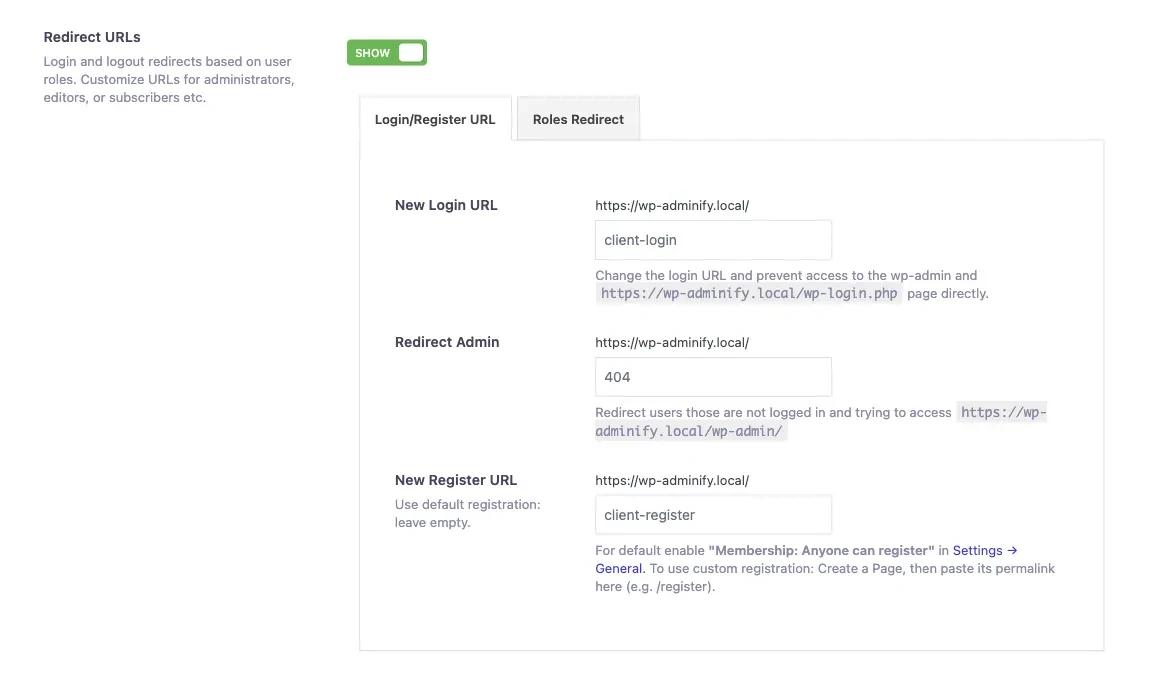
We tested it on a WordPress 7.1.4 site with New Login URL client-login and Redirect Admin 404. Here is what happened:
/client-loginshowed the normal WordPress login form./wp-login.phpreturned a 404 error.- A logged-out visit to
/wp-admin/redirected to/404, the Redirect Admin value.
The same tab has a Roles Redirect section that sends users to a set page after login or logout, by user, role or capability. Our guide to wordpress redirect after login walks through it. Since the hidden login address and the role-based redirects sit on the same tab, the wordpress login redirect plugin in WP Adminify lets you set up both together.
Locked out after changing the login URL?
If you forgot the new address, you can switch the feature off from the server:
- Connect with FTP or open your host's File Manager.
- Go to
wp-content/plugins/. - Rename the WP Adminify Pro folder,
adminify-pro, to something likeadminify-pro-off. If you still cannot log in, renameadminifytoo. - Log in at
yoursite.com/wp-login.php, which works again because the plugin is off. - Rename the folder back, reactivate the plugin under Plugins, and write down the login URL in Adminify > Security.
Stay Logged In: Remember Me and Session Length
WordPress keeps you logged in for 2 days by default. When you tick Remember Me, the login lasts 14 days, even after you close the browser. After that time, WordPress asks for your password again. Developers can change both lengths with the auth_cookie_expiration filter.
This snippet makes Remember Me last 30 days and leaves normal logins at 2 days. Add it to a small custom plugin or a code snippets tool:
1
2add_filter( 'auth_cookie_expiration', function ( $length, $user_id, $remember ) {
3    if ( $remember ) {
4        return 30 * DAY_IN_SECONDS;
5    }
6    return $length;
7}, 10, 3 );
8
Leave Remember Me unticked on shared computers.
WordPress core has no two-factor login. To add a code from an app on your phone, install a plugin such as Two Factor from WordPress.org.
Can't Log In? Quick Fixes
Most login problems come from a wrong password, blocked cookies, a redirect loop or a plugin conflict. Reset the password first with the "Lost your password?" link. If the login form keeps reloading or WordPress sends you somewhere else, clear cookies for the site, then disable plugins from the server to find the cause.
| What you see | Likely cause | Fix |
|---|---|---|
| "The password you entered for the username ... is incorrect" | Wrong password | Click "Lost your password?" and follow the email. See the official password reset guide for phpMyAdmin and other methods. |
| "Cookies are blocked or not supported by your browser" | Browser blocks cookies for the site | Allow cookies for the domain, or try a private window. |
| The login page reloads, or wp-admin sends you to the home page | Redirect loop, wrong site URL or cached cookies | Follow our fixes for wp-admin redirects to homepage. |
| /wp-login.php shows a 404 page | A custom login URL is active | Use the new address, or rename the plugin folder as shown above. |
| White screen or "There has been a critical error on this website." | A plugin or theme error | Rename wp-content/plugins to turn all plugins off, log in, then turn them on one by one. |
Once you are back in, take a few minutes to tighten security. WP Adminify Admin Security groups the login URL, REST API limits and other hardening options in one tab.
Make the Login Page Yours
The default login page shows the WordPress logo and grey background. You can replace them with your own logo, colours and background, which helps clients trust the page. Developers can do this with CSS hooks in code. A login page plugin gives you templates and a visual editor instead.
WP Adminify Loginfy is a login page customizer with 16 templates. It lets you change the logo, background, form style and error messages, and add reCAPTCHA. For a step-by-step walkthrough of every option, read our guide to wordpress login page customization.
Frequently Asked Questions
What is the default WordPress admin login URL?
The default login URL is yoursite.com/wp-login.php. You can also go to yoursite.com/wp-admin/, which sends logged-out visitors to the login form and back to the Dashboard after login. If WordPress is in a subfolder, add the folder, for example example.com/blog/wp-admin/.
Can I log in to WordPress with my email address?
Yes. The first field on the default login form is labelled Username or Email Address, so either one works with your password. Some security or membership plugins change this, so if your email is refused, try your username instead.
Why does wp-login.php show a 404 error?
A 404 at wp-login.php usually means a plugin has moved the login page to a custom address. In our WP Adminify test with the login URL set to client-login, wp-login.php returned 404 and the form loaded at /client-login. Use the new address or disable the plugin from the server.
How do I log in to WordPress admin without a password?
Use your host's one-click WordPress login button if it has one, or reset the password. You can request a reset link from the login page, change the password in phpMyAdmin, or run a WP-CLI command such as wp user update with a new user_pass value.
How long does WordPress keep me logged in?
WordPress keeps you logged in for 2 days without Remember Me and 14 days with it. After that, the login cookie expires and you need to log in again. A developer can change these lengths with the auth_cookie_expiration filter.
Final Thoughts
For the WordPress admin login, start with yoursite.com/wp-admin/ or /wp-login.php, enter your username or email and password, and tick Remember Me for 14 days on your own device. Use your host's login button or a password reset if you are stuck. If a custom URL such as /client-login is set, the old wp-login.php returns 404. When you cannot remember the new address, rename the plugin folder to get back in.
To set up a custom login address on your own site, follow How to Change the WordPress Login URL (Step by Step).
Your email address will not be published