

The fastest way to duplicate a page in WordPress is a one-click clone link in your Pages list. WordPress doesn't ship with that link, but you can add it in under a minute with WP Adminify's Post Duplicator or a dedicated cloning plugin. Once it's on, hover over any page, click Clone, and a draft copy appears with every block, image, and setting intact.
This guide covers four ways to duplicate a page in WordPress: the one-click method, a no-plugin trick built into Gutenberg, standalone duplicator plugins, and a functions.php snippet for developers. You'll also learn how to duplicate menus and Elementor pages, and what duplicating means for SEO.
Why duplicate a page instead of starting over?
Duplicating a page copies its entire structure into a new draft you can edit freely: blocks, layout, images, and in most cases its metadata. The original stays untouched and live.
A few situations where I reach for the clone link:
- Landing page variations. Build one campaign page, clone it, swap the headline and offer. Ten minutes instead of two hours.
- Consistent service pages. Agencies duplicate a master template so every service page shares the same layout.
- Safe redesigns. Clone a live page, rework the draft, then swap them when the new version is ready. Visitors never see a half-finished page.
- Recurring content. Weekly roundups, event pages, and product launches reuse the same skeleton every time.
Copying and pasting content by hand misses the parts you can't see: featured images, page templates, custom fields, and SEO settings. A proper duplicate carries those over.
Method 1: One-click duplicate with WP Adminify (recommended)
If you already run WP Adminify, you don't need another plugin. A page and post duplicator is built in, switched off by default, so turn it on first.
Step 1: Enable the Post Duplicator
Go to Adminify → Addons in your WordPress dashboard and find Post Duplicator. Flip the toggle to Show.
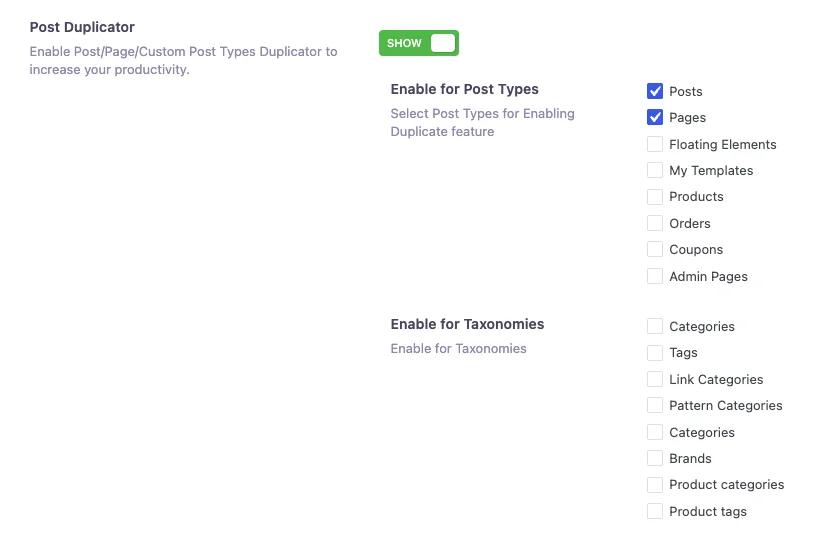
Now pick where the duplicate link should appear. Check Pages and Posts, and if you run a store, you can enable it for WooCommerce Products, Orders, and Coupons too. It also works with any custom post type and even taxonomies like categories and tags, which most single-purpose duplicator plugins skip.
Step 2: Clone the page
Open Pages → All Pages and hover over the page you want to copy. A new Adminify Clone link appears in the row actions next to Edit and Trash.
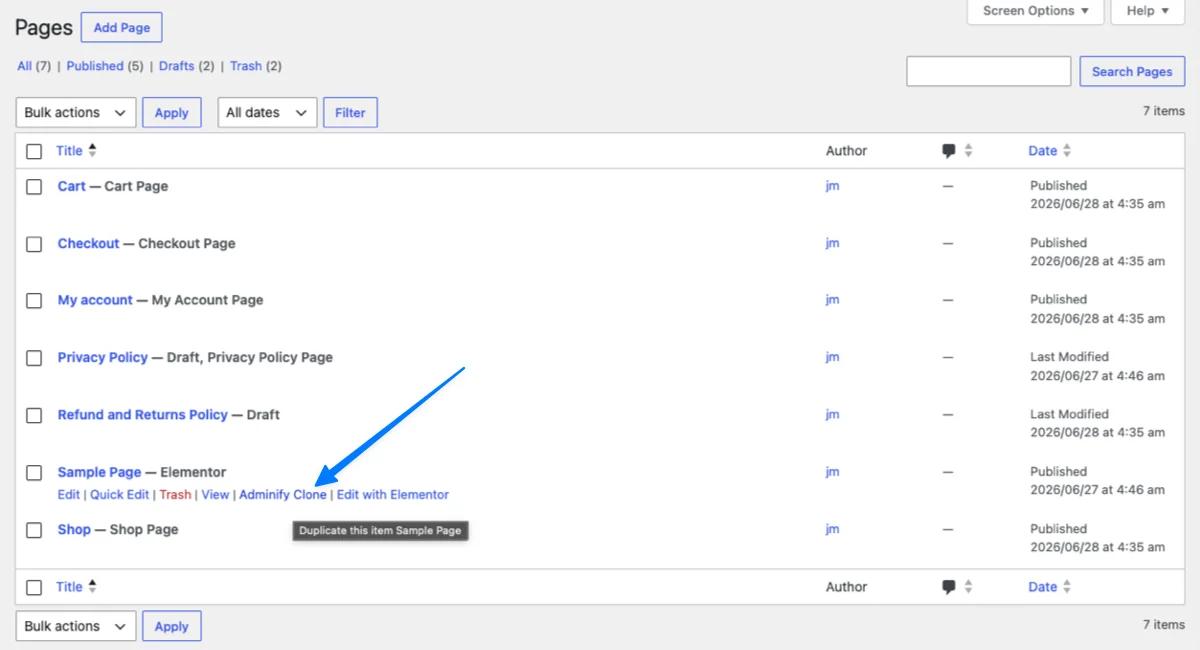
Click it once. That's the whole process.
Step 3: Edit the draft copy
WordPress creates an exact copy of the page and saves it as a draft, so nothing goes live by accident. You'll see it in the list right away.
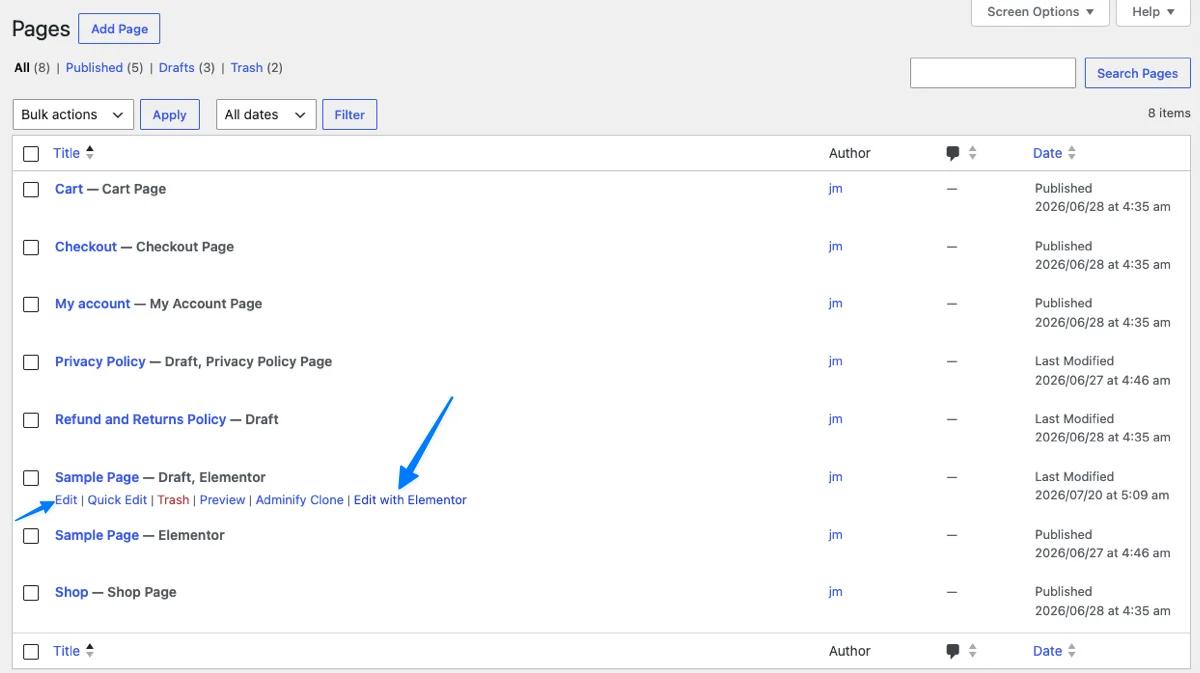
Rename it, change the slug, edit the content, and publish when ready. The clone keeps the page template, featured image, and page builder data, so an Elementor page duplicates cleanly too.
Since Post Duplicator is one module inside a larger toolkit, the same plugin also handles drag-and-drop post reordering, admin columns, and the rest of the productivity features. Worth knowing if you're trying to cut down on single-purpose plugins.
Method 2: Duplicate a page without any plugin (Gutenberg)
The block editor has a built-in way to copy a page's content. No plugin, no code. It has limits, but for a quick content copy it works.
- Open the page you want to duplicate in the block editor.
- Click the Options menu (the ⋮ three-dot icon in the top-right corner).
- Select Copy all blocks.
- Create a new page (Pages → Add New) and paste with Ctrl+V (or Cmd+V on Mac).
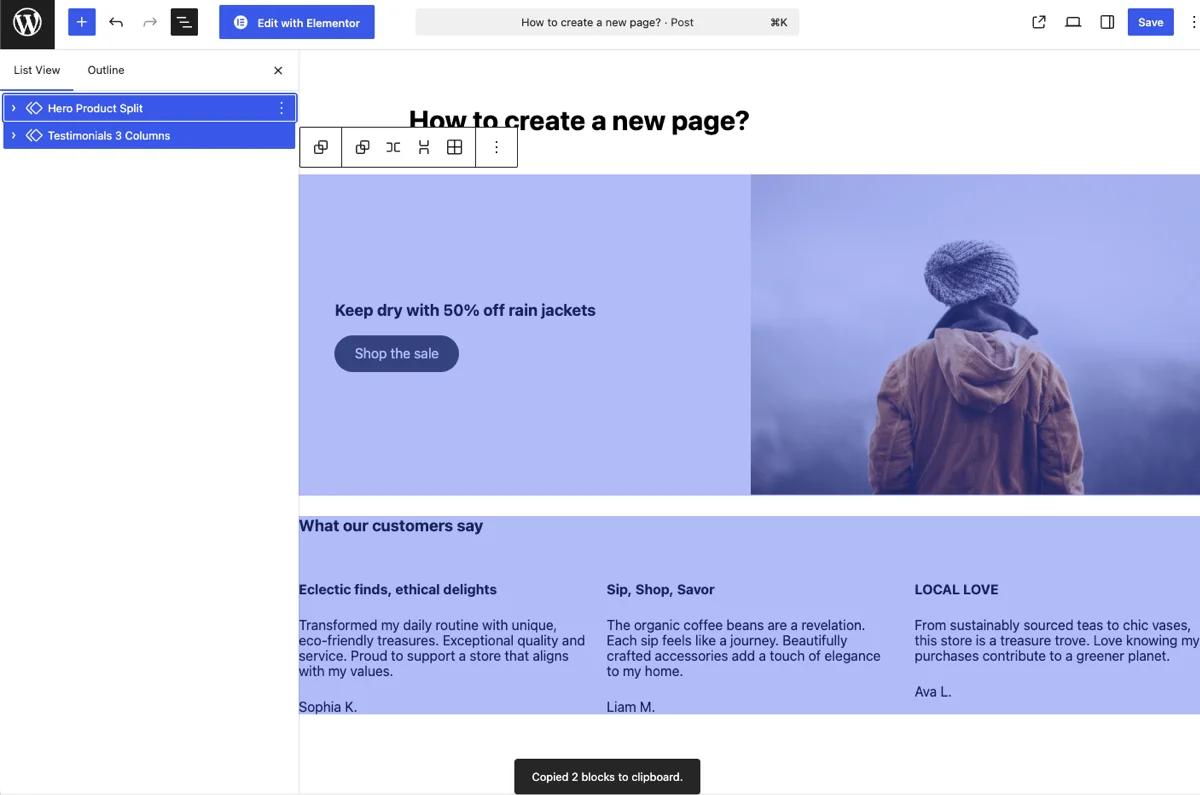
Every block lands in the new page exactly as it was. The catch: only the blocks are copied. The new page won't inherit the featured image, page template, custom fields, or SEO plugin settings, so you set those again by hand. For a one-off copy that's fine. For regular cloning it gets old fast.
This trick also doesn't help with pages built in Elementor or another page builder, since their layouts don't live in blocks.
Method 3: Use a dedicated duplicator plugin
If you only want cloning and nothing else, a standalone plugin does the job. Two solid options from the WordPress.org directory:
- Yoast Duplicate Post is the most popular choice. It adds "Clone" and "New Draft" links, plus a Rewrite & Republish mode that lets you edit a copy of a live page and merge it back on publish.
- Duplicate Page is lighter, with fewer settings. It adds a single Duplicate link to posts and pages.
After installing either one, check its settings page to control what gets copied (title, date, status, taxonomies, custom fields) and which user roles can duplicate. If clients work in your dashboard, restricting the clone link to Editors and above avoids accidental page copies piling up. I've cleaned up a client site with fourteen copies of the same pricing page. Nobody knew who made them.
The trade-off is plugin count. Cloning is a small feature to spend a plugin slot on, which is why suites bundle it. Every active plugin is one more thing to update and one more row on your Plugins screen.
Method 4: Duplicate a page with code (functions.php)
Developers who prefer zero extra plugins can register a duplicate link with a hook. Add this to your child theme's functions.php or a code snippets manager:
1
2// Add a "Duplicate" link to pages and posts
3function adminify_duplicate_post_link( $actions, $post ) {
4    if ( current_user_can( 'edit_posts' ) ) {
5        $url = wp_nonce_url(
6            admin_url( 'admin.php?action=adminify_duplicate_post&post=' . $post->ID ),
7            'adminify_duplicate_' . $post->ID
8        );
9        $actions['duplicate'] = '<a href="' . esc_url( $url ) . '">Duplicate</a>';
10    }
11    return $actions;
12}
13add_filter( 'post_row_actions', 'adminify_duplicate_post_link', 10, 2 );
14add_filter( 'page_row_actions', 'adminify_duplicate_post_link', 10, 2 );
15
16// Handle the duplication
17function adminify_duplicate_post_action() {
18    $post_id = absint( $_GET['post'] ?? 0 );
19    check_admin_referer( 'adminify_duplicate_' . $post_id );
20
21    $post = get_post( $post_id );
22    if ( ! $post || ! current_user_can( 'edit_posts' ) ) {
23        wp_die( 'Post not found or permission denied.' );
24    }
25
26    $new_id = wp_insert_post( array(
27        'post_title'   => $post->post_title . ' (Copy)',
28        'post_content' => $post->post_content,
29        'post_excerpt' => $post->post_excerpt,
30        'post_type'    => $post->post_type,
31        'post_status'  => 'draft',
32        'post_author'  => get_current_user_id(),
33        'post_parent'  => $post->post_parent,
34    ) );
35
36    // Copy custom fields
37    foreach ( get_post_meta( $post_id ) as $key => $values ) {
38        foreach ( $values as $value ) {
39            add_post_meta( $new_id, $key, maybe_unserialize( $value ) );
40        }
41    }
42
43    // Copy taxonomies (categories, tags, etc.)
44    foreach ( get_object_taxonomies( $post->post_type ) as $taxonomy ) {
45        $terms = wp_get_object_terms( $post_id, $taxonomy, array( 'fields' => 'ids' ) );
46        wp_set_object_terms( $new_id, $terms, $taxonomy );
47    }
48
49    wp_safe_redirect( admin_url( 'edit.php?post_type=' . $post->post_type ) );
50    exit;
51}
52add_action( 'admin_action_adminify_duplicate_post', 'adminify_duplicate_post_action' );
53
The snippet copies content, custom fields, and taxonomy terms, then saves the copy as a draft. It uses wp_insert_post() under the hood, with a nonce check so the link can't be triggered from outside the admin. Test on a staging site before adding it to production. A typo in functions.php can lock you out of the dashboard.
Comparing the four methods
| Method | Copies meta & template? | Works with page builders? | Best for |
|---|---|---|---|
| WP Adminify Post Duplicator | Yes | Yes (Elementor, Bricks, etc.) | Sites already using Adminify - zero extra plugins |
| Gutenberg "Copy all blocks" | No - blocks only | No | Quick one-off content copies |
| Duplicator plugin (Yoast Duplicate Post) | Yes, configurable | Yes | Sites that only need cloning |
| functions.php snippet | Yes (custom fields + taxonomies) | Yes | Developers avoiding plugins |
How to duplicate a WordPress menu
Pages aren't the only thing worth cloning. If you're testing a new navigation structure, duplicating a menu saves you from rebuilding it link by link, and WordPress has no native way to do it.
WP Adminify ships a Menu Duplicator in the same Addons screen as the Post Duplicator. Toggle it on, go to Appearance → Menus, and you'll find a duplicate option that copies the full menu with every item, order, and nesting level preserved. Edit the copy, and when it's ready, assign it to your theme's menu location. If the experiment fails, delete it. The original was never touched.
How to duplicate a page in Elementor
Elementor users have two extra routes:
- Save as template. In the Elementor editor, click the arrow next to Update and choose Save as Template. Insert that template into any new page from the library. Good for reusing sections across many pages.
- Clone the whole page. A row-action duplicator (Method 1 or 3 above) copies the page including all Elementor data in one click. Faster when you want the entire page, not a reusable template.
Both keep your styling and widgets intact. The template route builds a reusable library; the clone route is quicker for one-off copies.
Does duplicating a page hurt SEO?
No, as long as the copy stays a draft or gets its own content before publishing. Search engines never see draft pages, so cloning by itself has zero SEO effect.
The risk appears only if you publish two nearly identical pages. Google then has to guess which one to rank, and both can underperform. If you genuinely need two similar live pages (say, two city landing pages), rewrite enough of each that they stand on their own, including the title tags. If one page must temporarily mirror another, point a canonical tag at the original until the new version diverges.
One housekeeping tip: duplicated pages inherit slugs like /about-2/. Always set a clean, intentional slug before you publish the copy.
Duplicate Page in WordPress FAQs
How do I duplicate a page in WordPress without a plugin?
Open the page in the block editor, click the three-dot Options menu in the top-right corner, and choose Copy all blocks. Paste into a new page. This copies all content blocks but not the featured image, template, or SEO settings — those need to be set manually.
Why is there no duplicate option in my WordPress dashboard?
WordPress has no built-in duplicate button. The Clone or Duplicate link only appears after you enable a duplicator — either WP Adminify's Post Duplicator addon or a standalone plugin like Yoast Duplicate Post. Once enabled, the link shows up when you hover over a page in the Pages list.
Does duplicating a page also copy its SEO settings?
Depends on the method. Row-action duplicators (WP Adminify, Yoast Duplicate Post, the code snippet above) copy custom fields, which is where SEO plugins like Yoast and Rank Math store their data. Gutenberg's "Copy all blocks" does not — it copies content only.
Can I duplicate a WooCommerce product the same way?
Yes. WooCommerce includes a native Duplicate link on the Products screen, and WP Adminify's Post Duplicator can extend cloning to orders, coupons, and any custom post type from one settings panel.
Can I duplicate an entire WordPress site?
Page duplicators won't do that - they clone individual posts and pages. To copy a full site, use a migration plugin such as Duplicator or WP Migrate, or your host's staging feature, which clones the database and files together.
Which method should you use?
If WP Adminify is already on the site, flip on the Post Duplicator and you're done. If not, Yoast Duplicate Post is a fine standalone pick, Gutenberg's "Copy all blocks" covers the occasional one-off, and the functions.php snippet suits developers who keep plugin counts low. Whichever you choose, remember the two rules that matter: duplicates save as drafts, so nothing breaks until you publish, and every copy needs its own slug and content before it goes live.
I flip the duplicator on for every client site I set up, next to dashboard cleanup and menu editing. It's one toggle among WP Adminify's 60+ admin tools, and it's the one clients discover on their own and quietly start using. The free version on WordPress.org includes it.
Your email address will not be published