


Key Takeaways
- WordPress has six post statuses you see in the admin: publish, future (shown as Scheduled), draft, pending (Pending Review), private and trash.
- WordPress also uses two internal post statuses: auto-draft for a new post you have not saved yet, and inherit for revisions and media attachments.
- Every row in the WordPress Posts list has a CSS class named after its post status, such as status-draft or status-future, so a few lines of admin CSS can colour each status.
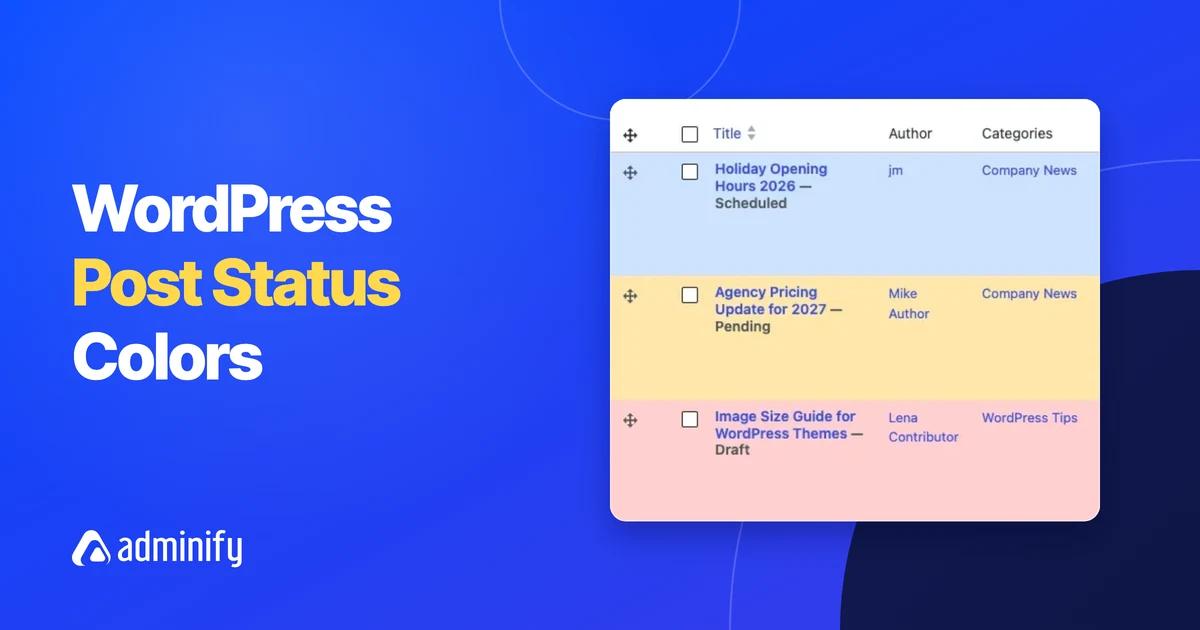
- WP Adminify sets a background colour per post status under Adminify > Customize > Post Status Background Colors, with pickers for Publish, Pending, Future, Private, Draft and Trash.
- WordPress keeps trashed posts for 30 days by default before it deletes them for good; the EMPTY_TRASH_DAYS constant in wp-config.php changes that number.
A WordPress post status tells you where a post is in its life: still a draft, waiting for review, scheduled, live, private or in the trash. In the Posts list, WordPress shows the status as a small grey word after the title, which is easy to miss in a long list. A row colour per status is much easier to spot. We tested both methods below on WordPress 7.1.4.
This guide explains each status in plain words, then shows how to give each one its own row colour with no code or with a short CSS snippet. Row colours are one small part of a custom WordPress dashboard. The no-code method uses WP Adminify's Admin Theme settings.
The 6 WordPress Post Statuses
WordPress has six post statuses you see in the admin: Published, Scheduled, Draft, Pending Review, Private and Trash. Each one controls who can see the post and whether it is on your site. The internal names, which you need for code and CSS, are publish, future, draft, pending, private and trash.
| Status (internal name) | What it means | Who can see it on the site |
|---|---|---|
Published (publish) | The post is live. | Everyone |
Scheduled (future) | The post has a future date and will go live at that time. | No one until it publishes |
Draft (draft) | Saved but not finished. | No one; editors and the author see it in the admin |
Pending Review (pending) | Finished and waiting for an editor. Contributors cannot publish, so their posts land here. | No one; editors see it in the admin |
Private (private) | Published, but only for logged-in users who may read private posts (by default editors and administrators). | Only those users |
Trash (trash) | Deleted, but can still be restored. | No one |
Two more statuses work behind the scenes. auto-draft is the empty post WordPress creates when you open the editor. inherit is used by revisions and media attachments, which take their status from a parent post. You will not see either one as a filter in the Posts list.
A few things people mix up with statuses:
- Password protected is a visibility setting on a published post, not a separate status.
- Sticky is a flag on a published post that keeps it at the top of the blog page.
- Missed schedule is a label, not a status. The post is still
future, but WP-Cron did not run on time to publish it.
The WordPress.org Post Status documentation has the official definitions. Plugins can also register their own statuses, for example for editorial workflows.
Why Color-Code Post Statuses?
Colour-coding post statuses shows the state of each post through its row colour, so you can scan a long list without reading the small grey label after every title. On a busy blog with many authors, a light red row for drafts and a light blue row for scheduled posts shows what needs attention before you open anything.
It helps most in these cases:
- An editor checks the list each morning for posts waiting in Pending Review.
- A content manager wants to spot drafts that were never finished.
- A team plans a calendar and needs to see which posts are already scheduled.
- A client site has private pages that should not be confused with public ones.
Keep the colours light. Dark backgrounds make the title links and row actions hard to read.
How to Set Post Status Colors in WP Adminify
In WP Adminify, open Adminify > Customize, scroll to Post Status Background Colors, pick a colour for each status and save. The section has six pickers: Publish, Pending, Future, Private, Draft and Trash. The colours then show as row backgrounds in the Posts list.

- Go to Adminify > Customize.
- Find Post Status Background Colors ("Background Color by Post Status type").
- Click Select Color under each status and choose a light colour. On our test site we used #FFE8E8 for Draft, #FFF4D6 for Pending, #E3F1FF for Future and #F1E8FF for Private.
- Leave Publish empty if you want live posts to keep the normal white or striped rows. Then only the posts that need attention stand out.
- Save the settings and open Posts > All Posts.
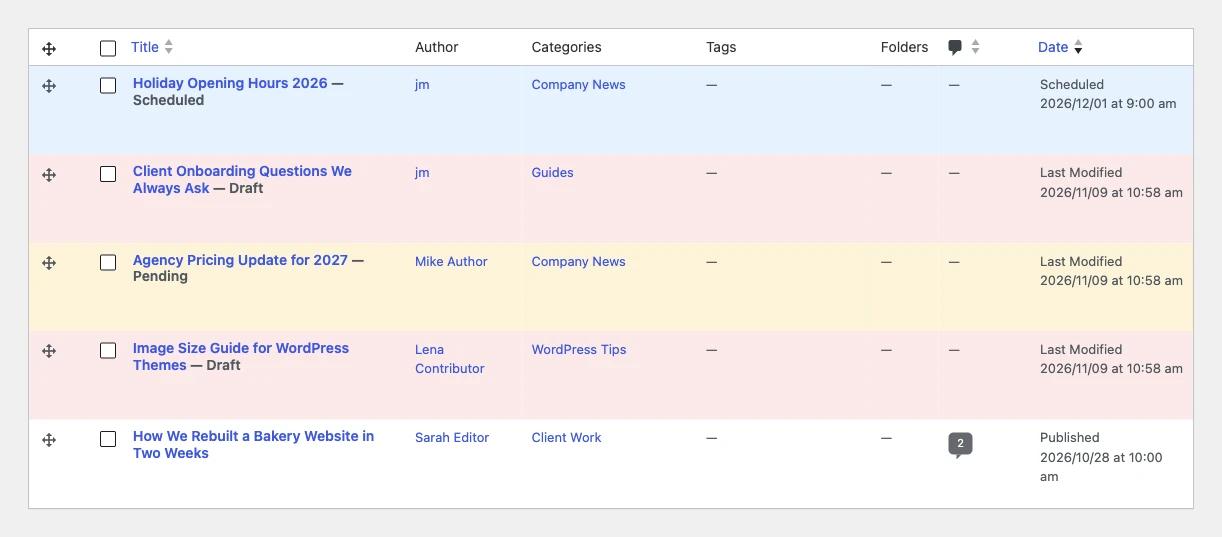
Post status colours sit in the same Customize tab as the admin colour templates, light and dark mode and the admin font. You can read more about the Admin Theme feature on its page. If you want to use fewer plugins on a site, see how to replace WordPress plugins with one toolkit.
How to Color-Code Post Statuses With CSS
To colour post statuses with code, print a small style block on the posts list screen with the admin_head-edit.php hook. WordPress gives every list row a class such as status-draft, status-pending or status-future, so each status can get its own background. The same screen serves Pages and custom post types.
WordPress builds those row classes with get_post_class(). Add this snippet to a small custom plugin or your child theme's functions.php:
1
2<?php
3/**
4 * Colour rows in the Posts, Pages and CPT lists by post status.
5 */
6add_action( 'admin_head-edit.php', function () {
7    ?>
8    <style>
9        .wp-list-table tbody tr.status-draft   { background-color: #ffe8e8; }
10        .wp-list-table tbody tr.status-pending { background-color: #fff4d6; }
11        .wp-list-table tbody tr.status-future  { background-color: #e3f1ff; }
12        .wp-list-table tbody tr.status-private { background-color: #f1e8ff; }
13    </style>
14    <?php
15} );
16
WordPress stripes the list with a rule on .striped > tbody > :nth-child(odd). The selector .wp-list-table tbody tr.status-draft is more specific, so your colour also wins on striped rows, and you do not need !important.
Use only one of the two methods. WP Adminify Pro prints its own status colours on this screen with !important. On our test site, its default values hid the snippet colours until we turned Pro off.
The same rules also work in any admin stylesheet if you prefer a plain CSS file:
1
2.wp-list-table tbody tr.status-draft   { background-color: #ffe8e8; }
3.wp-list-table tbody tr.status-pending { background-color: #fff4d6; }
4.wp-list-table tbody tr.status-future  { background-color: #e3f1ff; }
5.wp-list-table tbody tr.status-private { background-color: #f1e8ff; }
6
For other ways to change the admin without writing code each time, our list of WordPress customization plugins covers more options.
Plugin or CSS: Which Should You Use?
Use the WP Adminify setting if you want to change colours from a screen, let a non-developer adjust them, or already use WP Adminify for other admin changes. Use the CSS snippet if you only want row colours, keep your code in version control, or do not want another plugin.
| If you... | Use |
|---|---|
| Want colour pickers and no code | Adminify > Customize > Post Status Background Colors |
| Only need row colours on one site | The admin_head-edit.php CSS snippet |
| Have a custom status from a workflow plugin | CSS with tr.status-yourstatus |
Frequently Asked Questions
What is the difference between draft and pending in WordPress?
A draft is a post the author is still working on. Pending means the post is finished and waiting for someone with publishing rights to review it. Contributors cannot publish, so when they submit a post it moves to Pending Review instead of going live.
What does Missed schedule mean in WordPress?
Missed schedule means a scheduled post reached its publish time but did not go live. WordPress publishes scheduled posts with WP-Cron, which only runs when someone visits the site. On low-traffic sites, or when WP-Cron is disabled without a real server cron job, the post stays scheduled.
Who can see private posts in WordPress?
Private posts are visible only to logged-in users with the read_private_posts capability. By default that means editors and administrators. Authors, contributors, subscribers and visitors cannot see them. Private posts do not show in your blog feed or search results for anyone else.
How long does WordPress keep posts in the trash?
WordPress keeps trashed posts for 30 days by default, then deletes them for good. You can change the number with the EMPTY_TRASH_DAYS constant in wp-config.php. Setting it to 0 turns the trash off, so deleted posts are removed at once.
Do post status colors slow down the WordPress admin?
They should not have a noticeable effect. Row colours are a few lines of CSS that load only on list screens. They do not add database queries or change how WordPress loads posts. The browser applies them as it draws the table.
Final Thoughts
WordPress has six post statuses you work with every day (publish, future, draft, pending, private and trash) plus auto-draft and inherit behind the scenes. Every row carries a status- class, so colour-coding is either a few lines of CSS on admin_head-edit.php or six colour pickers in WP Adminify's Customize tab.
For more ways to tidy the admin, read How to Customize the WordPress Dashboard. If you want status colours, admin templates and dark mode from one screen, take a look at the WP Adminify admin theme settings.

Your email address will not be published