


Key Takeaways
- You can change an admin menu label in WordPress without code in WP Adminify under Adminify > Admin Menu > Menu Editor, using the "Rename as" field of each menu item.
- WP Adminify's menu item settings have six fields: Rename as, Hidden For Roles or Users, Change Link, Set Custom Icon, New Window?, and Add Separator.
- WordPress stores the top-level admin menu in the global $menu array and the submenus in the global $submenu array, so code renames run on the admin_menu hook.
- A WordPress admin menu icon can be a Dashicons class such as dashicons-book, a base64-encoded SVG data URI, or "none" when you style the icon with CSS.
- Renaming a menu item only changes the label in the sidebar; the page URL, the capability check and the screen title inside the page stay the same.
To change an admin menu label in WordPress, you can use a menu editor screen or a short PHP snippet that edits the global $menu array. Both methods change only the text in the sidebar. The page behind the link, its URL and who can open it stay the same. We tested every method below on WordPress 7.1.4.
The steps below rename top-level items and submenus, change their icons, and show a different label to one user role. The no-code way uses WP Adminify's Admin Menu Editor. The code way works on any site. For reordering, hiding and adding items, read our admin menu editor guide first.
Why Rename WordPress Admin Menu Items?
Renaming admin menu items makes the dashboard match the words your users already use. A news site may call Posts "Articles". A client may look for "Products" or "Team" instead of a custom post type slug. Clear labels mean fewer "where do I find this?" questions, and they cost nothing in speed or security.
Common renames we see on client sites:
- Posts to "Articles", "News" or "Blog".
- Pages to "Website Pages", so clients do not confuse them with posts.
- Long plugin menu names to one short word.
- "Appearance" to "Design" for clients who never touch themes.
How to Rename Admin Menu Items Without Code
To rename a menu item without code, open Adminify > Admin Menu > Menu Editor, expand the item, type the new label in the "Rename as" field and save. The new name shows in the sidebar for every user who can see that item. Submenu items are renamed the same way from the item's Submenu tab.
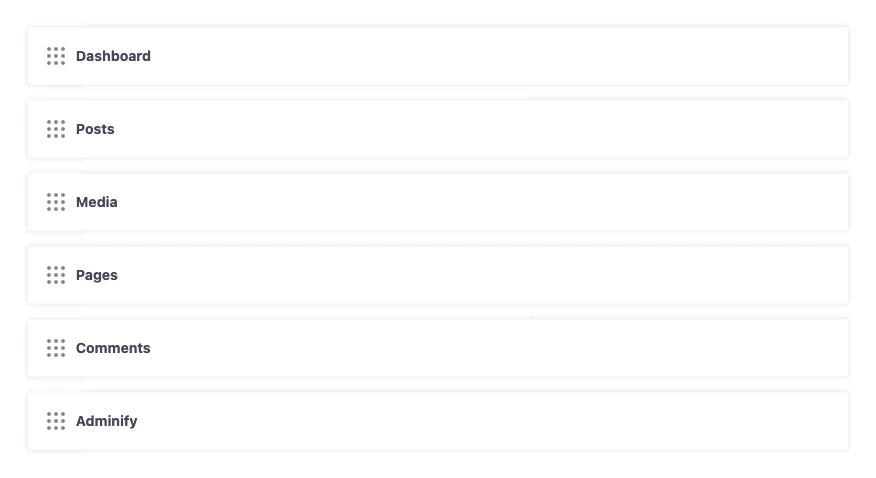
Steps in the wp admin menu editor inside WP Adminify:
- Go to Adminify > Admin Menu and open the Menu Editor sub-tab.
- Click the item you want to change, for example Posts. Its settings open with two tabs: Settings and Submenu.
- In the Settings tab, type the new label in Rename as, for example "Articles".
- To rename a child item such as "Add New Post", open the Submenu tab and edit that item's label.
- Save the settings and reload any admin page to see the new label.
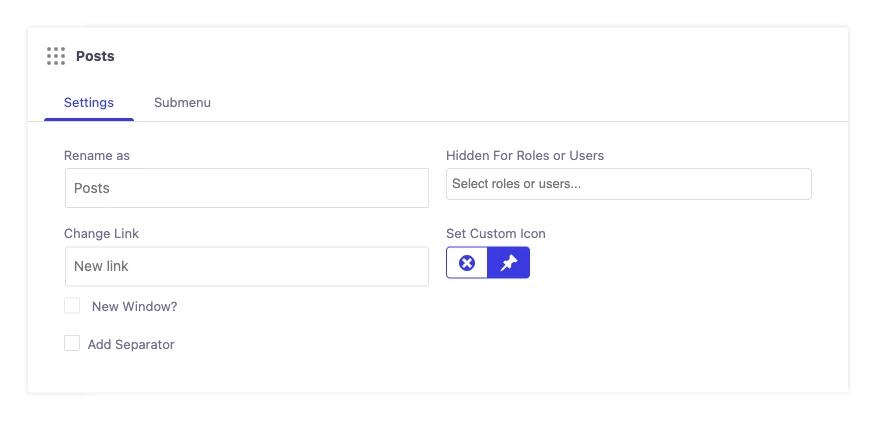
The same panel holds the other item fields. Change Link points the item to a different URL, New Window? opens it in a new tab, and Add Separator puts a gap line under it. You can also drag items by their handle to change the order. If you need a brand new item instead of a renamed one, see how to add menu to WordPress admin.
How to Change WordPress Admin Menu Icons
WordPress admin menu icons come from three sources: a Dashicons class name, a base64-encoded SVG image, or an image URL. In WP Adminify, click the pin button under Set Custom Icon to choose a new icon, and the cross button to clear it. In code, the icon is the seventh value of each $menu entry.
WP Adminify's WordPress.org listing says the editor accepts a Dashicon or your own uploaded SVG icon. For code, SVG is the better format: when you pass an SVG as a base64 data URI, WordPress recolours it to match the admin colour scheme. A PNG or JPG keeps its own colours and can look out of place in a dark sidebar.
If you pick a Dashicon by name, the official Dashicons reference lists every class, such as dashicons-book, dashicons-portfolio or dashicons-groups.
How to Rename Admin Menu Items With Code
To rename admin menu items with code, hook into admin_menu with a late priority such as 999, loop through the global $menu array, find the item by its slug and change its first value. Submenus live in $submenu, keyed by the parent slug. Put the code in a small custom plugin or your child theme's functions.php.
Each $menu entry is an array. Index 0 is the label, index 1 the capability, index 2 the slug (for example edit.php for Posts) and index 6 the icon. A late priority matters: plugins add their menus on the same hook, so your code has to run after them.
1
2<?php
3/**
4 * Rename the Posts menu to "Articles" and change its icon.
5 */
6add_action( 'admin_menu', function () {
7    global $menu, $submenu;
8
9    foreach ( $menu as $position => $item ) {
10        if ( isset( $item[2] ) && 'edit.php' === $item[2] ) {
11            $menu[ $position ][0] = 'Articles';       // Label.
12            $menu[ $position ][6] = 'dashicons-book'; // Icon.
13        }
14    }
15
16    // Submenu items under Posts: 5 = All Posts, 10 = Add Post.
17    if ( isset( $submenu['edit.php'][5] ) ) {
18        $submenu['edit.php'][5][0] = 'All Articles';
19    }
20    if ( isset( $submenu['edit.php'][10] ) ) {
21        $submenu['edit.php'][10][0] = 'Add New Article';
22    }
23}, 999 );
24
Watch for these problems when you rename with code:
- Match by slug, not by position. Positions change when plugins add menus. The slug is stable.
- Counters live in the label. Comments and Plugins put their bubble count inside index 0 as HTML. If you overwrite the label, the count disappears unless you add the span back.
- The page title does not change. The screen still says "Posts" at the top. To rename a post type everywhere, filter its labels with
post_type_labels_postinstead.
The admin_menu hook reference on developer.wordpress.org explains when the hook fires. If a menu vanishes after you add code like this, check the slug and the capability, then work through our WordPress admin menu not showing fixes.
How to Rename a Menu Item for One User Role
To show a different label to one user role, add a role check at the start of the admin_menu callback and return early for everyone else. In WP Adminify, "Rename as" sets one label for the item, while "Hidden For Roles or Users" controls who sees it. Per-role labels need a few lines of code.
1
2<?php
3/**
4 * Editors see "Articles"; every other role keeps "Posts".
5 */
6add_action( 'admin_menu', function () {
7    $user = wp_get_current_user();
8
9    if ( ! in_array( 'editor', (array) $user->roles, true ) ) {
10        return;
11    }
12
13    global $menu;
14
15    foreach ( $menu as $position => $item ) {
16        if ( isset( $item[2] ) && 'edit.php' === $item[2] ) {
17            $menu[ $position ][0] = 'Articles';
18        }
19    }
20}, 999 );
21
Check roles, not capabilities, for this. Administrators have every editor capability, so a capability check such as current_user_can( 'edit_others_posts' ) would rename the item for admins too. For a custom role, replace 'editor' with the role's slug.
Sometimes it is simpler to hide the item from that role. Use Hidden For Roles or Users in the same Menu Editor panel, and the role never sees a label it does not need.
Which Method Should You Use?
Use the menu editor screen when you rename items often, hand the site to a client, or want to undo changes without a developer. Code is the better choice for a per-role label. It also suits teams that keep settings in version control or roll the same rename out to many sites through a shared plugin.
| If you... | Use |
|---|---|
| Want to rename, reorder and swap icons from one screen | WP Adminify Menu Editor |
| Need a different label for one role | Code with a role check |
| Want "Posts" renamed on every screen, page titles included | The post_type_labels_post filter |
| Want to hide an item instead of renaming it | Hidden For Roles or Users in the Menu Editor |
Frequently Asked Questions
Does renaming an admin menu item change its URL?
No. Renaming only changes the text in the sidebar. The URL, such as edit.php for Posts, stays the same, and so does the capability WordPress checks before it opens the page. Bookmarks and links your users already have keep working after the rename.
Will my renamed menu labels survive a WordPress update?
Yes, if the rename lives in a plugin setting or in your own code. WordPress core updates replace core files, not your database settings or your custom plugin. Avoid editing core files such as wp-admin/menu.php, because every update overwrites those changes.
Why did my code rename not work for a plugin menu?
The plugin probably added its menu after your code ran. Use a late priority such as 999 on the admin_menu hook, and match the menu by its slug, which is the page parameter in the menu URL. Some plugins also build their menus on a later hook.
Can I rename the Dashboard menu item?
Yes. The Dashboard item has the slug index.php, so you can rename it in a menu editor or change its label in the global $menu array like any other item. The Home submenu under it sits in $submenu with the parent key index.php.
How do I put back the original menu names?
Clear the custom label in the menu editor and save, or remove your code snippet. WordPress builds the menu again on every page load, so the default names return at once. Nothing is lost, because a rename never deletes the item or its page.
Final Thoughts
In WP Adminify, you rename a menu item in the "Rename as" field, next to Change Link, Set Custom Icon and Hidden For Roles or Users. In code, you edit the global $menu and $submenu arrays on admin_menu at priority 999, and add a role check when only one role should see the new name.
For reordering, hiding and adding items as well, our How to Use the WordPress Admin Menu Editor guide walks through the full screen. If you want every one of these changes in one place without code, try the Admin Menu Editor in WP Adminify.
Your email address will not be published