


Key Takeaways
- The Classic Editor plugin is maintained by the WordPress team, has more than 8 million active installs, and lets administrators set the default editor for all users under Settings > Writing.
- The Disable Gutenberg plugin by Jeff Starr, with more than 500,000 active installs, can turn off the block editor for chosen post types, user roles, theme templates or post IDs.
- WP Adminify's Disable Gutenberg option at Adminify > Performance works site-wide and has two checkboxes: one for the backend block editor and one for frontend Gutenberg styles and scripts.
- The WordPress filter use_block_editor_for_post_type turns off the block editor for one post type, such as products, while posts and pages keep using it.
- Removing the wp-block-library stylesheet from the front end can break the layout of any content that was written with blocks.
You can bring back the WordPress classic editor in three ways: install the official Classic Editor plugin, switch off the block editor in a plugin you already use, or add one line of PHP. All three work on WordPress 7.1.4, and none of them delete content you already wrote with blocks.
Below are the steps to disable Gutenberg for the whole site or for one post type, and to remove the block styles from the front end. The topic comes up in our guide on why the WordPress backend is slow, yet switching editors is mostly a workflow choice. We have not measured a speed gain from it, so do not expect one.
Should You Disable the Block Editor?
Disable the block editor if your team writes plain articles, your theme or plugins depend on classic meta boxes, or old content breaks in blocks. Keep it if you use a block theme, edit layouts with blocks, or plan to stay current with WordPress, because new editing features land in the block editor.
| Factor | Classic editor | Block editor (Gutenberg) |
|---|---|---|
| Writing style | One text area, like a word processor | Each paragraph, image and heading is a block |
| Layouts inside a post | Needs shortcodes or a page builder | Columns, groups and patterns built in |
| Old meta boxes from plugins | Shown as they were designed | Shown below the content, some may not work well |
| Block themes and the Site Editor | Not a fit | Required |
| New WordPress editing features | Rarely | Yes, this is where they land |
The Classic Editor plugin's page says it will be supported "until 2024, or as long as is necessary." It was still being updated in May 2026, but it is a legacy path, so choose it only for a clear reason.
How to Disable Gutenberg for the Whole Site
To disable Gutenberg everywhere, install the Classic Editor plugin, turn on the Disable Gutenberg option in WP Adminify, or add the use_block_editor_for_post filter. Each method sends every post, page and custom post type to the classic edit screen. Pick only one, since running two of them adds nothing.
Option 1: The Classic Editor plugin
- Go to Plugins > Add New, search for "Classic Editor" by WordPress Contributors, and install and activate it.
- Go to Settings > Writing.
- Set Default editor for all users to Classic editor.
- Set Allow users to switch editors to No if you want everyone on the classic screen, or Yes to let each user choose.
- Click Save Changes.
The Classic Editor plugin is the safest choice if all you need is the old editor back, because it does nothing else.
Option 2: WP Adminify's Disable Gutenberg setting
If you already run WP Adminify for the admin menu, dashboard or login page, you can skip the extra plugin. The setting sits with the other speed and clean-up options in Admin Performance in WP Adminify.
- Go to Adminify > Performance.
- Turn on Disable Gutenberg for.
- Tick Remove Backend Gutenberg Block Editor & Scripts for Entire Site.
- Save the settings.

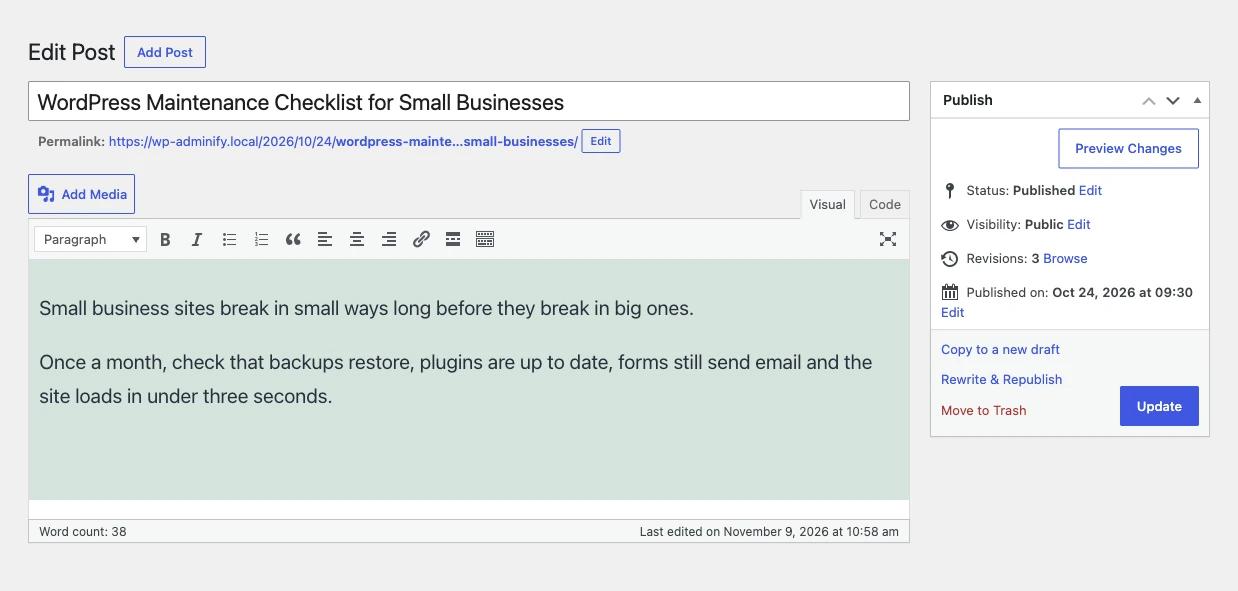
This setting is site-wide, so you cannot keep the block editor for pages and turn it off for posts. For that, use the per post type methods in the next section. With the first box ticked, every post opens in the classic screen:
Option 3: One line of code
Add this to your child theme's functions.php or a code snippets plugin:
1
2// Use the classic editor for every post type.
3add_filter( 'use_block_editor_for_post', '__return_false' );
4
Remove the line to bring the block editor back. Your content stays the same in both cases.
How to Disable Gutenberg for One Post Type
To disable the block editor for one post type only, use the Disable Gutenberg plugin or the use_block_editor_for_post_type filter. Both let you keep blocks for pages, for example, and use the classic screen for posts or products. The Classic Editor plugin and WP Adminify switch the whole site.
With the Disable Gutenberg plugin
The Disable Gutenberg plugin by Jeff Starr has more than 500,000 active installs and a 5 out of 5 rating from 735 reviews. Its settings page lets you disable the block editor completely or only for chosen post types, user roles, theme templates and post IDs. It can also bring back the classic widgets screen.
With a code snippet
This snippet keeps the block editor for everything except the post types you list. Change 'product' to the post type you want, such as 'post' or the slug of a custom post type.
1
2add_filter( 'use_block_editor_for_post_type', function ( $use_block_editor, $post_type ) {
3    $classic_post_types = array( 'product' );
4
5    if ( in_array( $post_type, $classic_post_types, true ) ) {
6        return false;
7    }
8
9    return $use_block_editor;
10}, 10, 2 );
11
A custom post type registered without 'show_in_rest' => true already uses the classic editor, because the block editor needs the REST API. This explains why some post types never showed blocks.
How to Remove Block CSS From the Front End
WordPress loads a stylesheet called wp-block-library on the front end so blocks display correctly. If your site has no block content at all, you can remove it with WP Adminify's second checkbox or a short snippet. If any post was written with blocks, keep it, or those posts may lose their layout.
In WP Adminify, tick Remove Frontend Gutenberg Styles & Scripts under Adminify > Performance > Disable Gutenberg for. It dequeues the block library stylesheet and the WooCommerce block stylesheet on the front end.
Without a plugin, use this snippet:
1
2add_action( 'wp_enqueue_scripts', function () {
3    wp_dequeue_style( 'wp-block-library' );       // Core block styles.
4    wp_dequeue_style( 'wp-block-library-theme' ); // Optional theme block styles.
5    wp_dequeue_style( 'classic-theme-styles' );   // Button and file block styles for classic themes.
6}, 100 );
7
On our WordPress 7.1.4 test site with Twenty Twenty-One, the snippet removed the wp-block-library and classic-theme-styles styles. Small per-block styles, such as wp-block-paragraph, still printed on pages that use those blocks. WordPress now loads the CSS for each block only when that block is on the page.
Check a few posts, your home page and any page with buttons or galleries after the change. Never use this on a block theme such as Twenty Twenty-Five, because the whole theme is built from blocks.
What About Block Widgets?
The widgets screen is a separate block editor, and turning off Gutenberg for posts leaves it as it is. To get the classic widgets screen back, use the Classic Widgets plugin, the Disable Gutenberg plugin's widget option, or the use_widgets_block_editor filter shown below.
1
2add_filter( 'use_widgets_block_editor', '__return_false' );
3
Which Method Should You Use?
Choose by scope. For the whole site, the Classic Editor plugin is the simple default, and WP Adminify saves a plugin if you already use it. For one post type, use the Disable Gutenberg plugin or the filter snippet. Remove front-end block CSS only on sites with no block content.
| If you... | Use |
|---|---|
| Want the classic editor everywhere and nothing else | Classic Editor plugin |
| Already use WP Adminify and want the classic editor everywhere | Adminify > Performance > Disable Gutenberg for |
| Want classic for one post type and blocks for the rest | Disable Gutenberg plugin or the use_block_editor_for_post_type filter |
| Want classic only for some user roles | Disable Gutenberg plugin |
| Have no block content and want less front-end CSS | Adminify's frontend checkbox or the dequeue snippet |
Frequently Asked Questions
Is the WordPress classic editor still supported?
Yes. The Classic Editor plugin is maintained by the WordPress team and has more than 8 million active installs. Its page says it will be supported as long as necessary, and it was last updated in May 2026. New editing features only go into the block editor, though.
Will disabling Gutenberg delete my block content?
No. Disabling the block editor only changes the edit screen. Posts written with blocks keep their block markup and show the same on the front end, as long as you keep the block stylesheet. You can turn the block editor back on at any time.
Can I disable Gutenberg for posts but keep it for pages?
Yes. Use the Disable Gutenberg plugin and choose only Posts, or add the use_block_editor_for_post_type filter with post in the list. The Classic Editor plugin and WP Adminify's setting apply to the whole site, so they cannot do this alone.
Does disabling the block editor make WordPress faster?
We have not measured a reliable speed difference, so we do not promise one. Removing the front-end block stylesheet means one less CSS file for visitors, which helps only if no content uses blocks. For a slow admin, look at plugins, Heartbeat and hosting first.
Final Thoughts
The Classic Editor plugin, with more than 8 million installs, is the simplest way back to the classic screen. Use the Disable Gutenberg plugin or the use_block_editor_for_post_type filter for one post type, and drop wp-block-library only when no content uses blocks. If your admin still feels heavy, read Why Is My WordPress Admin So Slow? 15 Fixes to Speed Up wp-admin. Old revisions also add weight, as our guide to WordPress revisions explains.
To switch the editor and handle Heartbeat, embeds and other clean-up from one settings tab, try Admin Performance in WP Adminify.

Your email address will not be published