


Key Takeaways
- Changing the WordPress admin theme only changes how wp-admin looks to logged-in users; the front-end theme set under Appearance > Themes stays exactly the same for visitors.
- WordPress core has no admin theme switcher, only per-user color schemes under Users > Profile > Admin Color Scheme; WordPress 7.0 added a light scheme called Modern and renamed the old default to Fresh.
- WP Adminify shows its Adminify UI Templates under Adminify > Customize only after the Adminify UI switch is on, with 9 ready-made templates plus a custom color option.
- The WP Adminify Custom Color Preset is a Pro option with six colors: Body BG, Primary Color, Menu BG, Menu Text, Menu Border and Notification BG.
- WP Adminify's Light/Dark Mode settings hold the admin logo fields (Logo Type, Light Logo, Logo Size, Mini Logo) and the Layout Mode choice between Light Mode and Dark Mode.
To change the WordPress admin theme, you need either the built-in color schemes in your user profile or a plugin that restyles the whole dashboard. WordPress 7.1 still ships one admin design. Core only lets each user swap the menu and button colors from a short list of schemes. For a new layout, logo and full color set, you need a plugin.
This guide shows both ways on a WordPress 7.1.4 test site. First the core color schemes, then WP Adminify's Admin Theme: turning on the Adminify UI, picking a template, setting colors, adding your logo and going back to default. After that, our guide on how to customize wordpress dashboard screens covers menus, widgets and notices too.
Admin Theme vs Site Theme: What Changes?
An admin theme changes the look of the WordPress dashboard, the area at /wp-admin/ that only logged-in users see. A site theme, chosen under Appearance > Themes, controls what visitors see on the front end. The two are separate, so changing the admin theme leaves your pages and front-end design as they are.
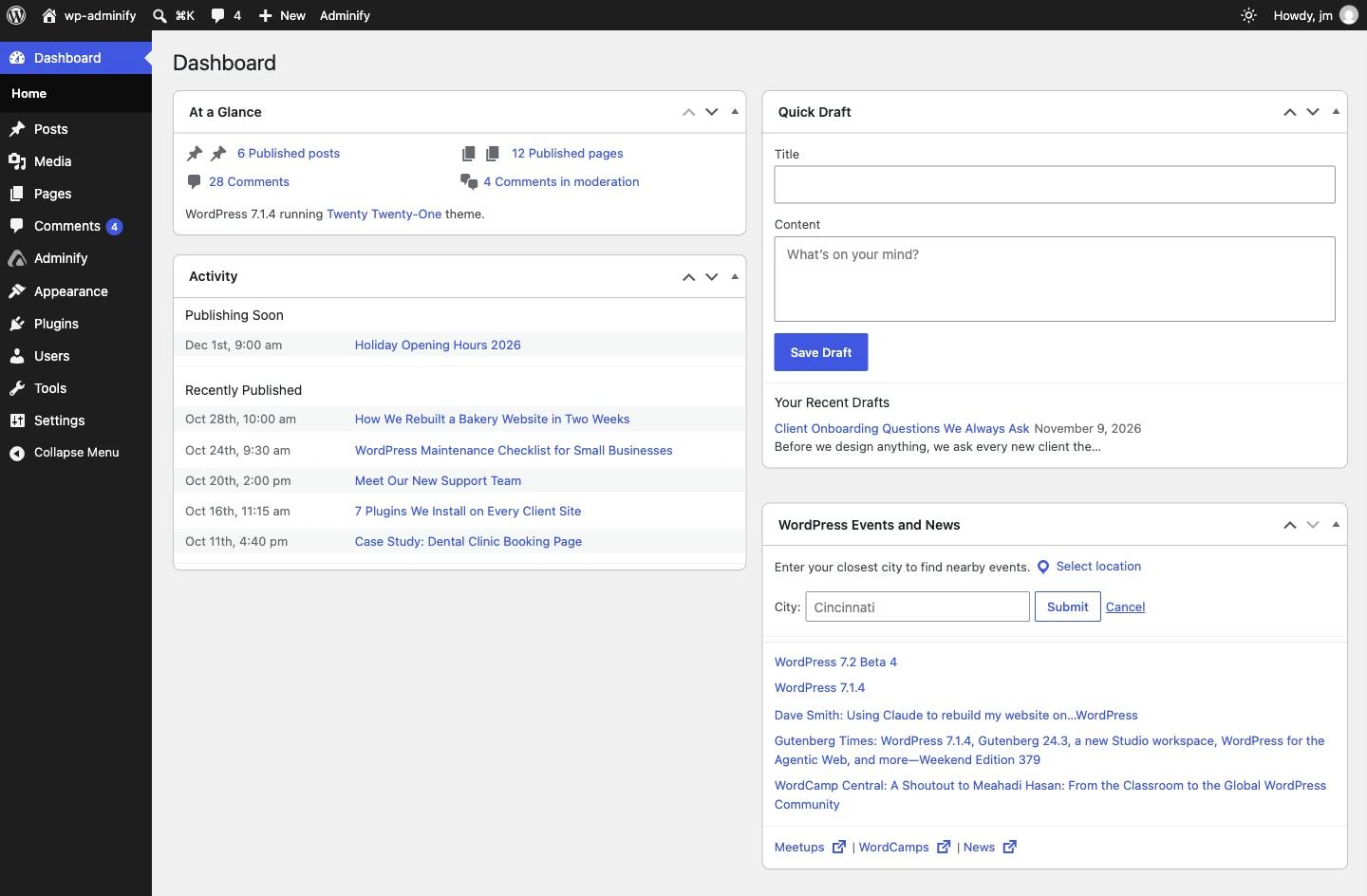
On our test site, Twenty Twenty-One keeps running the front end whatever admin design we pick. Here is the default WordPress 7.1 dashboard before any change.
How to Change the WordPress Admin Theme Without a Plugin
Without a plugin, the only built-in option is the admin color scheme. Go to Users > Profile, find Admin Color Scheme and pick one of the listed schemes. The change saves when you click Update Profile. It recolors the menu, links and buttons, but the layout, fonts and logo stay the same.
- Go to Users > Profile in the dashboard.
- Find the Admin Color Scheme row near the top.
- Click a scheme. In WordPress 7.0 and later, Modern is a light scheme and Fresh is the old default.
- Scroll down and click Update Profile.
The color scheme is per user, so you cannot set one for a whole team from this screen. WordPress 7.0 also has no built-in admin dark mode. The official Your Profile screen documentation lists every field on this page.
Step 1: Turn On the Adminify UI
In WP Adminify, the admin theme lives under Adminify > Customize. The main setting there is the Adminify UI switch. While it is off, WordPress keeps its default look and the template choices stay hidden. When you turn it on, the Adminify UI Templates grid appears below it.
- Install and activate WP Adminify from the Plugins screen (search for "Adminify").
- Click Adminify in the admin menu. The settings open on the Customize tab.
- Set Adminify UI to Enable.
- The Adminify UI Templates grid appears right below the switch. Save your settings.
WP Adminify is a free plugin on WordPress.org with a Pro version. On 9 November 2026 it had 6,000+ active installs and a 4.3 out of 5 rating from 109 reviews. The Adminify UI switch, the 9 templates and Layout Mode carry no Pro badge in version 4.3.4.
Step 2: Pick an Admin Template
The Adminify UI Templates grid has 9 ready-made templates and a tenth tile for custom colors. Click a template, save, and the whole admin switches to that design. The selected template shows a check mark. You can switch between templates as often as you like, and nothing on the front end changes.
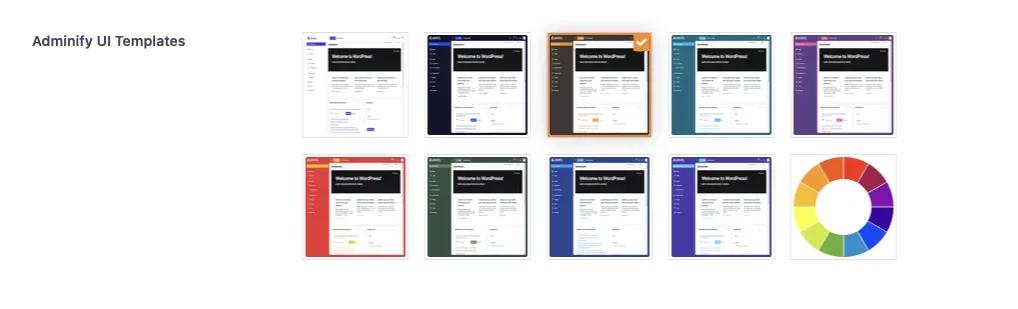
The templates range from a plain white design to darker sidebars in navy, brown with orange, teal, purple, red, green, blue and indigo. For client sites, match the sidebar to the client's brand. Here is the same dashboard after turning on the brown and orange template.
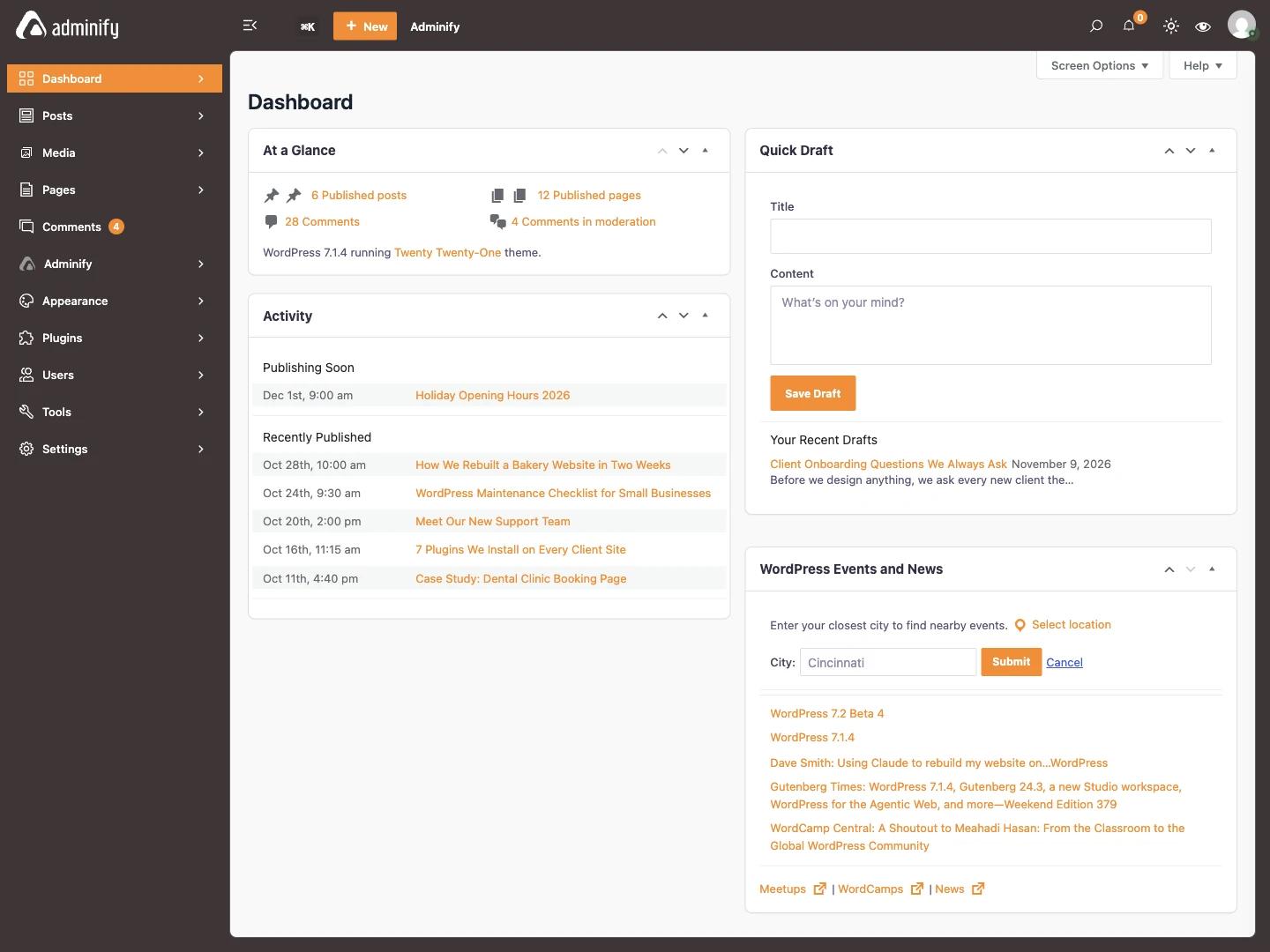
The sidebar, top bar, buttons and panels changed; the widgets and content did not. You can show or hide the new top bar icons with the Search Form, Notifications Icon and Light/Dark Switcher options on the same tab.
Step 3: Set Your Own Colors
If none of the 9 templates matches your brand, click the color wheel tile at the end of the grid. That opens the Custom Color Preset, a Pro option with six color pickers. Set the body background, primary color, menu background, menu text, menu border and notification background, and the admin uses your colors.
The six fields are labelled:
- Body BG: the background behind dashboard panels.
- Primary Color: buttons, links and the active menu item.
- Menu BG: the sidebar background.
- Menu Text: the sidebar labels.
- Menu Border: lines between menu sections.
- Notification BG: the background of the notification badge.
Keep enough contrast between Menu BG and Menu Text, or the sidebar gets hard to read. Agencies can use a custom wordpress admin theme like this to give every client dashboard the same brand look.
Step 4: Set the Layout Mode and Logo
The Light/Dark Mode section on the same Customize tab controls the layout mode and the admin logo. Layout Mode switches the whole admin between light and dark. The logo fields put your own brand in the sidebar instead of the Adminify logo, with a separate logo for each mode.
- Layout Mode: Light Mode or Dark Mode for the whole admin.
- Logo Type: Image or Text. With Text, you type the logo text and set its typography.
- Light Logo and Dark Logo: one image for each mode, so a dark logo does not disappear on a dark sidebar.
- Logo Size: width and height. Our test logo used 120 x 32 px.
- Mini Logo: a small version for the folded sidebar.
The Light/Dark Switcher in the top bar lets each user change between light and dark for themselves. A Schedule Dark Mode option (Pro) can also switch modes at set start and end times.
Step 5: Undo the Admin Theme
To go back to the default WordPress look, go to Adminify > Customize, set Adminify UI to Disable and save. The template grid hides again and WordPress shows its normal admin. Deactivating the plugin from the Plugins screen also returns the default admin design, with your front end still unchanged.
Before big changes on a client site, export your settings from the Backup tab. It exports and imports all WP Adminify settings, so you can restore a setup or copy the same admin theme to another site.
Other Ways to Restyle the Admin
WP Adminify is not the only plugin that changes the WordPress admin design. Some tools focus on building admin pages, others on dashboard widgets. The right pick depends on whether you want ready-made templates, a page builder for the admin, or a cleaner dashboard home screen. The table below compares core color schemes with WP Adminify.
If you want a uipress alternative, our comparison of WP Adminify and uiXpress (formerly UiPress) looks at how a template-based plugin differs from a block-based admin builder. If your main goal is the dashboard home screen, read our ultimate dashboard alternative comparison with Ultimate Dashboard.
| Factor | Core color schemes | WP Adminify Admin Theme |
|---|---|---|
| Where | Users > Profile > Admin Color Scheme | Adminify > Customize |
| Who it applies to | One user at a time | The whole admin, with a per-user light/dark switch |
| Changes the layout | No, colors only | Yes: sidebar, top bar, buttons and panels |
| Ready-made designs | A short list of color schemes | 9 templates plus custom colors (Pro) |
| Dark mode | No | Layout Mode: Light Mode or Dark Mode |
| Custom logo | No | Light, dark and mini logo |
Frequently Asked Questions
Does changing the admin theme change my website's design?
No. The admin theme only changes the dashboard at /wp-admin/ that logged-in users see. Your front-end theme, chosen under Appearance > Themes, keeps controlling what visitors see. You can switch admin templates on a live site without changing a single page, menu or style on the front end.
Does WordPress have a dark admin theme built in?
No. WordPress 7.0 has no built-in admin dark mode. It added a light color scheme called Modern and renamed the old default scheme to Fresh. For a dark dashboard you need a plugin, such as WP Adminify with Layout Mode set to Dark Mode, or custom admin CSS.
How many admin templates does WP Adminify have?
WP Adminify 4.3.4 has 9 ready-made Adminify UI Templates plus a tenth tile for custom colors. The templates only appear under Adminify, Customize tab, after you turn on the Adminify UI switch. The custom color option is part of WP Adminify Pro.
Can each user have a different admin look?
Partly. In core WordPress, every user picks their own admin color scheme in their profile. In WP Adminify, the template applies to the whole admin, but the Light/Dark Switcher in the top bar lets each user choose light or dark mode for themselves.
How do I get the default WordPress admin back?
Go to Adminify, Customize tab, set Adminify UI to Disable and save. WordPress shows its normal admin again. Deactivating WP Adminify does the same. Export your settings from the Backup tab first if you might want the same setup again later.
Final Thoughts
You have two ways to change the WordPress admin theme. Core color schemes in Users > Profile change colors for one user at a time. WP Adminify changes the full design: turn on the Adminify UI, pick one of the 9 templates or set your own six colors, then add your light, dark and mini logos. Your front-end theme never changes. Export your settings from the Backup tab before big changes. For menus, widgets and notices next, read How to Customize the WordPress Dashboard.
Your email address will not be published