

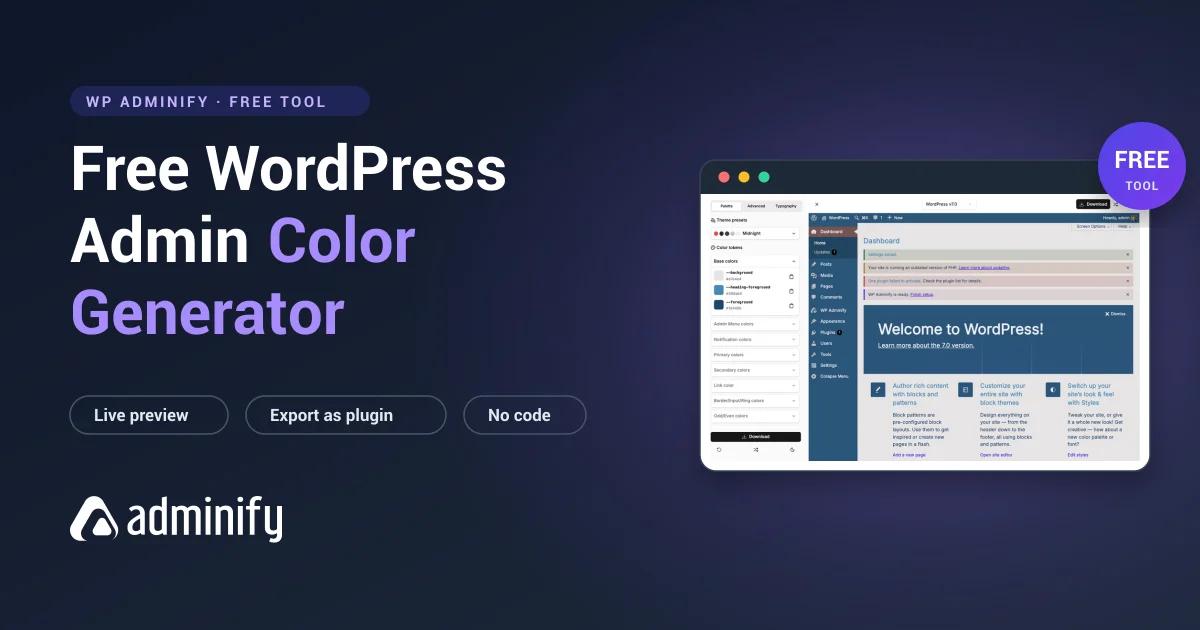

WordPress ships with eight admin color schemes, and they haven't changed in years. If you want your dashboard to match your brand, or you just want each client site to look different enough that you never publish to the wrong one, those presets won't get you there. That's why we built a free WordPress admin color generator: pick your colors, watch a demo dashboard restyle itself live, then export the whole thing as a tiny plugin you can install on any site. You don't touch code, and you can try the whole thing without signing up.
This guide walks through the full workflow, from the first color pick to activating the generated plugin in wp-admin. Every screenshot below comes from a real session with the tool.
What is the WordPress Admin Color Generator?
The WordPress Admin Color Generator is a free browser-based tool that recolors a live WordPress dashboard preview as you edit color tokens, then packages your palette as an installable plugin or a block of admin CSS. The generated plugin works on any WordPress site. It doesn't need WP Adminify installed, and there's no API key or subscription attached.
The screen is split in two. On the left, a settings panel with three tabs: Palette, Advanced, and Typography. On the right, a full WordPress admin demo (you can even switch the simulated WordPress version from the dropdown at the top) that re-renders the moment you change anything.
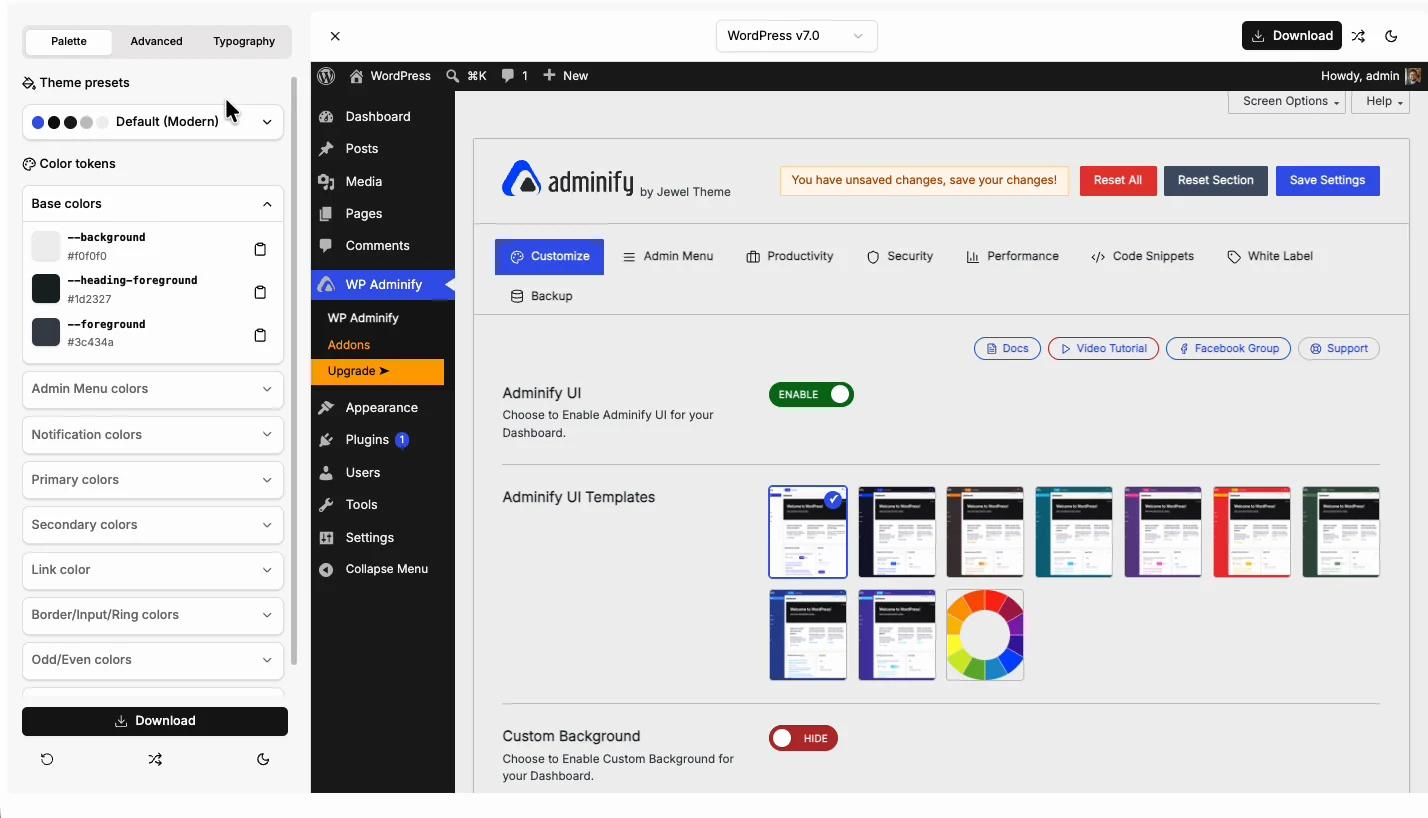
The palette panel groups every part of the admin UI into color tokens:
- Base colors: background, heading, and body text
- Admin Menu colors: the left sidebar background, text, and hover states
- Notification colors: success, warning, and error notices
- Primary and Secondary colors: buttons and accents
- Link color
- Border/Input/Ring colors: form fields and focus outlines
- Odd/Even colors: table row striping on list screens
- Unapprove/Approve/Trash colors: the status accents you see on the Comments and Posts screens
Each token shows its CSS variable name and hex value, with a copy button next to it. Handy if you keep brand colors in a style guide and want to lift a value straight out of the tool.
Why bother changing WordPress admin colors?
A custom admin color scheme sounds cosmetic until you manage more than one site. A few situations where it earns its keep:
- Environment safety. Give staging a loud orange menu and production a calm navy one. You will never again wonder which tab you're typing in.
- Client branding. Agencies hand over dashboards that match the client's brand palette. It reads as polish, and clients notice. It pairs well with a full white label setup where the WordPress branding disappears entirely.
- Readability. The default gray-on-dark-gray admin menu is not kind to everyone's eyes. Higher-contrast palettes are a legitimate accessibility fix.
- Team recognition. On multisite networks, per-site colors help editors tell at a glance which site they're editing.
You could do some of this natively. Every user can pick one of the stock schemes under Users > Profile > Admin Color Scheme (see the Users Profile screen documentation), and WordPress developers can register new schemes with the wp_admin_css_color() function. The catch: the native route means writing and maintaining a full CSS file yourself. Here's roughly what the manual registration looks like:
// functions.php — register a custom admin color scheme manually
function myagency_admin_color_scheme() {
    wp_admin_css_color(
        'myagency',
        __( 'My Agency', 'myagency' ),
        get_stylesheet_directory_uri() . '/admin-colors/myagency.css',
        array( '#1d446b', '#335978', '#e7e4e4', '#d64e07' )
    );
}
add_action( 'admin_init', 'myagency_admin_color_scheme' );
That CSS file needs to cover the admin menu, buttons, notices, form fields, and list tables. Several hundred lines if you're thorough. The generator writes all of it for you, which is the whole point.
Step 1: Start from a theme preset
Don't build from a blank slate. Open the Theme presets dropdown at the top of the palette panel and you'll find ready-made schemes: Default (Modern), Fresh, Light, Modern Blue, Midnight, Coffee, Ectoplasm, Ocean, and Sunrise. WordPress veterans will recognize a few of those names from the stock profile-page schemes; the presets here are rebuilt versions of them plus a set of originals. There's also a Community section below the built-ins with palettes other users have published.
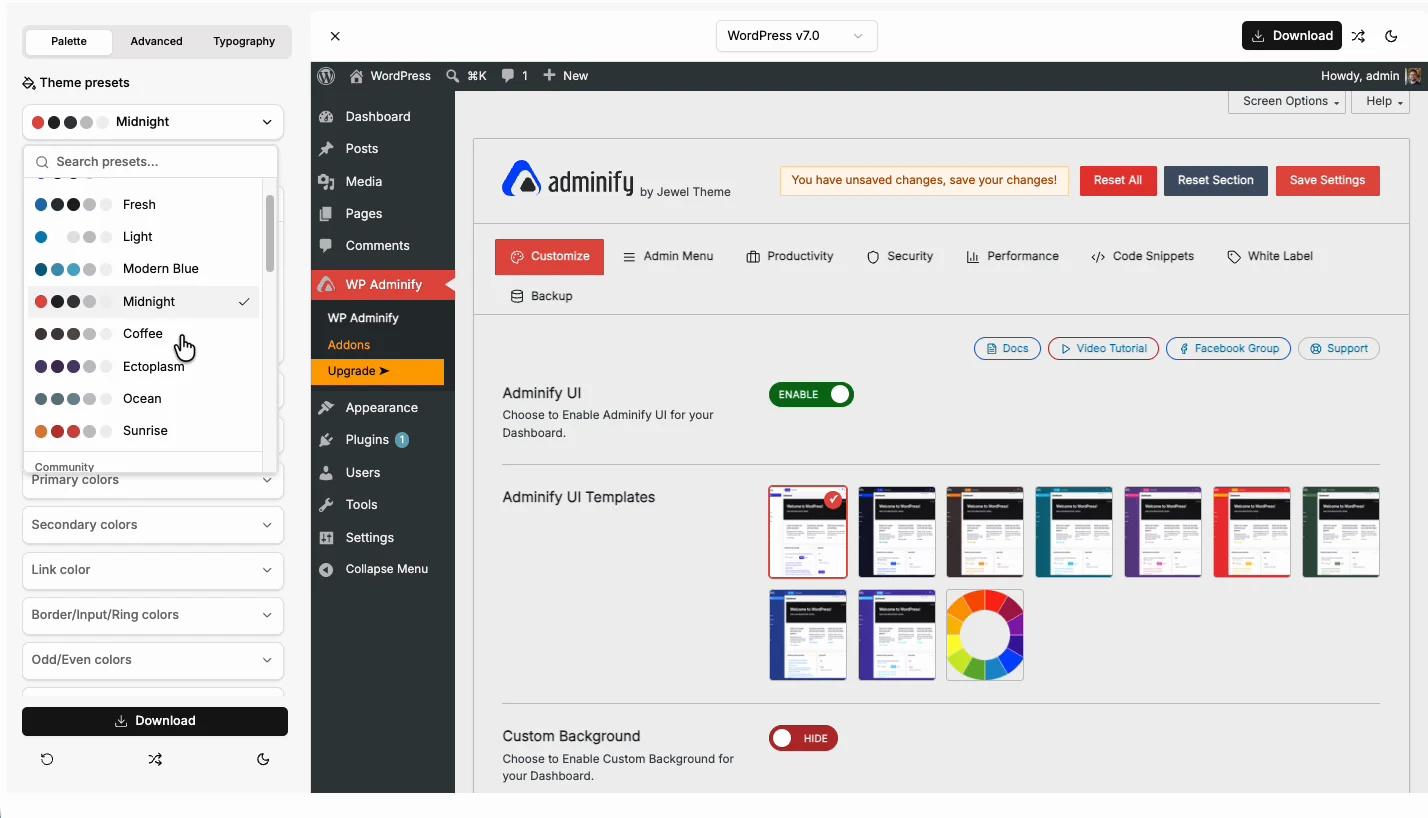
Click any preset and the entire demo dashboard repaints. Pick whichever is closest to your target palette and treat it as your base (Midnight is the one I kept coming back to while testing). The shuffle icon next to the Download button generates a random palette if you want a starting point you'd never have picked yourself, and the moon icon flips the preview into dark mode.
Step 2: Fine-tune colors with the live preview
Now open any token group and click a swatch. A color picker pops up with a saturation field, a hue slider, and a hex input, so you can either eyeball it or paste an exact brand value like #335978.
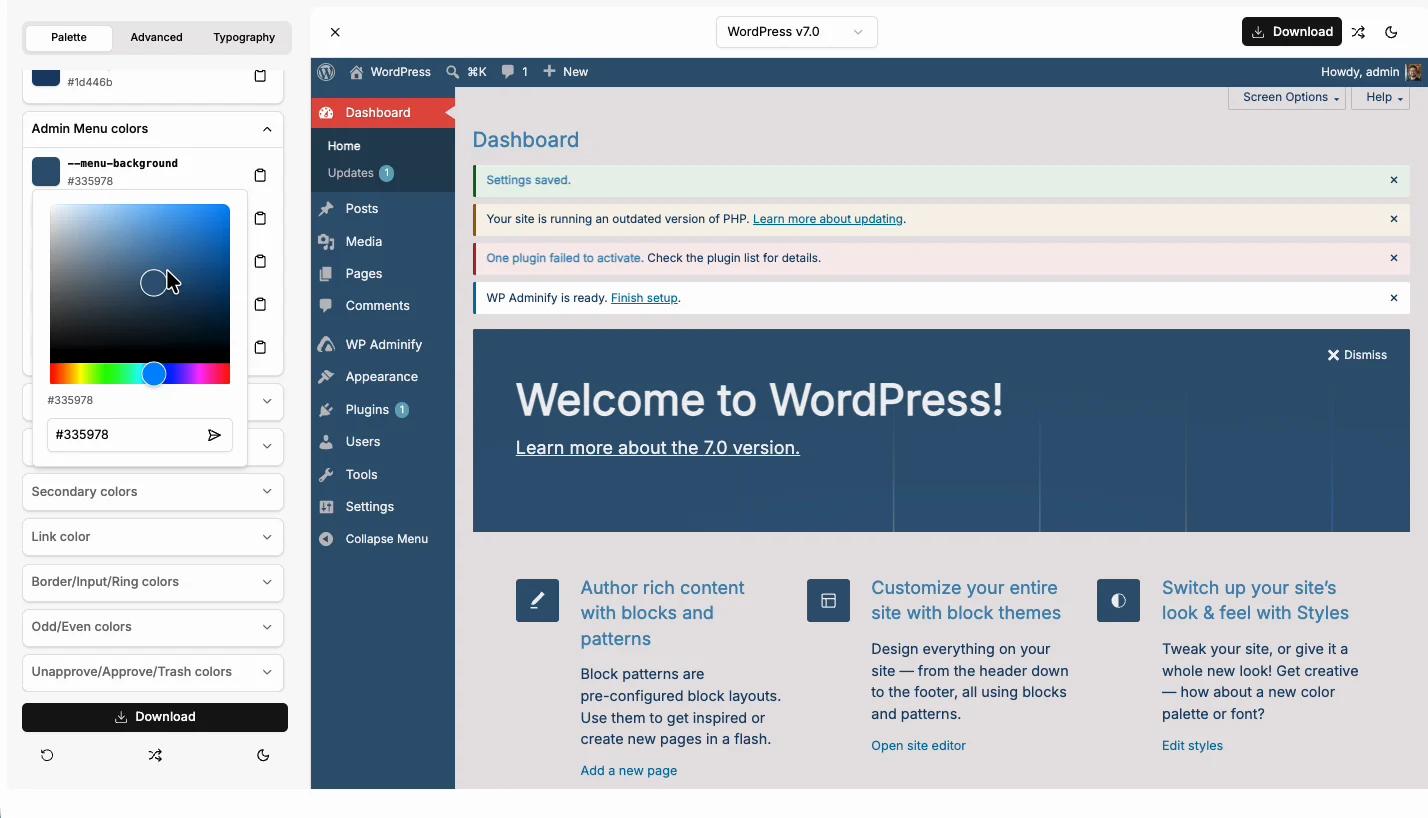
The part that saves real time: the preview on the right is a functioning mock of wp-admin, not a static image. Change the menu background and you see it against real menu items, notices, and the Welcome panel. Notification colors render as actual admin notices at the top of the demo Dashboard screen. If those notices are the problem rather than their colour, you can hide WordPress admin notices per plugin instead of restyling them. Odd/Even colors show up when you open the demo Posts list. You catch contrast problems immediately instead of after installing something on a live site.
A workflow tip from building a few schemes with it: set your Admin Menu colors first, since the sidebar dominates the screen, then tune Primary colors (buttons), and only then touch notification and table-striping colors. Check the demo Posts screen before you export, because row striping and status accents are easy to forget.
If you also want to change the admin typeface, the Typography tab handles that. Fonts are their own topic, and we've covered them in detail in our guide to changing the WordPress admin font.
Step 3: Export your scheme
Happy with the preview? Click the black Download button in the top-right corner. The export dialog gives you a plugin name field (default: "Custom WordPress Admin") and two output formats:
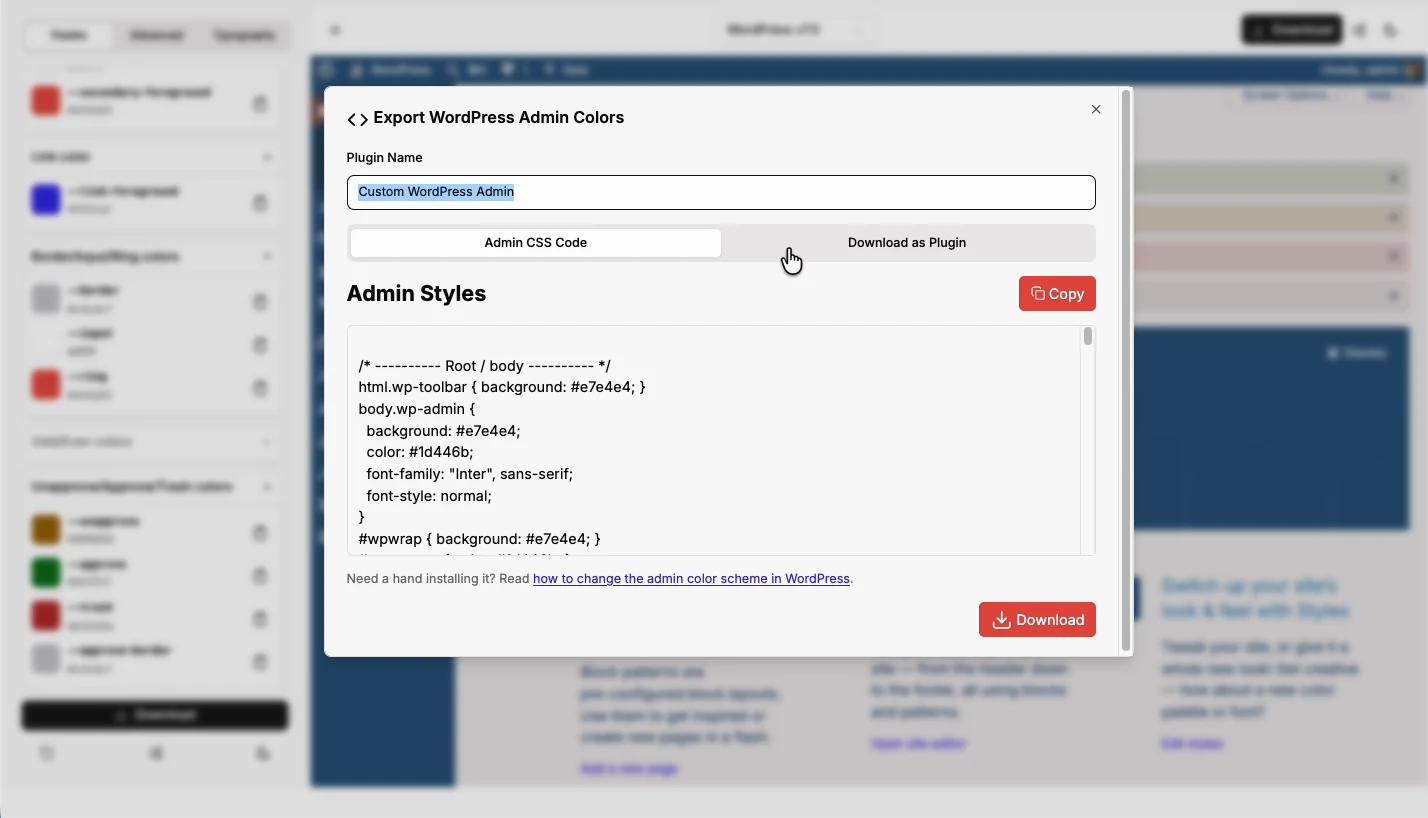
- Admin CSS Code is the raw stylesheet, with a Copy button. Use this if you'd rather paste the styles into an existing setup, for example the custom CSS field in your admin panel or your child theme's admin stylesheet.
- Download as Plugin gives you a zip file containing a small standalone plugin that enqueues the same CSS on every admin page.
The plugin route is the one we recommend for most people. It survives theme switches, applies to every user on the site, and uninstalls cleanly: deactivate it and the dashboard snaps back to stock colors. Nothing is written to the database.
Name the plugin something recognizable (the name shows up in your Plugins list later), switch to the Download as Plugin tab, and click Download.
Step 4: Grab the download link by email
Before the zip lands, the tool asks for your name and email and sends the download link there. This also stores your palette at that link, so you can come back to the exact scheme later and keep editing instead of rebuilding it from memory. Tick the checkbox if you also want WP Adminify tips along with it; leave it unticked for just the link. A Cloudflare check runs inline, then hit Email me the link.
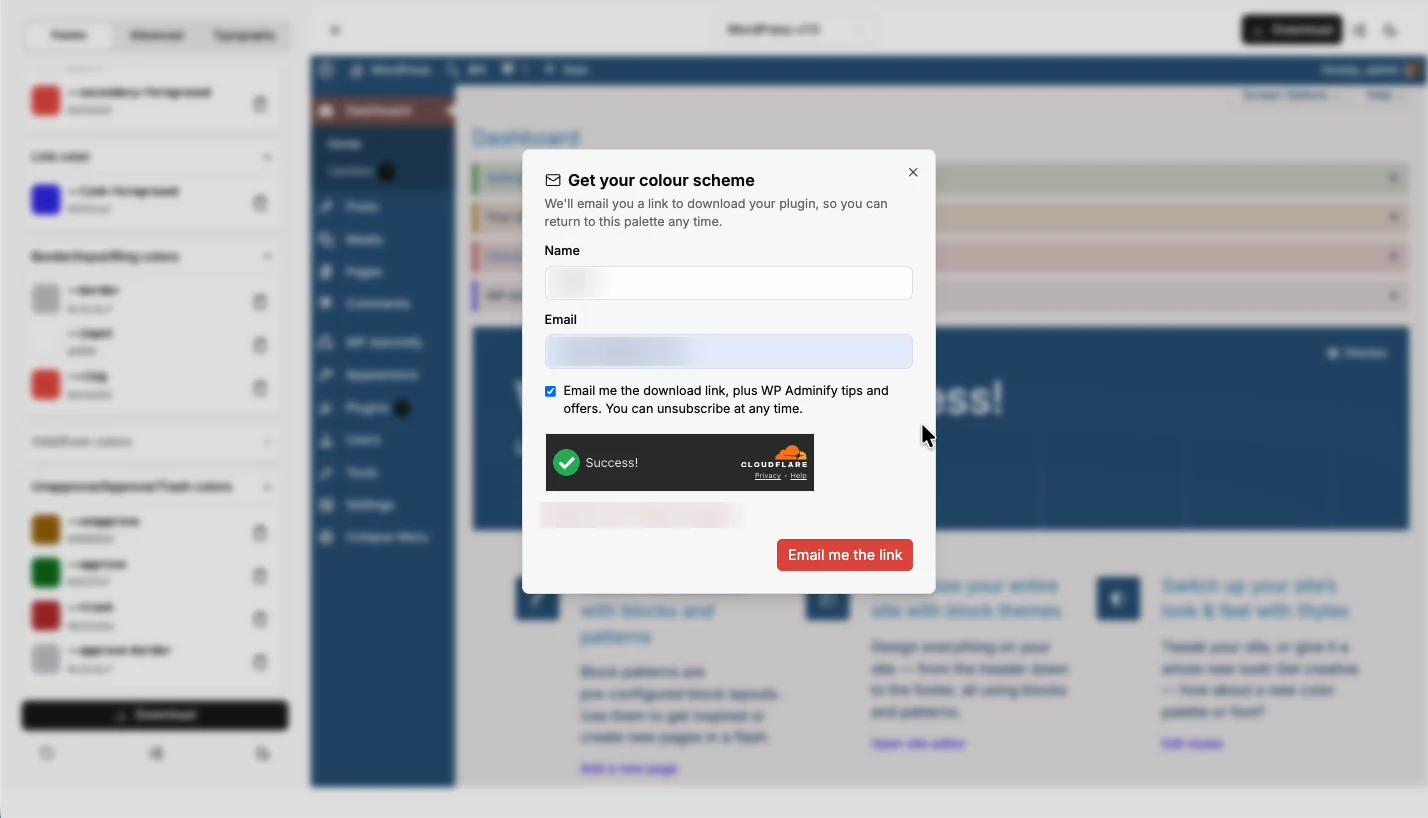
Check your inbox, click the link, and you'll have a file in zip version. Don't unzip it. WordPress wants plugin uploads as zip files.
Step 5: Install and activate the plugin in wp-admin
Now for the site you actually want to recolor. This is the standard manual plugin install, and it takes about a minute:
- Log in to your WordPress dashboard and go to Plugins > Add Plugin.
- Click the Upload Plugin button at the top of the page.
- Click Choose file, select
color-admin.zipfrom your downloads, and click Install Now.
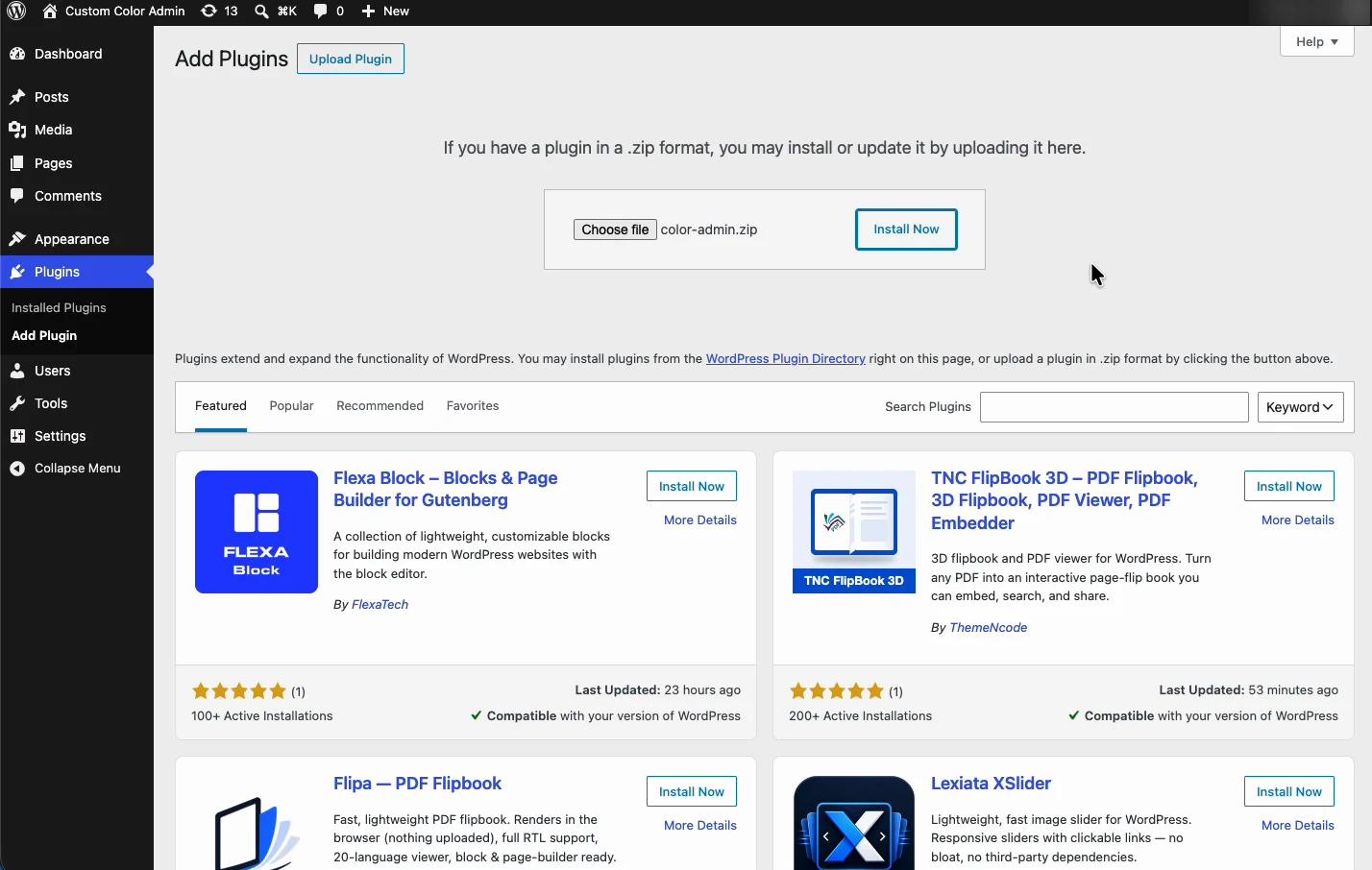
WordPress unpacks the zip and confirms the install. Click Activate Plugin on the next screen.
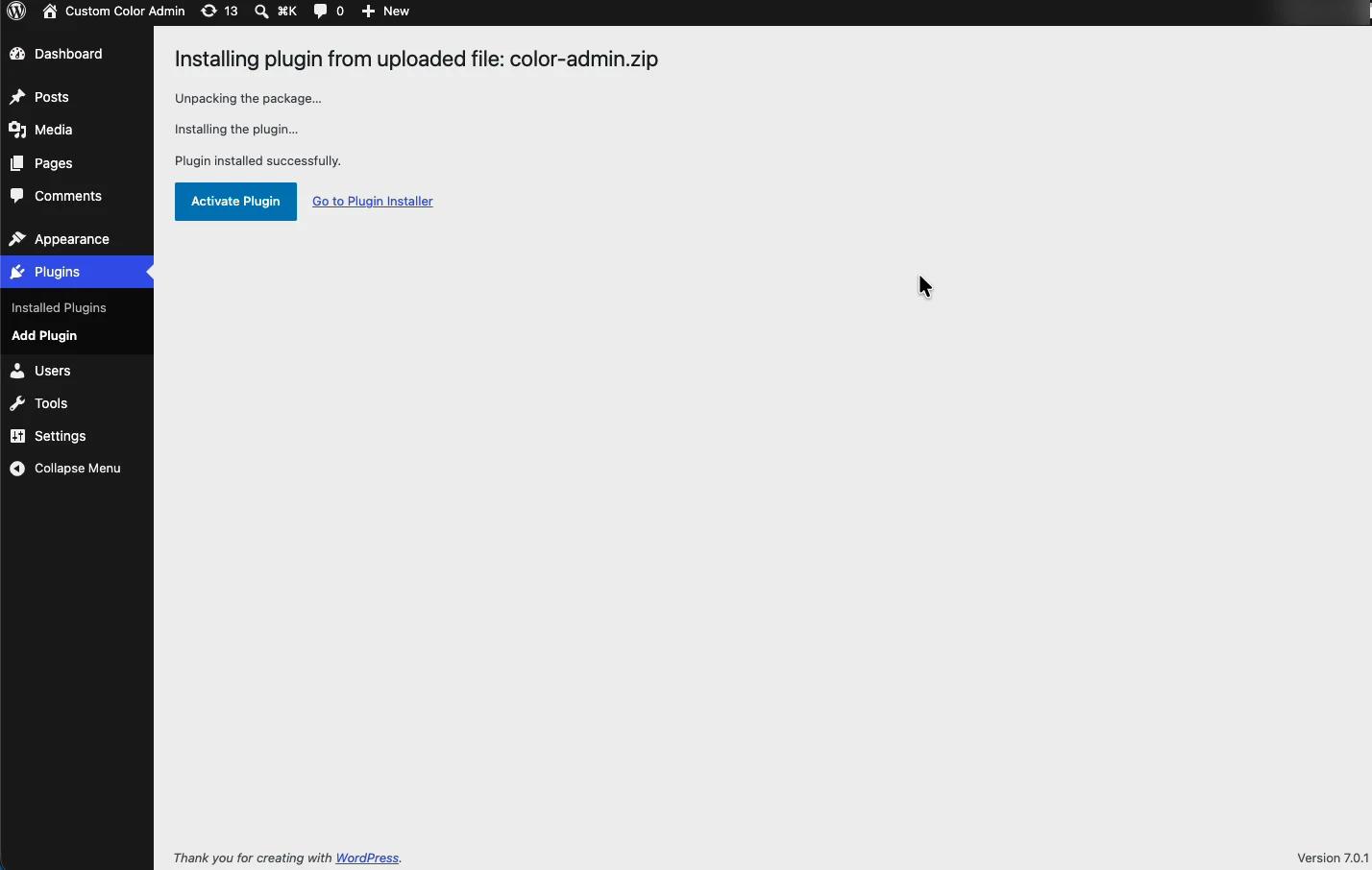
The color scheme applies as soon as the plugin activates. You'll see the Plugins page itself repaint. Your generated plugin now sits in the Installed Plugins list like any other:
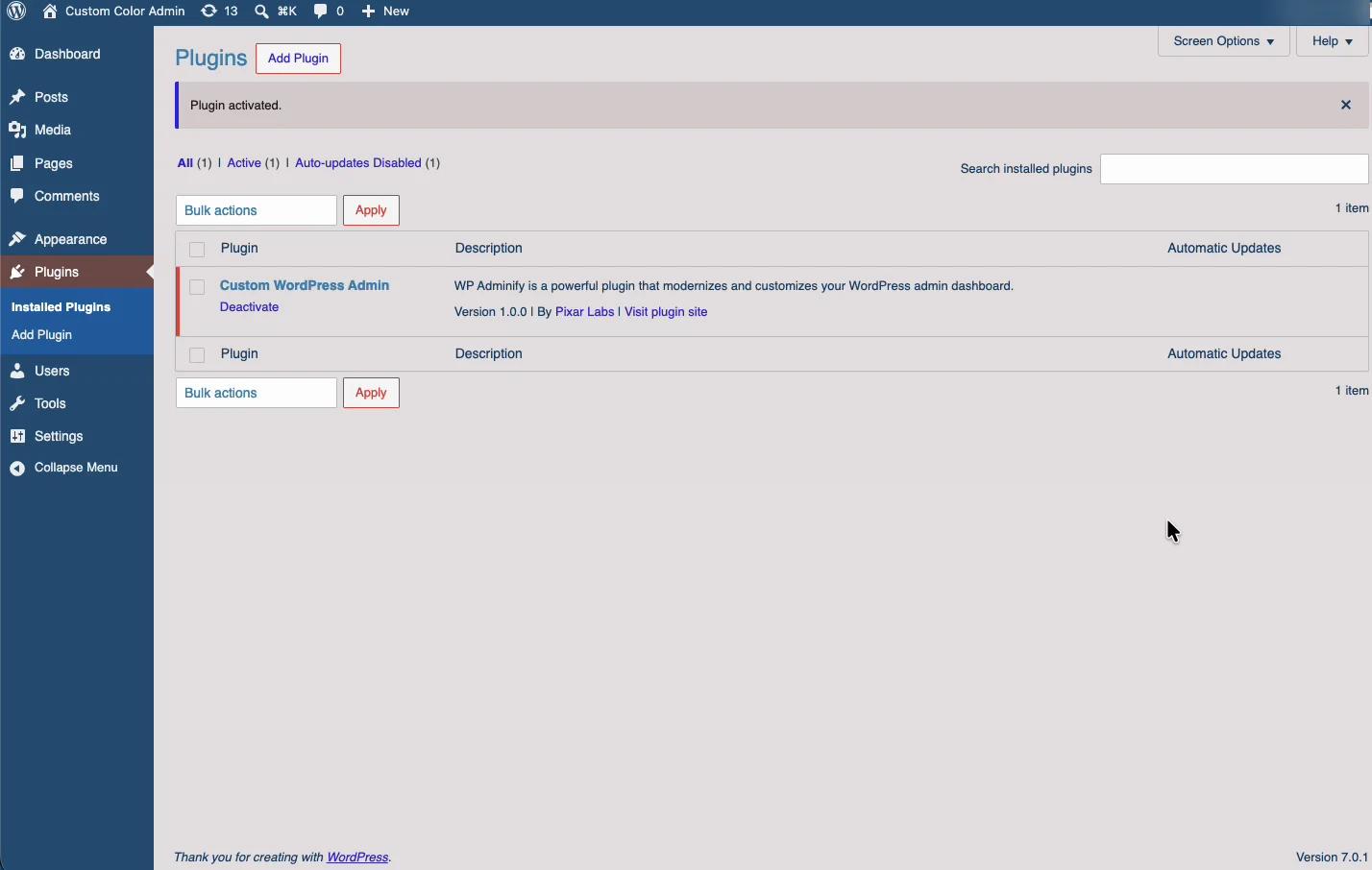
And the Dashboard matches what the tool previewed:
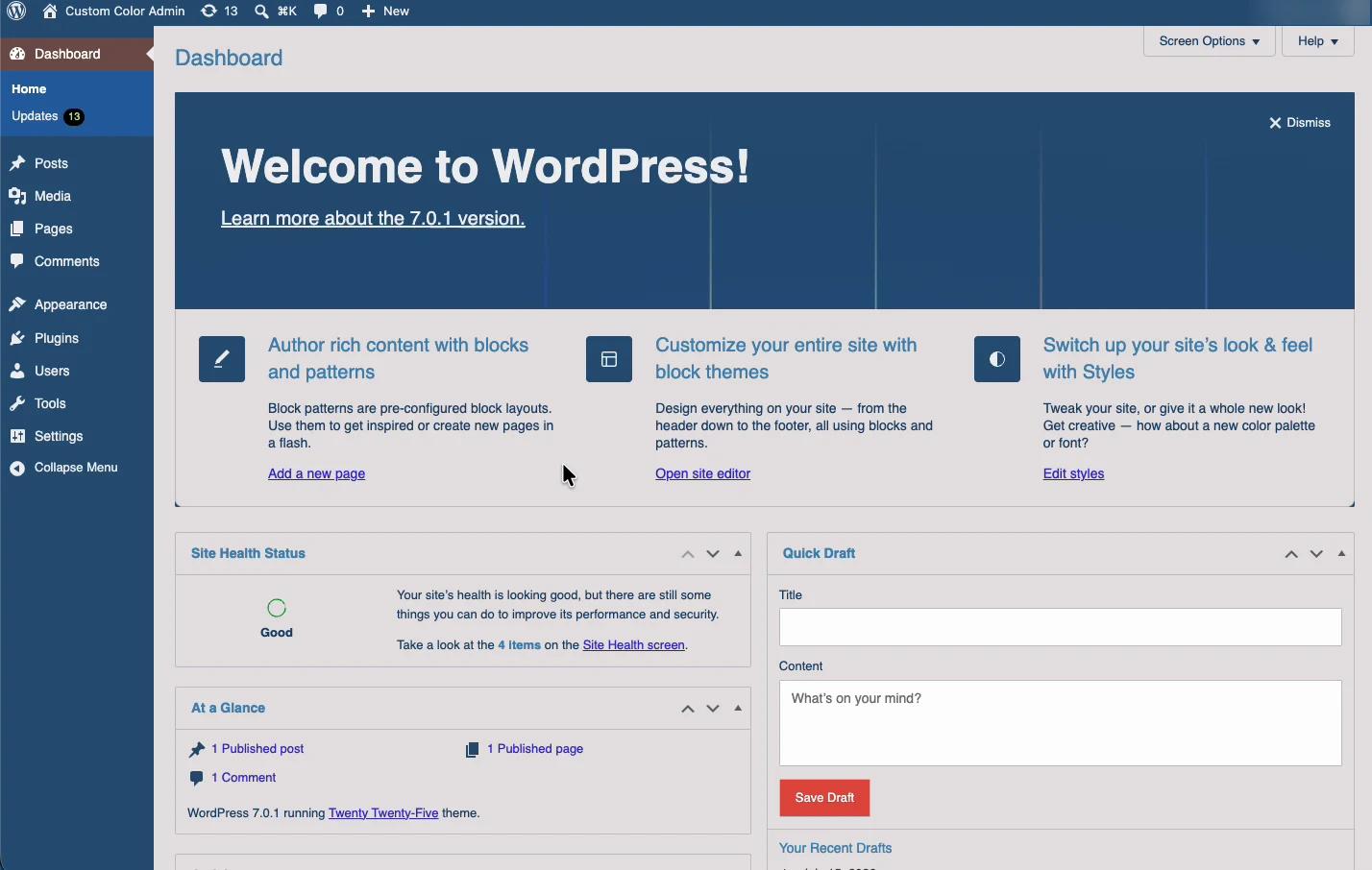
That's the whole loop: design in the browser, download, upload, activate. To change the scheme later, generate a new zip and replace the plugin. To go back to default WordPress colors, deactivate it.
Which approach should you use?
There are four realistic ways to change WordPress admin colors. They solve different problems:
| Method | Effort | Applies to | Best for |
|---|---|---|---|
| Built-in schemes (Users > Profile) | None | One user | Quick personal preference, no branding |
| Admin Color Generator plugin (this tool) | Minutes | Every user on the site | Brand-matched dashboards without code |
Manual wp_admin_css_color() + CSS | Hours | Per user (selectable) | Developers shipping schemes inside a theme/plugin |
| WP Adminify UI templates | Minutes | Every user, role-aware | Full dashboard redesign: templates, dark mode, menus, white label |
The generator covers colors. If you find yourself wanting more than colors (reordered admin menus, a dark mode schedule, hidden notices, your own logo in place of the WordPress one), that's the point where a single-purpose color plugin stops being enough and a broader dashboard customization setup makes sense. WP Adminify ships a full WordPress admin theme system with ready-made UI templates (you can spot them in the tool's demo preview), and the same plugin handles dark mode and the rest of the admin. The generator is free either way, and the plugin it produces runs fine with or without WP Adminify installed.
Troubleshooting and small print
- The download email hasn't arrived. Check spam first; the sender is the WP Adminify mailer. If the form showed a network error when you submitted, just submit it again. Your palette is still loaded.
- Colors look different on my site than in the preview. Another admin-styling plugin is usually the culprit. Two plugins both restyling wp-admin will fight over specificity, so deactivate the older one.
- Some screens kept default colors. Plugins with heavily custom admin pages (page builders, some SEO suites) draw their own UI and ignore admin-wide styles. That's a limitation of any CSS-based scheme, including WordPress's own.
- I want to tweak the scheme. Reopen the palette link from your email, adjust, and download a fresh zip. Upload it and WordPress will offer to replace the existing version.
- Reverting. Deactivate the plugin. There are no database entries to clean up.
WordPress Admin Color Scheme FAQs
Is the WordPress admin color generator really free?
Yes. Designing a scheme, previewing it, and downloading the plugin or CSS costs nothing, and there's no account to create. You provide a name and email to receive the download link, and that's the extent of it.
Does the generated plugin require WP Adminify?
No. The download is a self-contained plugin that enqueues one stylesheet in wp-admin. It works on any WordPress site regardless of theme or other plugins, though it pairs naturally with WP Adminify if you later want menu editing, white labeling, or dark mode.
Will the color scheme apply to all users or just me?
All users. Unlike the per-user scheme picker under Users > Profile, the generated plugin styles the admin globally, which is what you want for client handovers and team consistency. Individual profile scheme choices stop mattering while it's active.
Does it slow down my WordPress admin?
No measurable impact. The plugin adds a single CSS file to admin pages and loads nothing on the front end. If your dashboard feels slow, the cause is elsewhere. Our guide on why the WordPress admin gets slow covers the usual suspects.
Can I edit the colors after installing the plugin?
Yes, two ways. Reopen your palette from the emailed link, adjust, and upload the new zip over the old plugin. Or open the plugin's CSS file and edit hex values directly; every token is a plain CSS variable like --menu-background.
Is it safe to upload a generated plugin zip?
Yes. The zip contains a short PHP loader and a stylesheet you can read in any text editor before installing. It makes no external requests, collects no data, and writes nothing to your database.
Wrap-up
The short version:
- Start from a preset in the free admin color generator, then fine-tune tokens against the live preview.
- Export as a plugin (recommended) or copy the raw admin CSS.
- Install it under Plugins > Add Plugin > Upload Plugin, activate, done. Deactivate to revert.
It's a ten-minute job the first time and faster after that. And if recoloring the dashboard gets you thinking about menus, notices, login screens, and client-proofing, take a look at what WP Adminify's full feature set can do with the same no-code approach.
Your email address will not be published