

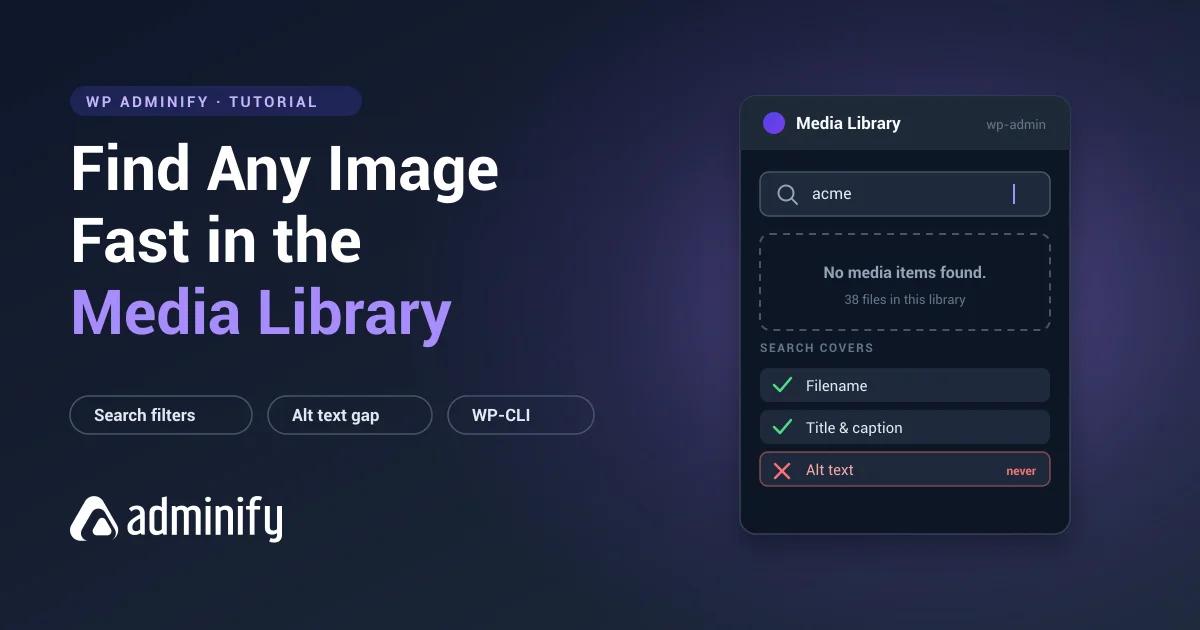

You know the image exists. You wrote proper alt text for it. You search the Media Library and get nothing.
That's not a bug, and it catches out people who've used WordPress for years. Media search covers less than almost everyone assumes, and once you know exactly what it does cover, finding files gets dramatically easier.
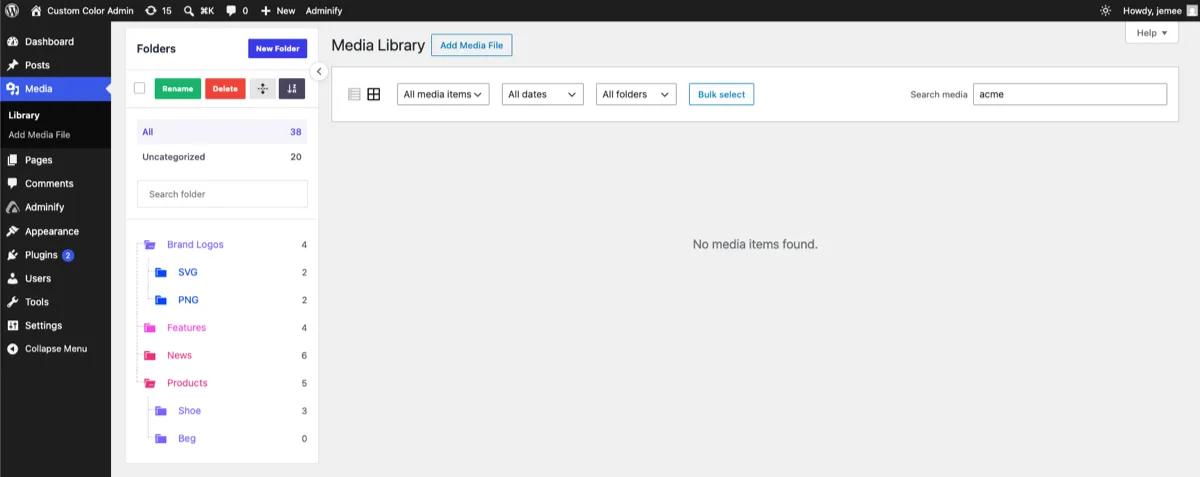
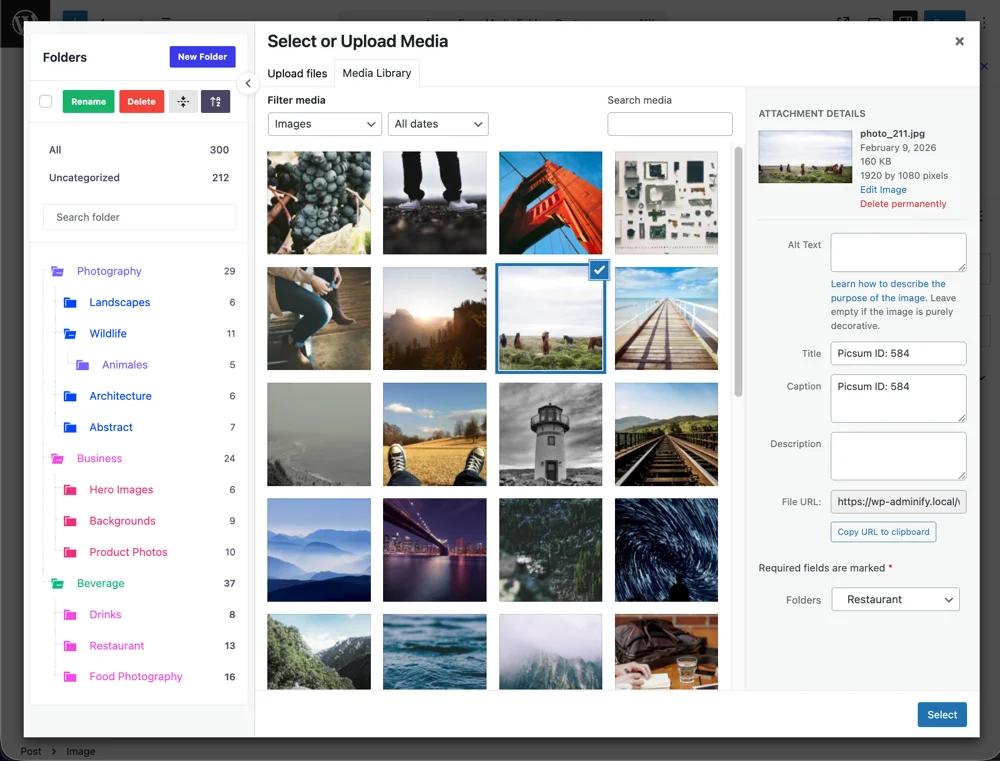
Several of these get faster once the library has folders. Our comparison of the best WordPress media folder plugins tests seven that add them, including folder filtering inside the WP Adminify media modal, which is where most searching actually happens.
What WordPress media search actually covers
The honest list:
| Field | Searched? | Where it lives |
|---|---|---|
| Filename | Yes (since WordPress 4.7) | _wp_attached_file in wp_postmeta |
| Title | Yes | post_title |
| Caption | Yes | post_excerpt |
| Description | Yes | post_content |
| Alt text | No | _wp_attachment_image_alt in wp_postmeta |
Alt text isn't searchable. It sits in postmeta under a key WordPress's media query never looks at. So an image uploaded as IMG_4471.jpg with no title, no caption, and beautifully written alt text is effectively invisible to search.
And by default WordPress sets the title from the filename. Upload IMG_4471.jpg and the title becomes "IMG 4471", which is searchable but only if you happen to remember the number.
Why files go missing
Four causes, in rough order of frequency.
Camera and screenshot filenames. IMG_4471.jpg and Screen Shot 2026-08-09 at 14.22.31.png carry nothing anyone will search for.
Empty titles and captions. Most people skip these fields at upload, which leaves the filename as the only searchable text.
Relying on alt text. The most common misconception in this topic. Alt text serves accessibility and image SEO. It does nothing for admin retrieval.
Date-based browsing at scale. Past roughly 500 files, "it went up around March" stops narrowing anything usefully.
Five ways to find an image
1. Search a filename fragment, not the whole name
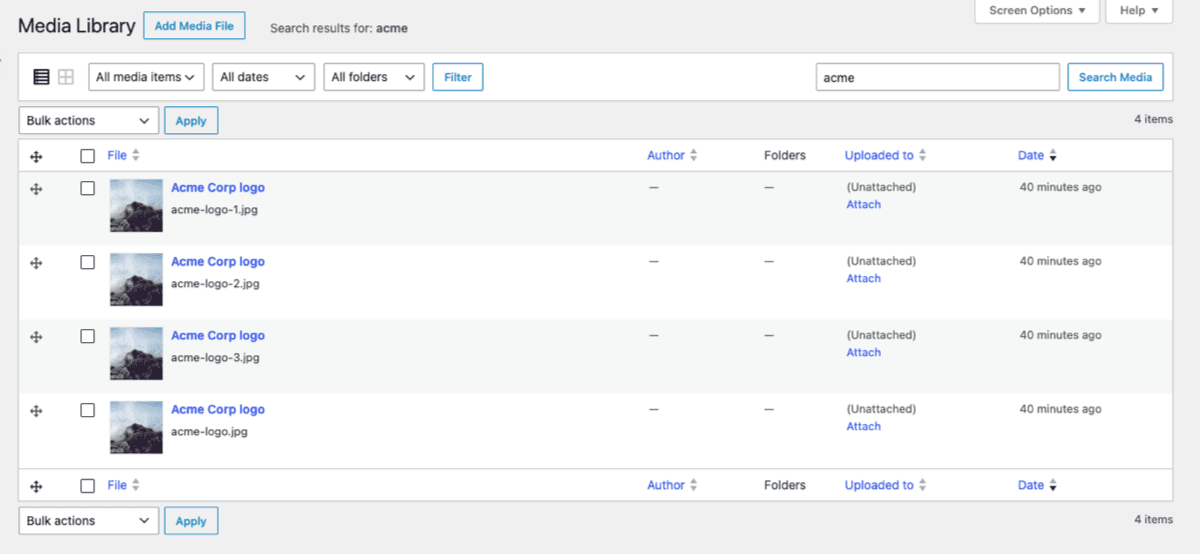
Search matches partial strings, so a fragment usually works better than guessing at the full filename. Searching hero returns every file with "hero" anywhere in its name, title, caption, or description.
2. Combine the type filter with search
Filters and search stack. Set the media type to Documents, search a client name, and you get that client's PDFs only. Fastest native combination available and badly underused.
3. Use list view and sort
List view adds sortable columns for filename, author, attached post, and date. Sorting by filename groups near-identical names together, which is also how you spot duplicates. Sorting by attached post groups everything uploaded to the same page.
If you want more columns to sort by, our guide to useful WordPress admin columns covers extending the list tables.
4. Search by attachment ID
If you've got the ID from a page builder, a shortcode, or a database query, go straight to it:
/wp-admin/post.php?post=1234&action=editHandy when you're debugging a broken image reference and an ID is all you have.
5. Filter by folder
The one that actually scales. Filtering to a folder turns a 12,000-file search problem into a 40-file browsing problem, and it works inside the media modal too, so inserting an image into a post means clicking a folder instead of scrolling a global grid.
WordPress has no native folders, so this needs a plugin or a registered media taxonomy. Background in our guide to WordPress media library folders.
Making alt text searchable
If your team has put work into alt text, you can extend media search to include it. This joins _wp_attachment_image_alt into the media query:
/**
 * Include attachment alt text in WordPress media library search.
 * Adds a postmeta JOIN only on attachment search queries.
 */
function adminify_search_media_alt_text( $query ) {
    if ( ! is_admin() || ! $query->is_main_query() ) {
        return;
    }
    if ( 'attachment' !== $query->get( 'post_type' ) || ! $query->get( 's' ) ) {
        return;
    }

    add_filter( 'posts_clauses', function( $clauses ) use ( $query ) {
        global $wpdb;
        $search = '%' . $wpdb->esc_like( $query->get( 's' ) ) . '%';

        $clauses['join'] .= " LEFT JOIN {$wpdb->postmeta} AS alt_meta
            ON ( {$wpdb->posts}.ID = alt_meta.post_id
                 AND alt_meta.meta_key = '_wp_attachment_image_alt' )";

        $clauses['where'] .= $wpdb->prepare(
            " OR ( alt_meta.meta_value LIKE %s )", $search
        );

        $clauses['groupby'] = "{$wpdb->posts}.ID";

        return $clauses;
    } );
}
add_action( 'pre_get_posts', 'adminify_search_media_alt_text' );
Two caveats. It adds a postmeta JOIN, which will slow searches on a very large library, so test at your scale. And it only affects the Media Library list screen, not the media modal, which runs a separate AJAX query.
Finding images with WP-CLI
When the admin interface won't cooperate, the command line answers precisely.
# Search attachments by title, caption, description, or filename
wp post list --post_type=attachment --s=acme \
             --fields=ID,post_title,post_date --format=table

# Find every PDF
wp post list --post_type=attachment \
             --post_mime_type=application/pdf \
             --fields=ID,post_title --format=table

# Find attachments whose ALT TEXT matches — impossible in the admin UI
wp db query "SELECT p.ID, p.post_title, m.meta_value AS alt
             FROM wp_posts p
             JOIN wp_postmeta m ON p.ID = m.post_id
             WHERE m.meta_key = '_wp_attachment_image_alt'
               AND m.meta_value LIKE '%ergonomic%';"
That last query earns its place. It's the one search the admin can't do at all.
Fixing it permanently
Every tip above is a workaround. Two habits remove the problem.
Rename files before uploading. Filename is searchable and alt text isn't, so a descriptive name makes a file findable forever. acme-homepage-hero-desktop.jpg beats IMG_4471.jpg permanently, and it costs four seconds.
Use folders. Search is a fallback. Structure is the primary retrieval method, and it's the only one that keeps working as the library grows.
WP Adminify's media folders add a folder tree to the Media Library and to the media modal, so you filter rather than scroll in both places. Files stay where they are on disk, since folders are a taxonomy, so nothing moves and no URL changes. Setup is under creating folders for post types.
WordPress Media Search FAQs
Why can't I find my image in the WordPress Media Library?
Most often because the file has an uninformative name and no title or caption. WordPress media search covers the filename, title, caption, and description, but not alt text. An image named IMG_4471.jpg with only alt text filled in is effectively invisible to search.
Does WordPress media search include alt text?
No. Alt text is stored in wp_postmeta under _wp_attachment_image_alt, which the media query doesn't check. You can extend search to include it with a posts_clauses filter, though that adds a postmeta JOIN which can slow searches on very large libraries.
How do I search the WordPress media library by filename?
Filename search has worked natively since WordPress 4.7. Type any fragment of the name into the media search box. Partial matches work, so searching hero finds acme-homepage-hero-desktop.jpg.
Can I filter the media library by more than one thing at once?
Yes. The media type filter, the date filter, and the search box all stack. Setting type to Documents and searching a client name returns just that client's PDFs, which is the fastest native combination available and widely underused.
How do I find images used on a specific page?
In list view, sort by the attached-post column to group files uploaded to the same post. Bear in mind this shows where a file was first uploaded, not everywhere it's currently displayed. An image can appear on many pages while being attached to one or none.
Conclusion
The core insight is one line: WordPress media search covers filenames but not alt text. Almost every "I can't find my image" problem traces back to that gap.
- Search filename fragments, and stack the type filter with search.
- Use list view and sort when you need to scan rather than search.
- Rename before uploading. The permanent fix, and it costs four seconds.
- Use folders. Search is a fallback, structure is what scales.
If retrieval is a daily problem, the fix is organization rather than better searching. Start with how to organize your media library with folders.



Your email address will not be published