


Key Takeaways
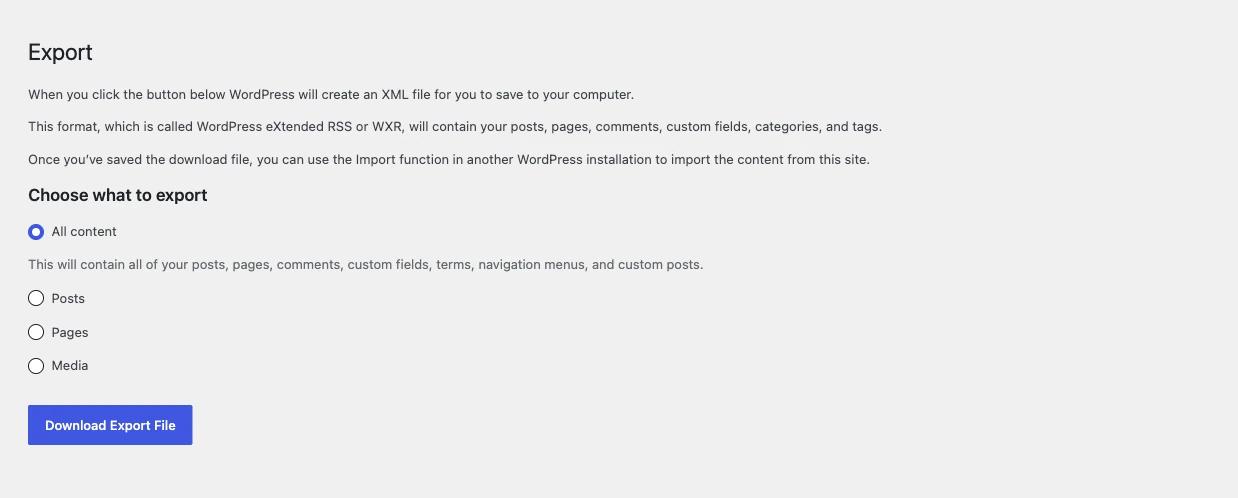
- The WordPress Tools > Export screen offers All content, Posts, Pages and Media, and menus are only included in the export file when All content is selected.
- The free WordPress Importer plugin, with more than 2 million active installs, imports the export file and rebuilds menus, menu items and their parent and child structure.
- Menu locations are not part of a WordPress export file, so an imported menu stays unassigned until you pick a location on Appearance > Menus > Manage Locations.
- The WordPress Importer skips a menu item when the page, post or category it points to is not in the export file and does not already exist on the new site.
- Block theme Navigation menus are saved as wp_navigation posts, and WordPress 7.1 includes that post type in an All content export.
To export a menu in WordPress, go to Tools > Export, choose All content and download the file, then import it on the other site with the WordPress Importer. WordPress 7.1 has no menu-only export. A menu is made of menu item posts that point to your pages, posts and categories, so it travels with the content it links to.
Below we walk through the core export, the import, the clean-up you need afterwards, and the extra steps for block themes, all tested on WordPress 7.1.4. For other ways to copy content, see how to duplicate a page in WordPress. If you only need a second copy of a menu on the same site, you do not need to export anything. Our duplicate menu WordPress guide covers that.
What Tools > Export Can and Cannot Do for Menus
Tools > Export can move menus, but only as part of a full export. The screen lists All content, Posts, Pages and Media, with no separate Menus choice. With All content selected, the file holds every menu, every menu item and the content those items point to, plus all your other posts and pages.
What the export file includes and leaves out:
| Factor | In an All content export? |
|---|---|
| Classic menus (names) and their menu items | Yes |
| Parent and child structure, labels, CSS classes, link targets | Yes |
| Block theme Navigation menus (wp_navigation posts) | Yes, in WordPress 7.1 |
| Which menu sits in which theme location | No |
| Menu settings stored by a menu plugin in its own options | No |
| Media files themselves | No, the importer downloads them from the old site |
You cannot export a menu on its own this way. If the new site already has its content and you only want the menu, use the plugin method further down.
How to Export a Menu in WordPress
Exporting takes less than a minute. You create one XML file, called a WXR file, from the source site. The file holds the menus plus everything else on the site. That causes no harm, because the importer can map menu items to pages that already exist on the new site.
- On the source site, go to Tools > Export.
- Select All content.
- Click Download Export File and save the .xml file.
Before you start, write down which menu is in which location on Appearance > Menus > Manage Locations. You will need this list after the import.
How to Import a Menu in WordPress
To import a menu in WordPress, use the free WordPress Importer plugin from the Tools > Import screen. It reads the XML file, creates the menus, links each menu item to the matching page or post, and rebuilds the nesting. Then you assign each menu to a location by hand.
- On the new site, go to Tools > Import.
- Under WordPress, click Install Now, then Run Importer.
- Choose the .xml file and click Upload file and import.
- Assign the authors to existing users or create new ones.
- Tick Download and import file attachments only if you also want the media.
- Click Submit and wait for the "All done" message.
The WordPress Importer plugin has more than 2 million active installs. If a page with the same title and date already exists on the new site, the importer does not create a second copy. It links the menu item to the page that is already there.
After the Import: Fix Locations and Links
An imported menu is not visible until you assign it to a theme location, because locations are not stored in the export file. Custom links also need a look, since they keep the old site's full URL. Both checks take a few minutes and catch most problems.
Assign menus to theme locations
- Go to Appearance > Menus and open Manage Locations.
- For each location, such as Primary and Secondary, choose the imported menu.
- Click Save Changes.

Check custom links and missing items
Menu items that point to pages, posts or categories are remapped to the new site. Custom links are copied as they are, so a link to https://old-site.com/shop still points to the old domain. Open each menu and fix those URLs.
Count the items as well. The importer skips a menu item when the page or category it points to is not in the file and is not already on the new site. If an item is missing, add it again from the left column on Appearance > Menus.
Plugin Method: Export Only the Menu
If you want an export file with the menu and nothing else, use a menu export plugin. WPS Menu Exporter adds a menu-only export that also includes the pages and terms your menu points to. You still import the file with the WordPress Importer, so the steps above stay the same.
WPS Menu Exporter 1.3.7.3 has about 10,000 active installs and is listed as tested with WordPress 7.1.4. Its rating of 3.7 out of 5 from 44 reviews is lower than most similar plugins. Its page also says it is only maintained, without guaranteed free support. Test it on a staging site before you rely on it.
Before you import a menu into a site that already has one with the same purpose, make a backup copy of the existing menu. If you run WP Adminify, its Menu Duplicator does this with one click.
- Go to Adminify > Productivity and turn on Menu Duplicator.
- Open the menu on Appearance > Menus and click Duplicate Menu.
Adminify creates a copy with "(Copy)" added to the name and opens it, so you can always switch back. The switch is one of the WP Adminify Productivity tools, which sit next to WP Adminify's Duplicate Post and Page feature for posts and pages.
Block Themes: Moving Navigation Menus
Block themes, such as Twenty Twenty-Five, do not use Appearance > Menus. Their menus are Navigation menus, saved as posts of the wp_navigation type. In WordPress 7.1 that post type is included in an All content export, so the same export and import steps move them to the new site.
After the import, the Navigation block in your header may still point to the old menu ID, so it can show an empty or default menu. Fix it like this:
- Go to Appearance > Editor and open the header template part.
- Select the Navigation block.
- In the block settings, open the menu selector and choose the imported menu.
- Save.
If you move from a classic theme to a block theme, import the classic menu with the steps above first. The same menu selector has an Import Classic Menus section that turns a classic menu into a Navigation menu.
Which Method Should You Use?
Use the core export when you are moving a whole site or the new site is empty. Use a menu export plugin when the new site already has its content and you only need the menu. For copying a menu on the same site, skip exporting and duplicate the menu instead.
| If you... | Use |
|---|---|
| Are moving a whole site or setting up an empty one | Tools > Export with All content |
| Only want the menu on a site that already has content | WPS Menu Exporter, then WordPress Importer |
| Need a second copy of a menu on the same site | A Duplicate Menu button (no export needed) |
| Run a block theme on both sites | All content export, then reselect the menu in the Navigation block |
Frequently Asked Questions
Can I export only menus from WordPress?
Not with core WordPress. Tools > Export only writes menus to the file when All content is selected. To export a menu on its own, use a plugin such as WPS Menu Exporter, then import the file with the WordPress Importer as usual.
Why is my imported menu not showing on the site?
Menu locations are not saved in the export file. After the import, go to Appearance, then Menus, open the Manage Locations tab, choose the imported menu for each location and save. In a block theme, select the menu in the Navigation block instead.
Will importing a menu create duplicate pages?
The WordPress Importer checks for a post with the same title and date. If it finds one, it does not import a second copy and links the menu item to the existing page. Pages with a changed title or date on the new site can still be imported twice.
Do imported menus keep their submenus?
Yes. The export file stores the parent of each menu item, and the WordPress Importer rebuilds the parent and child structure. A child item can only keep its place if its parent item was imported too, so check nested menus after the import.
Final Thoughts
WordPress 7.1 exports menus only through All content on Tools > Export, and the WordPress Importer, with more than 2 million installs, brings them back with their nesting. After every import, reassign locations on Manage Locations and fix custom links. For the other copy methods, see How to Duplicate a Page or Post in WordPress (4 Ways).
If you also clone posts and pages on the sites you manage, look at the duplicate page WordPress plugin features in WP Adminify, which add a one-click clone link to your posts list.



Your email address will not be published