


Key Takeaways
- WordPress core has no Duplicate button on the Appearance > Menus screen, so copying a classic menu means rebuilding it by hand or using a plugin.
- WP Adminify's Menu Duplicator is a single switch at Adminify > Productivity that adds a Duplicate Menu button next to the menu name on Appearance > Menus.
- The free Duplicate Menu plugin by Jon Christopher has more than 100,000 active installs and rebuilds the parent and child structure of the copied menu.
- Block themes such as Twenty Twenty-Five do not use Appearance > Menus; their menus are Navigation menus that you manage in Appearance > Editor > Navigation.
- A duplicated classic menu is not assigned to any theme location until you pick one on the Manage Locations tab.
To duplicate a menu in WordPress, you either rebuild it by hand, add a duplicate button with a plugin, or use the Navigation screen if your site runs a block theme. WordPress 7.1 still has no built-in copy option on the classic Appearance > Menus screen. Many people expect one, since posts and pages have plenty of cloning plugins.
Below you will find all three methods, tested on WordPress 7.1.4 with screenshots from our test site. This page covers menus only. For the rest, see how to duplicate posts and pages in WordPress. If you want to copy posts, read our comparison of Yoast Duplicate Post and its alternatives.
Why Duplicate a Menu in WordPress?
Duplicating a menu gives you a copy to edit while the live menu stays as it is. People do it before a big menu rework, when the footer or mobile header needs a similar menu, or to get a seasonal version of the main menu ready to swap in on the right day.
Common reasons we see on client sites:
- Testing changes. WordPress menus have no draft mode, so changes go live as soon as you click Save Menu. With a copy, you can work on the new version first.
- A second location. Many themes have a primary, footer and mobile location, and these often need almost the same links in a slightly different order.
- A backup. Rebuilding a menu with 40 nested items after a mistake takes a long time, while a copy lets you restore it quickly.
- Campaign menus. You can prepare a sale menu with a "Deals" link in advance and assign it when the sale starts.
Method 1: Copy a Menu by Hand (No Plugin)
You can copy a small classic menu without a plugin by creating a new menu and adding the same items again. It works well for five to ten links. Larger menus take much longer. You also have to rebuild every parent and child item and every custom label, and missing one is easy.
- Go to Appearance > Menus and click create a new menu.
- Give it a clear name, for example "Main Menu (copy)", and click Create Menu.
- From the boxes on the left (Pages, Posts, Custom Links, Categories), tick the same items your original menu uses and click Add to Menu.
- Open each item with the arrow on its right. Set the Navigation Label and choose the Menu Parent and Menu Order so the structure matches the original.
- Click Save Menu.
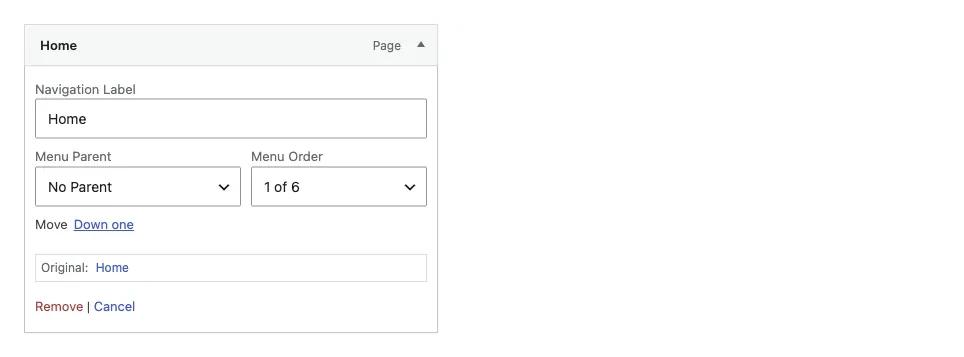
Keep the original open in a second browser tab while you work, so you can compare labels and nesting item by item.
Method 2: Duplicate a Menu With One Click
A plugin that adds a duplicate button to Appearance > Menus is much faster. WP Adminify's Menu Duplicator does this with a single switch, and the free Duplicate Menu plugin does the same job on its own. Both copy every item along with the menu structure, so you skip the manual rebuild.
With WP Adminify's Menu Duplicator
Menu Duplicator is part of the WP Adminify Productivity tools, next to the post duplicator, folders and admin notice settings. Adminify users need no extra plugin for this. Everyone else can try Duplicate Post and Page in WP Adminify for posts and pages and get the menu button from the same Productivity tab.
- Go to Adminify > Productivity.
- Turn on the Menu Duplicator switch and save the settings.

- Go to Appearance > Menus and pick the menu you want to copy from Select a menu to edit.
- Click the Duplicate Menu button next to the Menu Name field.
- Open the new copy from the menu drop-down, rename it, and make your changes.
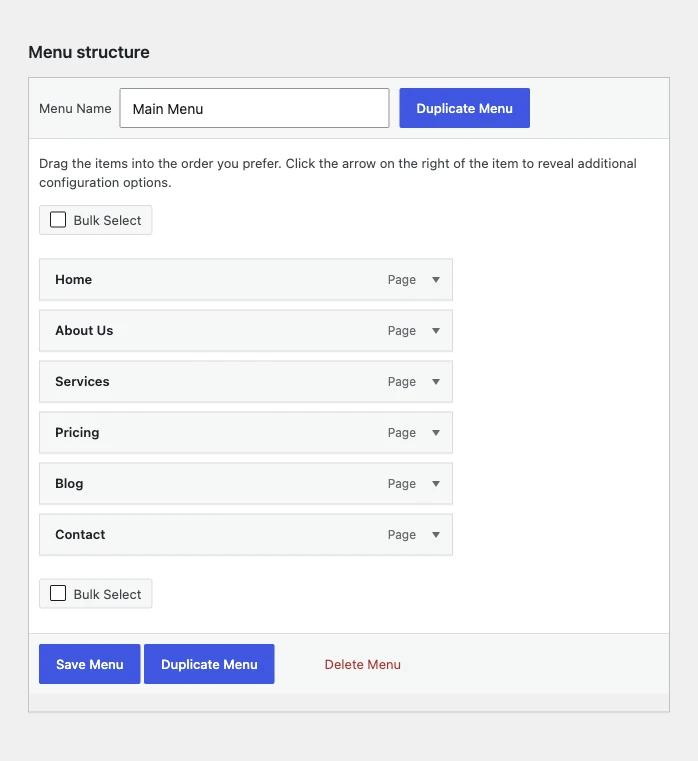
The button copies a whole menu. In our tests it did not add a duplicate link to single menu items, so to copy one item you still add it again from the left column.
With the Duplicate Menu plugin
Duplicate Menu by Jon Christopher is a free, single-purpose plugin with more than 100,000 active installs. According to its description, it creates the copy in code and recreates all the relationships, so nested items keep their parents. Version 0.2.3 was listed as tested up to WordPress 6.9.11 on 9 November 2026, so test it on a staging copy first. Plugin page: Duplicate Menu on wordpress.org.
Method 3: Duplicate a Navigation Menu in a Block Theme
Block themes, such as Twenty Twenty-Five, use the Navigation block instead of Appearance > Menus. Each menu is saved as its own Navigation menu, and you manage them in the Site Editor. The Appearance > Menus screen and the plugin buttons above do not apply to these menus.
- Go to Appearance > Editor and click Navigation.
- Find the menu you want to copy in the list.
- Open its options menu (the three dots) and choose Duplicate.
- Rename the copy, then select the Navigation block in your header template and choose the copy in the block's menu settings when you want to use it.
If you switched from a classic theme, the Navigation block can also import your old classic menus. Once a classic menu has been copied with Method 1 or 2, you can import the copy instead of the original and keep the old one as a backup.
After You Duplicate: Assign the Copy to a Location
A copied classic menu does not appear on your site until you assign it to a theme location. WordPress only shows a menu in a location you choose on the Manage Locations tab or with the Display location boxes under the menu. Until then, the copy is safe to edit.
- Go to Appearance > Menus and open the Manage Locations tab.
- Next to the location you want, such as Primary or Footer, choose the copied menu.
- Click Save Changes and check the front end.
To roll back, choose the original menu for that location again. Switching between the two versions this way takes a few seconds.
Which Method Should You Use?
Use the method that matches your theme type and menu size. For a classic theme with a large menu, a one-click button is best, and a small menu is fine to copy by hand. Block themes need the Site Editor's Navigation screen, since classic menu tools do not touch Navigation menus.
| If you... | Use |
|---|---|
| Have a classic theme and a menu with fewer than ten items | Method 1, copy by hand |
| Have a classic theme and already use WP Adminify | Method 2, Menu Duplicator |
| Have a classic theme and want a single-purpose plugin | Method 2, Duplicate Menu plugin |
| Use a block theme like Twenty Twenty-Five | Method 3, Appearance > Editor > Navigation |
Frequently Asked Questions
Does WordPress have a built-in way to duplicate a menu?
Not for classic menus. The Appearance > Menus screen in WordPress 7.1 has no copy button, so you rebuild the menu by hand or use a plugin. Block themes manage menus in the Site Editor's Navigation screen, which is a separate system from classic menus.
Will a duplicated menu change my live site?
No. A new menu is not shown anywhere until you assign it to a theme location on the Manage Locations tab. You can edit the copy as much as you like, and visitors keep seeing the original menu until you switch the location.
Can I copy a menu from one WordPress site to another?
Duplicate buttons only copy a menu inside the same site. To move a menu to another site, export it from Tools > Export with All content selected and import the file on the new site. Pages and posts used in the menu should be imported too.
Why is there no Menus screen in my WordPress dashboard?
Your site most likely uses a block theme. Block themes such as Twenty Twenty-Five replace Appearance > Menus with the Navigation block. Go to Appearance > Editor and open Navigation to see and manage your menus there.
Final Thoughts
WordPress 7.1 still has no copy option on Appearance > Menus. For small menus, rebuild by hand with the Menu Parent and Menu Order drop-downs. For large menus, a Duplicate Menu button saves the work. On block themes, use the Site Editor's Navigation screen. For posts and pages, see How to Duplicate a Page or Post in WordPress (4 Ways).
If you want the menu button and post cloning in one place, turn on WP Adminify's duplication tools and test the Duplicate Menu button on your own menus.

Your email address will not be published