


Key Takeaways
- WordPress user roles are named sets of capabilities, and a standard single site has five of them: Administrator, Editor, Author, Contributor and Subscriber.
- The sixth default role, Super Admin, exists only on WordPress Multisite and is the only role that can create sites or manage the network.
- The WordPress Subscriber role has exactly one capability, read, while a Contributor adds only edit_posts and delete_posts and cannot publish or upload files.
- WordPress stores every role and its capabilities in the wp_user_roles option in the database, so a role change made with add_role() or add_cap() stays until you remove it.
- User levels from 0 to 10 are deprecated since WordPress 2.0, but core still stores level_0 to level_10 on the default roles for old plugins.
- RoleMaster Suite, a free plugin by Pixar Labs, edits role capabilities from Adminify > User Role Editor when WP Adminify is active.
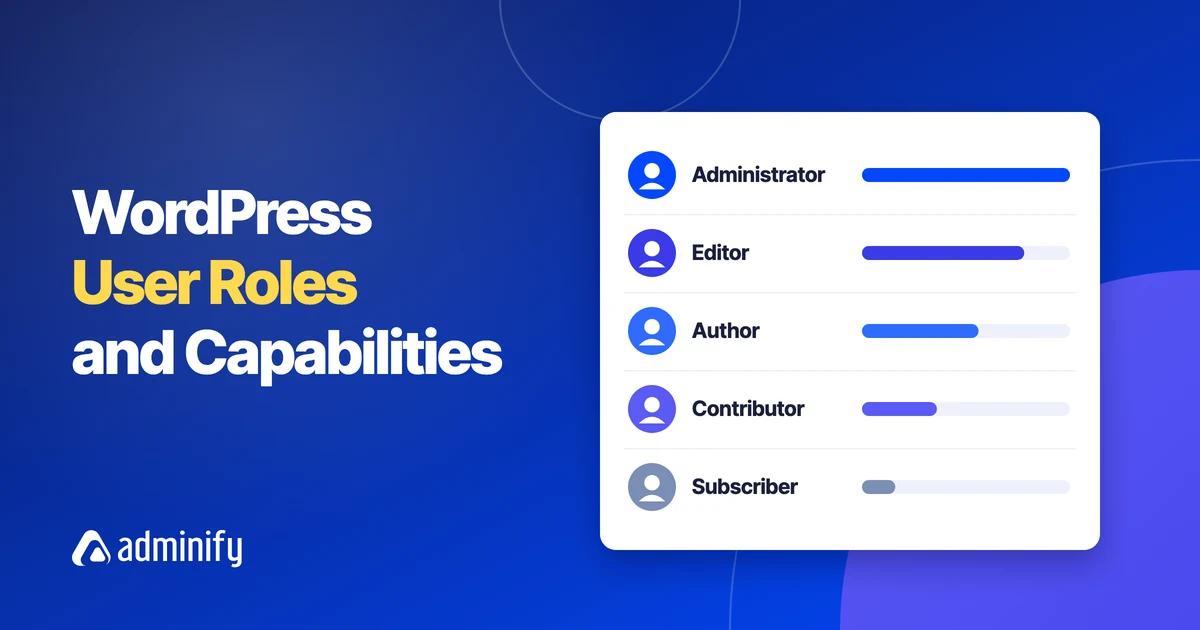
WordPress user roles decide what each person can do on your site, from writing a draft to installing plugins. Every role is a list of capabilities such as edit_posts or manage_options, and WordPress checks those capabilities before it shows a menu or saves a change. A fresh single site gives you five roles, and Multisite adds a sixth.
Below you will find all six default roles, a capability matrix you can scan in one minute, and advice on which role fits clients, writers and shop managers. You will also see how to change roles with a user role editor or with code, plus per-role menus, login redirects, activity tracking and account tasks. The screenshots come from a WordPress 7.1 test site with WP Adminify 4.3.4 and one custom role called Client Manager.
TL;DR: WordPress User Roles in Short
WordPress has six default user roles. Super Admin runs a Multisite network. Administrator controls one site. Editor manages all posts and pages. Author publishes their own posts. Contributor writes drafts but cannot publish. Subscriber can only read and edit their profile.
Some more facts about roles:
- Roles are not ranks. The WordPress.org handbook says one role should not be seen as senior to another; roles describe responsibilities.
- A role is only its list of capabilities. You can add or remove single capabilities on any role, or create a new role with your own list.
- Role changes are saved in the database. Code that changes a role should run once, not on every page load.
- For clients, a custom role cloned from Editor is often safer than Administrator.
- Plugins add their own roles. WooCommerce, for example, adds Customer and Shop manager.
Whatever the site, give each person the lowest role that lets them do their job.
What Are WordPress User Roles and Capabilities?
A capability is one permission, such as publish_posts or upload_files. A role is a named group of capabilities, such as Author. Each user gets one or more roles, and WordPress checks the user's capabilities, not the role name, every time they try to do something.
When a plugin wants to know whether someone may change its settings, it usually calls current_user_can( 'manage_options' ). It does not ask "is this an Administrator?" So if you give manage_options to another role, that role can reach those settings too. The same rule means a careless capability change can give a role access you did not intend.
WordPress keeps the full list of roles in one database option. With the default table prefix, the option is called wp_user_roles in the wp_options table. The role a user has is stored in their user meta. Because the data lives in the database, role changes stay in place after you deactivate the plugin or remove the code that made them.
WordPress user levels (the old system)
Before roles, WordPress used user levels from 0 to 10. Roles and capabilities replaced them in WordPress 2.0, and core code still shows the notice "Usage of user levels is deprecated. Use capabilities instead." For backward compatibility, WordPress still adds level capabilities to the default roles:
| Role | Level capabilities stored |
|---|---|
| Administrator | level_0 to level_10 |
| Editor | level_0 to level_7 |
| Author | level_0 to level_2 |
| Contributor | level_0 to level_1 |
| Subscriber | level_0 |
You will see these level_ entries in any role editor. Leave them alone. Old plugins may still check them, and new code should always check a real capability instead.
The 6 Default WordPress User Roles
The six default WordPress user roles are Super Admin, Administrator, Editor, Author, Contributor and Subscriber. Super Admin appears only on Multisite. On a single site, the Administrator has every capability. Each role below it has fewer capabilities, down to Subscriber, which can only read.
| Role | Slug | What the role can do | Typical person |
|---|---|---|---|
| Super Admin | (network level) | Everything, plus creating sites and managing the Multisite network | Network owner |
| Administrator | administrator | All admin features of one site: plugins, themes, users, settings | Site owner, developer |
| Editor | editor | Publish and manage all posts and pages, including other users' posts; moderate comments; manage categories | Content manager |
| Author | author | Write, publish, edit and delete their own posts; upload files | Staff writer |
| Contributor | contributor | Write and edit their own posts, but not publish them or upload files | Guest writer |
| Subscriber | subscriber | Read the site and manage their own profile | Member, commenter |
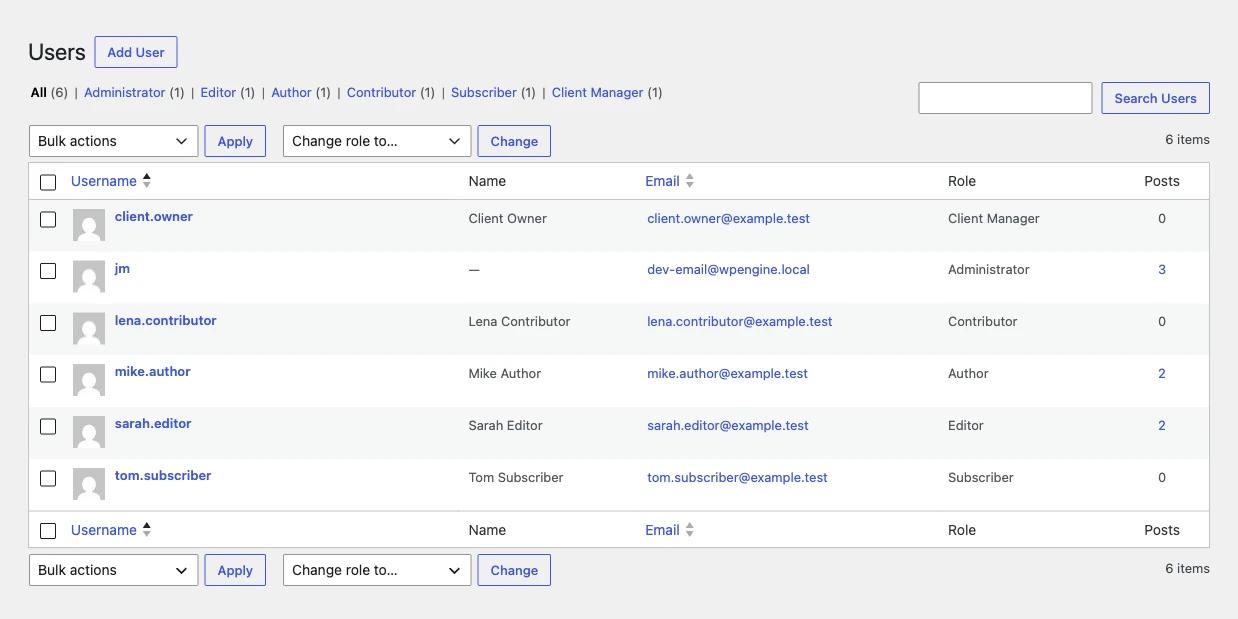
The Users screen shows how many people have each role. The links above the table filter the list by role. Custom roles appear there too, like the Client Manager role on our test site.
Administrator on single site vs Multisite
On a single site, the Administrator is in practice a Super Admin. On Multisite, a site Administrator loses some powers to the Super Admin: updating core, installing or deleting plugins and themes, editing plugin and theme files, creating or editing users, and unfiltered_html. Editors also lose unfiltered_html on Multisite, which means WordPress filters some HTML tags out of their posts.
WordPress Capabilities Matrix: What Each Role Can Do
This matrix lists the main WordPress capabilities for each default role and follows the official Roles and Capabilities page on WordPress.org. "Single" means the Administrator has the capability only on a single site, because on Multisite it belongs to the Super Admin. Read across a row to see where each role stops.
| Capability | Super Admin | Administrator | Editor | Author | Contributor | Subscriber |
|---|---|---|---|---|---|---|
manage_network, create_sites | Yes | No | No | No | No | No |
install_plugins, update_plugins | Yes | Single | No | No | No | No |
install_themes, edit_themes | Yes | Single | No | No | No | No |
update_core | Yes | Single | No | No | No | No |
create_users, edit_users, delete_users | Yes | Single | No | No | No | No |
activate_plugins | Yes | Yes | No | No | No | No |
manage_options | Yes | Yes | No | No | No | No |
switch_themes, edit_theme_options | Yes | Yes | No | No | No | No |
list_users, promote_users, remove_users | Yes | Yes | No | No | No | No |
import, export | Yes | Yes | No | No | No | No |
unfiltered_html | Yes | Single | Single | No | No | No |
moderate_comments | Yes | Yes | Yes | No | No | No |
manage_categories | Yes | Yes | Yes | No | No | No |
edit_others_posts, delete_others_posts | Yes | Yes | Yes | No | No | No |
edit_pages, publish_pages | Yes | Yes | Yes | No | No | No |
read_private_posts, read_private_pages | Yes | Yes | Yes | No | No | No |
publish_posts | Yes | Yes | Yes | Yes | No | No |
edit_published_posts, delete_published_posts | Yes | Yes | Yes | Yes | No | No |
upload_files | Yes | Yes | Yes | Yes | No | No |
edit_posts, delete_posts | Yes | Yes | Yes | Yes | Yes | No |
read | Yes | Yes | Yes | Yes | Yes | Yes |
Source: Roles and Capabilities, WordPress.org Documentation (last updated 2 September 2026). Two capabilities sit outside the table. unfiltered_upload is given to no role by default, not even Super Admin, until you define ALLOW_UNFILTERED_UPLOADS in wp-config.php. And plugins register their own capabilities, which you only see in a role editor.
In the matrix, Authors can upload files but Contributors cannot, so a guest writer cannot add images to their own draft. Editors can publish pages but cannot touch plugins, themes or settings, and no default role sits between Editor and Administrator. That gap is wide.
How to Assign a Role to a WordPress User
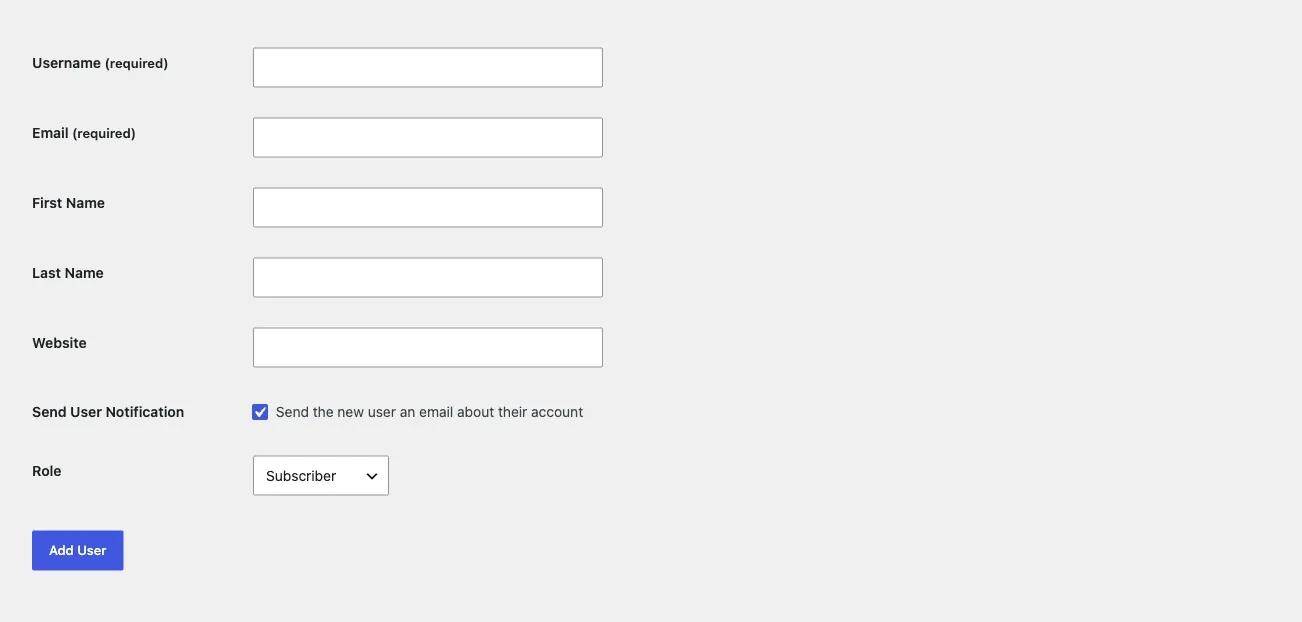
You assign a role in three places: the Role dropdown on Users > Add User, the Role field on a user's profile, and the "Change role to..." bulk action on the Users list. New sign-ups get the default role set in Settings > General under New User Default Role.
- Go to Users > Add User.
- Fill in Username and Email. Name, Website and Password are optional.
- Choose the role in the Role dropdown. Start low; you can raise it later.
- Click Add User.
To change many users at once, tick them on the Users list, pick a role from Change role to... and click Change. Check your registration setting too. If "Anyone can register" is on in Settings > General, the New User Default Role should be Subscriber (or Customer on a WooCommerce store). In WordPress 7.1 that dropdown no longer offers Administrator or Editor, which blocks a common mistake.
Which Role Should You Give Clients, Writers and Shop Managers?
Give each person the lowest role that covers their real tasks. Writers who need review get Contributor. Trusted writers get Author. Content leads get Editor. Store staff on WooCommerce get Shop manager. Clients who only edit content usually do best with a custom role cloned from Editor, not Administrator.
| If the person... | Give them | Why |
|---|---|---|
| Writes guest posts that you review | Contributor | Can draft but not publish or upload |
| Writes and publishes their own posts | Author | Publishes and uploads, cannot touch others' posts |
| Manages all content and comments | Editor | All posts and pages, no plugins or settings |
| Runs orders and products on WooCommerce | Shop manager | Store capabilities plus Editor-like content rights |
| Is a client who edits pages and needs a few extra screens | Custom role cloned from Editor | Add only the capabilities they need |
| Builds or maintains the site | Administrator | Needs plugins, themes and settings |
| Only reads members content or comments | Subscriber | One capability: read |
Clients
Many agencies hand clients an Administrator account because it is quick. The risk is that the client can deactivate plugins, change the theme or delete users. A better pattern is the one on our test site: a Client Manager role, cloned from Editor, with one or two extra capabilities. For example, adding edit_theme_options lets them edit menus and widgets without giving them plugin access.
Writers
Use Contributor for new or outside writers. Remember that Contributors cannot upload images. If that slows your team down, add upload_files to the Contributor role, or move trusted writers to Author.
Shop managers
WooCommerce adds two roles when you install it. Customer has only read. Shop manager gets most Editor capabilities plus export, import, list_users, edit_theme_options and the WooCommerce store capabilities. Shop managers cannot install plugins or change general settings.
How to Edit a Role's Capabilities
To edit a role's capabilities, pick the role in a role editor, tick or untick capabilities, and save. WordPress has no screen for this, so you use a plugin or code. Back up the database first, change one capability at a time, and test while logged in as a user with that role.
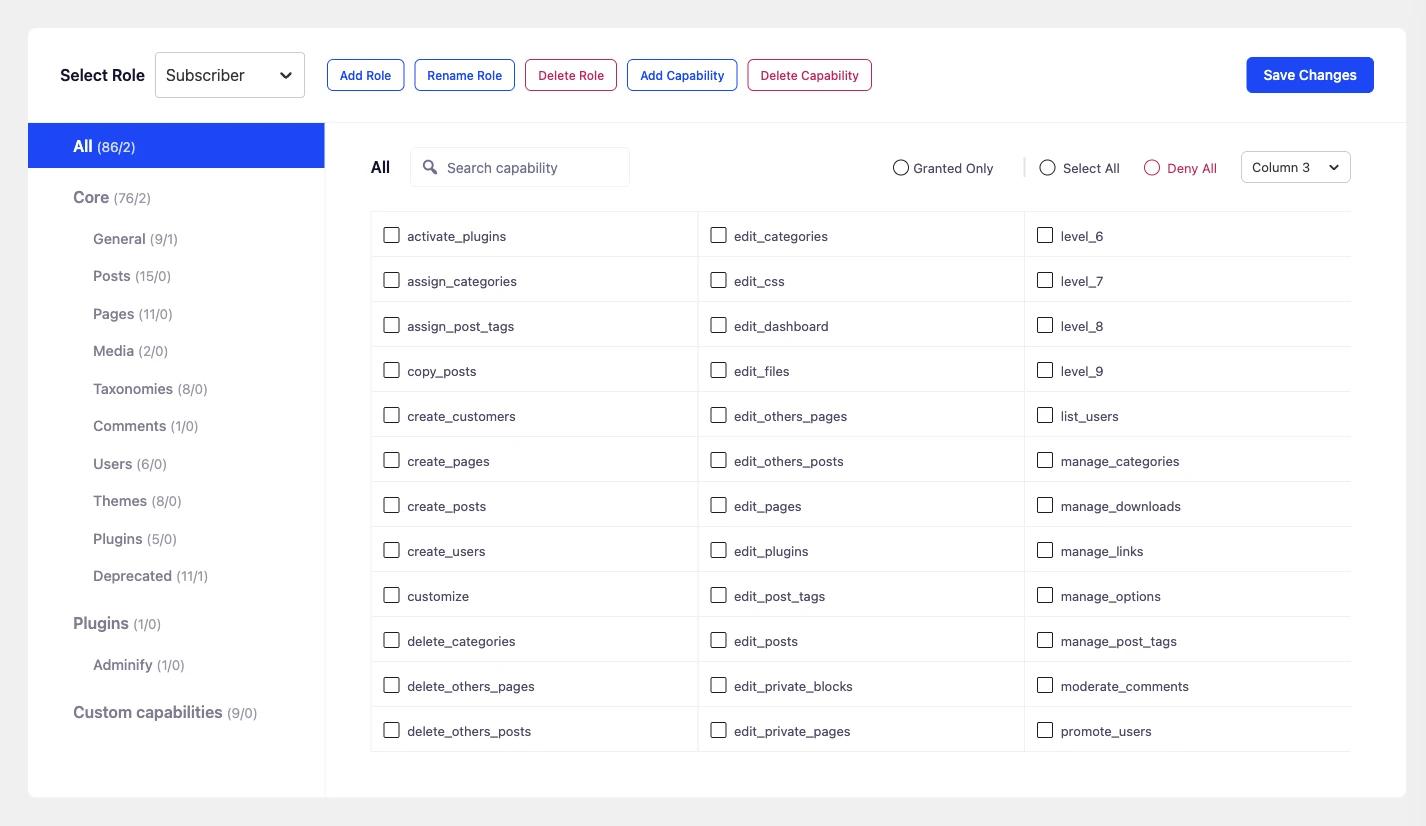
WP Adminify's companion plugin for this job is WP Adminify's RoleMaster Suite. It is free on WordPress.org (600+ active installs on 9 November 2026). When WP Adminify is active, it appears at Adminify > User Role Editor. Without WP Adminify, it gets its own Rolemaster Suite menu item.
- Open Adminify > User Role Editor.
- Choose a role in Select Role.
- Use the left column to jump to a group: Core (General, Posts, Pages, Media, Taxonomies, Comments, Users, Themes, Plugins, Deprecated), Plugins, or Custom capabilities.
- Tick Granted Only to see what the role has now, or search for a capability by name.
- Tick or untick capabilities, then click Save Changes.
The toolbar also has Add Role, Rename Role, Delete Role, Add Capability and Delete Capability. Be careful with Delete Capability: in RoleMaster Suite 1.1.5 it removes the selected capability from every role on the site, including roles you did not select.
With code, use get_role() and the add_cap() and remove_cap() methods. Run it once, because the change is saved to the database:
1
2// Run once, for example on plugin activation.
3function myplugin_adjust_roles() {
4    $contributor = get_role( 'contributor' );
5    if ( $contributor ) {
6        $contributor->add_cap( 'upload_files' );
7    }
8
9    $editor = get_role( 'editor' );
10    if ( $editor ) {
11        $editor->remove_cap( 'delete_others_pages' );
12    }
13}
14register_activation_hook( __FILE__, 'myplugin_adjust_roles' );
15
How to Create a Custom User Role in WordPress
To create a custom user role, give it a name, an ID and a list of capabilities. In RoleMaster Suite, click Add Role and fill in Display Role Name, Role name (ID) and Make copy of. In code, call add_role() once, usually when your plugin is activated, because WordPress saves the new role to the database.
The Make copy of field is the fastest route. Copy Editor, then add or remove a few capabilities. That is how the Client Manager role on our test site was made. RoleMaster Suite adds the prefix rolemaster_ to the role ID it saves, so a role named client_manager is stored as rolemaster_client_manager. If you create a role without copying another one, it starts with only the read capability.
The code version uses add_role() on activation and remove_role() on deactivation, so you don't leave an unused role behind:
1
2// Create the role once, when the plugin is activated.
3function myplugin_add_client_role() {
4    $editor = get_role( 'editor' );
5
6    add_role(
7        'client_manager',
8        'Client Manager',
9        array_merge(
10            $editor ? $editor->capabilities : array( 'read' => true ),
11            array( 'edit_theme_options' => true )
12        )
13    );
14}
15register_activation_hook( __FILE__, 'myplugin_add_client_role' );
16
17// Remove it when the plugin is deactivated.
18function myplugin_remove_client_role() {
19    remove_role( 'client_manager' );
20}
21register_deactivation_hook( __FILE__, 'myplugin_remove_client_role' );
22
add_role() does nothing if the role already exists, so to change a role later, use add_cap() or remove and re-add it. Also, users who had a removed role keep the role slug in their user meta but lose its capabilities, so move them to another role before you delete one.
How to Show Different Admin Menus and Dashboards per Role
Roles control what a user may do, but WordPress still shows every menu item their capabilities allow. To show a simpler admin to a role, hide menu items for that role with an admin menu editor. Hiding an item is a display change. Remove the capability as well if the user must not reach the screen.
In the WP Adminify Admin Menu Editor, open Adminify > Admin Menu, expand a menu item and use Hidden For Roles or Users. The same panel lets you rename an item (Rename as), change its link and icon, and reorder items by drag and drop. A Client Manager can then see Pages, Media and Menus and nothing else, while you still see the full menu.
On client sites, use both: remove the capability so the user cannot open the screen, and hide the menu item so they do not see it.
How to Redirect Users After Login by Role
By default WordPress sends most users to the dashboard after login. A login redirect by role sends each role to a better page: Subscribers to a members area, Authors to the Posts list, Shop managers to Orders. You set it with a plugin or with the login_redirect filter.
WP Adminify has this in Adminify > Security > Redirect URLs, on the Roles Redirect tab. You add login and logout redirect rules by user, by role or by capability. The other tab, Login/Register URL, changes the login address itself. On our test site, a New Login URL of client-login made /wp-login.php return a 404. Both tabs are part of WP Adminify Login URL and Redirects.
The code version for one role looks like this:
1
2add_filter( 'login_redirect', function ( $redirect_to, $requested, $user ) {
3    if ( $user instanceof WP_User && in_array( 'subscriber', (array) $user->roles, true ) ) {
4        return home_url( '/members/' );
5    }
6    return $redirect_to;
7}, 10, 3 );
8
How to Track What Users Do
WordPress does not keep a log of user actions. It records who wrote a post and keeps revisions, but not who changed a setting, deleted a page or activated a plugin. To track actions by user and role, you need an activity log plugin that records logins and changes.
On a site with several users, an activity log tells you who changed what. WP Adminify offers an Activity Logs addon that tracks user actions, logins and changes to posts, widgets, menus, comments and media. Other options include WP Activity Log and Simple History. Whichever you use, check the log after you change roles. The log quickly shows whether a new role is doing more than you planned.
Account Tasks: Username, Email and Password
Users can change their own email, password and display name on their profile page. Administrators can change these for any user on single sites. The username is different: WordPress shows "Usernames cannot be changed." on the profile screen, so you need a plugin, WP-CLI or a database edit to rename a user.
- Email: Users > Profile. When you change your own email, WordPress sends a confirmation link to the new address before it switches.
- Password: Users > Profile > Set New Password, or "Send Reset Link" on another user's profile.
- Username: not editable in core. WP Adminify Admin Security includes a username change option on the Security tab, next to the login URL, header clean-up and REST API controls.
- Delete a user: if the user owns content, WordPress asks whether to delete it or attribute it to another user. Attribute it unless you really want it gone.
Never share one Administrator login between several people. Give each person their own account with the right role. It makes the activity log useful, and you can remove one person without changing everyone's password.
How to Export Your WordPress User List
WordPress has no built-in user export. Tools > Export only offers content (All content, Posts, Pages, Media). To export users with their roles, use WP-CLI, a users export plugin, or a database query. WP-CLI is the quickest if your host gives you SSH access.
1
2wp user list --fields=ID,user_login,user_email,roles --format=csv > users.csv
3
The command writes one row per user with their roles. Add --role=editor to export only one role. Keep the file safe, because email addresses are personal data. WP Adminify 4.3.4 has no users export of its own.
Frequently Asked Questions
How many user roles does WordPress have?
WordPress has six default user roles: Super Admin, Administrator, Editor, Author, Contributor and Subscriber. Super Admin exists only on Multisite, so a normal single site shows five. Plugins such as WooCommerce add more, for example Customer and Shop manager.
What is the difference between a role and a capability?
A capability is a single permission, such as publish_posts. A role is a named set of capabilities, such as Author. WordPress checks capabilities when a user acts, so two roles with the same capabilities behave the same way even if their names differ.
Can a WordPress user have more than one role?
Yes. WordPress supports several roles per user in code, and the user gets the combined capabilities. The default profile screen shows only one Role field, so you need code or a plugin to add a second role.
Which role should I give a client?
Give a client the lowest role that covers their tasks. For most content-only clients, a custom role cloned from Editor with one or two extra capabilities works well. Avoid Administrator unless the client must manage plugins, themes and settings.
Are WordPress user levels still used?
No. User levels were replaced by roles and capabilities in WordPress 2.0 and are deprecated. Core still stores level_0 to level_10 on the default roles so very old plugins keep working, but new code should check capabilities.
Do role changes stay after I remove the plugin or code?
Yes. Roles and capabilities live in the wp_user_roles option in the database. Deactivating a role editor or deleting your code does not undo the change. Remove the role or capability on purpose, or restore a database backup.
Can an Editor install plugins?
No. The Editor role has no plugin, theme, user or settings capabilities. If an Editor must manage one plugin's screens, add only the capability that plugin checks and keep the user on the Editor role.
Final Thoughts
WordPress user roles are simple once you see them as lists of capabilities. Six default roles cover most sites: Super Admin on Multisite, then Administrator, Editor, Author, Contributor and Subscriber, which has only read. Pick the lowest role that fits, clone Editor for clients, and remember that every role change is saved in the database. Hide menus and redirect logins by role so each account opens on the screens that user needs. When you are ready to change capabilities without code, try the RoleMaster Suite feature on a staging site first.

Your email address will not be published