



It’s an evergreen problem for WordPress administrators to add code to WordPress Header or Footer.
You will get a lot of freemium plugins available in the market that do this job properly. But the question is, why do you need to depend on a plugin always if there is a good solution already available?
My first choice is to add code to WordPress Header is Google Tag Manager. This is one of the most underrated but powerful tools available in the market, which offers so much at no cost.
If you don’t prefer the Google Tag Manager, just skip to the next section of this content. I have sharedd a total of 10+ ways on how you can add code in the WordPress header or Footer area.
Add Code to WordPress Header with Google Tag Manager
Setting up Google Tag Manager for your Website is super easy. If you haven’t tried this yet, just read this simple documentation by Google, and you can do it within a few minutes.
If you are confused about the installation of Google Tag Manager, then don’t skip this post, at the last of this post I have shared the easiest way to install Google Tag Manager in your WordPress Website.
After setting up your website in Google Tag Manager, you will get a Custom HTML tag in the tag manager type listing. With the help of Custom HTML, you can insert code in your WordPress Header. Also, there are a few header security settings available in WP Adminify.
Limitations of GTM (Google Tag Manager)
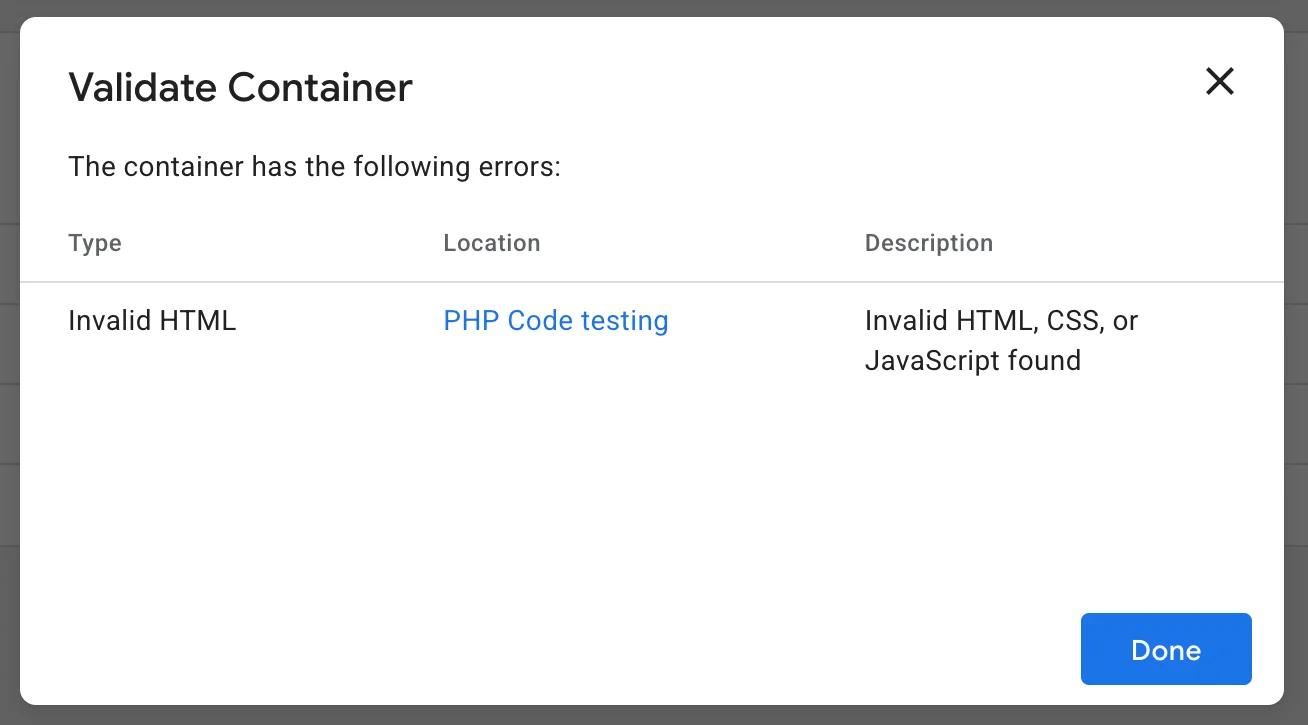
Let’s talk about the limitation first. You can’t insert any PHP code from GTM. As soon as you try to add a PHP Code via this Custom HTML, you will get an error like the following screenshot while previewing or deploying your tag.
Best use of GTM for Adding Code in WordPress
You can add the following code easily with the help of GTM.
- HTML
- CSS
- JavaScript
Though the list seems very short but it’s too powerful and can do the best job for you. Most of the tracking, analytics, advertising, and security verification offer JavaScript code. I think that’s the reason why people search for adding code to WordPress header keyword. If you are someone who is searching for something different, feel free to comment.
Let’s explore some real use cases of GTM in my WordPress Website.
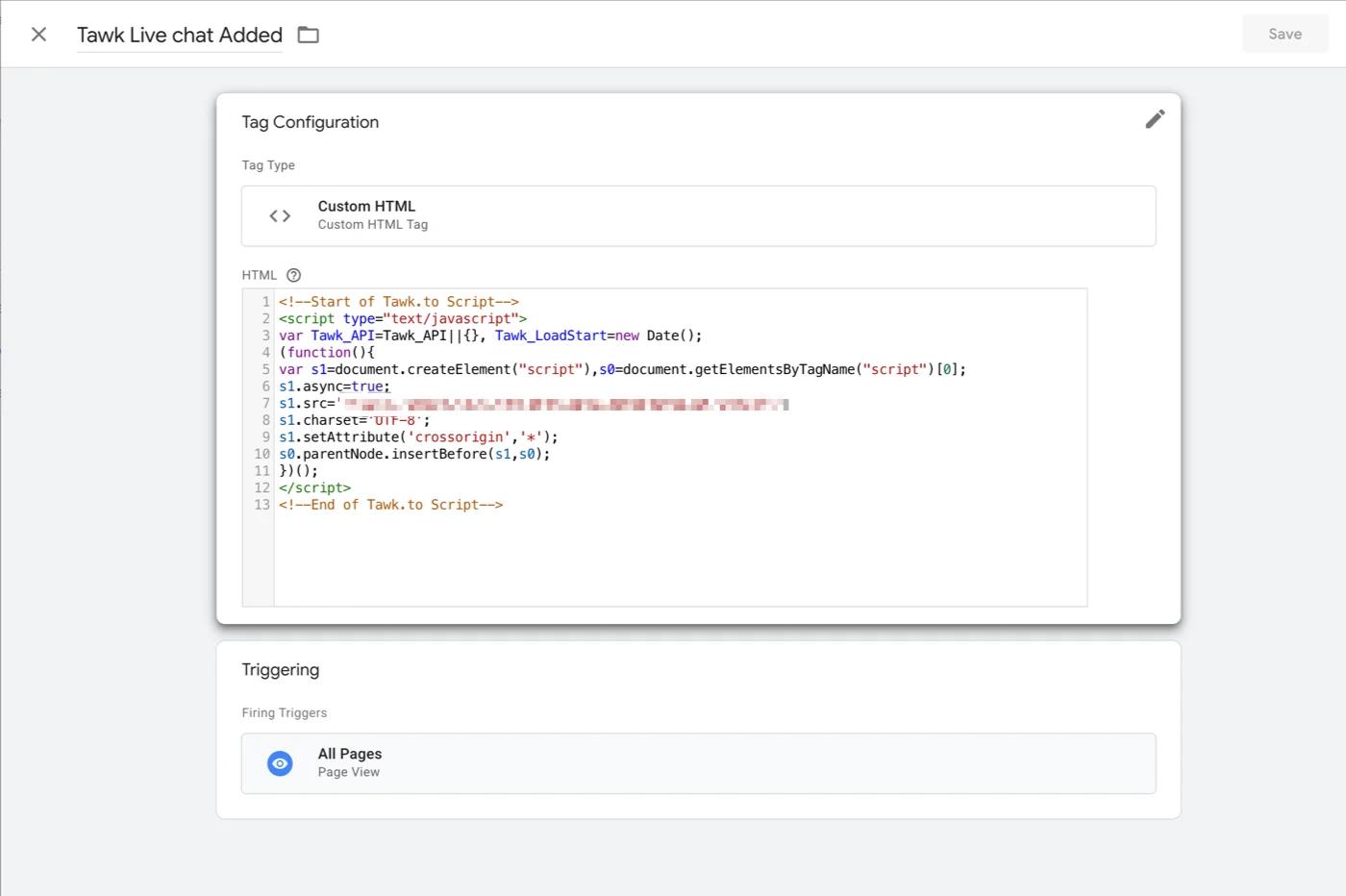
In the following screenshot, you can notice that I have integrated a live chat service for my website with the help of GTM. I used to copy and paste the code in my theme's header.php file 2 years ago.
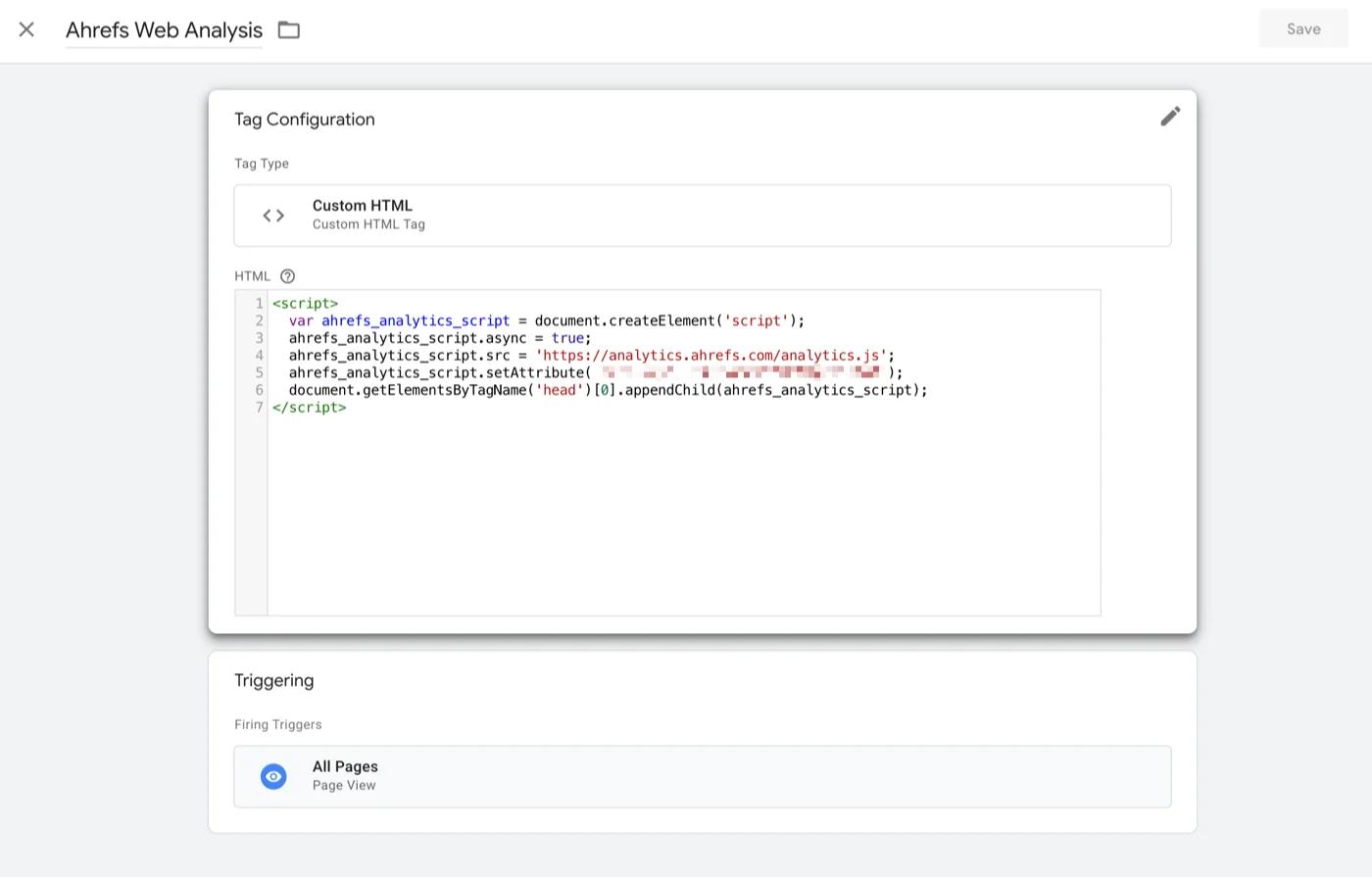
Here is another example of my Ahrefs tracking code. I have added my Ahrefs tracking code in my website with the help of GTM.
How to add Code in the header with GTM?
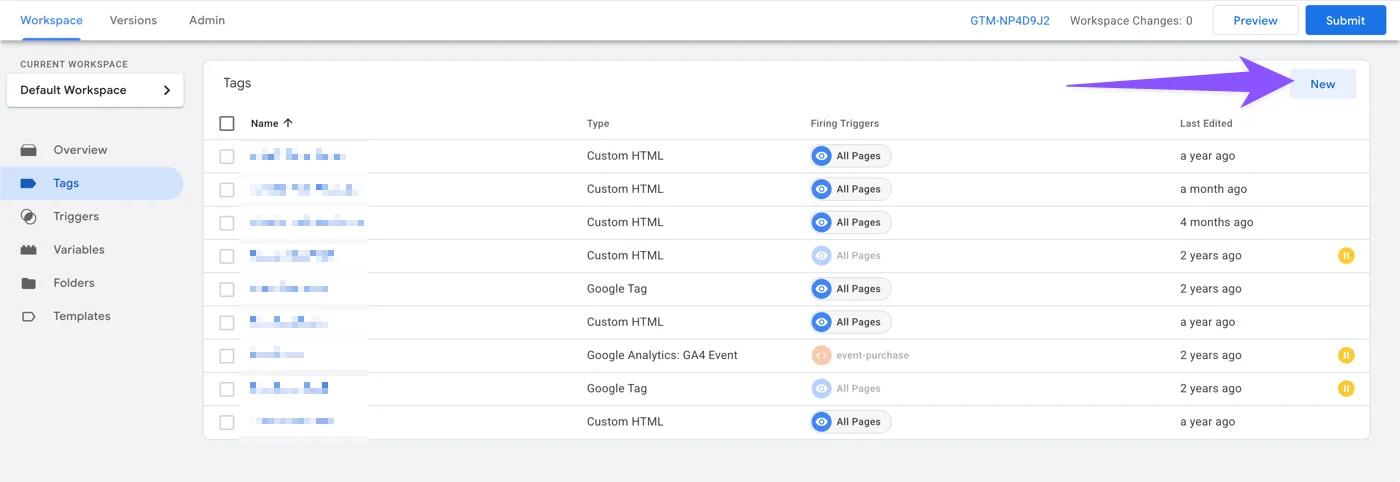
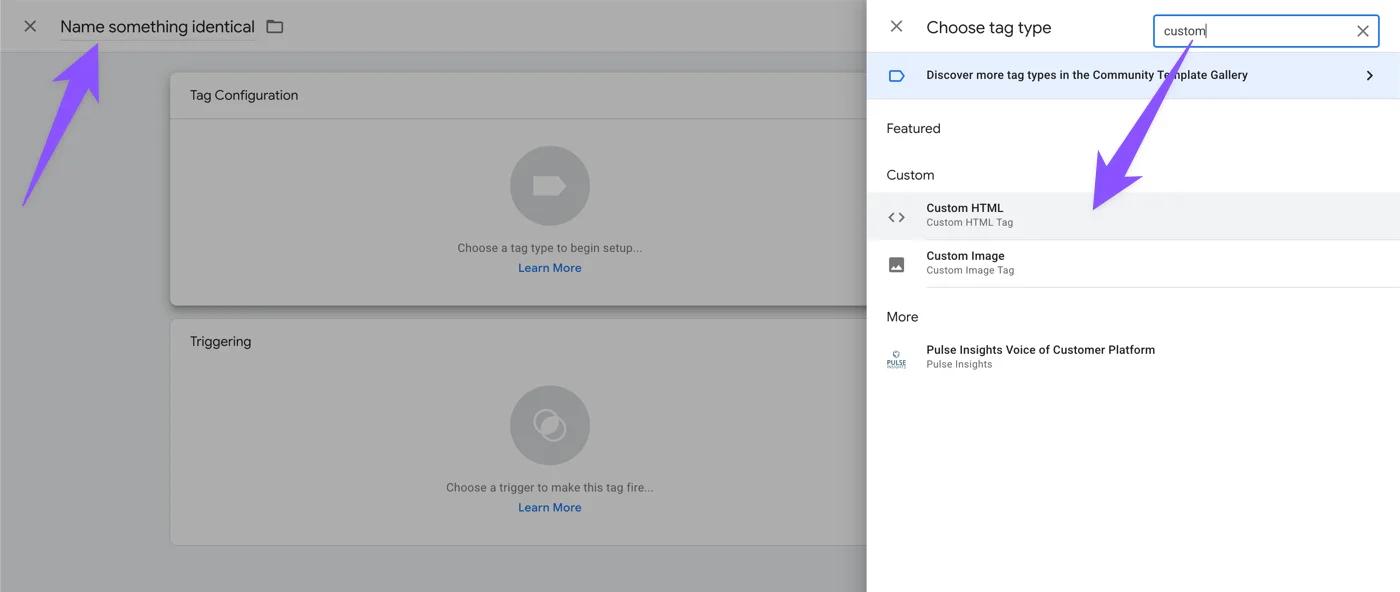
Navigate to Tags > New and name your tag something identical so that you can understand the use of your tag in the future. Believe me, it’s necessary; otherwise, you may mix up things.
Now, click on Tag Configuration and search with Custom word in the tag type library. Select the custom HTML tag and you will get the field to input your code. Make sure to copy and paste the code properly.
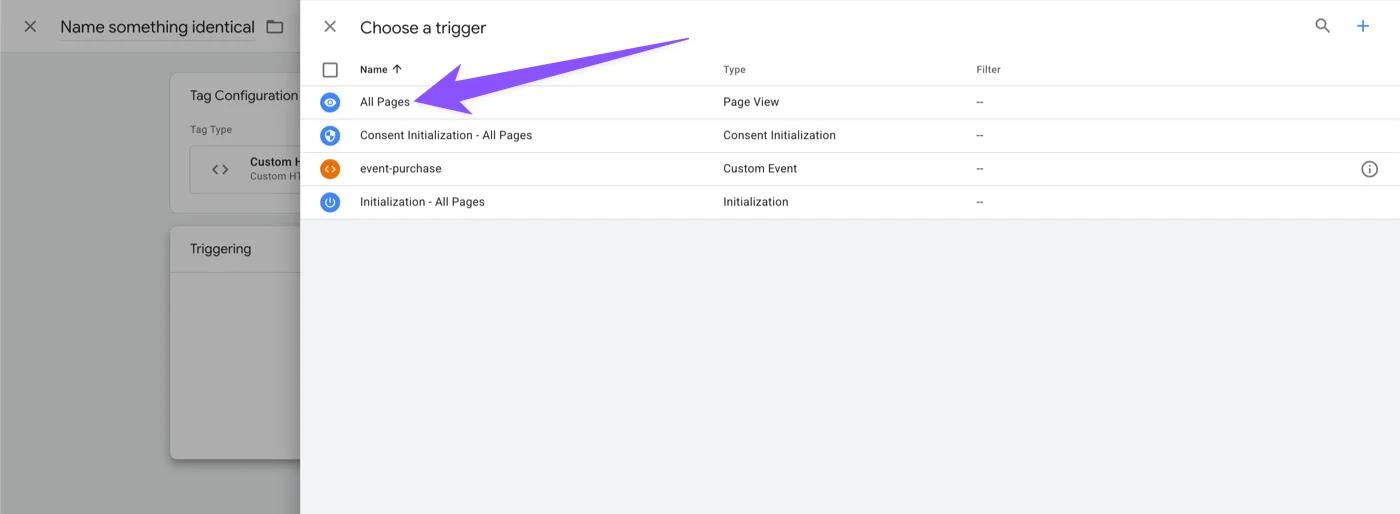
Then you have to select where you would like to trigger the Custom Code. You can select All Page if you want to run your code entier website. If there is any specific requirement and needs to trigger the code in a specific page or archive page, then create a trigger based on your requirement and apply.
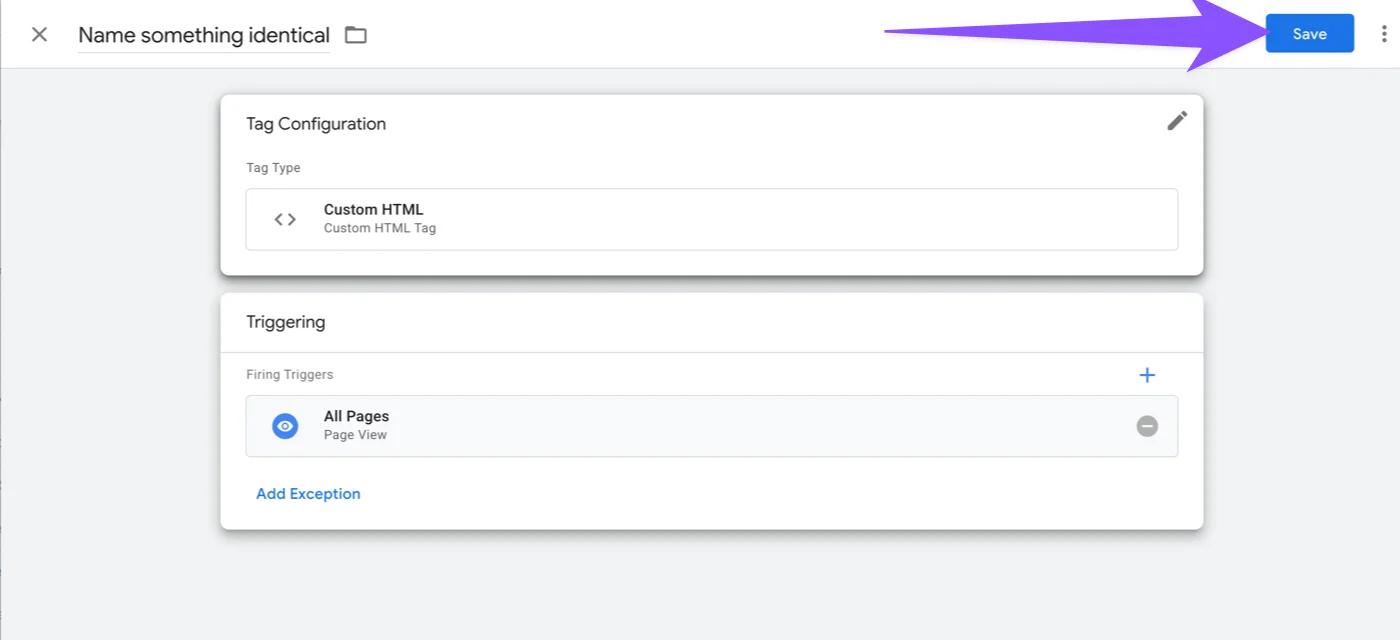
That’s all about adding code in the WordPress header with the help of GTM. Now just click on the save button and be ready to test before deploying the code.
That’s one of the most interesting parts, you can preview and check if your code is triggered properly or not, without directly implementing it in your website.
Just click on this preview button, and you will notice a popup which requests you to connect tag assistant to your website.
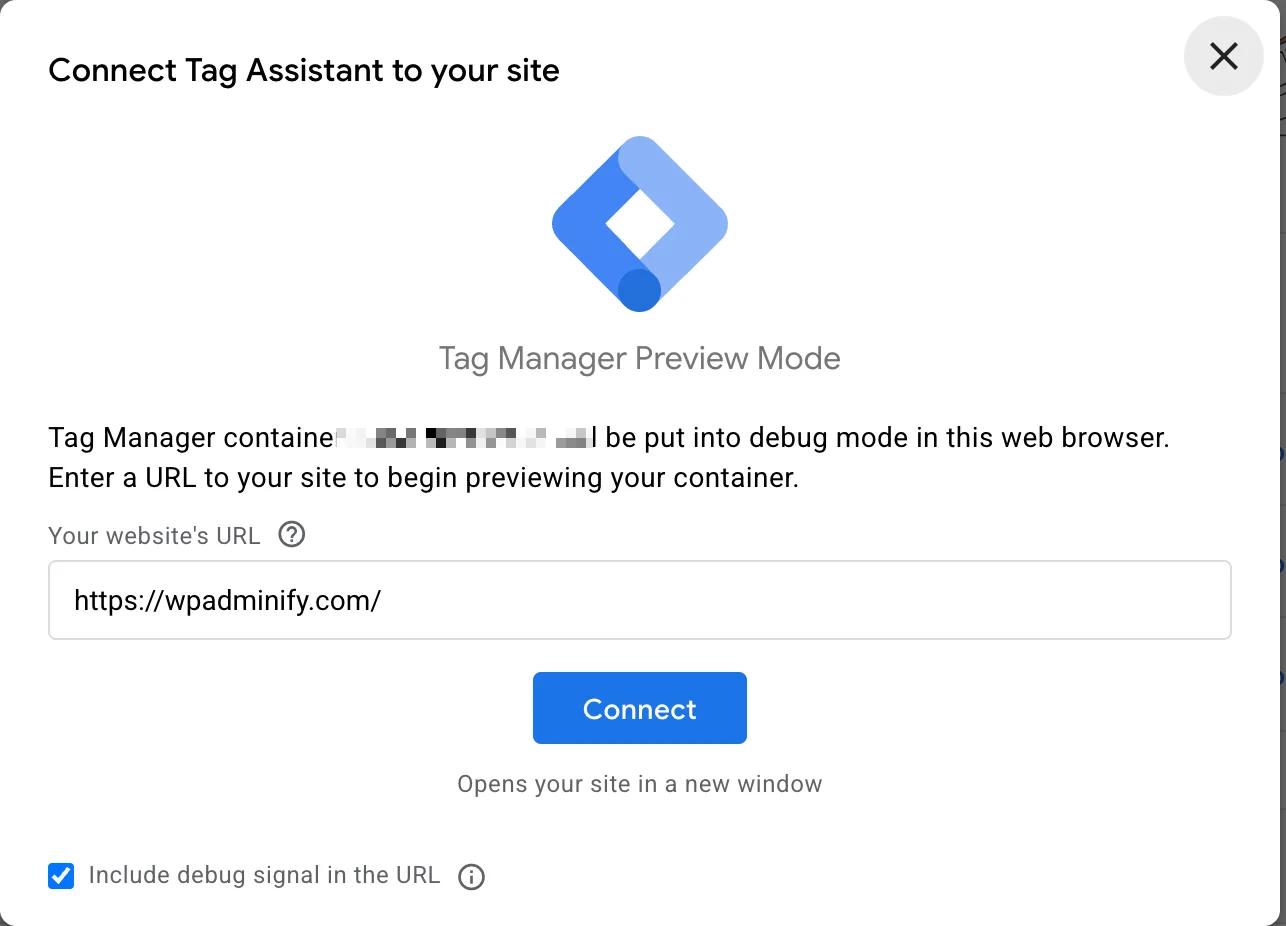
As soon as you click on Connect, you will notice your homepage opens with parameters like ?gtm_debug=yourid and you can see that the tag assistant is connected at the bottom right corner.

Now, go back to your tag assistant tab, and you will see a list of active tags that trigger on your homepage. Carefully check if your added tags are available here. If they are, that means you are done, and you need to deploy your code.
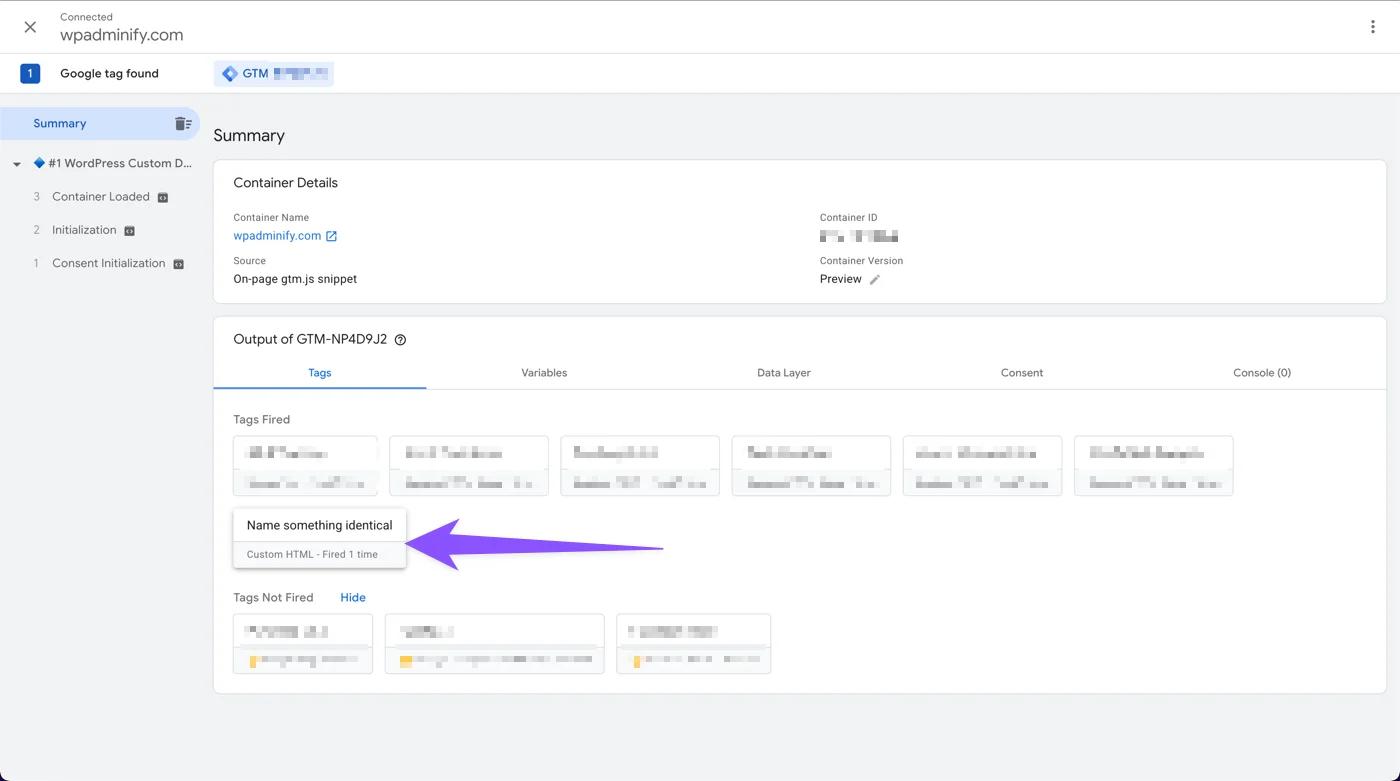
Now, click on the submit button beside preview, and you will get some options like the following screenshot. Just input whatever you have added and hit the publish button.
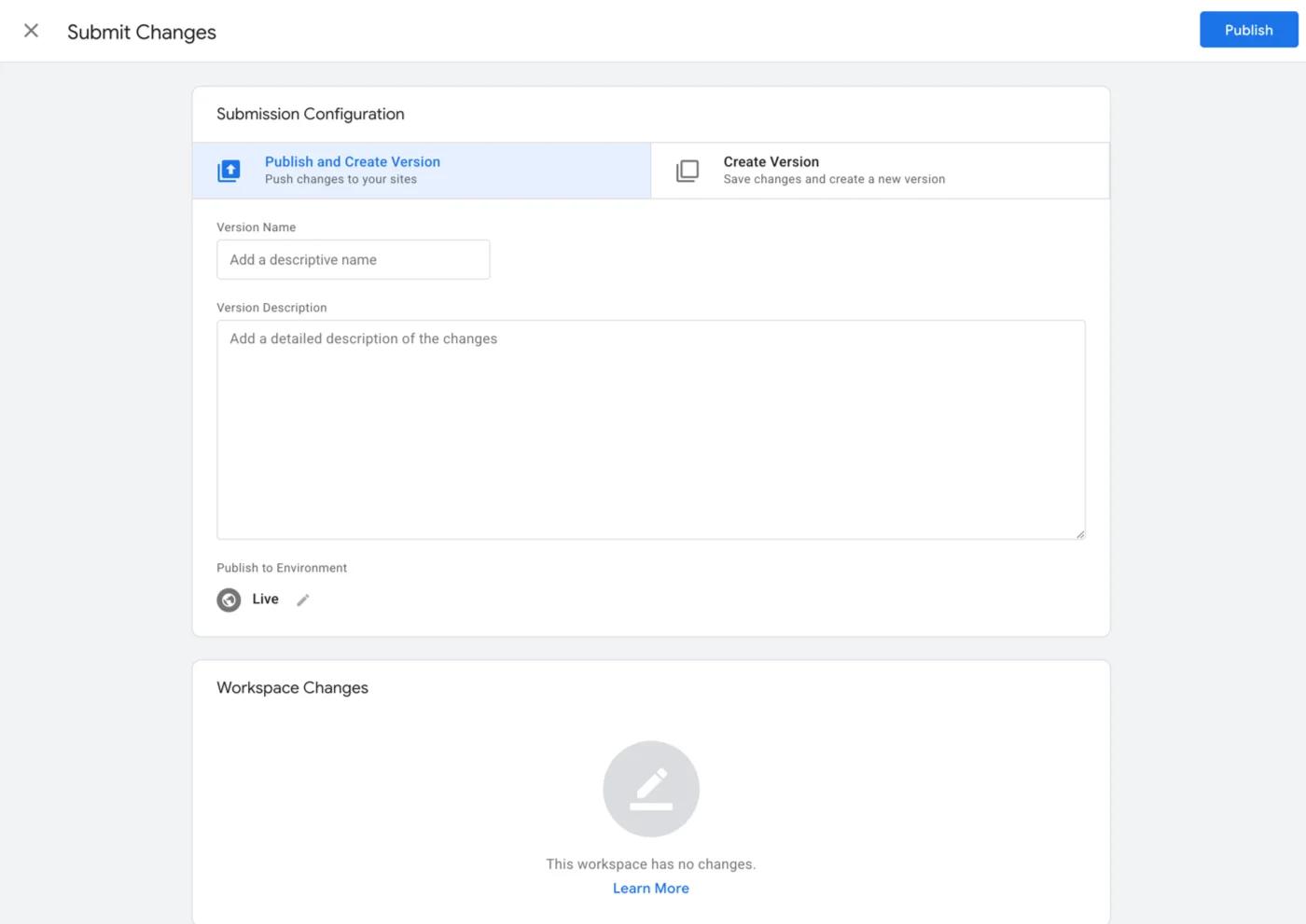
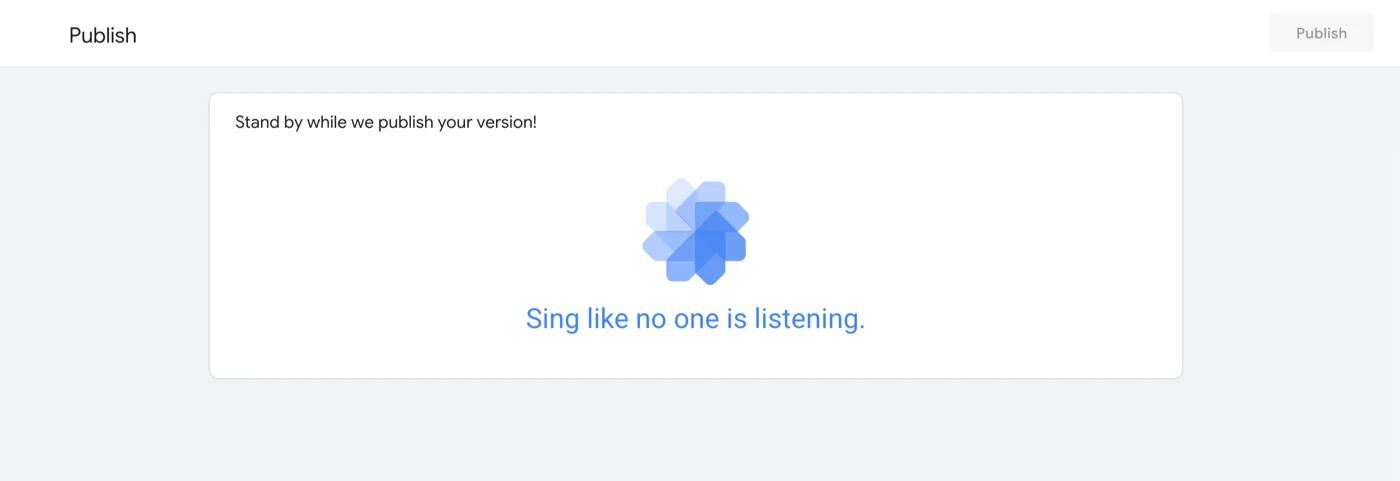
You will get a simple notice that tells you to sing like no one is listening. Within seconds, it will be published and deployed to your live website.
That’s all about adding code to the WordPress header, and it’s one of the safest ways, based on my preference.
Get Started with WP Adminify Today
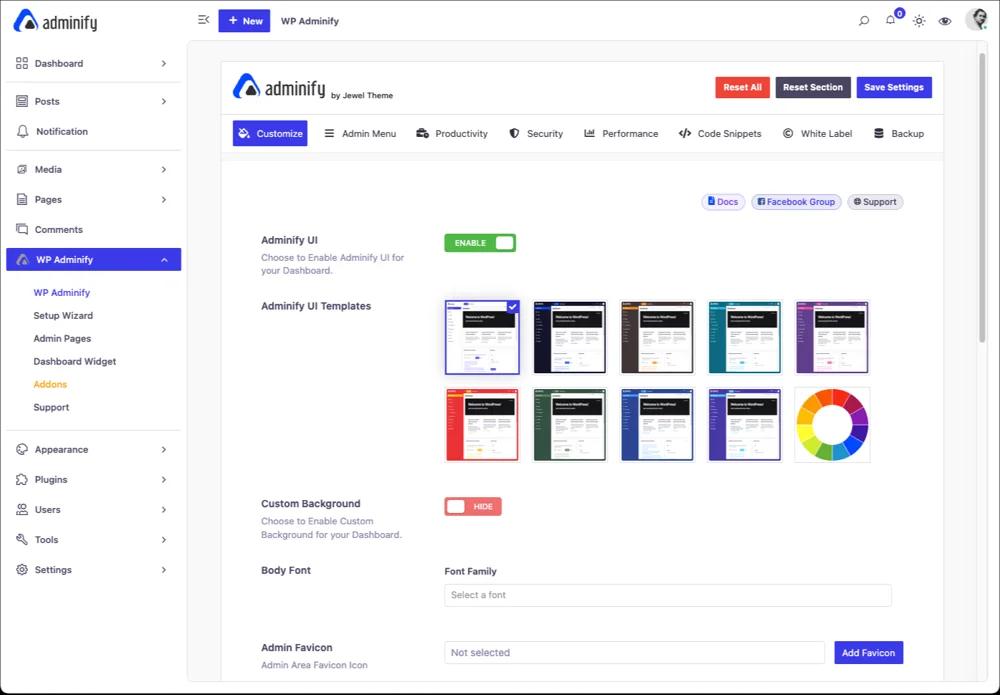
This plugin can help you to rebrand your personal or clients website and lift it to a new height of professionalism. Control Dashboard UI with White Label development.
Add Code to WordPress Header with functions.php
If you are an advanced WordPress user and know the basic functionality of WordPress, then this method is for you.
Note: Make sure you have a child theme installed in your WordPress Dashboard. If you follow my steps and do changes in your main Themes file, then as soon as you update your theme, all your customization will be vanished like they never existed. I will never recommend anyone to make changes to the main theme.
I will explain how you can add Custom CSS, JavaScript, and PHP via functions.php file.
Adding Custom CSS code in WordPress Header
There are two popular ways for adding custom CSS in WordPress header with the help of the functions.php file.
The first method is creating a CSS file and linking it to the header with the help of the functions.php file. It’s perfect for those user who needs to change CSS regularly, instead of customizing from the functions.php file - they can change it in the CSS file and it will be implemented instantly.
If your theme has and CSS folder then then just create a custom-style.css file inside the folder and paste the following code in your child themes functions.php file.
function add_custom_styles() {

    wp_enqueue_style('custom-style', get_template_directory_uri() . '/css/custom-style.css');

}

add_action('wp_enqueue_scripts', 'add_custom_styles');
Now, try to add any CSS and save the file, then reload your website to see the changes.
The second method is adding CSS code in an inline style directly to the functions.php file. This method is suitable for the user who doesn’t need to update the style regularly. To apply this, you don’t need to create any custom style file for CSS, just do all the CSS inside the <style> tag and update your functions.php file.
function add_inline_custom_styles() {
    echo '<style>
        body { background-color: #f4f4f4; }
        h1 { color: blue; }
    </style>';
}
add_action('wp_head', 'add_inline_custom_styles');
Add JavaScript code to WordPress Header
There are multiple use cases for adding JavaScript code in the WordPress header. You can add JavaScript code to a specific page, add inline JavaScript, or use an external JavaScript file to your website too.
Add JavaScript to a Specific Page
To apply your JavaScript code for a specific page, you need to identify the page ID first. To get the page ID you can navigate to the editor and look at the URL, there is a number after ?post=123. This 123 will be the page ID.
function add_js_specific_page() {
    if (is_page(42)) { // Replace 42 with your page ID
        echo '<script>
            alert("This script runs only on a specific page!");
        </script>';
    }
}
add_action('wp_head', 'add_js_specific_page');
Inside the <script> tag, write or paste your JavaScript properly. One single mistake can terminate your website; make sure to keep a backup of your functions.php file or, if possible, your entire site backup.
Add External JavaScript file via wp_enqueue_script
This is easier than before, just make sure your function name is unique, otherwise you will face a critical error in your WordPress website. Just copy and paste the following code and carefully create custom-script.js file inside the js folder (generally theme offers a js folder).
function add_custom_js() {
    wp_enqueue_script('custom-script', get_template_directory_uri() . '/js/custom-script.js', array(), '1.0', true);
}
add_action('wp_enqueue_scripts', 'add_custom_js');
Add Inline JavaScript to Header
You don’t need to enqueue anything just need to echo the script with a unique function name. For demo purposes, copy the following code and paste it inside your functions.php file.
function add_inline_js() {
    echo '<script>
        console.log("Hello from WordPress header!");
    </script>';
}
add_action('wp_head', 'add_inline_js');
Suggestion: It’s better to customize your code in a code editor like Visual Studio Code instead of directly modifying the code in your main functions.php file.
Add Custom PHP code to WordPress Header
There are different types of use cases for adding PHP Code in the WordPress header, but it depends on your choice. I will cover 3 main use cases. In short, I will use the wp_head hook to run the code in WordPress header.
Add Custom PHP Code to WordPress Header
Just like I mentioned before that your function name should always be unique. Rename my default function to something unique, then you can use the following format to insert PHP-generated content directly to your header.
function custom_header_code() {
    echo '<meta name="author" content="Your Name">';
    echo '<script>console.log("Custom script in header");</script>';
}
add_action('wp_head', 'custom_header_code');
Add logo or image to your WordPress Header
Use the get_template_directory_uri() to add any logo in your WordPress header area. This is the best use case until now.
function add_custom_logo() {
    echo '<img src="' . get_template_directory_uri() . '/images/custom-logo.png" alt="Custom Logo">';
}
add_action('wp_head', 'add_custom_logo');
Verification code via PHP in WordPress Header
Generally, people prefer JavaScript for a verification system, but there is a way to do this via PHP. Use the following code and add your verification code in the content area.
function add_tracking_code() {
    echo '<meta name="google-site-verification" content="your-verification-code">';
}
add_action('wp_head', 'add_tracking_code');
Add Code to WordPress Header with WP Adminify
Finally, I would like to mention how the WP Adminify plugin can help you to add custom CSS and JavaScript in your WordPress website.
You can add Custom CSS and JS code in both the WordPress Dashboard and the Frontend. You can take a look at our Code Snippet feature.
With the help of our Code snippet feature you can add custom CSS, JS to anywhere in your WordPress Website. You can display your code to full website, Post, Page, archive and much more. That’s not the end, you can also target a specific device plus set location - for example, Head, Before content, After Content, Footer.
Make sure to install the WP Adminify plugin and our header and Footer Code snippet addon properly.
Now navigate to WP Adminify > Code Snippets > Frontend scripts. You will notice an interface like the following screenshot. Now, click on the Add New snippet button.
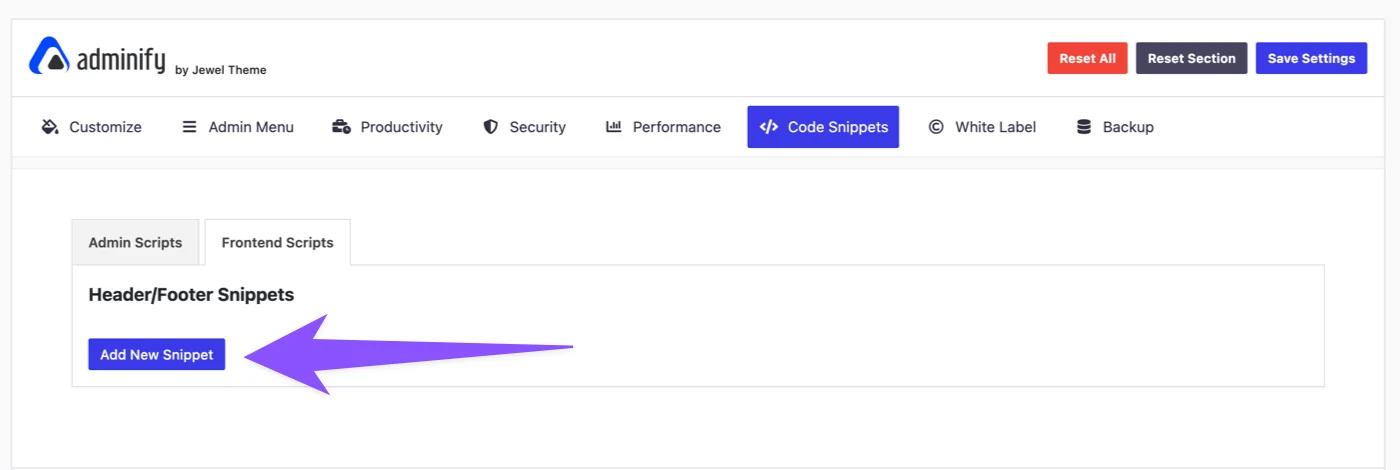
This is the main option panel for adding custom Code to the WordPress header with the WP Adminify plugin. You can define whether your code is CSS or JS, then input the title of your code (helps you identify from 100+ snippets).
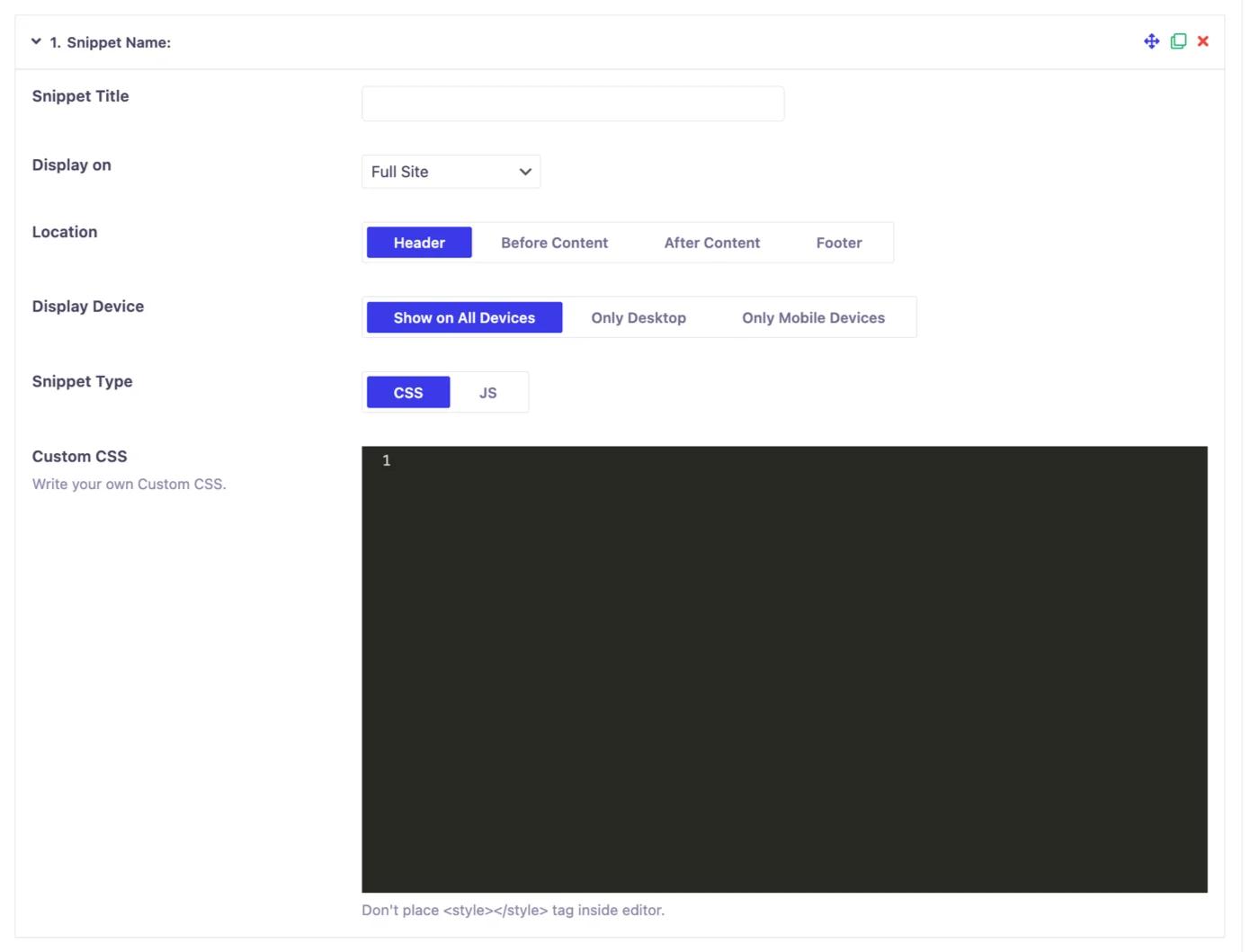
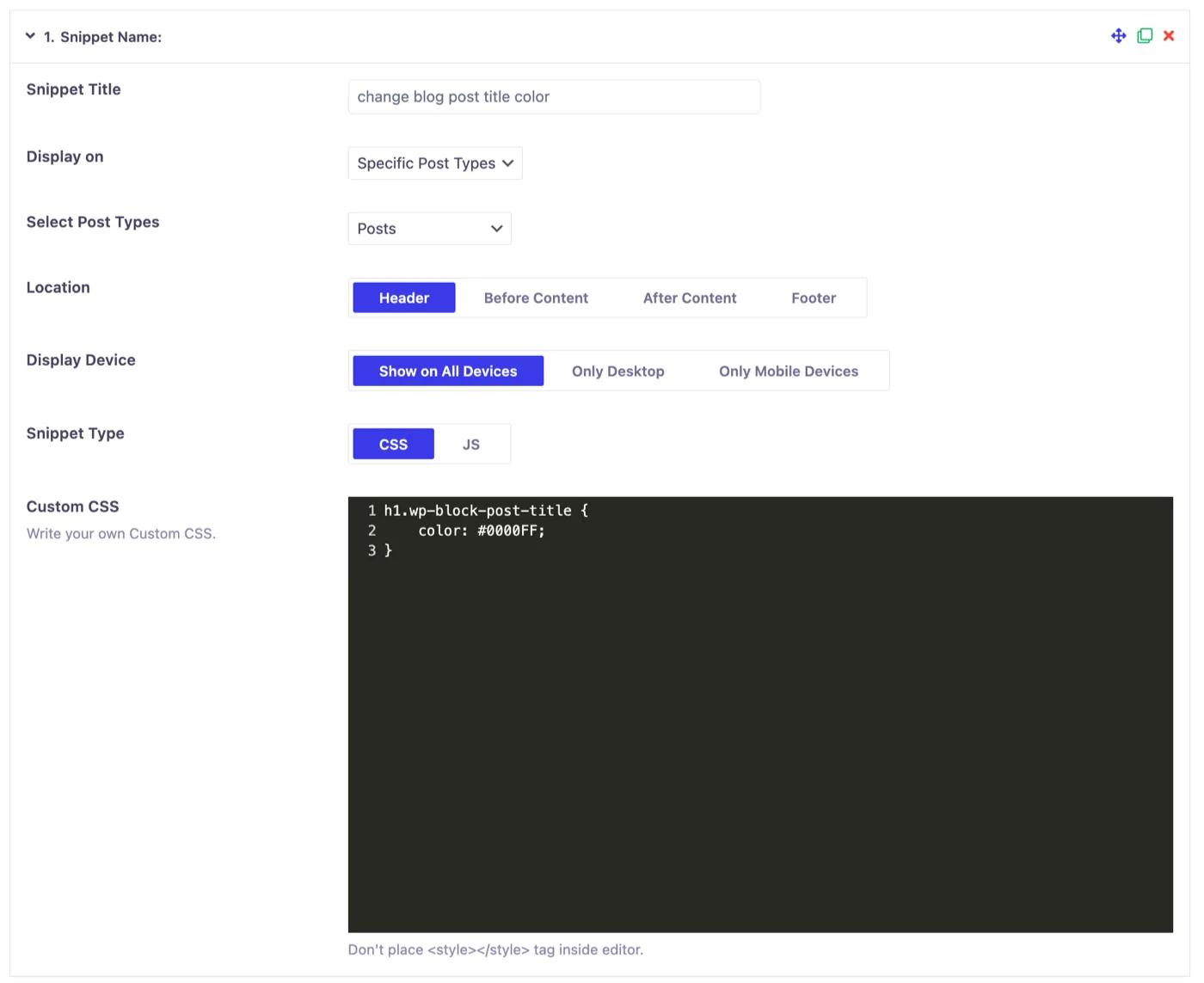
In the following steps, I am going to change my single blog post title color to blue (#0000FF) with the help of this code snippet addon. Also note that you can add as many code snippets as you need.
Add CSS to WordPress Website with Code Snippet
The steps I followed to configure my personalized code snippet. I renamed my code snippet title to change blog post title color > selected specific post type > Posts > Location header > Show on all devices> Snippet Type is CSS > Added my CSS code > Save the settings.
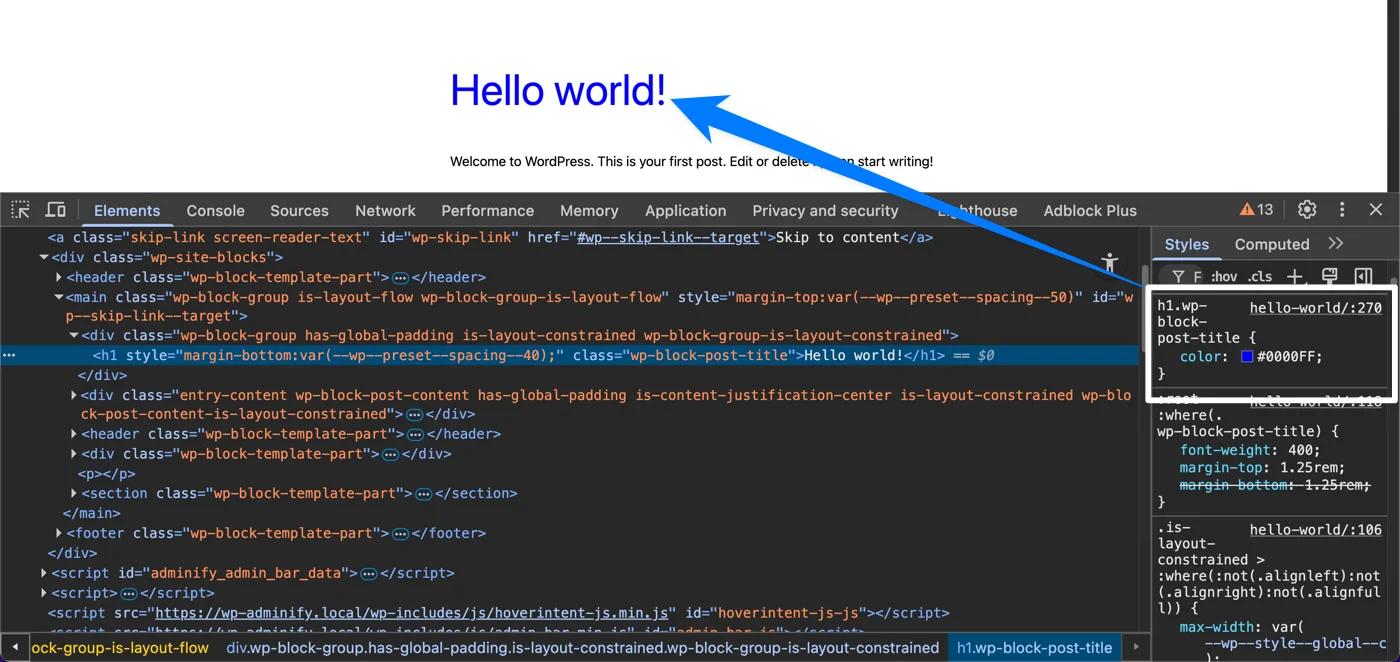
Now let me share the output. Take a look at the following screenshot, you can notice the blog post title color has changed to blue. Also, if you take a closer look then you can notice my code appeared in the inspect element too. That’s the final confirmation on how the WP Adminify code snippet works.
How to Add JS to WordPress Head with Code Snippet?
In the first step, I have explained how to add code to WordPress head with Google Tag Manager, but first, you need to install Google Tag Manager properly in your WordPress Dashboard.
I will take this as an example and will install Google Tag Manager JavaScript code with the help of the WP Adminify plugin's Code Snippet feature.
I navigated to Google Tag Manager and copied my tracking code.
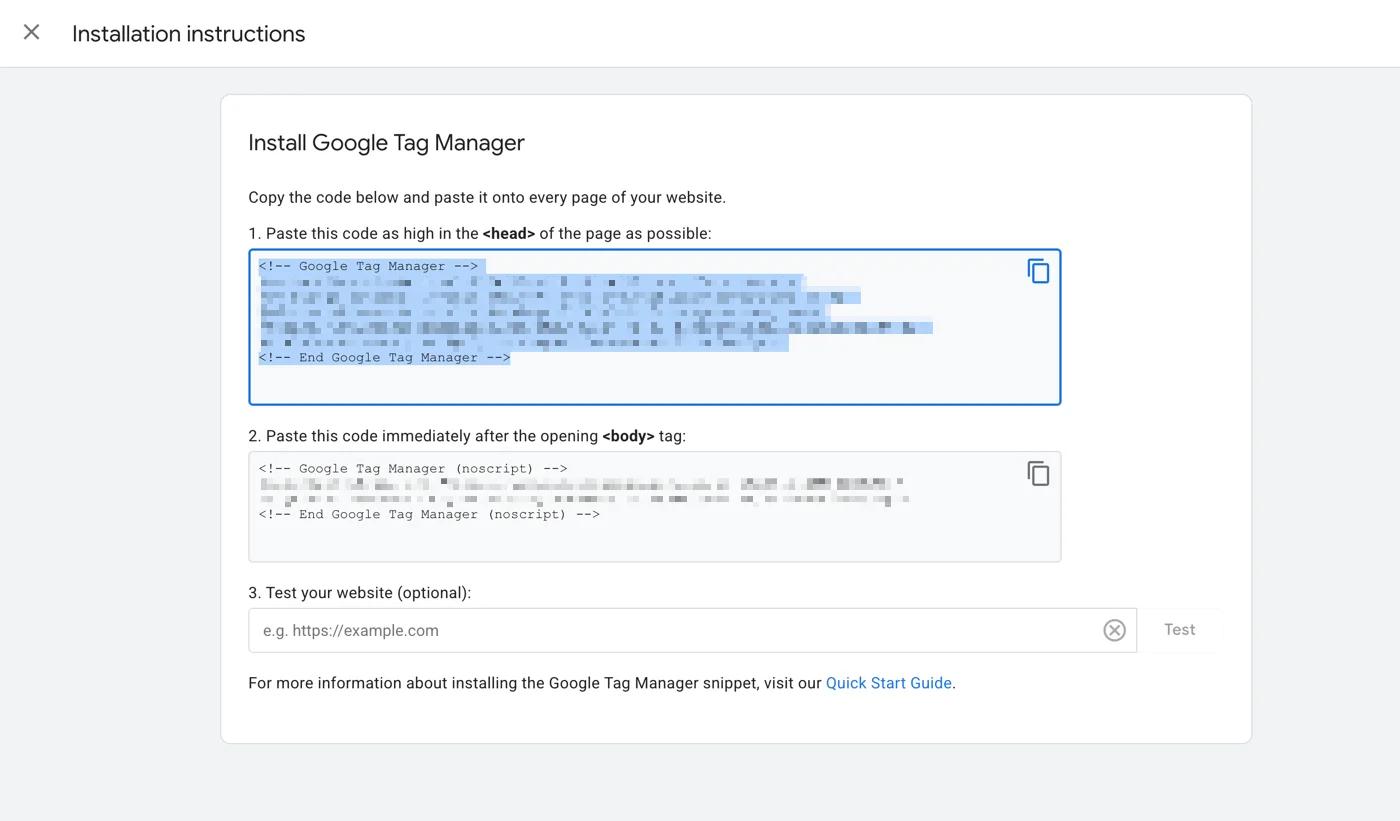
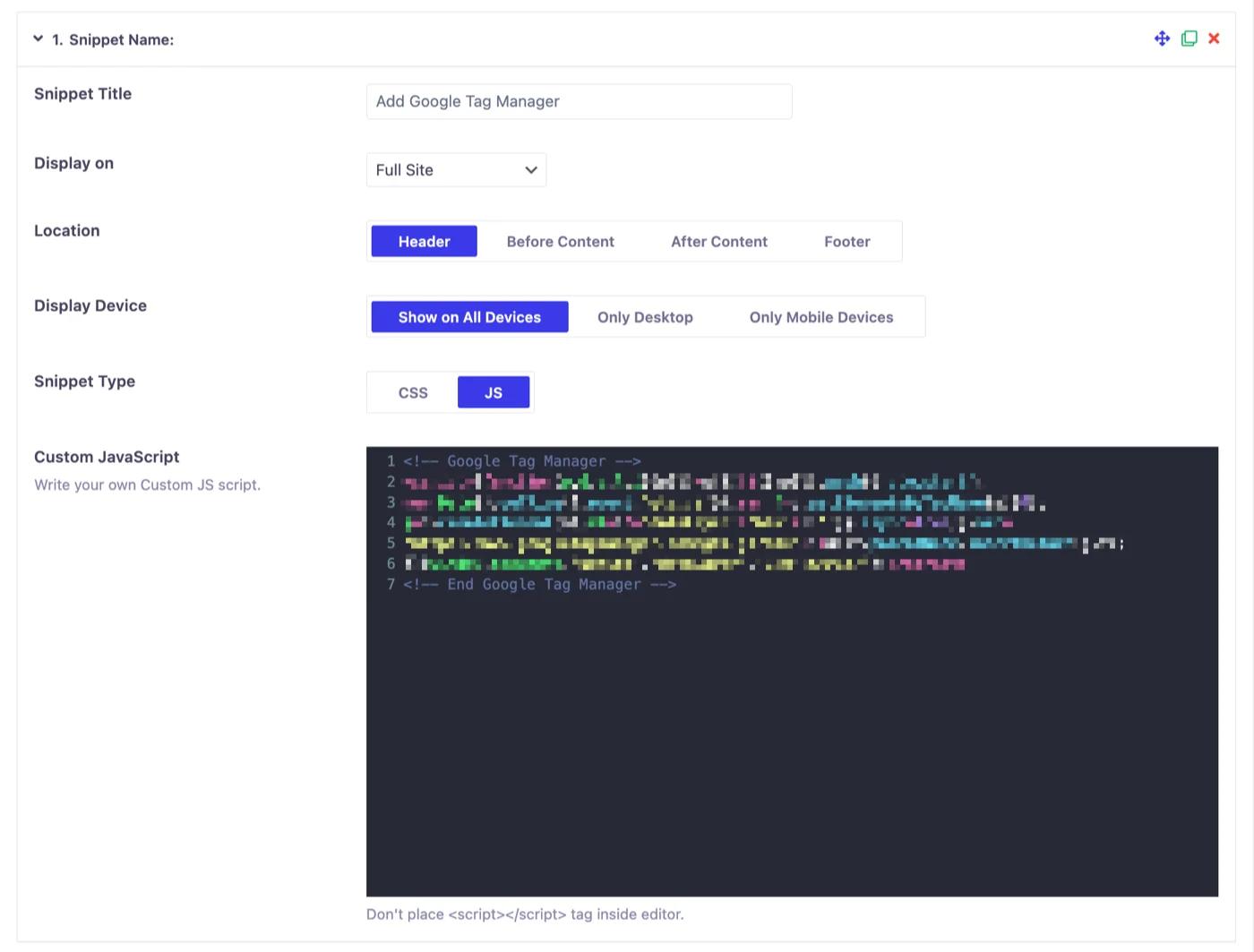
Now, just like adding CSS, this time I will select Full site instead of only post > the Snippet Type as JS and paste my Google Tag Manager code inside the JS code area. Then save the settings and navigate to any page in the frontend.
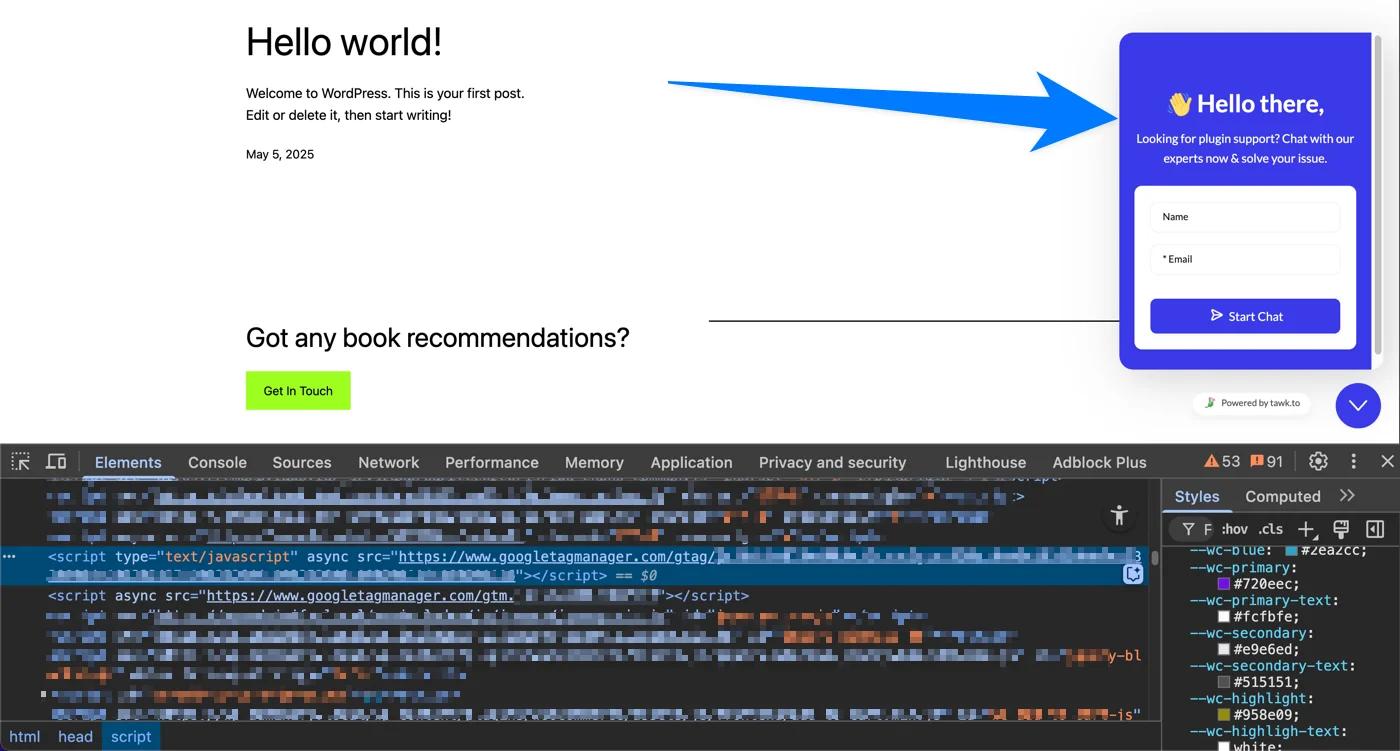
Take a look at the following screenshot, you can notice my tag manager is working fine, and the live chat already appears instantly because the live chat is configured in my tag manager.
Let’s Wrap UP
That’s how you can add code to WordPress Header area. Now the choice is yours, I have shared all the best and safest solutions that will never break down your website. Google Tag Manager is not only for adding code to WordPress head, but it offers tons of features that are necessary for any website. You can go with this solution and I believe it will never disappoint you.
On the other hand, custom code with functions.php is critical, but if you are a tech people and has decent technical knowledge in WordPress, you can go with this functions.php solution.
Finally, WP Adminify and Header Footer Scripts addon - This is not only a header footer scripts plugin. You can customize your WordPress Dashboard and create a proper White Label Dashboard for your clients. It offers a lot of feature in free version but feel free to upgrade and believe me it’s a value for money.
How do you add code to the WordPress footer?
Same idea as the header, different hook. Where the header uses wp_head, the footer uses wp_footer, and everything else about the snippet stays identical. Put analytics and verification tags in the header, and move anything heavy to the footer so it loads after your content rather than blocking it.
Chat widgets, support bubbles and non-critical tracking all belong in the footer for that reason. If a vendor tells you their script must run before the page paints, that is the exception and it goes in the header.
How do you add code immediately after the body tag?
Some tags cannot go in the head at all. Google Tag Manager is the common one: it ships two snippets, and while the first goes in the header, the second is a <noscript> block that Google requires immediately after the opening body tag. Drop it in the header and GTM's own tag assistant will flag the container as incorrectly installed.
The hook for that position is wp_body_open, available since WordPress 5.2. Most modern themes call it, but a few older ones do not, and if the hook is missing your snippet silently never appears. Test by adding a comment through the hook and viewing source before you trust it with a real tag.
How do you add a site verification meta tag?
Google Search Console, Bing Webmaster Tools and Pinterest all verify ownership the same way: they give you a meta tag that must appear in the head of your home page. Paste it as header code exactly as issued, then click verify. Do not alter the content value, and do not paste it into the footer, because the verifier only reads the head.
Once verification succeeds you can leave the tag in place. Removing it later can un-verify the property, which is a surprisingly common way for people to lose Search Console access to their own site.
How do you add code to one page only?
Loading a script everywhere when it is needed on one page is wasted weight on every other page. Wrap the output in a conditional so it only fires where it matters: is_page() for a single page, is_single() for one post, or is_front_page() for the home page.
A landing-page conversion pixel is the clearest example. Fire it on the thank-you page alone and your numbers stay accurate, whereas a site-wide pixel counts every visitor as a conversion.
WordPress Header and Footer Code FAQs
How do I add code to the WordPress header without a plugin?
Add a function to your child theme's functions.php that echoes the code on the wp_head hook, or edit header.php directly. The hook method is safer, because a bad edit to header.php can break the site and is lost on theme updates. A code snippet tool like WP Adminify's Header and Footer Scripts avoids file editing entirely.
Where do I paste header code in WordPress?
It belongs inside the head section, which WordPress prints through the wp_head hook. In WP Adminify you paste it into the Header Scripts box and it loads site-wide. With code, you hook it to wp_head in functions.php so it outputs on every page.
Is it safe to add code to the WordPress header?
Yes, when the code is valid and you keep a backup. Use a code snippet plugin or a child theme so a broken snippet is easy to remove. Editing the parent theme's header.php is riskier, because updates overwrite it and a single syntax error can take the site down.
How do I add a Google Analytics or verification tag to the header?
Copy the tag from Google or your tool, paste it into WP Adminify's Header Scripts, and save. You can also add it in functions.php on the wp_head hook. Then confirm it fires using your browser's network tab or Google Tag Assistant.
What is the difference between header and footer scripts?
Header scripts load in the head before the page renders, which suits verification tags and consent scripts. Footer scripts load before the closing body tag, which suits analytics and chat widgets so they do not delay the first paint. Put performance-sensitive scripts in the footer.
Will adding code to the header slow down my site?
A few small tags will not. Heavy third-party scripts can, so load non-critical ones in the footer or defer them. Keep the header for code that must run early, such as site verification and consent management.



Your email address will not be published