



If you work with WordPress long enough, you eventually hit the same wall:
The Media Library becomes crowded, slow to navigate, and frustratingly disconnected from your actual workflow.
Folders help - but only if they follow you where you work.
That’s exactly what the latest Media Folder update in WP Adminify is about. While the visual changes may look subtle at first glance, the impact on daily productivity is anything but small.
This update rethinks how media organization fits into real WordPress workflows - not just how it looks inside the Media Library screen.
Let’s break down what changed, why it matters, and how you can use it to work faster every single day.
Too Long; Didn’t Read (TL;DR)
The goal is to make managing media files faster, cleaner, and more intuitive for real-world WordPress workflows.
- The Media Folder feature is currently unavailable in the stable version of WP Adminify.
- A new Media Folder feature and major improvements to the existing media workflow are in active development.
- User can see Media Folder in the default WordPress media popup modal in Editor.
- The Media Folder update is scheduled for release on January 22, 2026.
- This update focuses on better organization, smoother navigation, and improved usability inside the WordPress Media Library.
What we built after your feedback
After sharing this blog post with our existing users, we received a wave of thoughtful suggestions around how Media Folders should feel in day‑to‑day use - not just how they look in the Library. Many of you asked for quicker ways to navigate long folder trees, smoother control inside the editor, and less friction when organizing files at upload time.
Here’s what we’ve already shipped based on your requests:
A toggleable, calmer folder UI
Many of you mentioned that the interface should get out of the way when you don’t need it. We’ve introduced a global expand/collapse control for the entire Media Folder panel, so you can quickly hide or reveal the folder sidebar and stay focused on the content in front of you.
Media folders directly inside the editor
We brought the full folder experience into the WordPress media popup, so you can browse the same structure while inserting images in posts, pages, and page builders – no more jumping back to the main Media Library just to stay organized.
Set the folder at the moment of upload
When you upload new files from the media modal, you can now choose the target folder right away, which keeps libraries organized by default instead of relying on cleanup later.
One‑click subfolder expand/collapse
You wanted an easier way to handle deep folder structures, so subfolders can now expand and collapse with a single click, making long trees much easier to scan and manage.
There are still ideas on our list - like user‑role‑specific folder visibility and more flexible color options - and we’re treating this release as the foundation to keep iterating with you, not the finish line.
The Problem with Traditional Media Management in WordPress
WordPress sites don’t stay small for long.
A few blog posts turn into dozens. A handful of product images turn into hundreds. Add page builders, marketing campaigns, and multiple contributors - and suddenly finding the right image becomes a time-consuming task.
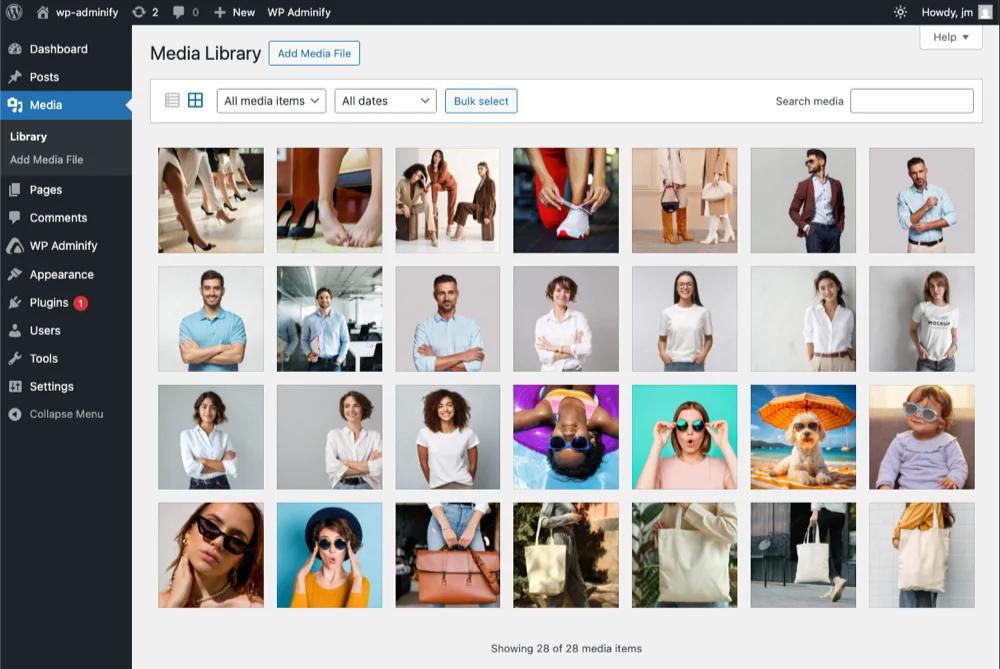
Even with folders, there was a hidden friction:
- Media folders lived mainly inside the Media Library page
- The media uploader popup felt disconnected from that structure
- Bulk actions and drag-and-drop worked, but not smoothly at scale
The system functioned - but it didn’t flow.
How Media Folder Worked Before This Update
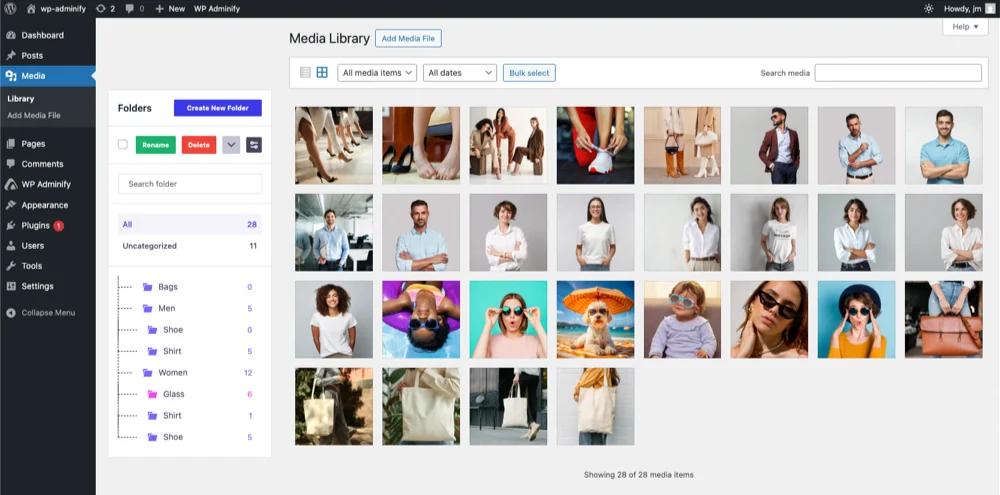
In the previous version of WP Adminify’s Media Folder feature, users could:
- Create folders and subfolders
- Organize images, videos, and documents
- Use drag & drop inside the Media Library
This was already a big step beyond default WordPress.
However, once you entered the media uploader modal - inside the block editor, Elementor, or any page builder - that folder structure disappeared. Users had to mentally switch contexts, scroll through mixed media, or rely on search.
It worked.
But it interrupted momentum.
What’s New in the Latest Media Folder Update
The current version introduces improvements that focus on continuity, clarity, and speed.
Media Folders Now Work Inside the Media Uploader Popup
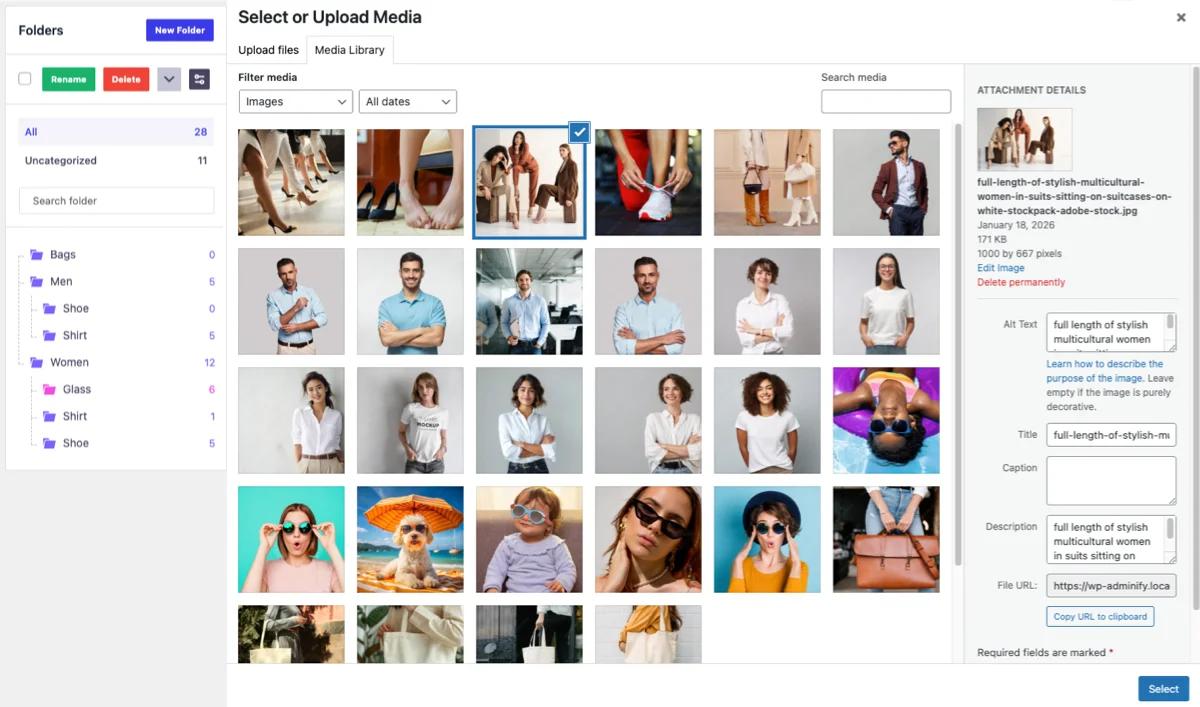
This is the most impactful change.
Media folders are now available directly inside the media uploader modal - the popup you use when inserting images into posts, pages, or page builders.
What this means in practice:
- The same folder structure appears everywhere
- No context switching between editor and Media Library
- You insert images from the right folder, instantly
This single change removes several unnecessary steps from every content workflow.
A Cleaner, More Focused Folder Interface
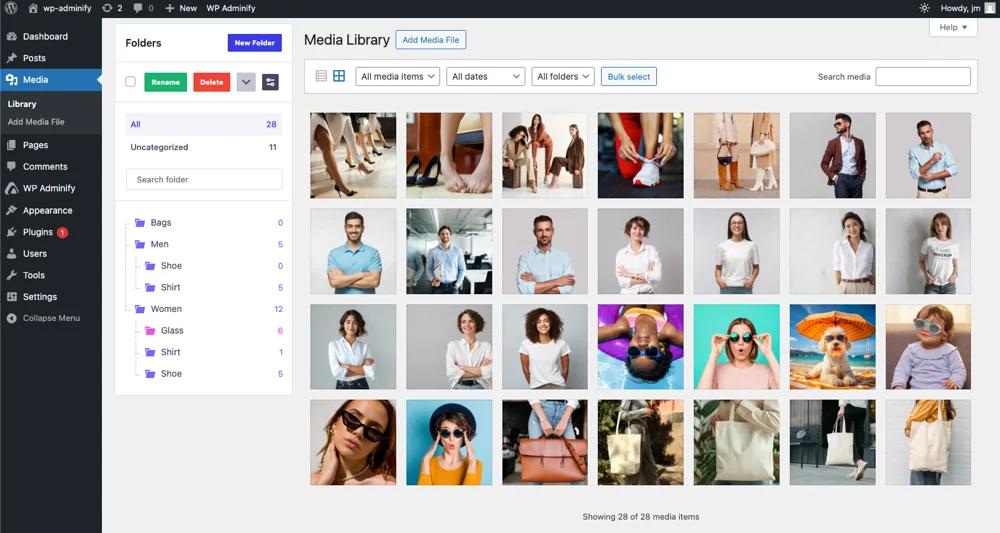
The updated UI is more intentional:
- Clear folder hierarchy
- Visible item counts
- Reduced visual noise
- Faster scanning and decision-making
Nothing flashy. Just calmer, more readable organization that scales as your library grows.
Smoother Drag & Drop with Bulk Selection
Media organization isn’t about one image at a time.
The improved drag-and-drop experience now feels noticeably smoother - especially when working with multiple files. Bulk selecting images and moving them between folders is faster and more predictable.
This matters most for users who:
- Upload media in batches
- Reorganize existing libraries
- Manage product catalogs or large content archives
Small interaction improvements compound quickly when multiplied by hundreds of files.
Assign Media to a Folder Directly from the Upload Popup
Media organization doesn’t have to wait until after upload anymore. With the latest update, users can now assign a folder at the moment of uploading media, directly from the media uploader popup.
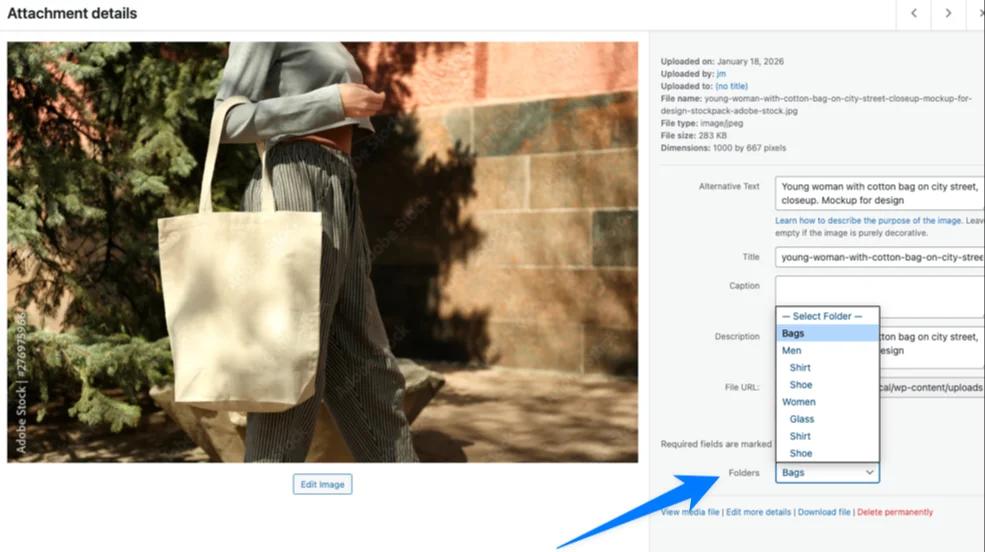
Inside the upload modal, a folder selector is available in the bottom-right corner, allowing you to choose exactly where new images should live. This small addition removes the need for post-upload cleanup, reduces misfiled assets, and keeps large media libraries organized by default.
Before vs After: Why This Feels Like a Big Upgrade
On paper, these may look like “minor” changes.
In real use, they remove friction from one of the most repeated actions in WordPress: adding media while creating content.
Before: Editor → Open media → Search or scroll → Guess → Insert
Now: Editor → Open media → Select folder → Insert
Fewer clicks. Fewer mistakes. Less mental load.
Real-World Use Cases That Benefit Immediately
Bloggers & Content Creators
Organize images by post type, topic, or campaign - and insert them directly while writing without breaking focus.
Designers & Page Builder Users
Keep design assets separate from blog media. Access folders instantly inside Elementor or Gutenberg and build pages faster.
WooCommerce Store Owners
Group product images by category or SKU. Bulk move assets during updates and maintain a clean, reliable catalog.
Agencies & Multi-Site Managers
Create a consistent media structure across client sites. Reduce training time and avoid accidental asset misuse.
Performance Isn’t Just Speed - It’s Flow
Good tools disappear while you’re using them.
This Media Folder update isn’t about adding complexity. It’s about removing friction. When your media system stays consistent across screens, your attention stays on the work - not the interface.
That’s where real productivity gains come from.
Built from Real Usage, Not Assumptions
This update reflects how WordPress is actually used today:
- Inside editors
- Inside page builders
- With large media libraries
- By professionals who value speed and clarity
It’s not a redesign for the sake of change. It’s an evolution based on real workflows.
Experience the New Media Folder in WP Adminify
If media management has ever slowed you down, this update is worth exploring.
Start by organizing just one folder. Insert images directly from the media popup. Feel the difference in flow.
This is what thoughtful WordPress tooling should feel like - simple, consistent, and quietly powerful.


Your email address will not be published