

You log in and half the sidebar is gone. Or the site loads on the front end and the dark toolbar across the top has vanished. Both problems get searched as "WordPress admin menu not showing," but they're separate features that fail for separate reasons. Start with the diagnostic table below to match your exact symptom, then work through the ten fixes in order, from a thirty-second role check to repairing a corrupted capabilities row in the database. Most people are done before fix five.
Why is my admin menu not showing in WordPress?
A WordPress admin menu goes missing for one of five reasons: the logged-in account lacks the capability to see certain screens, a plugin or code snippet hides items deliberately, a block theme has moved those screens into the Site Editor, the user's capabilities row in the database is corrupted, or a fatal error stops the page from rendering. The front-end admin bar is a sixth case with its own causes: a profile setting, a theme missing wp_footer(), or a cache serving logged-out pages.
Match your symptom before you change anything. Guessing costs more time than diagnosing.
| What you see | Most likely cause | Go to fix |
|---|---|---|
| Appearance > Menus, Widgets and Customize are gone | A block theme moved them into the Site Editor | #2 |
| Sidebar is full for you, thin for a client or colleague | Their account role has fewer capabilities | #1 |
| One or two items missing for some users only | A hide rule in a menu customization tool | #3 |
| Items vanished after installing or updating a plugin | Plugin conflict or a deliberate hide feature | #5 |
| Nearly everything gone even though the role says Administrator | Corrupted capabilities in the database | #6 |
| Sidebar loads blank or the page is white | A fatal PHP error | #7 |
| Toolbar missing on the front end only | Profile setting, missing wp_footer(), or caching | #8–#10 |
How to fix missing sidebar menu items
Start with the account, then the theme, then whatever else is installed. Most of the "missing menu" tickets we see from WP Adminify users close on the first two checks, and neither one touches a line of code.
1. Confirm the account's role and capabilities
Go to Users > All Users, open the profile in question, and read the Role field. WordPress builds the sidebar from capabilities: Editors never see Plugins, Users, Settings or Appearance, because those screens require capabilities like activate_plugins, list_users and manage_options that only Administrators carry. Editors do keep Tools, since that screen only asks for edit_posts. That's why a client's sidebar can look almost right and still be missing the screens they need. The full role-to-capability map is in the WordPress roles and capabilities documentation.
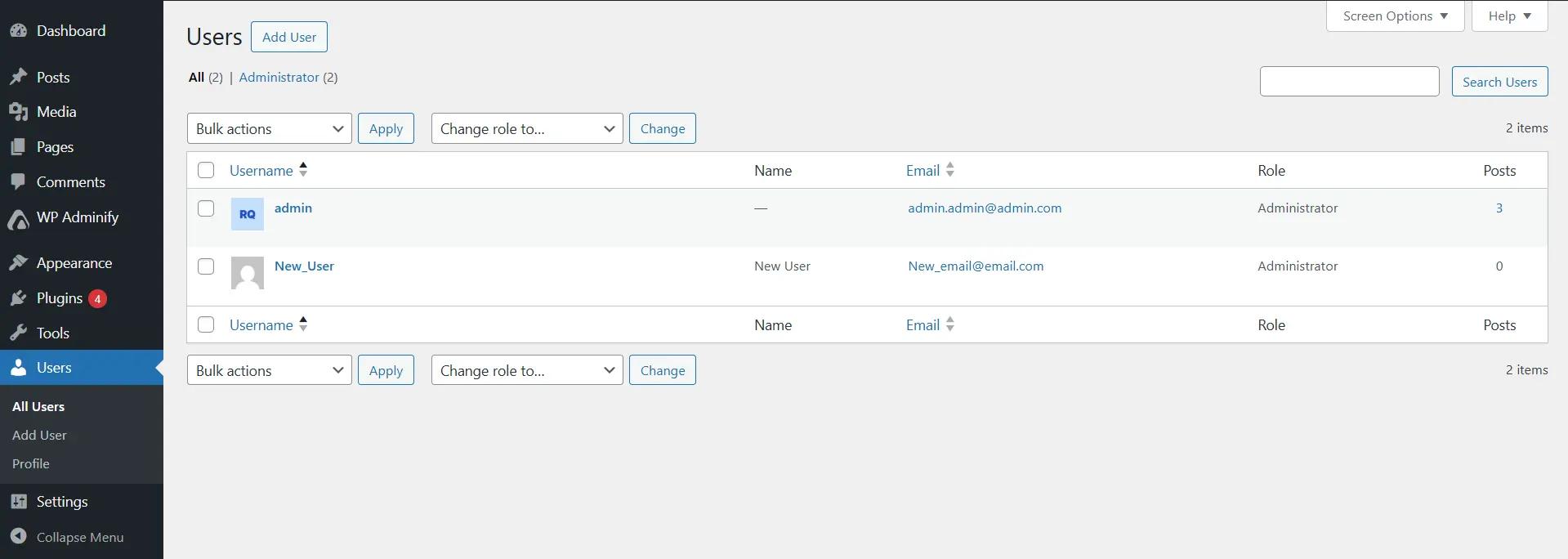
If you're helping someone who says their menu "disappeared," check their role before anything else. In most of these cases someone changed it, or they were never an Administrator to begin with.
2. Check whether you're running a block theme
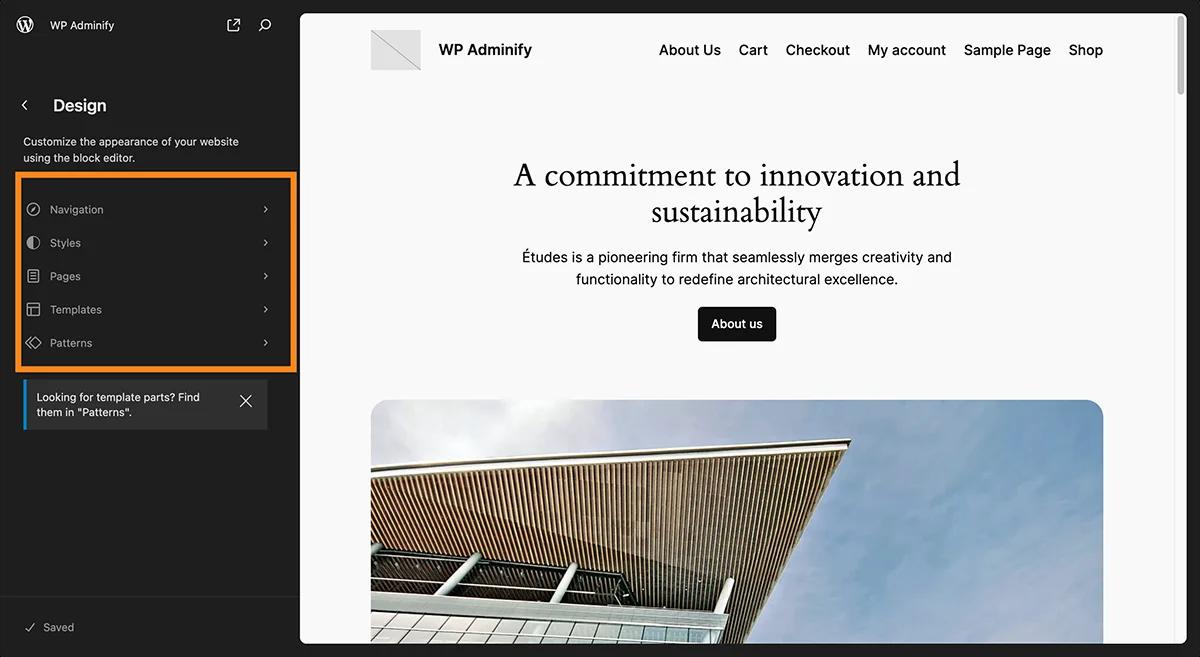
Block themes (Twenty Twenty-Four, Twenty Twenty-Five, and most new themes since WordPress 5.9) replace Appearance > Menus, Widgets and Customize with a single Appearance > Editor screen. WordPress didn't break or hide anything; those tools now live inside the Site Editor, where navigation menus are edited as blocks.
To confirm, go to Appearance > Themes and check whether the active theme is described as a block theme. Switching temporarily to a classic theme brings the old menu items back, which settles the diagnosis in under a minute.
3. Look for a hide rule in your menu editor
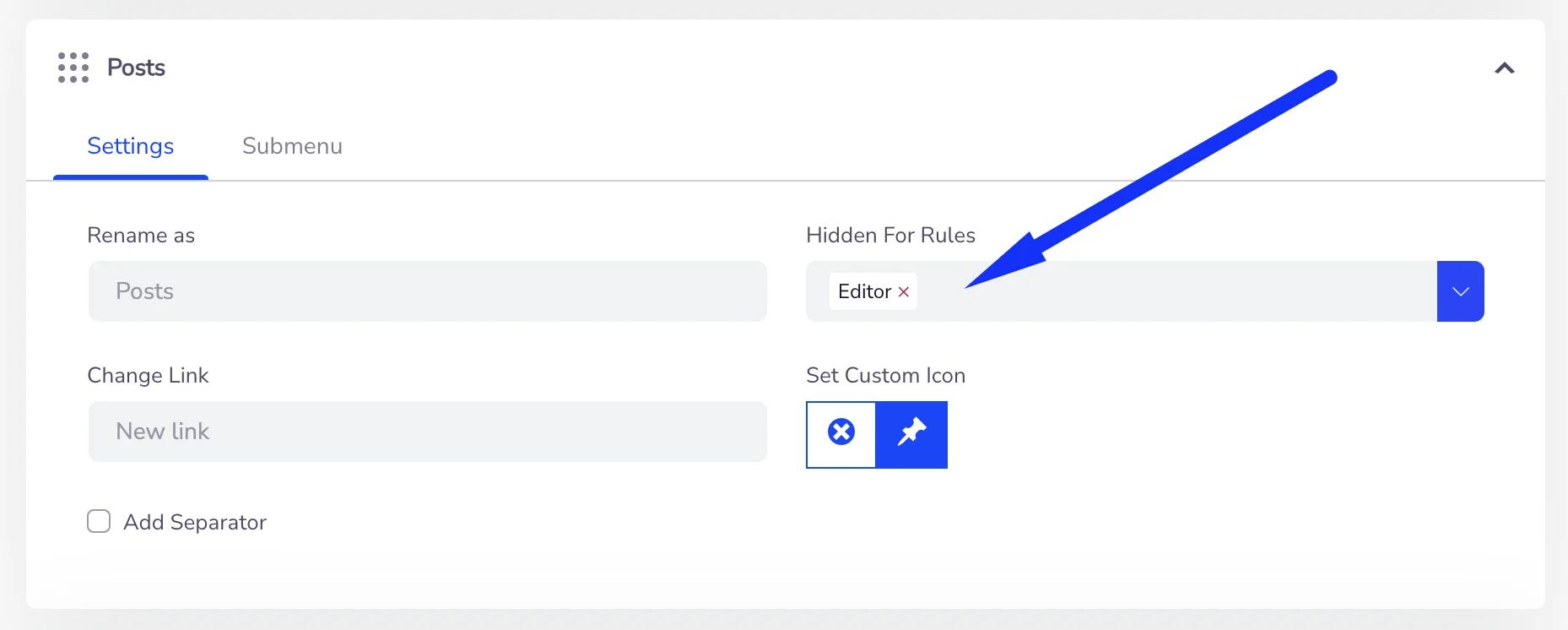
Any tool that customizes the admin sidebar, whether that's WP Adminify, Admin Menu Editor, or a role manager, can hide items per role. Those rules survive plugin and WordPress updates, and sites inherited from another developer often carry rules nobody remembers setting.
In WP Adminify, open WP Adminify > Menu Editor and check each missing item's visibility settings, including rules that apply to your own role. A rule you set months ago is easy to forget, and it looks exactly like a bug. Clear the rule, save, and reload. The admin menu editor walkthrough shows where every visibility switch lives.
4. Search your theme and snippets for remove_menu_page()
Developers hide sidebar items in code with remove_menu_page() and remove_submenu_page(). Inherited sites often carry a snippet like this in functions.php or a code snippets plugin:
1
2add_action( 'admin_menu', 'legacy_hide_admin_menus' );
3function legacy_hide_admin_menus() {
4    remove_menu_page( 'edit-comments.php' ); // Comments
5    remove_menu_page( 'tools.php' );         // Tools
6    remove_submenu_page( 'options-general.php', 'options-discussion.php' );
7}
8
Search the active theme folder and any snippet manager for remove_menu_page. Comment the call out, reload wp-admin, and the item returns. If you want the item hidden but not lost forever, move the rule into a settings screen instead (more on that in the last section) so it stays visible and reversible.
5. Rule out a plugin conflict
Deactivate every plugin from Plugins > Installed Plugins using Bulk Actions > Deactivate, confirm the sidebar is whole again, then reactivate one at a time until the item disappears. That plugin is your culprit. Check its settings for a menu, role or permissions section before deleting it, because many plugins hide items by design rather than by accident.
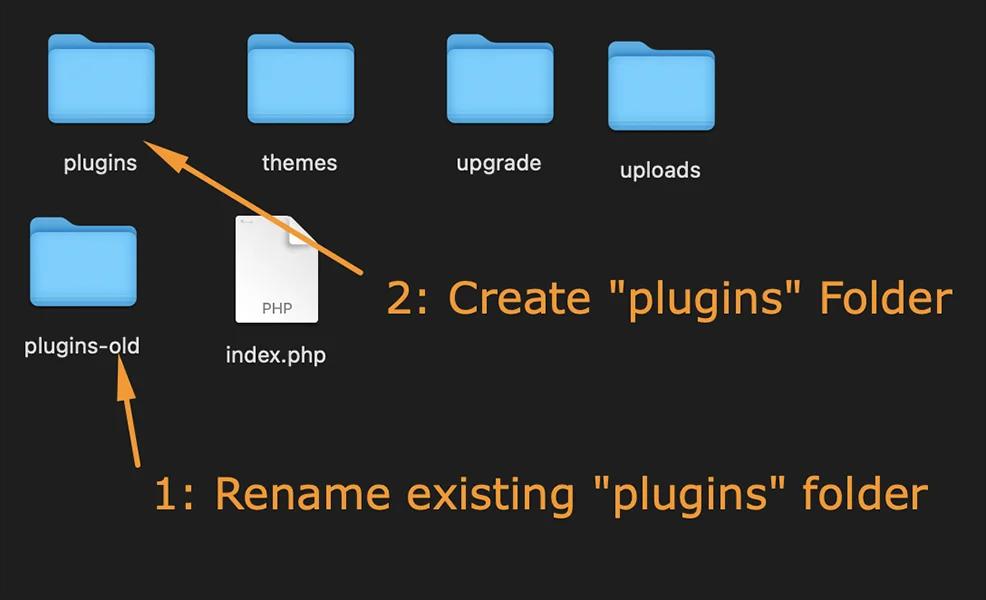
If you're locked out of wp-admin entirely, connect over SFTP and rename wp-content/plugins to plugins-off. WordPress deactivates everything it can no longer find, which gets you back in. Rename the folder back afterwards and reactivate selectively.
6. Repair corrupted user capabilities in the database
This is the fix most guides skip, and it explains the strangest version of the problem: the Users screen says Administrator, but the sidebar shows only Dashboard and Profile. WordPress stores each user's capabilities in the wp_usermeta table, and a broken migration, a buggy membership plugin, or a changed table prefix can corrupt that row.
Check it with WP-CLI if your host provides it:
1
2wp user list --fields=ID,user_login,roles
3
If your account shows no role, reassign it:
1
2wp user set-role your_username administrator
3![phpMyAdmin showing the wp_users row with user_login field highlighted for edit]](/_next/image?url=https%3A%2F%2Fd1k2c27psfzbiv.cloudfront.net%2Fwp-content%2Fuploads%2F2026%2F05%2F03074038%2FphpMyAdmin-showing-the-wp_users-row-with-user_login-field-highlighted-for-edit.webp&w=3840&q=75)
Without WP-CLI, open phpMyAdmin, find your user's ID in wp_users, then locate the wp_capabilities row for that ID in wp_usermeta. It should read a:1:{s:13:"administrator";b:1;}. One gotcha catches nearly everyone after a migration: the meta key must match your actual table prefix. On a site with a custom prefix it's xyz_capabilities, not wp_capabilities, and a mismatch produces exactly this symptom. Back up the database before editing anything here.
7. Turn on debugging if the sidebar is blank
A blank or white sidebar area isn't a hiding problem. It's a fatal PHP error interrupting the page render. Enable logging in wp-config.php per the official debugging guide:
1
2define( 'WP_DEBUG', true );
3define( 'WP_DEBUG_LOG', true );
4define( 'WP_DEBUG_DISPLAY', false );
5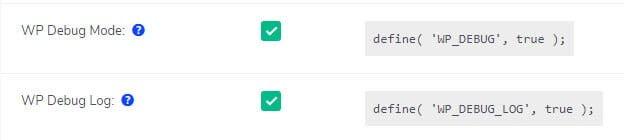
Reload the dashboard, then read wp-content/debug.log. The file path in the fatal error tells you which plugin or theme to deactivate. If the whole dashboard is affected rather than just the menu, our guide to fixing a WordPress dashboard that will not load covers the full recovery process.
How to fix the admin bar missing on the front end
The toolbar across the top of your live pages is a separate feature from the sidebar, so it fails separately. Three checks cover almost every case.
8. Switch the profile option back on
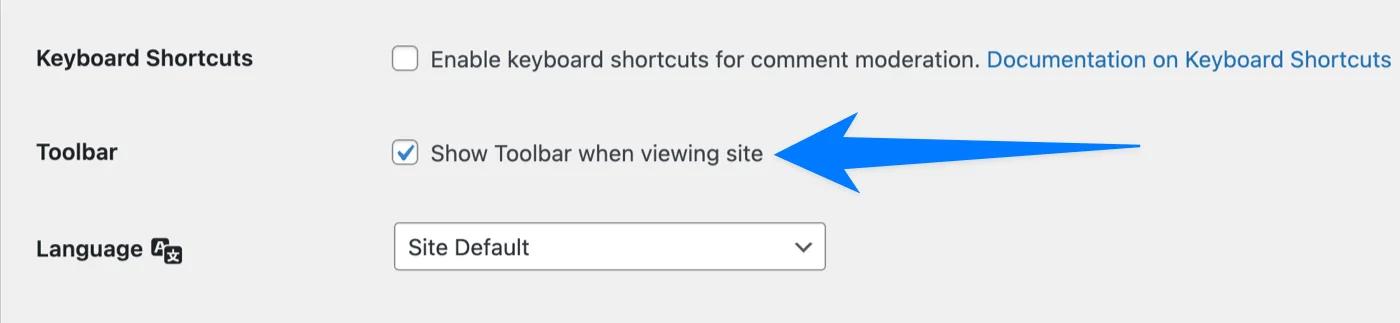
Go to Users > Profile and tick "Show Toolbar when viewing site," then save and reload the front end. It's a per-user setting, which is why the bar can be missing for you and present for a colleague on the same install. One of you unticked it, possibly years ago.
9. Make sure the theme calls wp_footer()
WordPress prints the admin bar through the wp_footer hook. A hand-built or heavily stripped theme that omits the call from footer.php loses the bar, along with every plugin script that loads in the footer, which is why other features often break quietly on the same theme. Add the call immediately before the closing body tag:
1
2<?php wp_footer(); ?>
3</body>
4
10. Clear every layer of cache
Page caching frequently serves a logged-out copy of a page to a logged-in visitor, and the logged-out copy never contains the admin bar. Purge in this order: caching plugin, host-level cache, CDN, then a hard browser refresh. Most caching plugins also have a "don't cache pages for logged-in users" setting. Turn it on and the problem stops recurring.
How to stop menu items disappearing again
Almost every recurring case traces back to hiding done in code. The remove_menu_page() snippet from fix #4 works, but it's invisible to anyone who doesn't read functions.php, and it hides the item from everyone, including you. The next developer inherits a mystery. Managing visibility from a settings screen keeps every rule listed and reversible, attached to a named role, so anyone can audit it later.
That's what the WP Adminify admin menu editor is built for: drag-and-drop reordering, per-role visibility, custom icons and separators, with the front-end bar handled by the toolbar editor. The free version on WordPress.org already includes menu hiding and reordering. If you only need to strip a few items and want to compare approaches first, our guide to removing admin menu items walks through both the code and the no-code route.
WordPress Admin Menu Not Showing FAQs
Why is my menu not showing up in WordPress?
Usually the account lacks the right role, or a plugin or code snippet hides the item on purpose. Block themes are the other common answer: they move Menus, Widgets and Customize into the Site Editor. Check the role first, then the theme, then deactivate plugins one at a time.
How do I show the admin bar in WordPress?
Go to Users, then Profile, tick Show Toolbar when viewing site, and save. If the bar still doesn't appear, confirm your theme calls wp_footer() in footer.php and purge every cache layer, since a cached logged-out page never includes the bar.
Why does my admin account show almost no menu items?
The capabilities row in the database is corrupted or mismatched. Run wp user list with the roles field to check whether the account actually holds the administrator role, and reassign it with wp user set-role. After a migration, also verify the wp_capabilities meta key matches your table prefix.
How do I add an admin menu in WordPress?
Developers register one with add_menu_page() in a plugin or functions.php. If you'd rather not maintain code, a menu editor adds custom items, sets the icon and link, and restricts each one to chosen roles from a settings screen.
Menu items vanished right after I installed a plugin. What now?
Deactivate that plugin and reload. If the items return, open its settings and look for a menu, role or permissions section before removing it, because many tools hide items by design. Clear the rule, then reactivate.
Can I hide menu items from clients without breaking my own access?
Yes. Apply the hide rule to the client's role (Editor, or a custom role) rather than hiding the item globally, and review the rule list from the same screen whenever something looks off. Role-scoped rules are reversible in one click. Code snippets aren't.
Conclusion
Key takeaways:
- The sidebar menu and the front-end admin bar are separate features. Diagnose them separately using the symptom table.
- Most missing-item cases are a role issue or a block theme, not a bug. Check both before touching plugins.
- An Administrator with an almost-empty sidebar means corrupted database capabilities. Check
wp_capabilitiesagainst your table prefix. - Hide rules managed from a settings screen stay auditable; hide rules in functions.php become the next developer's mystery.
If you customize the admin menu regularly, WP Adminify's menu editor keeps every visibility rule in one reversible list - which is the difference between a five-minute fix and an afternoon of grepping functions.php.
Your email address will not be published