


Key Takeaways
- WP Dark Mode by WPPOOL is a front-end first plugin with over 20,000 active installs that gives visitors a dark mode switch and adds admin panel dark mode as a free extra.
- WP Adminify dark mode works only inside wp-admin, where its free Light/Dark Switcher saves each user's light or dark choice to that user's own account.
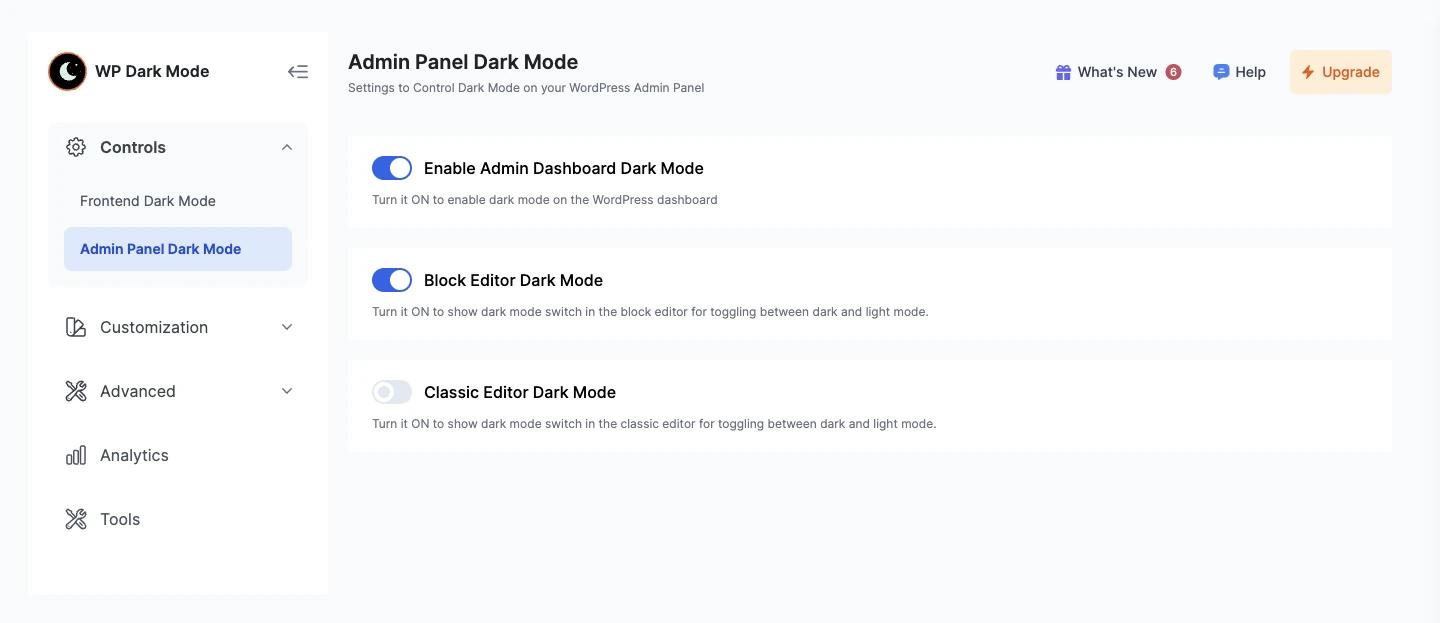
- WP Dark Mode has three free admin switches: Enable Admin Dashboard Dark Mode, Block Editor Dark Mode and Classic Editor Dark Mode, under WP Dark Mode > Settings > Admin Panel Dark Mode.
- Scheduled dark mode is a paid feature in both tools: Schedule Dark Mode needs WP Adminify Pro, and time based dark mode needs the WP Dark Mode Ultimate plan.
- WP Adminify is a better WP Dark Mode alternative when the goal is a dark admin for your team, while WP Dark Mode fits sites that need dark mode for visitors.
WP Adminify and WP Dark Mode both turn the WordPress admin dark, but they start from opposite ends. WP Dark Mode is built for visitors first, with admin dark mode as a free extra. WP Adminify dark mode is admin only, saved per user, and part of a wider admin toolkit. We installed both on WordPress 7.1.4 and compared them screen by screen.
We compare admin dark mode, the block editor, scheduling, front-end dark mode and plans, and end with a "which one should you use" table. For every way to turn on wp dark mode in the admin, including the no-plugin method, see our main guide. If you only need a dark admin for your team, the admin dark mode tool in WP Adminify is the short answer.
Verdict: WP Adminify or WP Dark Mode?
Pick WP Dark Mode if your visitors need a dark mode switch on the front end. Its admin dark mode comes free with it. Pick WP Adminify if you only care about the admin: each user gets their own dark mode toggle, and the same plugin also handles menus, branding and other admin tasks. Both charge for scheduling.
Each tool is stronger in a different area, because one is built for visitors and the other for the admin. The sections below show where, with screenshots from our test site.
| Factor | WP Adminify | WP Dark Mode |
|---|---|---|
| Main focus | The WordPress admin (wp-admin) | The front end, for visitors |
| Version tested | 4.3.4 (Free + Pro) | 5.3.21 (free) |
| Active installs (wordpress.org) | 6,000+ | 20,000+ |
| Admin dashboard dark mode | Yes, free | Yes, free |
| Admin toggle | Sun and moon icon in the admin bar, saved per user | Light/Dark pill in the admin bar |
| Block editor | Interface goes dark; content canvas keeps theme colours | Free switch adds a dark mode toggle in the block editor |
| Classic editor | Writing area goes dark | Free switch adds a dark mode toggle in the classic editor |
| Front-end dark mode for visitors | No | Yes: default light, default dark or system setting, free |
| Schedule | Pro: Schedule Dark Mode (System or Custom start and end time) | Ultimate: time based dark mode and Sunset Mode (front end) |
| Dark logos for the admin | Yes, dark logo and mini logo (with Adminify UI on) | Not an admin feature |
| Other admin tools | Menu editor, white label, admin themes, code snippets and more | None; dark mode only, plus usage analytics |
Admin Dark Mode Compared
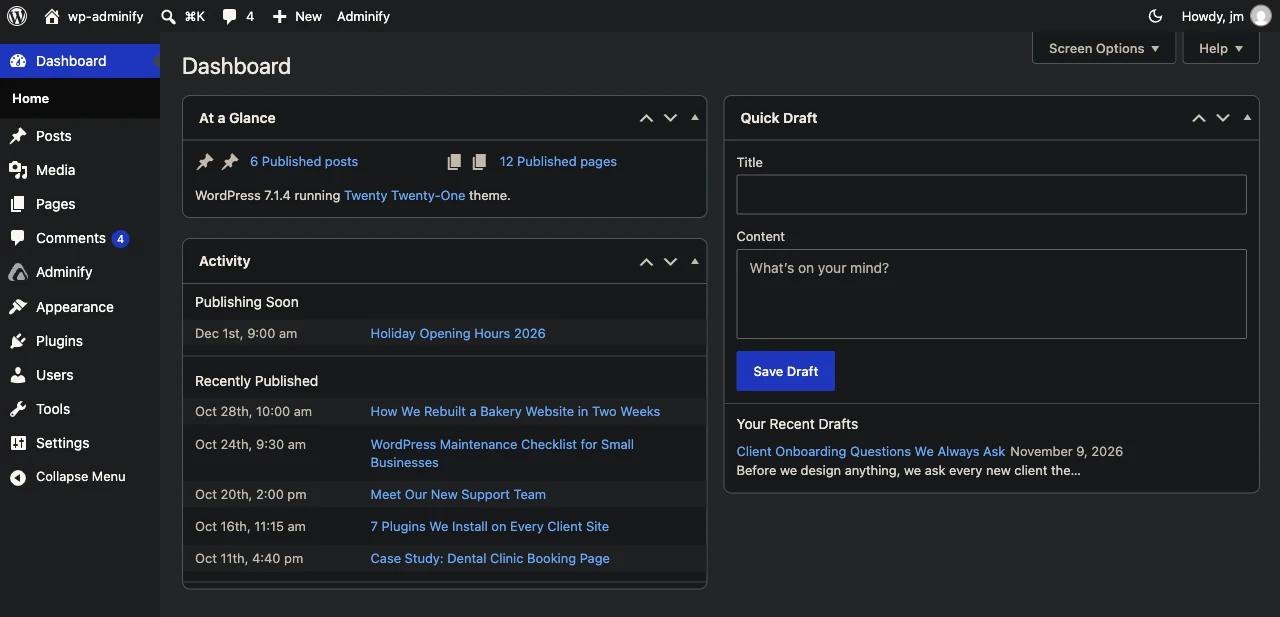
Both plugins make the WordPress dashboard dark with a free setting. WP Dark Mode does it with the Enable Admin Dashboard Dark Mode switch and a Light/Dark pill in the admin bar. WP Adminify does it with the Light/Dark Switcher, which is on by default and saves each user's choice to their account.
WP Adminify
In WP Adminify, the Light/Dark Switcher sits under Adminify > Customize and is turned on when you install the plugin. Every user sees a sun and moon icon in the admin bar. The choice is stored per user and overrides the site's global setting, so an editor who likes dark mode does not change anything for a client who prefers light. It works with the Adminify UI on or off.
With the Adminify UI turned on, you also get a Light/Dark Mode section with a global Layout Mode (Light Mode or Dark Mode), a Dark Logo, Logo Size and a dark Mini Logo. Agencies use them so the client's brand stays readable on a dark background.
WP Dark Mode
In WP Dark Mode, go to WP Dark Mode > Settings, then Controls > Admin Panel Dark Mode. You get three free switches: Enable Admin Dashboard Dark Mode, Block Editor Dark Mode and Classic Editor Dark Mode. With the first one on, a Light/Dark pill appears in the admin bar so you can switch.
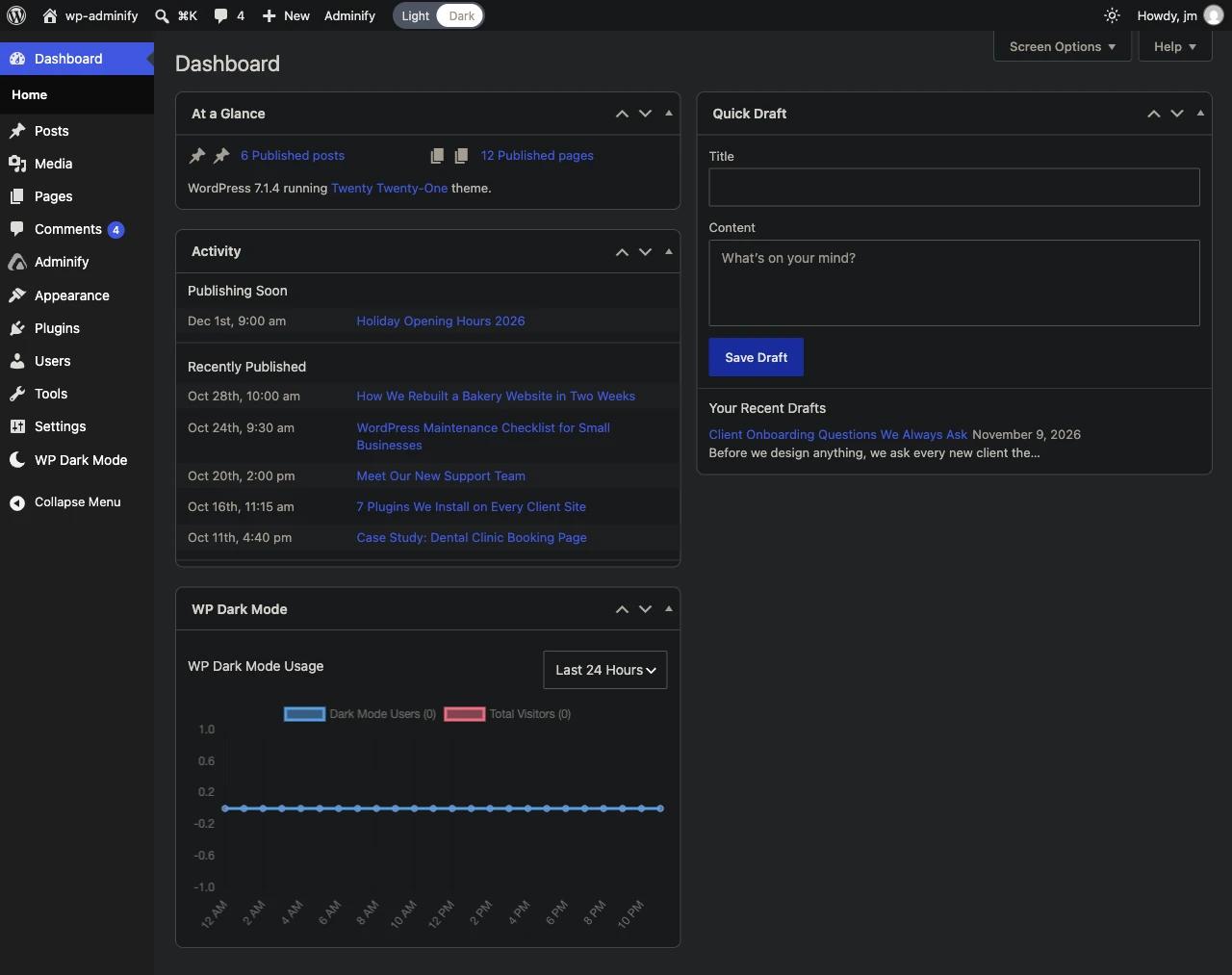
WP Dark Mode also does two small things you should know about. On first activation it sends you to a Get Started page. It also adds a "WP Dark Mode Usage" analytics widget to the dashboard, which you can hide from Screen Options if you do not need it.
Block Editor and Classic Editor
WP Adminify darkens the block editor interface: the top toolbar, the settings sidebar and the bottom bar. The content canvas keeps your theme's colours on purpose, so you see what visitors will see. WP Dark Mode handles the editors with two free switches that add a dark mode toggle inside the block editor and the classic editor.
WP Adminify follows the same per-user choice you made in the admin bar, with no separate editor setting. WP Dark Mode gives you an editor-specific toggle you turn on in its settings. If you write long posts in Gutenberg every day, read our guide to gutenberg dark mode, which explains what changes in the editor and why the writing area stays in your theme's colours.
Scheduling and System Sync
Both plugins can switch modes by time, and both put it behind a paid plan. WP Adminify Pro has Schedule Dark Mode for the admin, with a System option that follows the device setting and a Custom option with a start and end time. WP Dark Mode lists time based dark mode and Sunset Mode in its Ultimate plan.
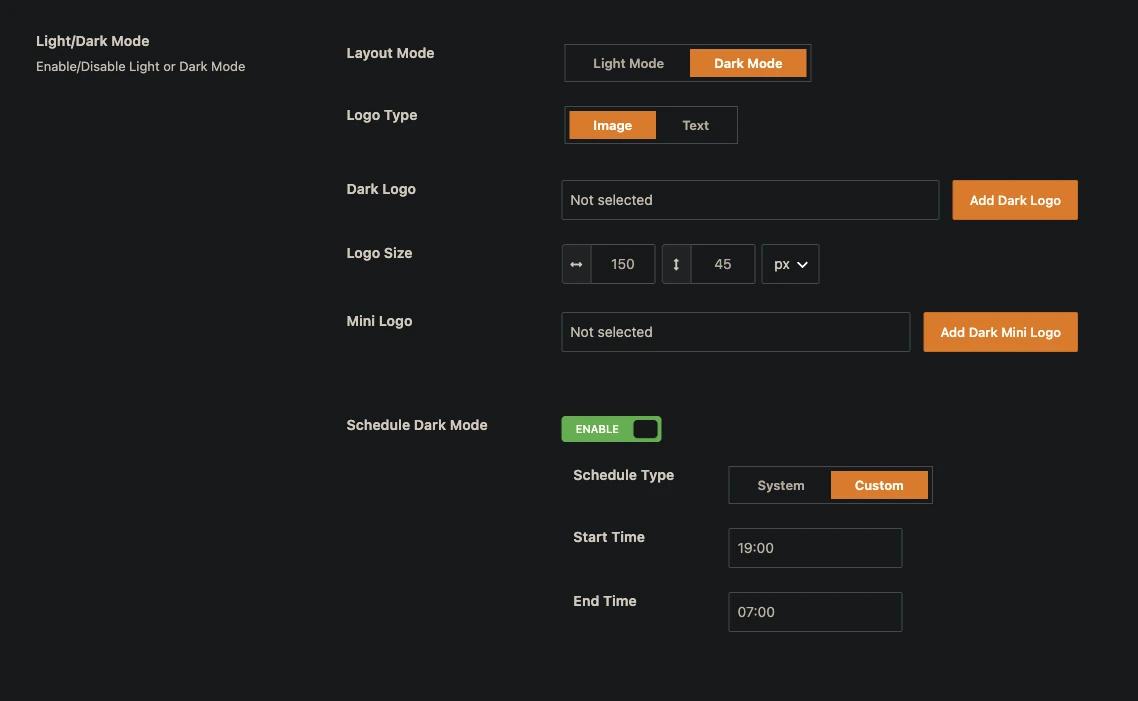
In WP Adminify, Schedule Dark Mode sits inside the Light/Dark Mode section, so the Adminify UI must be on to see it. Set Schedule Type to System to follow the user's operating system, or to Custom and enter a Start Time and End Time, such as 19:00 to 07:00.
In WP Dark Mode, the free front-end options include "Use system settings", which follows the visitor's device. Time based dark mode and Sunset Mode are marked Ultimate in the plugin. Check its readme on wordpress.org for the current split between plans, since plugin plans change.
Front-End Dark Mode for Visitors
WP Dark Mode is clearly stronger on the front end. It adds a dark mode switch for visitors on your site, with free options for default light, default dark or the visitor's system setting. Its paid plans add more switch styles and colour presets. WP Adminify has no front-end dark mode at all; it only changes wp-admin.
The WP Dark Mode readme lists 2 colour presets in the free version and 13+ presets and 19+ switch styles in Ultimate, plus a Ctrl + Alt + D keyboard shortcut. If your goal is a dark version of your public site, choose WP Dark Mode. WP Adminify cannot do that job.
Many sites can run both, with WP Dark Mode on the front end for visitors and WP Adminify in the admin. If you do that, turn on admin dark mode in only one of the two plugins, so two dark styles do not fight over the same screens.
Plans and Price
Both plugins are free on wordpress.org, and both keep admin dark mode free. You pay only for extras: WP Adminify Pro adds Schedule Dark Mode and other admin features, while WP Dark Mode's paid plans add front-end scheduling, more switches and more presets. Prices change, so check each vendor's pricing page before you buy.
So compare what else each plan includes. WP Dark Mode's paid plans are about dark mode, while WP Adminify Pro is a full admin toolkit. The same plugin includes the admin menu editor, white label settings and many productivity tools, so if you were going to install those anyway, dark mode comes with them. You can compare the plans on the WP Adminify pricing page.
Which One Should You Use?
Use WP Dark Mode when visitors need dark mode on the front end. Use WP Adminify when you want a dark admin for yourself, your team or your clients, with each user picking their own mode. If you need both, run both and keep admin dark mode turned on in only one of them.
| If you... | Use |
|---|---|
| want a dark mode switch for visitors on your site | WP Dark Mode |
| want a dark wp-admin where each user picks light or dark | WP Adminify |
| need dark logos so a client brand stays readable in dark mode | WP Adminify (Adminify UI on) |
| want the admin to go dark on a schedule or follow the device | WP Adminify Pro |
| want the front end to go dark at night | WP Dark Mode Ultimate |
| also want a menu editor, white label and other admin tools | WP Adminify |
| need dark mode on the front end and in the admin | Both, with admin dark mode on in only one |
Looking at more than these two? Our list of the best wordpress dark mode plugin options compares other tools as well, and the guide to WordPress dark mode without a plugin shows the CSS route.
Frequently Asked Questions
Is WP Adminify a good WP Dark Mode alternative?
Yes, for the admin. WP Adminify gives every user a free light and dark toggle in wp-admin, darkens the block editor interface and adds dark logos and a Pro schedule. It is not an alternative for front-end dark mode, because it does not add a dark mode switch for visitors.
Can I use WP Adminify and WP Dark Mode together?
Yes. A common setup is WP Dark Mode for visitors on the front end and WP Adminify for the admin. Turn on admin dark mode in only one of the two plugins, so they do not both try to style the same admin screens and cause mixed colours.
Is WP Dark Mode's admin dark mode free?
Yes. In WP Dark Mode 5.3.21, the Admin Panel Dark Mode screen has three free switches: Enable Admin Dashboard Dark Mode, Block Editor Dark Mode and Classic Editor Dark Mode. Time based dark mode and Sunset Mode for the front end are part of the paid Ultimate plan.
Does WP Adminify have front-end dark mode?
No. WP Adminify dark mode only changes wp-admin, including the dashboard, list screens, settings and the block editor interface. Your visitors see your theme as normal. For a visitor dark mode switch, use a front-end plugin such as WP Dark Mode or add dark styles to your theme.
Which plugin lets each user choose dark mode in the admin?
WP Adminify saves the light or dark choice per user, so each person who logs in can pick their own mode from the sun and moon icon. This choice overrides the global Layout Mode, so one team member's preference never changes the admin for anyone else.
Final Thoughts
In the WP Adminify vs WP Dark Mode question, the answer depends on who the dark mode is for. WP Dark Mode, with over 20,000 installs, is the stronger choice for visitors on the front end and gives admin dark mode as a free extra. WP Adminify, with 6,000+ installs, is the better WP Dark Mode alternative for the admin: a free per-user switch, dark logos and a Pro schedule, inside a full admin toolkit. For every other method, read How to Enable Dark Mode in the WordPress Admin (3 Ways), or turn on Adminify Admin Dark Mode and try it on your own dashboard.

Your email address will not be published