

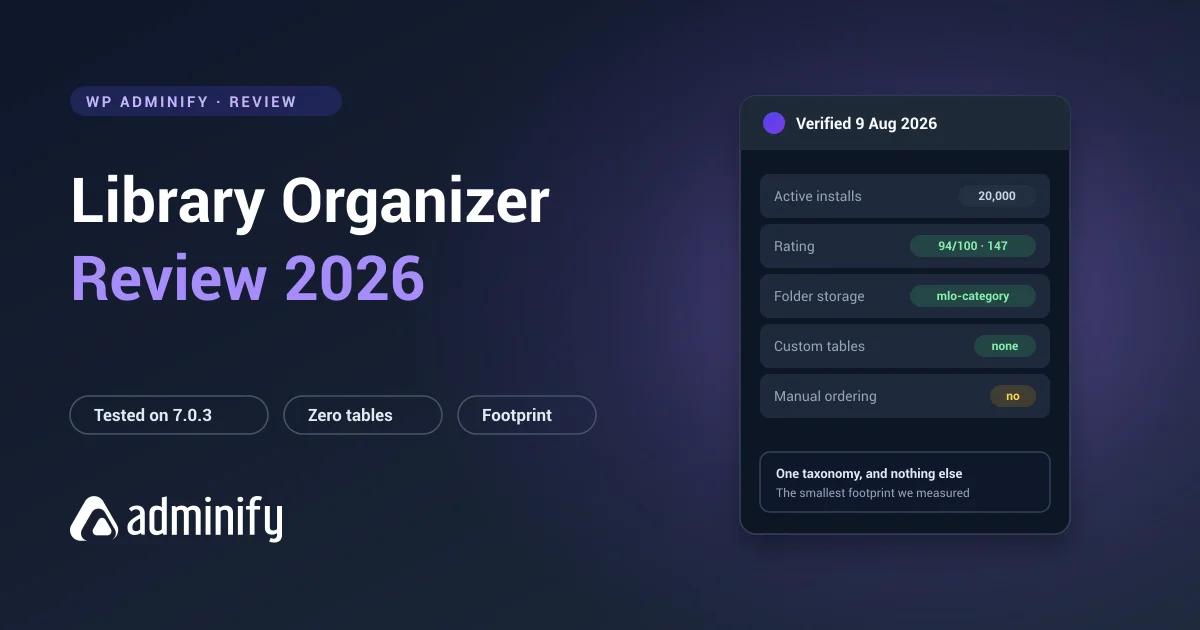

Most media folder plugins want to be substantial. FileBird creates two database tables, Real Media Library creates four, CatFolders creates two of its own. Media Library Organizer creates none.
It registers one hierarchical taxonomy and stops. On a clean WordPress 7.0.3 install that was the entire database footprint we could find, which makes it the most restrained plugin in a category that leans elaborate.
Disclosure: WP Adminify is ours, and its media folders use the same taxonomy approach this plugin does. Both went onto the same test bench for our best WordPress media folder plugins comparison.
Quick verdict
Media Library Organizer is the cleanest implementation of media folders available. The structure is entirely standard WordPress data, so nothing is locked away, and an established vendor keeps it updated.
Choose it if you want folders with the smallest possible commitment.
Look elsewhere if you need manual folder ordering, advanced features, or the comfort of a very large user base.
At a glance
| Developer | Themeisle |
| Version tested | 2.1.2 |
| Active installs | 20,000 |
| Rating | 94/100 from 147 ratings |
| Last updated | 23 July 2026 |
| Folder storage | mlo-category hierarchical taxonomy |
| Custom tables | None |
| Pricing | Free plus paid tier |
What it does
WordPress ships with no media folders. Files sort by upload date and type, and search covers filenames but not alt text, so past a few hundred files finding anything turns into scrolling. If you've never set folders up before, how to create folders in the Media Library walks through the options.
Media Library Organizer adds a folder tree with drag-and-drop assignment, nested subfolders and filtering. Folders are virtual: files never move inside wp-content/uploads/ and image URLs never change.
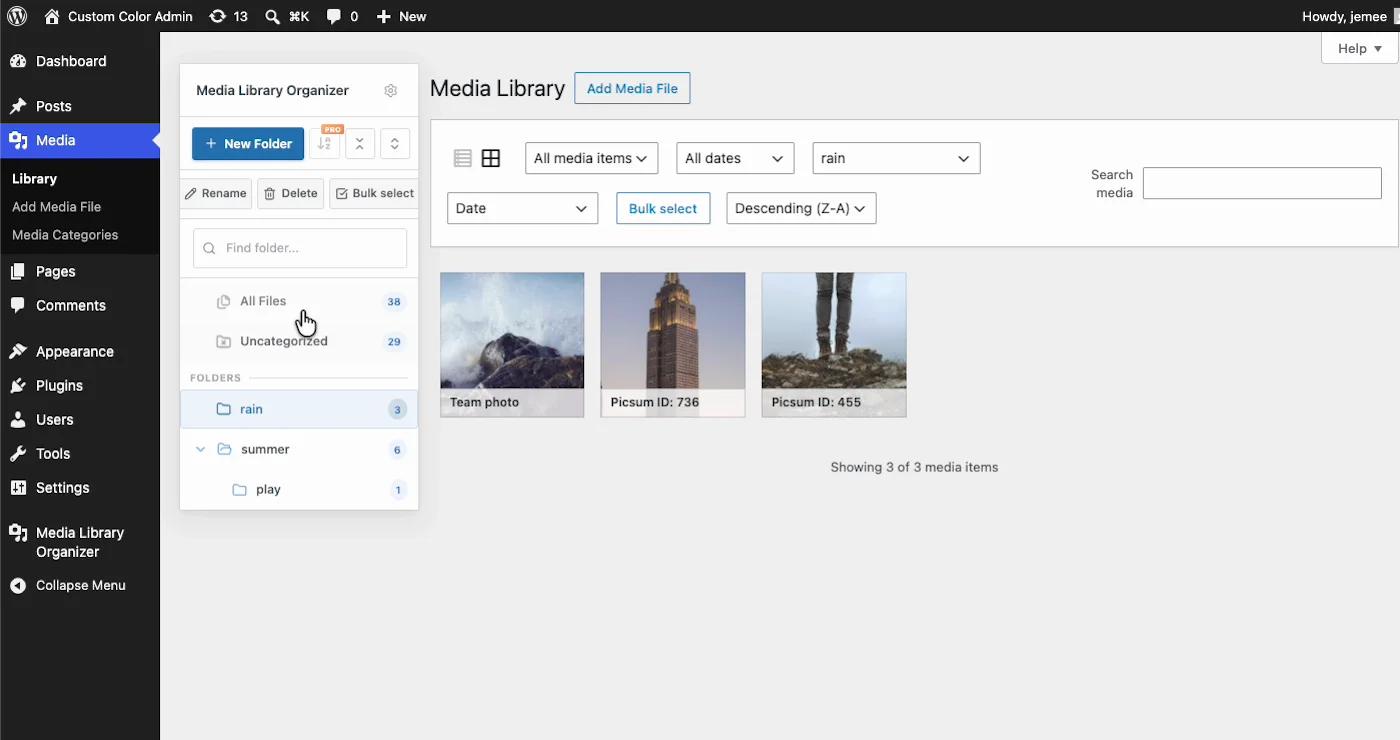
It does media, and only media. No posts, no pages, no custom post types.
Under the hood
Activating it alone on a clean install produced exactly one addition:
mlo-category → attachment hierarchical = trueNo custom tables. No secondary taxonomies. One hierarchical taxonomy against the attachment post type, which is precisely the minimum needed to do the job properly.
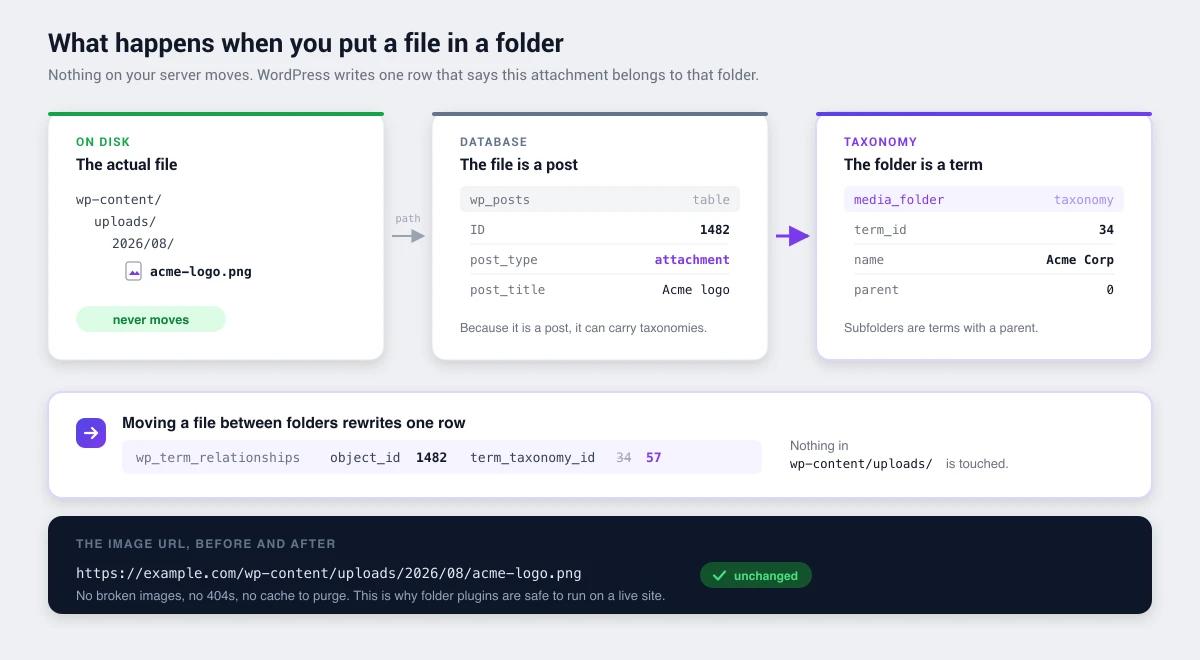
What that buys you is worth spelling out, because it's the plugin's entire argument:
- Portability. Your folders are standard WordPress terms in
wp_term_taxonomy. List them withwp term list mlo-category, query them withget_terms(), capture them in any export. - Nesting for free. Hierarchical means a subfolder is a term with a parent, so there's no bespoke implementation to go wrong.
- Clean uninstall. Nothing orphaned. Custom-table plugins leave their tables sitting in your database forever after deactivation. This leaves nothing.
- Predictable behaviour. It uses the same machinery as post categories, which every WordPress developer already understands.
Compare that with what we found elsewhere: FileBird's wp_fbv, Real Media Library's four tables, CatFolders' two. All defensible engineering, all readable by exactly one plugin.
Strengths
Smallest footprint in the category. One taxonomy, nothing else. If you're the kind of person who runs SHOW TABLES; after installing anything, this is your plugin.
Zero lock-in. Standard terms mean you can leave whenever you like and your structure stays readable with tools you already have.
Established vendor. Themeisle maintains a substantial plugin and theme portfolio, so this isn't a side project at risk of quiet abandonment.
Recently updated. 23 July 2026. In a category where one popular plugin has sat idle for roughly two years, that counts.
Solid rating. 94/100 from 147 ratings is a real sample, not a handful of friends.
Limitations
No manual folder ordering. Unavoidable with taxonomy storage, because WordPress terms sort by name or ID. FileBird's ord column gives it arbitrary drag-to-reorder that no taxonomy-based plugin can match, ours included. With thirty client folders where five matter daily, that's a small irritation thirty times a day.
Media only. No folders for posts, pages or custom post types. Folders by Premio and Wicked Folders both cover those.
Smaller user base. 20,000 installs against FileBird's 200,000 and Folders' 90,000. Not a worry for a maintained vendor plugin, but it does mean slower bug discovery and fewer community answers when something odd happens.
Fewer advanced features. No per-folder metadata, no staged bulk operations, no gallery integration. The restraint that makes it clean also makes it basic.
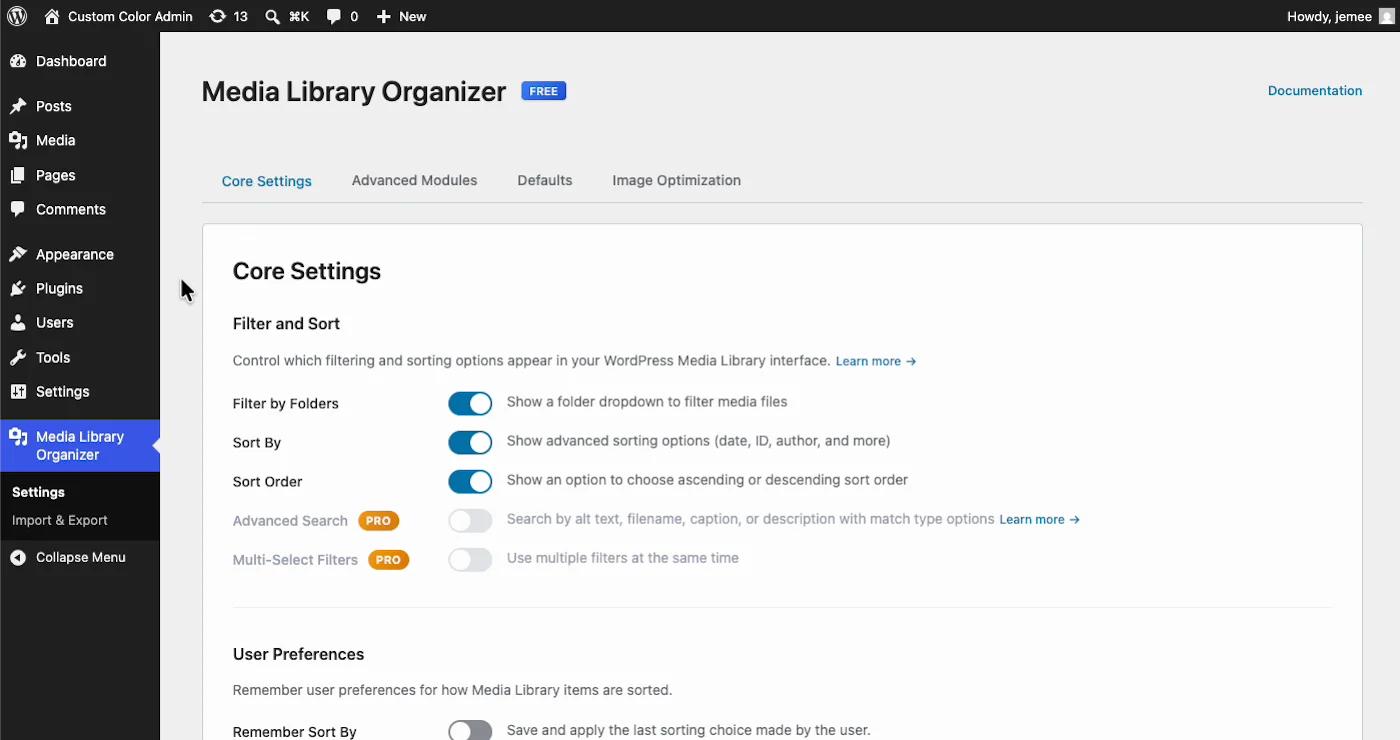
The Pro line sits at search and AI. Driving the settings, three toggles carry Pro tags: Auto Categorization (AI tagging via Imagga), Advanced Search with match-type options, and Multi-Select Filters. The folder basics are genuinely free; the conveniences are where the paywall starts.
Who should use it
| Good fit | Poor fit |
|---|---|
| Sites wanting folders with minimal commitment | Anyone needing manual folder ordering |
| Developers who dislike custom tables | Sites needing folders for posts and pages |
| Sites that reassess their plugin stack regularly | Very large libraries needing purpose-built performance |
| Anyone burned by a previous plugin's lock-in | Teams wanting advanced folder configuration |
The question this plugin raises about the rest of your admin
We make a competing folder feature, so discount this accordingly. It's also the most interesting comparison in this review, because Media Library Organizer and WP Adminify answer the same question in opposite directions.
On folders themselves we're near-identical. One hierarchical attachment taxonomy, no custom tables, nesting through term parents, no manual ordering. Theirs is mlo-category and ours is media_folder, and that's about the extent of it. On adoption and rating they're ahead of us, and this review isn't the place to spin that.
Where we diverge is what happens after the folders are working. Media Library Organizer's answer is: nothing, that's the product, enjoy. Which is a genuinely good answer if the Media Library was the only thing bothering you.
But sit with the admin for a week and notice what else you keep working around. The Posts screen showing you a Date column and nothing you'd actually sort by, which is a fixable problem we wrote up in the admin columns guide. The client who can reach Tools. The dashboard you'd rather not screenshot for a proposal. Each of those has its own small plugin, and installing four of them to fix four annoyances is how a WordPress install quietly becomes unmaintainable, the arithmetic is in replacing 50+ plugins with one.
So this isn't "our folders are better." They aren't, meaningfully. It's that if your list of admin complaints has one item on it, take the lighter plugin with our blessing. If it has five, the folder plugin was never the decision.
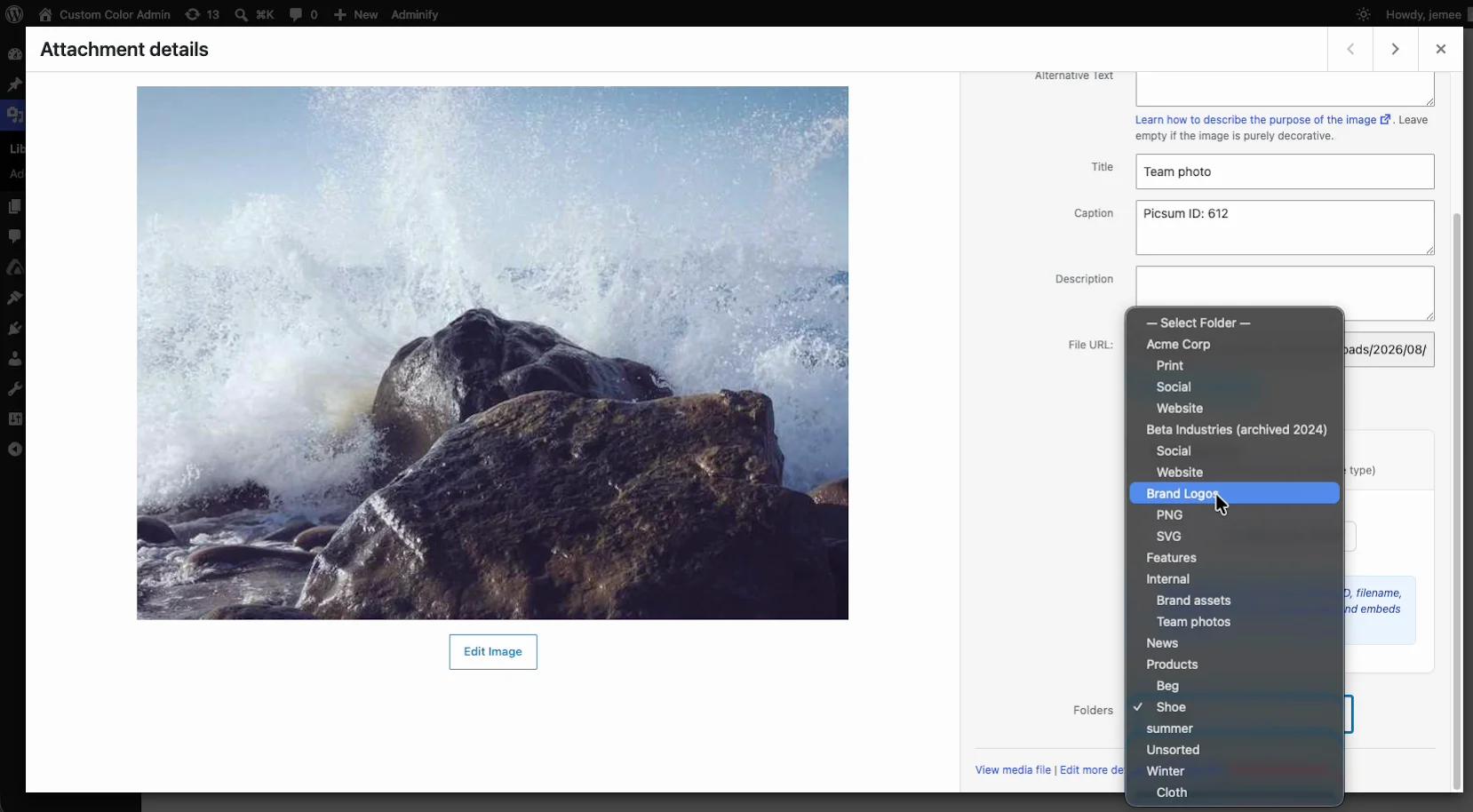
One workflow difference worth a screenshot, since both plugins are otherwise so alike: Adminify puts folder assignment inside the attachment details modal, so you can file an image from the same panel where you edit its alt text, without going back to the grid.
How it compares
- FileBird: ten times the installs, more polish, manual ordering, but proprietary tables.
- Folders by Premio: also taxonomy-based, far better rated at 100/100 from 1,514, and it covers posts and pages. The obvious step up without losing portability.
- Real Media Library: much deeper features, four custom tables, opposite philosophy.
- WP Adminify: the same taxonomy approach inside a broader admin toolkit.
Media Library Organizer FAQs
Is Media Library Organizer any good?
Yes, for what it sets out to do. 94/100 from 147 ratings with 20,000 installs, maintained by Themeisle, and the cleanest architecture in the category: one hierarchical taxonomy, no custom tables. It's deliberately basic, so judge it on restraint rather than feature count.
Does Media Library Organizer create database tables?
No. We activated it alone on a clean WordPress 7.0.3 install and it added none at all, just a hierarchical attachment taxonomy called mlo-category. Your folder structure is standard WordPress data, readable with normal tools.
Does it move my media files?
No. Folders are virtual, so files stay in wp-content/uploads/ and image URLs never change. Assigning a file to a folder only creates a term relationship.
Can it organize posts and pages?
No, media only. For folders across posts, pages and custom post types, look at Folders by Premio or Wicked Folders.
What happens if I deactivate it?
Your files are unaffected and the folder tree disappears from the admin, but the structure survives as ordinary taxonomy terms in wp_term_taxonomy. That's a real advantage over custom-table plugins, whose folder data goes unreadable the moment they're switched off.
Media Library Organizer or FileBird?
FileBird has ten times the installs, a more polished interface and manual folder ordering. Media Library Organizer has a far smaller footprint and nothing locked away. Pick FileBird for polish and features, this for simplicity and portability.
Final verdict
Media Library Organizer is what you install when you've decided the folder problem isn't complicated and you don't want to be talked into complexity.
One hierarchical taxonomy, no tables, clean uninstall, a real vendor behind it. It won't win a feature comparison against FileBird or Real Media Library, and it isn't trying to. What it offers is the lowest-commitment way to get folders working.
If you want more without giving up portability, Folders by Premio is the natural step up: same taxonomy approach, far better ratings, broader scope.
Comparing options? Start with how WordPress media folders work, then how to create them once you've picked a plugin.

Your email address will not be published