

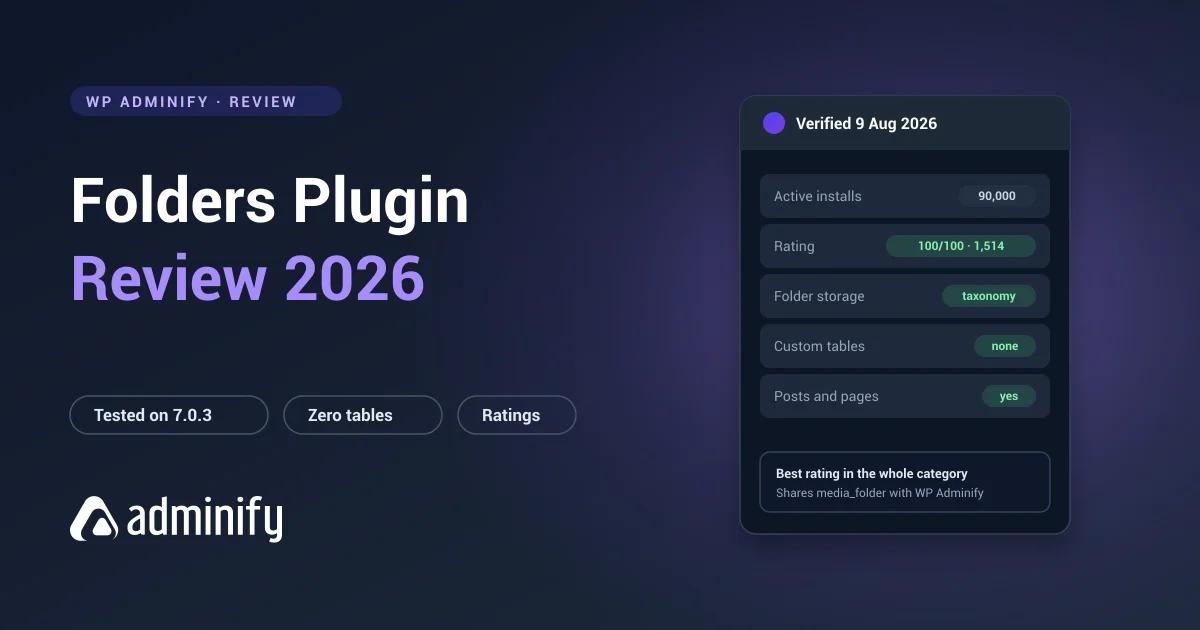

Folders by Premio holds something nothing else in this category does: a perfect 100/100 across 1,514 ratings. A perfect score from twenty users means nothing. A perfect score from fifteen hundred is a different kind of signal entirely.
We put it on a clean WordPress 7.0.3 site and went looking for the catch, because a rating that good deserves scrutiny rather than repetition.
Disclosure: we publish WP Adminify, and its folder module competes with this one. Folders by Premio ran on the same bench as the rest of our best WordPress media folder plugins comparison, and it comes out of it well.
Quick verdict
Folders is the best-rated media organization plugin available, and the architecture backs the reputation up. It keeps folders as standard WordPress taxonomy terms, so your structure stays readable by anything, and it organizes posts and pages as well as media.
Choose it if you want folders across your whole site with nothing locked away.
Look elsewhere if you need a specialized media-only interface or manual folder ordering.
At a glance
| Developer | Premio |
| Version tested | 3.1.9 |
| Active installs | 90,000 |
| Rating | 100/100 from 1,514 ratings |
| Last updated | 21 July 2026 |
| Folder storage | Three hierarchical taxonomies, no custom tables |
| Covers | Media, posts, pages, custom post types |
| Pricing | Free plus paid tiers |
For context: FileBird has more installs at 200,000 but sits at 94/100 from 1,121 ratings. Real Media Library holds 96/100 from 289. Folders has fewer installs than FileBird but the largest ratings sample and a perfect score. That combination is unusual enough to take seriously.
What it does
WordPress ships with no folders anywhere. Not for media, not for posts, not for pages. Folders answers all three with one system: a folder tree in the Media Library, and folder trees on the Posts and Pages list screens.
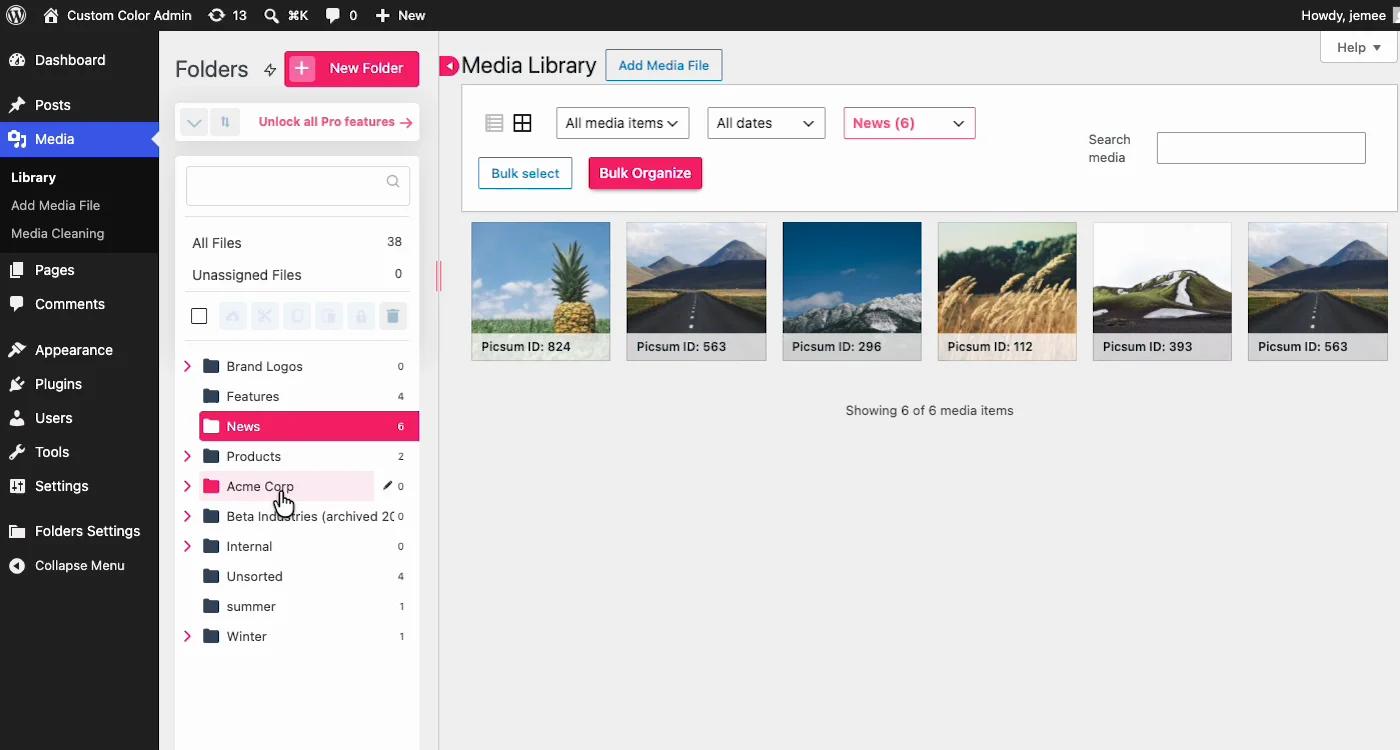
The media side gives you drag-and-drop assignment, bulk moving, folder colors, and folder filtering inside the media modal when you insert an image. Subfolders exist too, with a catch we cover below. If the underlying mechanism is new to you, we covered it in how WordPress media folders actually work.
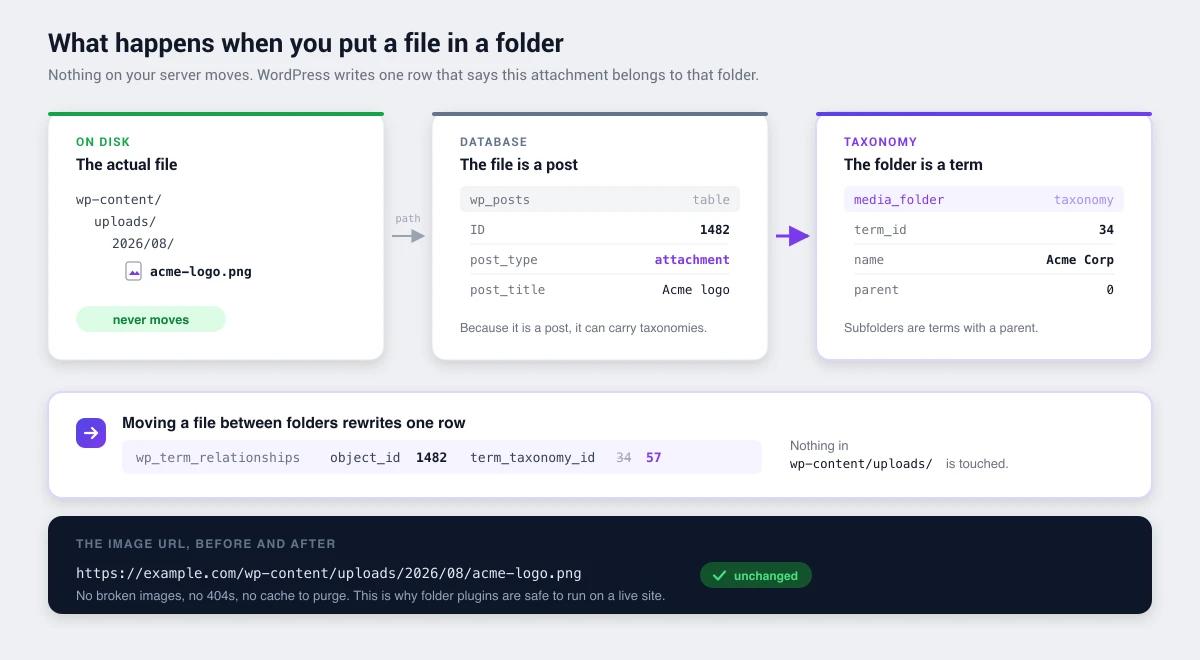
Folders are virtual. Files never move inside wp-content/uploads/ and image URLs never change.
Under the hood
Activating Folders alone on a clean install registers three hierarchical taxonomies and creates no custom tables at all:
media_folder   → attachment   (hierarchical)
folder         → page         (hierarchical)
post_folder    → post         (hierarchical)
That's the cleanest architecture we found among the widely-adopted plugins. Everything lives in wp_term_taxonomy and wp_term_relationships, the same tables holding your post categories.
The consequences are real:
- Your structure is portable. Readable with
wp term list media_folder, queryable withget_terms(), captured by any standard export. - Nesting exists at the data layer. All three taxonomies are hierarchical, so a subfolder is just a term with a parent. But see the hands-on note below, because the free interface won't let you create one.
- Nothing to clean up. Deactivating leaves no orphaned tables, unlike custom-table plugins, which leave theirs sitting in your database permanently.
The hands-on catch: subfolders are a Pro feature
This is where the schema and the product part company, and we only caught it by driving the plugin rather than reading its database. The taxonomies are hierarchical, so nesting is technically free. The interface disagrees: open the Add-a-new-folder modal on the free tier and there's a pink Pro tip reading "Upgrade to Pro to create subfolders."
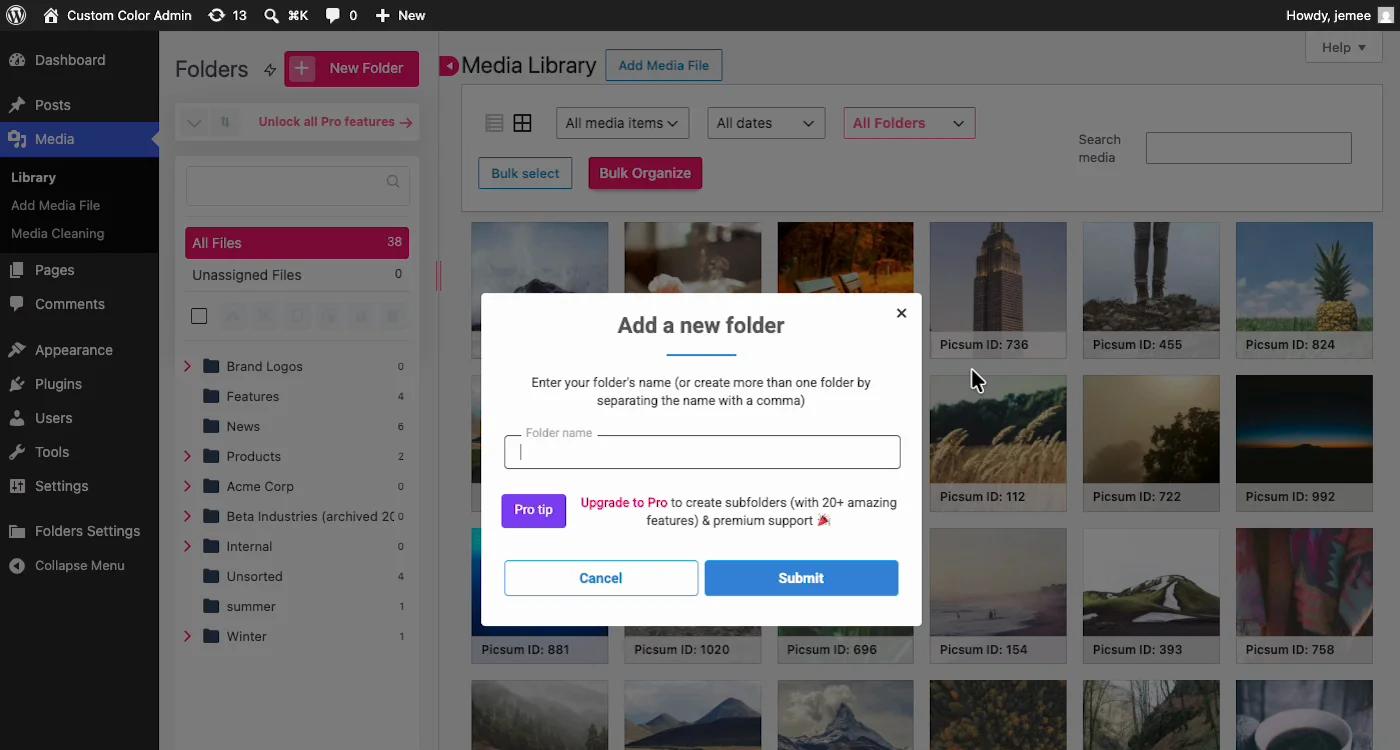
So the free tier gives you one flat level of folders. For a small library that's fine. For the agency structure this category is usually bought for (client folders with project subfolders), you're buying Pro on day one.
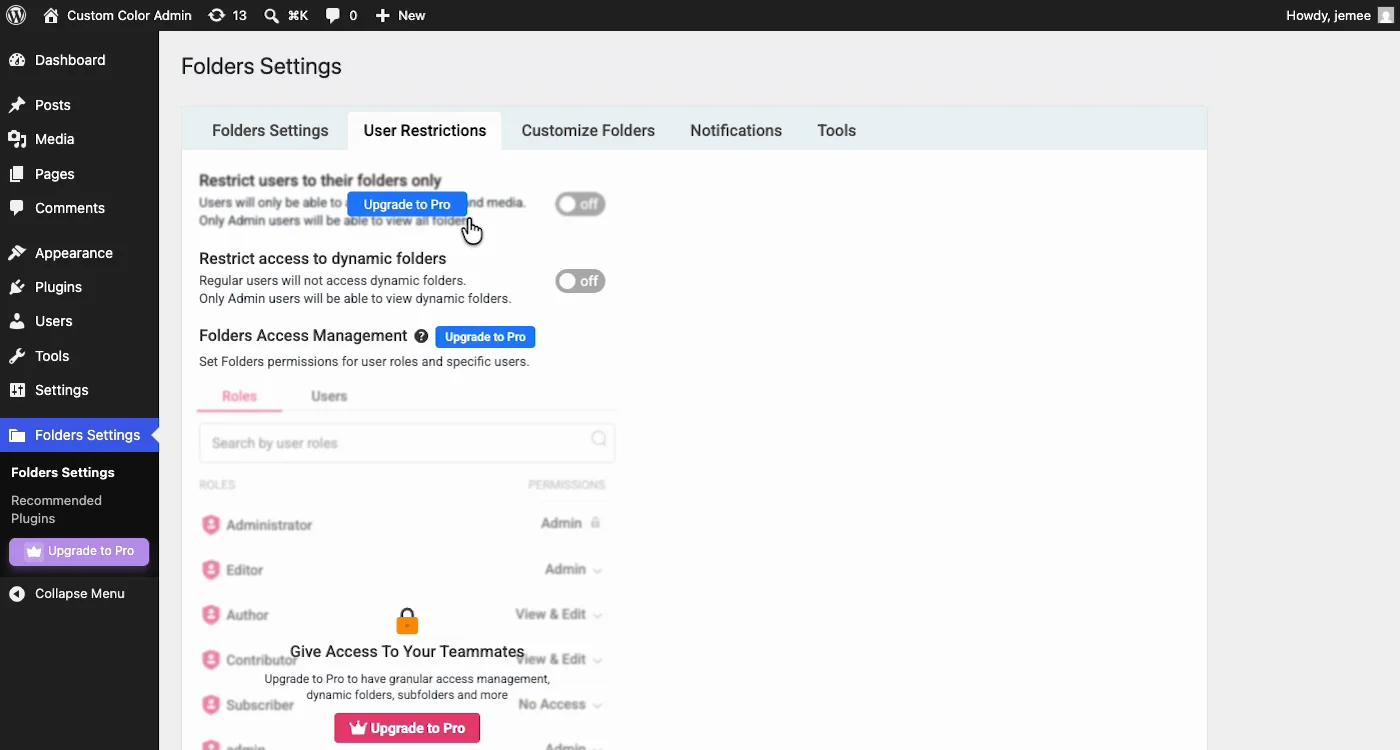
Access control is gated the same way. Restricting users to their own folders, dynamic-folder access and the whole Folders Access Management panel carry Upgrade to Pro buttons.
One warning worth reading twice
Folders and WP Adminify both register an attachment taxonomy named media_folder. We confirmed it by activating each plugin alone and reading the registered taxonomies.
Don't run both. Two plugins claiming one taxonomy name gives you results nobody can predict. The flip side is genuinely useful: migrating between them is far simpler than any custom-table migration, because the data is already sitting in the same place under the same name.
Strengths
The best rating in the category, by a clear margin. 100/100 across 1,514 ratings. We went looking for the catch in the architecture and didn't find one.
Portable storage. Taxonomy-based, no custom tables, nothing locked away. At this adoption level that's rare, since FileBird and Real Media Library both use proprietary tables.
Covers the whole site. Media, posts, pages and custom post types in one system. If your content is as disorganized as your media, this fixes both at once.
Actively maintained. Updated 21 July 2026 by an established vendor with a wider portfolio behind it.
Clean uninstall. No orphaned tables left behind.
Limitations
Less specialized media interface. FileBird does one thing and has iterated on it for years. Folders covers more ground, and the media-specific experience is correspondingly less refined.
No manual folder ordering. That follows directly from taxonomy storage, because WordPress terms sort by name or ID. FileBird's ord column gives it arbitrary drag-to-reorder that Folders can't match natively, and neither can we.
Subfolders and access control are Pro. The free tier is one flat level of folders, with user restrictions and folder permissions behind the paywall. A periodic "remind me later" popup ships with the free version too.
Taxonomy name collision. The media_folder overlap with WP Adminify is a real operational gotcha if you're trialling plugins side by side.
Fewer installs than FileBird. 90,000 against 200,000. Still substantial, but the gap is real.
Who should use it
| Good fit | Poor fit |
|---|---|
| Sites needing folders for content as well as media | Sites needing manual folder ordering |
| Anyone who wants to avoid vendor lock-in | Users wanting the most polished media-only UI |
| Agencies reassessing their stack periodically | Very large libraries where table performance is critical |
| Teams that value social proof | Sites consolidating many admin plugins into one |
Where WP Adminify actually differs
We make a competing media folder feature, so weigh this accordingly. It's also the section where the honest answer is most interesting, because we share more architecture with Folders than with anyone else in this category.
Both of us keep folders as terms in a taxonomy literally called media_folder. Same table, same portability, same inability to drag folders into an arbitrary order. On media folders alone there's very little to choose between us, and Folders has a rating we don't come close to matching.
The genuine difference is what sits around the folders. Folders points its system at more content: posts, pages, custom post types. WP Adminify points its at more admin: the same media folders, plus menu editing, white labelling, login customization, dashboard widgets and admin columns, with role-based controls across all of it.
Which means the useful question isn't "which folder plugin is better." It's what's actually annoying you. If it's a Posts screen with 600 unsorted entries, Folders is the better-shaped tool and this review has just told you so. If it's that your client keeps emailing about menu items they shouldn't see and the dashboard still says "Howdy" over someone else's branding, folders were never the real problem, and the plugin-consolidation case is the page worth reading instead. Teams juggling that across many client sites usually land on our agency setup.
One free-tier difference our hands-on pass surfaced: the subfolders Folders gates behind Pro are simply enabled in Adminify's free version, on the same shared taxonomy. If nesting was the thing pushing you to a paid tier, it's worth knowing one of the two media_folder implementations includes it for nothing.
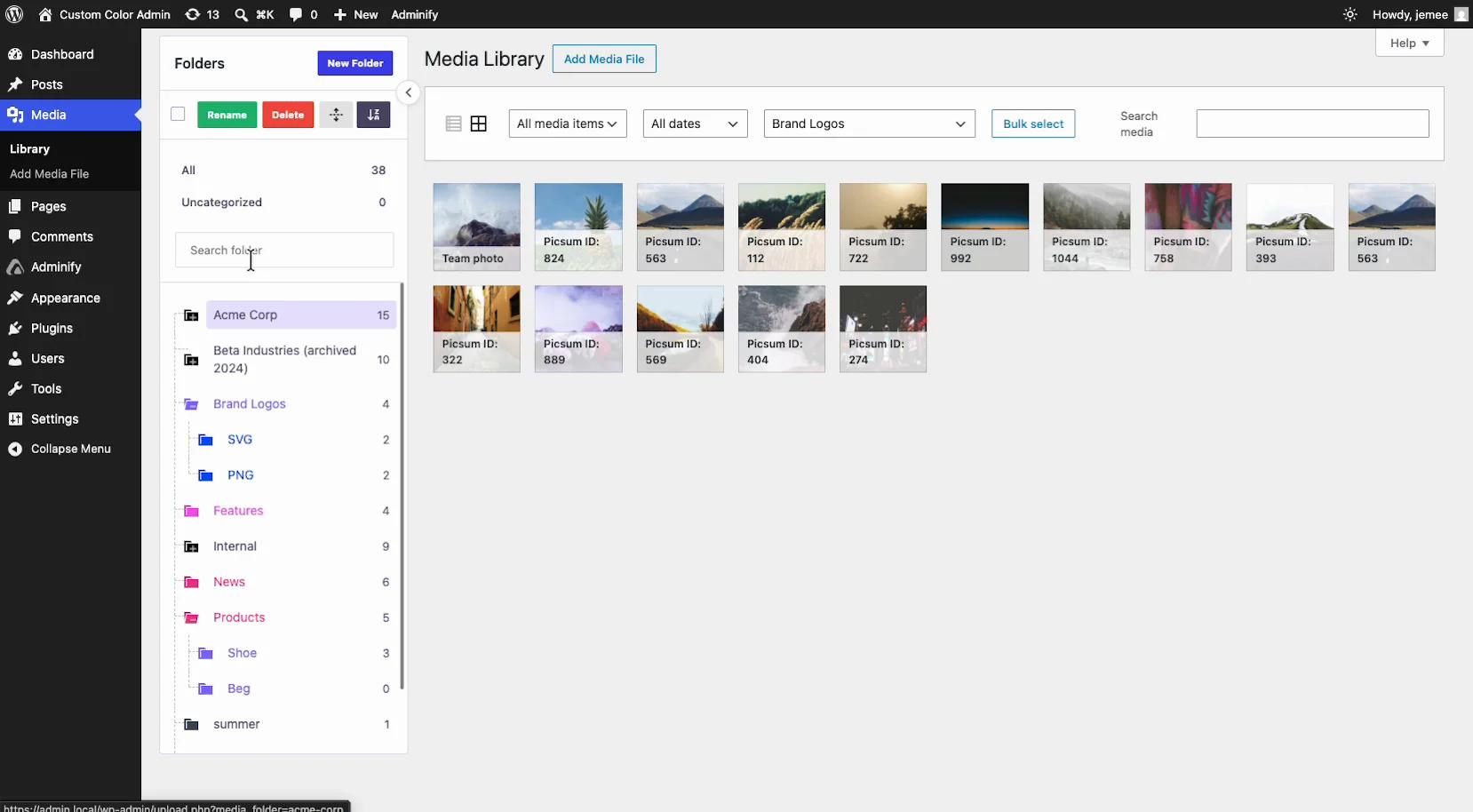
One practical note either way: because both store folders identically, trialling one and switching to the other costs almost nothing. That's not true of anything using custom tables.
How it compares
- FileBird - more installs and a more polished media interface, plus manual ordering, but proprietary tables.
- Real Media Library - deeper folder features, four custom tables, the heaviest lock-in here.
- Media Library Organizer - also taxonomy-based and even lighter, but media only and a much smaller user base.
- WP Adminify - folders inside a broader admin toolkit, same taxonomy name, so never run the two together.
Folders by Premio FAQs
Is the Folders plugin by Premio any good?
Yes. It holds a perfect 100/100 from 1,514 ratings, the strongest social proof in this category, backed by 90,000 active installs. Architecturally it's also the cleanest widely-adopted option, storing folders as standard WordPress taxonomy terms with no custom tables.
Does the Folders plugin move my files?
No. It uses virtual folders, so files stay in wp-content/uploads/ and image URLs never change. Folders are taxonomy terms, so assigning a file to one only creates a database relationship.
Can Folders organize posts and pages too?
Yes, and it's the main differentiator. We verified it registers three hierarchical taxonomies: media_folder for attachments, folder for pages and post_folder for posts. Most competitors stop at media.
Can the free version of Folders create subfolders?
No. We tried on the free tier and the Add-a-new-folder modal shows "Upgrade to Pro to create subfolders." The underlying taxonomies are hierarchical, so the data layer supports nesting, but the free interface only creates one flat level.
What happens if I deactivate the Folders plugin?
Your files are unaffected. The folder trees vanish from the admin, but because folders are standard WordPress terms the data stays in wp_term_taxonomy and any tool can read it. That's a meaningful advantage over plugins using proprietary tables.
Folders or FileBird?
FileBird has more installs, a more polished media-only interface and manual folder ordering. Folders has a better rating from a larger sample, portable taxonomy storage and coverage of posts and pages. Pick FileBird for media-focused polish, Folders for breadth and portability.
Can I use Folders and WP Adminify together?
No. We confirmed both register an attachment taxonomy named media_folder, so running them together produces unpredictable results. Pick one. The upside is that moving between them is unusually painless, since the data lives in the same place either way.
Final verdict
Folders deserves its rating. It's the rare plugin that's popular, well-engineered and non-committal about your data all at once. Taxonomy storage means you can leave whenever you like, which is not something FileBird or Real Media Library can say.
The trade is specialization. If you want the single best media-only folder experience, FileBird's years of focused iteration show. If you want folders across the whole site with nothing locked away and the strongest user satisfaction in the category, this is the pick.
Comparing options? Start with how WordPress media folders work, then how to organize a library with folders once you've chosen a plugin, whichever one that turns out to be.

Your email address will not be published