

Websites are full of contents like posts, pages, products and more. And that’s why managing them can be a burden. Without a clear system, things get messy, and your visitors might struggle to find what they’re looking for.
Organizing them is the key to success. And it's not just about arrangement, it’s about helping the audience discover the value you offer without confusion.
But let’s be real: sorting, categorizing, and reordering a lot of content manually is a nightmare. It’s time consuming and you’re bound to miss something. Sometimes it can lead to mistakes that cause major harm in the long term.
That’s where a custom post type order plugin saves the day. Yes, I’m talking about WP Adminify. Its standout "Post Types Order" feature is a game-changer for managing contents.
Here’s why it’s the go-to choice for custom post type order to quickly manage your website’s content.
Custom Post Type Order by WP Adminify
Choosing the right plugin to organize your website’s posts can be tricky with so many options out there. Most seem to offer similar features like flexibility, ease of use, and solid content management.
But suppose you can only pick one. You need a plugin that’s intuitive, reliable, and bug-free. That’s where WP Adminify shines with its powerful custom post type order feature.
Why go with WP Adminify? Its drag-and-drop system makes reordering content a breeze. Just grab a post, page, or other content and drop it where you want it. No complicated steps needed.
The custom post type order feature is a standout feature. It lets you efficiently sort any post type, from blog posts and pages to landing pages and admin pages, with custom orders suited for your site.
You can also organize taxonomies like categories or tags, and even sort your media library in list view. Features like instant autosave keep things easier. While the ability to disable custom post type order for specific user roles gives you full control. Plus, WP Adminify offers more perks you’ll discover as you use it.
In short, WP Adminify delivers everything you need for custom post type order. It saves time, reduces hassle, and keeps your content perfectly organized throughout your website.
How to Use Custom Post Type Order with WP Adminify
To get the best results, you need to know how to use this powerful feature. Here’s a clear, step-by-step guide to help you master custom post type order with WP Adminify. WP Adminify ensures your content is organized efficiently and enhances user engagement.
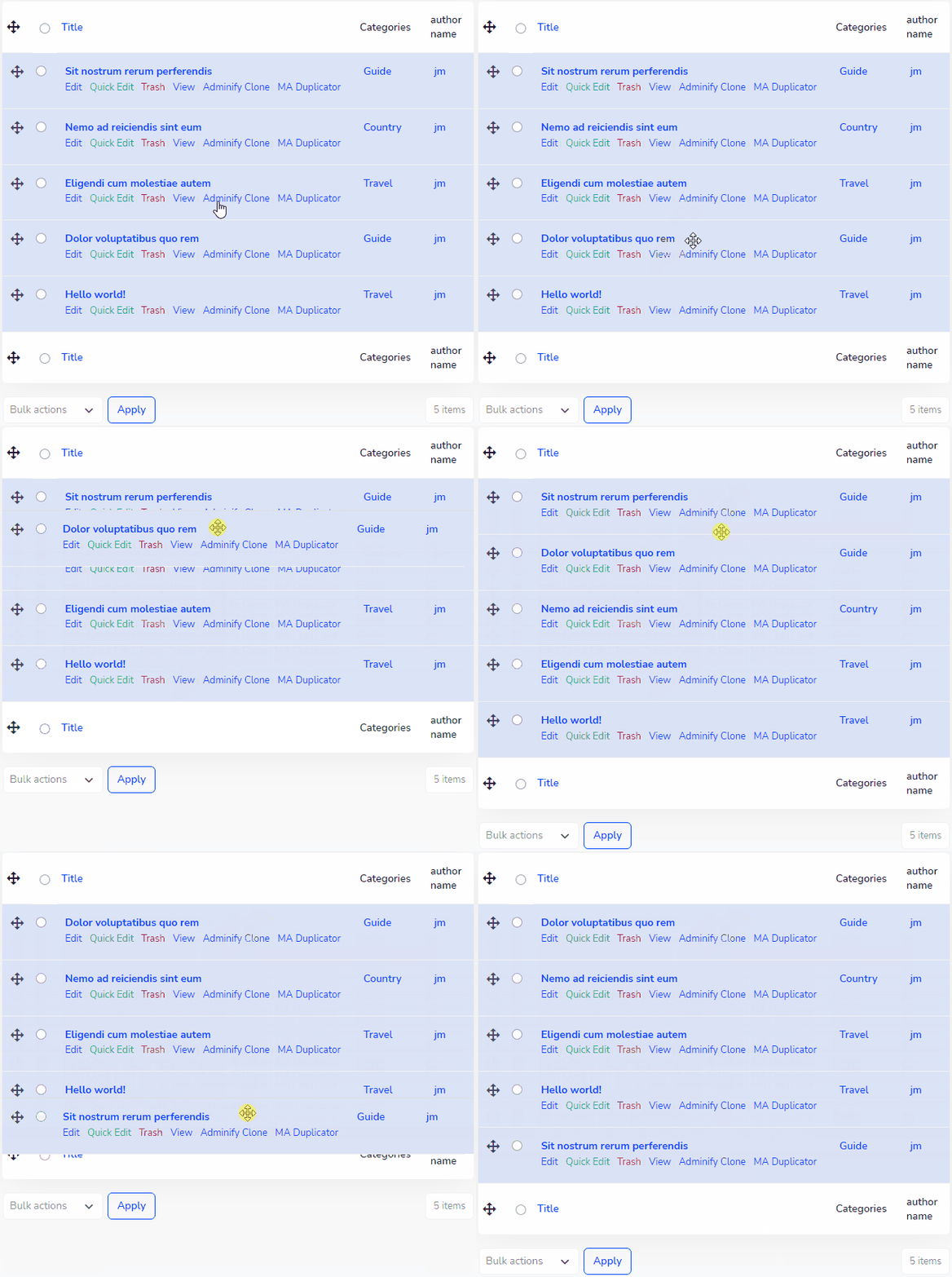
So, let’s show you how to do it.
Step 0: Install and Activate WP Adminify
This is a no-brainer. You need to install and activate WP Adminify to use it. It's just like every other plugin in the WordPress repository.
Go to Plugins > Add New. Search for WP Adminify. Install and activate and you’re ready to use its amazing features.
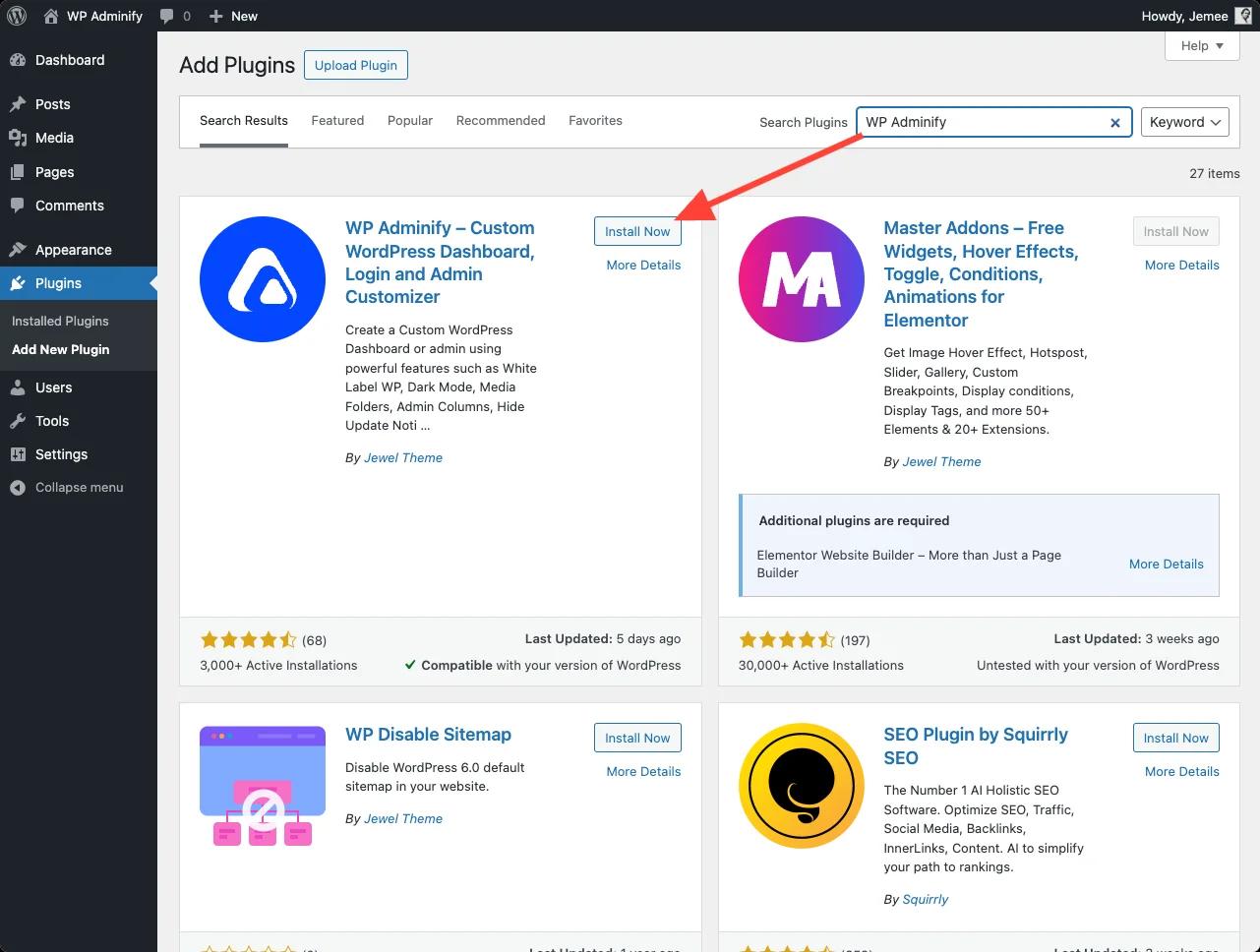
Step 1: Enable the Post Types Order
To start, you’ll need to activate the "custom post type order" settings in WP Adminify. Once the plugin is active:

- Go to the WP Adminify menu in your WordPress dashboard.
- Find the Productivity section.
- Locate the Post Types Order setting and toggle the Enable button to turn it on.
This activates the post type order options, and you’re ready to start customizing your content order. If you don’t see the post type order, double-check that the plugin is properly installed and updated.
But keep in mind that you need to ensure that you have installed and activated the plugin properly before heading to the modules section. Once your desired module is enabled, you can move on to the next steps.
Step 2: Configure the Post Types Order Settings
With the post type order enabled, it unlocks settings to customize how your content is organized. You’ll see a user-friendly interface with three key options:
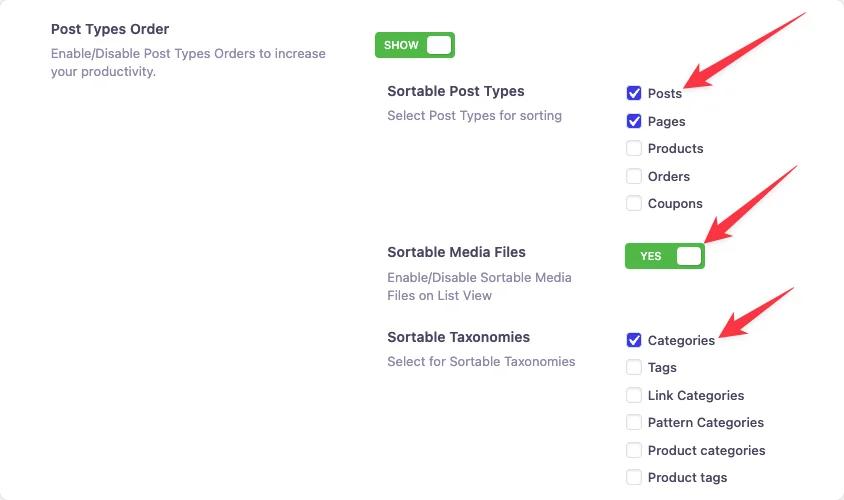
- Sortable Post Types: Select which content types you want to reorder, such as Posts, Pages, Landing Pages, or Admin Pages. For example, if you run a blog and an e-commerce site, you might choose Posts and Pages to prioritize blog content and product pages. You can select multiple post types or just one, depending on your needs.
- Sortable Media Files: Enable this to reorder items in your media library. This is especially useful for photographers or portfolio sites where the order of images matters.
- Sortable Taxonomies: Pick the taxonomies you want to organize, like Categories, Tags, or custom taxonomies (e.g., Product Categories for WooCommerce). This lets you fine-tune how your content is grouped and displayed.
Take your time to configure these settings based on your site’s goals. For instance, if you want to highlight recent blog posts or specific product categories, choose only those post types and taxonomies to keep things focused.
Step 3: Save and Reorder Your Content
Once you’ve set up your preferences:
Click the Save button to lock in your settings. WP Adminify’s instant autosave feature ensures your changes are applied immediately, so you don’t have to worry about losing progress.
Navigate to the content you selected to reorder, such as Posts > All Posts or Pages > All Pages in your WordPress dashboard.
Use the drag-and-drop interface to rearrange items. For example, if you want a specific blog post to appear at the top of your list, click and drag it to the desired position, then drop it. The changes take effect instantly, with no extra steps needed.
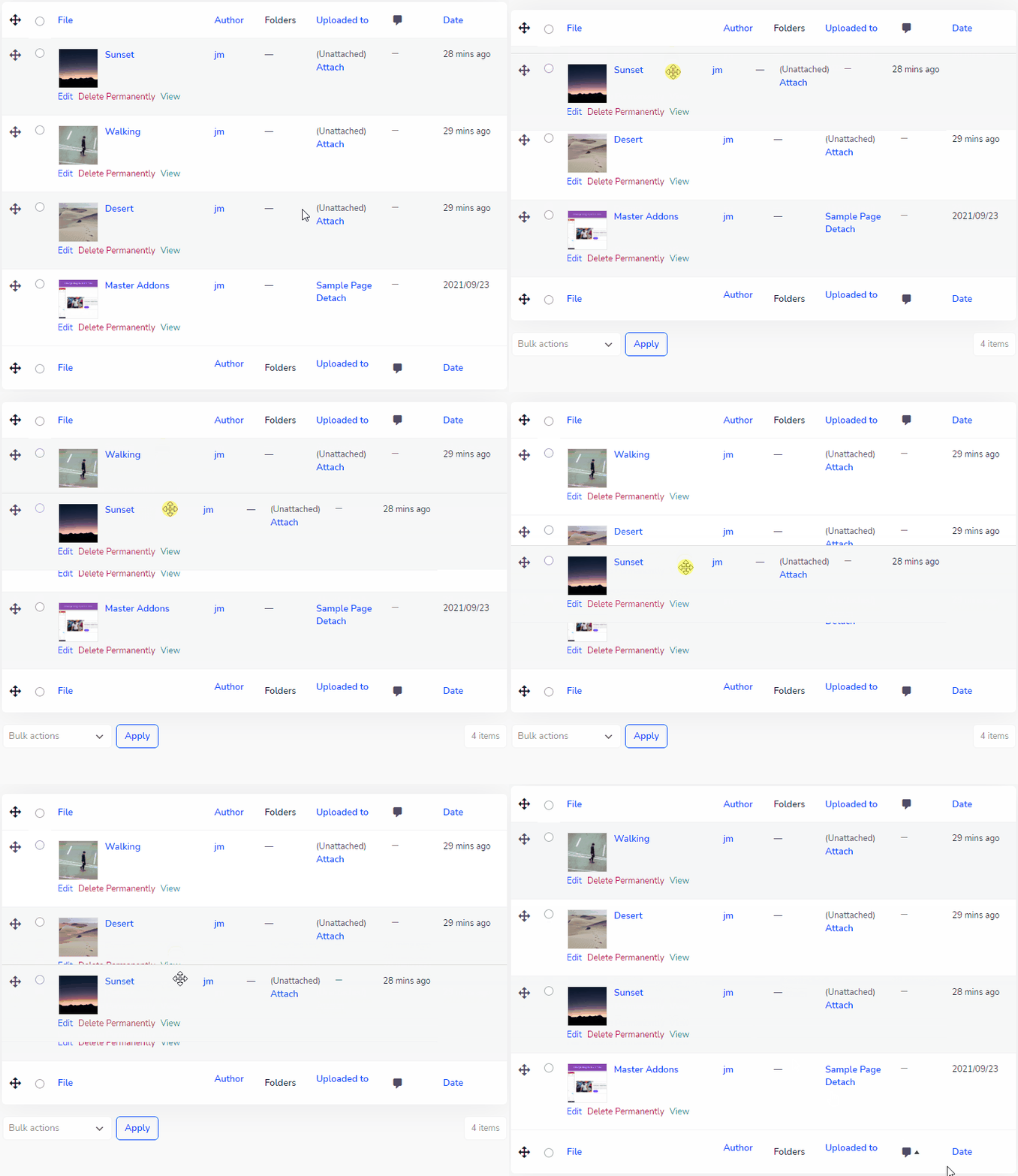
For media files, go to Media > Library, switch to List View (not Grid View), and drag-and-drop images or files to reorder them.
Note: The drag-and-drop feature only works in List View, so make sure you’ve selected it.
This intuitive process lets you prioritize content, like featuring a new blog post or showcasing a key product. And you can do it without diving into code or complex menus. Also, check out other post and archive customization settings available.
Conclusion
Manually sorting through hundreds of posts, pages, or media files is time-consuming and prone to errors. With WP Adminify’s custom post type order feature, you can streamline this process, saving hours while creating a better experience for your audience.
Organized content means visitors find what they need faster, which can boost engagement, impressions, and conversions. Whether you’re running a blog, an online store, or a portfolio.
By following these steps, you’ll have full control over your WordPress site’s content with minimal effort. WP Adminify’s custom post type order feature is designed to be user-friendly yet powerful, making it the perfect tool to keep your site tidy and optimized.
Ready to get started? Install WP Adminify and take charge of your content today.
Frequently Asked Questions (FAQs)
Do I need coding knowledge to use the Custom Post Type Order feature in WP Adminify?
Not at all. WP Adminify is designed for non-technical users. The custom post type order feature uses a drag-and-drop interface, so you simply click and drag posts, pages, or media files into the order you want.
Will reordering my content affect my site’s SEO or permalinks?
No, reordering content in WP Adminify does not change URLs or permalinks. Your SEO rankings and indexed pages remain untouched. What changes is how the content is displayed or prioritized for visitors (e.g., which post shows up first in a list). This can even improve SEO indirectly by making content easier for users (and search engines) to navigate.
Can I choose who has permission to reorder posts and pages?
Yes. WP Adminify includes a user role restriction option. You can disable the post type order feature for certain roles, such as Authors or Contributors, while keeping it active for Administrators or Editors. This gives you full control and prevents accidental changes by team members who shouldn’t be reordering content.
Does the drag-and-drop order also apply on the front end of my website?
Yes. When you reorder content in WP Adminify, the custom order applies sitewide. Works both in the WordPress dashboard and on the front end of your site. For example, if you reorder blog posts so a featured one appears at the top, visitors will see that same order when browsing your blog page or category archives.
What happens if I have hundreds of posts or products? Will WP Adminify still work smoothly?
Yes. WP Adminify is optimized to handle large sites with hundreds or even thousands of posts, pages, or products. The drag-and-drop interface remains smooth, and the instant autosave ensures your changes are applied without delay. For very large catalogs (like e-commerce stores), you can focus only on the specific post types or taxonomies you want to reorder, so the system stays efficient without overwhelming you.