


Key Takeaways
- A WordPress page ID is the number after post= in the page's edit URL, for example post.php?post=138&action=edit, and you can see it by hovering the Edit link in the Pages list.
- WordPress posts, pages and media files share one database table, so each of them has a unique ID, while categories, tags, comments and users have their own separate ID numbers.
- A WordPress category or tag ID is the tag_ID value in the term edit URL, a comment ID is the c= value, and a user ID is the user_id= value.
- WP Adminify 4.3.4 can add an ID column to the posts and pages lists as a Pro option, and its Taxonomy ID and Comment ID columns are free.
- Every published WordPress page also prints its ID in the page source as a body class such as page-id-138, which helps when you cannot log in to the admin.
The quickest way to find a WordPress page ID is to hover the page title in Pages > All Pages and read the edit link. The number after post= is the ID. For example, post.php?post=138&action=edit means the page ID is 138. The same trick works for posts, media, categories, comments and users, with a different URL part for each.
This guide shows where each ID lives on WordPress 7.1.4, and how to show IDs in a column so you never need to hover again. It is part of our guide to the WordPress posts list and how to manage content faster. For the ID columns we use the free and Pro productivity tools in WP Adminify, and we mark which ones need Pro.
Quick Answer: Read the Page ID From the Edit Link
Every page, post and media file has a numeric ID in its edit link. Hover the title in the admin list and your browser shows the link at the bottom of the window. The number after post= is the ID. The editor's address bar shows it too. This works on every WordPress site with no plugin.
- Go to Pages > All Pages (or Posts > All Posts).
- Hover the page title or the Edit link under it.
- Look at the bottom-left corner of your browser. You will see a link like
https://example.com/wp-admin/post.php?post=138&action=edit. - The number between
post=and&actionis the page ID. Here it is 138.
If your browser hides the status bar, click the title to open the page in the editor and read the address bar instead. The ID is in the same place.
Page builders and shortcodes often ask for this number. For example, a form plugin may ask which page to redirect to after a submission, or a menu plugin may want a page ID to exclude.
Show an ID Column in the Pages and Posts List
Hovering is fine for one page. If you need IDs often, show them in a column. WordPress core has no ID column, but WP Adminify adds one with the "Show Post/Page ID Column" option under Productivity > Custom Admin Columns. This option is Pro in version 4.3.4. The ID then shows next to every title.
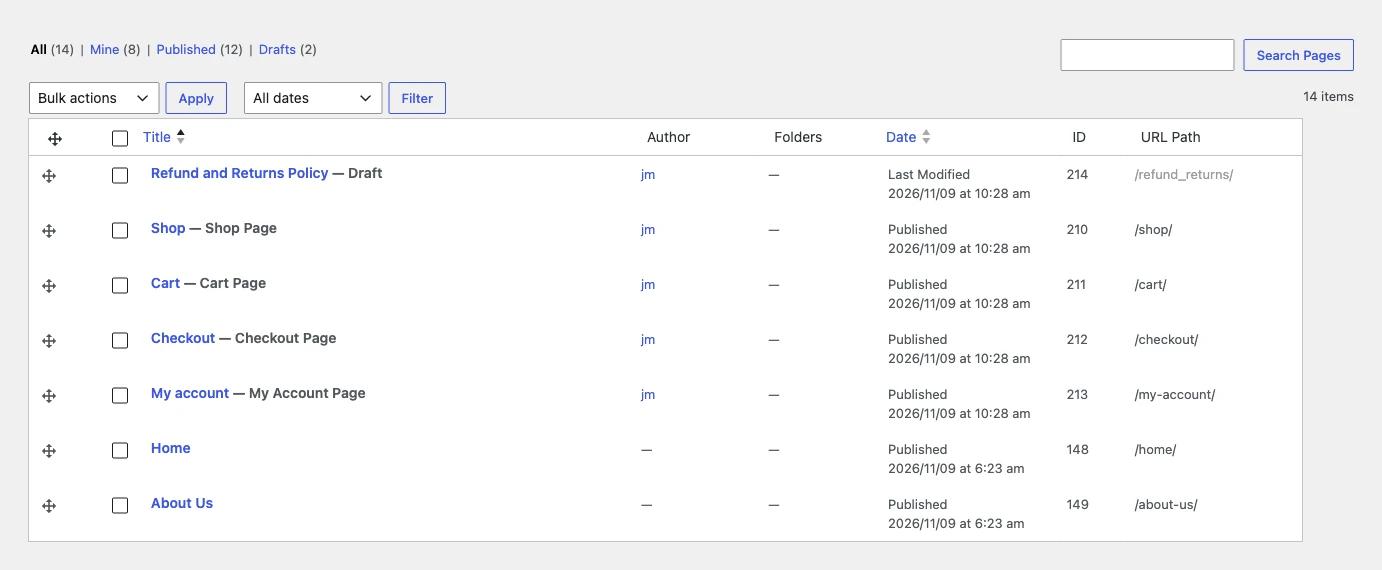
To turn it on:
- Go to Adminify > Productivity and open Custom Admin Columns.
- Switch the module to Show.
- Tick Show Post/Page ID Column. Its label says "Display "ID" column for post and page table lists".
- Save, then open Pages or Posts. An ID column appears.
In our test the ID column also appeared on the WooCommerce Products screen. You can hide or show it later from Screen Options like any other column. These settings sit with the other WordPress admin productivity options, such as the free URL Path column and the Pro Thumbnail column.
If you want to rename, resize or reorder columns as well, the WP Adminify Admin Columns Editor addon does that. Its free build edits Posts and Pages columns. Our guide to WordPress admin columns explains what each core column shows.
How to Find a Category or Tag ID
A WordPress category ID is in the category's edit link. Go to Posts > Categories, hover the category name and read the link. The number after tag_ID= is the category ID. Tags work the same way under Posts > Tags. WP Adminify can also show a free Taxonomy ID column on these screens.
A category edit link looks like /wp-admin/term.php?taxonomy=category&tag_ID=5&post_type=post. Here the category ID is 5. The parameter is called tag_ID for categories too, which confuses many people. It is the term ID for any taxonomy, including product categories in WooCommerce.
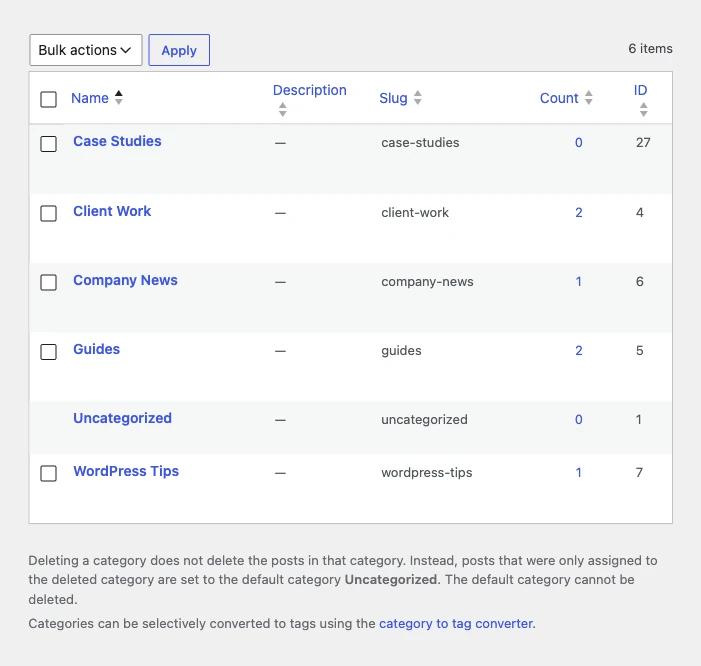
To add this column, tick Show "Taxonomy ID" Column for all possible types of taxonomies in Adminify > Productivity > Custom Admin Columns. It is free.
Keep in mind that category IDs and post IDs are separate number series. A category with ID 5 and a post with ID 5 can both exist. Always check which kind of ID a plugin asks for.
How to Find a Comment ID
A WordPress comment ID is in the comment's edit link. Go to Comments, hover a comment and click Edit, or hover the Edit link. The number after c= is the comment ID. On the front end, each comment also has an anchor such as #comment-12. WP Adminify's free Comment ID column shows it in the list.
The edit link looks like /wp-admin/comment.php?action=editcomment&c=12. The comment ID is 12.
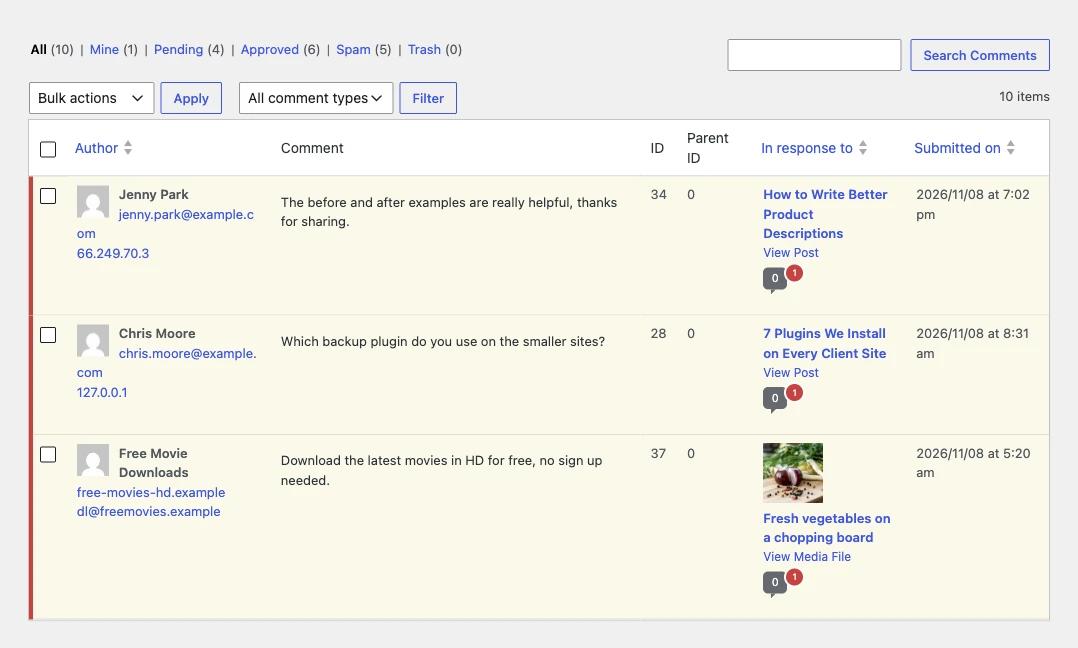
Tick Show "Comment ID" Column for Comment, Also show "Parent ID" in the Custom Admin Columns settings to add both columns for free. The Parent ID is useful when you clean up long reply threads, because it shows which comment each reply answers. A Parent ID of 0 means the comment is not a reply.
If you are cleaning up comments, our guide on how to delete all comments in WordPress covers bulk actions and the Empty Spam button.
How to Find a User ID
A WordPress user ID is in the user's edit link. Go to Users > All Users, hover the username and read the link. The number after user_id= is the ID. Your own profile link does not show an ID, so look yourself up in the Users list instead. The first admin account on a site is usually ID 1.
The link looks like /wp-admin/user-edit.php?user_id=3. Here the user ID is 3.
When you click your own name, WordPress opens profile.php with no number. That is why the Users list is the reliable place to check. Plugins ask for user IDs when you set per-user rules, such as hiding a menu for one user.
How to Find a Media (Attachment) ID
A media file in WordPress is an attachment post, so its ID is a post ID. In the Media Library grid view, click a file; the address bar shows upload.php?item= followed by the ID. In the list view, hover the file name and read the edit link, where the number after post= is the ID.
- In grid view, click the image. The URL becomes
/wp-admin/upload.php?item=97. The media ID is 97. - In list view, hover the file name. The link is
post.php?post=97&action=edit.
Galleries, sliders and shortcodes such as [gallery ids="97,98"] use these numbers. If your library is large, folders make files easier to find first. See our guide to WordPress media folders.
How to Find a Page ID Without the Admin or With Code
If you cannot log in, open the page on the front end and view its source. Most themes print the ID in the body tag as page-id-138 for pages or postid-138 for posts. Developers can also get the ID in PHP with get_the_ID() or from WP-CLI with one list command.
In the browser, right-click the page and choose View Page Source. Search for page-id-. You will see something like <body class="page-template-default page page-id-138">. This depends on the theme calling body_class(), which almost all themes do.
In a theme template or a snippet, this returns the current post or page ID inside the loop:
1
2$page_id = get_the_ID();
3
From the command line, WP-CLI lists every page with its ID:
1
2wp post list --post_type=page --fields=ID,post_title
3
The get_the_ID() reference on developer.wordpress.org lists where the function works.
Which Method Should You Use?
For one page, hover the edit link. For daily work with IDs, turn on the ID column. For categories and comments, use the free Taxonomy ID and Comment ID columns. Use the page source when you cannot reach wp-admin, and code or WP-CLI when you need IDs in bulk or inside a template.
| You need | Where to look | URL part |
|---|---|---|
| Page or post ID | Hover the title, or the ID column (Pro) | post= |
| Category or tag ID | Hover the term, or the Taxonomy ID column (free) | tag_ID= |
| Comment ID | Hover Edit, or the Comment ID column (free) | c= |
| User ID | Hover the username in Users | user_id= |
| Media ID | Click the file in grid view | item= |
| ID without admin access | Page source body class | page-id- or postid- |
Frequently Asked Questions
What is a page ID in WordPress?
A page ID is the unique number WordPress gives each page when it is created. It is stored in the database and never changes, even if you edit the title or the slug. Plugins, shortcodes and page builders use it to point to one exact page.
Can a post and a page have the same ID?
No. Posts, pages, media files and custom post types such as products share one database table, so their IDs never repeat. Categories, tags, comments and users use other tables, so a category can have the same number as a post.
Does the page ID change if I change the URL?
No. Changing the slug or the title keeps the same ID. The ID only changes if you delete the page and create a new one, or copy it. A duplicated page always gets a new ID.
Is there a free way to show IDs in the WordPress admin?
Yes, partly. Hovering the edit link is free on every site. In WP Adminify 4.3.4, the Taxonomy ID and Comment ID columns are free, while the Post/Page ID column is a Pro option. Code snippets that add an ID column are another free route.
Final Thoughts
Finding a WordPress page ID takes a few seconds once you know where to look: the number after post= for pages, posts and media, tag_ID= for categories, c= for comments and user_id= for users. If you work with IDs every day, turn on the ID column (Pro) and the free Taxonomy ID and Comment ID columns in WP Adminify. For more ways to speed up the posts list, read How to Manage WordPress Posts and Pages Faster.


Your email address will not be published