

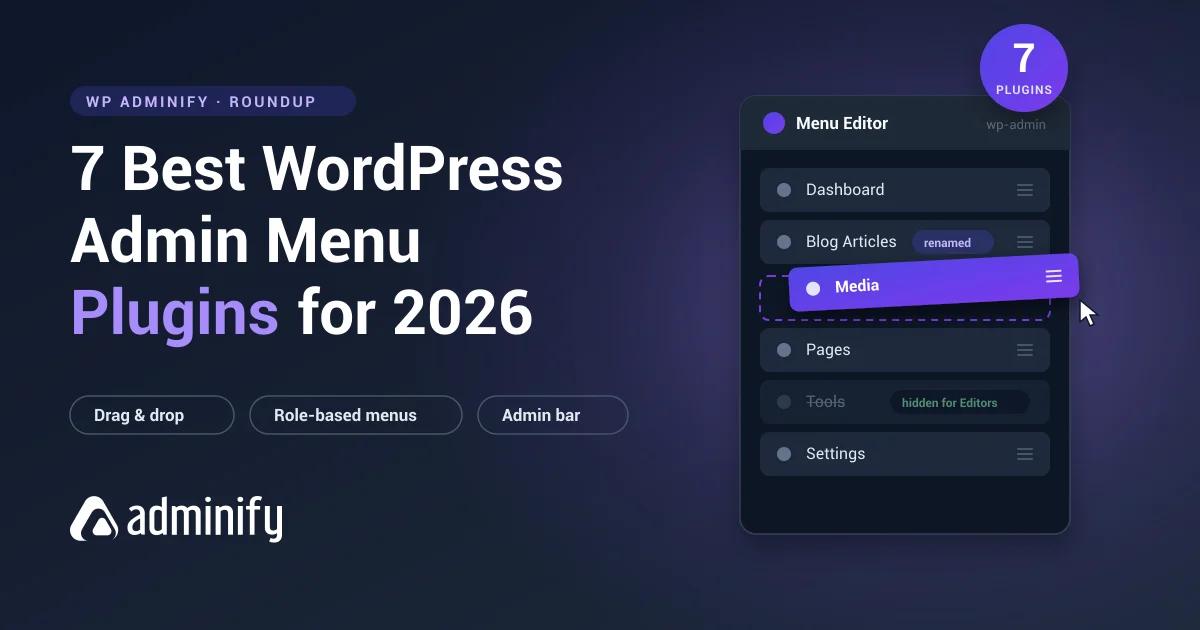

Install a plugin, get a menu item. Install thirty plugins over three years and your wp-admin sidebar turns into a scroll of labels you stopped reading months ago. A WordPress admin menu plugin fixes that: you reorder what you use daily, rename the labels that confuse clients, and hide everything an editor has no business clicking. We tested the main options on a live WordPress 7.0 install and kept seven. One of them handles the top toolbar instead of the sidebar, and one is a login page customizer that snuck onto the list because it finishes the job the other six start.
Short on time? WP Adminify is what we'd install on most sites: drag-and-drop menu editing with role-based visibility, custom menu items, and SVG icon support, inside a toolkit that also cleans up the rest of the backend.
Best WordPress admin menu plugins at a glance
- WP Adminify - drag-and-drop menu editing plus role-based visibility, inside a full dashboard toolkit with white labeling.
- Admin Bar Editor - the top toolbar gets the same treatment: hide, reorder, and restrict admin bar items per role.
- Loginfy - a login page customizer, not a menu editor. It's here because a branded backend starts at the login screen.
- Admin Menu Editor - the sidebar menu specialist that's been maintained for over a decade.
- Adminimize - checkbox-based hiding of menu items, meta boxes, and admin bar elements per role. Fully free.
- WPFront User Role Editor - menu control through roles and capabilities rather than a visual editor.
- Ultimate Dashboard - dashboard widget replacement first, with a Pro menu editor for client sites.
What is a WordPress admin menu plugin?
A WordPress admin menu plugin gives you an interface for editing the left-hand navigation inside wp-admin. WordPress itself has no screen for this. The menu order and labels come from core and from whatever each plugin registers via add_menu_page(), and if you want to change any of it without a plugin, you're writing PHP. A menu plugin adds the missing interface, so you can:
- Reorder items so the screens you open daily sit at the top.
- Rename labels that confuse clients. Most clients look for "Blog Articles", not "Posts".
- Hide items entirely, or hide them only for certain user roles.
- Add custom items like internal docs, external tools, or a support link.
- Swap icons so people can scan the menu instead of reading it.
The practical payoff shows up in your support inbox. Editors can't break what they can't see, and clients call less when the dashboard only shows what they need.
1. WP Adminify - best all-in-one admin menu editor
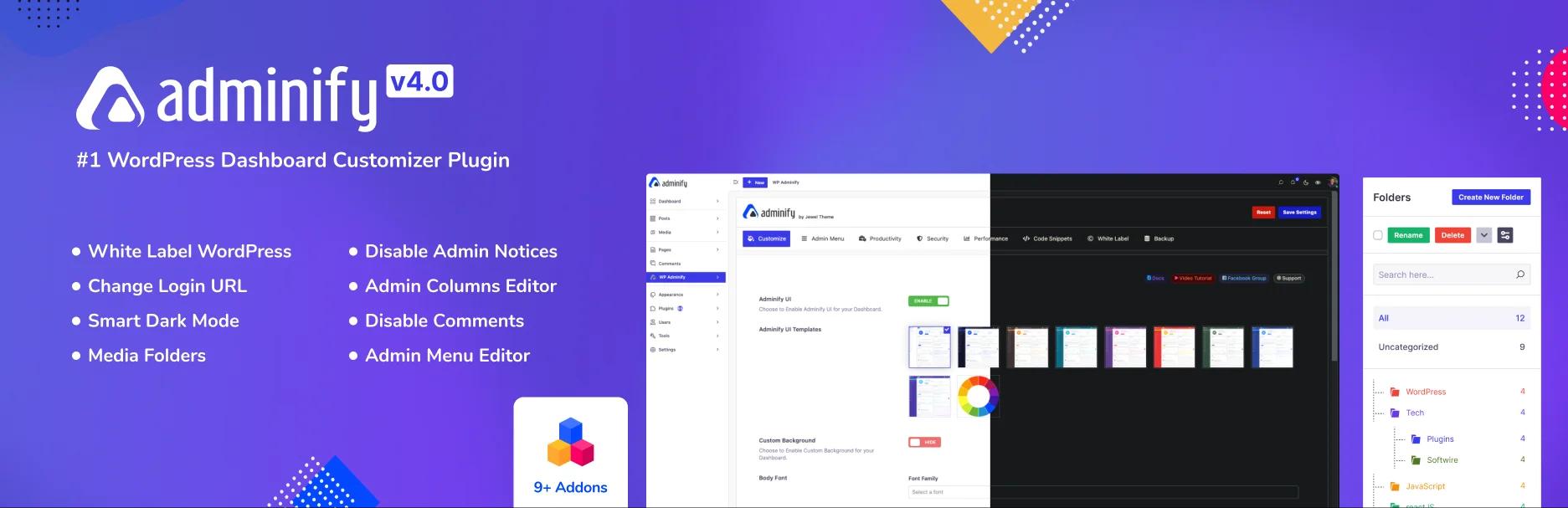
Full disclosure: WP Adminify is our plugin. We built it because we kept stacking the same five or six admin cleanup plugins on every client site, and the WordPress admin menu editor is the module that gets turned on first. It's proper drag and drop: grab any top-level or submenu item, drop it where you want it, rename it inline, and toggle visibility per user role. Custom menu links, SVG icon uploads, and section dividers all live on the same settings screen.
The difference from a single-purpose editor is what ships around the menu module. Media library folders, a dark-mode dashboard, login page customization, admin columns, activity logs, and white-label controls are all in the same install. If you hand sites to clients, that's one plugin to update instead of five, and one fewer chance for two cleanup plugins to fight over the same hook.
- Active installs: 7,000+ · Rating: 4.3/5
- Key menu features: drag-and-drop reordering, inline renaming, hide per role, custom links, SVG icons
- Beyond the menu: white labeling, media folders, dark mode, dashboard widgets, security tweaks
- Best for: freelancers and agencies who want menu control plus full backend customization in one toolkit
Pricing: free core plugin; Pro unlocks the advanced modules.
2. Admin Bar Editor - best for toolbar customization
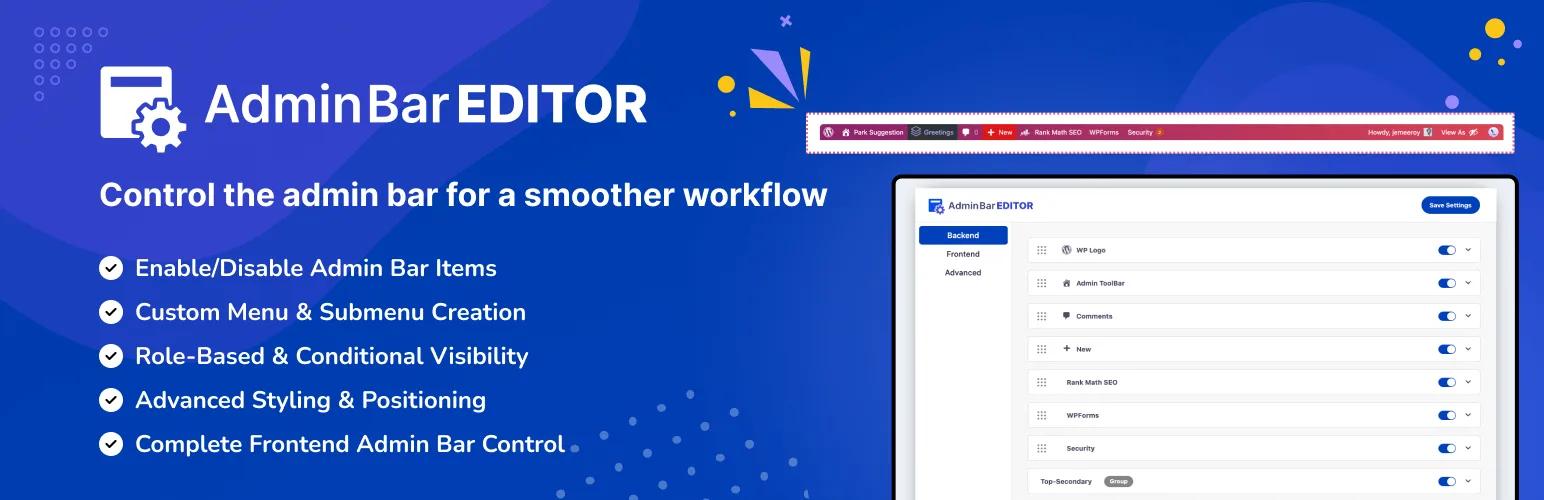
The sidebar is only half the clutter problem. The top toolbar collects junk just as fast, and almost nobody cleans it up. Admin Bar Editor from Jewel Theme does for the admin bar what menu editors do for the sidebar: drag-and-drop reordering, per-item show/hide toggles, and separate control for the backend and frontend bars.
Setup takes a minute. After activation, go to Settings → AdminBar Editor, pick Backend or Frontend, and start toggling. The free version covers existing toolbar items and the global frontend bar. Pro adds custom menu entries, per-role visibility, and color and style controls. If your cleanup priority is the toolbar rather than the sidebar, this is the tool for that specific job, and it pairs well with WP Adminify's sidebar editor since neither steps on the other.
- Key features: hide/show/reorder toolbar items, frontend bar control, admin bar position
- Pro adds: custom toolbar links, role-based visibility, custom colors and styles
- Best for: membership sites, support teams, and agencies that need a clean, role-aware toolbar
3. Loginfy - best login page companion
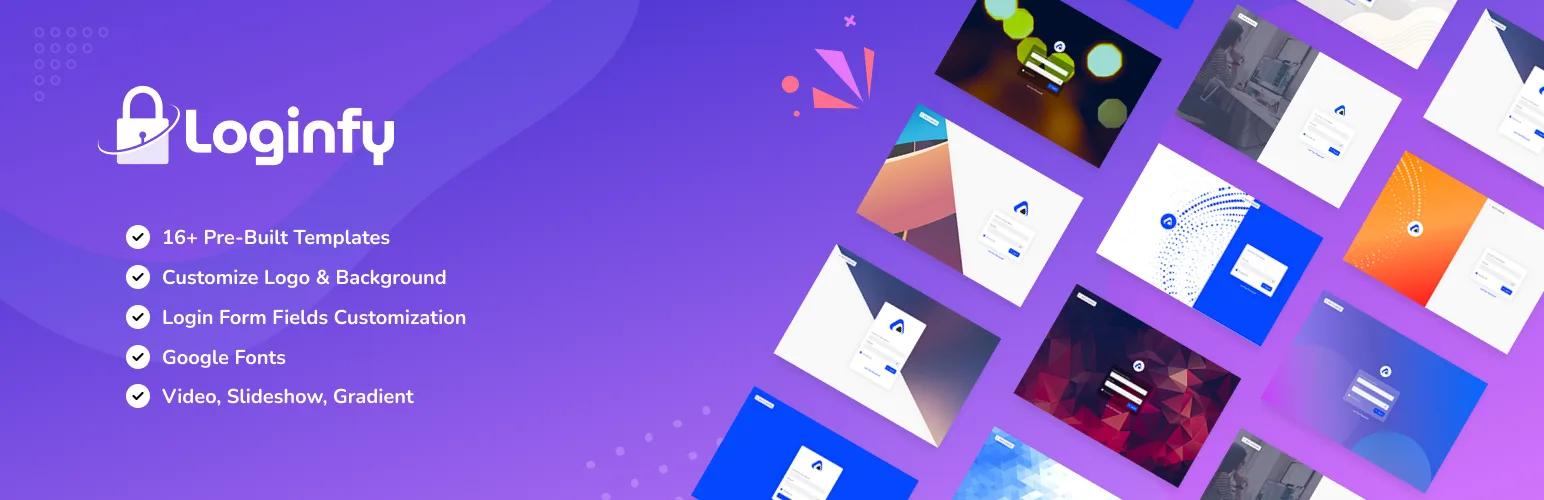
Fair warning: Loginfy is not an admin menu editor, and we're not going to pretend it is. It's on this list because a customized admin menu only fixes what people see after login. If the login page still says "Powered by WordPress" over the default blue form, the branding job is half done. Loginfy plugs into the native WordPress Customizer, so every change previews live before you publish.
You get 16+ pre-built templates, two-column layouts, and backgrounds that go past a static image: gradients, videos, slideshows. Every text string on the page is editable, including error messages, which matters more than it sounds. The default WordPress login error confirms whether a username exists, and rewriting it closes that gap. White-label options strip the WordPress branding entirely. Weighing your options? Compare the best WordPress login page plugins before you commit.
- Key features: live Customizer preview, 16+ templates, video/slideshow backgrounds, Google Fonts
- White label: remove WordPress branding, custom error messages, full text control
- Best for: agencies and freelancers finishing a branded client backend
4. Admin Menu Editor - best single-purpose specialist

Admin Menu Editor has been doing one job for over a decade: drag-and-drop reordering of top-level and submenu items, renaming, custom menu entries, and capability-based access control. At 300,000+ active installs and a 4.6-star rating, it has more production mileage than anything else here. If it broke things, we'd know by now.
The trade-off is scope, and one quirk worth knowing before you install. The free version restricts access by capability, not by role, so "hide this from Editors" takes some mental translation to "hide this from anyone without manage_options". Per-role permissions, menu export/import, and toolbar editing all sit behind the Pro upgrade. If you want a menu editor and nothing else in your plugin list, this is the proven pick.
- Active installs: 300,000+ · Rating: 4.6/5
- Key features: drag-and-drop editing, renaming, custom items, capability-based access
- Pro adds: per-role permissions, export/import, admin bar editing
- Best for: site owners who want a focused, long-maintained menu tool
5. Adminimize - best free role-based hiding

Adminimize goes the other way: no drag and drop, no Pro tier, just a huge grid of checkboxes. Every menu item, submenu item, meta box, and admin bar element gets a row. Every user role gets a column. Tick a box and that element disappears for that role.
It's completely free and GPL-licensed, with 200,000+ installs and a 4.7-star rating. The interface looks like it hasn't changed since WordPress 3.x, because it mostly hasn't, and you can't reorder or rename anything. This is a hiding tool, not an editor. But if the whole job is "strip the dashboard down per role and spend zero dollars", nothing else on this list does it better.
- Active installs: 200,000+ · Rating: 4.7/5
- Key features: per-role hiding of menus, submenus, meta boxes, and admin bar items
- Limitations: no reordering, no renaming, checkbox-only interface
- Best for: budget-conscious sites that only need to hide things per role
6. WPFront User Role Editor - best for permissions-first control

WPFront User Role Editor comes at the menu from the permissions side. You don't edit the menu directly. You create, clone, and edit user roles, and the menu follows, because WordPress decides what to show based on capabilities. The free version covers full role management plus basic navigation permissions. Pro adds a dedicated admin menu editor on top.
This is the right starting point for membership sites and multi-author publications where "who can do what" is the actual question and the messy menu is just the visible symptom. Fix the roles and half the menu problem fixes itself.
- Active installs: 30,000+ · Rating: 4.5/5
- Key features: create/edit/clone roles, capability management, navigation permissions
- Pro adds: dedicated admin menu editor
- Best for: membership sites and teams managing complex role structures
7. Ultimate Dashboard - best for client dashboards
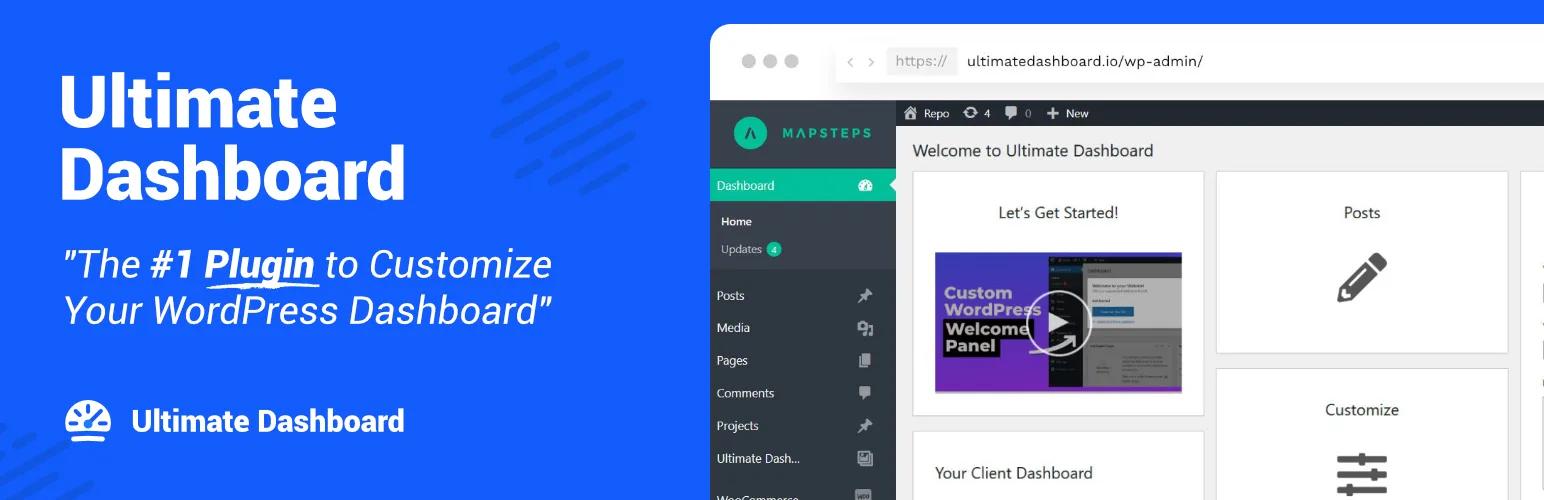
Ultimate Dashboard is a dashboard widget tool before it's a menu tool. The free version removes the default WordPress widgets and replaces them with your own icon cards, text widgets, and video embeds. Menu editing only arrives with Pro, which adds a per-role admin menu editor with custom items and separators.
That ordering tells you who it's for. If the deliverable is a branded "welcome" screen on every client site, with menu cleanup as part of the package rather than the headline, this is the pick. It has 60,000+ installs and a 4.6-star rating, and agencies are clearly its core audience.
- Active installs: 60,000+ · Rating: 4.6/5
- Key features (free): remove/replace dashboard widgets, icon and text widgets
- Pro adds: per-role menu editor, custom menu items, separators, white label
- Best for: agencies designing complete branded client dashboards
Comparison: WordPress admin menu plugins for 2026
| Plugin | Drag & drop | Role-based visibility | Custom menu items | Free version scope |
|---|---|---|---|---|
| WP Adminify | Yes | Yes | Yes | Menu editor + full toolkit modules |
| Admin Bar Editor | Yes (toolbar) | Pro | Pro | Toolbar hide/reorder, frontend bar |
| Loginfy | - (login customizer) | - | - | Templates + Customizer editing |
| Admin Menu Editor | Yes | Pro (capability-based in free) | Yes | Sidebar menu editing |
| Adminimize | No | Yes | No | Everything (fully free) |
| WPFront User Role Editor | Pro | Yes (via roles) | Pro | Role management |
| Ultimate Dashboard | Pro | Pro | Pro | Dashboard widgets |
How do you choose the right admin menu plugin?
- Want visual reordering, renaming, and a broader cleanup toolkit? WP Adminify.
- Is the top toolbar your main clutter problem? Admin Bar Editor.
- Finishing a white-labeled backend for clients? Add Loginfy for the login page.
- Want only a menu editor, nothing more? Admin Menu Editor.
- Need free per-role hiding? Adminimize.
- Is the real issue permissions? WPFront User Role Editor.
- Is the dashboard landing page the deliverable? Ultimate Dashboard.
How do you edit the WordPress admin menu?
For a full walkthrough of every option, see our guide on how to use the WordPress admin menu editor. With WP Adminify installed, the whole thing takes about two minutes:
- Install and activate WP Adminify from Plugins → Add New.
- Go to WP Adminify → Menu Editor.
- Drag items into the order you want. Nested submenu items move the same way.
- Click any item to rename it, change its icon, or hide it for specific roles. Sites that do not accept comments often hide admin menu items like Comments right here.
- Add custom links or separators where they help, then save.
Reload the dashboard and the new menu is live for every user, filtered by whatever role rules you set.
WordPress Admin Menu Plugin FAQs
Can I edit the WordPress admin menu without a plugin?
Yes, if you're comfortable writing PHP: hook admin_menu, call remove_menu_page(), and re-register items in a custom order. It works until a plugin update changes a menu slug and your code silently stops matching. It also gives clients no interface at all. A menu plugin does the same job with an undo button.
Will hiding a menu item stop users from accessing that screen?
Not by itself. Hiding is cosmetic, and a user with the right capability can still open the screen by typing the URL. For actual restriction, use a plugin that ties visibility to roles and capabilities, like WP Adminify's role-based rules or WPFront User Role Editor.
Do admin menu plugins slow down my site?
Not for visitors. These plugins load only inside wp-admin, so public pages are untouched. There's a small cost inside the dashboard itself, usually a query or two per admin page load, which is fine on most hosts. In practice a decluttered menu feels faster because there's less to scan.
Is Loginfy an admin menu plugin?
No. Loginfy customizes the login page, not the admin menu. We included it because the login screen is the first thing anyone sees in a branded backend, and it pairs with any menu editor on this list.
What happens to my menu changes if I deactivate the plugin?
The menu reverts to the WordPress default. Changes live in the plugin's settings, not in core, so deactivating is a safe, instant rollback.
The bottom line
For most sites, start with WP Adminify: a real drag-and-drop menu editor with role-based visibility, in a toolkit that also covers white labeling, media folders, and dashboard cleanup. Add Admin Bar Editor if the toolbar needs the same discipline, and Loginfy to carry the branding through the login screen. If you'd rather run a single-purpose specialist, Admin Menu Editor has earned its 300,000 installs, and Adminimize is still the best fully free way to hide clutter per role. Pick one and spend the twenty minutes. The default menu is the only part of WordPress that gets worse with every plugin you add, and it's the easiest to fix.
Where to go next
A tidy menu is one module of a bigger job. If you want the rest of the backend to match - dashboard widgets, admin columns, dark mode, and the rest - our guide to WordPress dashboard customization walks through the full cleanup in order. And if these sites go out to clients, the menu is only the part they scroll; white labeling WordPress covers removing the logos, the "Howdy", and the footer credit so the whole admin reads as yours.
Your email address will not be published