

WordPress 7.0 is officially live. Released on April 9, 2026 - shipped during Contributor Day at WordCamp Asia 2026 in Mumbai - this is the largest WordPress update since the block editor was introduced. It marks the official start of Phase 3 of the Gutenberg project, focused on collaboration.
But most WordPress update posts read like a changelog. You scan through feature names, nod along, and move on without really knowing what changed for you. This post is different. We'll walk through every major feature in WordPress 7.0 and explain exactly what it means when you're building pages, editing content, managing a team, or running a client site - starting right now.
Quick context: WordPress 7.0 also raises the minimum PHP requirement to PHP 7.4 (with PHP 8.3+ strongly recommended). Sites running PHP 7.2 or 7.3 will stay on the WordPress 6.9 branch and won't receive this update. Check your PHP version at Tools > Site Health before updating.
Table of Contents
- How to Update to WordPress 7.0
- Three Big Themes: Collaboration, Customization, Developer Tools
- Real-Time Collaboration - Edit With Your Team Simultaneously
- The Notes System - Inline Feedback Without Leaving WordPress
- Admin Gets a Visual Overhaul - DataViews, Transitions, and Command Palette
- Font Library - A Proper Dashboard for Managing Fonts
- In-Editor Revisions That Show What Actually Changed
- Responsive Editing Mode - Design for Every Screen
- Smarter Design Tools in the Block Editor
- New Blocks: Breadcrumbs, Icons, Heading Variations, Cover Video
- Pattern Editing Gets Hands-On
- Site Editor Quick Edit - Now Rock Solid
- Native AI Integration - The WP AI Client
- Client-Side Media Processing
- More Block Improvements Worth Knowing
- For Developers: The APIs You've Been Waiting For
- How WP Adminify Works With WordPress 7.0
- FAQ
- What This Means for Your WordPress Workflow
How to Update to WordPress 7.0
WordPress 7.0 is now available through your standard update process. Navigate to Dashboard > Updates and click "Update to WordPress 7.0." Before you do, here's a quick pre-update checklist:
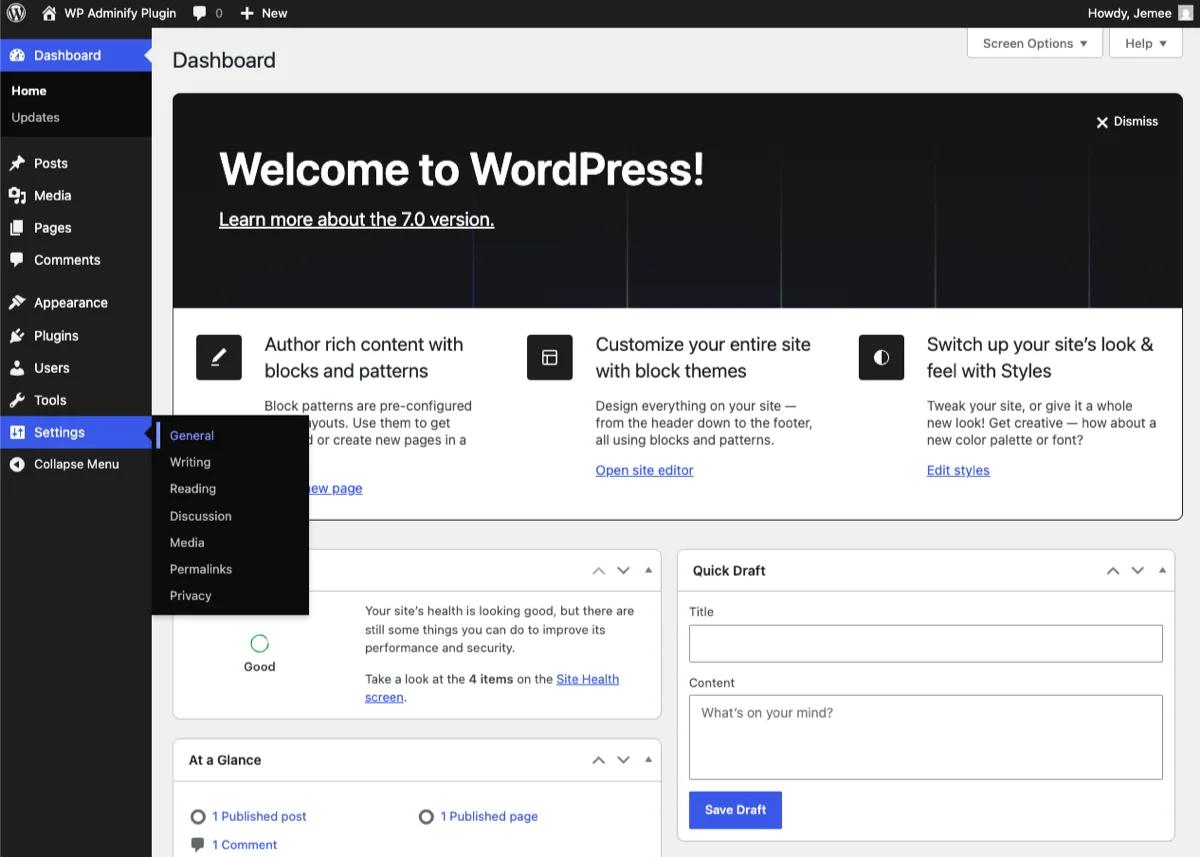
- Check your PHP version. Go to Tools > Site Health > Info > Server. WordPress 7.0 requires PHP 7.4 minimum. PHP 8.3 or higher is recommended for best performance.
- Back up your site. Use your hosting provider's backup tool or a plugin like UpdraftPlus. Always back up before a major version update.
- Test on staging first. If you run a production site with custom themes or plugins, update your staging environment first. Check for visual or functional issues before pushing to live.
- Update your plugins and theme. Make sure everything is running the latest version. Most major plugins have already shipped WordPress 7.0 compatibility patches.
If you want to test before committing, you can still use WordPress Playground to try WordPress 7.0 instantly in your browser - no installation required.
Three Big Themes: Collaboration, Customization, Developer Tools
WordPress 7.0 isn't a scattered collection of minor improvements. Everything in this release falls under three clear priorities that reflect where WordPress is heading:
- Collaboration - Real-time multi-user editing, inline notes, visual revisions. WordPress is catching up to Google Docs and Notion for team workflows.
- Customization - Responsive editing controls, new design tools, video backgrounds, font management, and smarter blocks. The native editor is closing the gap with page builders like Elementor.
- Developer Tools - Native AI client API, DataViews for admin tables, PHP-only blocks, Block Bindings, and new APIs that lay the foundation for the next generation of plugins.
Let's break each one down.
Real-Time Collaboration - Edit With Your Team Simultaneously
Real-time collaboration in WordPress 7.0 allows multiple users to edit the same post or page simultaneously, with changes syncing live between all connected editors - similar to how Google Docs works, but inside your WordPress block editor.
If you've ever worked with a client or teammate on the same WordPress page, you know the chaos. Someone edits the hero section, someone else overwrites it, and you end up with two versions and zero clarity on what changed. WordPress 7.0 eliminates this with peer-to-peer real-time editing.
Here's how it works in practice:
- Multiple editors open the same post or page. Each person sees colored cursors and selections from other users - you always know who is editing where.
- When a collaborator finishes typing in a block and pauses (or moves to another block), their changes push to all connected users instantly. A brief highlight animation shows which block just changed.
- Editors working on different sections of a long post can do so in parallel without stepping on each other's work.
- Offline editing works too. If your connection drops, you can keep editing. Changes sync automatically when you reconnect - no lost work, no conflict errors.
For agencies managing client sites, content teams publishing daily, and freelancers coordinating with clients on page edits - this alone justifies the upgrade. Your feedback loop just collapsed from "email a screenshot, wait for a reply, make the change, email again" to "edit together, right now."
The Notes System - Inline Feedback Without Leaving WordPress
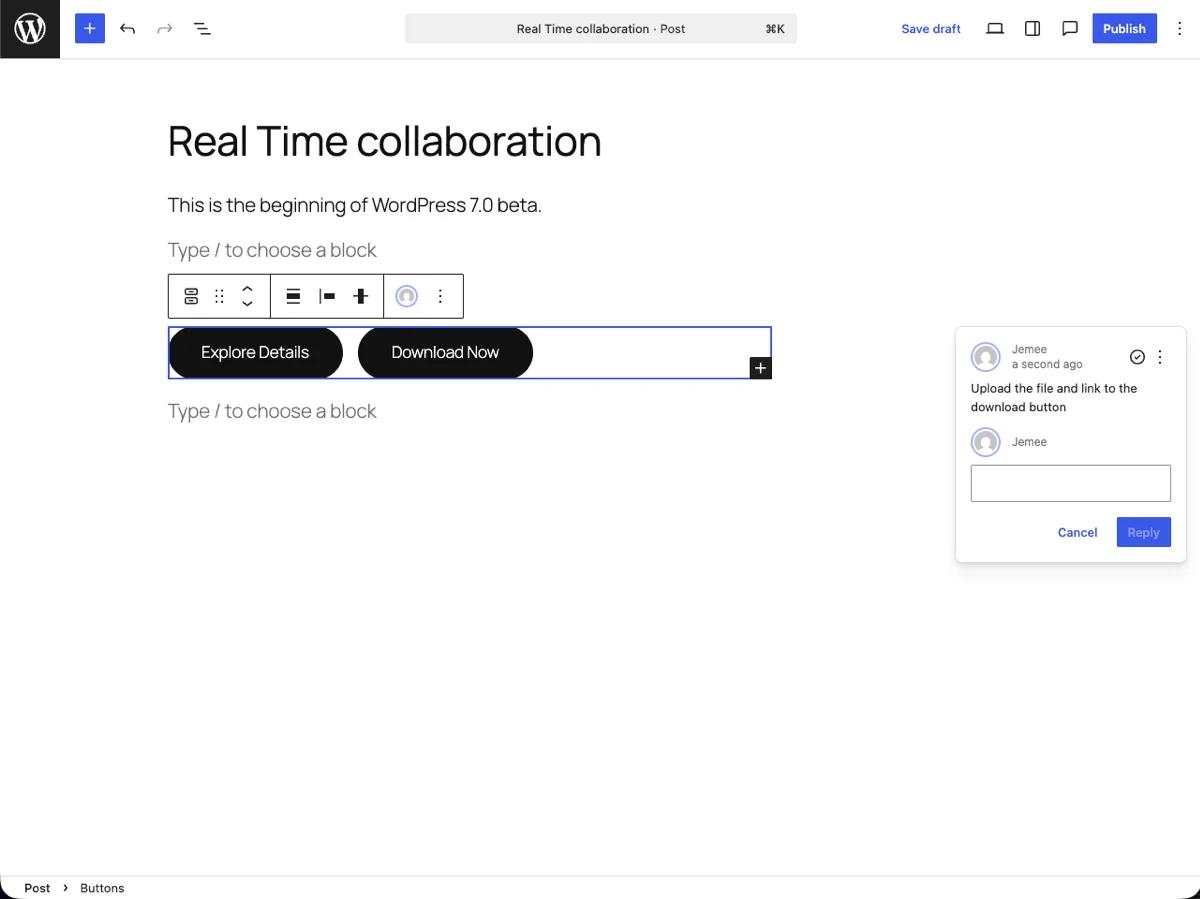
WordPress 7.0's Notes system is a full inline commenting and feedback layer built directly into the block editor. You can leave rich-text notes on specific blocks - or even on specific text fragments within a block - like sticky comments on a design file.
While a basic version appeared in WordPress 6.9, version 7.0 expands this into a complete communication suite:
- Block-level notes: Click any block, hit the keyboard shortcut, and leave a note. "Client needs to approve this hero image." "Update this CTA after the sale ends." "Legal team - please review this paragraph."
- Text-level notes: Highlight specific text within a block and attach a note to that exact selection.
- Rich text formatting: Notes support bold, italic, links, and lists - not just plain text.
- Note counts in Quick Edit: The Site Editor's Quick Edit view now shows how many notes are attached to each page or template. At a glance, you can see which content needs attention before you even open it.
Your entire editorial review process - feedback, approvals, revision requests - can now live inside WordPress itself. No more Slack threads, email chains, or Google Doc comments that exist in a separate universe from the actual content.
Admin Gets a Visual Overhaul - DataViews, Transitions, and Command Palette
WordPress 7.0 introduces three interconnected improvements that make the admin dashboard feel like a modern application rather than a 2010-era web interface.
DataViews Replace Legacy Admin Tables
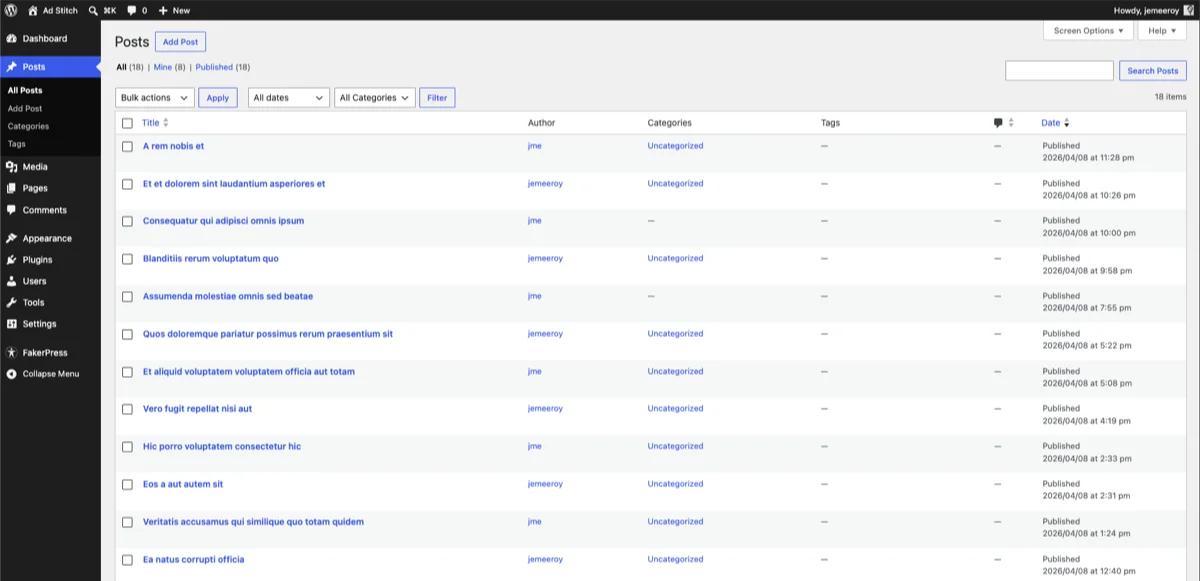
DataViews is a new system that replaces traditional WordPress List Tables (the tables you see on the Posts, Pages, and Users screens) with a modern, app-like interface. Think consistent spacing, inline filtering without page reloads, and visual alignment between classic admin panels and the block editor.
This affects how you browse and manage posts, pages, custom post types, and users. The experience is faster, more visually consistent, and designed to feel like a single cohesive application rather than a patchwork of different admin screens built over 20 years.
Smooth Transitions Across wp-admin
Page-to-page transitions are now enabled across wp-admin, adding smooth animations that make navigating between admin screens feel noticeably more responsive. It's the difference between a native app and a clunky web page - small in description, significant in daily use. If you spend hours in the WordPress backend every day, this makes the experience materially less fatiguing.
Command Palette in the Admin Bar
The new Command Palette - accessible via Cmd+K (Mac) or Ctrl+K (Windows) - is now embedded directly in the admin bar as the Omnibar. One shortcut opens a search-and-action palette that lets you jump to any admin screen, search content, run commands, and access tools without clicking through menus.
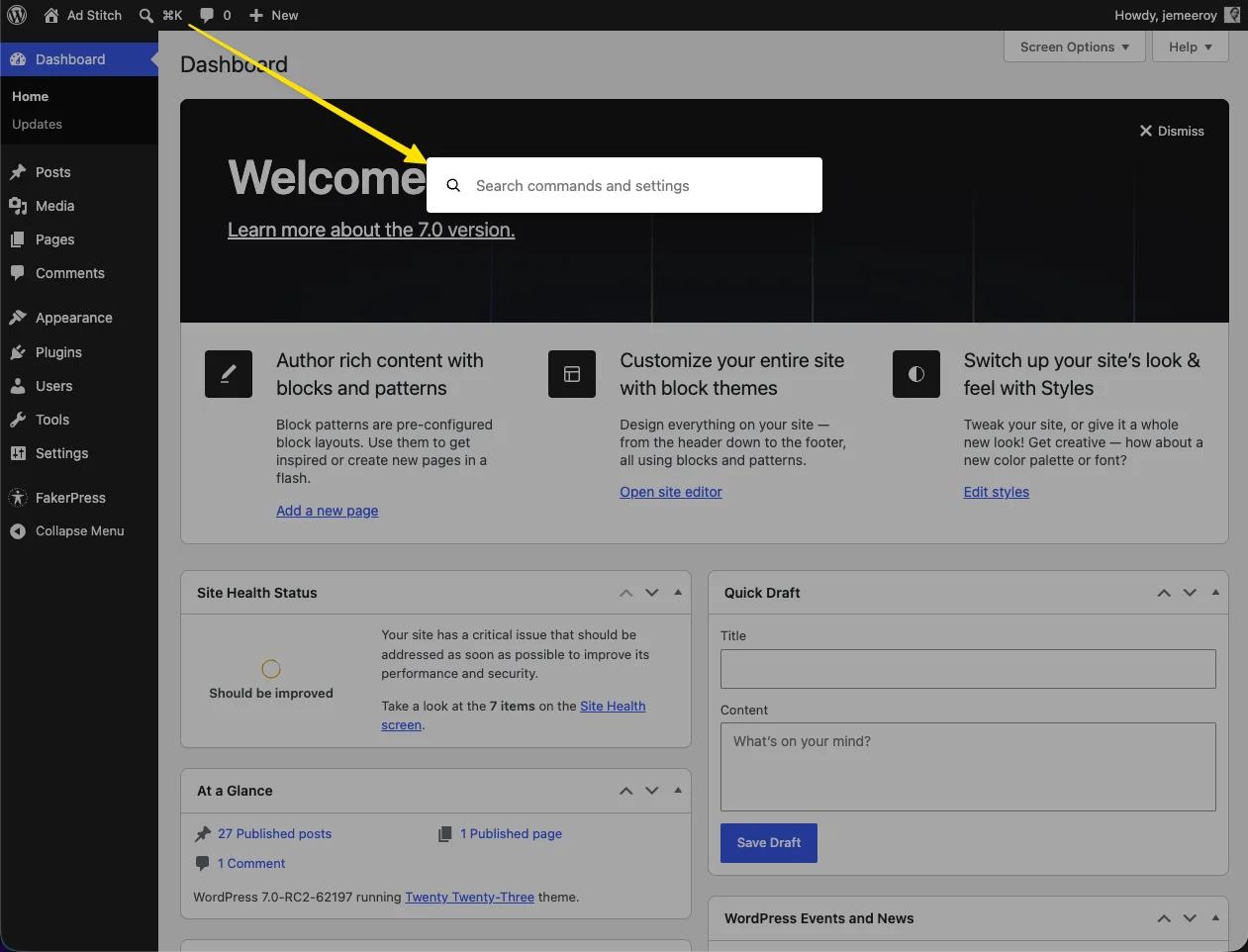
If you've used the command palette in VS Code, Figma, or Notion, this will feel instantly familiar. For power users who navigate WordPress dozens of times a day, it's a genuine time-saver.
New Design System
Behind the scenes, WordPress 7.0 introduces a more consistent Design System through new UI component libraries (@wordpress/theme and @wordpress/ui). This means the admin interface is more visually consistent across different screens and plugins - buttons, spacing, typography, and color usage follow unified rules rather than each screen having its own visual personality.
Font Library - A Proper Dashboard for Managing Fonts
The WordPress Font Library is a dedicated admin page that lets you upload, preview, and apply custom fonts across your entire site - without code, CDN links, or third-party plugins. It works with block themes, classic themes, and hybrid themes.
Before WordPress 7.0, managing custom fonts was either a plugin dependency (like Custom Fonts or Easy Google Fonts) or a manual job involving CSS @font-face declarations and file uploads. Now your brand fonts live in WordPress natively.
Navigate to Appearance > Fonts to:
- Upload custom font files (WOFF2, WOFF, TTF, OTF)
- Browse and activate Google Fonts directly from the dashboard
- Preview fonts before applying them site-wide
- Assign fonts to headings, body text, and other elements
For designers and business owners maintaining multiple sites with specific brand guidelines, this eliminates a real friction point. Your fonts are now a first-class WordPress setting, not an afterthought buried in CSS.
In-Editor Revisions That Show What Actually Changed
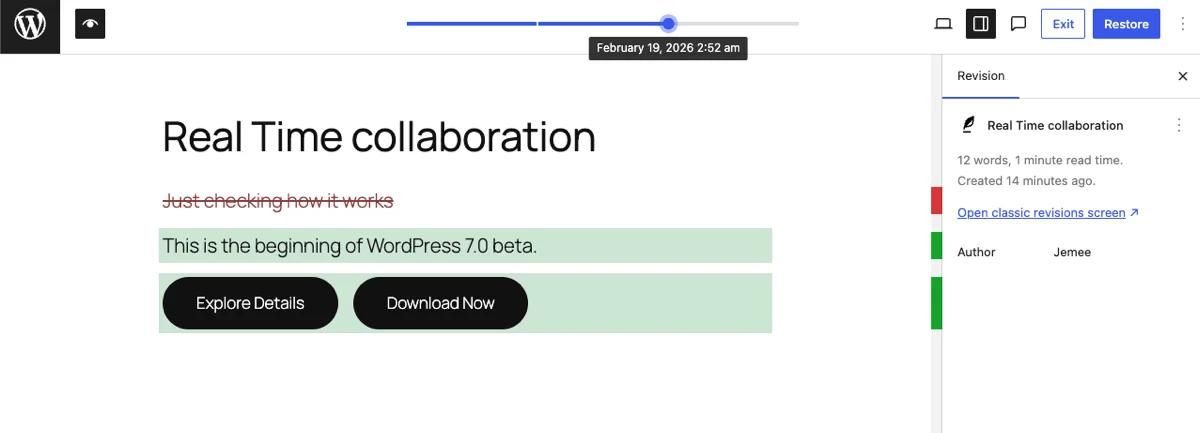
Visual revision diffs inside the block editor are one of the most underrated improvements in WordPress 7.0. Instead of switching to a separate revisions screen and reading raw text comparisons, you can now see exactly what was added, removed, or changed - right inside the editor with visual highlights.
Additions show in green. Deletions show in red. Changed blocks are highlighted so you can spot modifications without reading every paragraph. For editorial workflows where multiple writers touch the same content, and for client reviews where you need to say "here's exactly what we changed since your last review," this is transformative.
No more toggling between tabs. No more "I think this paragraph is different but I can't tell." The diff is right there, in context, in the editor you're already using.
Responsive Editing Mode - Design for Every Screen Without Leaving the Editor
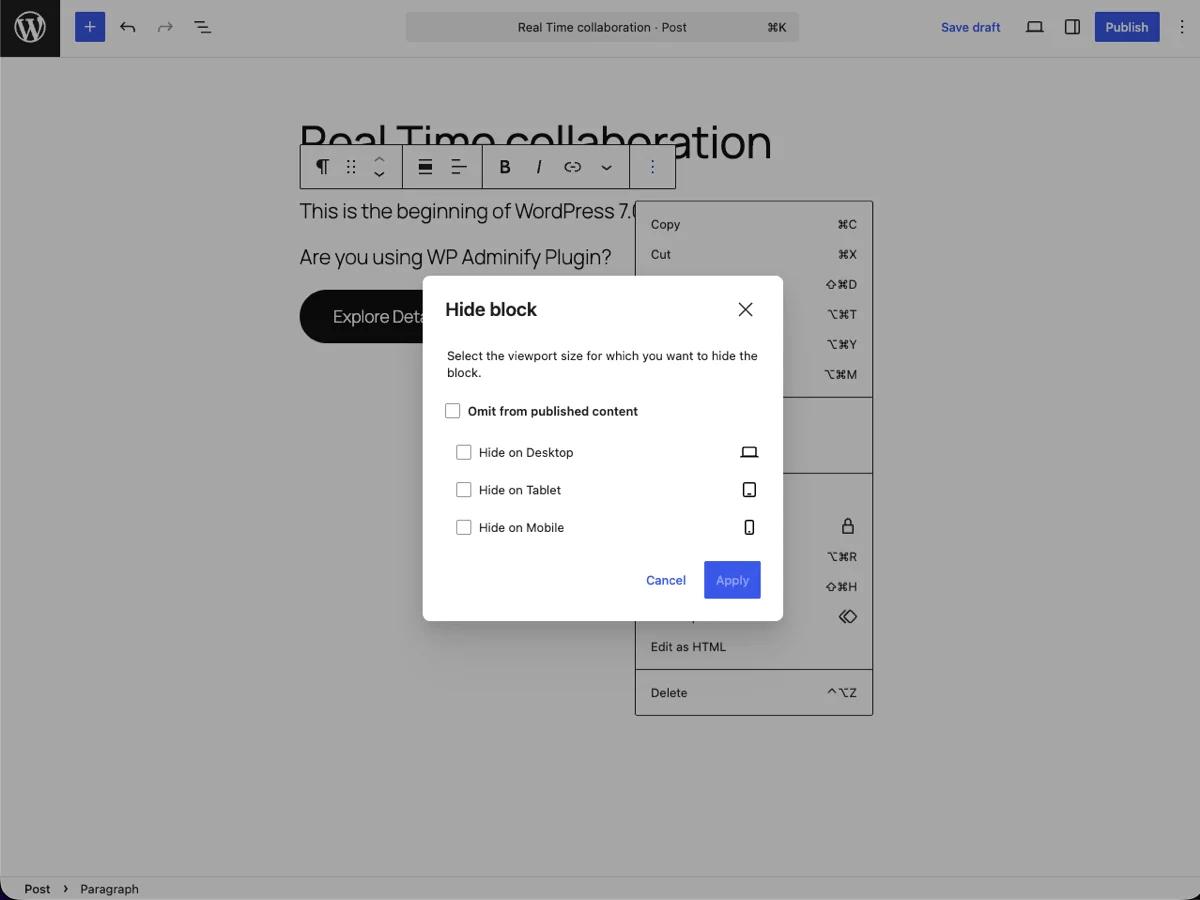
Responsive Editing Mode in WordPress 7.0 lets you show or hide individual blocks based on screen size - desktop, tablet, or mobile - directly from the block toolbar, with no CSS required.
You build a beautiful desktop layout, switch to mobile preview, and half your blocks look broken or cluttered. Sound familiar? WordPress 7.0 fixes this with device-specific block visibility controls:
- Per-block visibility: Select any block and choose which screen sizes it should appear on. Show a detailed feature grid on desktop, hide it on mobile, and show a simplified list instead.
- Viewport preview modal: Preview desktop, tablet, and mobile layouts without leaving the editor. See exactly what your visitors will see on each device.
- Visibility notices: For blocks hidden on certain screens, WordPress displays a notice explaining why it's hidden. No more confused clients asking "where did that section go?"
- Simplified toolbar for hidden blocks: Blocks hidden on the current preview size show a reduced toolbar so you don't accidentally edit elements your visitors won't see.
This pushes the native WordPress editor significantly closer to what page builders like Elementor have offered for responsive design - but it's built directly into Core, with no plugin needed.
Smarter Design Tools in the Block Editor
WordPress 7.0 adds a range of new design controls that were previously only possible through custom CSS, page builder plugins, or workarounds:
| Design Tool | What It Does | Why It Matters |
|---|---|---|
| Text indent support | Indent the first line of paragraphs | Format blog posts and editorial content like a proper publication layout |
| Text column support | Split text into multi-column layouts | Create magazine-style layouts without needing a Columns block wrapper |
| Aspect ratio for images | Lock aspect ratios on wide/full-width images | No more images stretching unpredictably across different screen sizes |
| Width & height controls | Set explicit dimensions on blocks | Define consistent sizing rules without repetitive inline CSS |
| Dimension presets | Save and reuse size configurations | Maintain visual consistency across pages without manual measurement |
Combined with the responsive editing mode, these tools mean you can now build sophisticated, device-aware layouts entirely within the native block editor. For many sites, the gap between "what Core offers" and "what I need a page builder for" just got a lot smaller.
New Blocks: Breadcrumbs, Icons, Heading Variations, Cover Video
Breadcrumbs Block
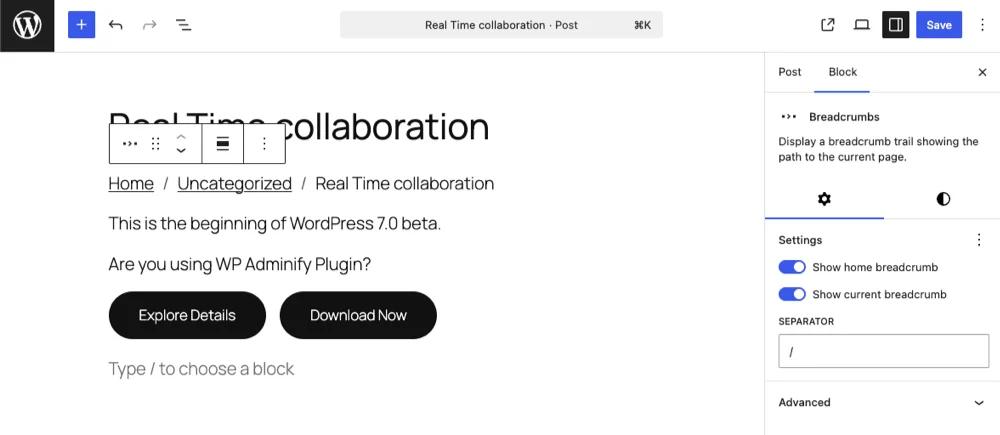
The Breadcrumbs Block is a new native block that adds structured breadcrumb navigation to any page or template. Breadcrumbs help visitors know exactly where they are on your site - but until now, adding them required a plugin (like Yoast SEO or Breadcrumb NavXT) or manual PHP coding.
WordPress 7.0's Breadcrumbs Block lets you customize the separator character, styling, and display logic directly from the block editor. It works seamlessly inside the Site Editor as a template part, meaning you can add breadcrumbs to your page template once and have them appear on every page automatically.
For blogs, WooCommerce stores, and multi-level sites with deep page hierarchies, this improves both user navigation and SEO - search engines use breadcrumb markup to understand site structure and display breadcrumb trails in search results.
Icons Block
WordPress 7.0 adds a dedicated Icons block for inserting and styling scalable, accessible icons anywhere on your page. No icon plugin, no custom code, no SVG embedding workarounds. Select from a built-in icon set, adjust size and color, and drop them into your layout.

Heading Block Variations
Each heading level (H1 through H6) is now its own block variation. Instead of inserting a generic Heading block and then changing the level from a toolbar dropdown, you can pick H1, H2, H3, and so on directly from the block inserter before you start typing.
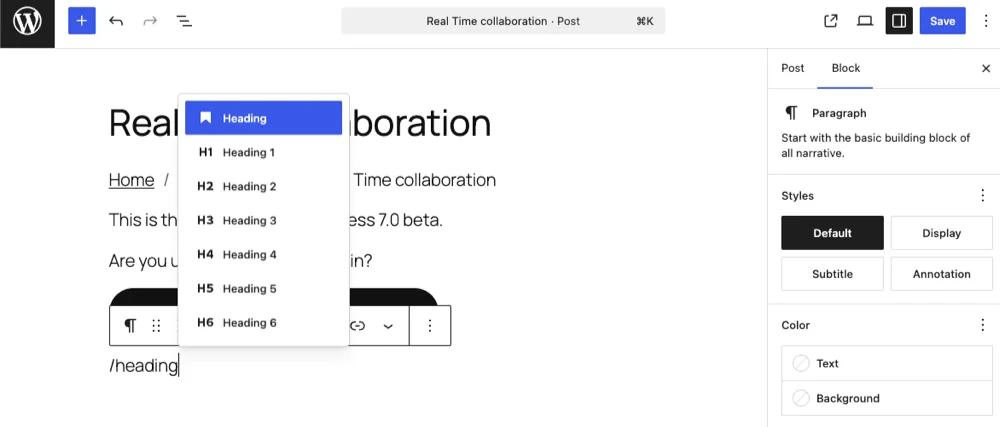
This sounds small, but it changes how writers and editors think about headings. Instead of treating heading levels as a formatting afterthought, you now select them as intentional content elements - which encourages better document structure, cleaner heading hierarchies, and more SEO-friendly pages from the start.
Cover Block Video Backgrounds
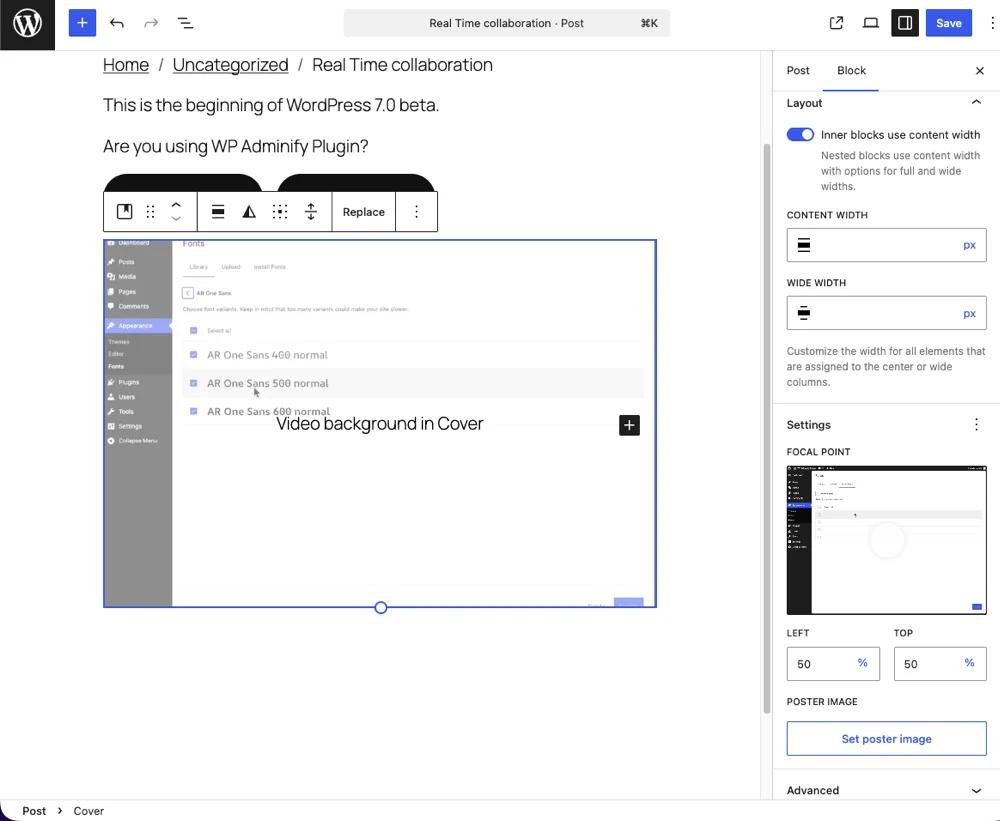
You can now embed videos directly as backgrounds inside the Cover block - natively. Drop your video file in, and it plays behind your content automatically. No more custom HTML embeds, third-party plugins, or CSS hacks.
The Focal Point picker in the sidebar panel lets you control exactly how the video (or poster image) is positioned. This is particularly useful for homepage hero sections, promotional banners, and landing pages where a looping background video adds visual energy without requiring extra tools.
Pattern Editing Gets Hands-On
Patterns - reusable design blocks you can drop anywhere on your site - get a significant usability upgrade in WordPress 7.0. You can now edit patterns directly in context, meaning you see exactly how your changes look on the actual page rather than inside a separate, isolated pattern editor screen.
This works for both types of patterns:
- Contextual patterns (tied to a specific location like a hero section) - edit them where they live and see the surrounding content.
- Synced patterns (global patterns that update everywhere) - edit once and watch the change propagate to every page that uses it, while viewing the live result in context.
Patterns also now default to Content-Only editing mode. This presents content fields organized with block icons and grouped attributes in flyout menus, reducing visual clutter for content creators who need to update text and images without worrying about layout structure.
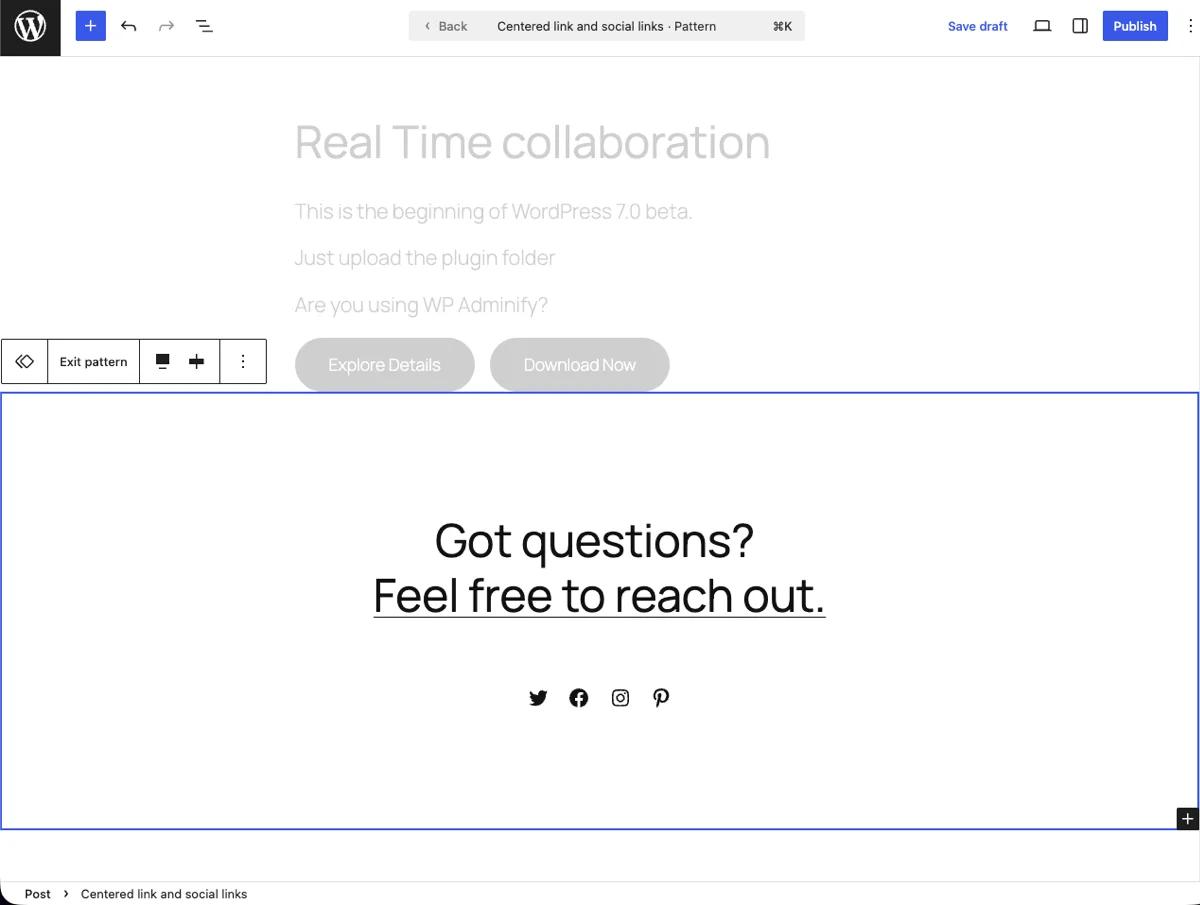
If your call-to-action pattern is used across 20 pages, you can edit the copy once and see it update everywhere - all while seeing exactly how it looks on the page you're currently working on.
Site Editor Quick Edit - Now Rock Solid
If you've used the Quick Edit modal in the Site Editor before, you've probably hit moments where it felt buggy or unreliable. WordPress 7.0 makes it fully stable - you can now confidently edit page titles, slugs, statuses, and other fields directly from the Site Editor list view without jumping into the full editor.
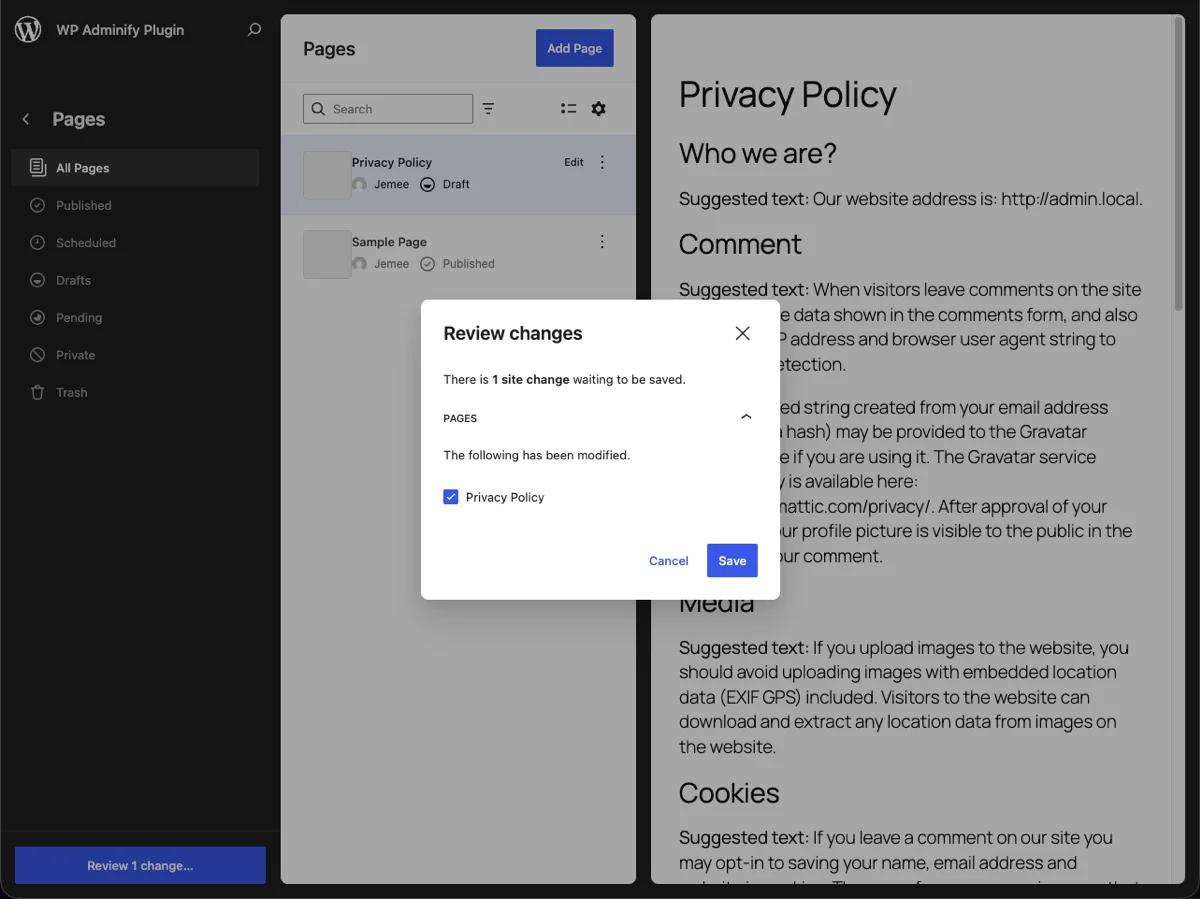
Quick Edit now also displays the note count for each page or template, tying directly into the Notes system. At a glance, you can see which content has pending feedback or review comments before you open it. For teams managing large sites with multiple editors, this small addition saves a surprising amount of context-switching.
Native AI Integration - The WP AI Client
WordPress 7.0 introduces a standardized AI client API built into Core. This is not WordPress adding its own AI features - it's WordPress creating a universal interface that lets plugins integrate any AI provider through a consistent, standardized API.
The system is built around the php-ai-client package, with three provider packages already available in the Plugin Directory:
- OpenAI (GPT-4, GPT-4o, etc.)
- Google (Gemini)
- Anthropic (Claude)
For developers, this means you can write AI-powered features once against the shared interface, and switching AI providers becomes a configuration change rather than a code rewrite. For site owners, it means AI-powered plugins will work more consistently and you'll have more choice over which AI service your site uses.
This is foundational infrastructure, not a flashy user-facing feature - but it sets the stage for a wave of AI-powered WordPress plugins built on a common standard rather than each plugin inventing its own integration approach.
Client-Side Media Processing
WordPress 7.0 shifts media processing - image resizing, compression, format conversion - from your web server to the user's browser. This means:
- Faster uploads: Images are resized and compressed before they leave your browser, reducing upload time and server load.
- Better format support: Client-side processing enables more advanced image formats and compression techniques that would be difficult or slow to handle server-side.
- Reduced server demand: Your hosting doesn't need to spend CPU cycles processing every uploaded image. This especially matters on shared hosting or sites with high upload volume.
For WooCommerce stores uploading dozens of product images daily, or content teams publishing image-heavy blog posts, this makes the media upload workflow noticeably faster without changing anything about how you work.
More Block Improvements Worth Knowing
Beyond the headline features, WordPress 7.0 includes several block-level improvements that add up to a better editing experience:
- Navigation Block - Custom Menu Overlays: Build fully custom menu overlays, including mobile-specific versions, as reusable template parts. Design your hamburger menu or full-screen overlay once, save it as a template, and reuse it across your entire site.
- Gallery Block - Built-in Lightbox: Image galleries now open in a native lightbox when clicked. Visitors get a clean, focused image viewing experience without you installing a lightbox plugin.
- Dynamic URLs in Navigation Links: Navigation links can now use dynamic URLs that adapt based on context - like automatically pointing to the current user's profile page or a filtered archive - instead of being manually hardcoded.
- Grid Block - Responsive Enhancements: The Grid block now supports responsive controls, making it easier to create fluid layouts that adapt gracefully to different screen sizes.
For Developers: The APIs You've Been Waiting For
If you build plugins or custom themes, WordPress 7.0 lays significant groundwork for the future. Here's what's new and why each one matters:
Abilities & Workflows API
An experimental system to define what specific users or roles can do - and map those permissions to UI workflows. Think granular permission management built into Core, beyond the existing capabilities system. This opens the door for plugins to create sophisticated role-based experiences without reinventing permission logic.
DataViews & DataForm APIs
A structured foundation to build admin tables, filters, and forms - with built-in validation, error messages, and new input controls like combobox and adaptiveSelect. If you've ever built a custom admin table from scratch, you know how much boilerplate this eliminates.
Block Bindings API
Connect dynamic data sources to blocks, override pattern content on a per-instance basis, and build data-driven interfaces with a cleaner UI. This makes it practical to create blocks that pull content from custom fields, external APIs, or computed values without hardcoding templates.
Field API
Now automatically formats numbers and dates based on the user's locale. A small detail, but essential for international sites where "1,234.56" in one locale is "1.234,56" in another.
PHP-only Blocks
Register blocks entirely from PHP on the server, with auto-generated inspector controls. This is ideal for performance-critical use cases where JavaScript-heavy block registration adds unnecessary overhead. If your block doesn't need client-side interactivity in the editor, you can now skip the JS entirely.
@wordpress/boot Package
Build custom site editor pages from plugins. This is the foundation for the next generation of plugin-powered admin experiences - plugins can now create rich, editor-quality admin screens that feel like native WordPress rather than bolted-on settings pages.
How WP Adminify Works With WordPress 7.0
WordPress 7.0 introduces a refreshed admin experience with DataViews, transitions, and a new design system. But it still gives you the same default WordPress branding, the same admin menu structure, and the same login screen. If you're an agency delivering client sites, or a freelancer who wants a polished, branded admin experience, WordPress 7.0's improvements are the foundation - but customization still requires the right tools.
That's where WP Adminify continues to add value on top of WordPress 7.0:
- White label the new admin: WordPress 7.0's cleaner admin is still branded as "WordPress." With WP Adminify, you can replace all WordPress branding - logo, footer text, "Howdy" greeting - with your own agency's identity.
- Customize the admin menu: DataViews improves how content tables look, but the admin sidebar menu is still the same default structure. WP Adminify's Admin Menu Editor lets you drag-and-drop reorder, hide, or add custom menu items - with role-based visibility so different users see different menus.
- Brand the login screen: WordPress 7.0 doesn't touch the login page. Loginfy lets you customize the logo, background, form styling, and button colors so clients see your brand from the moment they log in.
- Dashboard customization with dark mode: The new design system makes the admin more consistent, but WP Adminify's dashboard templates (Light, Dark, Modern, Glass) take the visual experience further - including scheduled dark mode that switches automatically based on time of day.
- Organize media with folders: WordPress 7.0 improves media processing speed, but doesn't add any organizational tools. WP Adminify's Media Folders let you organize your library into drag-and-drop folders with color coding - for media files, posts, pages, and WooCommerce products.
- Security hardening: The new AI client and APIs expand WordPress's surface area. WP Adminify's security tools - change login URL, disable XML-RPC, restrict REST API, control Heartbeat API = help you lock down the admin alongside the new features.
WP Adminify is free on WordPress.org with 60+ features. It works alongside WordPress 7.0's native improvements rather than competing with them = think of it as the customization layer on top of a better foundation. Download it here or learn more at wpadminify.com/features.
Frequently Asked Questions About WordPress 7.0
When was WordPress 7.0 released?
WordPress 7.0 was released on April 9, 2026. It shipped during Contributor Day at WordCamp Asia 2026 in Mumbai, India. It's available now through your standard WordPress update process at Dashboard > Updates.
What PHP version does WordPress 7.0 require?
WordPress 7.0 requires PHP 7.4 as the minimum version. Sites running PHP 7.2 or 7.3 will not receive this update and will remain on the WordPress 6.9 branch. The WordPress core team strongly recommends PHP 8.3 or higher for optimal performance and security in 2026.
Is WordPress 7.0 safe to update to right away?
For most sites running up-to-date themes and plugins, yes. However, if you run custom themes, heavily customized plugins, or business-critical sites, test on a staging environment first. Major version updates occasionally introduce compatibility issues with older or poorly maintained plugins.
Does real-time collaboration work with the Classic Editor?
No. Real-time collaboration is a block editor feature. If you're still using the Classic Editor plugin, you won't have access to simultaneous editing, Notes, or visual revision diffs. This may be a reason to consider migrating to the block editor if you haven't already.
Will my existing plugins work with WordPress 7.0?
Most actively maintained plugins will work fine. Major plugins like WooCommerce, Yoast SEO, ACF, Elementor, and WP Adminify have already shipped compatibility updates. Check the "Tested up to" version on each plugin's WordPress.org page, and always test on staging before updating production sites.
What happened to the WordPress admin design - does it look completely different?
The admin has a refreshed appearance with smoother transitions, consistent spacing via the new design system, and DataViews replacing old-style list tables - but it's an evolution, not a complete redesign. Navigation, menus, and core screens are in the same locations. The experience is more polished and modern without being disorienting.
What This Means for Your WordPress Workflow
WordPress 7.0 is the most significant release since the block editor was introduced. Here's what matters most depending on who you are:
- Content teams and editors: Real-time collaboration and Notes replace your email/Slack feedback loops. Visual revision diffs make content reviews instant. The Font Library eliminates plugin dependencies for brand typography.
- Designers and page builders: Responsive editing mode, text columns, aspect ratio controls, and Cover block video backgrounds reduce your dependence on page builder plugins. The native editor keeps closing the gap.
- Developers: The AI client API, Block Bindings, PHP-only blocks, and DataViews APIs are foundational infrastructure. Start learning them now - they'll shape how WordPress plugins and themes are built for the next several years.
- Agency owners and freelancers: Real-time collaboration transforms client workflows. DataViews modernizes the admin. And tools like WP Adminify let you white-label and customize the new, cleaner admin experience before handing it over to clients.
Update to WordPress 7.0 today. Back up first, test on staging if you can, and start exploring the features that matter most to your workflow.
What feature in WordPress 7.0 makes the biggest difference for your daily workflow? Drop your thoughts in the comments.
Your email address will not be published