

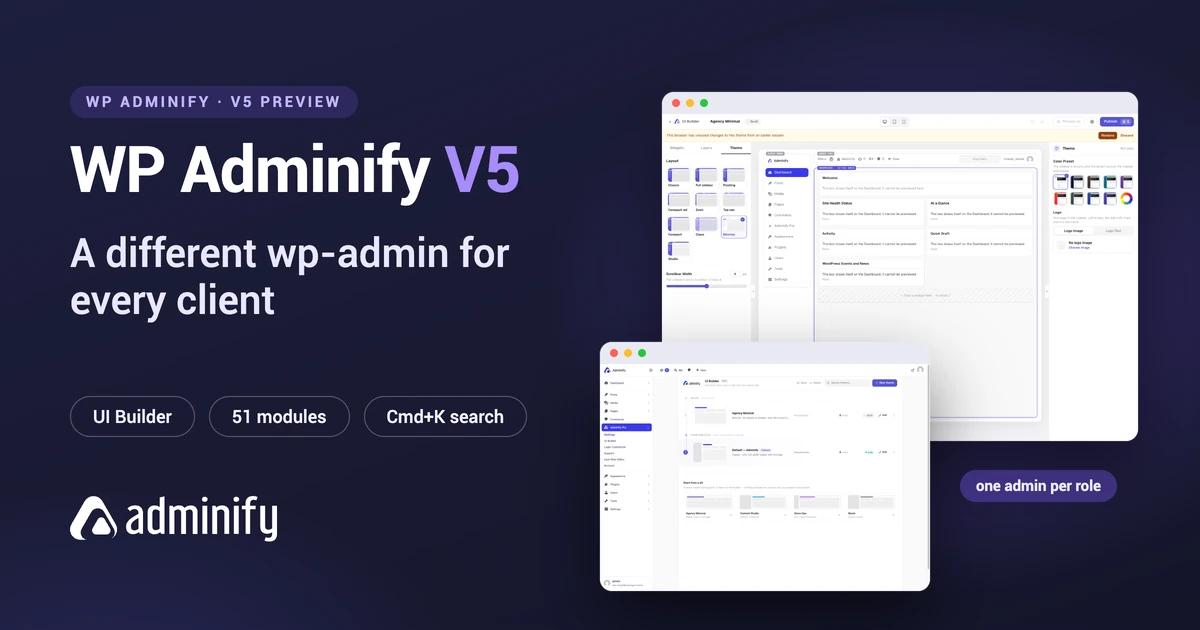

Open the WordPress admin on a site you've run for two years and count what you use. The sidebar has a row for every plugin you ever installed, the setting you need is three screens deep, and the client you built it for logs in once a month and emails you to ask where the blog posts are. We're building WP Adminify V5 around that problem. It adds a visual UI Builder that gives each client, user or role its own admin layout, puts 51 modules in one searchable browser, and only loads the parts you switch on.
V5 is still in development and the build number says alpha, so read this as a preview, not a release note. Below is what works today, the numbers we measured, and the parts that are still rough.
Quick answer
WP Adminify V5 rebuilds the plugin around a UI Builder that assigns different admin layouts to different roles and users, a single module browser for all 51 features, and a loader that reads nothing from disk for modules you leave off. The settings screen responds in half the time version 4 took. It's in beta, and existing Pro licences cover every new Pro module.
Give every client their own WordPress admin
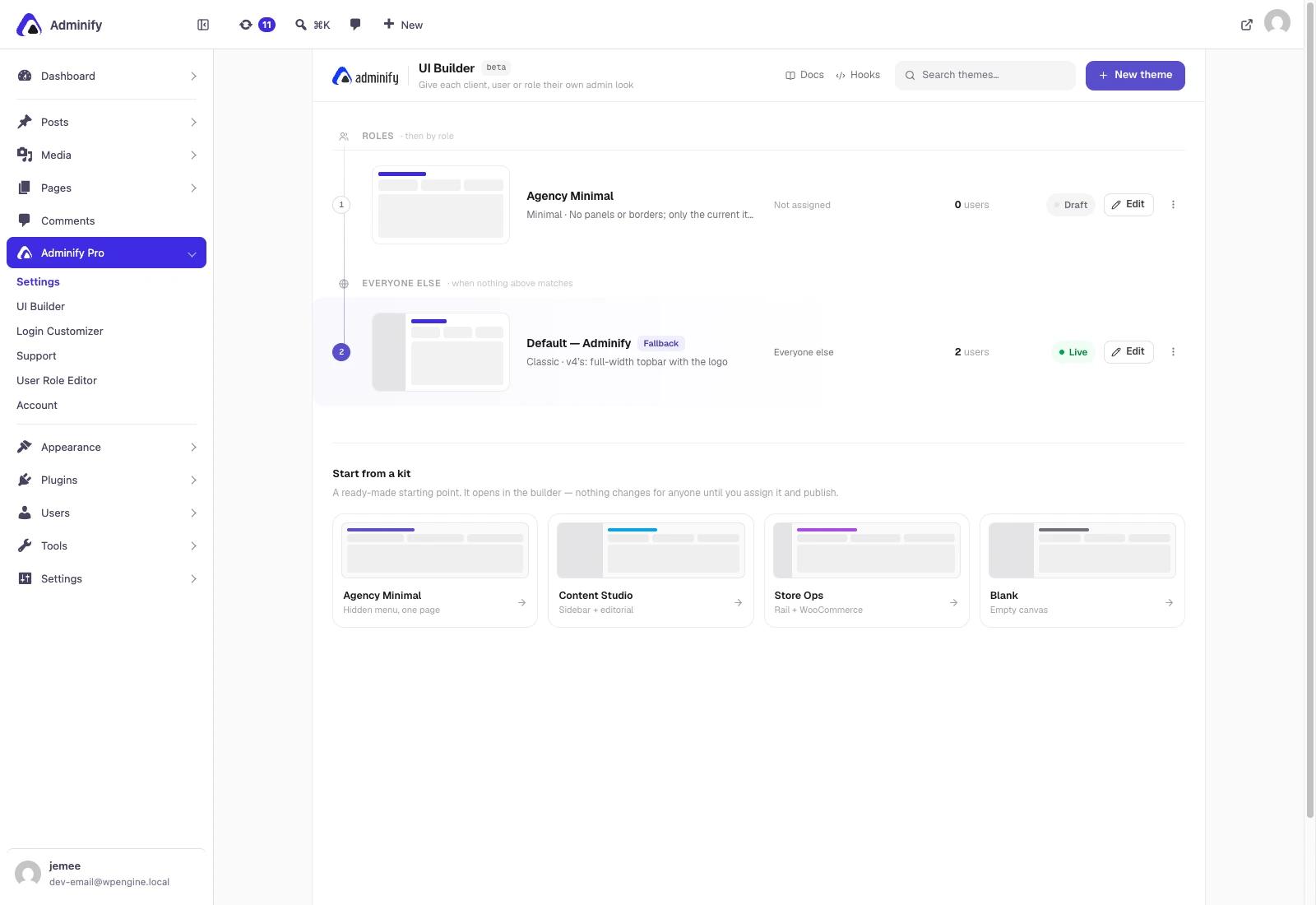
The UI Builder changes what the plugin is for. You design an admin layout on a canvas, then assign it to a role or a user. Your client logs in to a stripped, branded admin with the four things they need, your editor gets an editorial layout, and you still see everything, all on the same WordPress install.
First, the Admin Theme module isn't going away. Plenty of people have no interest in dragging boxes around a canvas. They want one click, a cleaner look and a different main dashboard, and Admin Theme keeps doing that with its presets. The UI Builder is for anyone who wants to go further, and you can start a builder theme from an Admin Theme preset instead of a blank page.
The canvas
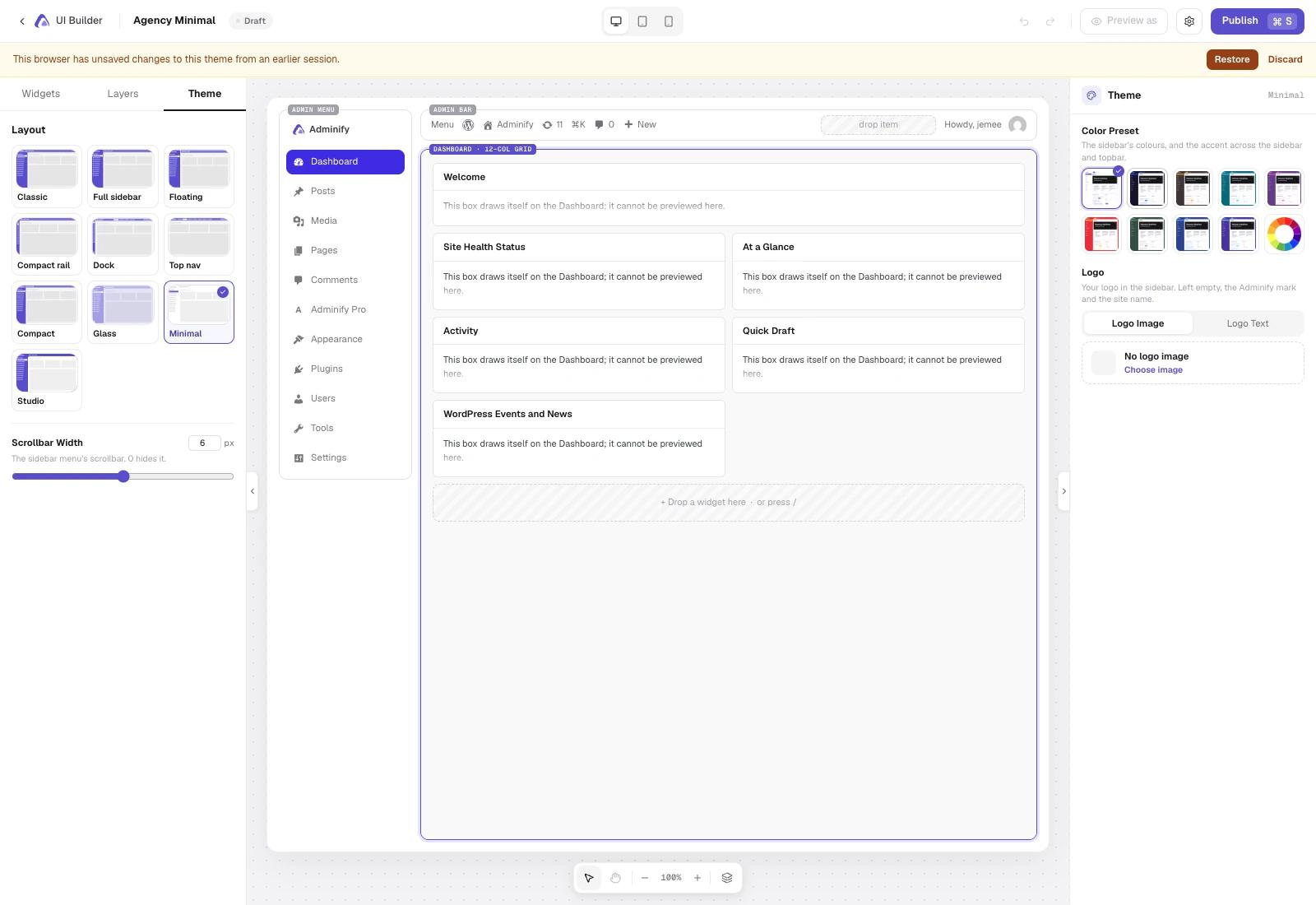
Opening a theme loads a visual editor with the admin drawn as a live mock: the menu down the left, the admin bar across the top, and the Dashboard on a twelve column grid. You pick one of ten layouts, from the familiar Classic to a compact rail, a dock or a top navigation bar. You set colours from nine presets or a colour wheel, drop in a logo, and drag widgets onto the grid (or press the slash key to insert one). It has undo and redo, a preview at three screen widths, and Cmd+S to publish.
Widgets your client will actually read
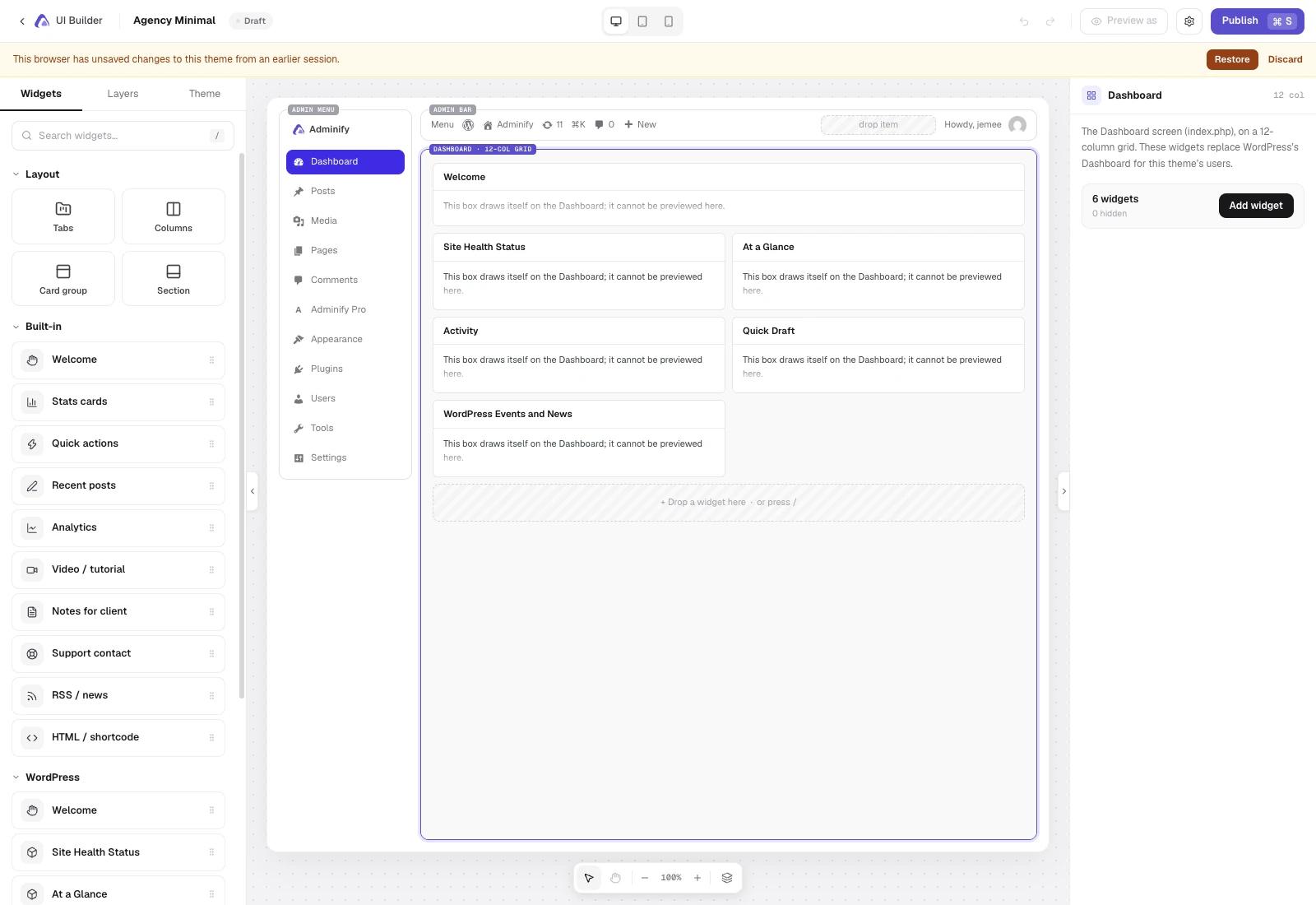
The widget library is built with agencies in mind. Next to WordPress's own boxes and a Woo orders widget, you get blocks made for handover: Notes for client, Support contact, Video or tutorial, Quick actions, Stats cards, Recent posts, and an HTML or shortcode block for anything else. Layout blocks (tabs, columns, card groups and sections) group them, so you're not stacking one long column of boxes.
Put together, the dashboard becomes the handover document: a short welcome note, a two minute video on adding a post, your support email, and links to the three screens they need. If you've written that same email to five clients in a row, you know why these widgets exist. Our longer guide on the WordPress client dashboard covers the idea without the product pitch.
Assignment is the actual feature
A theme does nothing until you assign it. The builder index is an ordered list: themes are checked top to bottom, the first match wins, and the fallback row at the bottom catches anyone no rule applies to. Each row shows what it's assigned to, how many users see it right now, and whether it's Draft or Live. You can duplicate a theme, move it up or down, set it as the fallback, or take it offline without deleting it.
Four kits give you a starting point: Agency Minimal (hidden menu, one page), Content Studio (sidebar and editorial), Store Ops (rail and WooCommerce) and Blank. The kit screen spells out the part that matters: a kit opens in the builder, and nothing changes for anyone until you assign it and publish. Page overrides sit at the bottom of the Layers panel, so the builder also reaches individual admin screens beyond the Dashboard.
Two caveats. The UI Builder has a beta badge in the panel, and it's freemium: some widgets will be in the free plugin, but we haven't decided which ones, so there's no free versus paid table for it yet.
What that looks like in Adminify 4 today
Adminify 4 handled the same problem with a settings screen: eight tabs, each holding dozens of switches, all saved as one options blob. It worked, and plenty of sites still run it happily. You can also see its limits on the screen itself.
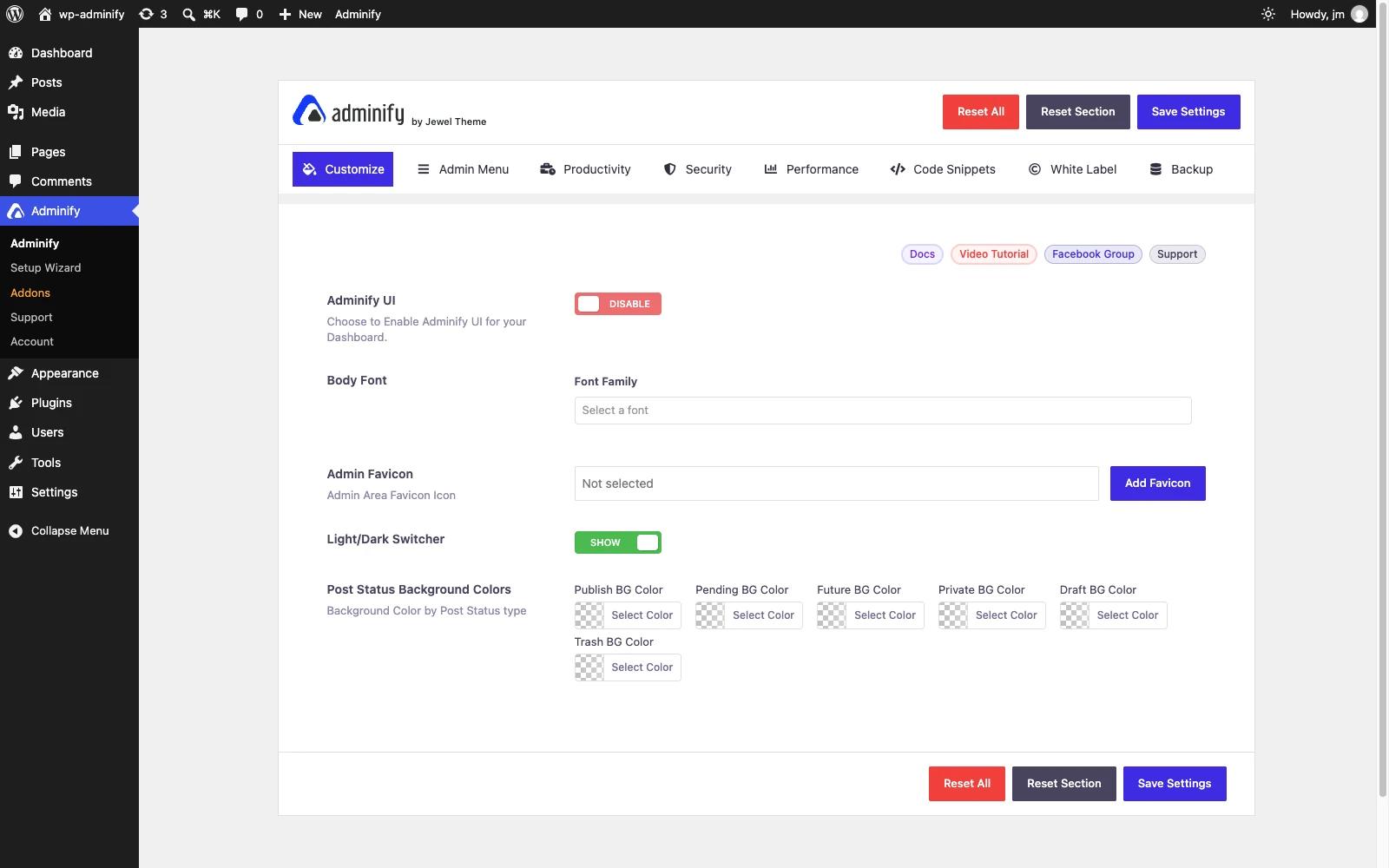
Everything lived in that one form. Features that deserved their own settings got a line in a checkbox group, and PHP built the whole thing on every request. Look at the Performance tab: eight separate optimisations, each worth understanding on its own, folded behind a single Show and Hide control.
The other limit doesn't show up in a screenshot. Nothing in that form lets you give your client a different admin from yours. Everyone who logs in gets the same one, and the only way around it was a snippet in your theme or another plugin on top.
What we measured against 4.3.2
Deleting that options framework was supposed to make the plugin quicker, so we measured whether it did.
Here's the method before the numbers. Two local installs on one machine, both WordPress 7.1.3 on PHP 8.5.3: one running Adminify and Adminify Premium 4.3.2, one running the V5 alpha. Both were set to a comparable feature set, with the Adminify admin theme switched off on each and the menu editor and light and dark switcher on. Every navigation cleared the browser cache, and the two versions were measured alternately rather than one after the other, so that drift in the machine's own load cannot be mistaken for a plugin difference. Nine iterations, first discarded, median of the remaining eight.
| Plugin settings screen | Adminify 4.3.2 | Adminify V5 | Change |
|---|---|---|---|
| Server response | 206 ms | 108 ms | 48% faster |
| Whole page weight | 2,280 KB | 1,804 KB | 21% lighter |
| Page load | 1,180 ms | 1,087 ms | 8% faster |
| DOMContentLoaded | 872 ms | 1,001 ms | 15% slower |
Server response is the number we'd defend anywhere. It halves, and the ranges don't overlap: the fastest 4.3.2 run, at 195 ms, is still slower than the slowest V5 run at 124 ms. That gain comes from deleting the options framework. Version 4 built its whole settings screen in PHP on every request, while V5 sends a smaller page and fills it from REST endpoints.
DOMContentLoaded is slower in V5, and we're not going to dress that up. A React panel moves work off the server and into your browser, so the document arrives sooner and finishes rendering later. Total load time ends up close to level, 8% in V5's favour, which is within what a busy machine could produce on its own. In short, the settings screen responds twice as fast and weighs a fifth less, and the time to a finished screen is about where it was.
Modules you switch off cost nothing
V5's loader reads a module's files from disk only when that module is enabled, and the check itself is one autoloaded option read with no database query. We tested that instead of taking it on trust. On the same install and the same Dashboard screen, two active modules pulled 12 plugin files weighing 86 KB. Enabling ten more took it to 23 files and 128 KB, roughly 4 KB per module, and switching them back off removed them again.
Neither version loads anything on the front end of your site. That was true in 4.3.2 and stays true in V5, so your visitors never download any of it.
Where V5 is currently slower
On the Dashboard, the V5 alpha is behind 4.3.2 on every measure we took: 103 ms against 90 ms to respond, 955 ms against 747 ms to load, and 25 KB of plugin assets against 15 KB. The reason is boring: the alpha still ships unminified development builds, so every file is bigger than it will be at release. Until that changes, we won't claim V5 gives you a lighter admin.
Two more caveats. These are two separate installs, not one site upgraded, and their plugin sets differ slightly. It's also one machine on a local network, so the absolute milliseconds will look different on your host. The relative gap on server response is what you should expect to carry over.
If you would rather do it in code
None of the performance modules do anything you couldn't write yourself. Slowing the WordPress Heartbeat, for example, takes a filter and about six lines in your theme's functions file:
<?php
// Slow the Heartbeat API to one request per minute in wp-admin.
add_filter( 'heartbeat_settings', function ( $settings ) {
    $settings['interval'] = 60; // seconds, 15 to 120 allowed
    return $settings;
} );

// Stop it entirely on the post editor, where autosave is the only consumer.
add_action( 'admin_enqueue_scripts', function () {
    if ( 'post' === get_current_screen()->base ) {
        wp_deregister_script( 'heartbeat' );
    }
}, 1 );
That's all the Heartbeat Control module does, plus a settings screen and a switch to turn it off again without editing a file. Use whichever you prefer. The heartbeat_settings filter is documented in the WordPress developer reference if you want the native route.
One browser for all 51 modules
Everything Adminify does is now a module, and all of them live in one browser. There are 51, grouped into nine categories: Admin (13), Content (13), Security (8), Performance (7), Media (4), Users Management (3), Productivity (2), Developer (1) and Utilities. Each one is a single switch with a one line description, a settings gear once it is on, and its own documentation.
You can filter by Active, Inactive or Recommended, star the ones you use on every build into Favorites, search by name, and switch between grid and list. If you don't know where to start, the Recommended filter gets you to a sensible setup fastest.
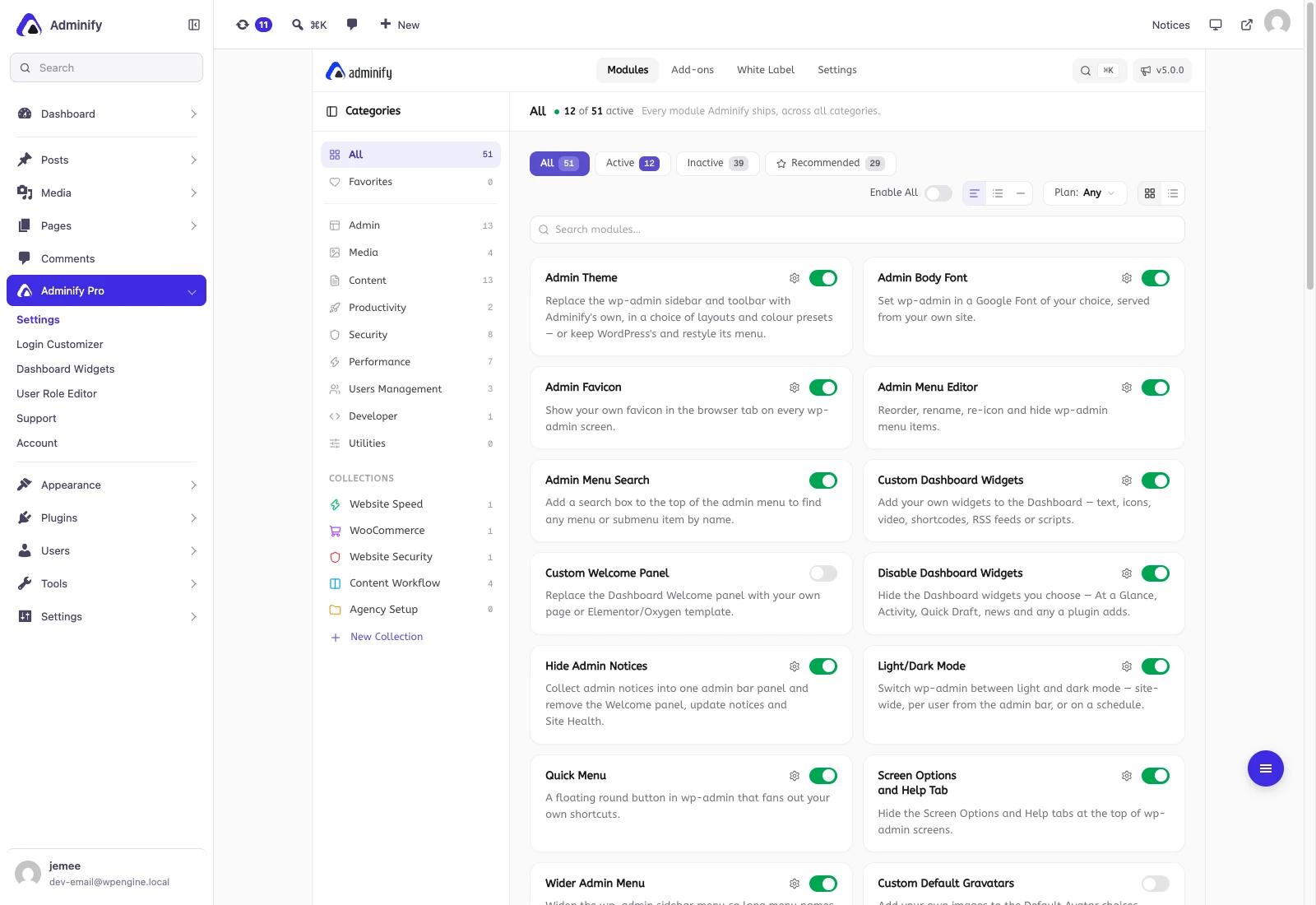
This goes deeper than a new layout. Options that used to be checkboxes inside a group inside a tab are now modules of their own. Heartbeat Control, Hide WP Version, Disable Emojis and Remove Dashicons were all buried in the Performance and Security tabs of Adminify 4. In V5 each has a name, a description, its own settings and its own docs page. They aren't new features, but now you can find them.
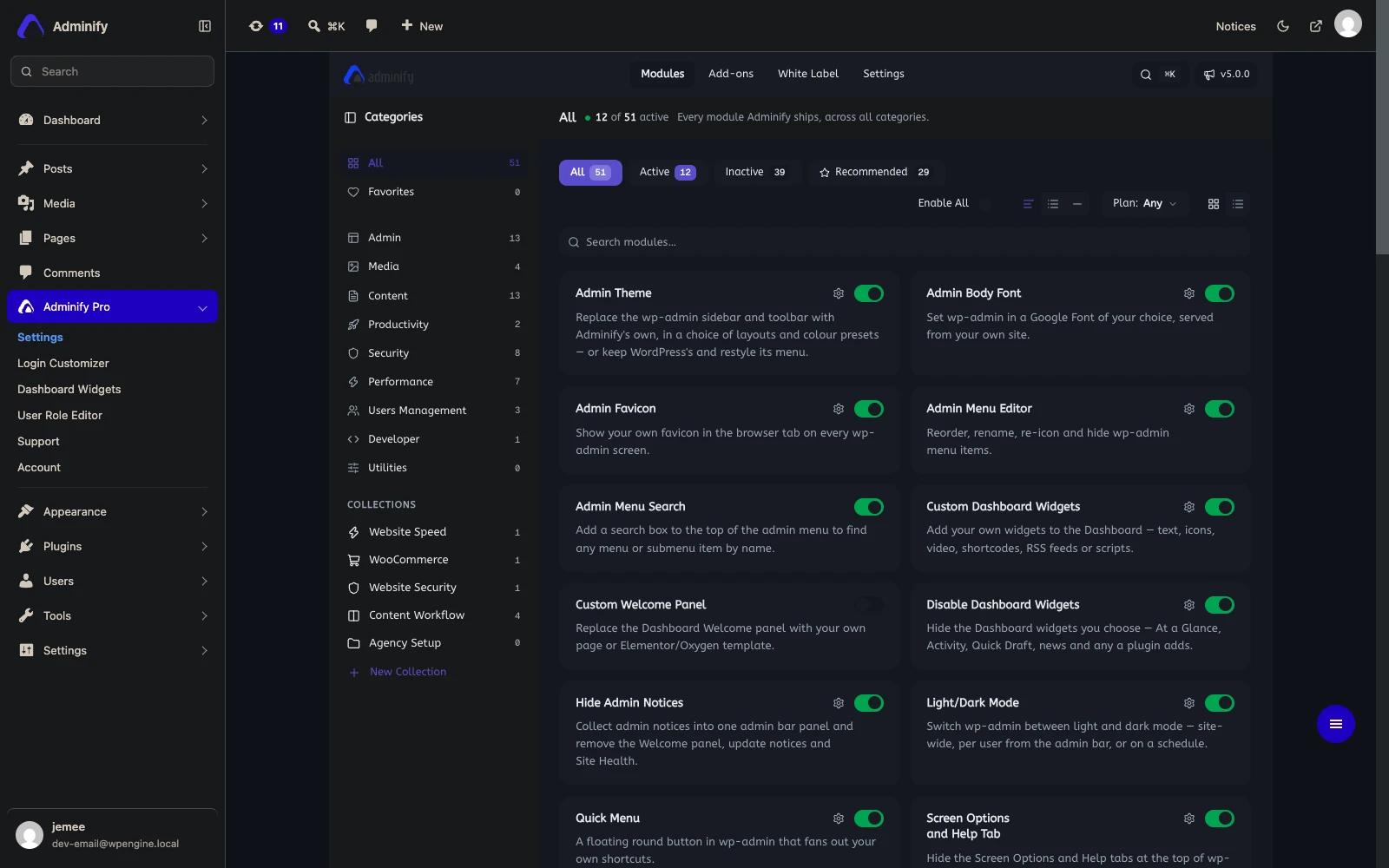
Dark mode is a module too, and it now covers the plugin's own screens as well as the WordPress ones. You can set it site wide, let each user pick from the admin bar, or run it on a schedule.
Press Cmd+K and stop hunting
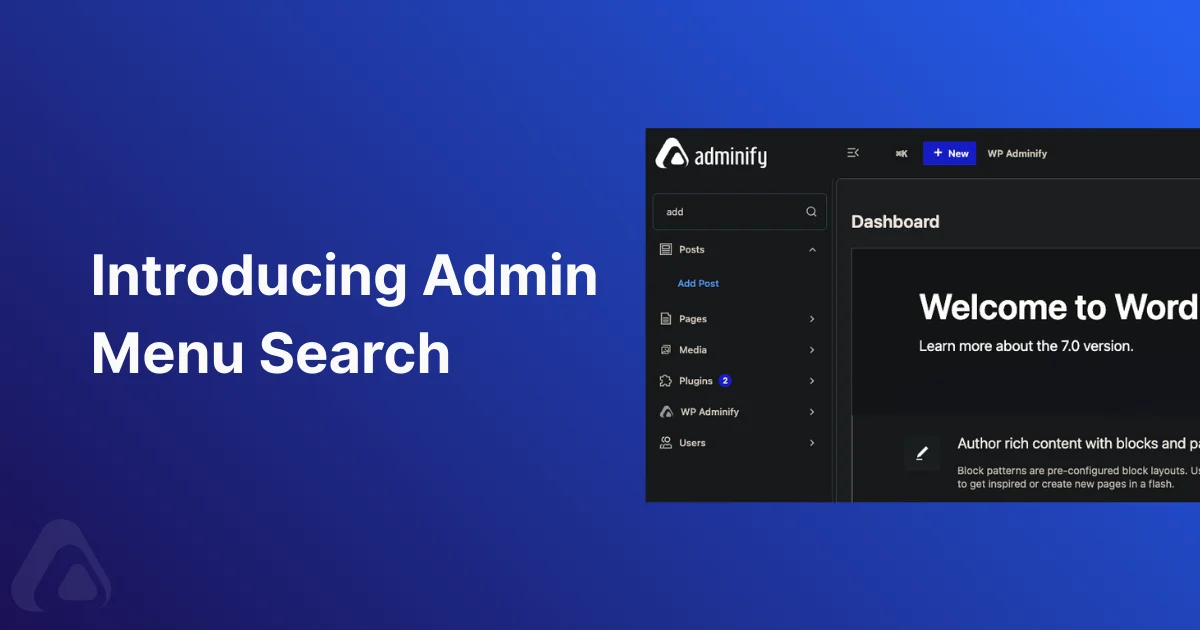
Anywhere in the admin, Cmd+K (or Ctrl+K on Windows) opens a command palette that searches every Adminify module and setting. Results are grouped and you drive them from the keyboard: arrow keys move, Enter toggles a module on or off without leaving the palette, and Cmd+Enter opens its settings. Pro modules carry a badge in the results, so you can see what's paid without hunting for a pricing page.
WordPress core added a command palette in 6.3, but it's scoped to the editor. Adminify uses the shortcut across the whole admin and points it at plugin settings, which are usually the hardest thing to find. Other palette plugins exist for WordPress too. This one knows where your Adminify settings live.
What it costs if you already bought Adminify
Nothing extra. Every new Pro module in V5 is included in the Pro licence you already hold. You don't need another subscription or purchase to get the module browser, the command palette or the modules that used to be hidden in tabs.
Two exceptions to be clear about. Adminify's own white label branding stays on the Agency plan, as it is today, so it isn't part of "everything is included". And the UI Builder is freemium, but we're still deciding which widgets go in the free tier, so we'd rather tell you later than tell you wrong now. Current plan details are on the pricing page.
One file, every client site
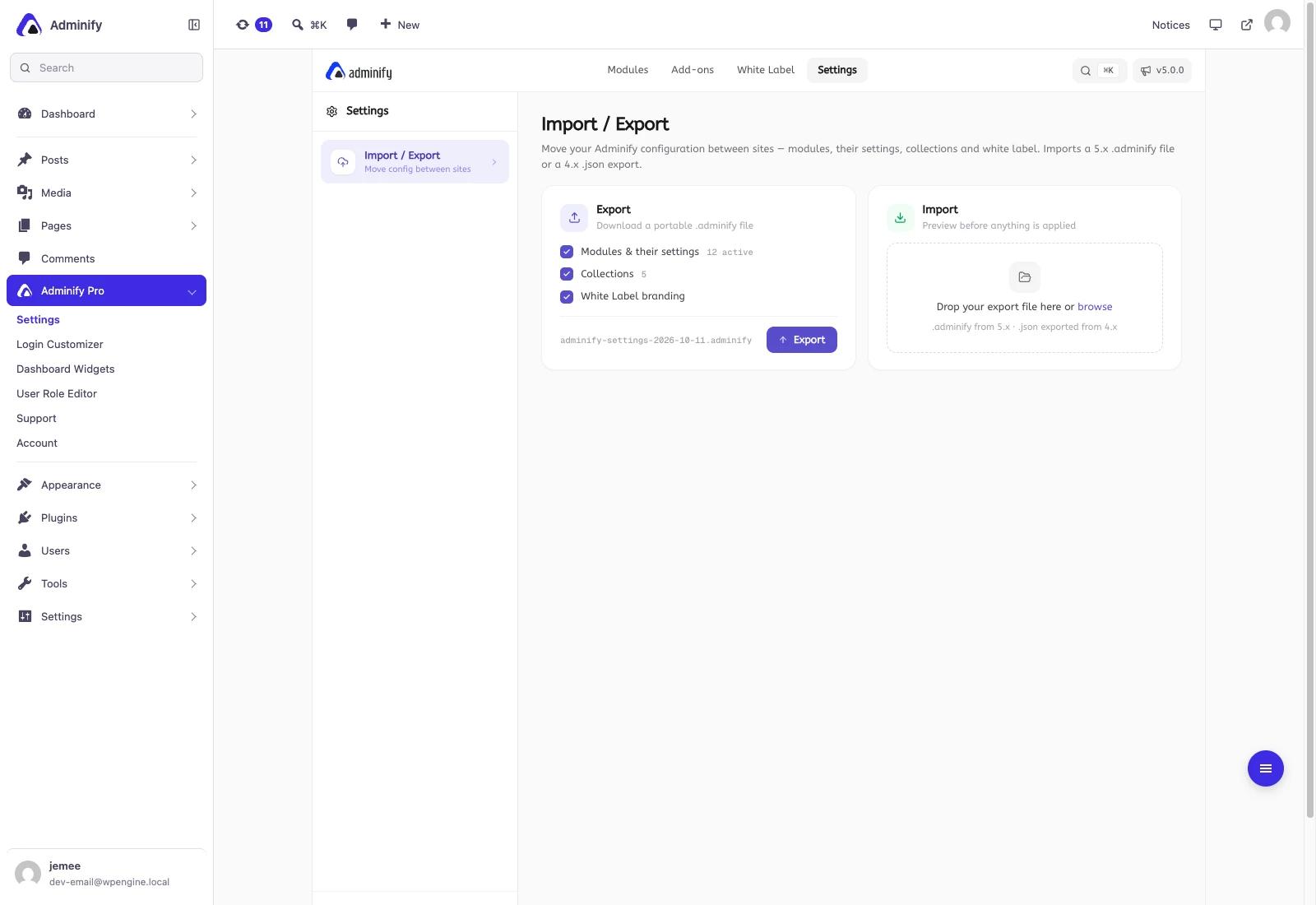
If you run more than a handful of sites, most of the work is setup. V5 exports your whole configuration as one portable file: which modules are on, their settings, your Collections and your white label branding. Import it on the next site, preview what will change before anything is applied, and that's it. The same screen reads a 4.x JSON export, which is how you move a configuration out of Adminify 4.
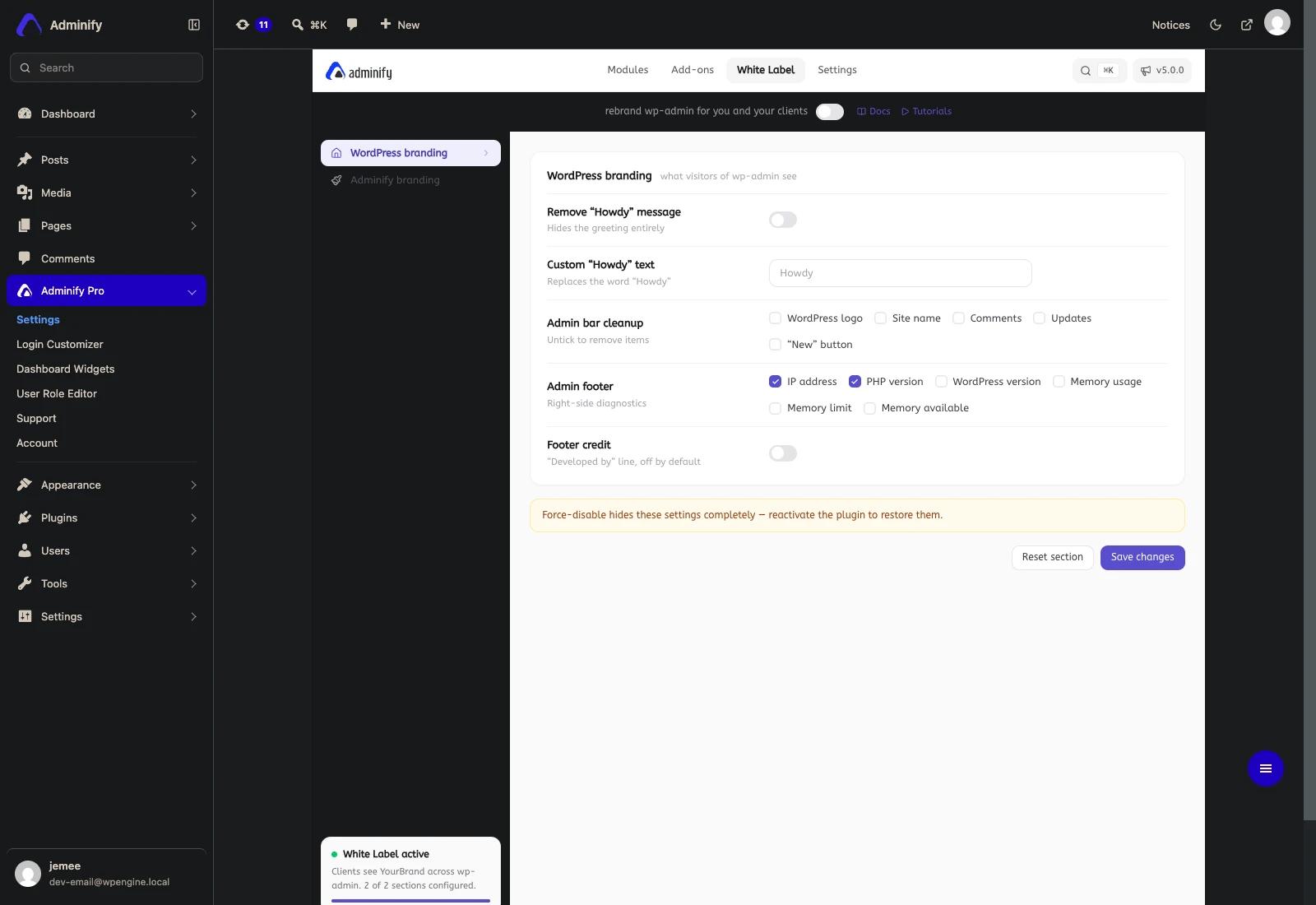
White label gets its own tab in V5 instead of a section in a form. You switch between WordPress branding and your own, clear the admin bar item by item, choose which diagnostics appear in the footer, and force disable the whole panel so nobody can switch your branding back. If you are new to the idea, our guide to white label WordPress covers what to remove and what to leave alone.
Upgrading from Adminify 4
Back up first. It's boring advice and still correct, especially while V5 is in beta.
On upgrade, V5 runs a one time migration that reads your 4.x settings and writes them into the new module storage. It leaves your old options row in place and writes a backup copy to a separate option, so rolling back doesn't mean rebuilding your configuration from memory. Each module knows where its old setting lived, which is how a checkbox from the Performance tab ends up in a module with its own screen.
The requirements barely move. V5 needs WordPress 5.8 or newer and keeps the same PHP 7.4 minimum as version 4, so you won't be forced into a server upgrade. If you want to move a configuration between sites rather than upgrade in place, export from 4.x and import the JSON file into V5.
We're still documenting exactly what doesn't survive the migration. When that list is final it will go in the changelogs alongside the release notes, rather than in a post like this one.
What is still cooking
This build isn't finished, so here's where it stands. The UI Builder is in beta and its free and paid split isn't settled. Collections, which group modules by outcome such as website speed or store setup, hold fewer modules now than they will at release. The admin assets are unminified development builds, which explains the Dashboard numbers above. The Add-ons tab is empty while the new add-on API settles.
We're not putting a date on any of that. V5 ships when the beta stops producing surprises. If you want to shape what goes into it, tell us the one thing your clients always ask you about, because that's usually something the admin should have answered on its own. The dashboard customization features are where most of those answers end up.
Frequently asked questions
When is WP Adminify V5 released?
There is no release date yet. V5 is in alpha and the UI Builder is in beta, so the build is still changing week to week. It will ship once the beta stops producing surprises, and the release notes will land in the changelogs when it does.
Will V5 break my current setup?
Upgrading runs a one time migration that copies your version 4 settings into the new module storage. Your old settings row stays in place and a backup copy is written to a separate option, so a rollback does not mean rebuilding your configuration by hand. Back up before upgrading anyway.
Do existing Pro customers pay for the new features?
No. Every new Pro module in V5 is included in the Pro licence you already hold, with no additional subscription. Adminify's own white label branding remains an Agency plan feature, as it is today, so that one sits outside the included set.
Can I give clients a different admin to the one I see?
Yes, that is what the UI Builder does. You build an admin layout on a canvas, assign it to a role or a user, and themes are checked in priority order with a fallback for everyone else. Each theme shows how many users currently see it.
Does WP Adminify V5 need a newer PHP or WordPress version?
V5 requires WordPress 5.8 or newer and keeps the same PHP 7.4 minimum as version 4. No server upgrade is forced by the update. The plugin was developed and tested against WordPress 7.1 on PHP 8.5.
Is V5 faster than Adminify 4?
On the plugin settings screen it responds about twice as fast: 108 milliseconds against 206, measured across eight cache cleared runs on one machine with both versions set to a comparable feature set. The page is also 21 percent lighter. Total load time is close to level, and the alpha is currently slower on the Dashboard because it ships unminified builds.
Where this leaves you
If you run one site, the parts of V5 that matter most are the module browser and the command palette: less hunting, and a plugin that only loads what you switch on. If you run client sites, watch the UI Builder and the portable configuration file. Together they replace the handover email thread with a layout you design once and reuse.
If you're already on Adminify 4, your licence covers all of it and your settings come with you.
We'd rather hear about the rough edges now than after release. If something here doesn't fit how you work, tell us while it's still cheap to change. You can follow what lands in each build on the changelogs page. For anyone running WordPress at the version boundaries, the official WordPress requirements page is worth a glance before you upgrade anything.

Your email address will not be published